
How to Make a Bible Story Animation Video With AI
The workflow is not “prompt once, get a film.” In the source video, the creator uses MagicLight for roughly 70–80% of the job, then finishes the cut in an external editor. The eight steps below follow that same order—script first, then the tool—so you can follow along instead of guessing which button comes next.
Write the story before you open the tool
The video starts with Bible study and research, not a prompt. The creator writes his own script first, then uses ChatGPT to develop the screenplay, dialogue, narration, visual ideas, sound design, and scene descriptions. That division matters: the story and the theological choices stay human; the tool helps make them shootable.
Do not start with “the life of Peter.” Start with a scene that has a clear before and after. Matthew 14:22–33 works because the emotional turn is built in: calm obedience, a storm, an impossible figure on the water, a step of faith, a failure, and a rescue.
“Take courage. It is I. Do not be afraid.”
Do not paste a whole Gospel into the generator
Choose one scene with a clear turn. If you cannot summarize it in five lines, keep writing. The model can invent details; it cannot invent a spine for your film.
Turn the script into a director’s prompt
Next, the creator builds a master prompt for the scene in ChatGPT, then derives an image prompt and a basic animation prompt for each shot. This is the step beginners skip—and the reason their results feel generic. A director’s prompt is a shot list in disguise.
Write what the camera sees, not what the scene means. Replace “the disciples are afraid” with a location, a subject, an action, a camera move, a light source, and a duration. Then add the references you will tag inside MagicLight.
Night, Sea of Galilee. Wide shot: Peter steps from the fishing boat onto the water; five disciples hold the rigging behind him; rain, wind, deep teal storm light; slow push-in; 6 seconds. Keep @Peter, @Jesus, and @Boat consistent with their references. Cinematic 3D animation, natural lip-sync, no character morphing.
Location, subject, action, camera, light, duration—plus the reference tags you will reuse inside MagicLight.
Direct the blocking, not just the mood
The model can improvise texture. It should not improvise where the camera is or when the shot changes. Those decisions belong in the prompt.
Seed the project in Story to Video
With the script ready, the creator copies a few parts of the text into MagicLight’s Story to Video workspace. He deliberately chooses the lowest duration and shot count—1 minute and 12 shots at the time of filming—to save credits, because he plans to direct most shots himself. If your workspace labels the options differently, choose the smallest option that still gives you enough shots to start.
Then choose one art style. In the video, that is MagicLight 3.0 Pixar. Click Next and let the agent analyze the story into shot text. This is a sketch, not the finished film.
Style is chosen once, then protected in every prompt. The four frames below are the same shot graded four ways—not four MagicLight presets. Use the comparison to decide what “consistent” should look like before you generate forty shots.
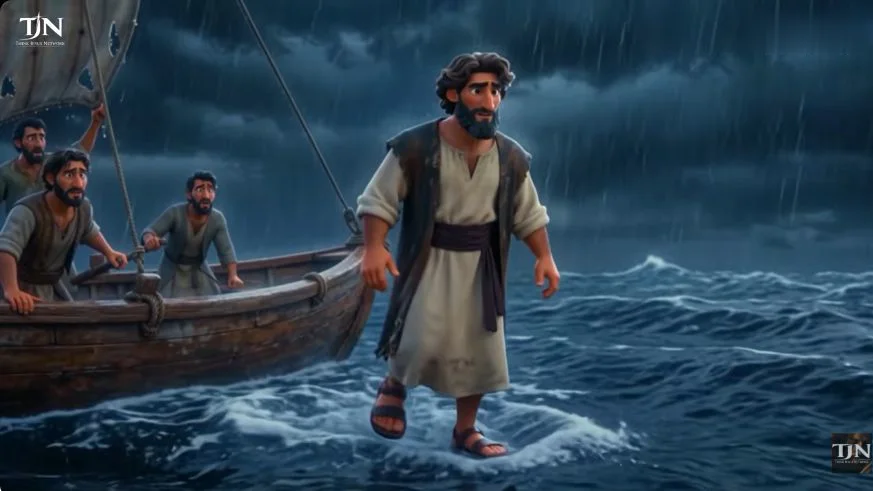 Cinematic
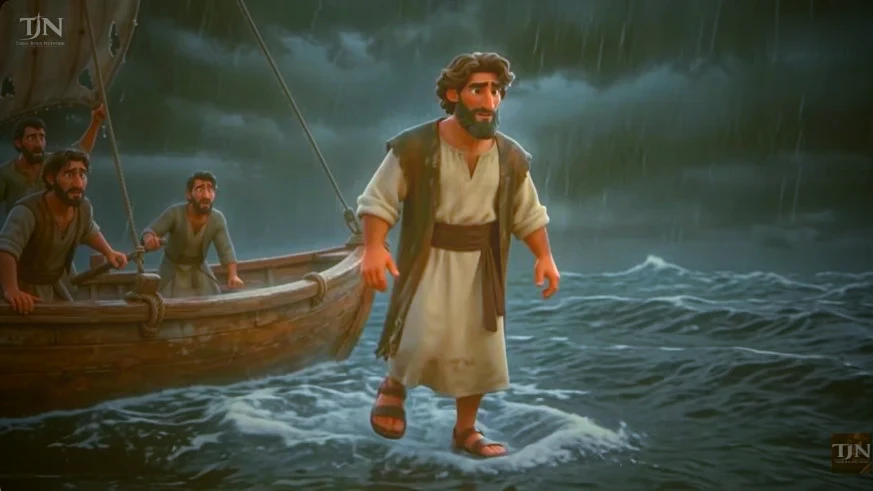 Painterly
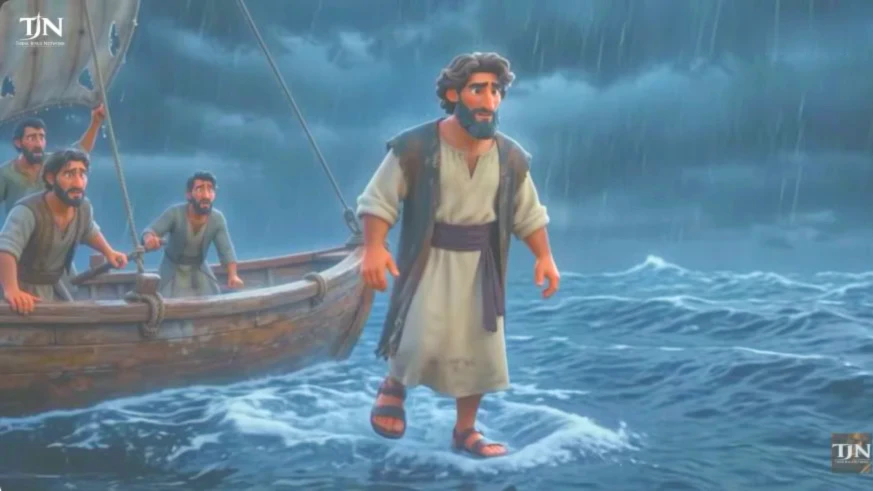 Storybook
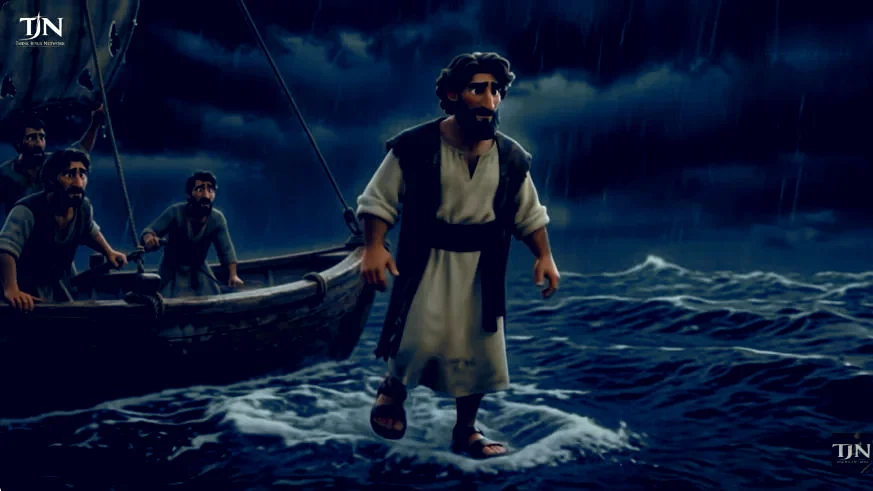 Nocturne
Illustrative grades on one frame. In MagicLight, choose the preset in the style step—the video uses MagicLight 3.0 Pixar—then keep palette, contrast, and texture fixed across shots.
Let the agent draft shot text, not the film
The generated shots are a free sketchbook. Keep the useful frames, then replace the rest with your own director’s prompts.
Generate the cast and props in My Character
After the shot text is ready, click Next to generate characters. The creator writes personalized character prompts, generates the two main characters, and also creates a boat prop because it recurs in almost every shot. In MagicLight, recurring characters and props live in My Character and can be reused.
The consistency trick is tagging. In a shot prompt, type @ to mention the saved character or prop—@Jesus, @Peter, @Boat—and select the reference. The model then has a face and an object to hold onto, not just a description.
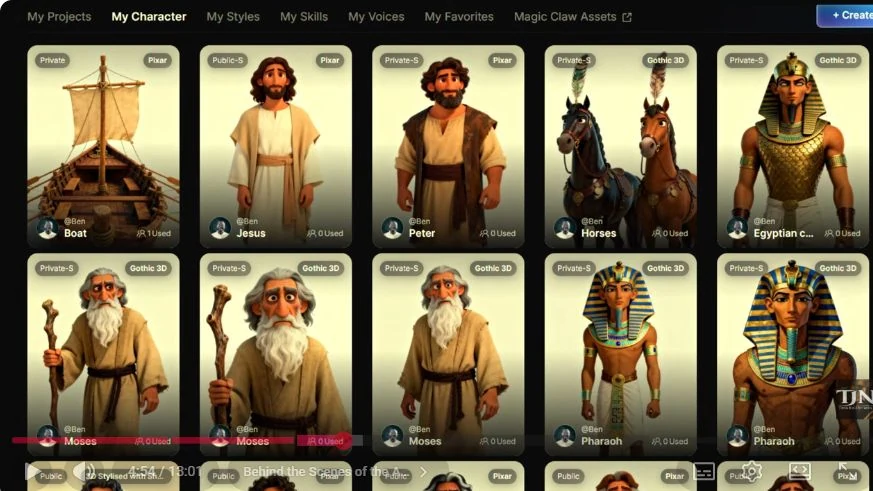
Build the cast before the shots
A reference generated after twenty shots is a redesign, not a fix. Lock face, hair, beard, robe, age, and the boat before you animate.
Generate the shots, then direct your own
MagicLight generates an initial set of scenes from the story text. The creator reviews them for useful frames, then replaces most of them with his own prompts. The in-tool sequence is: open a shot, select the characters and props, paste the director’s prompt, tag the references with @, and click Generate.
One feature he relies on is the integrated Nano Banana 2 editor. It can remove a mountain that makes the sea look like a lake, or change season, time, and camera angle while keeping the same scene. That is cheaper than regenerating from zero—and it protects continuity.
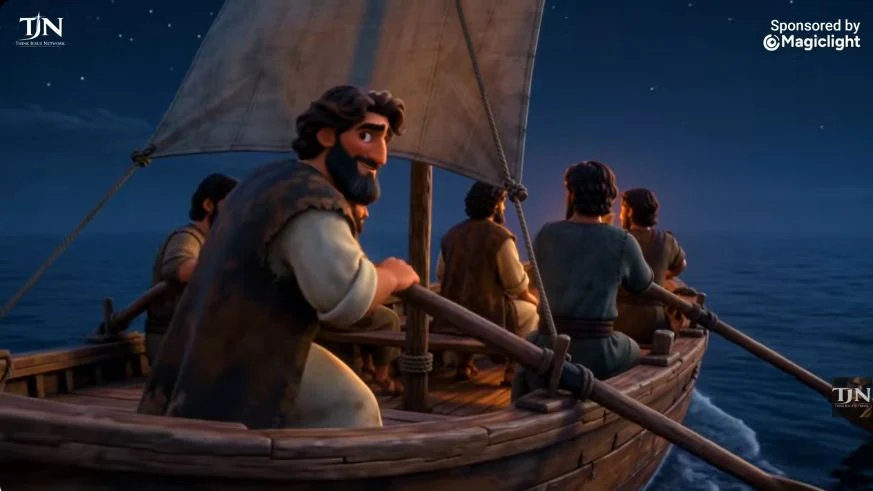 Wide · boat, oars, open sea
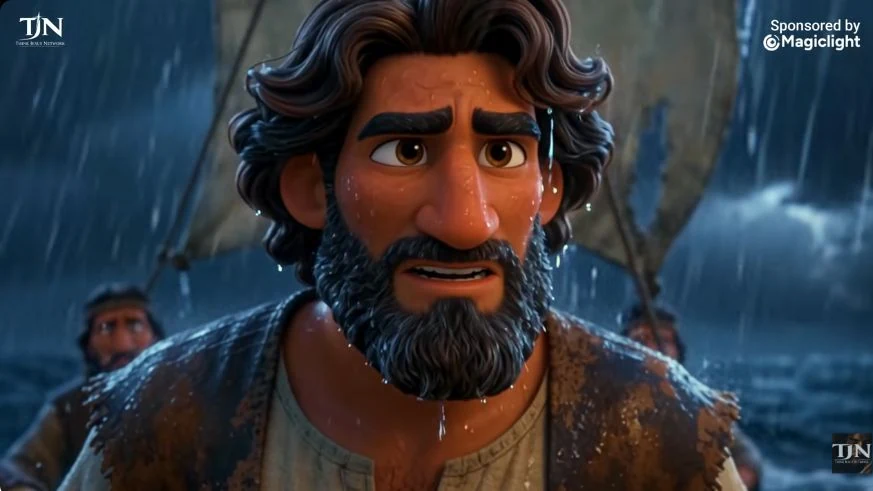 Close · rain, wind, fear
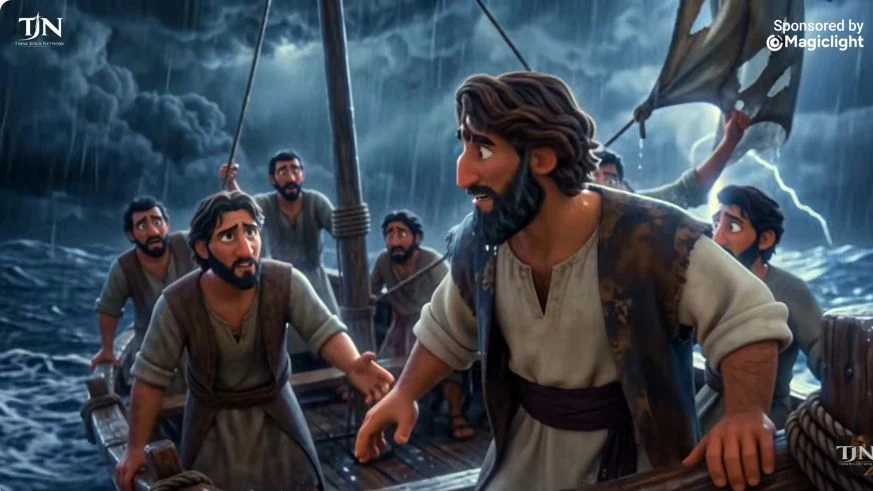 Medium · the boat in chaos
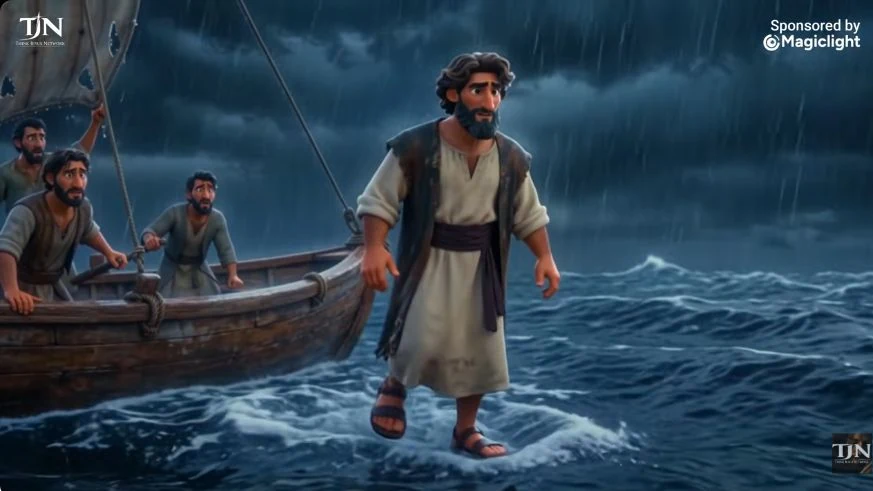 Low angle · Peter steps out
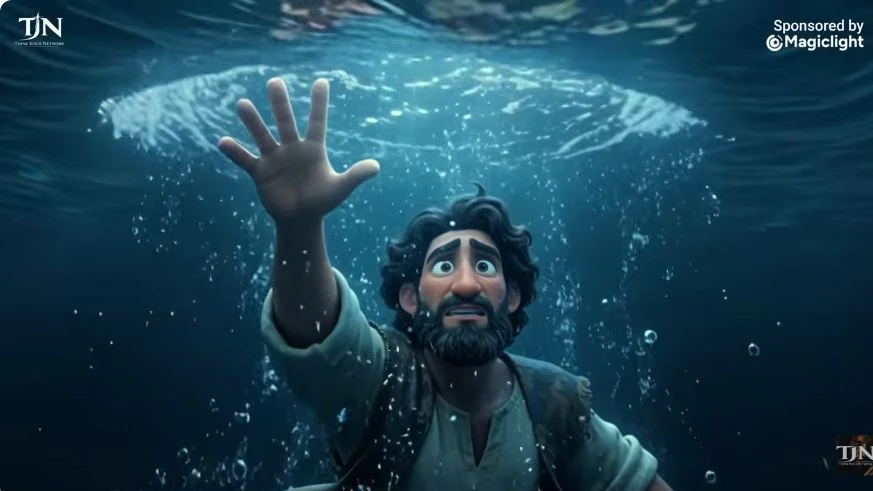 Underwater · Peter sinks
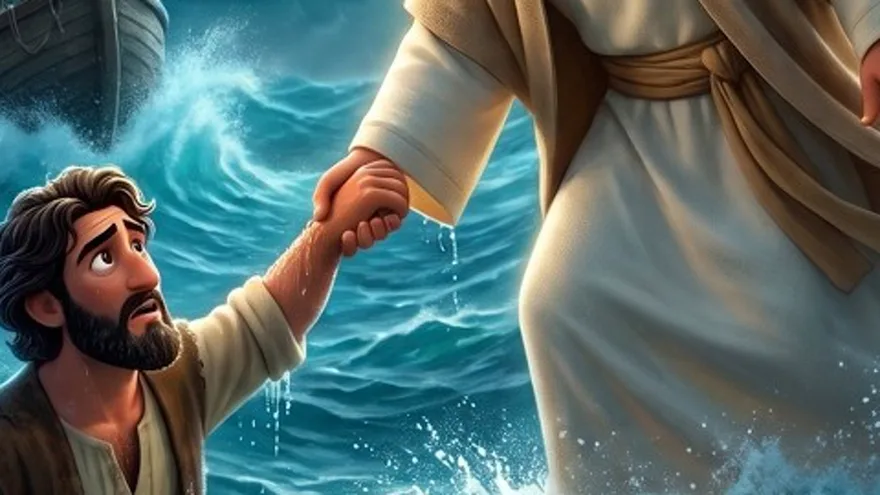 Close · the hand catches him
The board above is illustrative, built from the channel’s visual language. In the project, the approved still is the frame you send to animation.
Fix the still before you animate
A wrong mountain or eyeline becomes a motion problem. Clean the frame first, then download the approved images and character references for animation.
Animate in the toolbox with references, not luck
The video does not animate from text alone. He opens the MagicLight toolbox and chooses an animation model—Wan 3.0 in this project, with Veo and Wan 2.5 also available—and keeps 16:9. Wan 3.0 can generate up to 30 seconds, but the film is still built from separate directed shots.
For each shot, he selects the finished scene image, adds the character references, attaches a five-second voice-reference audio file for each main character, and writes a prompt that tags the images, the characters, timestamps, and camera movement. Then he appends a consistency block to every animation prompt.
Natural lip-sync, maintain continuity, cinematic and smooth animation, consistent color grading. No glitches, no sudden character morphing. Preserve the Pixar 3D art style. Octane render, 8K, rich textures, polished CGI finish. No background music.
Water is the hardest part of this story—and the easiest place to lose the miracle. If the sea is a static blue texture behind a moving figure, the shot reads as a composite. You need layered motion: the hull rocking, the sail snapping, spray breaking over the bow, the robe moving, the hair lifting, and a camera that responds to the swell.
For the walking-on-water shot, protect the contact points. Feet should meet the surface, not float above it. Keep the camera move slow and low. Let the figure approach the boat rather than cutting straight to a close-up. The tension is in the distance.
Motion study · stormShot checklist
- Scene image is the first frame
- Tag @Peter and @Boat in the motion prompt
- Hull rise and fall, one clear rhythm
- Voice reference handles the line, not the storm
- Camera drifts, then settles on the hand
Animate in directed beats, not one long generation
Wan 3.0 can run longer, but short shots are easier to review, redo, and cut. Keep the camera move and the action in the prompt.
Generate voice and music inside the workflow
Voice consistency comes from the reference clips you attach in Step 6. The creator records a five-second sample for each main character and reuses it, so Jesus and Peter sound the same from shot to shot.
For music, MagicLight integrates Suno AI (the video also mentions a second music generator). He generates the background bed in the tool, then keeps “no background music” in the animation prompt so the mix stays under his control.
Build three layers: voice, music, and effects. Duck the music under narration. Use wind, hull creaks, rain, and wave impacts to establish space. Then use silence—just a beat—before the line that matters.
Generate music after the cut is locked
A bed written to a finished edit fits. A bed generated before the edit forces the picture to chase the music.
Download, edit, and review before export
MagicLight handles roughly 70–80% of the workflow, not all of it. When the shots and music are generated, the creator downloads the images and characters, then assembles the film in an external video editor. That is where timing, transitions, subtitles, and the final mix happen.
Watch the finished film with the passage beside it. Check names, order of events, geography, and tone. Did you add dialogue the text does not support? Did you make Peter brave in a way that removes the point of the rescue? Did the storm become entertainment while the hand became an afterthought?
Then export for the places the film will actually be seen. Keep a master file, make a vertical companion cut for Shorts, and save the project so the next episode can reuse the cast and the look.
Master · 1080p or 4K
YouTube, services, projectors, and long-form viewing.
Vertical cut
Shorts, Reels, and social discovery. Reframe, do not crop blind.
External edit
Assemble shots, voice, and music in your editor; keep the project file with the approved assets.
Do not mistake a generated clip for a finished film
MagicLight gives you the assets and the motion. The edit still decides pace, silence, and which take carries the scene.
Inside the 13-Minute Film
The chapter structure of Can You Walk on Water Like Peter? is a useful production map. It shows where the story ends and the workshop begins—and how a single passage is paced across a full episode.
The Miraculous Day on the Shore
Establish the world before the crisis: the disciples, the boat, the aftermath of the feeding. Calm is production value. It makes the storm legible.
Sudden Winds and Rising Panic
The storm escalates through faces, hull, and water. Fear is the engine of the scene, not the waves alone.
Walking Upon the Turbulent Water
The rescue sequence. The camera has to hold distance long enough for the figure to be impossible, then move in for the hand.
Behind the Scenes of the Animation
The workshop opens: storyboards, workspace, generation, and the unglamorous work of assembling a film shot by shot.
Mastering the Animation Toolbox
Model choice, reference images, voice clips, and the repeatable animation setup that carries into the next episode.
The film runs 13:02. Roughly the first third is the story; the rest is the making of it. That ratio is worth noticing. The finished miracle is short. The craft behind it is long. AI compresses some of that craft, but it does not remove the decisions.
0:53 · calm before the storm1:30 · the boat in chaos3:35 · Peter goes under“The miracle is not the spectacle. It is the hand that catches Peter.”
A production note for this scene
What the film gets right
It withholds the reveal. The storm is allowed to be frightening before Jesus appears. That patience makes the figure on the water land as a disruption, not a decorative entrance.
It keeps the boat in the story. The disciples are not a background crowd. Their fear, their faces, and the physical limits of the boat give the miracle something to push against.
It treats the rescue as the climax. Peter walking is the famous image. Peter sinking is the human one. The hand that catches him is the theological center, and the edit should protect it.
Watch the source before you copy the workflow
The film is a dramatization, not a doctrine lesson. Read Matthew 14:22–33 alongside it, note what the text emphasizes, and let your own review—not the tool’s confidence—decide what stays.
Eight Rules for Bible Animation
These are the decisions that separate a respectful film from a generic AI clip. None of them require a bigger budget. All of them require attention.
Read it aloud first
Hear the passage before you visualize it. The rhythm of the text usually suggests the rhythm of the edit.
Keep the supernatural understated
A quiet impossibility is more powerful than a light show. Restraint protects reverence.
Build a reference kit
Faces, robes, boat, geography. Consistency is a production asset, not a lucky prompt.
Design for the cut
Every shot needs an entrance and an exit. If the edit has nowhere to breathe, the scene will feel like a slideshow.
Do not invent dialogue
Use the text, or use silence. Added lines are the fastest way to make a Bible film feel like a different story.
Make the first ten seconds a question
Who is in the boat? What is coming? A question gives the viewer a reason to stay for the answer.
Review with someone who knows the text
Fresh eyes catch names, order, and tone. A pastor, teacher, or study partner is part of the pipeline.
Plan the vertical cut early
If Shorts matter, compose key moments with headroom and a centered subject. Reframing later is not always possible.
The Story Is the Production Budget
AI lowers the cost of making an image. It does not lower the cost of making a decision. The films that last are still built on a clear passage, a locked cast, and a shot list someone cared about.
If you want to make your own Bible story animation, start smaller than you think. One passage. Three to five beats. One character reference sheet. One storm you can actually finish. The Peter Walks on Water film is useful not because it is 13 minutes long, but because every minute has a job.
Build the first shot. Review it with the text open. Then build the next one. That is the workflow—and, in a quiet way, it is also the point.
Turn one passage into a finished film.
MagicLight’s Story to Video workflow takes a treatment, drafts the shot text, and gives you the cast, stills, and animation tools to build the film. Finish the cut in your editor.
Frequently asked questions
Can AI make a Bible story animation that stays accurate?
AI can generate the visuals, but it cannot be trusted to guard the text. You control the script, the shot list, and the review. Keep dialogue short and scriptural, check the order of events, and have someone who knows the passage watch the final cut.
What is the best length for a Bible story animation?
One passage per episode is a reliable rule. A single beat can carry a 60–90 second Short; a full narrative episode can run 8–15 minutes. Length should follow the number of beats the text gives you, not an arbitrary target.
Do I need to animate every shot?
No. A mix of still frames with slow camera moves and short animated clips often works better than constant motion. Reserve full animation for the moments that carry the story—the storm, the first step, the rescue.
How do I keep Jesus and Peter consistent across shots?
Generate the character once in My Character, then tag the saved reference with @ in every shot and animation prompt. Reuse the approved asset, keep one style and model for the film, and regenerate only the shots where the character drifts.
Can I use this workflow for other Bible stories?
Yes. The structure is portable: choose a passage, write the script, build director’s prompts, seed Story to Video, generate the cast and props, direct the shots, animate with references, add music, and finish the edit. David and Goliath, Jonah, Esther, and the nativity all fit the same pipeline.
Was the Peter Walks on Water film made with MagicLight?
Yes. THINK JESUS NETWORK credits MagicLight AI in the video description and the film includes a behind-the-scenes chapter showing the animation workflow. The film runs 13:02 and was published in October 2026.