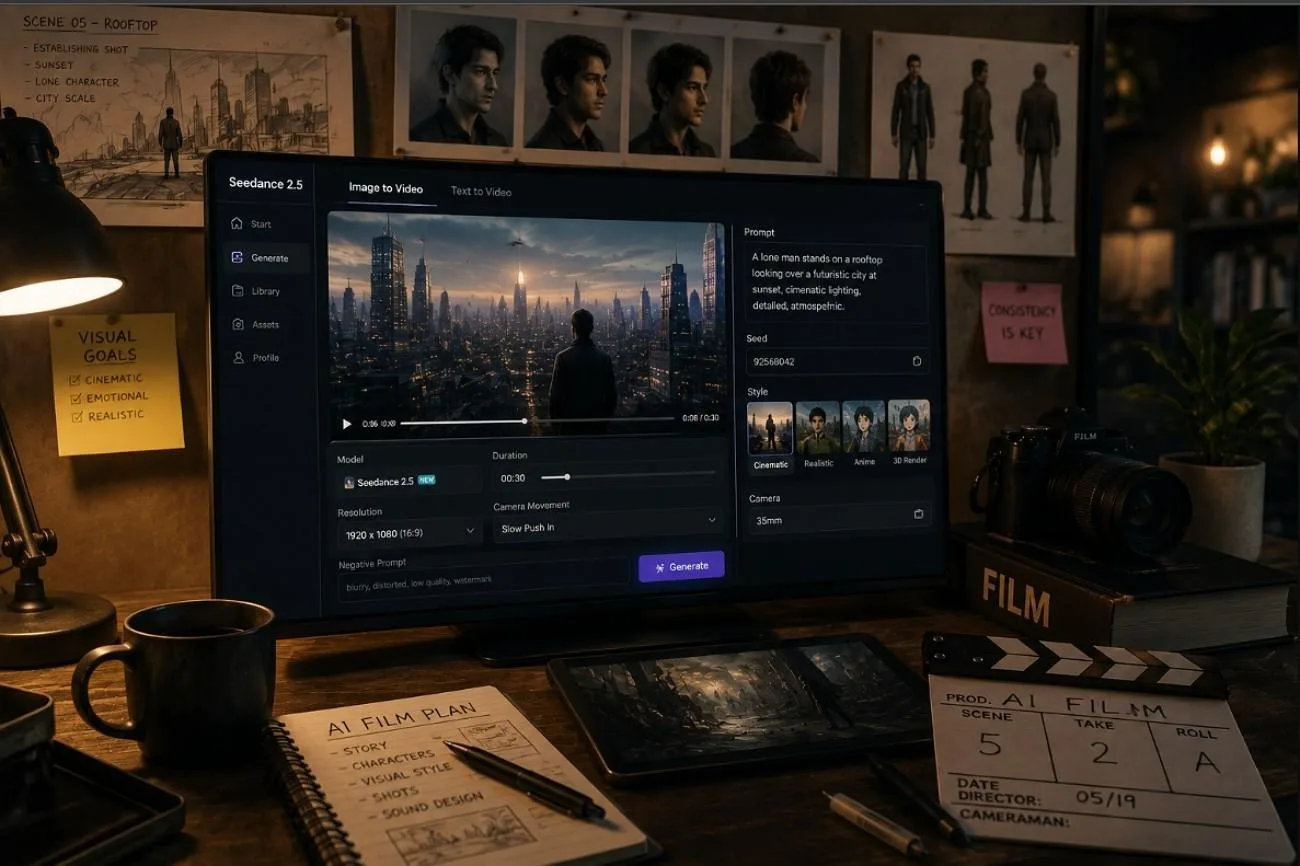
Short films created with AI usually fail at the seams rather than in the shots. Individual clips look convincing alone, then fall apart when a face shifts between them or the lighting jumps at every cut.
Using Seedance 2.5 for AI films addresses part of that problem through longer takes and a far larger reference budget. This guide covers what the model contributes, how to plan a film around its limits, and where a production platform still has to take over.
Part 1. Why Seedance 2.5 Fits AI Filmmaking
Those technical strengths only matter if the project is planned around them. Before generating anything, create the film in a way that fits Seedance's strengths and limitations.
Native 30-Second Scenes Reduce Clip Stitching
Short clip limits are common across AI video models, which means longer scenes usually require several separate generations. Seedance 2.5 raises that limit to 30 seconds on supported platforms, reducing how often scenes need to be split. That duration is typically enough to capture complete scenes such as:
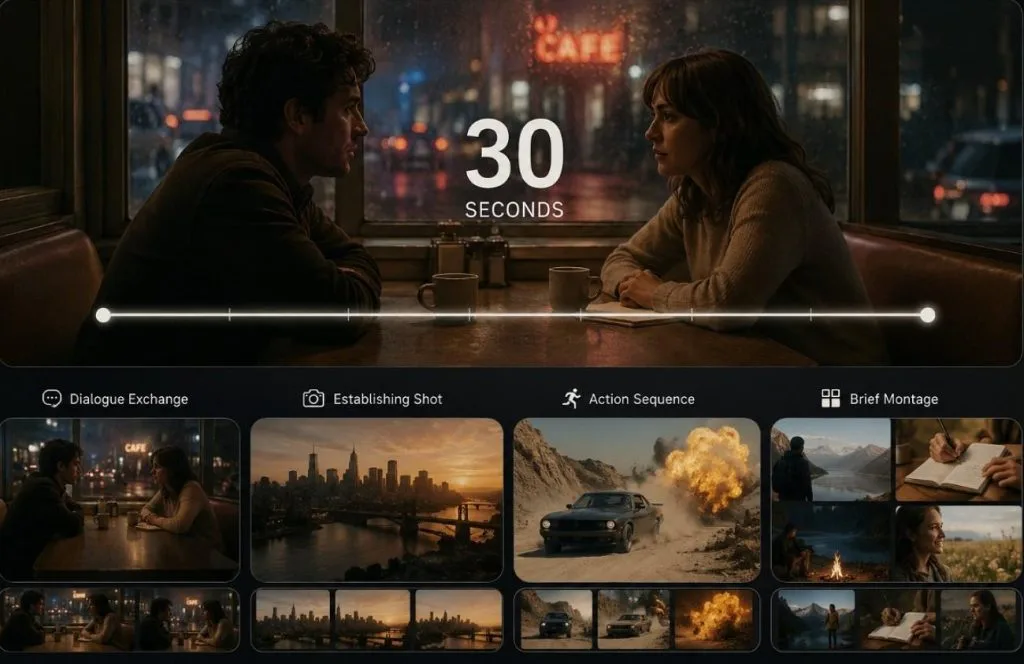
- A full dialogue exchange between two characters.
- An establishing shot that slowly pushes in and settles.
- A short action sequence with a clear beginning, middle, and end.
- A brief montage connecting several related moments.
When a scene needs to run longer, some platforms provide video-extension tools, reducing the number of separate clips needed to complete a sequence.
The 50-Asset Multimodal Reference System
Reference volume gives Seedance 2.5 for AI films a clear advantage over simple clip generation. A single brief accepts up to 50 assets, and the mix matters as much as the total:
| Asset Type | Typical Capacity | What It Anchors in a Film |
| Images | Around 30 | Faces, wardrobe, props and set dressing |
| Video clips | Around 10 | Movement, blocking and camera behavior |
| Audio files | Around 10 | Voice character and ambient tone |
Blocking can also be guided through green-screen plates and 3D white-model blockouts, giving the model clearer spatial and camera references alongside written prompts.
Timestamp-Level Editing for Fixing Specific Shots
Reshoots consume time and credits in any AI production, and generated footage is no exception. A single incorrect gesture or timing issue can force an entire scene to be regenerated, even when the rest of the take looks right.
For Seedance 2.5 for AI films, supported editing tools let creators modify a selected moment or marked region while preserving the surrounding footage. Small corrections therefore become targeted edits instead of complete regenerations.
Part 2. Planning Your AI Film Before You Generate
Planning becomes especially important when using Seedance 2.5 for AI films because the model generates scenes from written prompts rather than live direction. Careful preparation reduces unnecessary regenerations, helping save both time and generation credits.
Writing a Script Built for AI Scenes
Scripts for AI generation require a different level of detail than scripts written for actors. The model can only interpret what you explicitly describe, so these 4 practices consistently produce better results.
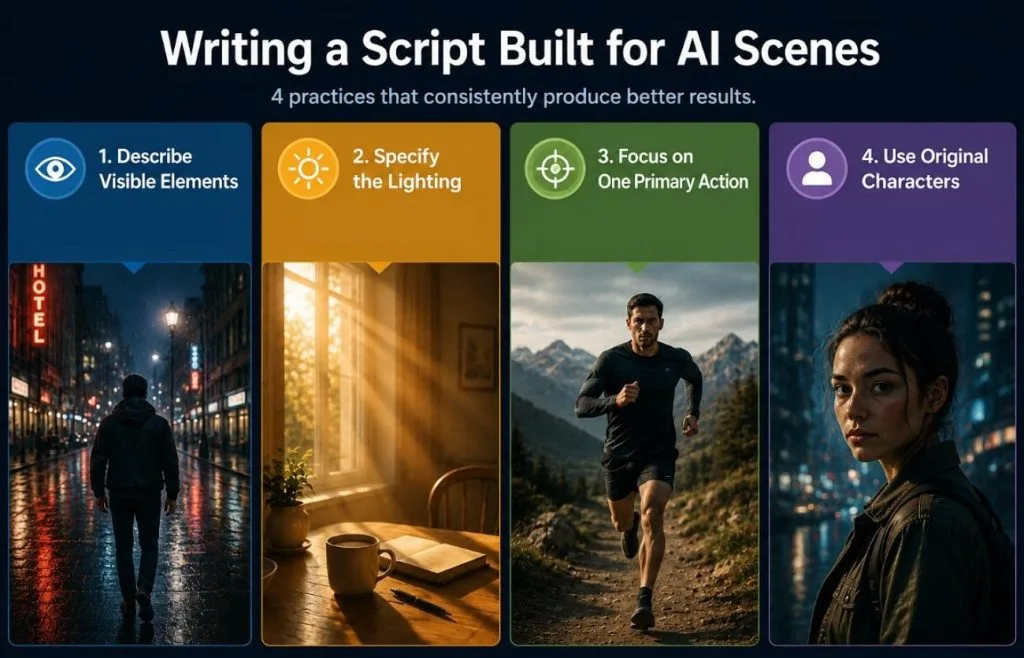
- Describe Visible Elements: The model cannot infer internal thoughts, emotions, or backstory unless they are expressed visually.
- Specify the Lighting: Direction, quality, and color temperature influence a scene more than broad descriptive adjectives.
- Focus on One Primary Action: Multiple simultaneous actions often reduce consistency and make outputs less reliable.
- Use Original Characters: Seedance 2.5 platforms may restrict public figures or copyrighted characters, so original characters are generally safer for every role.
Breaking a Story Into Shot-Sized Scenes
The 30-second scene limit shapes both the technical workflow and the story structure. Instead of forcing a long sequence into several connected generations, build each scene around one complete moment. That approach usually creates cleaner transitions later.
A 3-minute film typically works out to 6 or 8 scenes. Give each one a single purpose, whether it is a conversation, an action, or an establishing shot. When the story needs a major shift in location, time, or action, start a new scene instead of extending the previous one. Outlining every scene before generation also exposes pacing problems early, making revisions easier before credits are spent.
Creating Character and Visual Reference Sheets
Consistent reference material improves character and scene continuity far more reliably than prompts alone. Before generating any footage, prepare a reference sheet for each main character that includes:
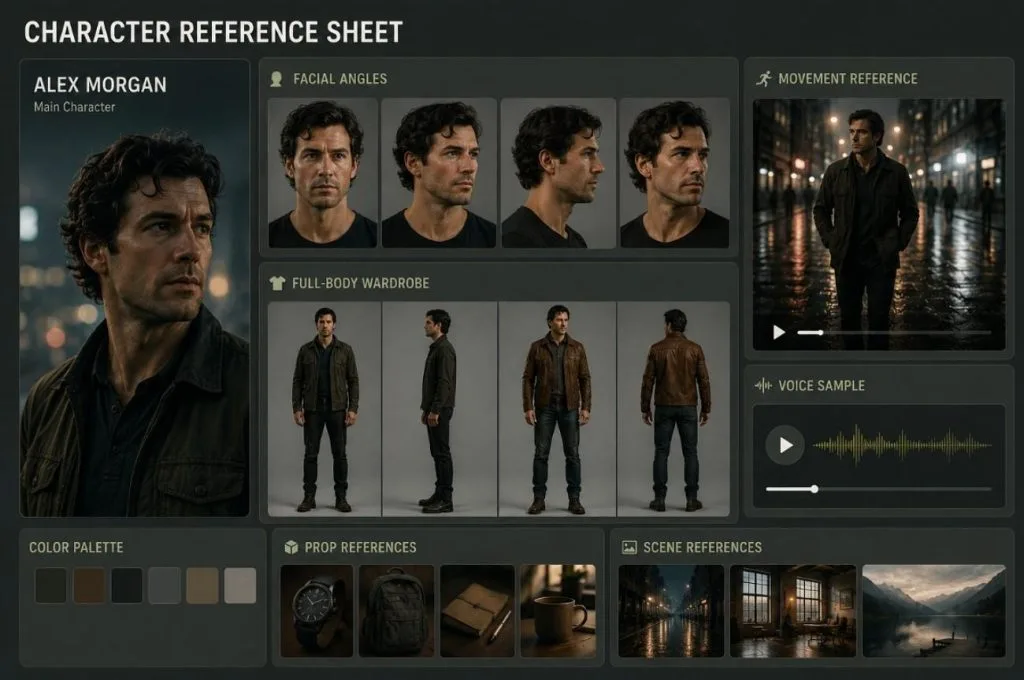
- 3 to 4 facial angles captured under neutral lighting.
- A full-body wardrobe reference, including any costume changes.
- A short movement clip showing posture, expressions, or walking style.
- A voice sample, if the scene relies on spoken dialogue.
The same applies to settings, where 2 or 3 frames of a location hold its geometry across separate generations.
Part 3. Generating Your Film Scene by Scene
With a script and references prepared, generating Seedance 2.5 AI films becomes a sequence of decisions rather than a run of experiments. The following 3 choices then recur on every scene.
Text-to-Video vs Image-to-Video for Each Scene
Every scene has different continuity requirements, so the best generation method depends on what already exists and what still needs to be created. Review the table below to see which approach suits each type of scene:
| Scene Type | Better Route | Reason |
| Opening Establishing Shots | Text-to-video | Nothing exists yet to animate |
| A Location the Film Returns To | Image-to-video | A saved frame locks the geometry |
| Close-ups on a Known Character | Image-to-video | The face is fixed before motion starts |
| Abstract or Dream Sequences | Text-to-video | Prompt freedom outweighs continuity |
Mixing the two routes carries a practical benefit beyond continuity. Generating a key frame first through image-to-video gives a review point before the more expensive motion pass begins.
Keeping Camera Language Consistent Across Scenes
Even when characters remain consistent, changing camera styles can make scenes feel unrelated. Establish a small visual language before generation to keep the film cohesive.
- One Lens Character: Decide early whether the film is wide and deep or long and shallow.
- A Limited Move Set: 2 or 3 moves used repeatedly read as style, while 6 read as inconsistency.
- Consistent Height: Eye level, low angle, and overhead each carry meaning, so switching without reason muddles it.
Writing these choices into every prompt costs one line and saves a regeneration. Moreover, consistency here does more for a film's coherence than any single impressive shot.
Using References to Maintain Characters and Settings
Reference assets are most effective when each one has a clear purpose, such as defining a character's appearance, a location's layout, or the camera style. Labeling and reusing the same references across related scenes helps the model distinguish identity from visual style, reducing unwanted changes between generations.
Use the same reference set whenever a character or location reappears, even if the shot itself is different. Consistent reference assets strengthen visual continuity across the film, making characters, environments, and key design elements appear more stable from scene to scene.
Part 4. Build Seedance 2.5 Scenes Into a Full Film With MagicLight AI
The Seedance 2.5 for AI films handles individual scenes well, but it does not assemble them. That gap is where most AI film projects stall, since everything past generation stays manual.
Why Clip Generation Needs a Full Production Workflow
Generating clips is only one stage of producing an AI film. A complete project still requires script organization, scene sequencing, consistent characters, editing, narration, subtitles, and final export. Handling those steps across multiple tools often offsets much of the time saved during generation. Magiclight AI brings those tasks into a single production workflow.
Moreover, story to video accepts scripts of up to 12,000 characters, converts them into an editable storyboard, and organizes scenes before generation. The Asset Store keeps reusable characters in one place, making them easy to assign across multiple projects. Scenes are not tied to a single video model either, so Seedance 2.5 can be used only where it fits best.
Turning a Script Into Scenes Inside MagicLight AI
Magiclight AI treats the script as the unit of work, and Story to Video is where a film actually gets built. Here are the 6 steps to take a finished script through to an exported film:
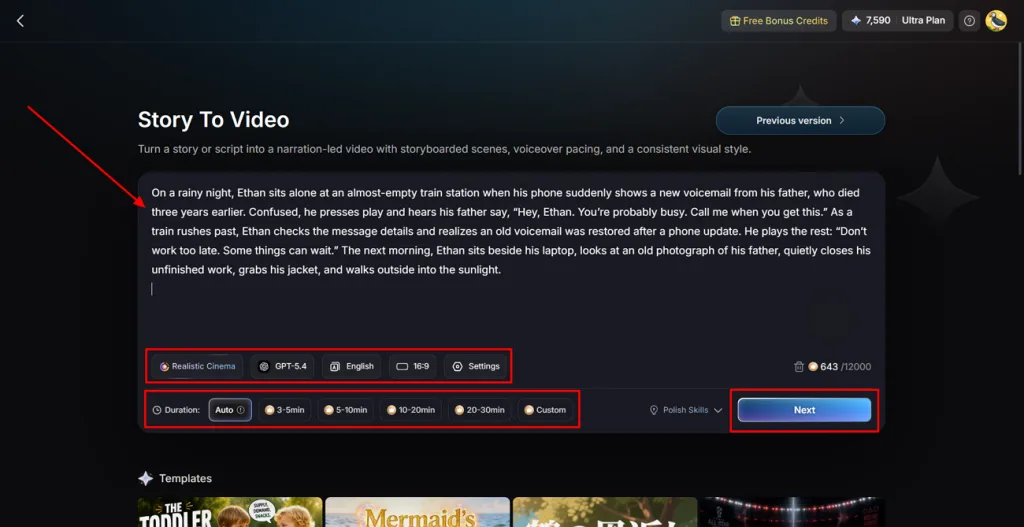
Step 1. Access Story to Video
Sign in to Magiclight AI and select Story to Video from the home page. Paste your script into the required space, then choose the language, aspect ratio, and output settings before clicking Next.
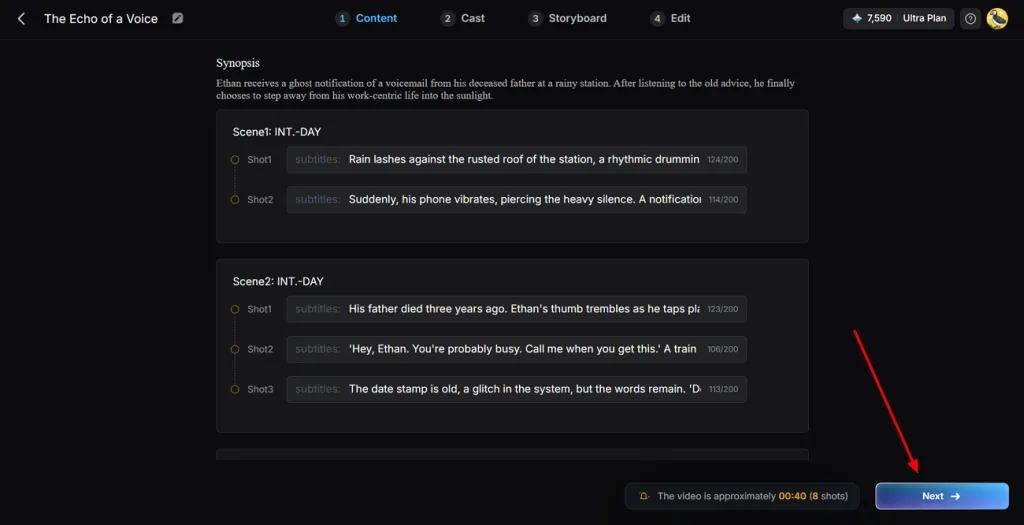
Step 2. Review the Storyboard
Read through the generated storyboard, edit any prompts or scene descriptions that need adjustment, and click Next when everything looks correct.
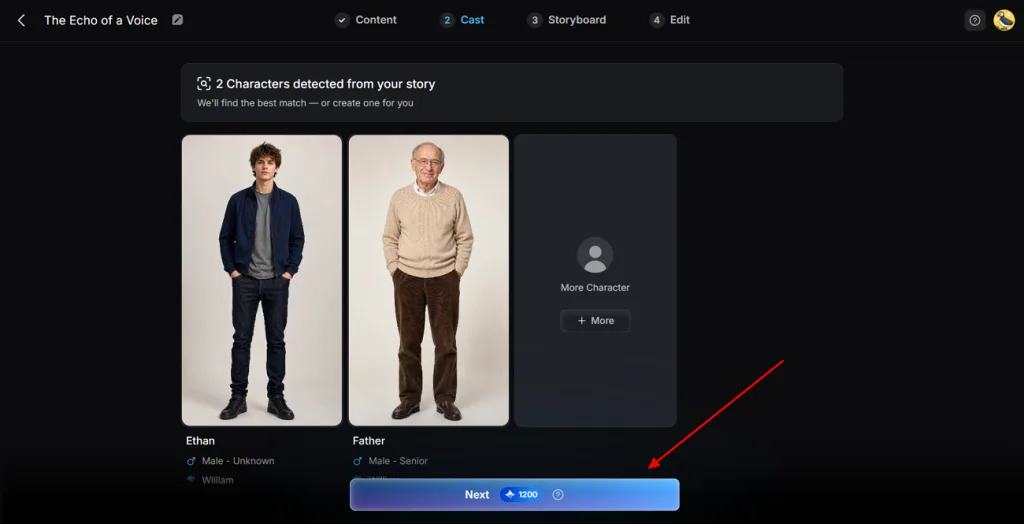
Step 3. Create or Assign Characters
Open the Cast page to review the detected characters. Select existing characters from the Character Library or create new ones, then assign them to the appropriate roles before choosing Next Step.
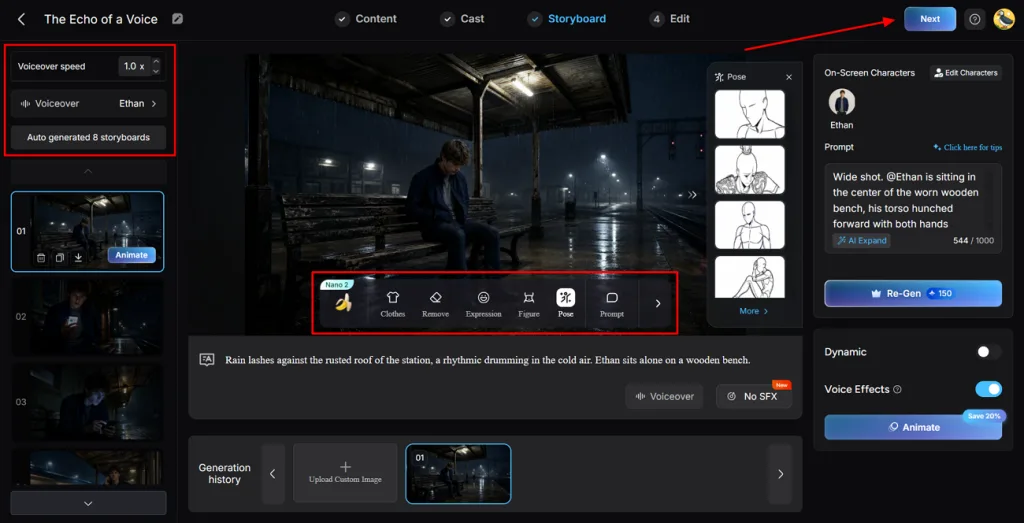
Step 4. Edit Individual Scenes
Go to the Storyboard editor, review each scene, update the prompt if needed, select the AI model, and click Next. You can select from more than 50+ poses available across the Nano Storyboard editor, allowing dynamic changes to your video.
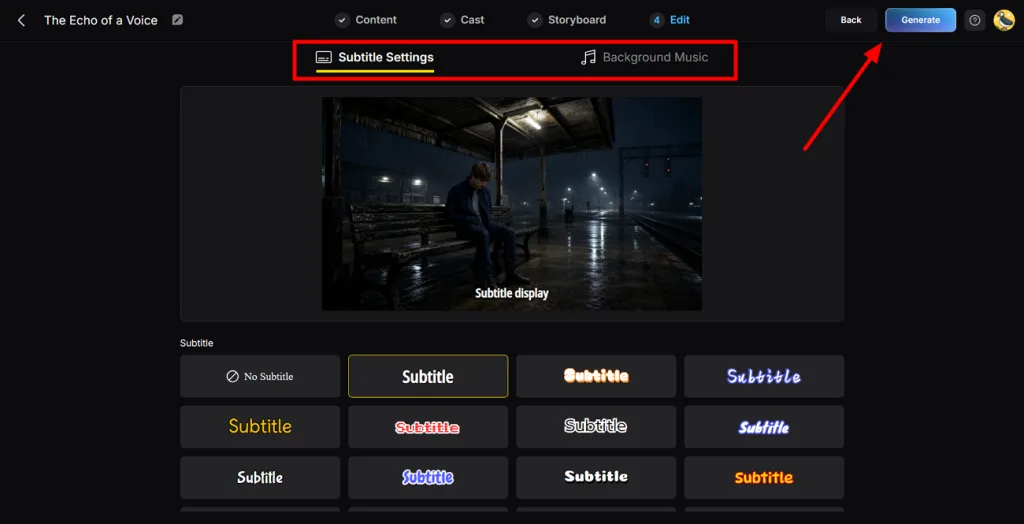
Step 5. Generate the Video
Go to the next page to configure subtitles, background music, and other finishing options. Once the settings are ready, click Generate to render the complete project.
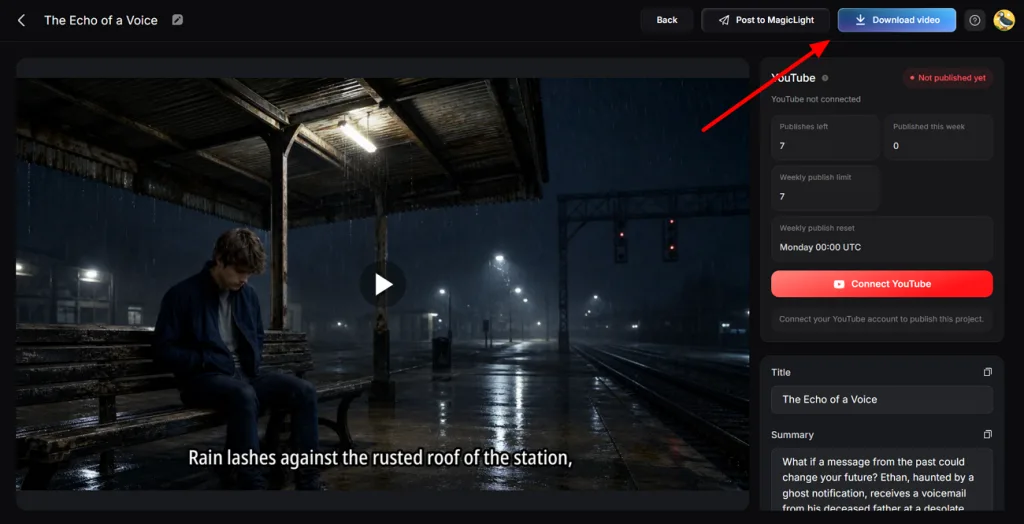
Step 6. Preview and Download
After rendering finishes, preview the completed video to check every scene. Update the title, description, thumbnail, or hashtags if needed, then click Download to export the finished project.
Conclusion
Using Seedance 2.5 for AI films is most effective when the workflow extends beyond generating individual clips. Longer scenes, multimodal references, and targeted editing reduce rework, but assembling those scenes into a cohesive film still requires planning and production tools. If you want to manage scripting, storyboarding, generation, and export in one place, Magiclight AI provides a practical workflow built around those needs.
FAQs on Seedance 2.5 for AI Films
- How long can a single Seedance 2.5 scene run?
30 seconds in one continuous generation, while some platforms also provide extension features afterward. Certain third-party services advertise extended sequences reaching about three minutes.
- Can Seedance 2.5 keep the same character across multiple scenes?
Yes, provided the same reference set is supplied each time. The 50-asset budget resets with every request, so a character sheet has to be reloaded rather than saved permanently to the model.
- How much does it cost to make a short film with Seedance 2.5?
A five-minute short is roughly 300 seconds of finished footage, landing near $69 at the reported 720p rate. Allowing three attempts per shot, a realistic budget passes $200. Drafting at lower resolution first reduces that figure substantially.
- Does Seedance 2.5 generate synchronized audio automatically?
Yes, Seedance 2.5 can generate synchronized audio alongside video in the same pass, including dialogue and sound, reducing the need for separate synchronization afterward.
- Can Magiclight AI handle a full-length AI film using Seedance 2.5?
MagicLight AI supports videos up to 50 minutes, which covers most short films comfortably. However, this limit should not be attributed specifically to Seedance 2.5.
![How to Write a Script for a Short Film in 2026 [Beginner’s Guide]](https://magiclight.ai/wp-2/wp-content/uploads/short-film-screenplay-writing-guide-300x169.webp)