Direct Motion With 1500 Characters
Describe subject movement, camera direction, and scene action in up to 1500 characters. Magiclight AI follows your prompt while using the reference image to guide how the subject appears.
Create Now
Give your reference subject movement without losing its familiar appearance. Magiclight AI keeps the face and important details consistent as the scene changes. No manual video editing experience needed.
Try Reference to Video AI For Free










Start with the subject you want to keep recognizable across the video. Magiclight AI reference to video lets you add references, describe the motion, and choose a video model.
Describe subject movement, camera direction, and scene action in up to 1500 characters. Magiclight AI follows your prompt while using the reference image to guide how the subject appears.
Create NowTurn a reference image into a moving video that can run for up to 30 seconds, depending on the selected model. Add enough time for subject movement, camera changes, and scene action.
Upload Reference
See how the same reference performs with 20 video models. Test options like Seedance 2.5 or Kling 3.0 for motion, camera behavior, and scene direction, then use Magiclight AI to find the result that suits your idea.
Generate a Video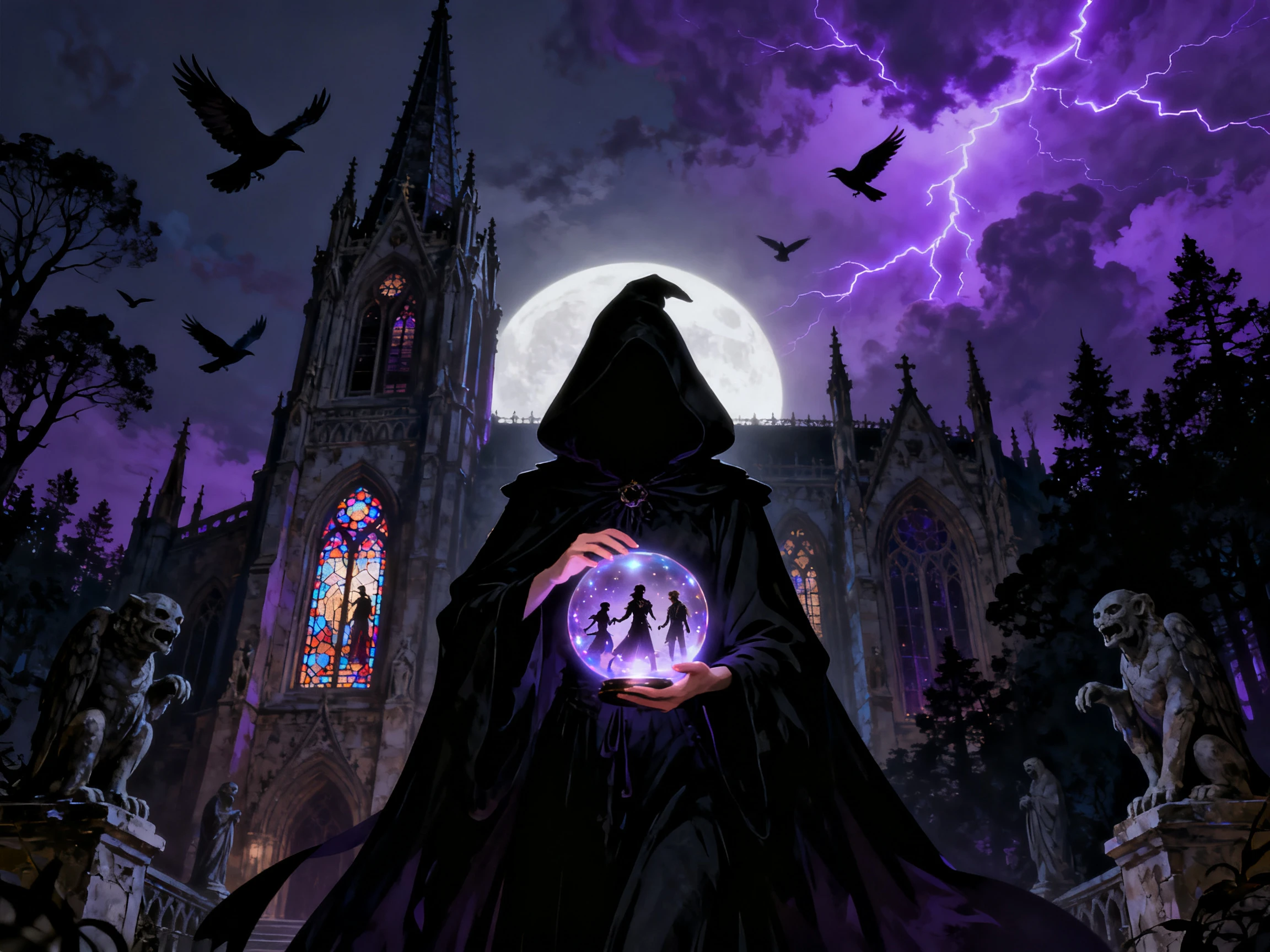
Create vertical 9:16 clips for mobile viewing or widescreen 16:9 videos for larger displays. Magiclight AI lets you select the aspect ratio that fits where your reference video will appear.
Start Creating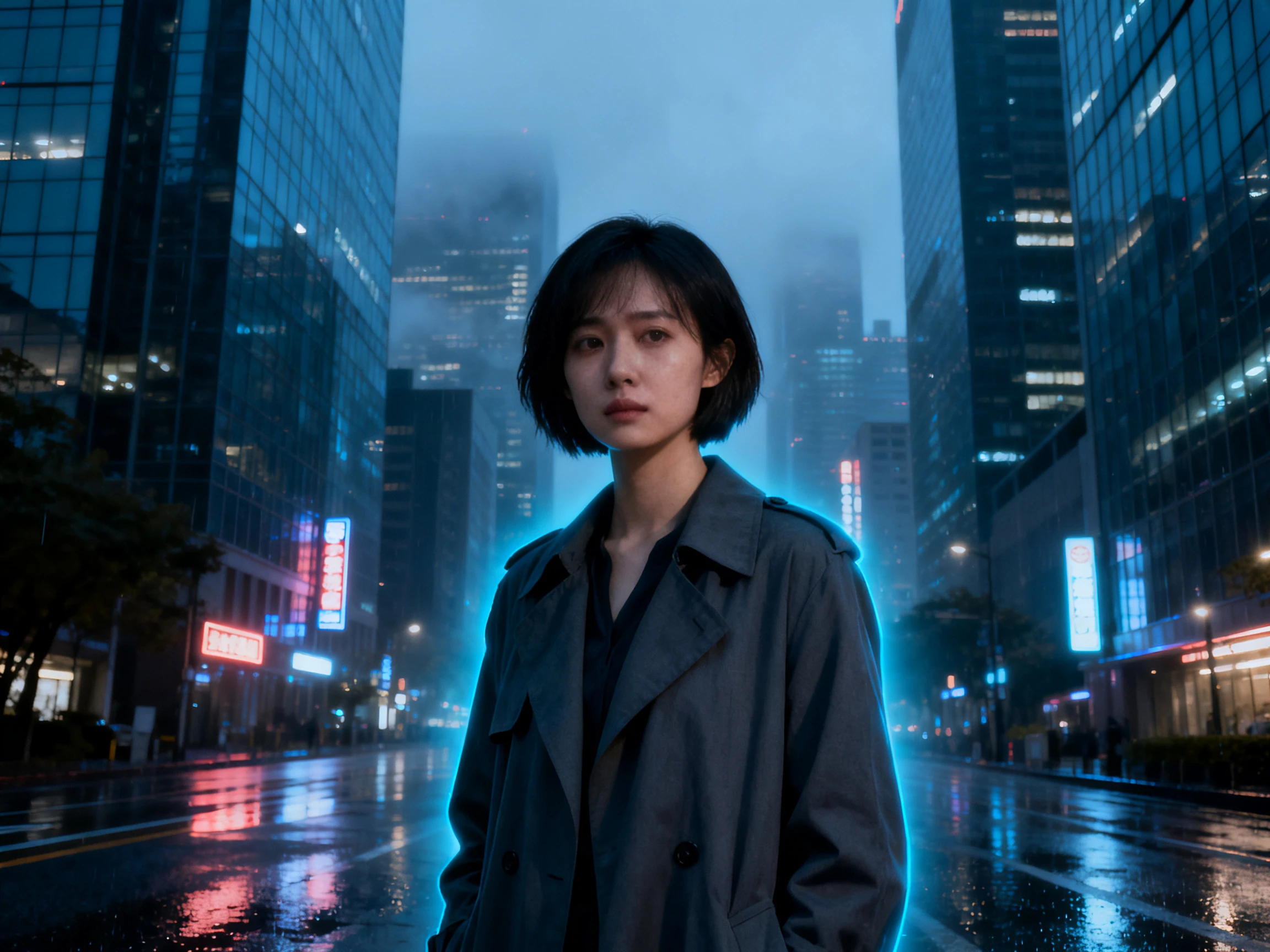


Create your video in 4 steps, starting with the reference you want to use. Magiclight AI reference to video lets you add references, select a model, and check the generated scene.
Upload clear JPG, PNG, or JPEG images under 10MB each. Add up to 5 reference images to give Magiclight AI clear views of the subject you want to keep recognizable.
Use up to 1500 characters to explain how the subject and scene should move. Include camera movement, actions, mood, and details that should stay consistent throughout the video.
Choose from 20 video models to turn your reference images into video. Test the same references with another model to compare subject motion, camera direction, and the generated result.
Watch the generated video and check how your reference appears during movement. Export in 720p or 1080p, depending on the video model you selected.
Animator
I kept seeing the face change once there was more movement in the scene. With Magiclight AI, the same facial details stay recognizable throughout the clip.
YouTuber
My product videos often looked close to the reference, but small details were off. The reference controls in Magiclight AI help me keep the label and product shape consistent.
Video Editor
Testing another model is much easier than trying to fix a result I do not like. I can run the same reference through different models in Magiclight AI and compare the motion before choosing one.
Filmmaker
Magiclight AI lets me use several reference images within the same project. I can guide a longer sequence without handling every reference as a separate video job.
You can upload up to 5 reference images. Magiclight AI uses them to better understand the subject and include more visual details in the generated video.
Yes. Image-to-video usually starts with one image, while Magiclight AI can use several references to guide the subject and give the model more visual information.
Clear reference images help keep the subject recognizable during movement. Magiclight AI uses those uploads to guide important facial, character, or object details.
Describe the action, camera movement, mood, and scene direction you want. You can use up to 1,500 characters in Magiclight AI to explain how the subject should move.
Yes. Product photos can be used as references, and Magiclight AI can add movement while using those images to guide the product’s appearance in the final video.
Export quality depends on the video model you choose. In Magiclight AI, available options can include 720p or 1080p, depending on the selected model.



Start with clear images of the subject you want to show. Magiclight AI uses those references to keep the subject recognizable while adding movement to the scene.