







Hero background

YouTube Automation Tool

From scripts and voiceovers to scenes, thumbnails, and YouTube uploads, Magiclight AI handles your video workflow in one place. Create and upload videos with less manual work. No editing skills required.

Automate YouTube Video Creation for Free
YouTube video automation workflow preview
Nano Banana
Google VEO 3
Sora 2
Gemini
Hailuo
Kling
Midjourney
Qwen
Seedance
Wan
Nano Banana
Google VEO 3
Sora 2
Gemini
Hailuo
Kling
Midjourney
Qwen
Seedance
Wan

Top Features of the Magiclight AI YouTube Automation Tool

Managing a channel takes planning beyond uploads. The YouTube automation tool brings scripts, narration, scenes, and thumbnails into one Magiclight AI project, ready for reviews.

21 Cover Templates and 16 Styles for Thumbnails

Choose from 21 cover templates and 16 title styles to prepare a thumbnail alongside the episode. Magiclight AI keeps the packaging in the same project, so you spend less time briefing a separate designer.

Create Now
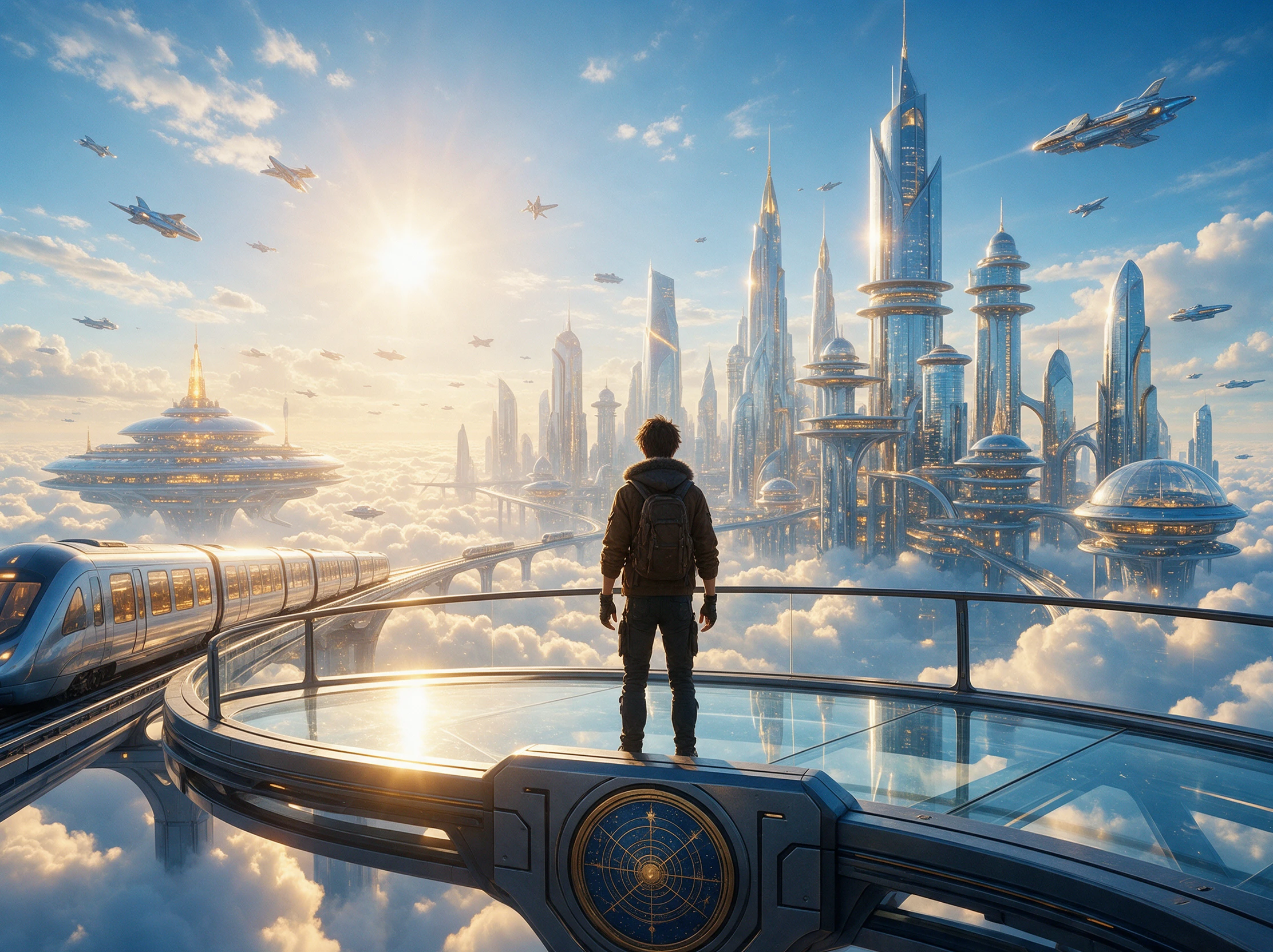

21 video cover templates and 16 title styles for YouTube thumbnails

37 Voices and Cloning for Consistent Narration

Pick one of 37 voices or use voice cloning for the narrator, then keep that choice across episodes. In Magiclight AI, this helps your channel sound consistent without booking a voice actor each time.

Create Characters
AI voice options and voice cloning for consistent YouTube narration

MagicLight Agent Handles the Script Draft

Give MagicLight Agent your topic and channel tone, such as calm history for adults. It drafts a script you can review in the same project before moving on to narration and scenes for your next video.

Generate a Video
MagicLight Agent drafting a YouTube video script

50 Nano Storyboard Poses for Scene Adjustments

Use Nano Storyboard to adjust poses from its set of 50 and change camera angles before generating the scene. This lets you review visual choices inside Magiclight AI instead of sending edit notes back and forth.

Start Creating
Nano Storyboard poses and camera angle adjustments for YouTube scenes
Who Can Use the Magiclight AI YouTube Automation Tool
Solo creators and multi-channel teams work differently. The YouTube automation tool in Magiclight AI supports both, from testing new ideas to preparing weekly videos for clients.
Explore how different creators and teams can use YouTube automation:
New YouTube channel creators
For New YT Channel
Try 14 story models to find a format that suits the channel before launch.
Add 16 subtitle settings so early videos are easier to follow for viewers.
Use music from 40 options to give intros, scenes, and endings a clear mood.
Multi-channel video production agencies
For Multi-Channel Agencies
Switch among 11 story languages when producing videos for global clients.
Use 1,000 characters to define recurring people for each client's stories.
Set story models by client when video formats need to stay clearly apart.
Automated YouTube video production and posting
For Automated Posting
Turn longer scripts into videos up to 50 minutes for deeper channel topics.
Prepare cover artwork from 21 templates while the next episode takes shape.
MagicLight Agent moves an approved topic into a working script for review.
Freelancers preparing YouTube videos for clients
For Freelancers
Share subtitle-ready videos so freelancers can focus on higher-level edits.
Use Nano Storyboard's 50 poses to settle character actions before handoff.
Choose from 16 animation models before freelancers handle the final edits.

 How to Use the Magiclight AI YouTube Automation Tool

Move from a channel idea to a finished episode without passing files between tools. These 4 steps show how the YouTube automation tool takes each video from a topic to export.

1.

Step 1. Start With the Episode Brief

Describe the subject, audience, and direction for the episode in MagicLight Agent. It can work from up to 12,000 characters, giving you room to shape and revise the script before moving on.

2.

Step 2. Choose How the Video Should Look

Select from 50+ visual styles and 14 story models to match the topic. Set recurring characters with descriptions of up to 1,000 characters when the episode needs familiar faces.

3.

Step 3. Arrange the Scenes and Movement

Check how each scene plays out in Nano Storyboard. Its 50 positions give you more control over character actions, while 16 animation models shape the movement.

4.

Step 4. Finish the Sound and Export

Add a track from 40 music options, and review the finished video. Finalize to upload the video directly across your YouTube channel.

What Users Say AboutMagiclight AI's YouTube Automation Tool

Jordan Blake

YouTuber

Magiclight AI keeps my scripts, scenes, voice, and covers together. I spend less time moving between tools and more time deciding what the next video should actually say to viewers.

Priya Shah

Agency Owner

Running several client channels gets messy fast. Projects feel easier to manage in Magiclight AI because I can keep the visual direction, narrator, and scripts clearly organized.

Marcus Lee

Content Creator

Some weeks I have ideas but no time to shape each script. Magiclight AI gets my first draft moving, leaving me more time to check the story, pacing, and details before production

Elena Torres

Video Editor

Nano Storyboard catches awkward poses before my final edit. I settle the scenes first, then Magiclight AI gives me a cleaner starting point with fewer visual fixes left to handle.

FAQs on YouTube Automation Tool

How is Magiclight AI different from TubeBuddy or vidIQ?

TubeBuddy and vidIQ focus on channel research and optimization. The YouTube automation tool in Magiclight AI handles production with script generation, voices, story models, scenes, and covers.

Does Magiclight AI find trending topics for my channel?

Topic discovery is not the main job here. You bring the subject, then MagicLight Agent can turn your direction into a script, with up to 12,000 characters available for story input.

Is a human editor still worth having with Magiclight AI?

For detailed finishing work, yes. Before that handoff, Magiclight AI lets you adjust scenes in Nano Storyboard with 50 positions and choose from 16 animation models for movement.

Can I make both Shorts and regular YouTube videos?

Yes. Set Magiclight AI to 9:16 when you need a vertical Short or 16:9 for a standard widescreen episode. Finished videos can be exported from 720p up to 1080p.

Can different channels have different voices and visual styles?

They can. Choose among 37 voices for narration, while 50+ visual styles give each channel its own look. Magiclight AI also provides 21 cover templates for video packaging.

How long can a YouTube video be in Magiclight AI?

Longer topics do not have to be squeezed into short clips. Story to Video in Magiclight AI supports videos up to 50 minutes, giving explainers, documentaries, and stories more room.

Automate Your YouTube Videos With Magiclight AI

Start with your next video idea. Magiclight AI brings the script, voice, scenes, and cover together in one YouTube automation tool.