
A memorial video uses photos, stories, and music to remember someone’s life. Families often show it at the service or share it with relatives who cannot be there. Learning how to make a memorial video ahead of time can make the week a little easier to handle. Following these steps produces a finished tribute, created either from written memories with AI or from favorite pictures and songs.
Part 1. How to Make a Memorial Video With AI
For families wondering how to make a memorial video from only a few photos and memories, AI can help fill the gaps. MagicLight AI offers a Story to Video workflow that turns written memories into narrated scenes. The steps below show how to shape those memories into a complete tribute video:
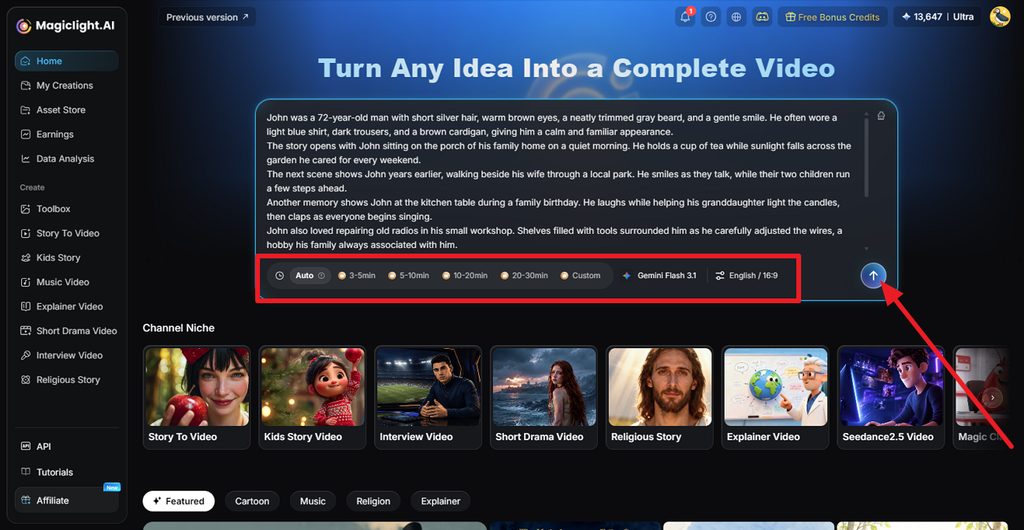
Step 1. Enter the Memorial Story
Open MagicLight AI and add the memories, tribute, or complete script you want to include. Set the preferred duration and narration language, then submit the story so MagicLight Agent can organize it into a structured memorial script
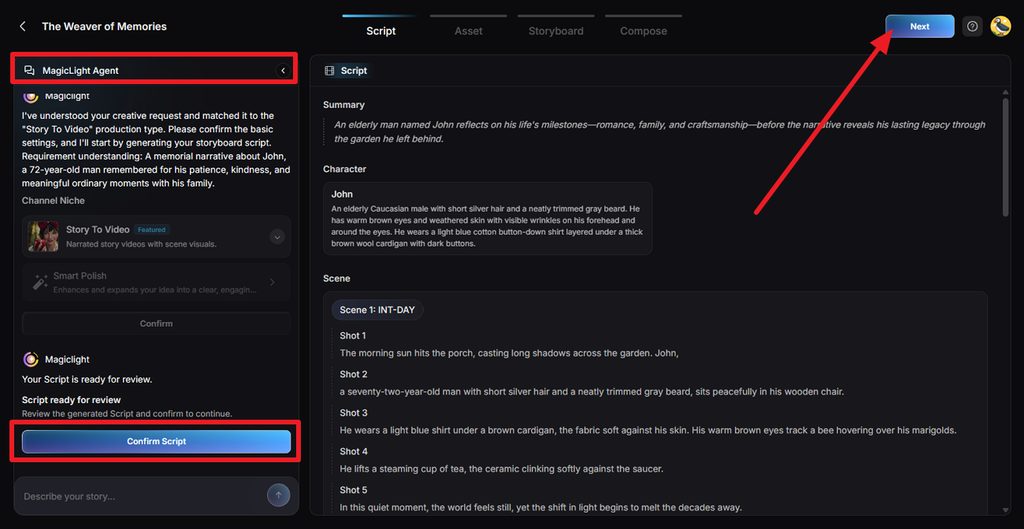
Step 2. Review Names, Dates, and Scenes
Check the generated summary, character details, scenes, and individual shots before moving forward. Pay close attention to names, dates, places, and family details. Edit anything that needs correcting, then select Confirm Script.
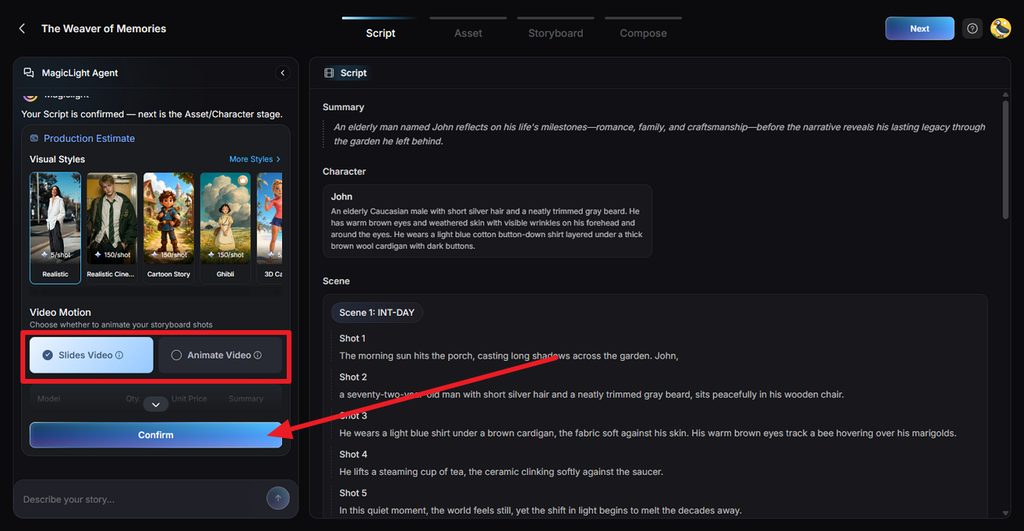
Step 3. Choose a Respectful Visual Style
Select a visual style that matches the tone of the tribute, such as realistic or softly illustrated. Choose Slides Video or Animate Video, review the production estimate, and confirm the settings when the overall look feels appropriate.
Step 4. Review the Loved One’s Character
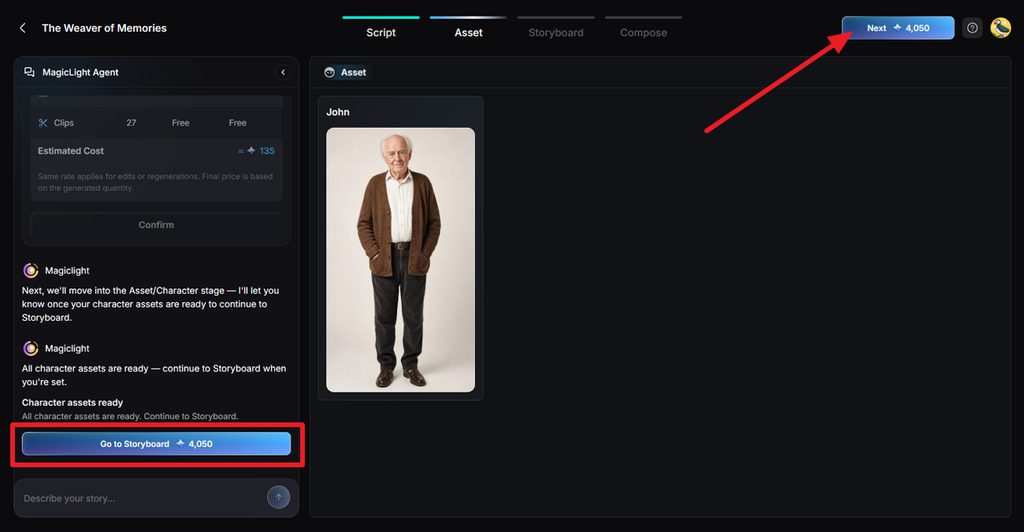
Check the generated character assets against the reference photo or description you provided. Look closely at facial features, clothing, hairstyle, and overall appearance so the same person remains recognizable across later scenes. Continue to select Go to Storyboard for further editing.
Step 5. Refine Each Storyboard Scene
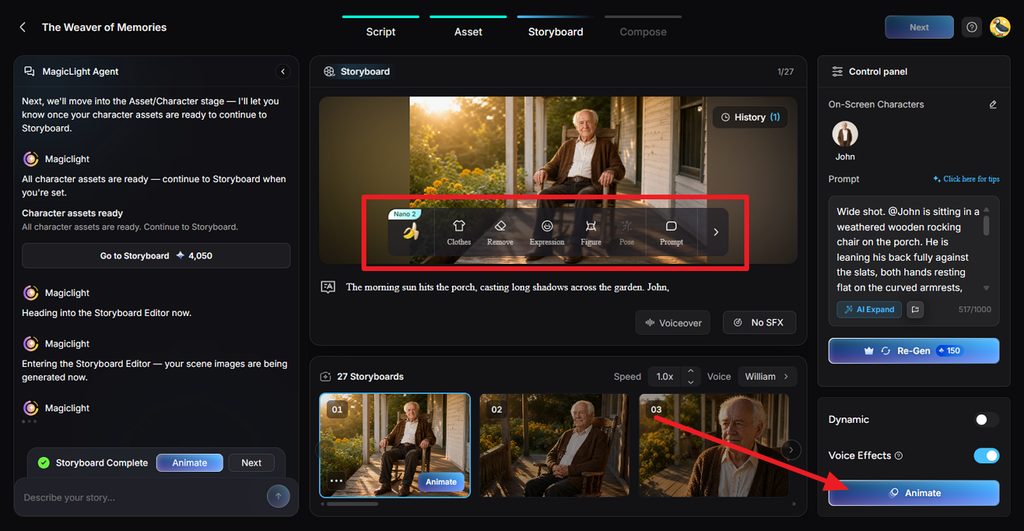
Go through the storyboard and adjust individual shots with Clothes, Expression, Figure, Pose, Remove, or Prompt. Keep poses and expressions natural for reflective moments, and regenerate only the scenes that need improvement before selecting Animate. Once done, lead towards the Next button to finalize the generated storyboards.
Step 6. Add Narration, Music, and Subtitles
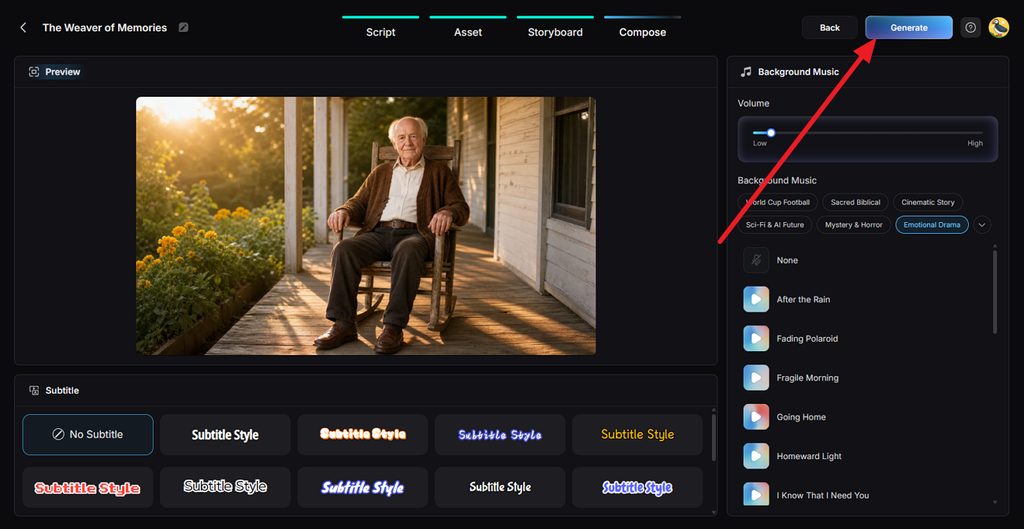
Within the Compose section, preview the tribute as one complete video. Choose a clear narration voice, add gentle background music, adjust the volume, and select a readable subtitle style. Click Generate after checking the tone and finalizing the video dynamics.
Step 7. Set the Memorial Video Export Quality
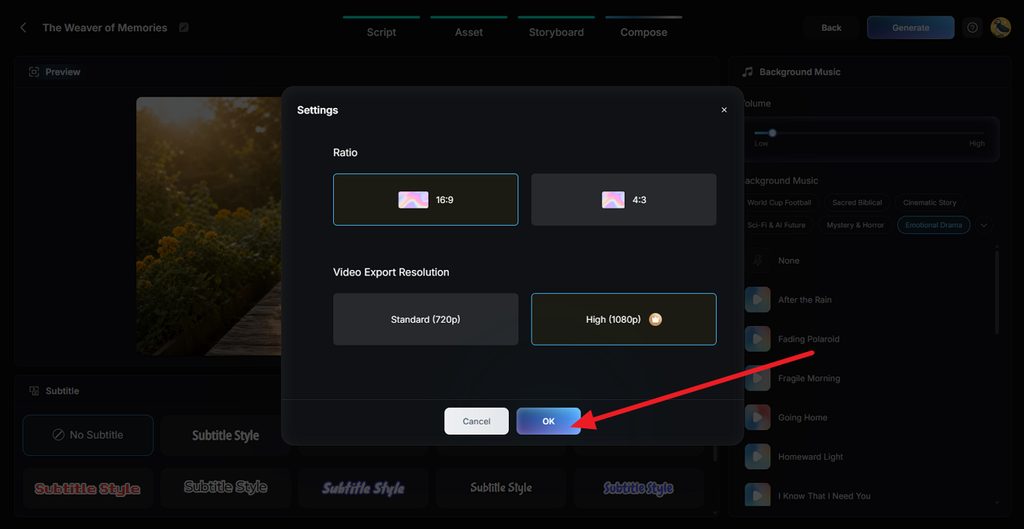
Choose the final aspect ratio based on where the video will be shown. Widescreen usually works well for memorial services, televisions, and projectors. Select the available resolution, then press OK to prepare the finished tribute.
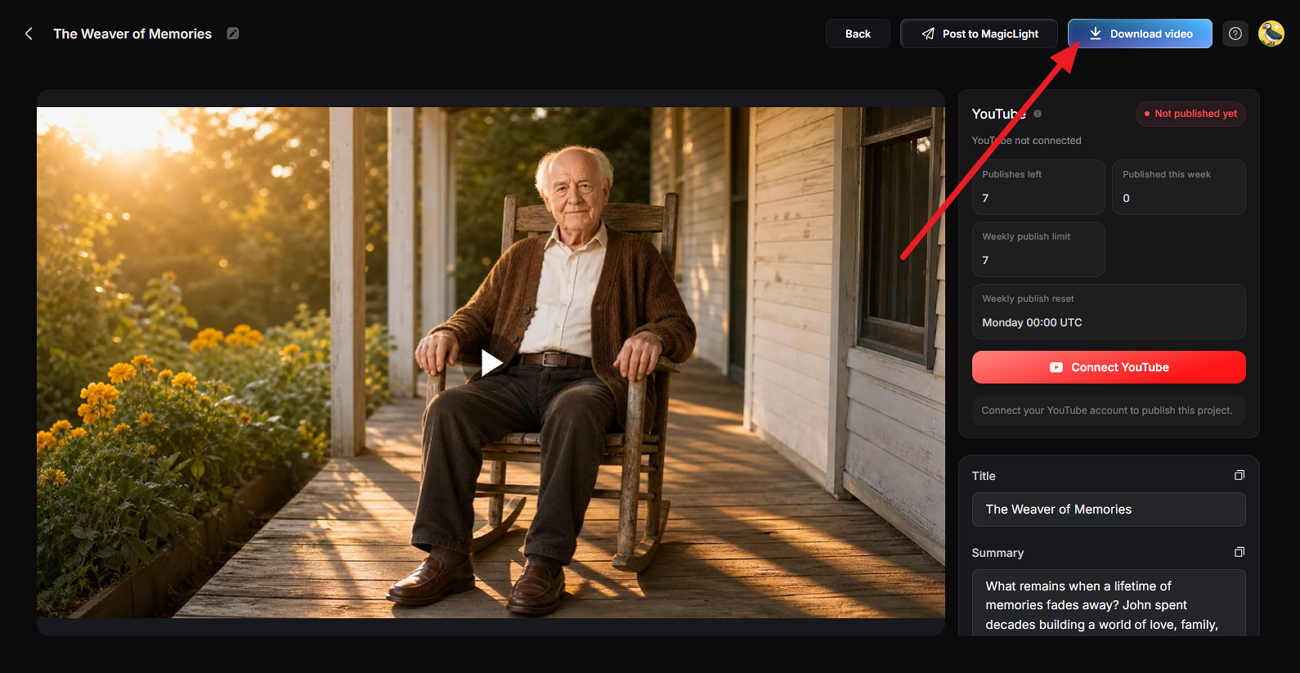
Step 8. Preview and Download the Tribute
Watch the finished memorial video with family and check the narration, names, visuals, music, and scene order. Re-edit anything that feels inaccurate or too strong emotionally, then click Download Video to save the final tribute.
Part 2. How to Make a Memorial Video With Pictures and Music
Learning how to make a memorial video with pictures and music starts with choosing what deserves a place in the tribute. Pick the photos, stories, and songs that best reflect the person’s life, then shape them into a simple sequence. The steps below show how to bring those pieces together without overcomplicating the edit:
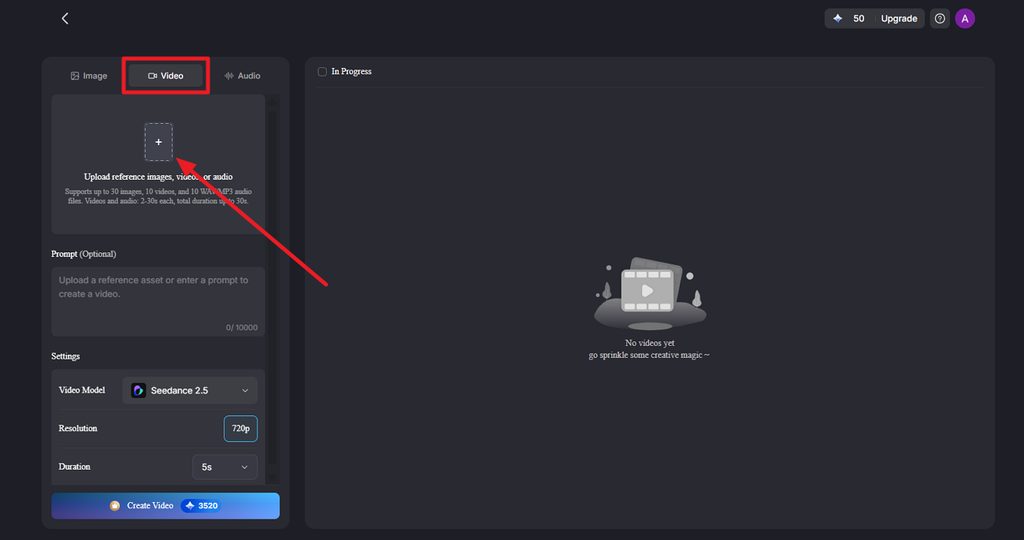
Step 1. Upload the Memorial Photo
From Image to Video, upload a clear photo you want to include in the tribute. Add a gentle motion prompt describing natural movement, such as a soft smile, slight head turn, subtle background motion, or a slow camera push-in.
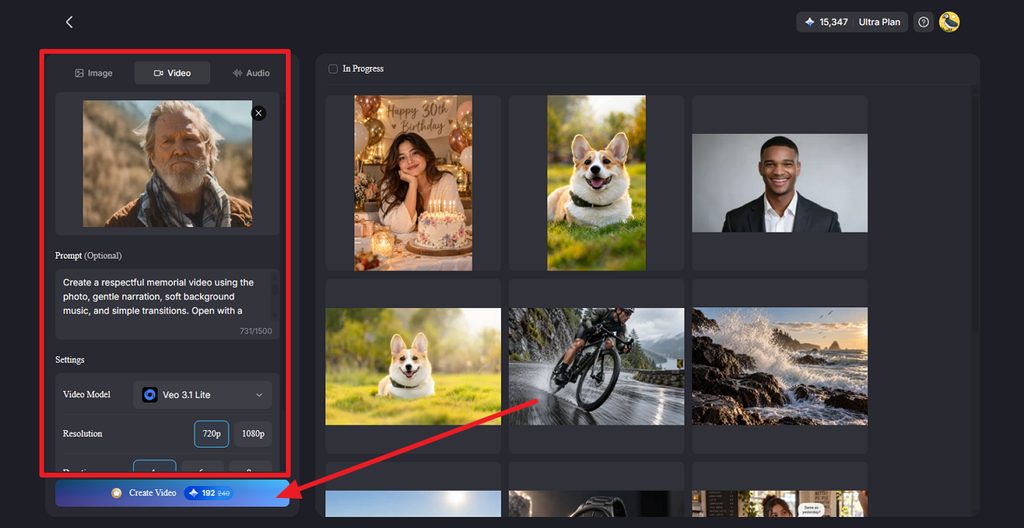
Step 2. Choose the Video Settings and Generate
Select a Video Model, then choose the preferred Resolution and Duration for the memorial clip. Keep the motion subtle so the result still feels respectful, then click Create Video to generate the animation.
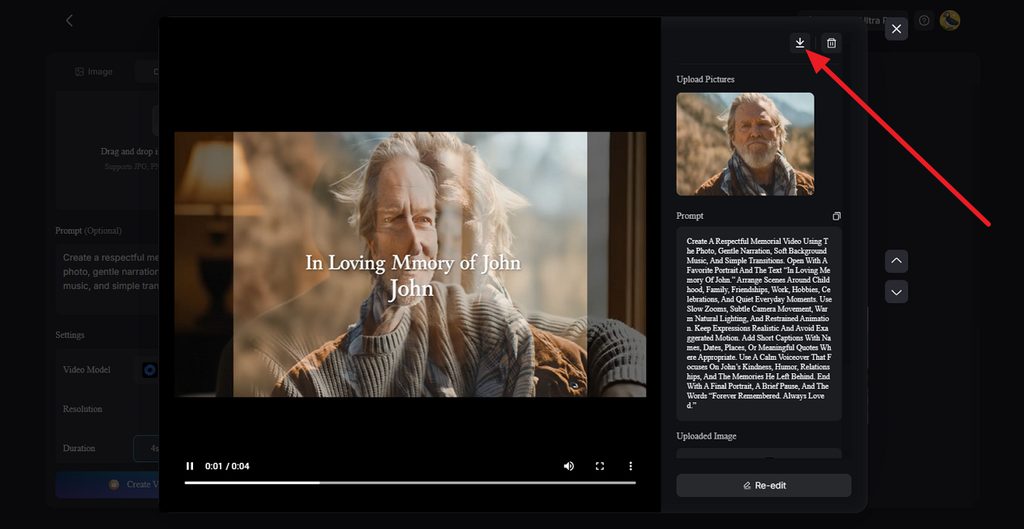
Step 3. Preview, Re-Edit, and Download
Preview the generated clip and check the face, motion, and overall tone carefully. Use Re-edit if the movement feels too strong or unnatural, or click Download once the animation is ready to add to the memorial video.
Part 3. Tips for Making a Memorial Video
A few thoughtful decisions can make a tribute feel more personal without making it harder to watch. When making a memorial video, focus on pacing, accuracy, privacy, and the memories that matter most. The tips below help keep the final tribute respectful and easy to share:
- Open and Close With a Meaningful Photo: Using the same favorite portrait at both ends gives the video a calm, finished feel.
- Keep the Tribute Focused: A shorter selection of meaningful moments usually works better than including every available photo.
- Include Family Voices: Short recorded messages from relatives can add warmth and personality beyond captions alone.
- Double-Check Names and Dates: Have another family member review spellings, dates, places, and other personal details before the service.
- Respect Family Privacy: Ask permission before showing living relatives, especially children, in a memorial shared publicly online.
- Keep More Than One Copy: Save the finished video on a USB drive and cloud storage, then share a private link with distant relatives.
Conclusion
To conclude, how to make a memorial video comes down to choosing the stories, photos, and music that feel most personal. A simple slideshow can be enough for a traditional tribute. If there are fewer photos, MagicLight AI can turn written memories into narrated scenes that help tell the person’s story more fully.
FAQs
- How do you make a memorial video feel personal rather than generic?
Personal details make the difference, such as a favorite song, handwritten notes, voice memos, and photos of everyday habits rather than only formal portraits. Short stories from different family members, told in their own words, give the video a voice no template can copy.
- What is the easiest way to create a memorial video?
The easiest way to make a memorial video is to start from existing material, such as favorite photos or a written tribute. An AI tool like MagicLight AI turns written memories into narrated scenes, so no editing timeline is needed.
- How can you tell someone’s life story without making the video feel too long?
Group the story into a few chapters, such as childhood, family, work, and later years, and pick three to five strong photos for each. Four to six seconds per photo keeps the pace steady, and one song per chapter marks each transition clearly.
- What should you consider when using AI to create a memorial video?
Agreement from close family comes first, especially before animating photos or recreating anyone’s voice. AI can alter facial details, so review every scene and avoid scripting words the person never said. A short note about AI use also helps when the video is shared publicly.


![How to Write a Commercial Script in 2026 [Full Guide]](https://magiclight.ai/wp-2/wp-content/uploads/commercial-script-writing-full-guide-300x169.png)