
The reliance on video content across digital platforms has created a strong demand for accessible editing tools that meet professional standards. Content creators and marketers today immensely need software that streamlines production workflows with high-quality outcomes. In this context, VEED.io has been highly relevant, as it balances both simplicity and professionalism. For a better review, keep reading the guide and explore this video creation tool in depth.
Part 1. What Is VEED.io?
VEED AI is an online video creation platform that turns ideas, scripts, or existing clips into ready-to-post videos. You can generate videos from text, use AI avatars and text-to-speech, auto-add subtitles, then edit everything in the same timeline.
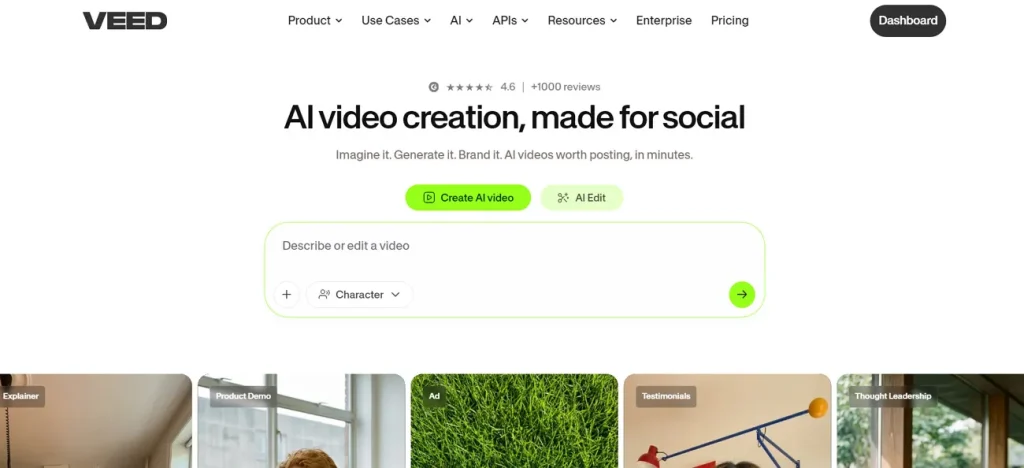
Key Features of VEED AI
- Idea‑to‑Video and Text‑to‑Video: VEED’s idea-to-video and AI video generator tool enables users to type a prompt and get an instant video with scenes.
- AI Avatars and Text‑to‑Talking Video: You can create talking-head videos by entering your script and letting an AI avatar present it on screen.
- Auto Subtitles, Translation, and Transcript: Generates subtitles automatically and translates them into over 50 languages to access global audience.
- Script‑Based and AI‑Assisted Editing: Allows “edit with script”, trimming and adjusting sections by modifying text instead of dragging tiny clips.
- Audio Cleanup and Enhancement: One-click tools remove background noise and clear audio, making your voice sound clearer.
Is VEED.io Free?
VEED.io offers a free plan that includes browser-based editing, auto-subtitles (monthly limit), and exports up to 720p. However, all the free exports have a VEED watermark and limited storage. Pursuing paid plans (Creator, Pro, Studio, and Enterprise) remove watermark, delivers better resolutions, and unlocks complete AI potential.
Pros of VEED.io
- Beginner-friendly, web-based interface; no software installation needed.
- Strong AI tools, including Idea‑to‑Video, Avatars, Auto‑Subtitles, or Noise Removal.
- Users can create their own space or team space for their personal and professional projects.
Cons of VEED.io
- Serious users usually need a paid plan because free plan has immense limitations.
- Limited storage and export limits on lower tiers, with extra cost for full 4K.
- Performance can suffer with large files or slow connections, along with glitches.
Part 2. How to Use VEED.io For Managing Video?
With VEED AI video generator, content creation becomes faster and far more seamless, as elaborated in the guide:
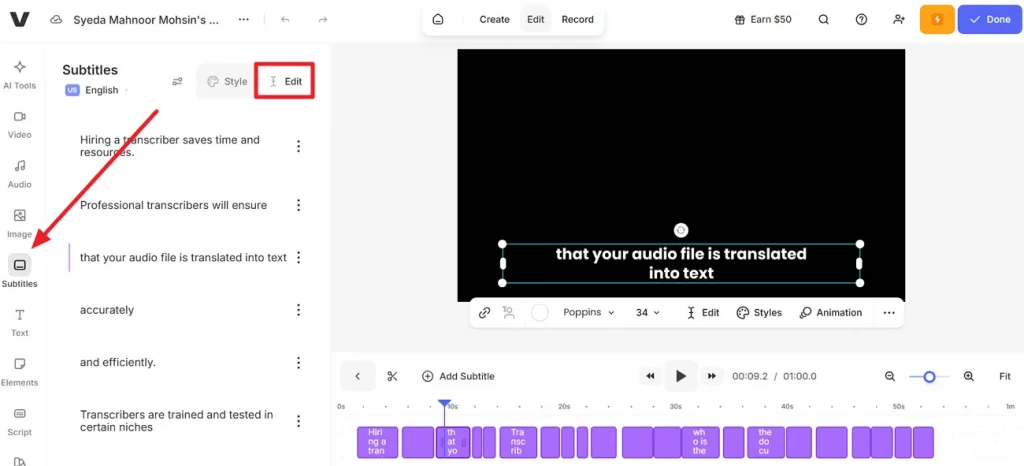
Step 1. Enter VEED.io, upload your generated video, then access the Subtitles section from the panel. Next, press the Edit option and choose a relevant style or modify the text as needed.
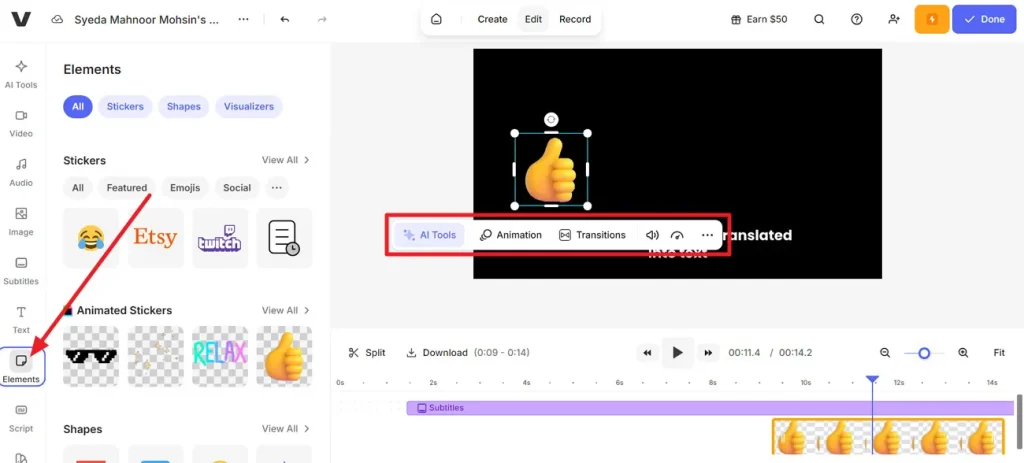
Step 2. Later, select the Elements section and add an appropriate sticker to your video. Afterward, click the added sticker, adjust its placement, and choose Animation or Transition to make your video engaging.
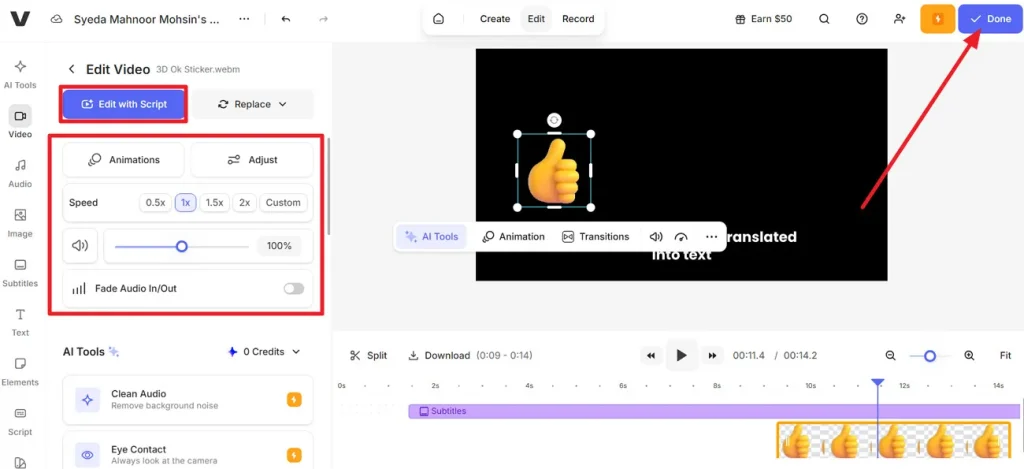
Step 3. Move forward, click the Edit with Script option, then specify Speed, Animation, and Volume for your script. Lastly, press the Done button to either export your video or save it to your VEED library asset.
Part 3. MagicLight AI vs VEED.io: Features, Pricing, and Performance
When comparing platforms through the lens of features, pricing, and overall performance, the conversation naturally extends towards VEED alternative. Among many, MagicLight AI introduces a more advanced, imaginative workflow through its Story to Video feature that works with 19 different AI models. You can choose the type of environment (terrain) and the aspect ratio before the creation of the video. This feature helps the AI frame scenes correctly for your target platform.
Most importantly, creators can use 11 different languages to help write and structure their scripts. It eventually makes it easier to demonstrate stories for different regions without needing to write everything yourself. You can pick from many style models, including Kling 3.0, Seedance 2.0, and Gemini Omni. These include realistic, 3D cartoons, Disney-style, or Pixar-style, so the video matches your visual tone.
Key Features of MagicLight AI
- Long Script and Video Support: This feature accepts scripts up to 12000 characters and can generate videos up to 50 minutes long.
- Character Creation and Voice Options: You can create or select characters, set their name and age, and assign one of 37 voiceovers.
- Multiple Animation Models Options: It allows creators to convert the storyboard to animation with any of 19 AI video models.
Steps to Use MagicLight’s Story to Video Feature
A story becomes more impactful when each scene conveys a clear purpose and emotion, just as shown below:
Step 1. Generate a New Project
Access the Story-to-Video tool, then select your required aspect ratio and video length. Next, select an appropriate language and your preferred story style. Once done, type your script into the Smart Script box and press the Next button.
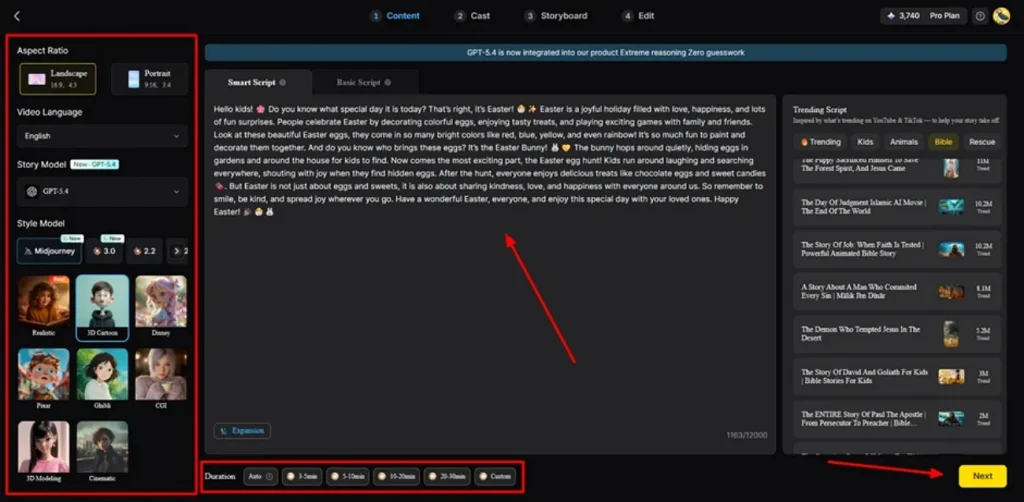
Step 2. Review the Scene Breakdown
Next, preview the generated scene and use the controls at the top to modify it as needed. Later, click Next to proceed with the creation process.
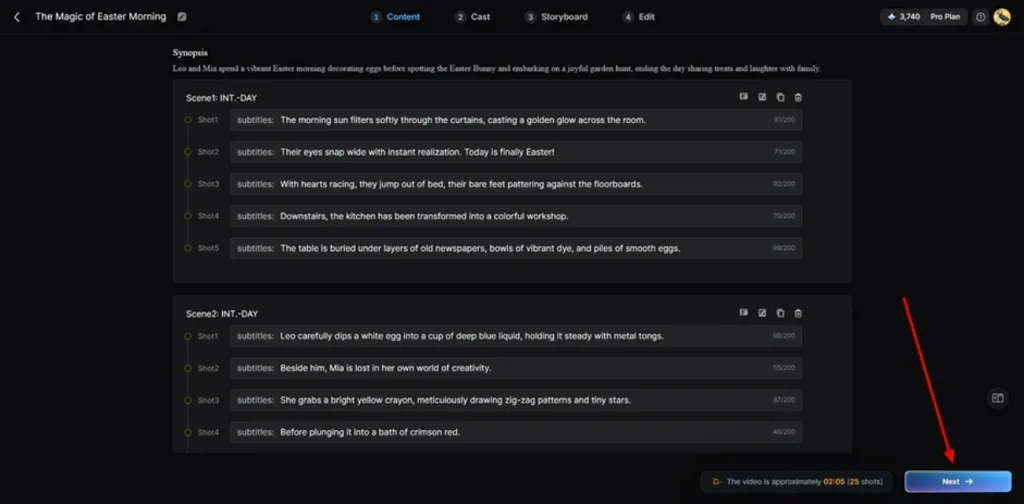
Step 3. Select Characters for the Video
Magiclight AI automatically generates characters based on the presented synopsis. While you can make edits across the generated characters, the tool always allows adding new characters using the More Character section. Upon successfully deciding on the characters, tap Next Step to proceed further.
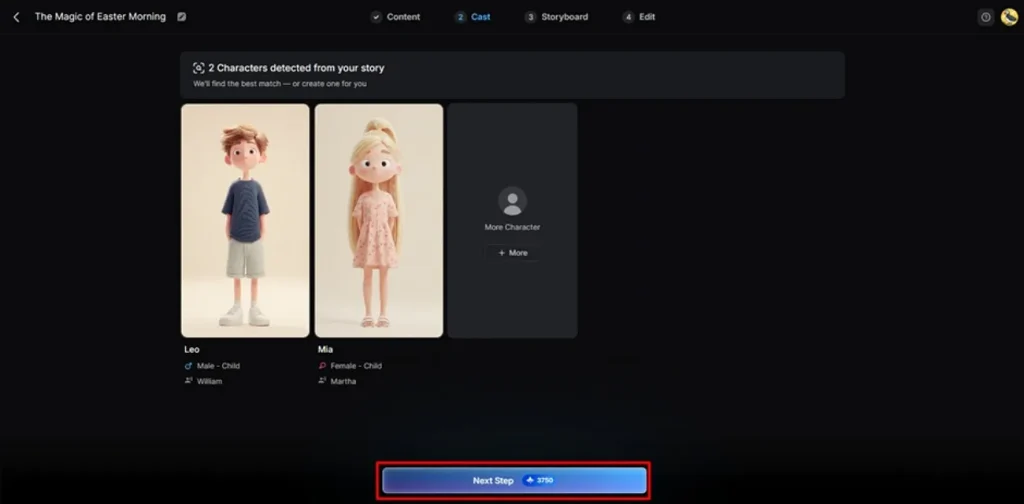
Step 4. Adjust the Storyboard and Continue
The platform leads into the Nano storyboard section, where you can define the Voiceover along with its speed. For each generated storyboard, use the Controls panel to amend the Clothes, Expressions, Figure, and other features. Once you’ve cleared all storyboards, click Next to move towards finalization.
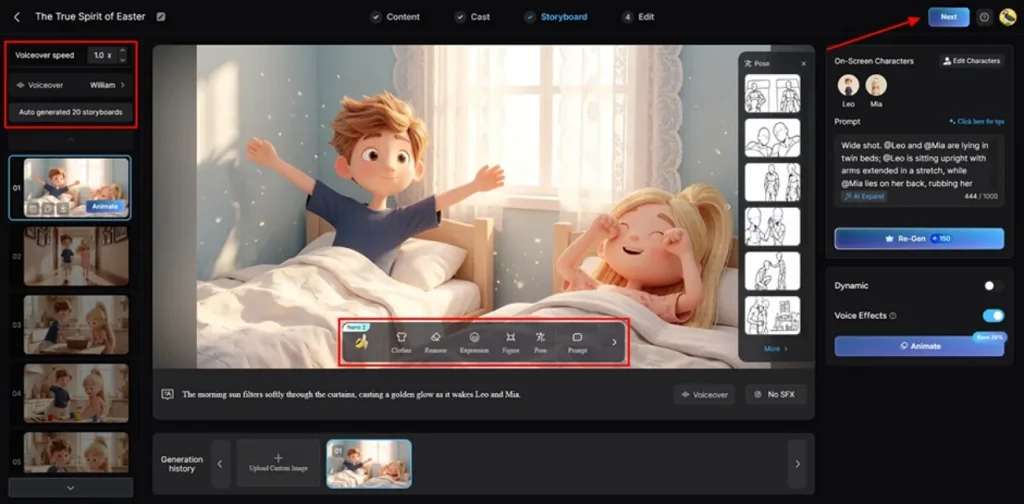
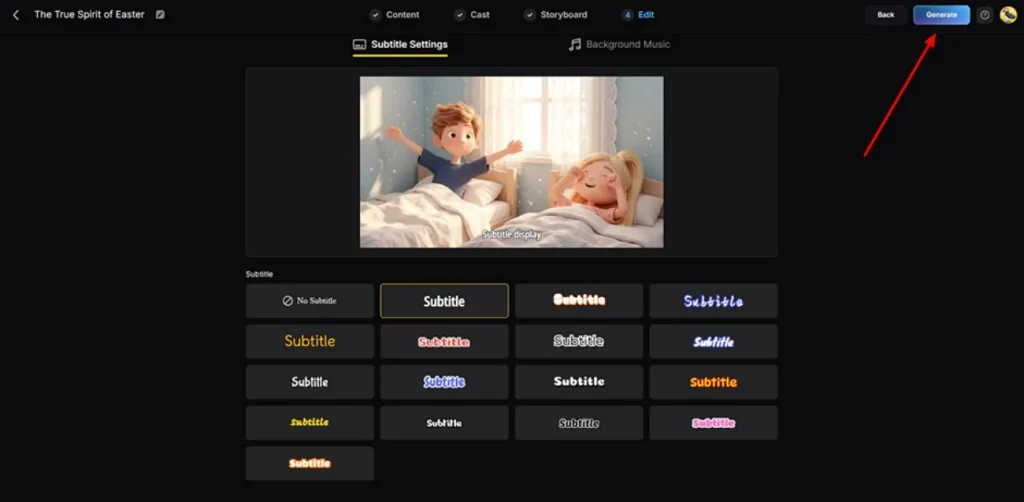
Step 5. Add Subtitles and Music to Your Video
Next, choose a subtitle style and the background music, then press the Generate button once it's finalized.
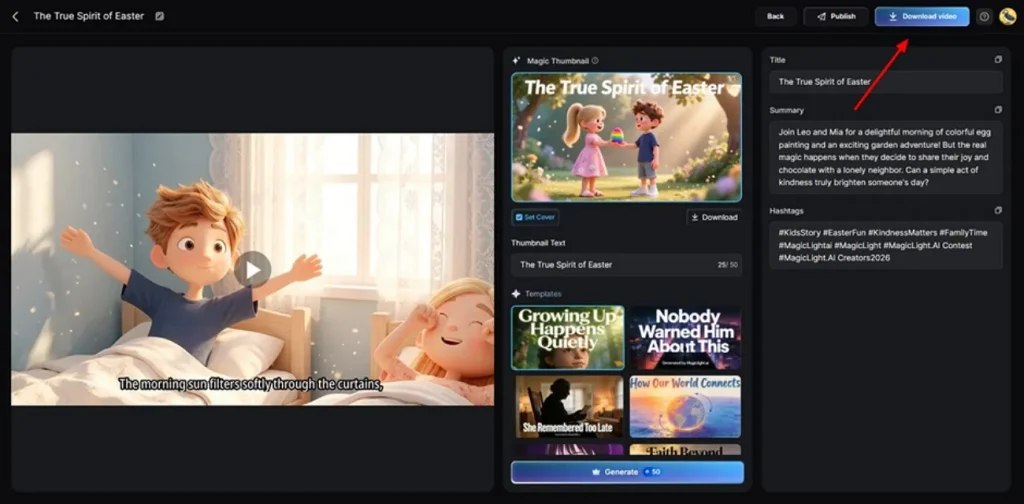
Step 6. Examine the Video and Download it
Once the video is generated, preview it and click the Download button to save it. You can define the thumbnail, its text and other video-related content before downloading.
For a better understanding, give a quick look at the comparison below between VEED.io and MagicLight AI:
| Aspects | VEED.io | MagicLight AI |
| Main Focus | Fast social/business videos and edits in the browser. | Long, story‑driven 2D/3D animated videos and episodes |
| Story Handling | AI Idea‑to‑Video and Text‑to‑Video for short scripts | Scripts up to approx. 12,000 words, 11 languages, 19 AI story models. |
| Control Level | Drag‑and‑drop timeline, script editing, basic effects. | Storyboard + Nano adjustments for poses, expressions, camera moves, timing. |
| Audio & Subtitles | Auto‑subtitles, translation, text‑to‑speech, audio cleanup. | 37 AI voiceovers with cloning, 40 music tracks, and subtitle presets. |
| Best For | Teams that need quick, polished social and marketing videos. | Creators who want full animated stories and series with consistent characters. |
Conclusion
VEED.io positions itself as a highly accessible and structured video editing platform, suited for those who prioritize simplicity. Its browser-based architecture, coupled with features such as automated subtitles, customizable templates, and foundational AI-assisted tools. Nevertheless, for creators who desire a more sophisticated creative process, use MagicLight AI for its automated storyboard preview and Nano adjustments.
FAQs on VEED.io
1. How does VEED.io AI text-to-video work?
VEED.io’s AI text-to-video enables you to paste a script or type a prompt, then the AI builds a full video with it. The platform automatically selects scenes, adds subtitles, and includes AI voices or avatars, with only a few edits needed on your end.
2. Does VEED.io add watermarks to videos?
On the free plan, VEED AI Video Generator adds a watermark to exported videos and limits resolution or length. Although MagicLight AI also uses tiered plans, it focuses more on controlling story length, styles, and AI models.
3. Can VEED.io generate subtitles automatically?
Indeed, VEED.io can automatically generate subtitles using its Auto Subtitle tool, which listens to your video's audio. Once generated, subtitles can be translated into any language and then corrected within the editor.
4. What is the VEED video compressor?
The VEED video compressor is a simple online tool that reduces file size to help you upload your files faster. For story-heavy projects, MagicLight AI is more about generating the finished animated video directly in the right resolution from your script.
5. Why is VEED.io not exporting my video?
The platform VEED AI might refuse to export your videos for several reasons, such as reaching free-plan limits or connection issues. If you frequently hit export limits with complex stories, MagicLight AI’s storyboard‑first pipeline can be better for long narrative videos.


![How to Write a Script for a Short Film in 2026 [Beginner’s Guide]](https://magiclight.ai/wp-2/wp-content/uploads/short-film-screenplay-writing-guide-300x169.webp)