3 Audio Formats for Your Recordings
Magiclight AI accepts songs in WAV, MP3, and M4A formats. You can also upload a song recorded on your phone and turn it into a music video with scenes that follow the recording.
Upload Your Song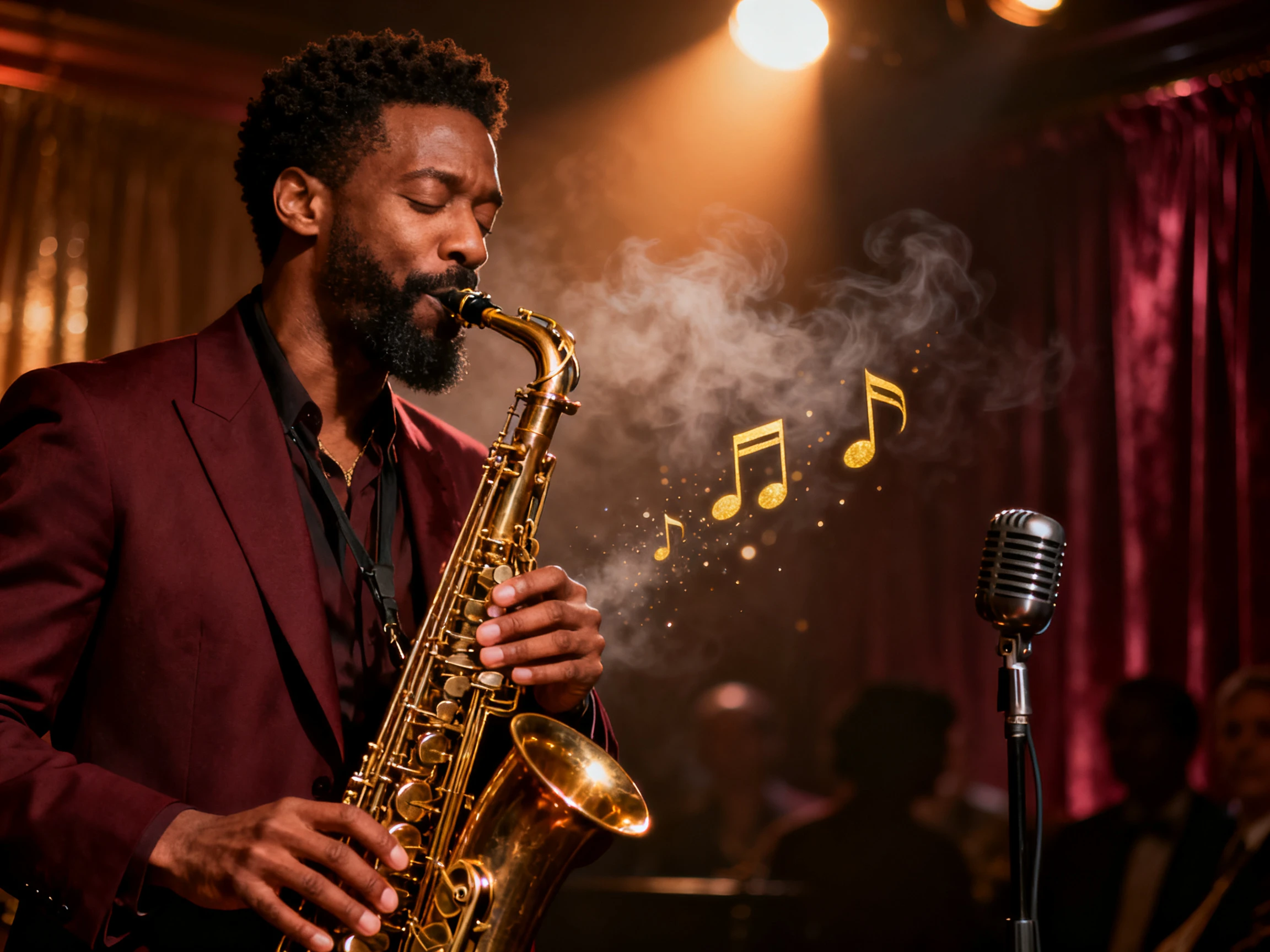
Turn your songs into music videos with MagicLight AI. Create animated scenes that bring your music to life, with no filming or editing skills needed.
Create a Music Video For Free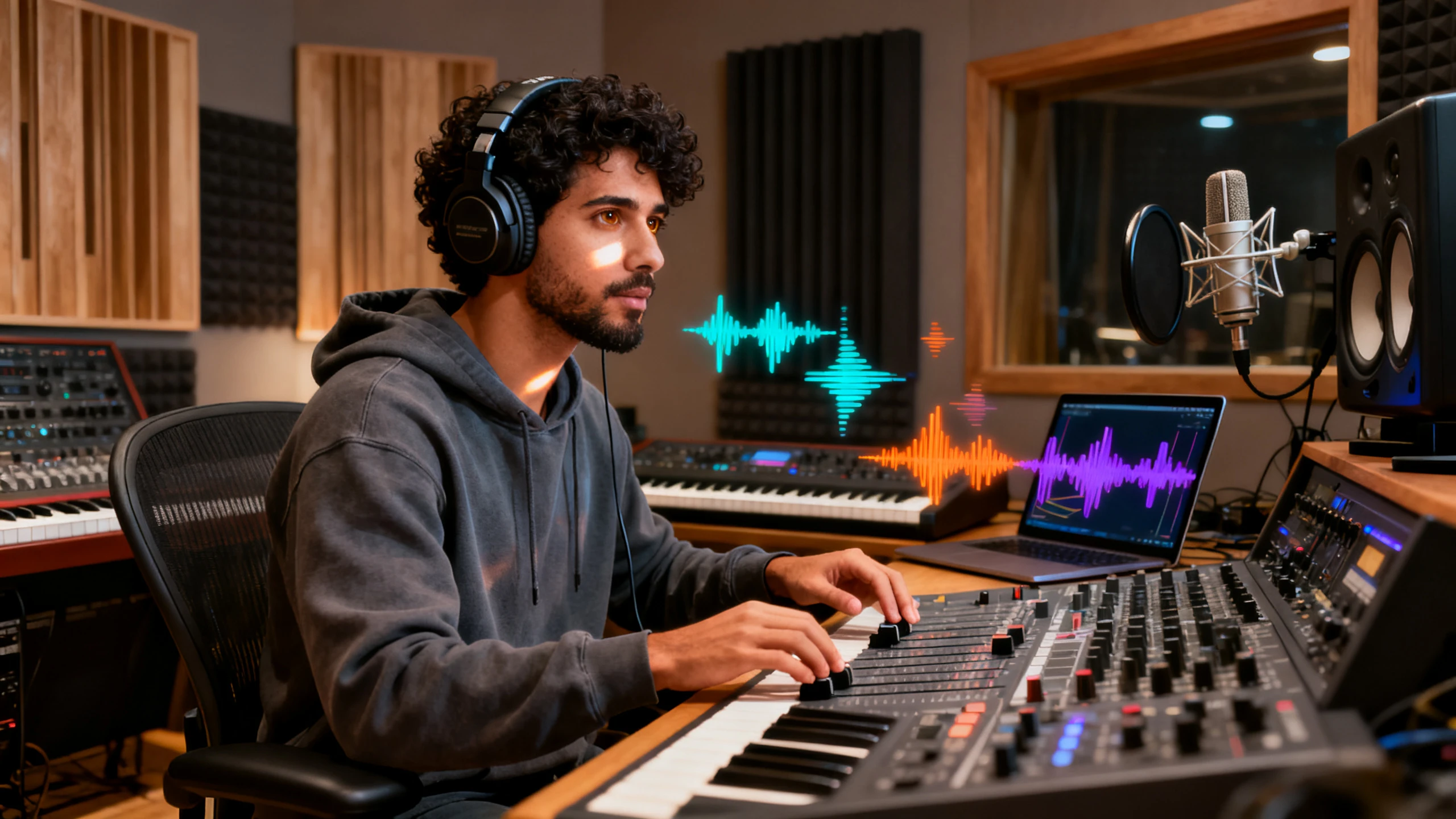










The Magiclight AI music video generator from audio uses your recording to plan scenes that match the music. See how each part of your song gets its own look.
Magiclight AI accepts songs in WAV, MP3, and M4A formats. You can also upload a song recorded on your phone and turn it into a music video with scenes that follow the recording.
Upload Your SongWith 14 story models available, Magiclight AI can turn the meaning of your song into matching scenes. Try another model when you want a different story for the same recording.
Explore Story Models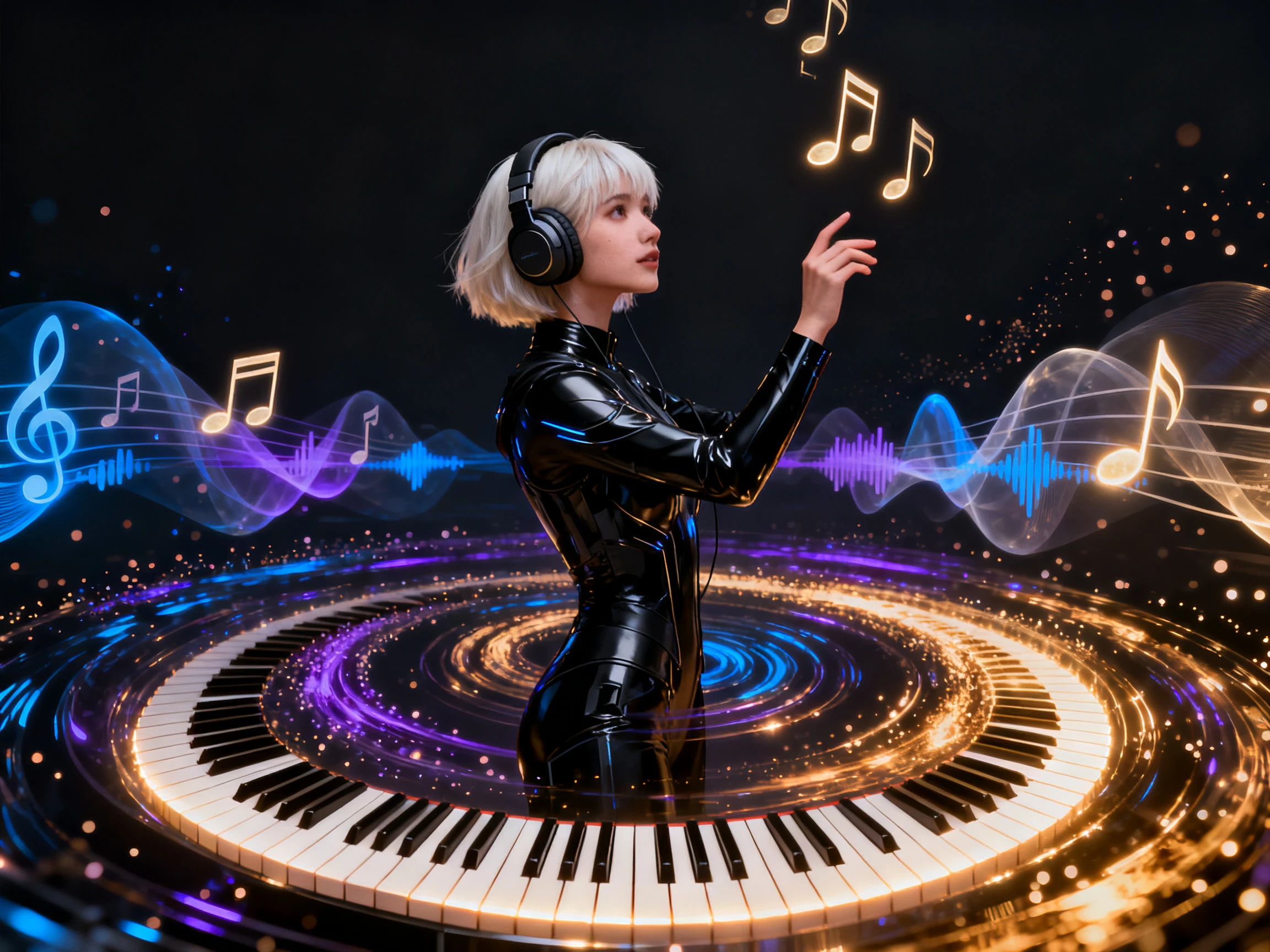
When you have no song ready to upload, Magiclight AI gives you 15 music tracks to choose from. Each track can be used to create a video with scenes that follow the music from start to finish.
Choose Your Music
Songs in 11 languages can have matching words on screen with Magiclight AI. A Korean hymn can keep its original recording while the video shows the words in the same language.
Create Your Music Video


Creating a video for your song becomes easier with the Magiclight AI music video generator from audio. The following 4 steps will guide you from your original recording to the finished video.
Start your music video in Magiclight AI with an MP3, WAV or M4A recording. Choose the screen format that suits where you plan to share the video and use the clearest version of your song.
Give your song the right look with a visual style that matches its mood. You can also choose from 14 story models to decide how the music and scenes come together.
Describe your characters in up to 1000 characters or choose an existing one. Open Nano Storyboard to change their clothes and expressions or adjust any scene before the video is generated.
Add the lyrics to your video and check that the singer follows the music. Next, download the video and share it on your social channels.
Worship Leader
We had a recording of our Sunday hymn and wanted a video for our church community. Magiclight AI helped us add scenes that felt right for the song.
School Music Teacher
I wanted to share our choir performance with parents without showing every student on camera. The animated characters gave us a lovely way to present the music.
Housewife
We used our wedding song to create a video that reminded us of our special day. Seeing the music come alive through animated scenes made it even more memorable.
Independent Music Artist
I already had my song recorded but needed a video to share online. Magiclight AI gave me a simple way to add visuals without filming anything myself.
Yes, if the song is copyrighted, you may need a license to share it online. Check your church CCLI streaming license before posting the Magiclight AI video.
Yes. Magiclight AI can use animated characters instead of real students. Parents can hear the choir performance without any child appearing on camera.
Magiclight AI uses the audio you upload, including any background noise. Record close to the singers for clearer sound and better scene timing.
You can upload MP3, WAV or M4A files to Magiclight AI. A clear recording from your phone can also work if the sound is good.
The Magiclight AI music video generator from audio lets you create your first video for free without a credit card. Commercial use requires a paid plan.
Magiclight AI offers 14 story models to help you choose how your song appears on screen. You can also use Nano Storyboard to adjust characters and scenes before video generation.



Turn any recording, even one from your phone, into moving scenes with the AI music video generator from audio in Magiclight AI.