Turn Family Records Into Scenes
Paste a census note, ship record, marriage entry, or another family detail. MagicLight Agent uses those facts to shape scenes in order, giving you a draft to review before the visuals are made.
Create Now

Turn family memories into story videos with Magiclight AI. Add names, dates, photos, and personal details to bring your family stories to life. No video editing skills needed.
Create a Family Story for Free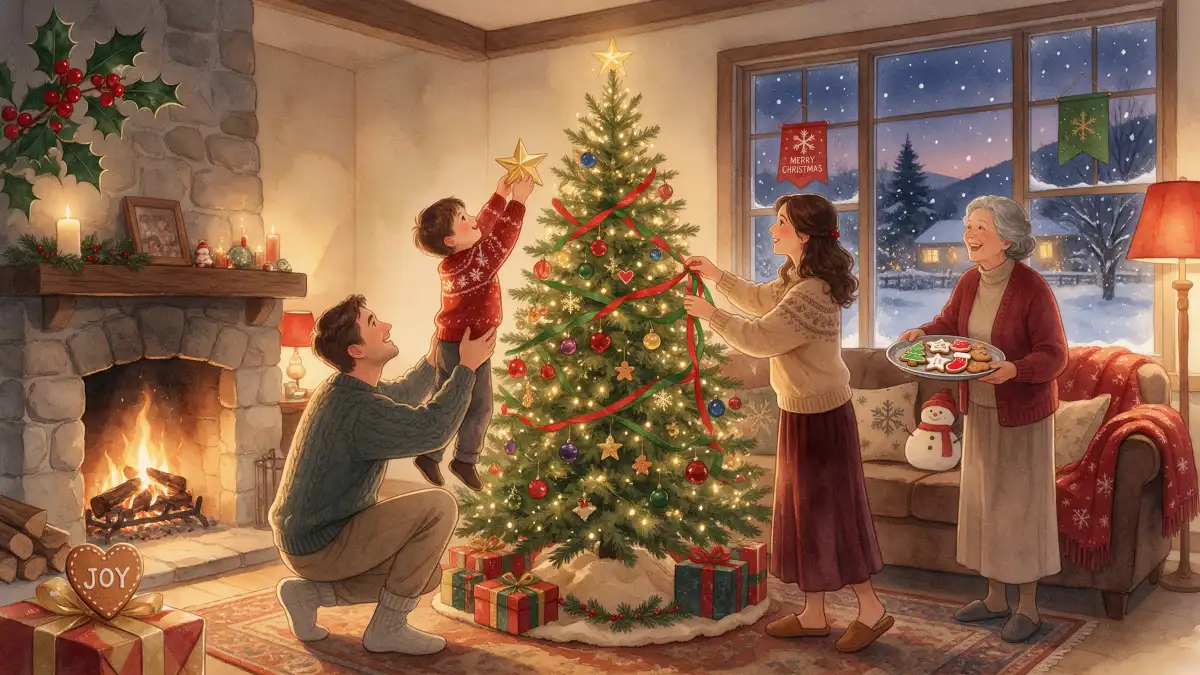










Start with the records your family kept, not a blank page. The family story generator turns names, dates, photos, and memories into scenes relatives can watch and share together.
Paste a census note, ship record, marriage entry, or another family detail. MagicLight Agent uses those facts to shape scenes in order, giving you a draft to review before the visuals are made.
Create NowAdd an old portrait as a reference, then use the 1,000-character prompt for age, clothing, hair, and other details you want Magiclight AI to keep throughout the story.
Create Characters
Sources can stay visible after the story becomes a video. Choose from 16 subtitle settings for lines such as “The 1920 census lists him as a baker,” so relatives know which details came from records.
Generate a Video
Give each family branch its own opening with one of 21 cover templates. Add a surname, date range, or title such as “The Novak Family, 1890–1950” to set the context before the story starts here.
Start Creating


A name and date only tell you so much. With the family story generator, Magiclight AI takes the details you provide and moves them from a written timeline to a video in 4 steps.
Paste your research into MagicLight Agent, with up to 12,000 characters for names, dates, places, and record notes. Put events in order so the first script follows the timeline.
Select a family video look from the 52 available visual models, followed by the characters. To make your own characters, add a reference and describe in up to 1000 characters.
Review the scenes in Nano Storyboard before the video is made. Fix clothes that feel too modern, adjust poses or camera angles, and choose from 16 animation styles for the final look.
Choose from the 40 background music options, followed by the 16 subtitle settings for finalizing the video dynamics. Finalize and download your family video in selected resolution.
Genealogist
I had years of names and dates in my notes, but they were hard to share with relatives. Magiclight AI gave me a way to turn that research into something they would actually watch.
Historian
For a local history project, I wanted the people behind the documents to feel less distant. Seeing those details take shape in Magiclight AI gave the material a new way to connect.
Event Planner
I used old photos and a few details from the family to make a video for an anniversary. Magiclight AI helped me present the memories in a way that worked well on the big screen.
Librarian
Patrons often bring in photos and research they have collected for years. I tried Magiclight AI with that kind of material and found it much easier to show the timeline as a video.
It can. Magiclight AI may fill gaps with visual details not found in your sources. Mark imagined moments clearly in the script so relatives can tell them from documented facts.
Try FamilySearch or the U.S. National Archives for names, dates, and census details. Once you find something useful, bring those facts into Magiclight AI and shape the scenes.
Ask a living relative before using their photo or personal details. A picture can guide a character in Magiclight AI, but permission should come before you put someone in the video.
Yes. A longer timeline can cover several generations since Story to Video in Magiclight AI supports videos up to 50 minutes. Split it into chapters if the history feels too dense.
Keep both dates in your notes and check which source has stronger evidence. In Magiclight AI, use the likelier date in the scene and mention the other if the difference still matters.
Yes. Choose from 11 supported story languages in Magiclight AI when another language suits your relatives better. The family story generator can then tell it that way.



Find an old record for an ancestor you know little about. Add it to Magiclight AI, and let the family story generator take it from there.