Compare Motion Across 20 Video Models
Test the same image with 20 video models to see how each handles movement. Magiclight AI lets you compare subject motion, camera direction, transitions, and the overall result.
Compare Models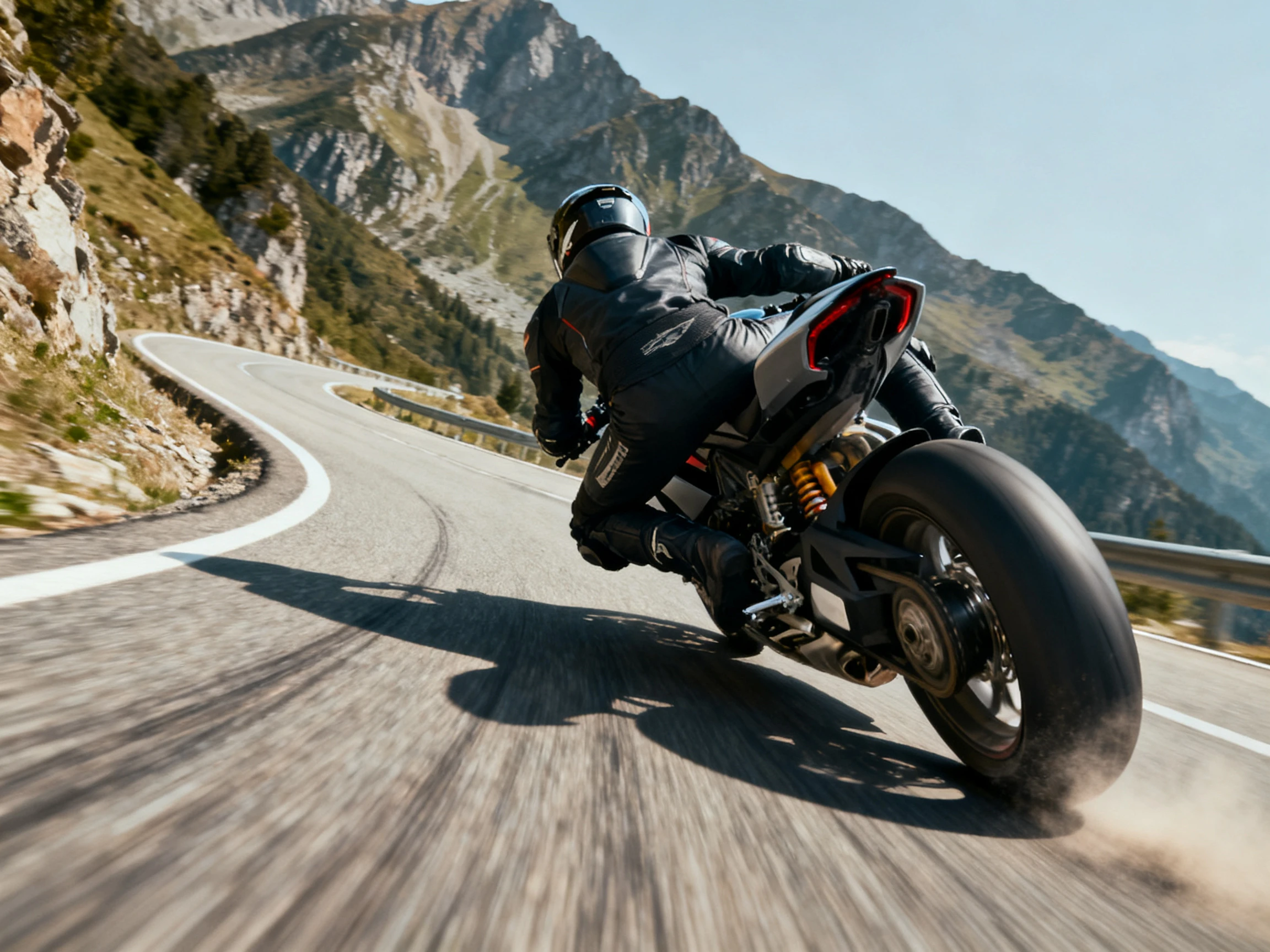
Start with one image, then describe the action and camera movement you want to see. Magiclight AI follows both directions as the scene comes to life. No manual editing is required.
Create Motion Control With Images For Free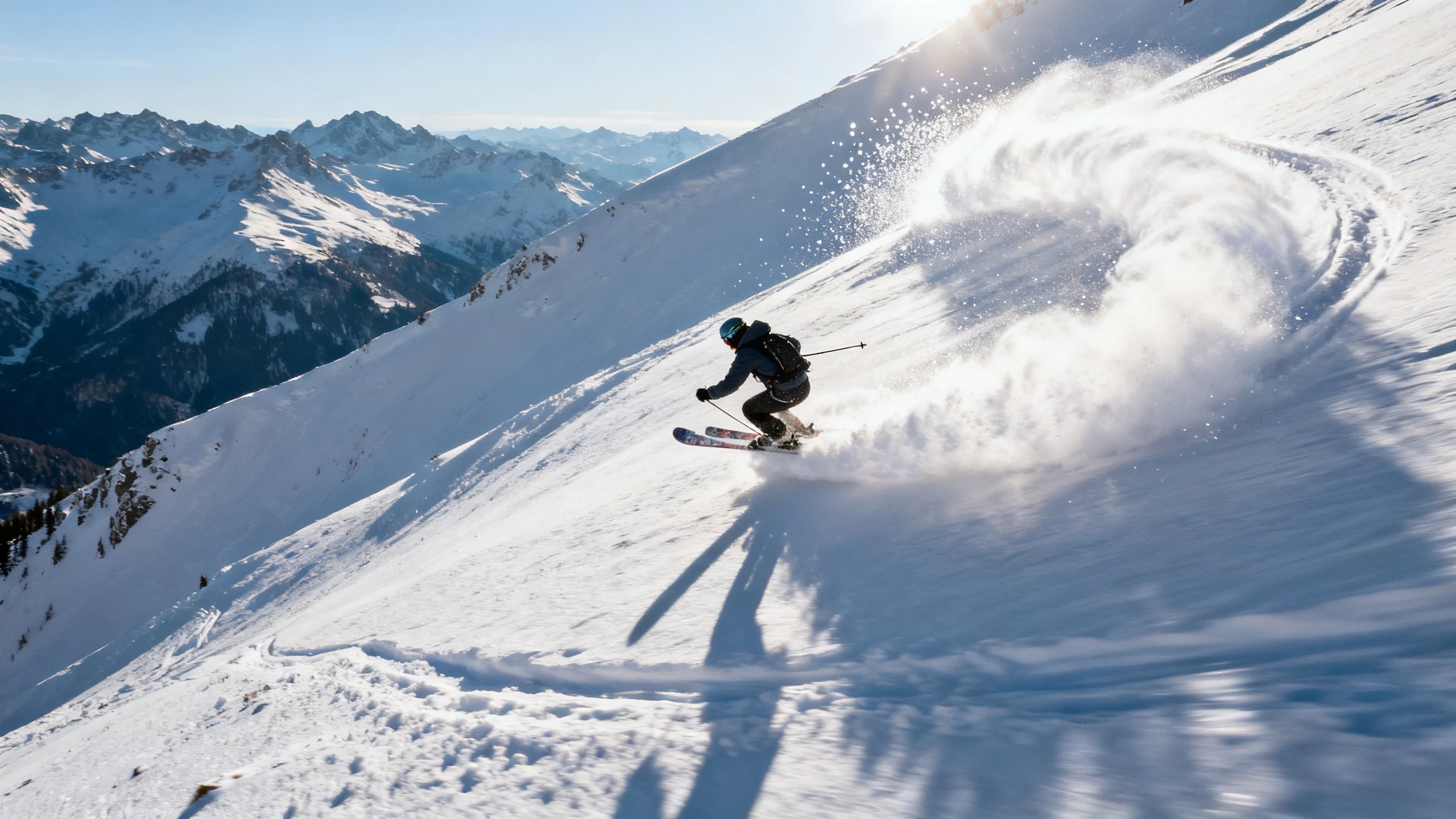










Set the subject movement and explain how the camera should respond to the action. With Magiclight AI motion control, both directions stay connected within the same scene.
Test the same image with 20 video models to see how each handles movement. Magiclight AI lets you compare subject motion, camera direction, transitions, and the overall result.
Compare ModelsUse up to 1500 characters to explain how the subject and camera should move. Set actions, direction, and scene behavior in one prompt, then let Magiclight AI follow your motion instructions.
Describe Motion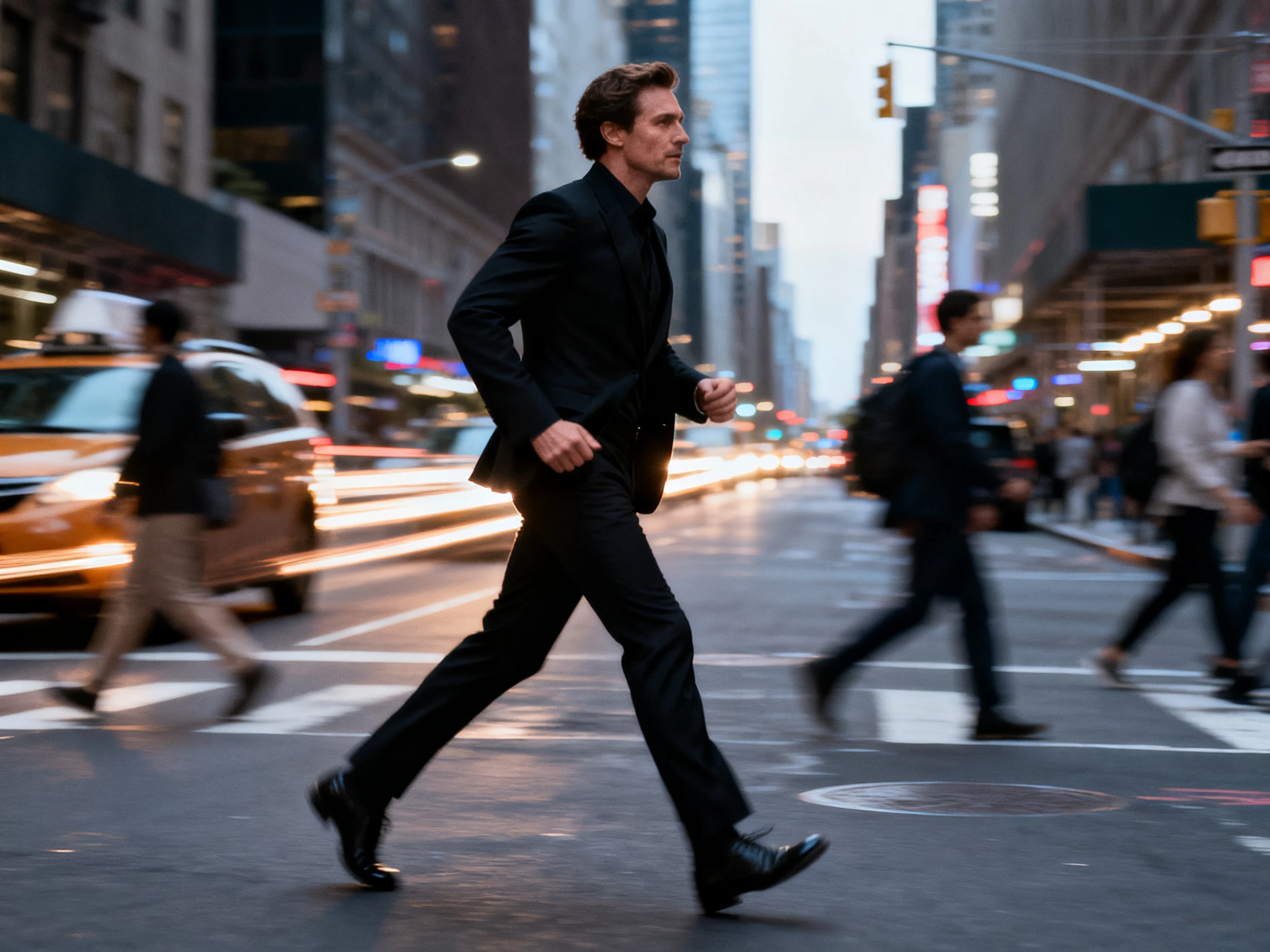
Create moving scenes that can run for up to 30 seconds, depending on the selected model. Magiclight AI gives your subject and camera enough time for actions, turns, close-ups, and other movement.
Create a Motion Video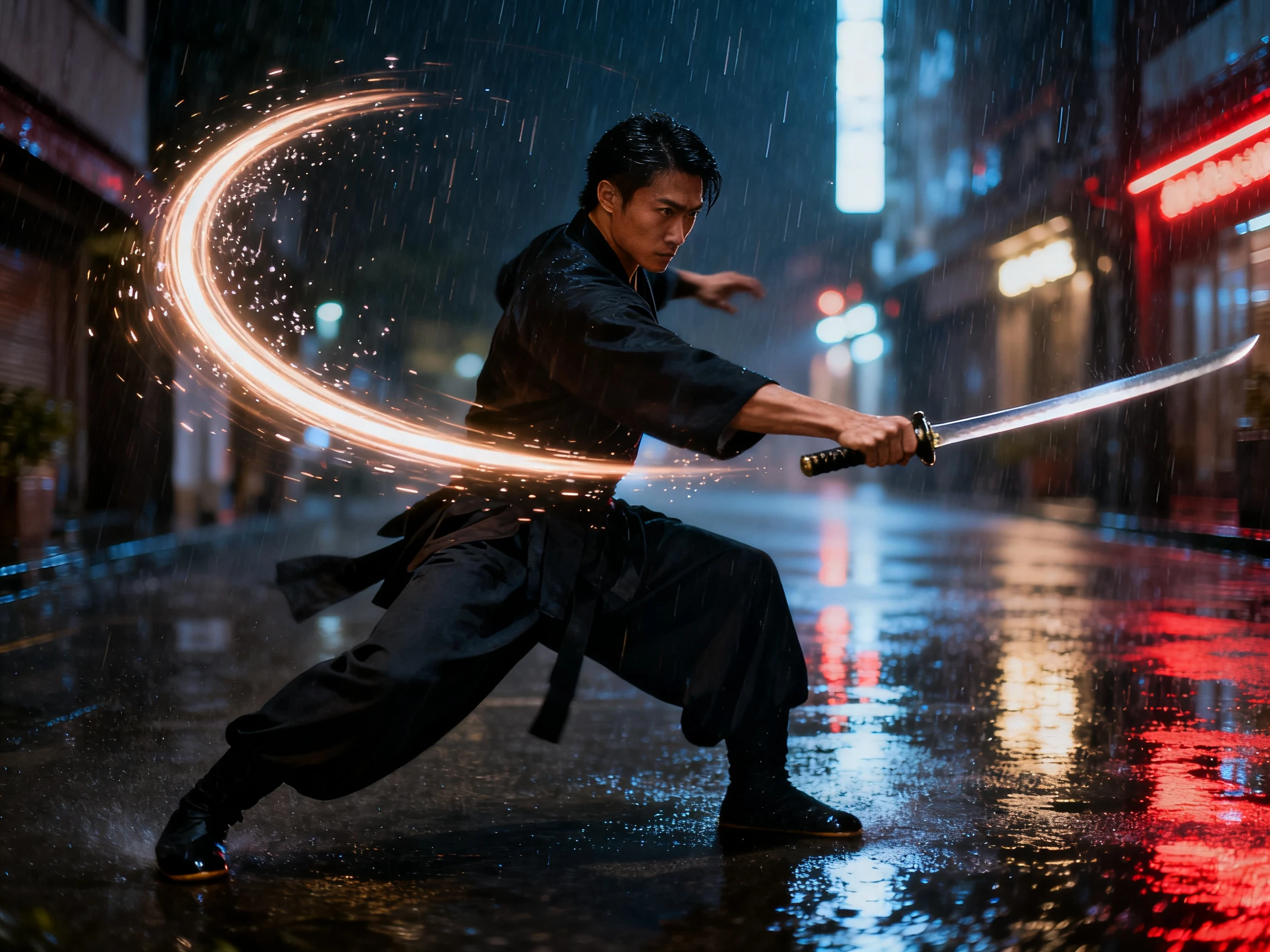
Set 9:16 for vertical videos or 16:9 for widescreen scenes based on where your video will appear. Choose the format first so your subject and camera movement fit the intended frame.
Set Your Format


Start with your reference image and decide how the scene should move. Use Magiclight AI motion control in 4 steps to upload, describe the motion, choose a model, and generate.
Upload clear images under 10MB each. Add up to 5 reference images to give Magiclight AI clear views of the subject you want to bring into motion.
Use up to 1500 characters to explain how the subject should move on screen. Add camera movement, subject actions, scene direction, and other motion details you want Magiclight AI to follow.
Choose from 20 video models to turn your reference images into moving scenes. Test the same images with another model to compare subject motion, camera direction, and the generated result.
Watch the generated video and check how the subject and camera move throughout the scene. Export in up to 4K depending on the video model you selected.
Animator
I kept getting a camera move while the character did something else. With Magiclight AI, I can describe both movements together so the shot follows the direction I had in mind.
Video Editor
Every shot in my sequence needs a different type of movement. I use Magiclight AI to set the subject action and camera direction for each scene instead of treating them all the same.
Content Creator
My subject often looked different once I added more movement to the shot. The reference images in Magiclight AI help me keep the same person recognizable while the scene moves.
Filmmaker
I used to write broad camera directions and get results that were nothing like the shot in my head. Magiclight AI works better for me when I describe exactly where the camera should move.
Magiclight AI motion control lets you describe how the subject and camera should move within a scene. You can write the character action, camera movement, and scene direction together in one prompt.
Describe the camera action you want as part of your prompt, such as moving closer or following the subject. Magiclight AI uses that direction together with the subject movement when generating the scene.
Yes. You can upload up to 5 reference images before describing the movement you want. Magiclight AI uses those images as visual guidance while turning the subject into a moving scene.
Include the subject action, camera movement, and important scene details in your direction. You have up to 1500 characters in Magiclight AI, so you can explain how the scene should move.
Yes. Magiclight AI gives you 20 video models to explore different motion results. You can use the same reference images and prompt with another model to compare how the movement changes.
Your generated scene can run for up to 30 seconds, depending on the video model you select. Magiclight AI gives you enough time for subject actions, camera movement, and other scene changes.



Describe what the subject does and how the camera moves. Magiclight AI uses both directions to guide the scene.