10MB for Your Logo, Mascot, or Photo
Magiclight AI accepts a PNG or JPG under 10MB as your starting image. Use a sharp logo, familiar mascot, or clear portrait so your channel identity remains easy to recognize in the outro.
Create Now
Create engaging video outros with Magiclight AI. Add your logo, text, or favorite visuals to make every video ending stand out. No editing skills needed.
Create an Outro Video for Free

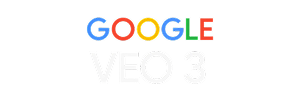








A strong ending can do more than mark the final second. With the outro maker, your logo, mascot, or portrait becomes a memorable sign-off viewers can recognize each time.
Magiclight AI accepts a PNG or JPG under 10MB as your starting image. Use a sharp logo, familiar mascot, or clear portrait so your channel identity remains easy to recognize in the outro.
Create NowIn Magiclight AI, selective video models lets you set a 4, 6, or 30-second outro while adding sound effects. Time a soft chime or whoosh with the final movement to signal a clear ending.
Create Characters
Keep logo lettering steady while adding movement around it. Prompt a light sweep, small sparks, or a gentle camera push-in to create an animated finish without asking the logo itself to bend.
Generate a Video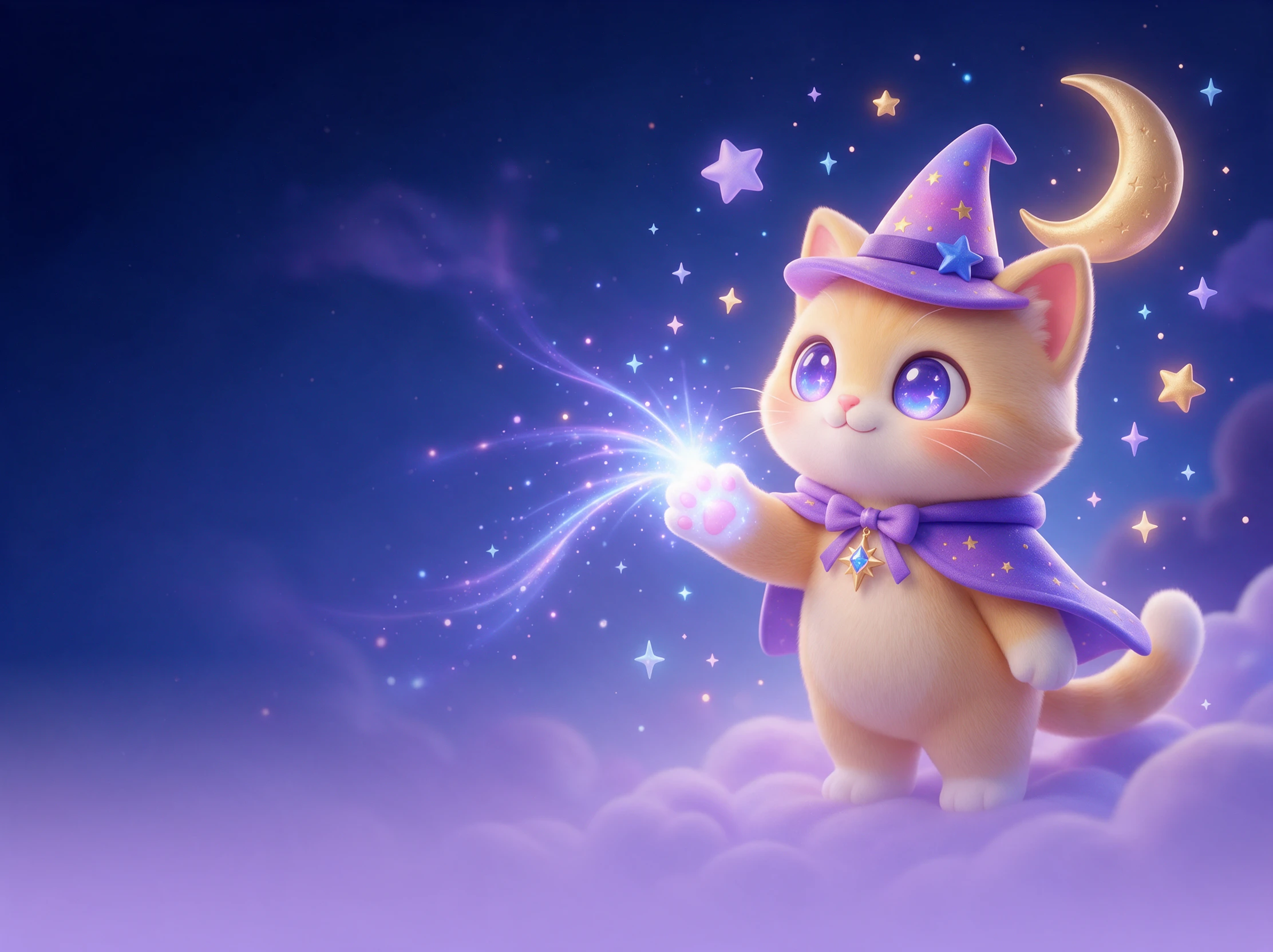
Give a mascot or portrait a simple goodbye gesture, such as a wave, wink, or bow. With 20 video models available, you can test another model when the first result makes the movement feel stiff.
Start Creating


Start with a clean logo or mascot and let the outro maker handle the rest. These 4 simple steps guide you through motion, timing, sound, and the final video, ready to save.
Head to Image to Video and add a PNG or JPG under 10MB. Use your logo, mascot, or portrait as the visual anchor viewers will see whenever your video signs off.
Use the 1500-character prompt field to choreograph the ending. Keep a logo fixed while light passes over it, or direct your mascot to wave as the final message appears.
For a compact ending, select a video model that offers the option to add sound effects. Pick a duration that leaves enough time for your closing visual and audio cue.
Check the generated outro for stable lettering and smooth movement. Save the outro in the set resolution standard for further usage.
Podcast Host
My podcast outro used to be a static screen. With Magiclight AI, I gave my host image subtle motion and paired it with the sign-off we use every episode.
Streamer
I wanted something more personal than an ending card. Magiclight AI helped me turn my mascot into a waving outro that fits naturally after every live stream.
Freelance Video Editor
For client projects, Magiclight AI makes it easy to turn existing brand artwork into short endings. I can create a different outro that matches each client's visual identity.
YouTuber
Magiclight AI gave my channel a much stronger finish. I animated my mascot into a short goodbye, and now every upload ends with the same recognizable moment.
No. Clickable elements are added later in YouTube Studio, up to 4 on a 16:9 video. Leave open space in the Magiclight AI outro where those boxes will sit.
Yes. The Magiclight AI outro maker can create endings for YouTube uploads, podcasts, streams, promos, and brand videos using your logo, mascot, or portrait.
Not on all of them. YouTube skips end screens on mobile web and in its Kids and Music apps, so make sure the Magiclight AI outro still works with no buttons on it.
With a face in the outro, like your mascot or your own photo, it can. Add a WAV or MP3 of you saying the line, or record it, and Magiclight AI matches the lips to it.
On the image before upload, or in your editor afterward. Video models can warp the text they draw, so use Magiclight AI for motion and keep lettering in your own file.
Yes, and a repeated sign-off is how viewers learn it. Download the Magiclight AI clip once, then place it after every video, with a paid plan for client channels.


Give viewers an ending they’ll remember. Add your logo or mascot to the outro maker, create your signature sign-off, and make every video feel complete.