Many people want to create amazing videos but lack the required skills. Making great movies usually takes a lot of time and requires expensive tools. Some people use CogVideo AI to create videos from simple text or images. However, these videos are short and have limited quality and control. Because of these problems, creators start looking for better video tools.
One growing platform is MagicLight AI, which is becoming popular for creating AI videos. Its cognitive AI video generation functionalities make it one of the best in the market. This guide will navigate through CogVideo AI and help users decide between both video tools.
Part 1. What is CogVideo AI
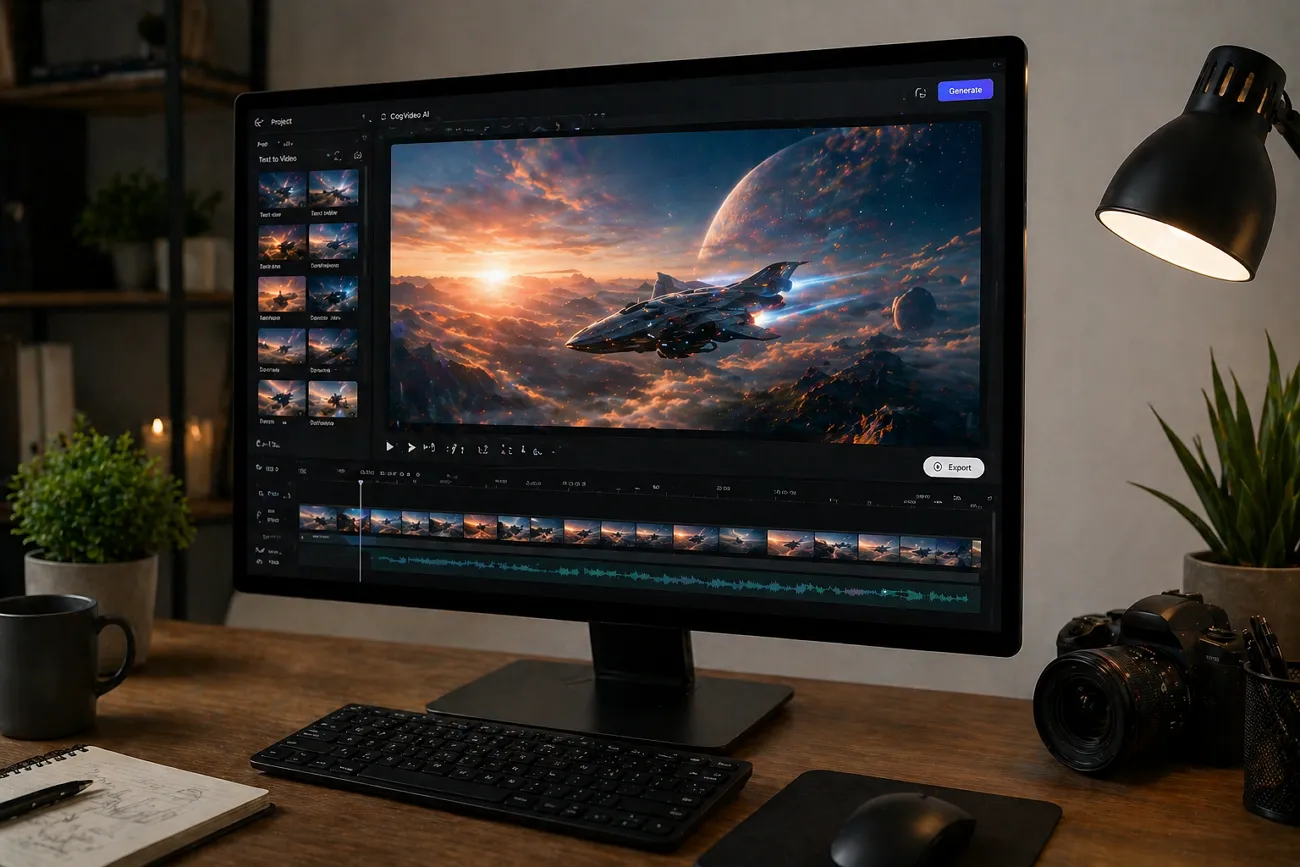
CogVideo AI is a web-based video tool that creates short clips from text or images. It is based on CogVideo and newer CogVideoX models developed for text-to-video generation. The tool also supports image-to-video, adding motion to still pictures automatically. It produces stylized outputs like cinematic, realistic, and animation-based video formats.
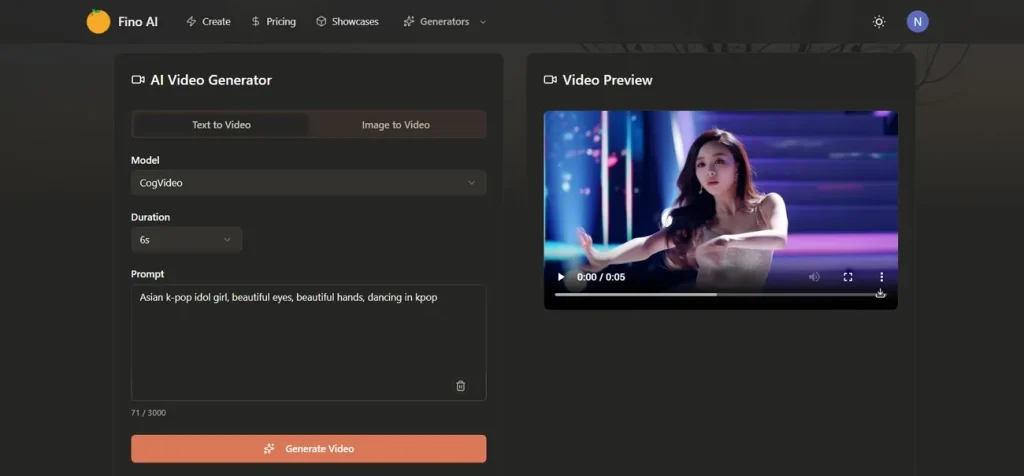
Users can upload pictures or scripts and access prebuilt video clips quickly. It further provides video improvement and upscaling to sharper and clearer graphics. Different aspect ratios and formats help users create content for multiple platforms. Overall, it gives beginners an easy way to generate creative videos fast.
Is CogVideo AI Free?
CogVideo AI is mostly a paid tool with limited trial access for new users. The service usually works on monthly subscription plans with different pricing levels. Basic plans allow more video generations and remove watermarks from outputs. Trial versions may include restricted features and a few free video exports. So, CogVideo AI free access is only partial and not fully unlimited.
CogVideo AI Limitations
In this part, you will review the limitations of the CogVideo image-to-video tool:
- Generates only short videos with limited resolution and duration support.
- Output quality is inconsistent with occasional frame warping or flickering issues.
- Struggles with realistic human faces and detailed hand movements.
Part 2. Best Alternative to CogVideo AI for AI Video Creation
As explored, many users face limits when using CogVideo AI video tools for long-term projects. Because of these limitations, creators often look for more flexible and better alternatives. MagicLight AI fills this gap with improved tools and smoother workflows. This modern tool allows video creation up to 50 minutes for long-form storytelling projects. For diversification, it provides 16 subtitle settings for accurate and customizable video text.
The tool also offers multiple style models like Midjourney V7, MagicLight 2.0, and 3.0 options. Along with this, it has 8 director modes for controlling video storytelling and scene direction. Users can also clone their preferred voice into their videos with its dedicated functionality. After generating videos, MagicLight AI allows video export at 720p and 1080p.
Key Features
- Auto Publishing: Automatically schedules and publishes videos across multiple social media platforms easily.
- Aspect Control: Supports export aspect ratio selection for different social media platforms easily.
- Multi-language Options: Provides 11 languages for global users to create videos without communication barriers.
Step-by-Step Guide to Create an AI Long Storytelling Video from Text
As you know, the capabilities of MagicLight AI, go through the given steps to generate an AI video:
Step 1. Launch the Magiclight AI to Generate Video
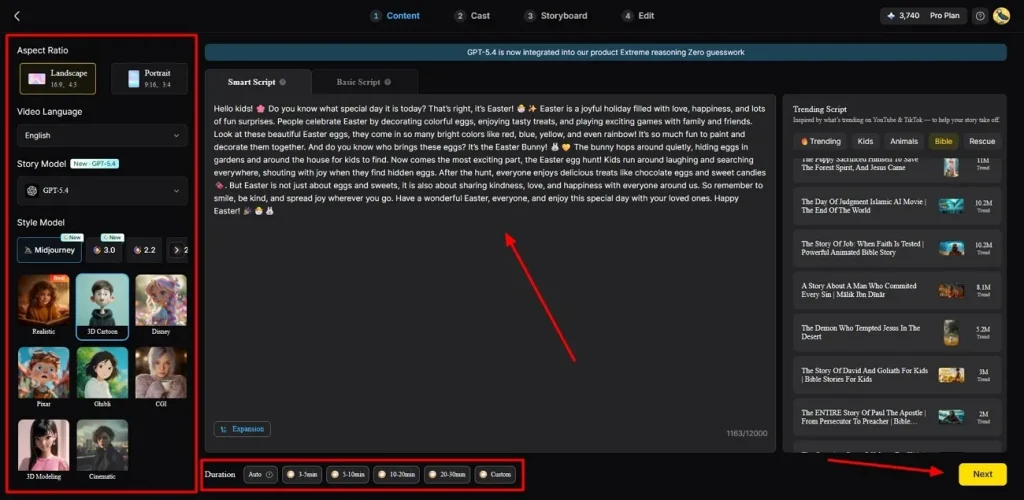
To initiate, access MagicLight AI and start a new AI video project by clicking the Story to Video option.
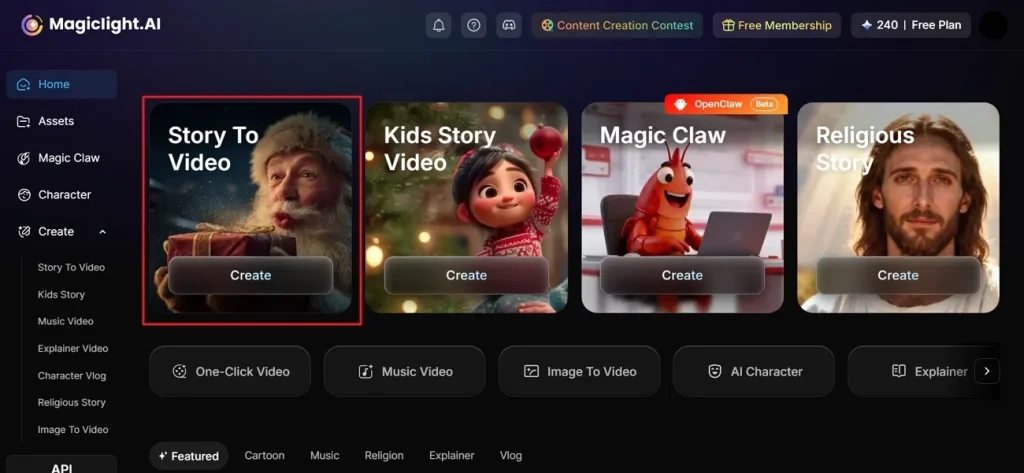
Step 2. Add a Video Idea and Adjust Settings
In the Story to Video feature, type your video prompt in the given Text Box. From the left side panel, choose a desired Video Language and adjust the Aspect Ratio. After that, choose an AI Story Model, such as GPT-5.4, to create a professional-looking video. Moving forward, pick a Style and set the Video Duration, then opt for Next.
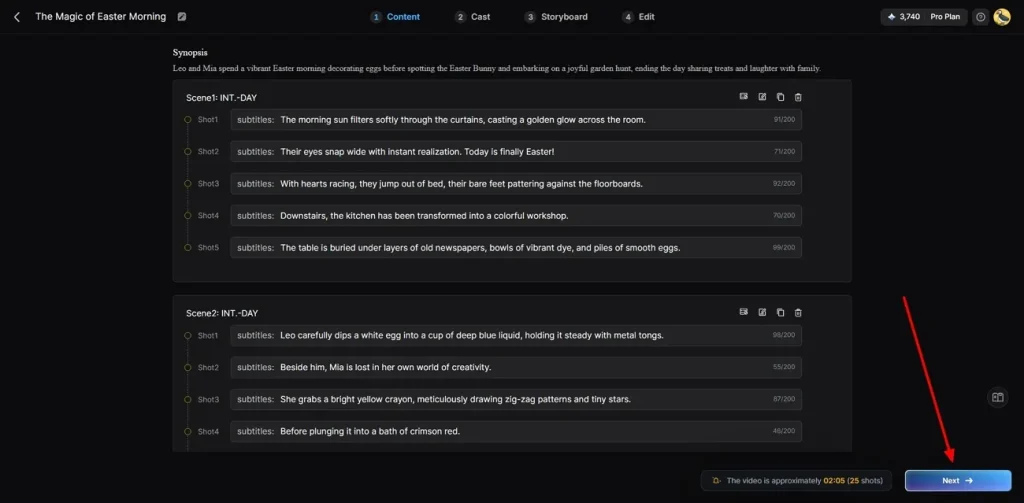
Step 3. Read the AI-Video Summary
Now, the platform automatically generates a summary of scenes, carefully reviews the summary, and proceeds by clicking Next.
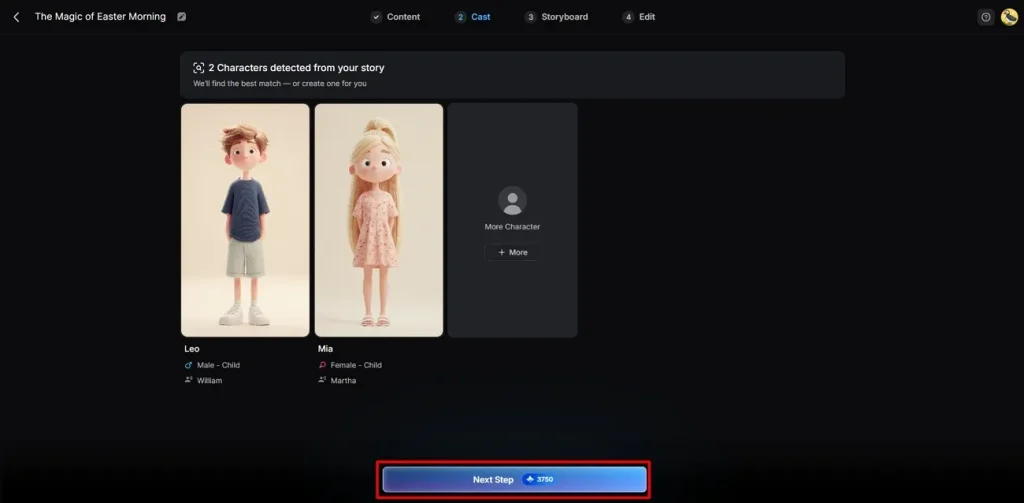
Step 4. Pick or Add More AI Character
Following this, MagicLight AI gives you various AI characters according to your video demand. You can select from the available characters or add a new one using the More Character option. After picking the character, press the Next Step button to proceed.
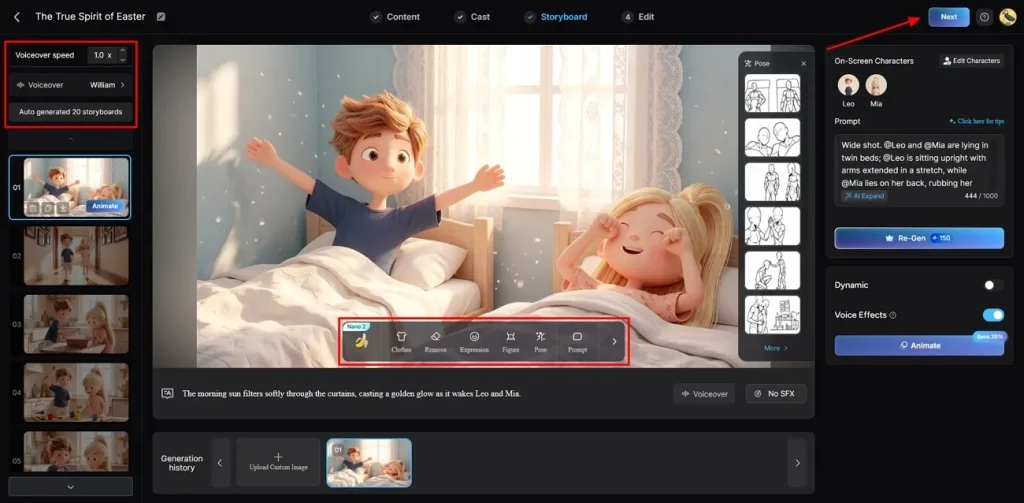
Step 5. Modify AI Character Things
Upon accessing the main storyboard screen, set the Voiceover Speed for your character. You can also change their Clothing or Body Figure to fit your personal style. Once your changes are done, simply click the Next button to move forward.
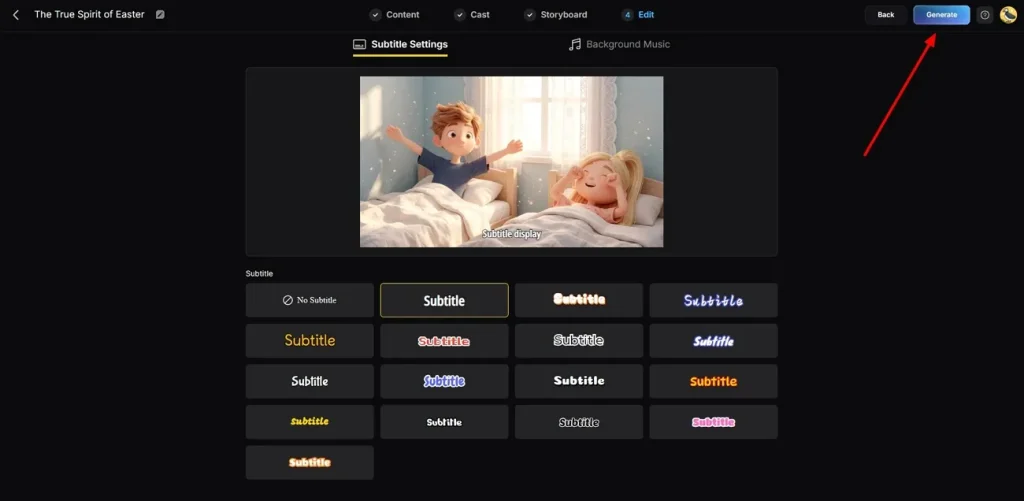
Step 6. Add Subtitles and Sound Track
After this, go to the Subtitle Settings to add text at the bottom of your screen. Next, visit the Background Music section to select the best track to set the right mood for all your viewers. At last, opt for the Generate button to finish making your high-quality video clip.
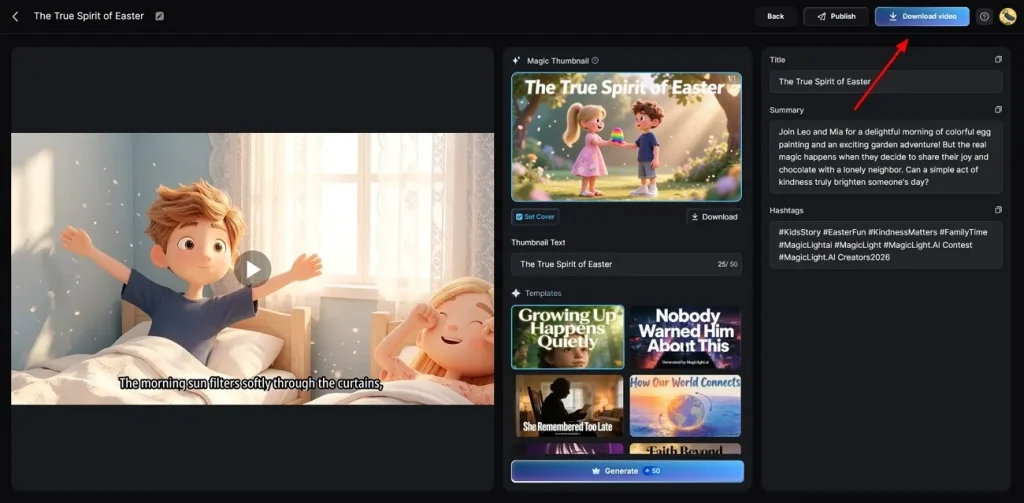
Step 7. Review and Save Your Movie
Later, you can watch the new movie you made with the MagicLight AI tool. Check every part of the clip to see if you like the final result. If the scene looks perfect, click the Download button on your screen.
Why Choose MagicLight AI Tool for AI Video Generation
Essentially, users choose the MagicLight AI tool for better AI video generation results. Yet, below are the main benefits that explain why it stands out from others:
- Voice Cloning: It offers 37 voice options with advanced voice cloning for realistic narration output. So, this makes characters sound natural and improves emotional connection in videos.
- Nano Control: The tool provides Nano adjustments for poses, expressions, clothing, and body structure details. As a result, it gives creators precise control over every small visual scene element.
- Cover System: Users can generate automatic video covers with 21 customizable template design options available. This helps improve click-through rates on social media platforms effectively.
- Animation Flow: MagicLight AI converts the storyboard into an animation using 16 advanced rendering models for smooth output. It ensures consistent motion quality across all generated video scenes.
- One-Click Generation: The tool creates full videos instantly using 14 advanced AI models. This saves time and removes the need for manual editing or complex steps.
Conclusion
To conclude, CogVideo helps users create short videos from text and images easily. It offers simple tools but still has limits in quality and control. So, creators often need better tools for long and detailed video projects. However, these limits create a strong need for more flexible solutions. Therefore, MagicLight AI provides advanced features and smoother workflows for better results.
FAQs on CogVideo AI
1. How does the CogVideo AI video generator work?
CogVideo AI reads your simple words and turns them into moving clips. The system uses AI video generation models to build clear scenes from your short text. It connects frames together to make a smooth movie in just a few seconds.
2. Can beginners use CogVideo AI easily?
Yes, beginners can use CogVideo AI because it requires very simple steps. Most online tools provide easy interfaces where users just type and generate videos. For better results and control, users can try MagicLight AI's advanced features.
3. Is CogVideo AI safe and legit?
Yes, CogVideo AI is a real and safe AI video-making tool. It has normal rules and clear privacy and usage information for users. Still, users should avoid sharing private or important personal information there.
4. What are the best CogVideo AI alternatives?
Many users look for alternatives when CogVideo AI does not meet advanced needs. Some tools offer better control, longer videos, and more stable video quality results. MagicLight AI is a strong alternative with advanced features and smoother workflow options.
5. Does CogVideo AI support high-quality video output?
CogVideo AI can generate HD videos, but it often has some limitations. Output quality may vary depending on prompts, models, and platform usage conditions. Many users prefer MagicLight AI video tools for higher quality and consistency.


![How to Write a Script for a Short Film in 2026 [Beginner’s Guide]](https://magiclight.ai/wp-2/wp-content/uploads/short-film-screenplay-writing-guide-300x169.webp)