


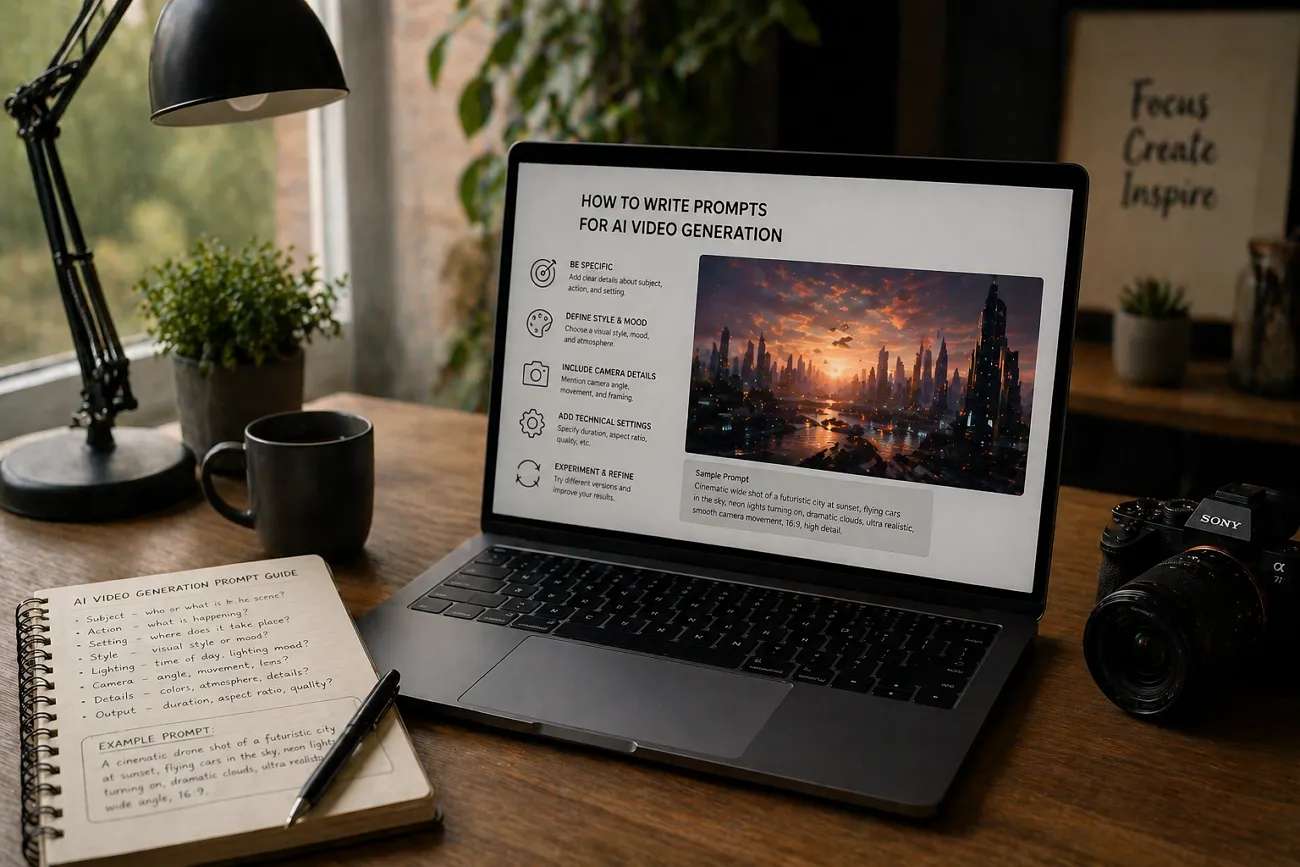
Many users feel confused about starting video creation from simple ideas. So, they search for how to write prompts for AI video generation online. Simple prompts help turn ideas into videos without complex tools or skills. As users experience this simplicity, they start expecting even faster and smarter solutions.
Because of this growing need, creators look for better and more modern tools. One advanced tool is MagicLight AI, which helps creators generate high-quality videos with AI-influenced features. To excel in video creation, this guide will help you write better prompts with improved expressions.
Part 1. How to Write AI Prompts for Videos (Step-by-Step)
A clear understanding of how to write effective prompts for AI video generation matters. Below are step-by-step instructions for writing effective and structured video prompts:
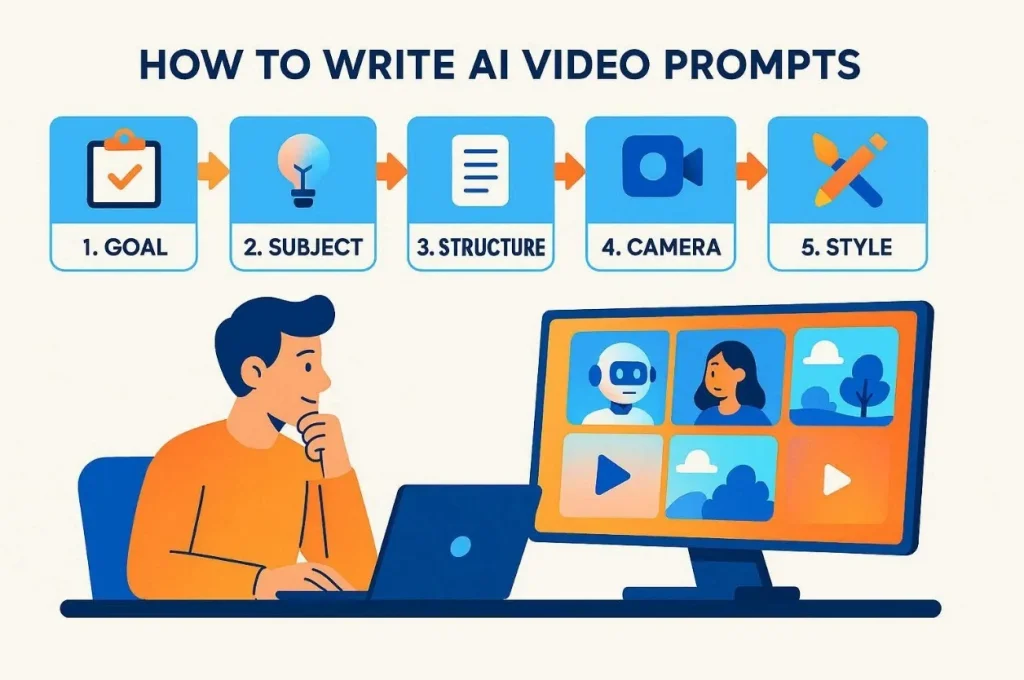
Step 1. Define Your Primary Video Goal
Start by clearly defining the main purpose and format of your video first. Identify the audience platform, length, and intended outcome before writing the prompt details clearly. A clear goal helps guide the style, camera motion, and overall video direction smoothly.
Step 2. Choose the Main Subject and the Action
Identify who or what appears on screen and the main action happening. Keep the subject simple, clear, and visually strong for better AI understanding results. Focus on one primary person or object to avoid any big confusion. Simple actions help the machine create much smoother and more natural motion.
Step 3. Build a Full and Detailed Structure
Use a structured format combining subject, action, scene, camera, and style elements. Each element should describe one clear visual part of the video scene. This structure improves AI understanding and generates more accurate video results quickly. For example, tools like MagicLight AI work better when prompts follow a clear structure, helping generate more precise and visually consistent videos.
Step 4. Add Camera Style and Angle Instructions
Specify camera angle, movement type, zoom level, and framing style clearly. These instructions control how viewers experience motion and visual storytelling flow. Your prompt can tell the camera to pan or zoom to create a professional look. A clear camera path stops the video from looking static or very boring.
Step 5. Finalize Style and Visual Appearance Details
In the final step, select cinematic style, mood, lighting type, and color palette carefully. These elements shape the emotional tone and overall visual quality of your video. Moreover, mention day or night to ensure proper lighting and scene consistency.
Part 2. 10 Example AI Video Prompts
Knowing how to write AI prompts for videos boosts creative video output. In this section, you will examine 10 effective AI video prompt samples:
Prompt 1. Minimalist Smartphone Reveal
Sleek black smartphone rotates slowly on a clean white pedestal display. Soft studio lights highlight edges with reflections on the glossy surface of the floor. A smooth orbiting camera creates a premium cinematic product look for advertising use.
Prompt 2. Before After Transformation
Messy desk instantly changes into a clean, organized workspace using a smooth transition. Static camera captures a transformation effect with a bright and natural daylight lighting scene. Satisfying clean aesthetic used for productivity and motivation, social media clips.
Prompt 3. Coffee Brand B-Roll
Freshly brewed coffee pours into a ceramic cup in slow motion. Steam swirls upward above a rustic wooden table with scattered brown beans. Warm morning light comes through a window for a very cozy feeling. The camera drifts gently to show a cinematic and inviting morning vibe.
Prompt 4. Motivational Gym Clip
An athlete prepares for a workout inside a dark gym with an intense lighting mood. Chalk dust explodes in slow motion while the camera pulls back for a view. Cinematic high contrast style used for strong motivational fitness video content.
Prompt 5. Lonely City Walk
A person walks alone on a rainy neon street with reflections on the ground. The camera follows behind slowly, showing a moody cyberpunk city atmosphere and rain. Soft blue magenta lighting creates an emotional cinematic nighttime storytelling visual scene.
Prompt 6. Desert Road Trip
One vintage car drives through an empty desert highway under a golden sunset sky. Dust trails behind the vehicle while the camera slowly rises and shows a wide landscape. Warm and nostalgic cinematic style creates a peaceful travel and freedom adventure feeling.
Prompt 7. Plants and Sunlight Aesthetic
Close-up of indoor houseplants on a windowsill with very soft shifting sunlight. Moving shadows fall on the wall with a gentle and handheld movement. Warm natural tones make this an aesthetic choice for your social reels. This simple scene shows beauty in a quiet and very peaceful way.
Prompt 8. Neon Synthwave Cityscape
Retro neon city scrolls sideways with glowing pink and blue buildings. Grid floor and sunset sun create a strong 80s synthwave visual style. Smooth looping camera pan makes a perfect background for aesthetic video content.
Prompt 9. Galaxy Meditation Loop
A spinning galaxy made of glowing purple and blue particles floats slowly. Soft lens flares and gentle motion create a calm space atmosphere. Smooth zoom-in and out motion used for meditation background loops.
Prompt 10. SaaS Dashboard UI
A floating holographic dashboard appears above the desk with charts and metrics updates. The camera gently rotates, showing a futuristic interface inside a minimal office environment scene. Cool blue lighting creates a modern software promotional technology product advertisement look.
Part 3. Best Tool to Turn Simple Prompts into Powerful Videos
You now understand how to write prompts for AI video generator clearly. However, turning prompts into high-quality videos can still feel slow without better tools. That is where MagicLight AI helps solve this by turning simple prompts into complete videos easily. The tool has a Smart Script feature that improves your short prompt into a complete story with up to 12,000 characters.
MagicLight AI supports 11 different languages to make content for global users for wider usage. In addition, it provides 9 story models, including Gemini 3.1 Pro and GPT-4, to generate different structured storytelling video formats. If you want to generate long videos, this tool allows up to 50 minutes. During video generation, it maintains a consistent AI character appearance across scenes using an advanced character-locking system.
Key Features
- Style Models: Offers multiple visual styles like Midjourney V7 and MagicLight 3.0 to design an AI character look that matches the niche and personality traits.
- Auto Publishing: Schedules videos and publishes them automatically on selected platforms without manual effort.
- Nano Editing: Supports Nano adjustments with 50 pose options and detailed scene control.
A Full Guide to Generating an AI Video with a Prompt Using MagicLight AI
After exploring all the capabilities of MagicLight AI, explore the guide below to generate an AI video:
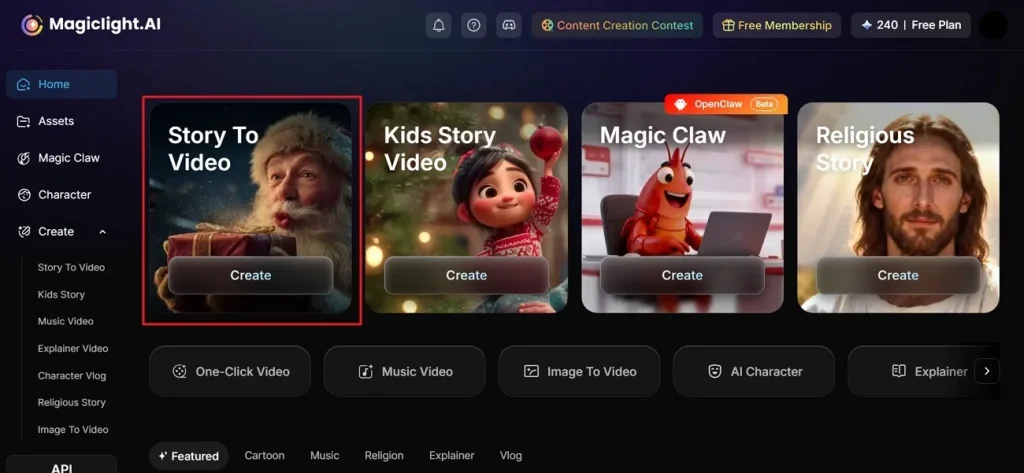
Step 1. Open Story to Video Feature
To get started, visit MagicLight AI and select the Story to Video option on the home screen.
Step 2. Type Prompt and Adjust Settings
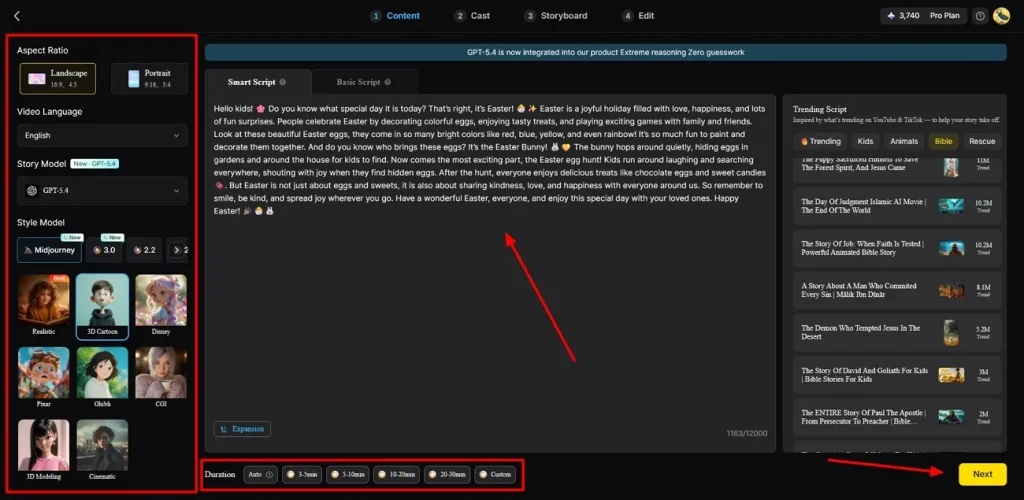
Upon opening it, describe your idea in the provided Text Box and choose your preferred Video Language from the given options. After doing this, adjust the video Aspect Ratio and select the AI Story Model, such as Gemini 3.1. Following this, pick a video Style and set the video Duration, then opt for Next.
Step 3. Review or Edit AI Video Scenes
On the next screen, the tool provides an AI-generated video summary for you to review. You can even edit or modify the existing AI video scenes before video generation. Once it is done, opt for the Next button to move forward.
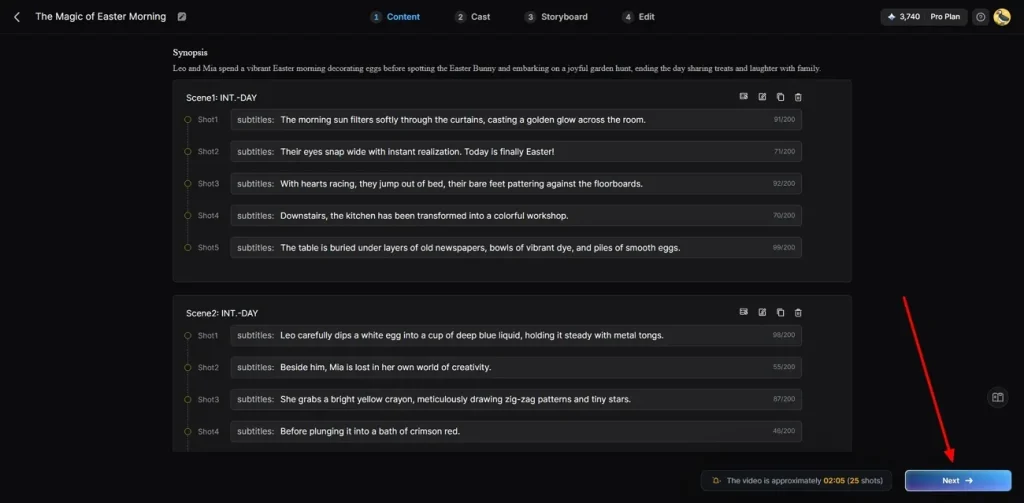
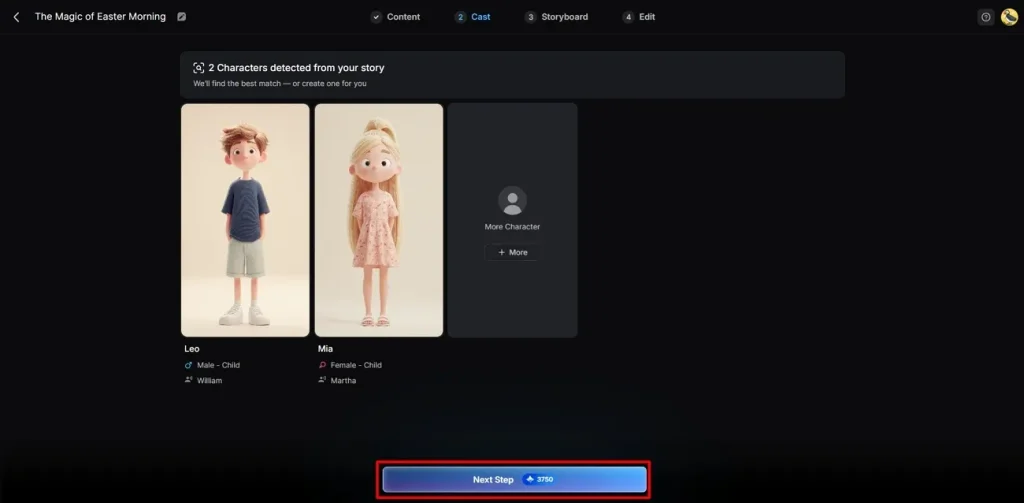
Step 4. Select or Change AI Character
MagicLight AI gives you different AI characters according to your video demand, so select the existing one or add by clicking More Character. When you select it, press the Next Step button to proceed.
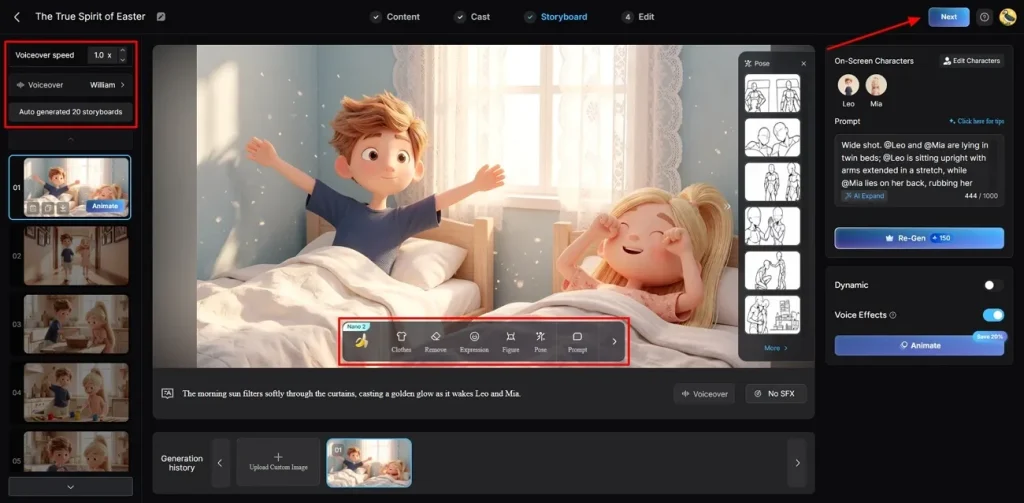
Step 5. Change the Selected Character Appearance
After opening the storyboard screen, set the Voiceover Speed based on your video flow. Then customize your character by changing Clothing, Style, and Body Appearance as needed. Once everything looks right, press the Next button to move forward.
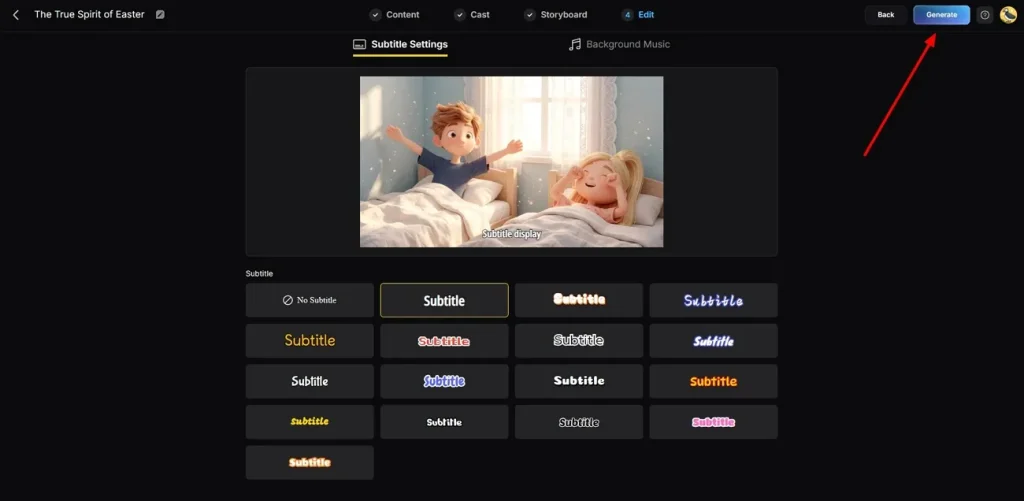
Step 6. Add Subtitles and Background Soundtrack
Later on, open the Subtitle Settings to add clear captions to your video. Next, opt for the Background Music and choose a suitable audio track. Finally, click Generate to apply subtitles and music to your video output.
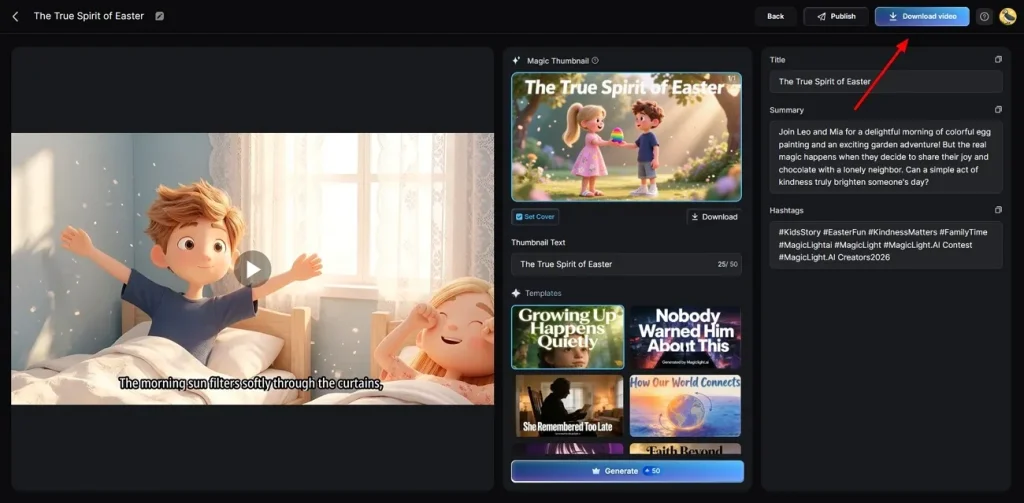
Step 7. Watch and Download Generated Video
At last, preview your AI-generated video to check quality and overall results. Once satisfied, opt for Download to save the video to your device.
Conclusion
To sum up, writing effective prompts becomes easier when you follow a clear and simple structure. This guide explains how to write prompts for AI video generation step by step. Practice different prompt styles to improve your video quality and creative results. However, turning prompts into full videos still needs the right tool support. At this point, MagicLight AI helps create, manage, and improve videos more efficiently.
FAQs on How to Write AI Video Prompts
1. What is an AI video prompt?
An AI video prompt is a written instruction that guides video creation. It describes subject, action, scene, camera, and style for clear output results. A good prompt helps the system generate accurate and visually appealing videos.
2. Can beginners write AI video prompts easily?
Yes, beginners can write AI video prompts by following simple steps. Using clear words and structure helps improve results without technical skills. Alongside this, practice and examples make it easier to create better prompts over time.
3. What makes a good AI video prompt?
A good prompt uses clear details about the subject, action, and the specific camera moves. You should describe the lighting and the overall mood to make the video look professional. Avoid confusion and keep instructions simple for smooth and accurate video generation.
4. What type of prompts work best in MagicLight AI?
MagicLight AI works best when you provide very detailed stories and clear character descriptions. The tool uses the Smart Assistant to turn simple ideas into long and cinematic films. It handles complex scenes well while keeping your main AI character looking the same every time.


![How to Write a Commercial Script in 2026 [Full Guide]](https://magiclight.ai/wp-2/wp-content/uploads/commercial-script-writing-full-guide-300x169.webp)