You can learn how to make an AI movie without spending money on filming equipment. A simple story idea can become a complete movie with the help of MagicLight AI. Your movie feels more natural when each scene connects well with the next one. A familiar look for each character helps people stay focused on what happens next. Here, you will learn how to put your movie together and make it worth watching.
Part 1. How to Make an AI Movie With MagicLight AI
A movie often begins with a rough idea that you can develop using MagicLight AI. Its Story to Video feature accepts up to 12,000 characters to develop your movie script. The tool supports videos up to 50 minutes long without requiring a traditional film shoot.
You can create characters for your story and use them across different movie scenes easily. Their appearance stays consistent across scenes, which matters when you make movies with AI.
Guide to Creating an AI Movie Step by Step
MagicLight AI takes your story through 7 steps to build a movie with connected scenes. The steps below show how to make AI movie scenes with consistent characters and visuals:
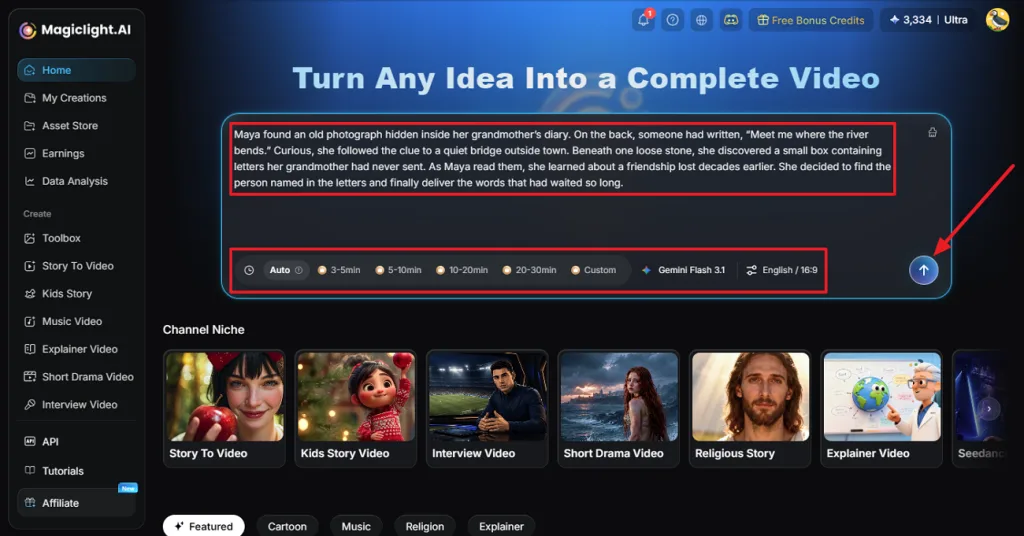
Step 1. Add Your Short Film Script
Open and paste the screenplay into the prompt box on MagicLight AI. Select the movie duration, model, language, and aspect ratio according to the project. The Send button passes the script to MagicLight Agent for the next stage.
Step 2. Review the Script Breakdown
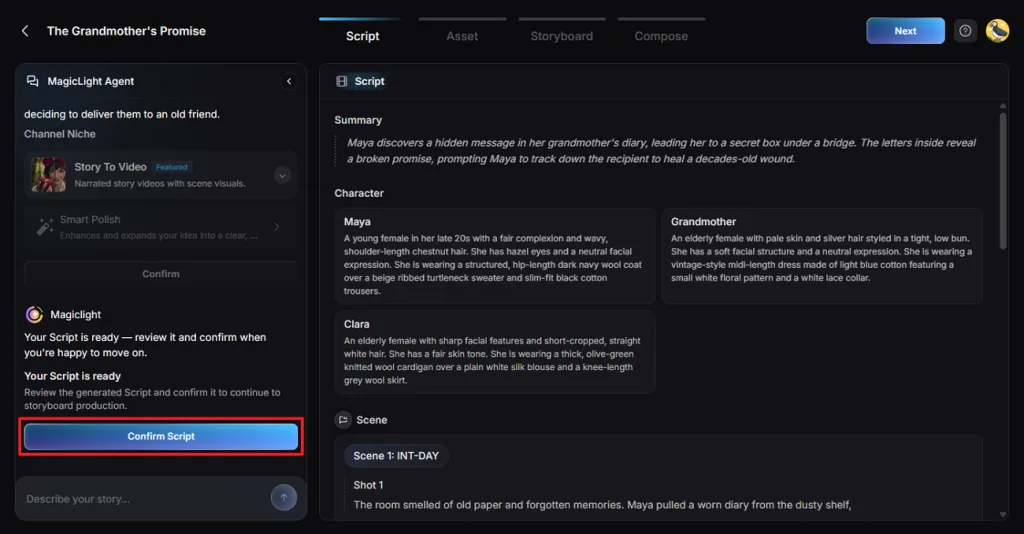
MagicLight Agent separates the screenplay into a summary and shots for review. The Script panel displays character details and arranges each scene into numbered shots, ready for any corrections. Once the breakdown matches the intended story, Confirm Script approves it for production.
Step 3. Set the Film Style
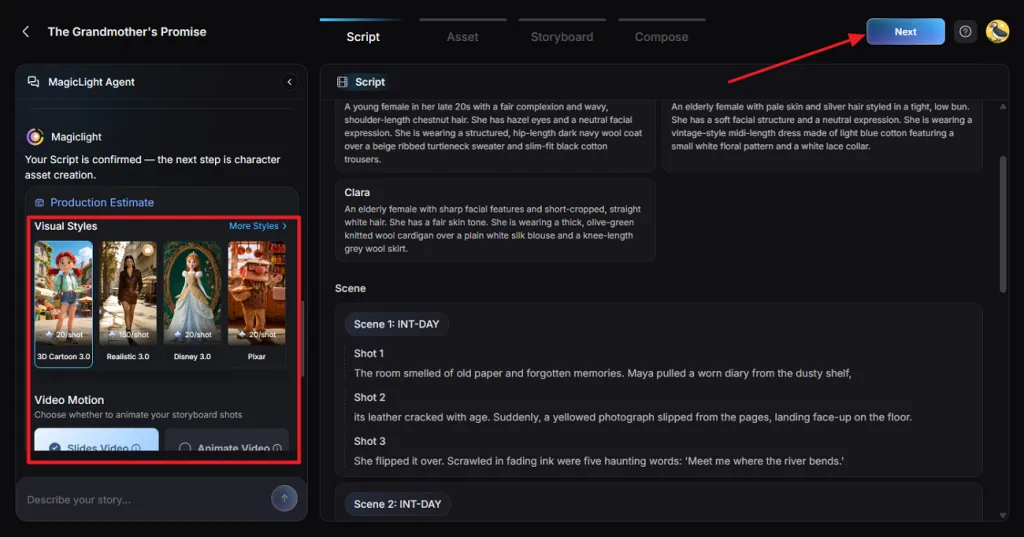
The Production Estimate card lists Visual Styles such as Realistic, 3D Cartoon, and Ghibli, each with its estimated cost per shot. Under Video Motion, Slides Video keeps the frames still at a lower cost, and Animate Video puts each shot in motion. Once done, press the Confirm button.
Step 4. Check Your Characters
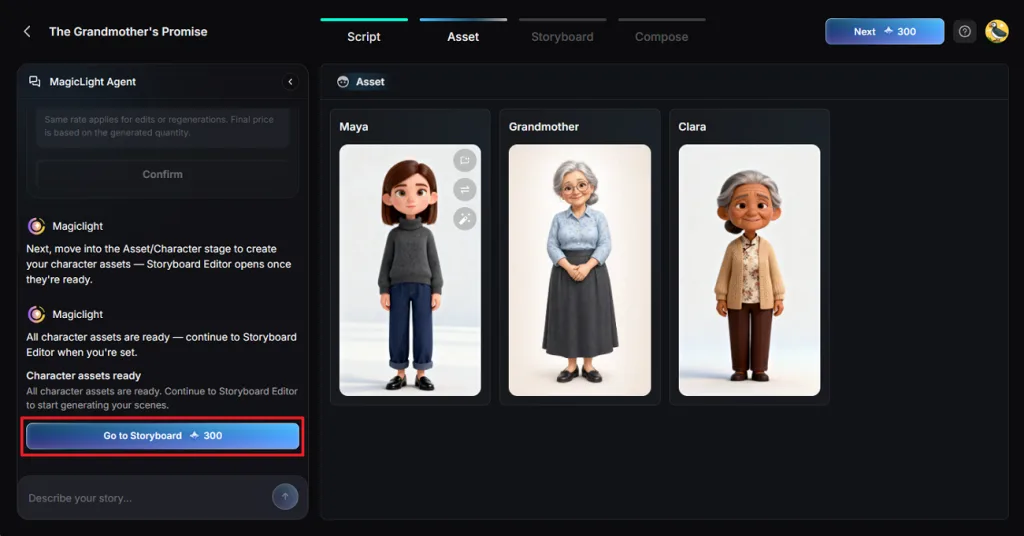
The Asset stage generates each character from its script description for approval before the storyboard is created. Choose a character from the given options or create a new character. Once the characters are finalized, press Go to Storyboard to create the scenes in the script.
Step 5. Refine and Animate Each Shot
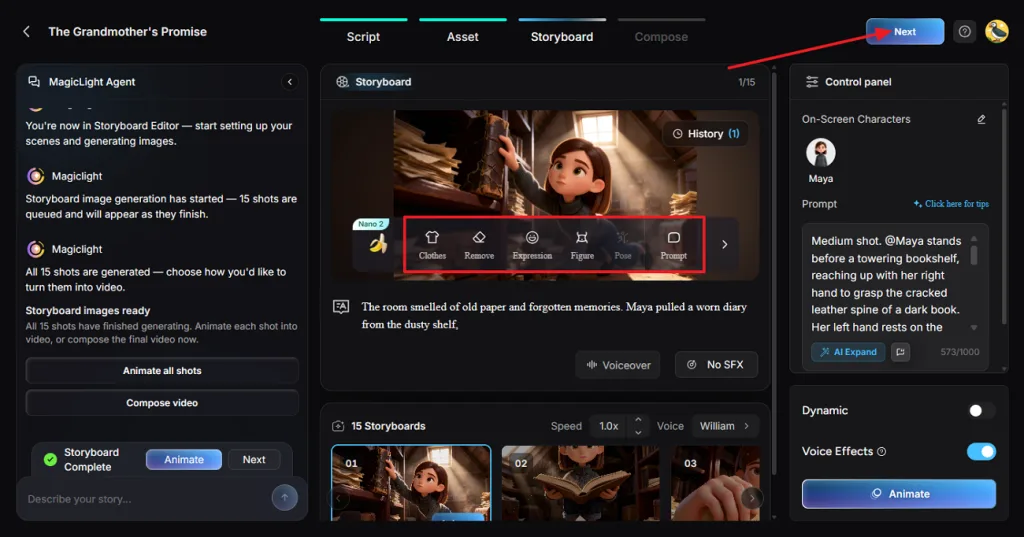
The storyboard displays each shot with options to adjust clothes and poses. Review each scene and adjust the shots and other aspects. After reviewing the shots, press Next to continue.
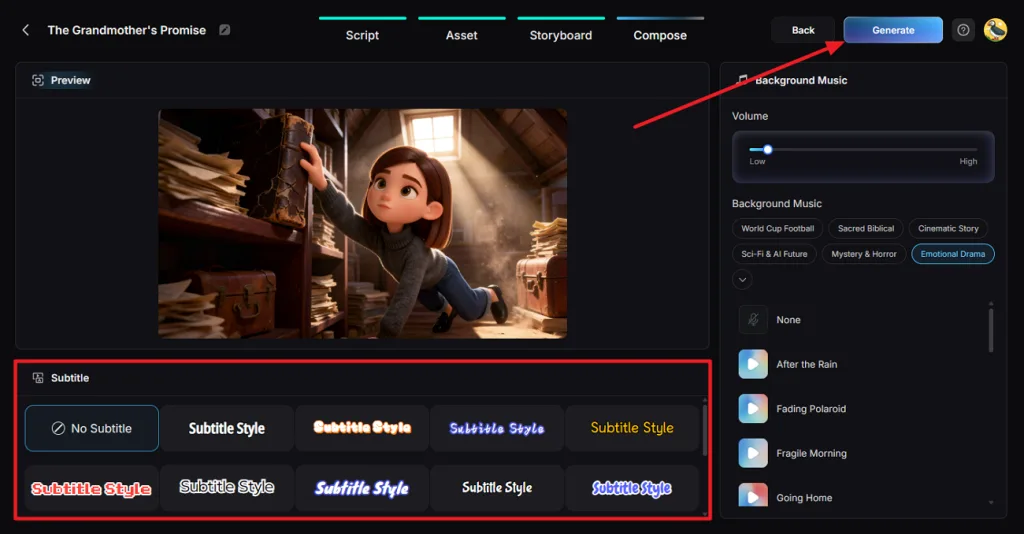
Step 6. Add Subtitles and Music
Select a Subtitle Style for the movie or choose No Subtitle to leave captions out. Once the background music and subtitles are set, click Generate to produce the final video.
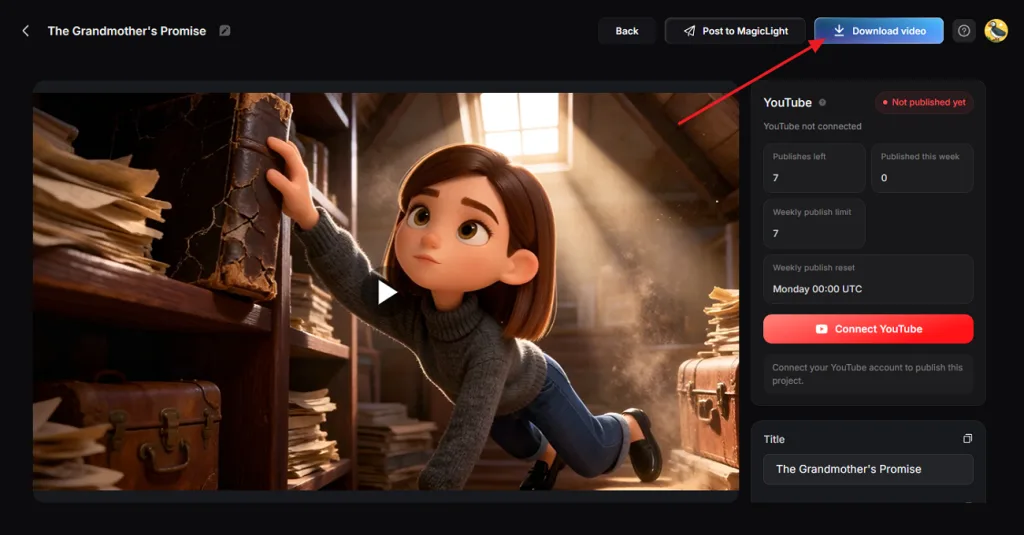
Step 7. Download Your Finished Film
Preview plays the completed movie with its scenes and subtitles. Watch the final cut to catch any changes in character appearance and check how the scenes follow one another. Click Download Video to save the finished movie.
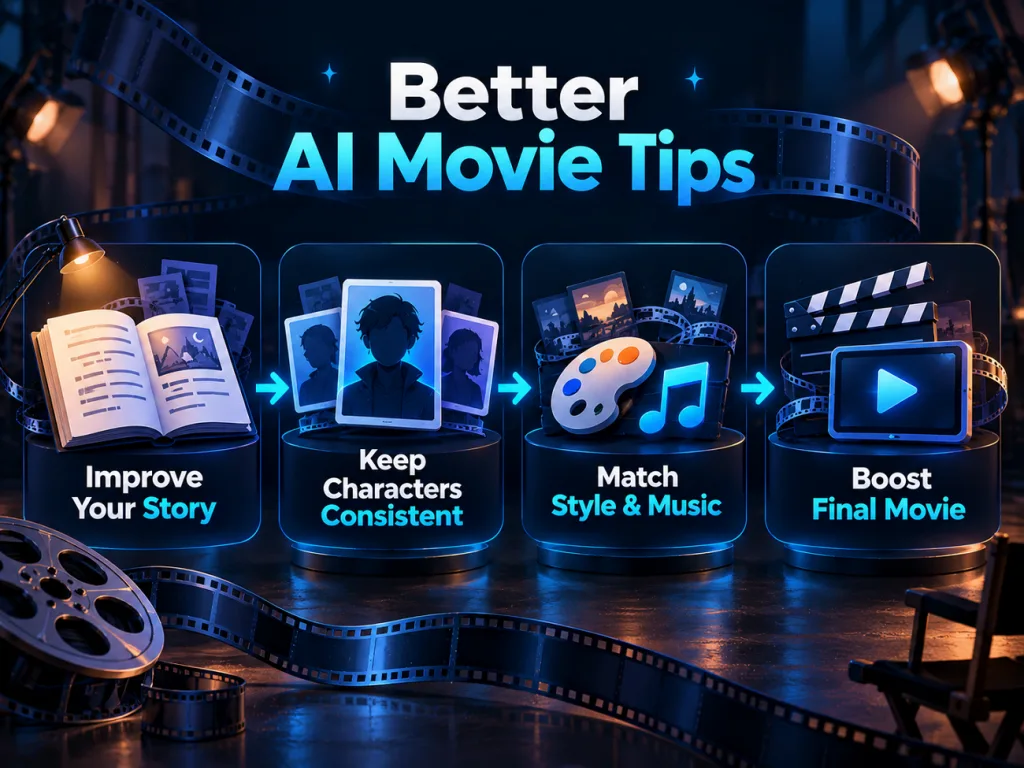
Part 2. Tips for Making Better AI Movies
An AI movie maker can help you create AI movies, but the final quality depends on your creative choices. The tips shared below will help you improve your story and make every scene more engaging.
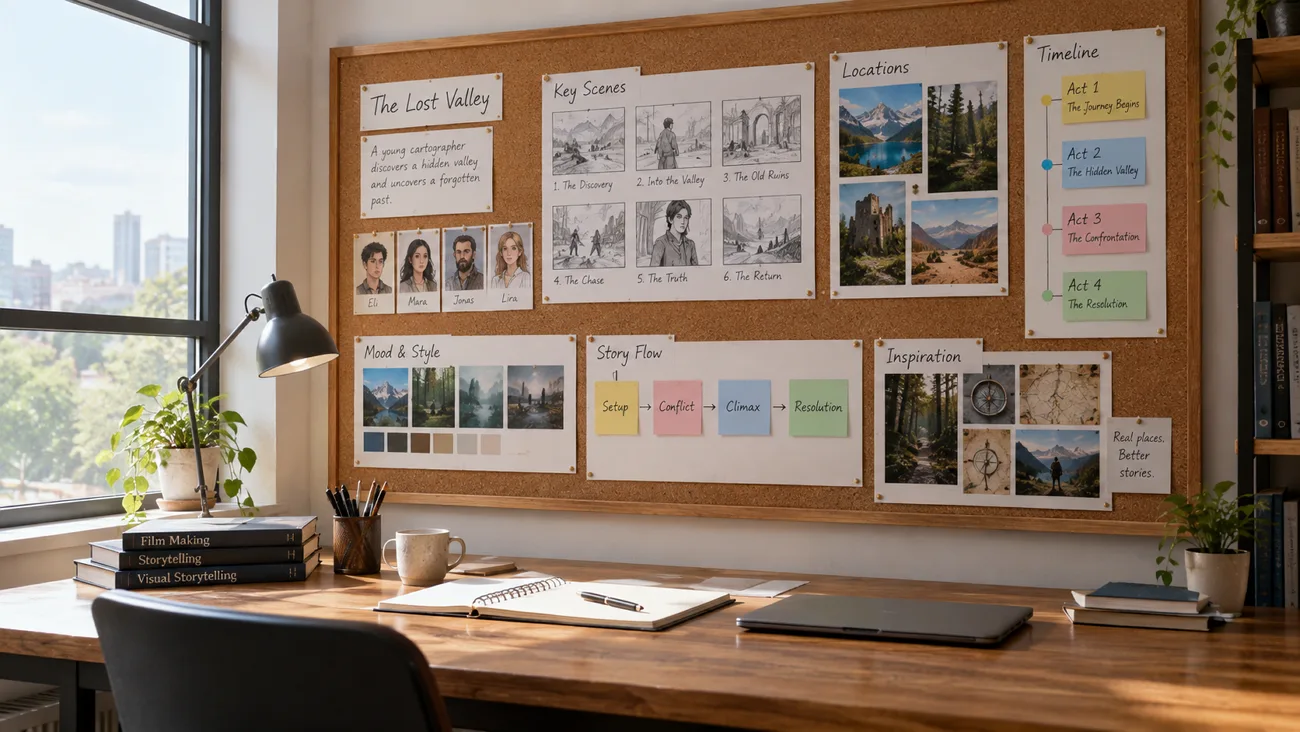
1. Improve the Story Before Generating
A well-planned story keeps viewers interested by giving them something new in every scene. Introduce the stolen watch early in the clockmaker mystery to establish the main storyline. Read the dialogue aloud before pressing Confirm Script to remove unnecessary scenes that slow the movie.
2. Keep Characters Consistent Across Scenes
Characters should look familiar throughout the movie. MagicLight AI uses saved character details to keep their appearance consistent across different scenes. Here are a few ways to maintain the same cast in your movie:
- Tagged Characters in Prompts: Add @ before character names to connect storyboard shots with approved designs.
- Saved Cast for Sequels: Bring back characters from previous projects when creating another movie with MagicLight AI.
- Clear Character Descriptions: Describe each character's facial features to match their role in the movie.
3. Match the Visual Style and Music to the Genre
The visual style sets the mood of your story when you make movies with AI. A mystery film needs a darker appearance to create the right feeling for viewers. The table below shows which visual styles and music work best for different movie genres:
| Genre | Visual Style and Music | What the Pairing Adds |
| Mystery | Realistic with Mystery & Horror tracks | Real faces and low light keep the suspects believable |
| Kids adventure | 3D Cartoon with Cinematic Story tracks | Rounded, friendly shapes read as safe for young viewers |
| Fairy tale | Ghibli with Emotional Drama tracks | Painted backgrounds and soft light slow each scene down |
4. Make the Final Movie More Engaging
Your movie's pace matters as much as the story itself. You can improve it through a few changes in the Storyboard and Compose stages. Here are three things worth trying before finishing your movie:
- Begin With a Mystery: Open with the empty watch case to grab attention from the first scene.
- Try Different Camera Shots: Add "close-up of the granddaughter's hands" to your storyboard prompt to focus on smaller details.
- Set the Narration Speed: Raise Speed above 1.0x during a chase scene and return to normal for conversations.
Conclusion
In conclusion, learning how to make an AI movie becomes easier with MagicLight AI. MagicLight Agent helps develop your story and prepare scenes for the next production stages. You can maintain consistent characters and improve each shot before completing your final movie. Try MagicLight AI to bring your stories to life.
FAQs About How to Make AI Movies
- How do you turn a script into an AI movie?
Paste your screenplay into MagicLight AI and select Basic Script to preserve your dialogue. Its Script to Video tool prepares scenes and generates visuals, narration, and subtitles.
- Which AI tools can help create movie scenes?
Kling 3.0 generates clips up to 15 seconds, while Veo 3.1 supports eight seconds. MagicLight AI's Story to Video tool helps create complete stories with consistent characters and scenes throughout.
- How can AI movie makers maintain visual consistency?
Keep the same character designs and visual style across AI movie scenes. MagicLight AI's long video generator maintains character features, while consistent lighting helps scenes look connected.
- How long can an AI movie be?
Most single-clip generators produce short videos that you need to edit into longer movie sequences. MagicLight AI's paid plans support videos up to 50 minutes for longer storytelling projects.
![How to Write a Script for a Short Film in 2026 [Beginner’s Guide]](https://magiclight.ai/wp-2/wp-content/uploads/short-film-screenplay-writing-guide-300x169.webp)