Explore the Magiclight AI Animate From Audio Features
A familiar voice can make a cartoon feel more personal. When you animate from audio with Magiclight AI, your recording becomes part of the character's performance on screen.
Turn your audio into animated videos with MagicLight. Upload a song or audio track, and create animated scenes that match its mood and rhythm. No animation skills needed.
Create Animation from Audio for Free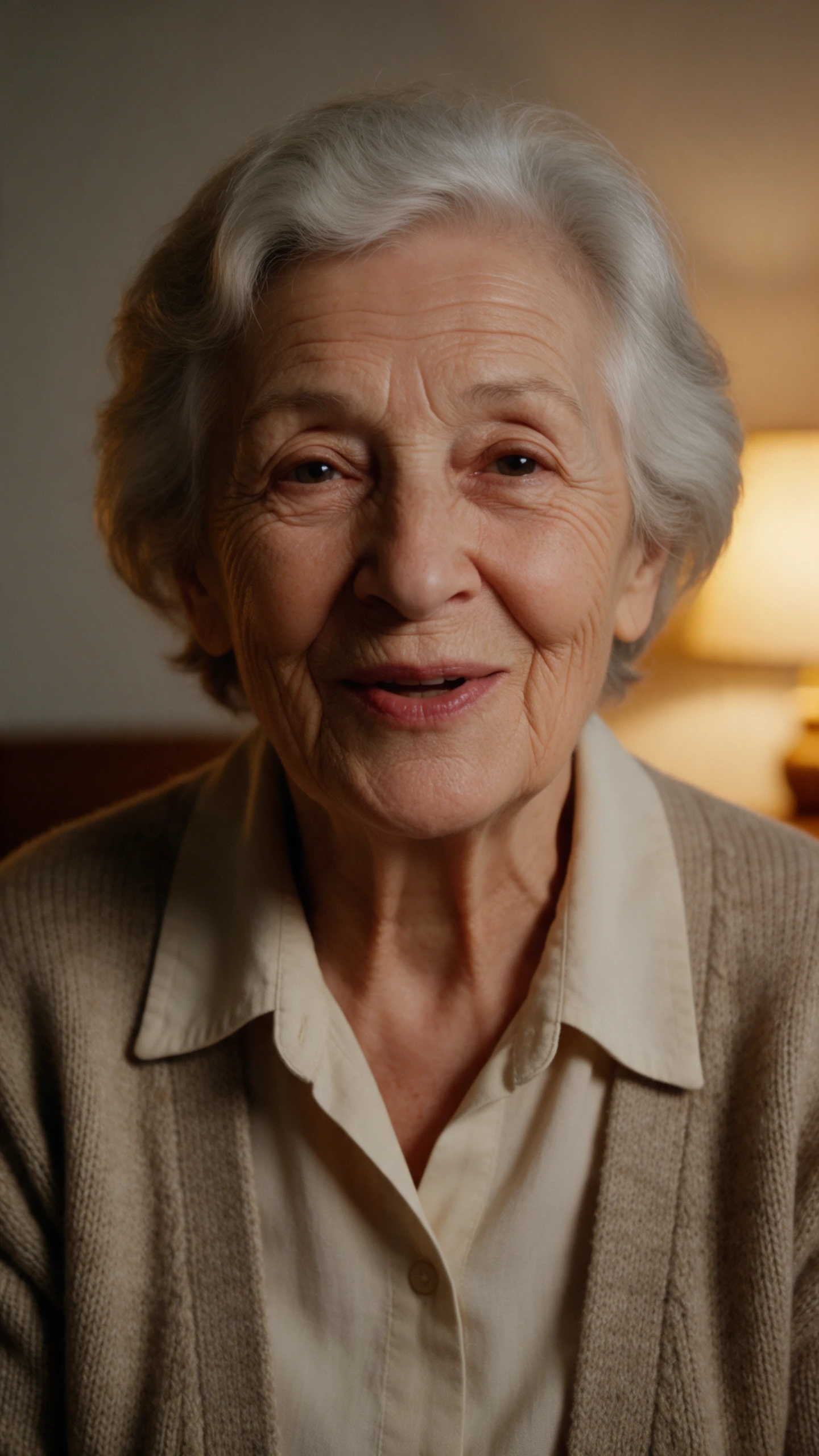
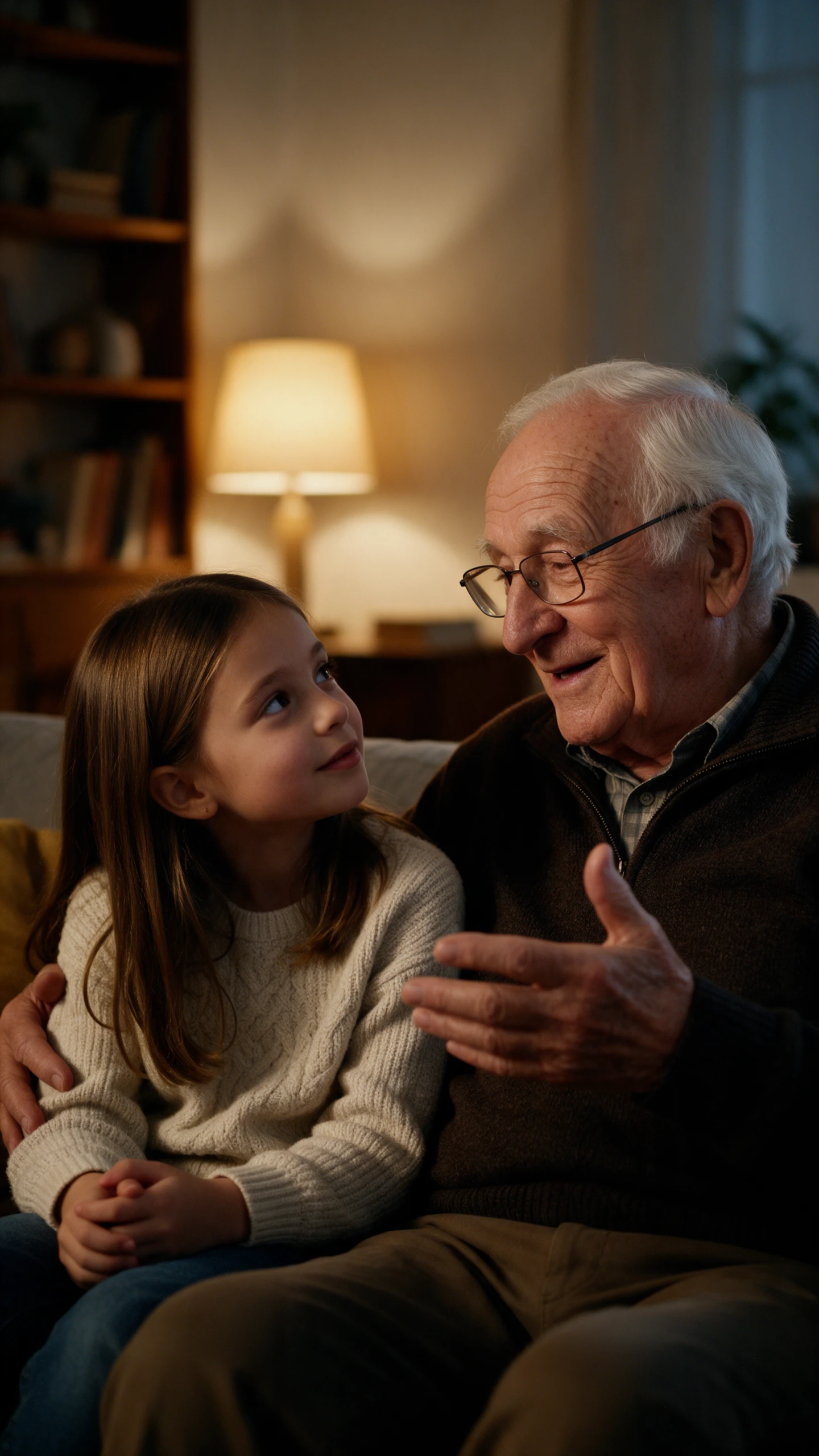
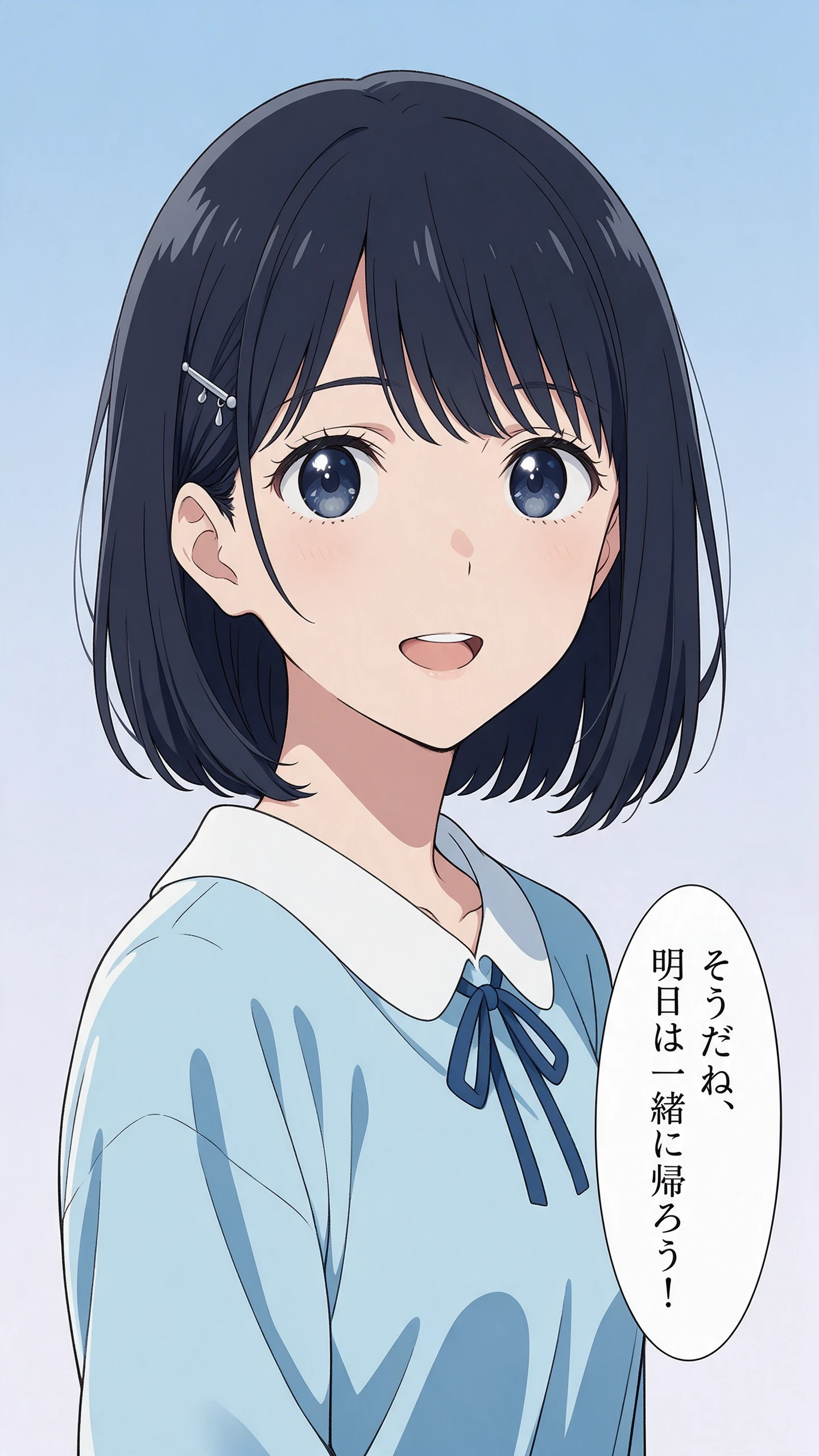
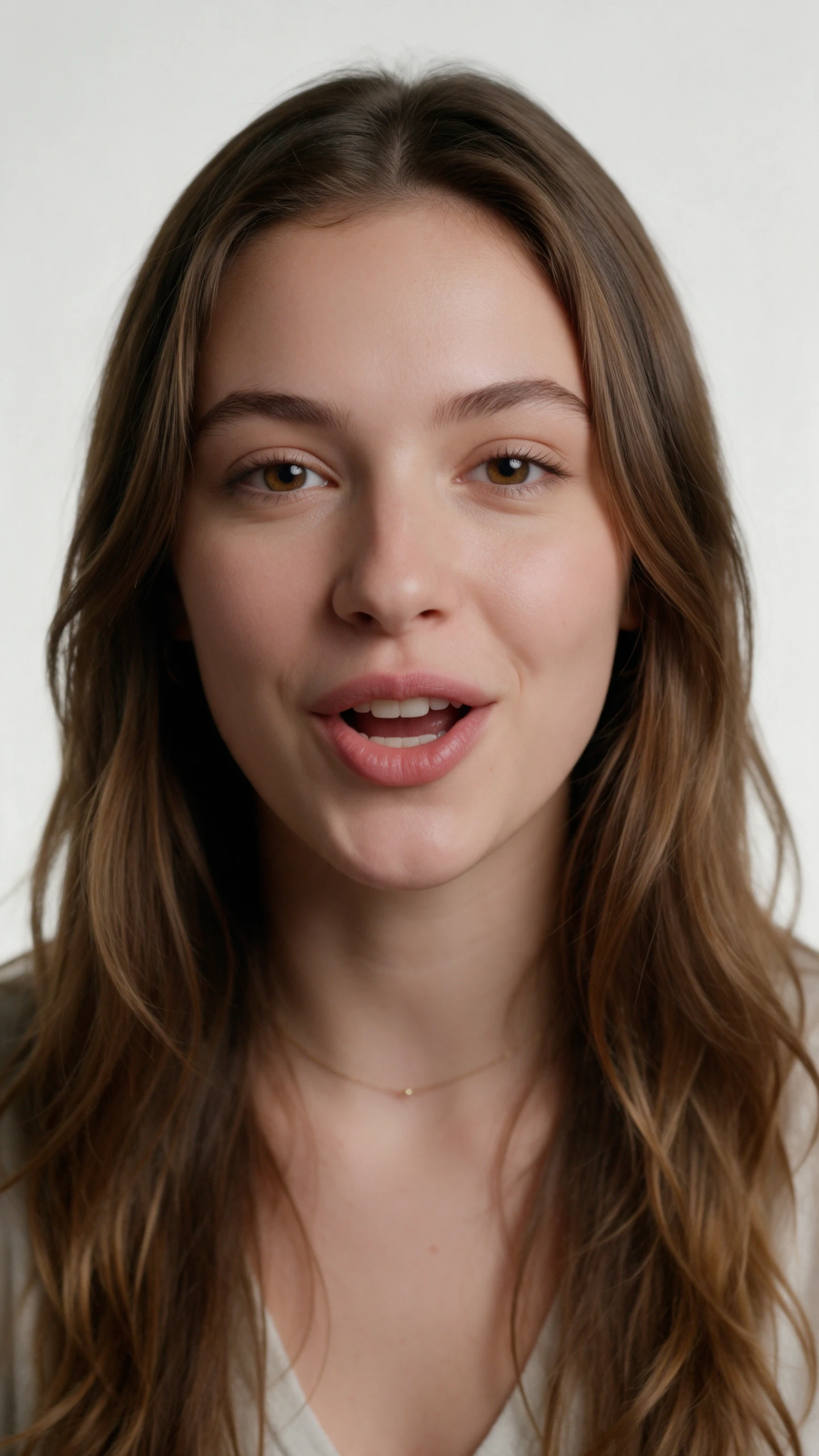
A familiar voice can make a cartoon feel more personal. When you animate from audio with Magiclight AI, your recording becomes part of the character's performance on screen.
Magiclight AI offers 37 voice options for your animated story. Listen to a few before settling on the narrator that feels right for the character and the recording you want to use.
Magiclight AI gives you 1000 characters to describe a speaker's appearance. Mention the face and expression you have in mind before pairing that character with spoken audio.
Pair a character picture with recorded speech through Magiclight AI Lip Sync. Its mouth follows the words in your recording, making a still portrait appear to speak on screen.
It offers 15 ready-made songs to help you get started. Browse the available tracks, select one that fits your video idea, and create animated scenes without recording audio.


Your recording already has a story worth showing. Learn how to animate from audio with Magiclight AI in 4 simple steps, from uploading your sound to downloading the video.
Open the Music Video feature in Magiclight AI. Upload your MP3, WAV, or M4A recording, then select the screen format that suits where you plan to share the animation.
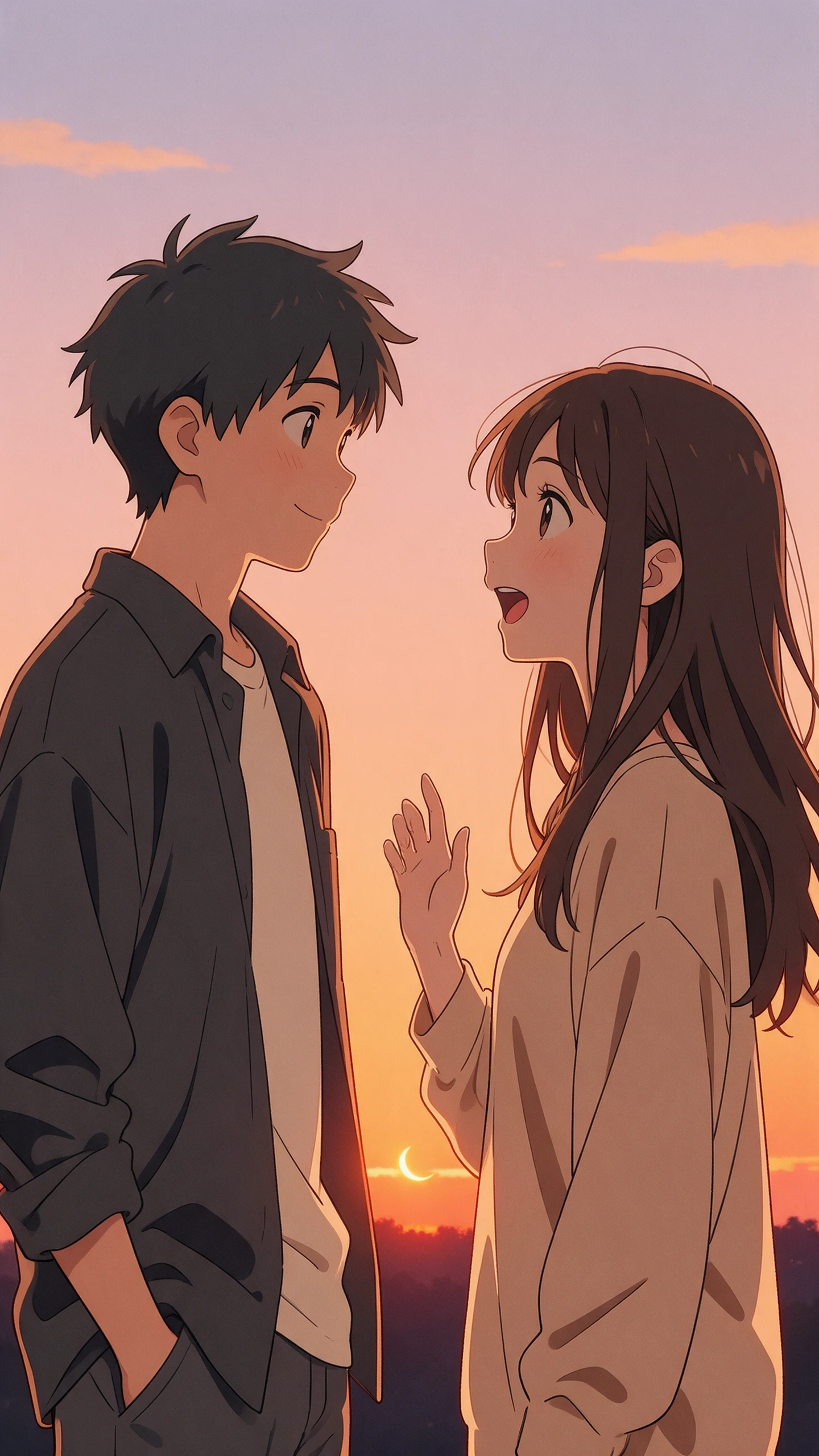
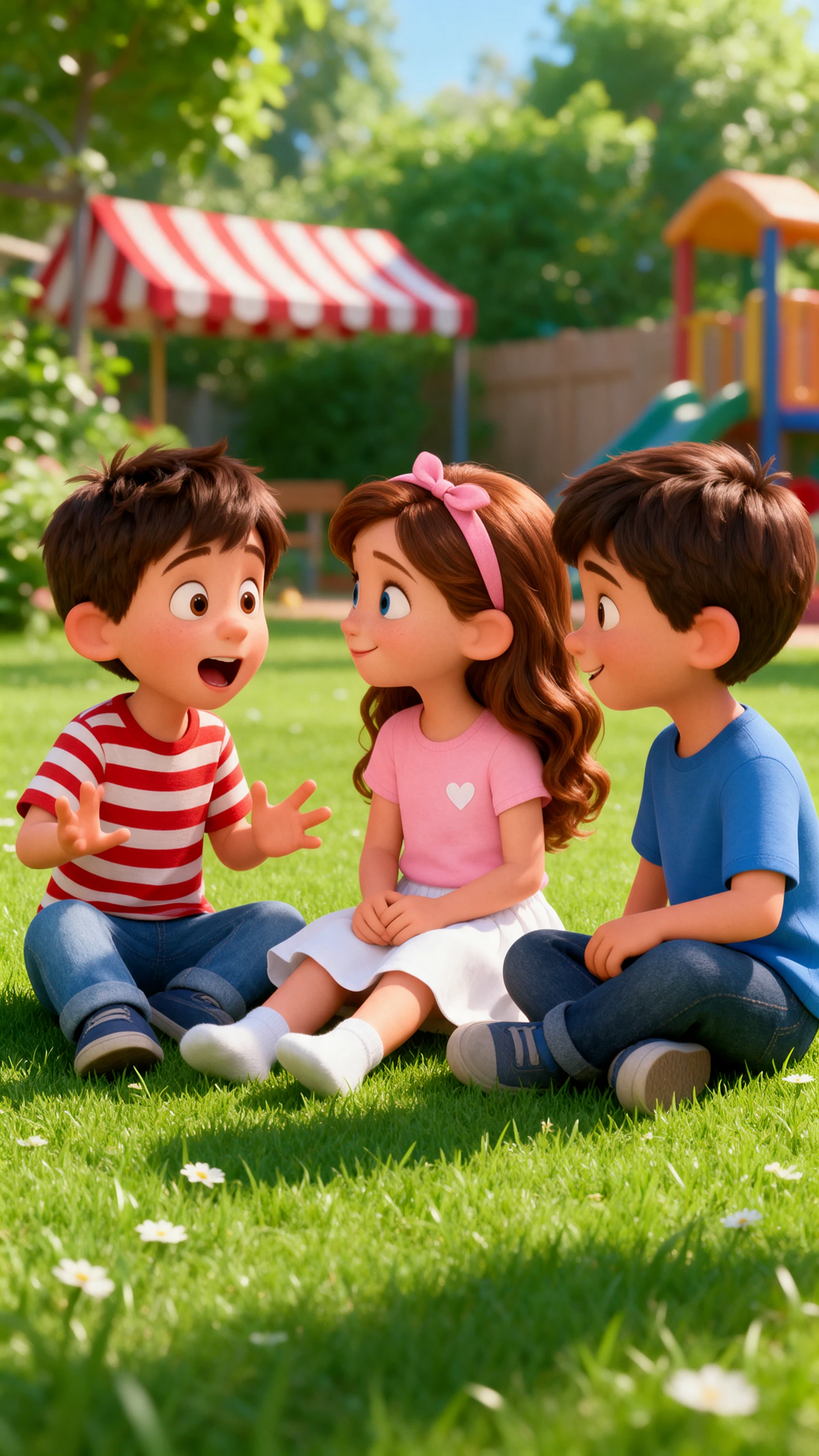
Explore over 52 visual styles to find a look that matches your recording. Choose a story model that suits the mood before moving on to the characters.
Choose an existing character or describe your own within 1000 characters. Use Nano Storyboard to adjust appearances and review the scenes before generating your video.
Select a lyric style that suits your recording. Preview how the words appear alongside the animation, make any final adjustments, then download your finished video.
Magiclight AI supports MP3, WAV, and M4A files through its Music Video feature. Upload your recording, select a screen format, then choose a visual style for your animation.
Yes. Magiclight AI offers 15 ready songs you can use to start a video. Select a track that suits your idea, then explore the available visual styles to bring it to life.
Yes. You can animate from audio using over 20 visual styles in Magiclight AI. Choose a look that suits your recording, then review how the animated scenes fit its mood.
Magiclight AI lets you select existing characters or describe your own within 1000 characters. Nano Storyboard also helps you adjust their appearance before generating.
Select a lyric style within the Music Video feature to control how the words appear. Preview the animation alongside your audio to check how the lyrics look on screen.
Magiclight AI supports 16:9 for wider screens and 9:16 for vertical viewing. Choose the format that suits your audience before generating the animation for sharing.


Your recording sets the mood. Let Magiclight AI animation from audio turn it into an animation worth watching.