500 Characters to Control the Edit
Use up to 500 characters to identify the distraction and protect nearby details. A precise note such as “remove the blue bin, keep the fence” helps Magiclight AI change only the intended area.
Create Now
Remove unwanted objects from your videos with Magiclight AI. Clean up distracting elements and keep the rest of your footage looking natural. No video editing skills needed.
Remove Objects from Video for Free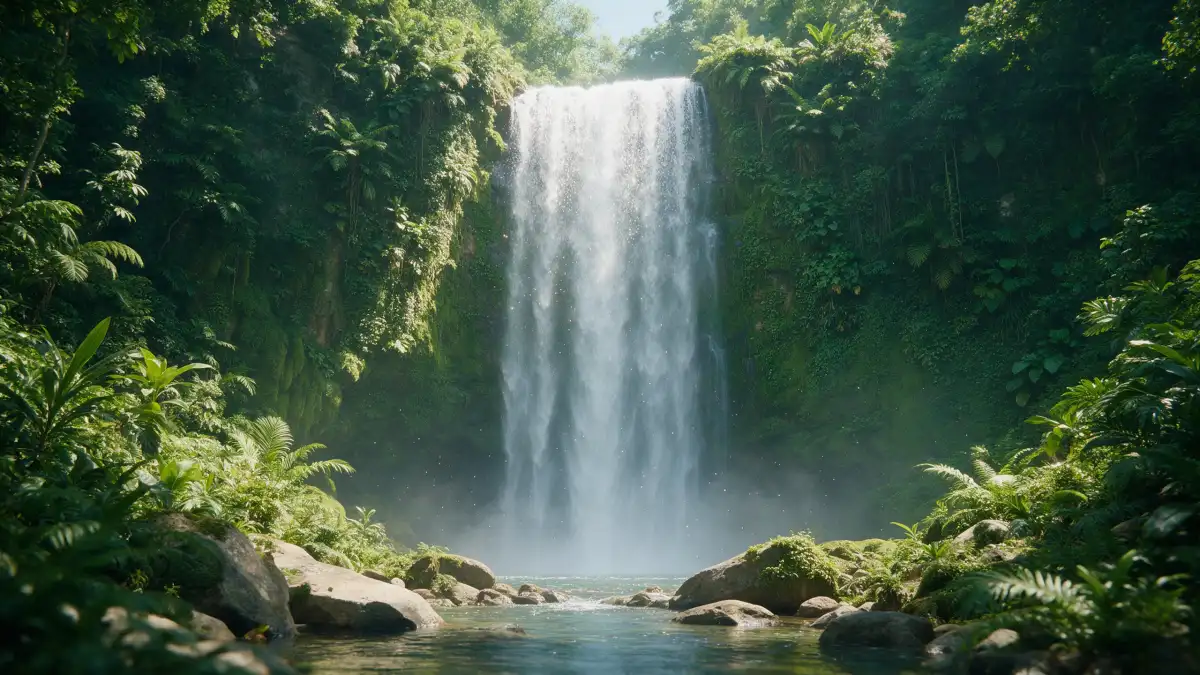










See what needs to disappear before you make the edit. The remove object from video workflow gives Magiclight AI clear visual context, so the repaired area fits the shot naturally.
Use up to 500 characters to identify the distraction and protect nearby details. A precise note such as “remove the blue bin, keep the fence” helps Magiclight AI change only the intended area.
Create NowTricky edges can need another approach. Test the same removal across 6 image models when hair, glass, brick, or fine patterns look uneven, then keep the result that restores the background best.
Try Different Models
Add a second reference image up to 20MB when an object hides part of the scene. It gives the model a clearer view of the wall, path, sign, or background it needs to restore.
Add a Reference
Once the unwanted object is gone, send the cleaned frame to Image to Video. Choose from 20 video models and create up to 30 seconds of motion, from a slow camera pan to clouds drifting overhead.
Animate Your Frame


Follow 4 clear steps in the Magiclight AI remove object from video workflow. Starting from adding your frame, describe the removal and check the clean image before animating the finished shot.
Open Toolbox and select Image. Add a PNG, JPG, JPEG, or WEBP frame up to 20MB as your reference. Pick a sharp shot where the unwanted object is clearly visible.
Use the 500-character prompt to name the object and what must stay. Select any of the 6 image models, set an aspect ratio and output count, then click Create to generate it.
Zoom in where the object was and inspect lines, textures, shadows, and edges. If the fill looks off, generate another output or switch image models before downloading it.
Access Video tab and add the cleaned JPG or PNG under 10MB. Describe the motion, select a video model and clip length, then click Create Video to animate your finished shot.
Real Estate Agent
A parked car spoiled an otherwise strong listing shot. Magiclight AI cleared the distraction and gave me a clean clip without arranging another property shoot that afternoon too.
Travel Vlogger
Someone crossed my favorite view just as I captured it. I used Magiclight AI to clear the frame and keep the scene for my travel video instead of filming the same location again.
Online Seller
I spotted a stray prop beside the product after filming. Rather than set everything up again, Magiclight AI removed it while keeping the product clear and ready for my shop page.
Filmmaker
A light stand appeared at the edge of a shot we could not recreate. Cleaning it with Magiclight AI gave me a usable frame that I could bring back into the final video edit today.
It doesn't. Magiclight AI cleans one frame and builds a new clip from it, without your original sound or camera move. Footage that must stay as shot needs a video inpainting tool.
Moving a bin or parked car is usually fine, but hiding power lines or damage misleads buyers. NAR's ethics code wants a “true picture,” so label edited Magiclight AI clips.
An object can vanish while its shadow or a reflection stays behind. Name those in the prompt too, or create another version in Magiclight AI until both are gone.
Only from footage you own, like your old logo. Removing someone else's watermark can break US copyright law, so keep Magiclight AI edits to your own work.
Yes. The Magiclight AI remove object from video workflow can generate multiple image outputs, so you can compare the repaired areas and keep the cleanest frame for animation.
Sharp frames where the object is small or distant, against plain sky, grass, or wall. A big object near the lens hides more of the scene, leaving Magiclight AI more to fill.


Don’t lose a good shot because of one unwanted object. Use Magiclight AI to remove the object from video, and bring your shot back to life.