20 Video Models With Sound Effects
Magiclight AI offers 20 video models such as Kling 3.0 and Seedance 2.0. Some models also support sound effects, so you can add sounds that match the action and movement in your video.
Create Now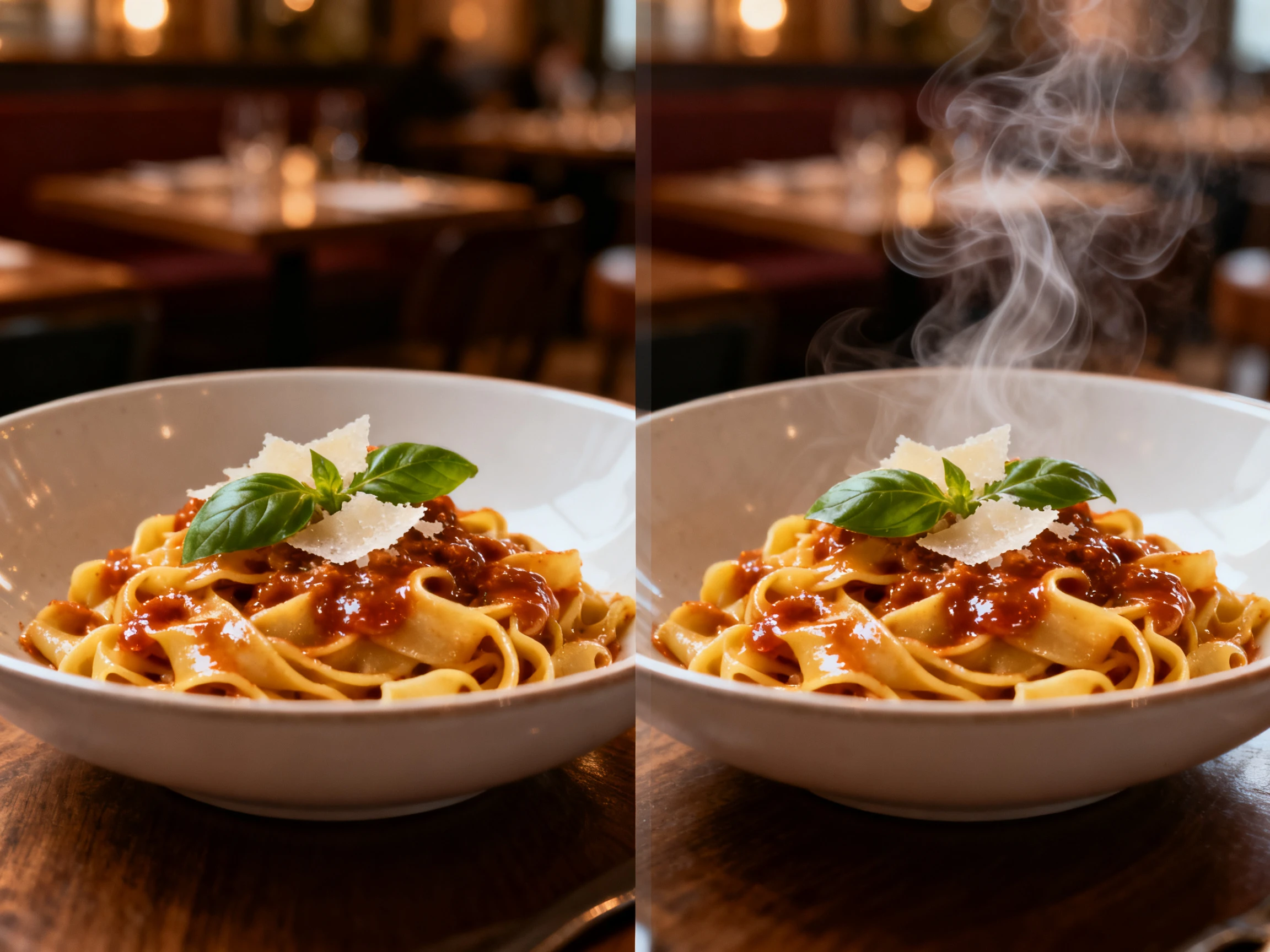
Turn any JPG into a moving scene with Magiclight AI. Upload your image and describe how you want it to move. AI brings your picture to life with natural motion, while sound effects add more depth to your video. No editing skills are needed.
Turn JPG into Video for Free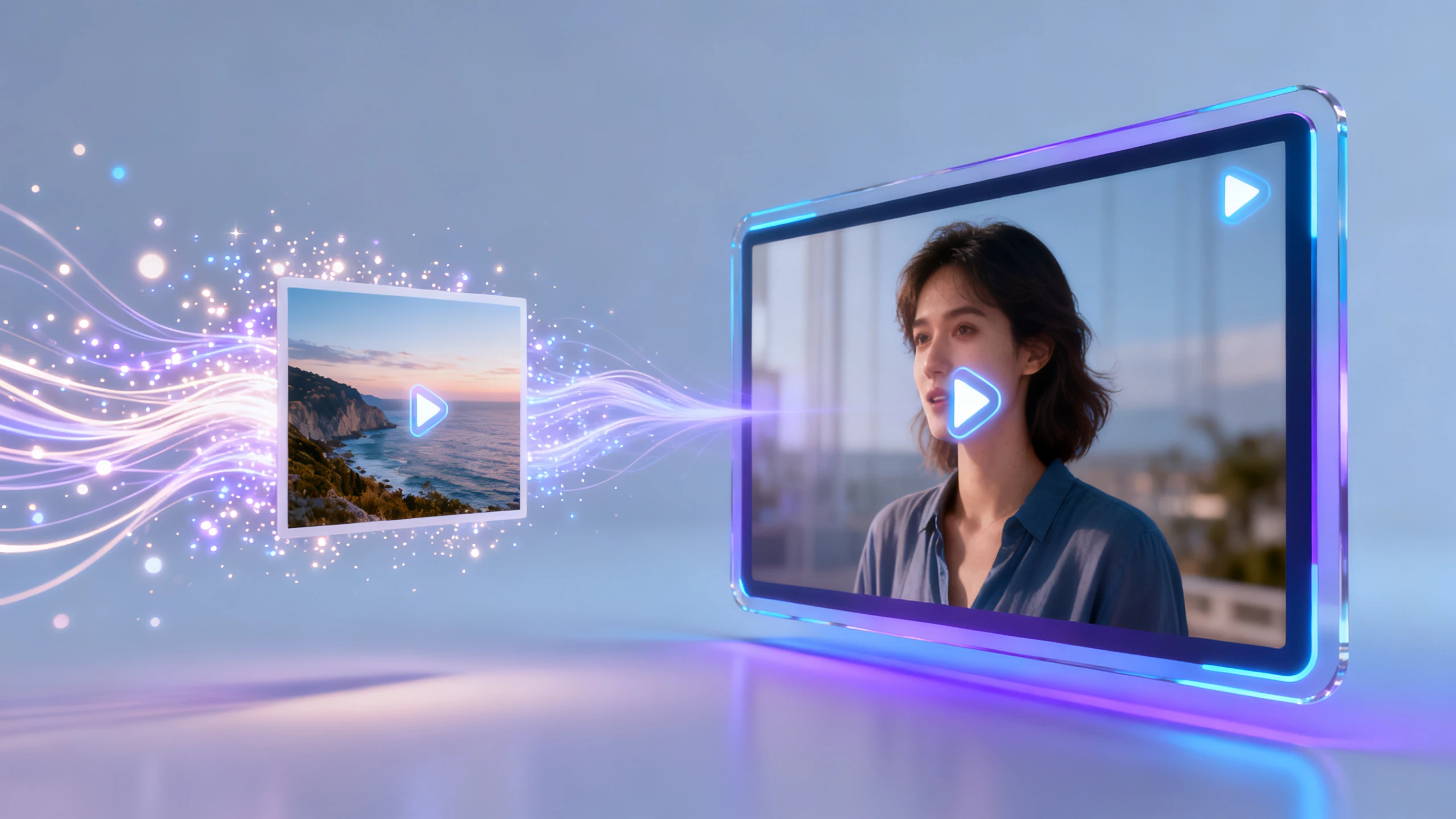










Magiclight AI’s JPG to video converter lets you turn a still photo into a moving scene. Upload your picture and describe what you want to happen next.
Magiclight AI offers 20 video models such as Kling 3.0 and Seedance 2.0. Some models also support sound effects, so you can add sounds that match the action and movement in your video.
Create NowMagiclight AI lets you choose the size of your video based on where you want to post it. You can create vertical videos for TikTok and Instagram Reels, or choose a wide aspect ratio for YouTube videos.
Choose Video Size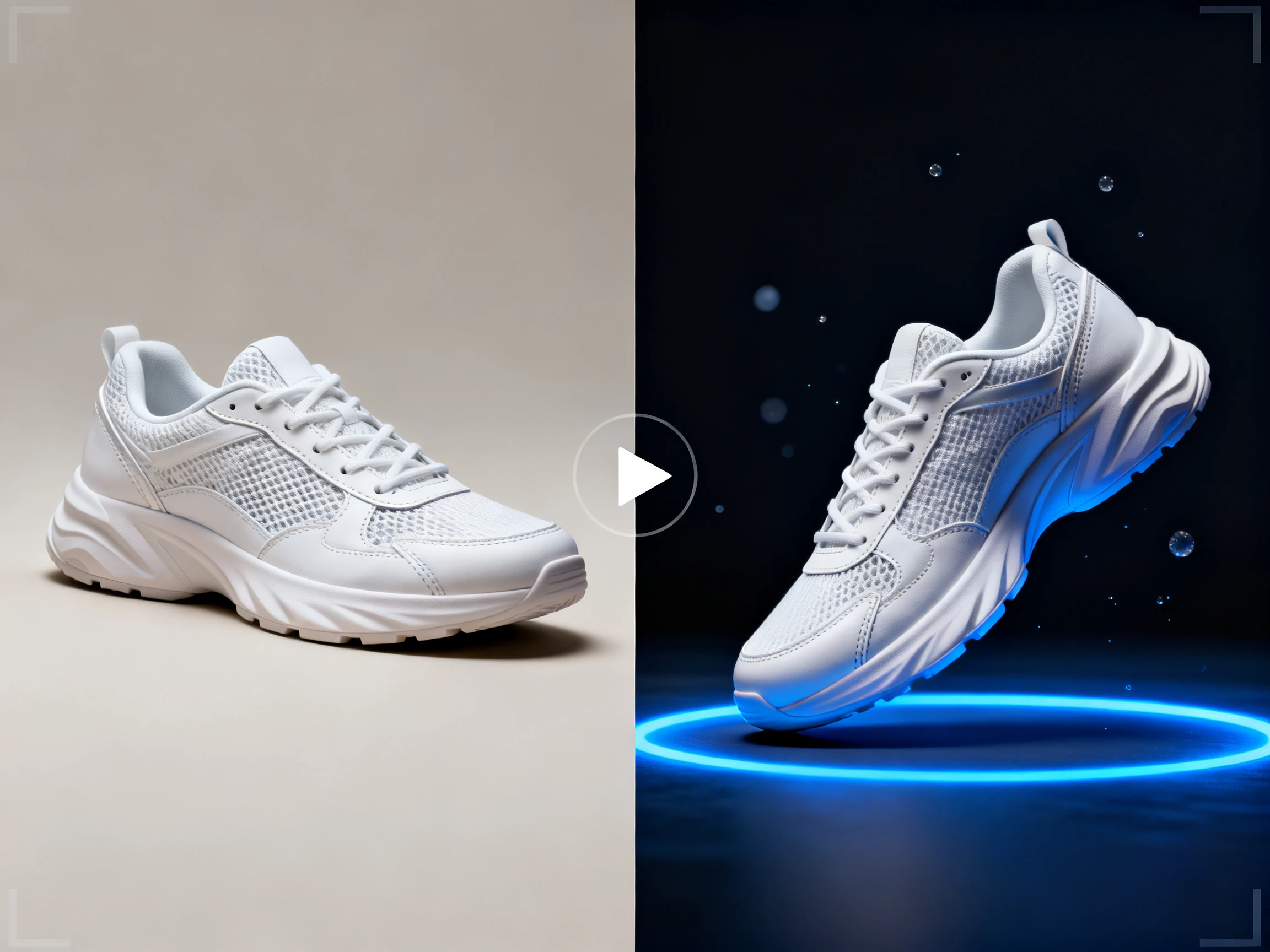
Use 1500 characters to describe how you want your photo to move. Magiclight AI follows your instructions to turn the photo into a video that can last up to 30 seconds, based on the video model you choose.
Describe Your Video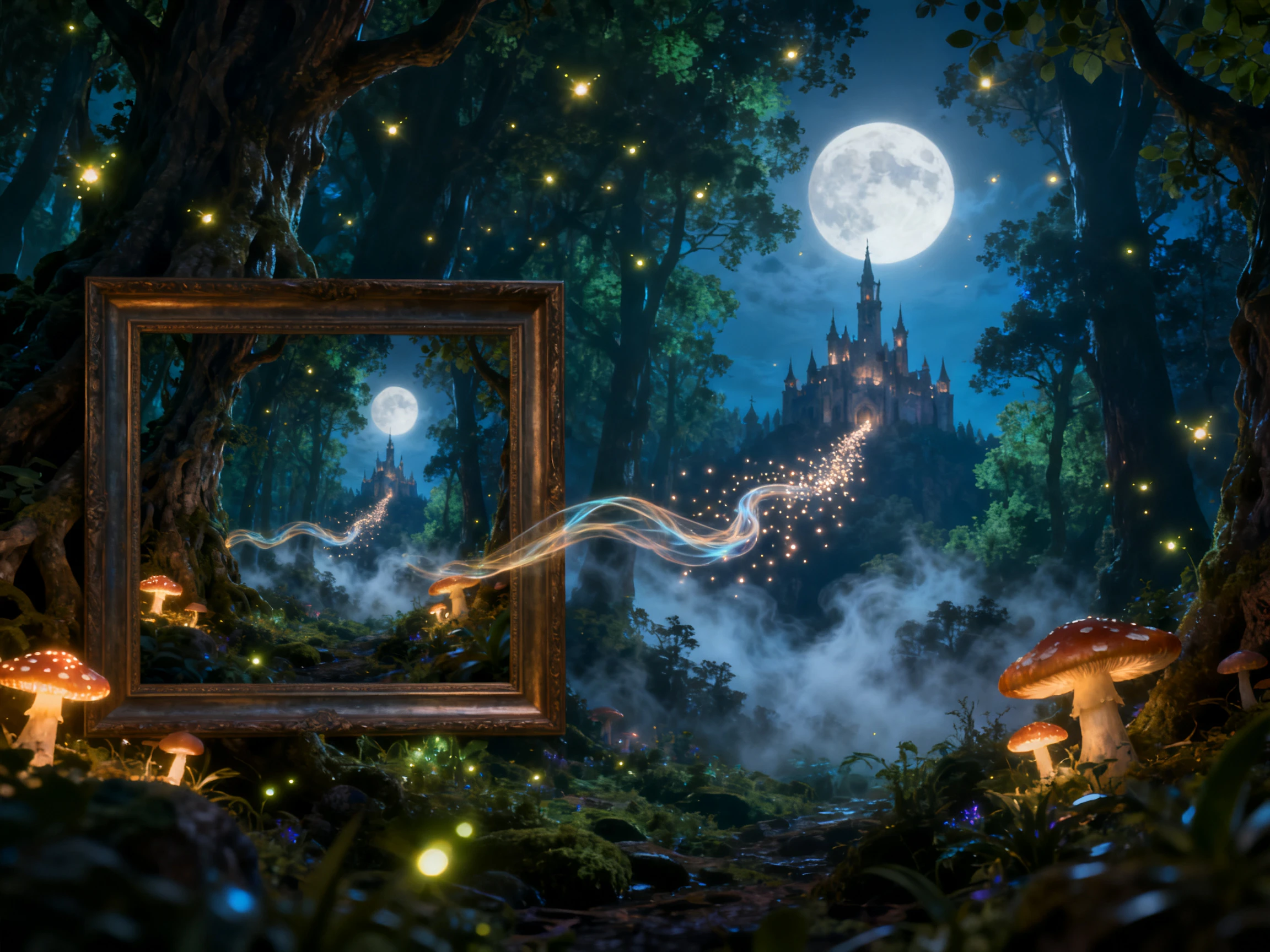
You can create your own photo with Magiclight AI if you do not have one ready. Just describe the picture you want and choose from 5 image models such as Seedream and Nano Banana 2 to get a photo for your video.
Create a Photo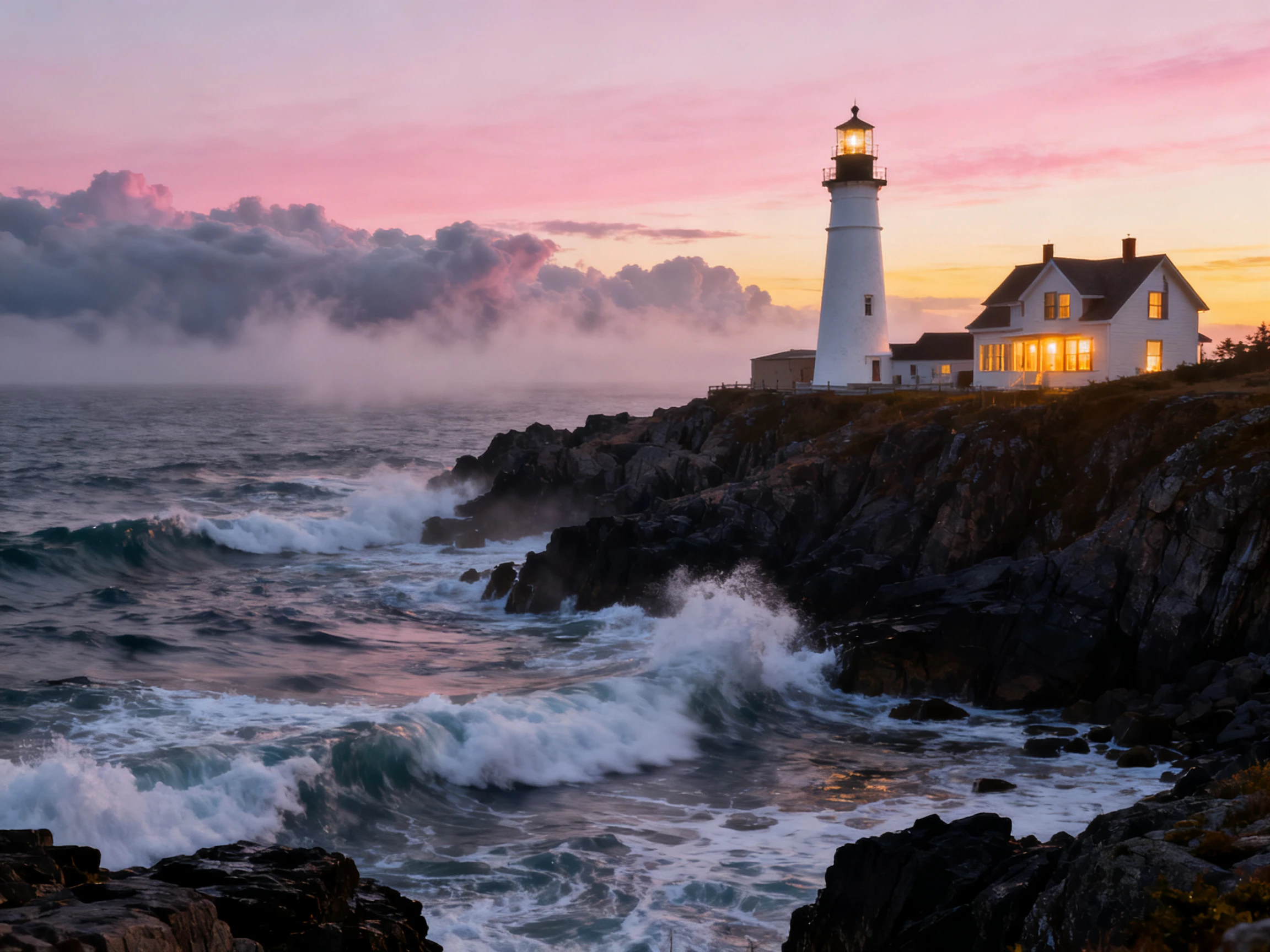


Magiclight AI lets you convert a JPG to a video file in just 4 steps. Start with your photo and choose how you want it to move.
Open Toolbox in Magiclight AI and select the Video tab to get started. Upload a clear JPG photo without extra text or stickers covering the main subject.
Use up to 1500 characters to explain how your photo should move naturally. You can also describe sounds like laughter and splashing water in your prompt.
Choose from 20 video models and select the size that fits your needs. Pick vertical and widescreen video sizes with a length of up to 30 seconds.
Watch the video carefully and save the final result as an MP4 file.
Pet Owner
I had a photo of my dog sitting by the window. Magiclight AI made him turn his head and look outside. I shared the video with my family that evening.
Real Estate Agent
I wanted to show a living room with the fireplace on. I uploaded the property photo to Magiclight AI and added moving flames. It looked much better in my listing video.
Cafe Owner
We take photos of our fresh food every morning. I tried Magiclight AI on a pancake photo and added rising steam. Now I use these short videos on our cafe page.
School Teacher
Our class wanted a special goodbye video for a retiring teacher. I used Magiclight AI to add a short message to her photo. Everyone loved seeing it at the school event.
Upload your photo to Magiclight AI’s JPG to Video converter and describe the movement you want to see. Choose a video model and generate a short clip from your picture.
Magiclight AI saves your finished video as an MP4 file. You can watch it on your phone or computer and share it on social media.
Yes, some video models in Magiclight AI support sound effects. Choose a model that supports sound and turn on the sound option before generating your video.
Magiclight AI gives you 1500 characters to describe your video. You can explain how the people should move and what should happen in the background.
Yes. You can use lip sync in Magiclight AI to let a face speak in your video. Enter the words you want the person to say and choose a clear photo that shows the face.
Magiclight AI offers both video sizes for different social media sites. Choose vertical for TikTok and Instagram Reels and widescreen for videos you want to share on YouTube.



Upload a JPG of a wave about to break. Magiclight AI brings it to life with sound on supported models.