Hero background

AI Smile Generator

Describe the smile and expression you want to create, and let MagicLight AI bring it to life with natural, realistic results. No design experience needed.

Create an AI Smile for Free
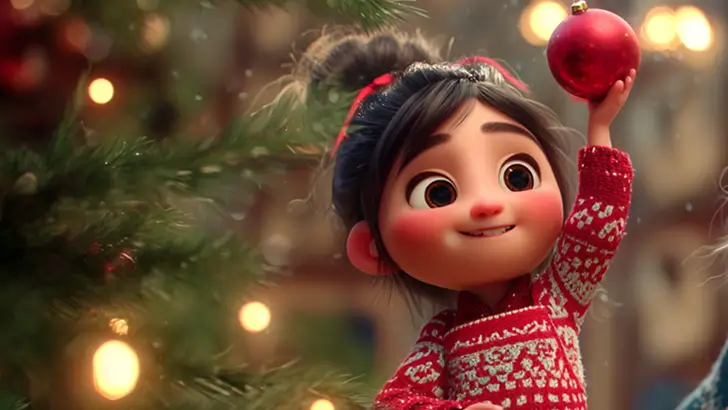
AI smile generator before and after portrait
Natural AI-generated smiling portrait
AI smile transformation example
AI-generated smile photo examples
AI smile generator before and after portrait
Natural AI-generated smiling portrait
AI smile transformation example
AI-generated smile photo examples

Explore the Magiclight AI Smile Generator Features

A real smile lifts the cheeks and softens the eyes, not just the mouth. The AI smile generator in MagicLight AI reconstructs the expression around your original photo.
Create Your Smile Image
3D decoration

20MB Photos in 3 Formats

Upload JPG, PNG, or WEBP photos up to 20MB to the AI smile generator. Fine details around the eyes and lips give the model more to work with. A clear, well-lit photo helps create a more natural smile.

10 Reference Photos Keep the Same Face

Upload up to 10 reference images in Reference Image to Image mode to guide your smile generator results. Use the original photo as the base to preserve facial identity, hair, clothes, background, and lighting while changing the expression.

Four Aspect Ratios for Every Format

Choose the ideal aspect ratio for your AI-generated smile images. 16:9 is ideal for landscape images, presentations, and wide visual compositions, 9:16 is perfect for vertical images, mobile screens, and social media stories, 4:3 is great for standard images, classic photography, and balanced layouts, 1:1 is best for square images, profile pictures, and social media posts.

6 Image Models for a Natural Smile

Choose from 6 image models to create your desired smile. Start with Nano Banana 2.1 and try Seedream 5.0 Pro for another result. Compare the outputs and select the model that preserves the original photo's appearance most naturally.

Who Can Use the Magiclight AI Smile Generator
Whether it is a client gallery, a holiday card, a profile picture, or a selfie, the Magiclight AI photo smile generator adds the smile and leaves the rest alone.
Family portraits
For Families
Fix the one serious face in a holiday shot in Reference Image to Image mode
Name the right person in the 500-character prompt for crowded shots
Try 6 different AI models for checking and improving family portraits
Event photography
For Event Photographers
Load a client's chosen frame as a 20MB JPG, PNG, or WEBP
Retest the retouch on Seedream 5.0 Pro before delivery
Send the smiling result into Frame to Video as a client preview
Professional profile portraits
For Professionals
Set the 1:1 shape for a LinkedIn or company profile photo
Add a second smiling photo among the 10 references for a true likeness
Fix a stray hair or shadow afterward by re-editing results
Social media content creation
For Social Media Creators
Animate the new smile into a short clip with Image to Video
Have Suno in the Audio tab write a happy song for the smile clip
Try a cartoon version of the image with 6 other AI models
Why Choose the Magiclight
AI Smile Generator
From a still photo to a short clip on your phone, Magiclight AI keeps working after the smile is added. These reasons show how the Magiclight AI free AI smile generator fits into your other photos.
Create and Publish Your Own Smile Assets
Upload photos of your natural smile to create reusable smile assets. Keep your signature smile private or share it with others for use in their AI-generated creations.
A New Result With the Original Untouched
Each edit creates a new image, so your original photo stays exactly as it was. Keep the original for documents and use the edited version for personal and social photos.
Suno Songs for the Smile Clip
Open the Audio tab and describe a cheerful song for the clip in a few words. Suno writes the tune in minutes, so you don't need to search for a track. Pair the song with the smile reveal for a finished clip you can share.
Frame to Video for a Smile Reveal
Place the serious photo first and the smiling edit last in Frame to Video. The tool moves between the two pictures, so the clip shows the face breaking into a smile.
Image to Video for a Happy Clip
Open the Video tab and send the edited photo into Image to Video. The still picture turns into a short moving clip with a small laugh or a nod. Describe the motion in the prompt, and keep it gentle.
3 Formats Up to 20MB for Clear Faces
JPG, PNG, and WEBP photos are accepted, so most phone and camera files work without converting. A single photo can weigh up to 20MB, which keeps the fine detail around the eyes and lips.

How to Add a Smile with Magiclight AI

Start with the model rather than the photo. Once it is chosen, the Magiclight AI smile generator handles the upload, the prompt, and the comparison.

1.

Upload the Photo

Open the Image tab and choose a model, such as Nano Banana 2.1 or Seedream 5.0 Pro. Pick the frame for where the photo will be used, like 1:1 for an avatar, and raise the number of outputs.

2.

Describe the Smile

Switch to Reference Image to Image mode and upload the original photo, plus up to 10 references if you have other photos of you smiling. Describe the smile and name what must stay the same within 500 characters.

3.

Create, Compare, and Download

Click Create Image and compare every version with the original. If the face looks off, run the same prompt on a second model, then download the best result.

FAQs on AI Smile Generator

Will the person still look like themselves?

Usually, yes, when the photo is clear and the prompt names what to keep. The AI smile generator free in Magiclight AI can still shift small facial details, so compare the result with the original before you share it.

Can I use the smiling photo on a passport or ID?

No, official photos usually need an unedited image with a neutral face. Use the edit for personal and social photos, and keep the original for any document.

Can I add a smile to someone else's photo?

Yes, with their permission. Avoid changing a person's expression in a way that misrepresents them, and show them the edit before you share it.

Does it work on group photos?

Yes, upload the group shot and name the person who should smile. Edit one face per run in Magiclight AI. Upload the new result again for the next person.

Is there a free AI smile generator?

Yes, you can test a first smile edit on a new Magiclight AI account before you choose a plan. Upload one clear photo, describe the smile, and upgrade only when you need more edits or business use.


Create a Natural Smile with Magiclight AI

Bring the photo you love and the smile it is missing. The Magiclight AI smile generator shows the moment as you remember it.