








Hero background

Talking Photo App

Turn any photo into a talking video with MagicLight AI. Upload a photo, add the words you want it to say, and generate a video with synchronized lip movements. No editing skills needed.

Create a Talking Photo With AI
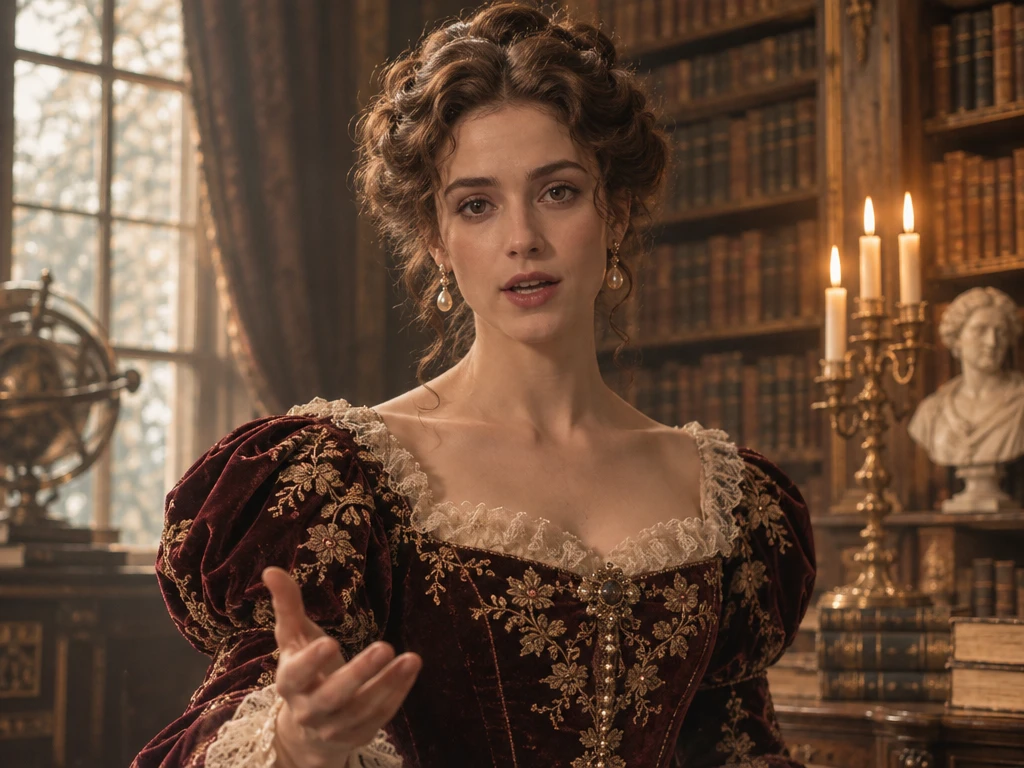
AI talking photo video preview
Nano Banana
Google VEO 3
Sora 2
Gemini
Hailuo
Kling
Midjourney
Qwen
Seedance
Wan
Nano Banana
Google VEO 3
Sora 2
Gemini
Hailuo
Kling
Midjourney
Qwen
Seedance
Wan

Explore the Features of the Magiclight AI Talking Photo App

A talking photo starts with the right mode for the face. The Magiclight AI talking photo app uses Reference to Video to keep your photo at the center of the clip.

Reference to Video Mode for Your Photo

Pick Reference to Video in the Video tab when a photo should drive the clip. The photo becomes the reference for the face you see on screen. Add a short prompt that says what the face should do. 

Create Now

Reference to Video mode for talking photos

Add Up to 30 Reference Photo Images

Seedance 2.5 accepts up to 30 images in Reference to Video and Seedance 2.0 accepts up to 9. A group clip can use one photo for each person. Pick the model that matches the number of faces for accurate talking photos.

Create Characters
Multiple reference photos for talking photo videos

Image Tags for Each Face

Call each photo Image 1, Image 2, and so on in the prompt. The tags tell the model which face belongs to which action. Write the action for each face right next to its tag.

Generate a Video
Image tags for assigning actions to each face

10MB Photos at 300 Pixels or More

Upload a PNG or JPG up to 10MB with at least 300 pixels on each side. A sharp front-facing portrait gives the model a clearer face to follow. Skip blurry or dark pictures because they give the model less to follow.

Start Creating
Photo upload requirements for AI talking photos
Who Can Use the Magiclight AI Talking Photo App
A talking photo suits more than one kind of clip. Friends, shop owners, pet owners, and creators all use the Magiclight AI talking photo app to make one photo speak.
Here are some ways to use the Magiclight AI talking photo app:
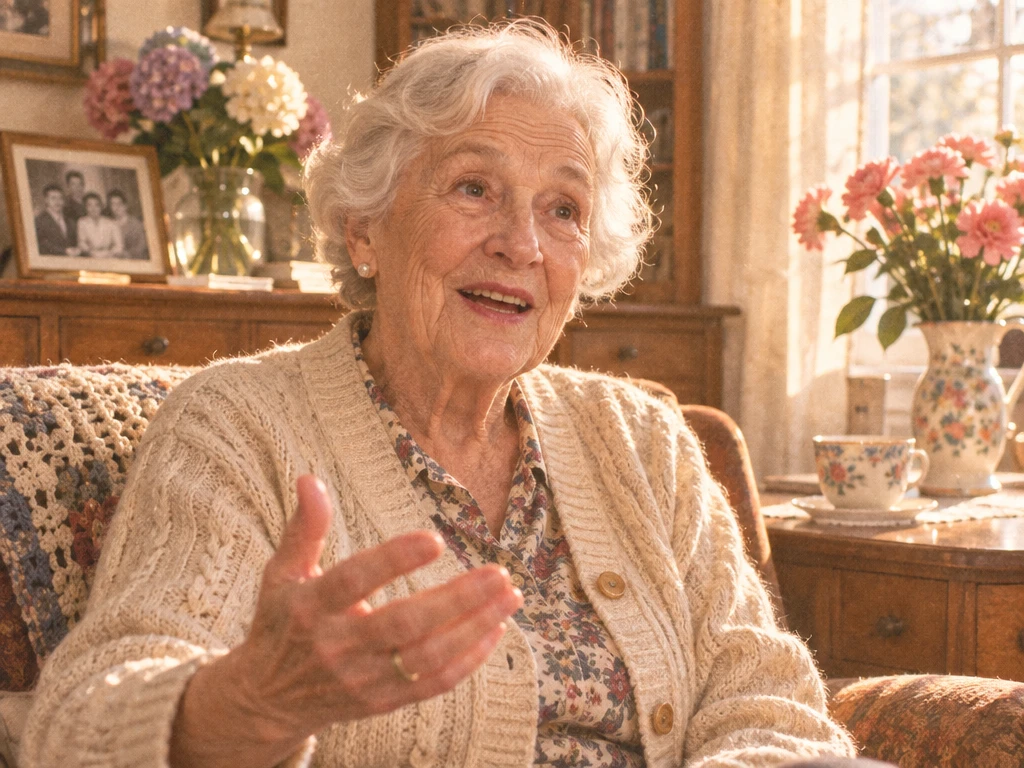
Talking photo birthday messages
For Birthday Messages
Use Reference to Video with a smiling portrait that clearly shows the face.
Crop the photo inside the Video tab so the face has room to move.
Add Sound Effects on a Veo model for a cheer at the end.
Talking photo shop mascots
For Shop Mascots
Name the mascot images in the prompt so every promo reuses it.
Pick 16:9 for a promo clip that plays on a shop screen.
Use a plan with commercial rights before the clip runs as an ad.
Funny AI talking pet photos
For Funny Pet Photos
Compare MiniMax H3 and Seedance 2.0 on the same pet prompt.
Add the owner and the pet as 2 reference images for accurate syncing.
Use a sharp photo of up to 10 MB at least 300 pixels on each side.
Talking photo quick reply clips
For Quick Reply Clips
Load up to 30 teammate photos on Seedance 2.5 for a group reply.
Use a model out of the 20 options when the photo shows a child.
Download the finished clip in up to 1080p to send in a high-quality message.

 How to Use the Magiclight AI Talking Photo App

A talking photo should take minutes, not a full editing project. The talking photo app in Magiclight AI keeps every step on the phone in your hand.

1.

Step 1. Upload Photo as a Character

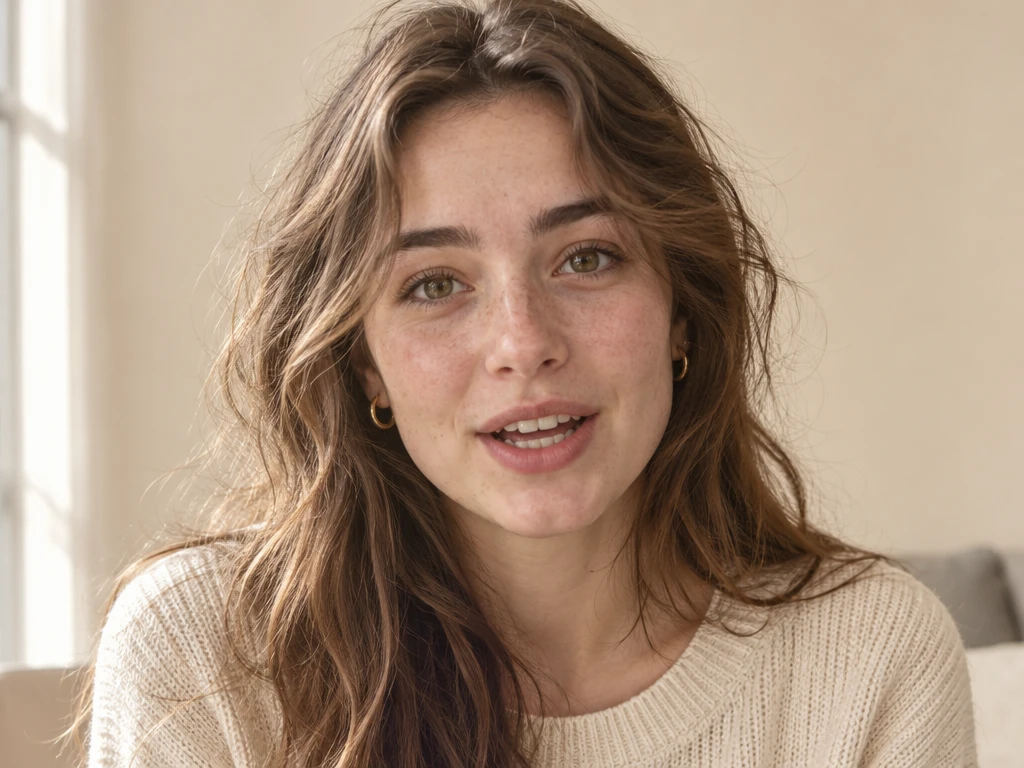
Pick a front-facing photo with a large and well-lit face. Open the Video tab in the Toolbox and select Reference to Video. Add the portrait as the reference for the clip. 

2.

Step 2. Provide Details in Prompts

Write the action and the line in plain words, such as: Image 1 smiles and says, "Happy birthday." Keep the motion simple for a cleaner result. 

3.

Step 3. Add Camera Moves and Save

Pick a model that fits the number of photos and click Create Video. Re-edit with another model if the face drifts. Download the clip you like best once the face looks right.

What Users Say About the Magiclight AI Talking Photo App

Jade Morrison

TikTok Creator

I picked a clear selfie and used Reference to Video for a short reply clip. Cropping first gave my face room to move, and I kept the take that stayed closest to my photo. 

Samir Patel

Small Business Owner

I named our shop mascot Image 1 in every prompt so each promo reused the same character. I picked 16:9 for the screen in our store and downloaded the finished clip. 

Colleen Brooks

Pet Owner

I added my dog and my husband as two references on Seedance 2.0 and tagged them Image 1 and Image 2. The clip made the whole family laugh at dinner. 

Hector Alvarez

Teacher

I made a short welcome clip from one portrait for my class. I compared two models on the same prompt and kept the take that matched my photo best. 

FAQs on Talking Photo App

Can I download the app without paying?

The Talking Photo app in Magiclight AI is free to download from the stores that list it. Free plan details can change, so check the plan page for watermarks and limits. Check what each tier includes before you plan a promo.

Will the Magiclight AI app run on an iPad or a Mac?

The App Store listing for Magiclight shows iPhone only at the time of writing. Check the listing for your own device before you download. A Mac or an iPad may not be supported.

Will the talking clip look like my photo?

Reference to Video uses your photo as the reference, so the face follows it. Results vary by model, so compare two takes before you choose. Pick a clear front-facing portrait for the closest match.

Whose photos am I allowed to use in the app?

Use your own photos or photos of people who agree to it. Skip celebrities and strangers because the tool is meant for faces you have permission to use. Ask friends before you post a clip.

Can the Magiclight AI app create clips without internet?

No, because every clip is created on its servers, so generating needs a connection. A saved video plays offline like any other file on your phone. Save the finished clip to your library.

Make Your Photos Talk with Magiclight AI

Flip past the screenshots in your gallery until a face looks ready to talk. Install the Magiclight AI talking photo app, and the first synced line is a few taps away.