Text to Video with 20 AI Models
Open the Video tab and stay in Text to Video. MiniMax H3 is preselected for the first shot in Magiclight AI. Switch models between 20 unique options if the result looks off.
Create Now
Create wildlife videos with MagicLight AI. Describe the animals, setting, and action you want to see, choose a video model, and turn your ideas into video clips. No camera or editing skills needed.
Create Wildlife Videos For Free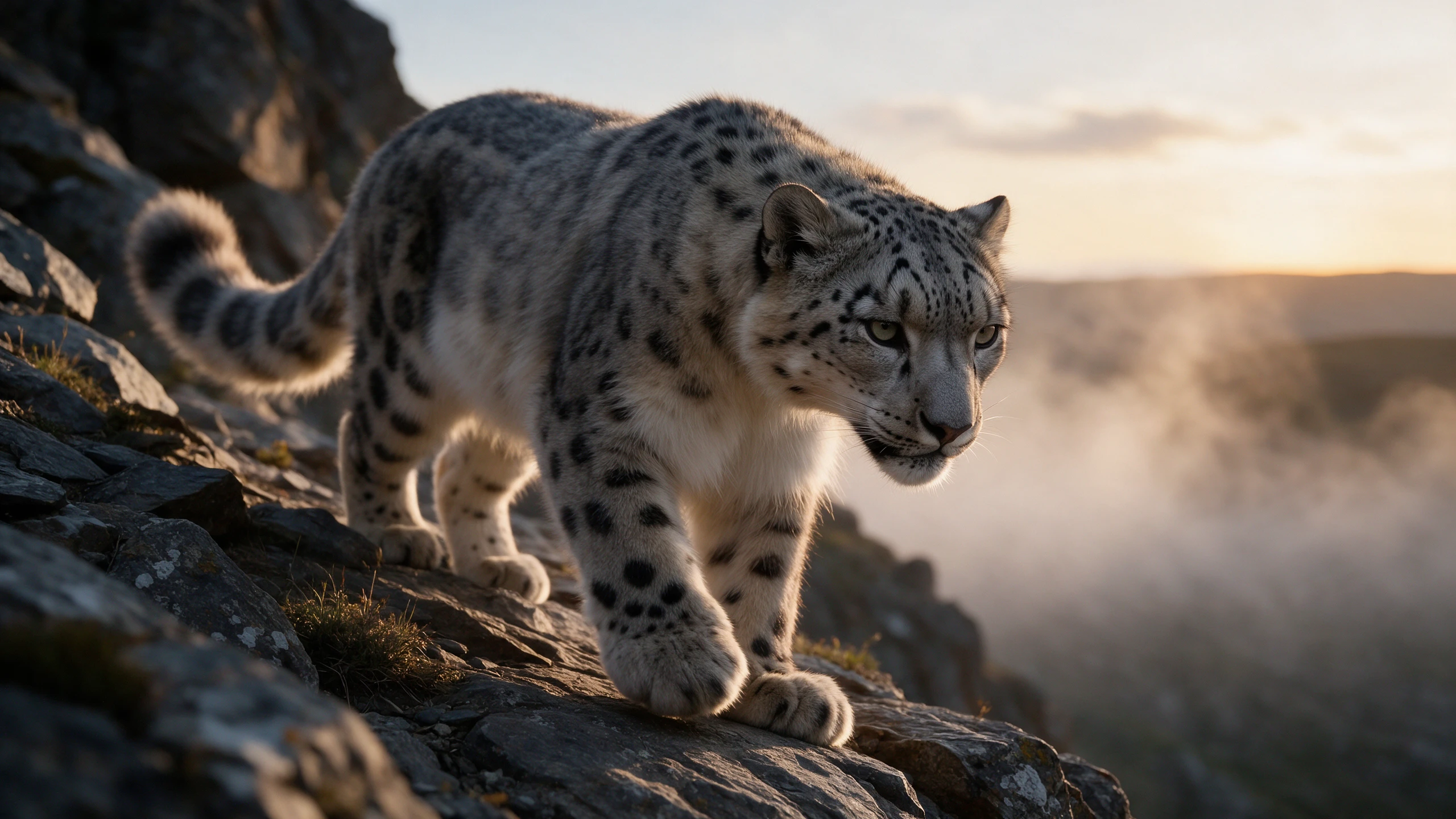






)



Settings matter as much as the prompt for nature scenes. Magiclight AI gives wildlife content a choice of models and frames.
Open the Video tab and stay in Text to Video. MiniMax H3 is preselected for the first shot in Magiclight AI. Switch models between 20 unique options if the result looks off.
Create NowPick a duration between 4 and 30 seconds on this model. A cheetah chase needs room for both the run and the catch. Shorter models stop sooner, so join shots in your editor.
Generate Story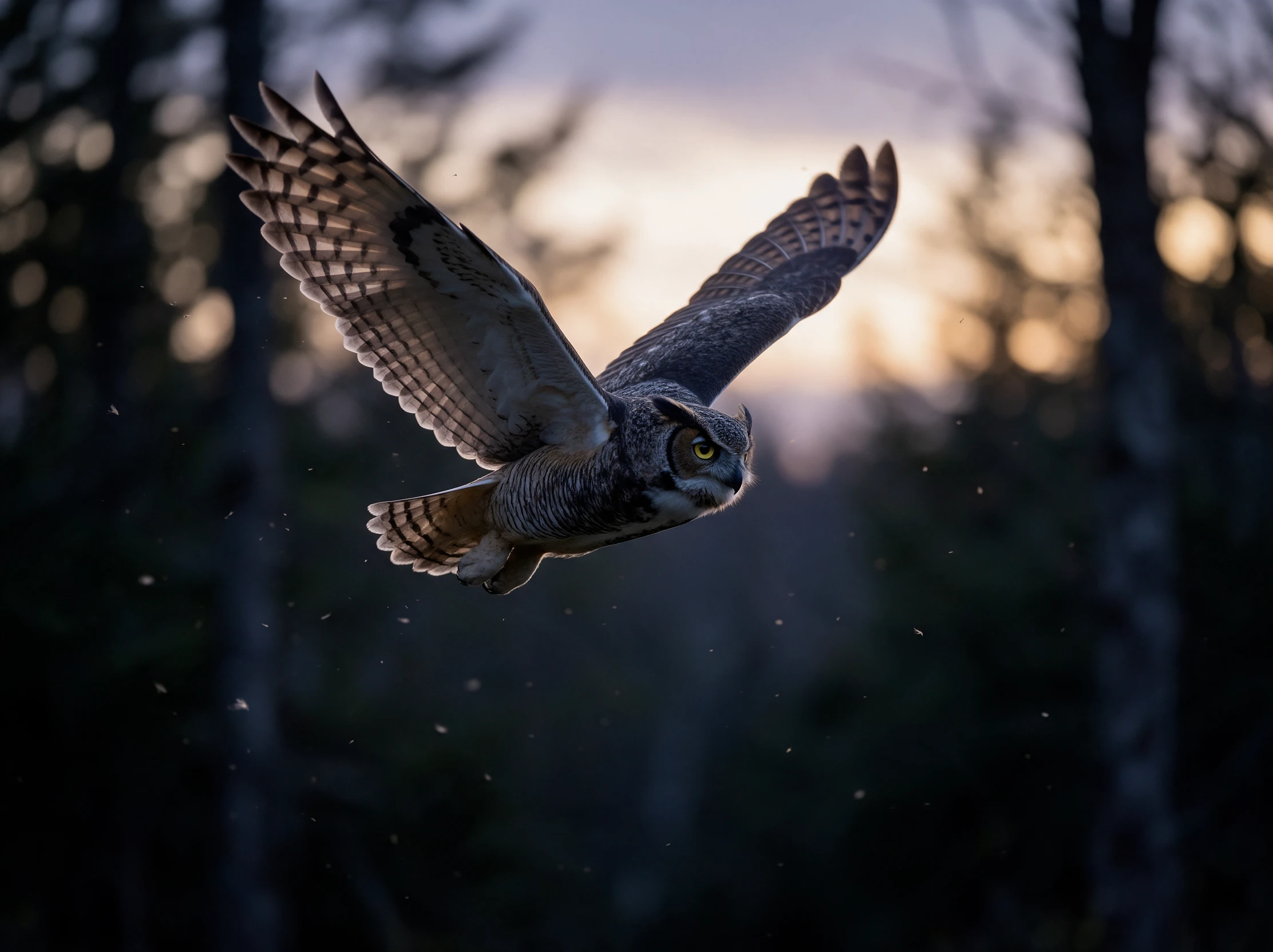
Choose an appropriate AI video model when the shot will play on a projector or a TV. Select the 1080p video resolution so that fine fur and wide landscapes hold more detail at that size.
Generate a Story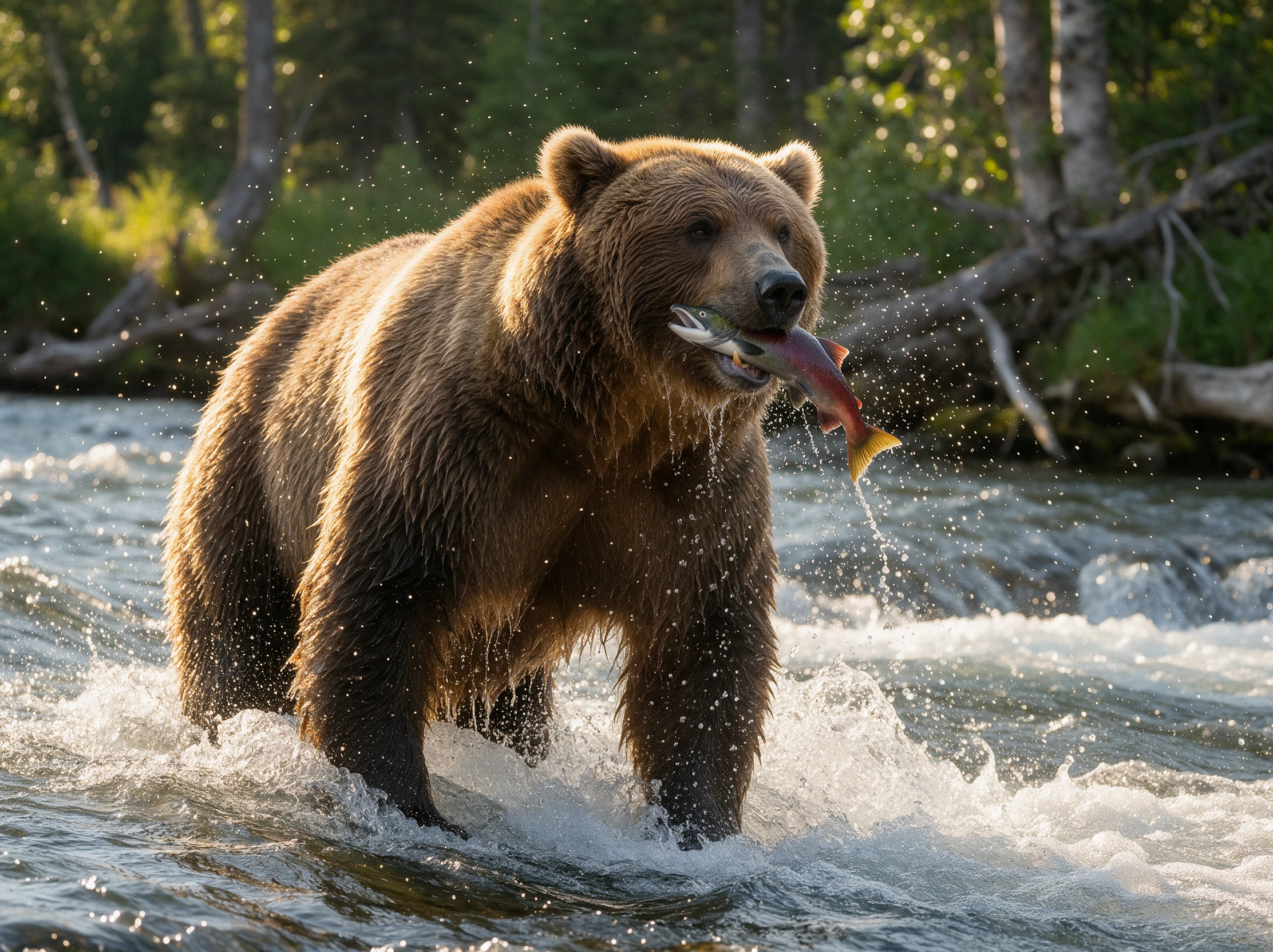
Pick 16:9 for a TV or a classroom projector in Reference to Video. Choose 9:16 for Shorts and Reels. Set the frame before you start the shot.
Start Creating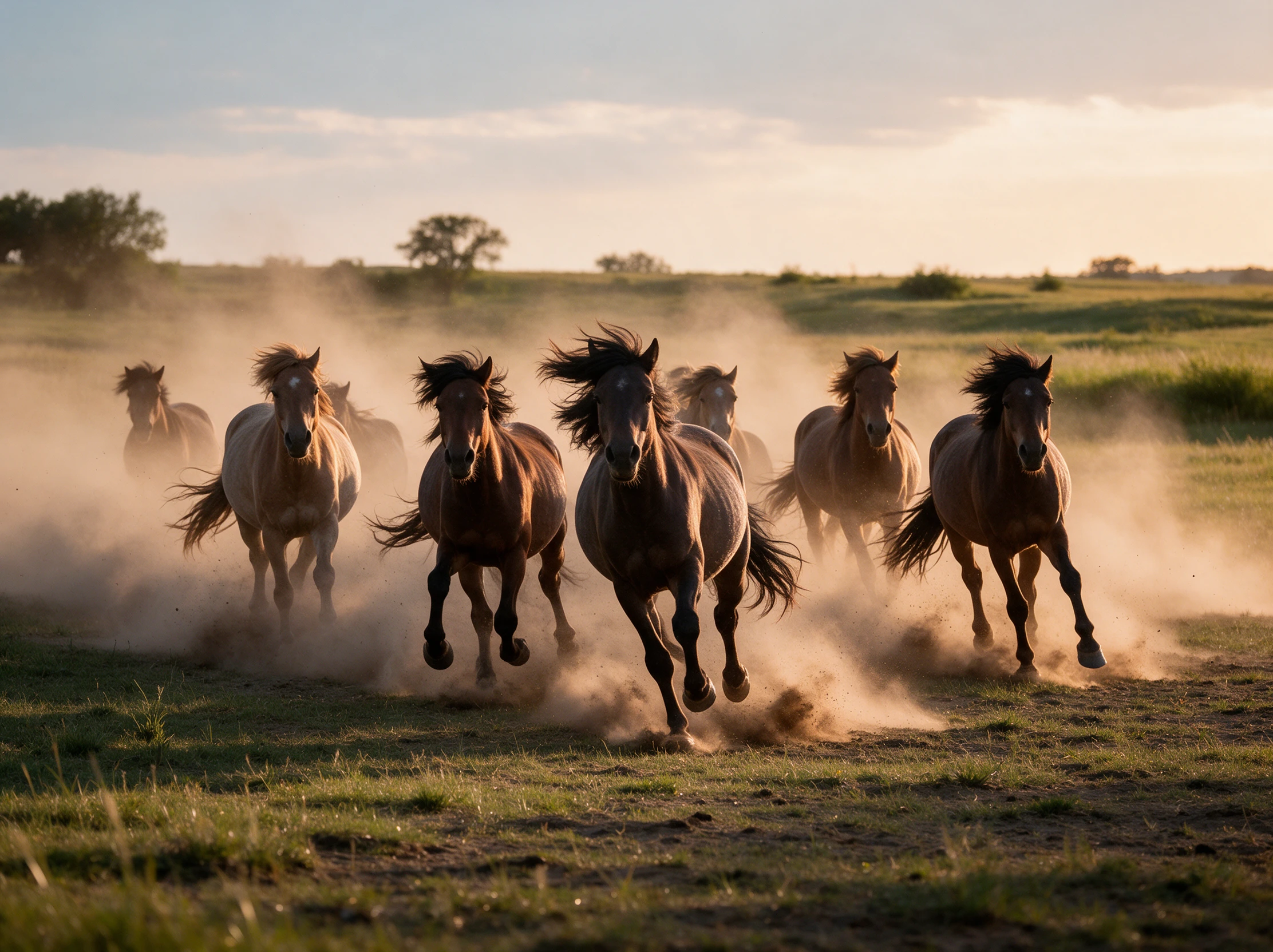


Research the animal first and then follow 3 steps. Each one shapes the final wildlife videos from mode to fact check.
Read up on the species’ real behavior and habitat. Then open the Video tab and keep Text to Video as the mode. MiniMax H3 is preselected, and other models are in the list.
Name the species, action, habitat, and time of day. Add the camera, such as a low angle on a sea otter. Keep the 1500-character prompt to one moment per shot.
Choose a wide frame for a TV or a tall frame for a phone. Pick the duration and select 1080p where the model offers it. Click Create Video and compare markings, size, and behavior with a field guide.
Science Teacher
I used a snow leopard shot in my ecosystems lesson and checked each detail against our field guide first. The class asked sharp questions and knew the clip was AI-made.
Filmmaker
One missing heron shot was holding up my documentary edit. I wrote the scene in a sentence and marked the AI clip in my timeline so viewers could tell it from real footage.
Social Media Manager
I post one animal fact per clip on Shorts and Reels. Setting the 9:16 frame at the start saves cropping later, and I add the AI label before each upload.
Nature Photographer
I upload my own owl photos as references and compare every result with the real species. It gives me a starting point for markings that I still check by hand.
No, every shot is generated, so present wildlife videos from Magiclight AI as AI-made. YouTube requires a label for realistic synthetic content. Nature fans also care about the difference.
Not always; a model can mix up habitats and habits. Check each shot against a field guide or a museum source before it appears in a lesson.
It is fine if viewers can tell which is which. Use AI shots for moments you could not film. Mark them in the edit and keep real footage as the backbone.
Seedance 2.5 offers up to 30 seconds per shot. Other models stop sooner; join several shots in your editor when a scene needs more time.
Yes, creating shots in the Video tab is a member feature, and free accounts are sent to the subscription page. Check the plan page for what each tier includes. Commercial use needs a plan with commercial rights.


Pick the one animal moment your channel cannot show yet. Write it in Magiclight AI and add wildlife videos to your next edit with a clear AI label.