Explore the Features of CapCut AI Video Generator
Not every video starts with a camera. The CapCut AI video generator can turn a rough thought into footage you can work on inside the editor, without changing your usual routine.

Have a video idea but no footage to work with? Describe the scene you want, and let CapCut AI video generator turn your prompt into a video you can edit right away. No filming equipment needed.
Try CapCut AI Video Generator


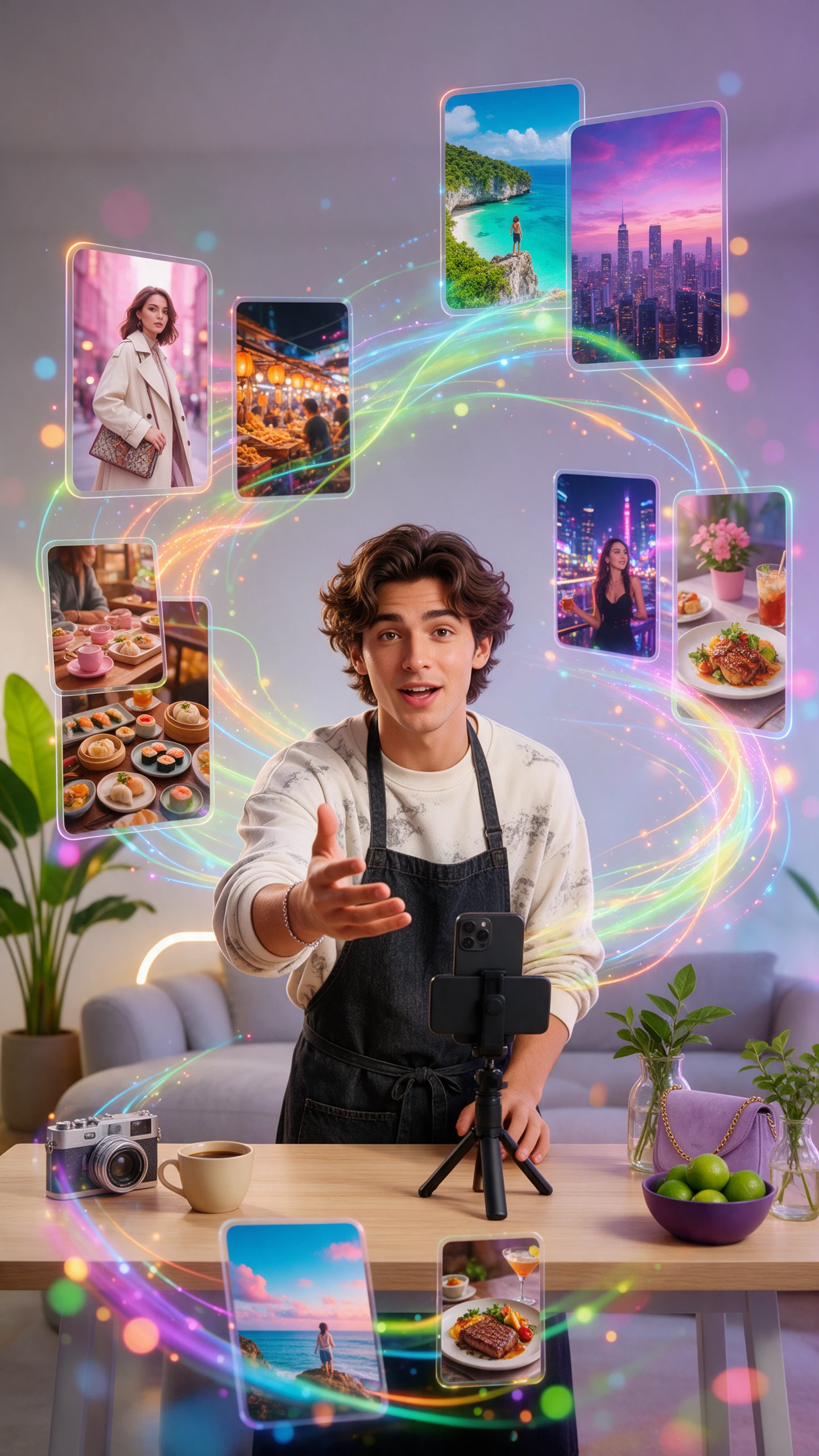
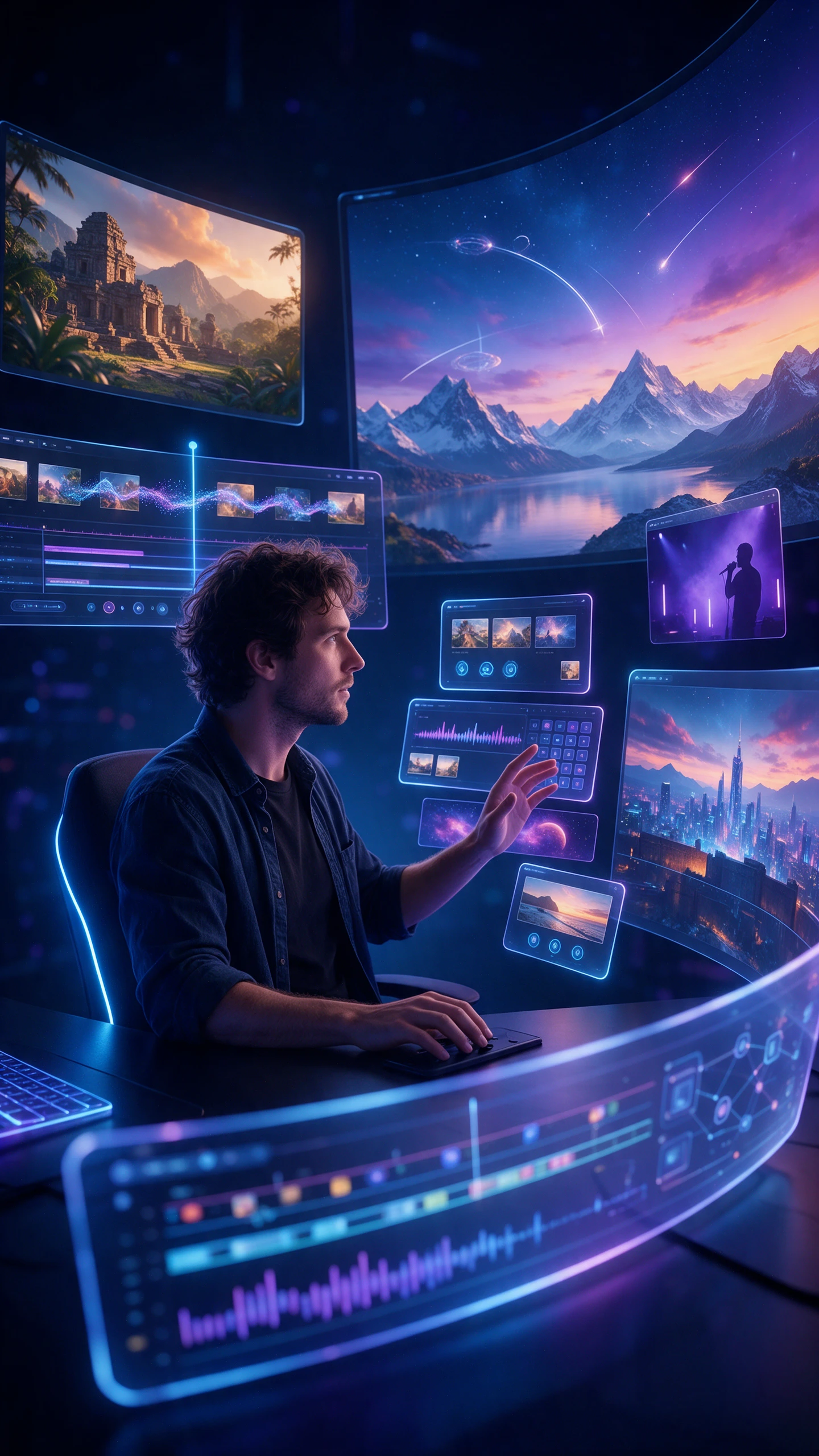
Not every video starts with a camera. The CapCut AI video generator can turn a rough thought into footage you can work on inside the editor, without changing your usual routine.

Enter your topic or key points to help CapCut understand your video idea. The AI prepares a complete creative brief with a narrative script and scene outline. It also puts together a storyboard showing how the story should unfold visually.
Generate short clips lasting 5 to 12 seconds from simple written text prompts. For longer stories, CapCut supports narrative videos ranging from 15 seconds to 10 minutes. Animate still photos by choosing starting frames, ending frames and specific camera movements.
CapCut offers over 100 digital avatars that can appear throughout your video content. Pick a virtual presenter when you would rather stay away from the camera. Different avatar options help you find someone who suits your video's overall style.
Choose landscape 16:9 for wider videos or portrait 9:16 for vertical social posts. Square formats are also available when your video needs a different screen shape. Export options range from 720p to 8K, depending on generation mode and plan.
The CapCut AI video generator lets social creators try different models before settling on a clip. You can edit the footage in CapCut and share brand assets across your team.
CapCut offers Seedance 2.0 Mini and Veo 3.1 for generating different video clips. You can try each available model to see which better suits your idea. Check which models your account supports before deciding how to generate your footage.
Try Different AI Video Models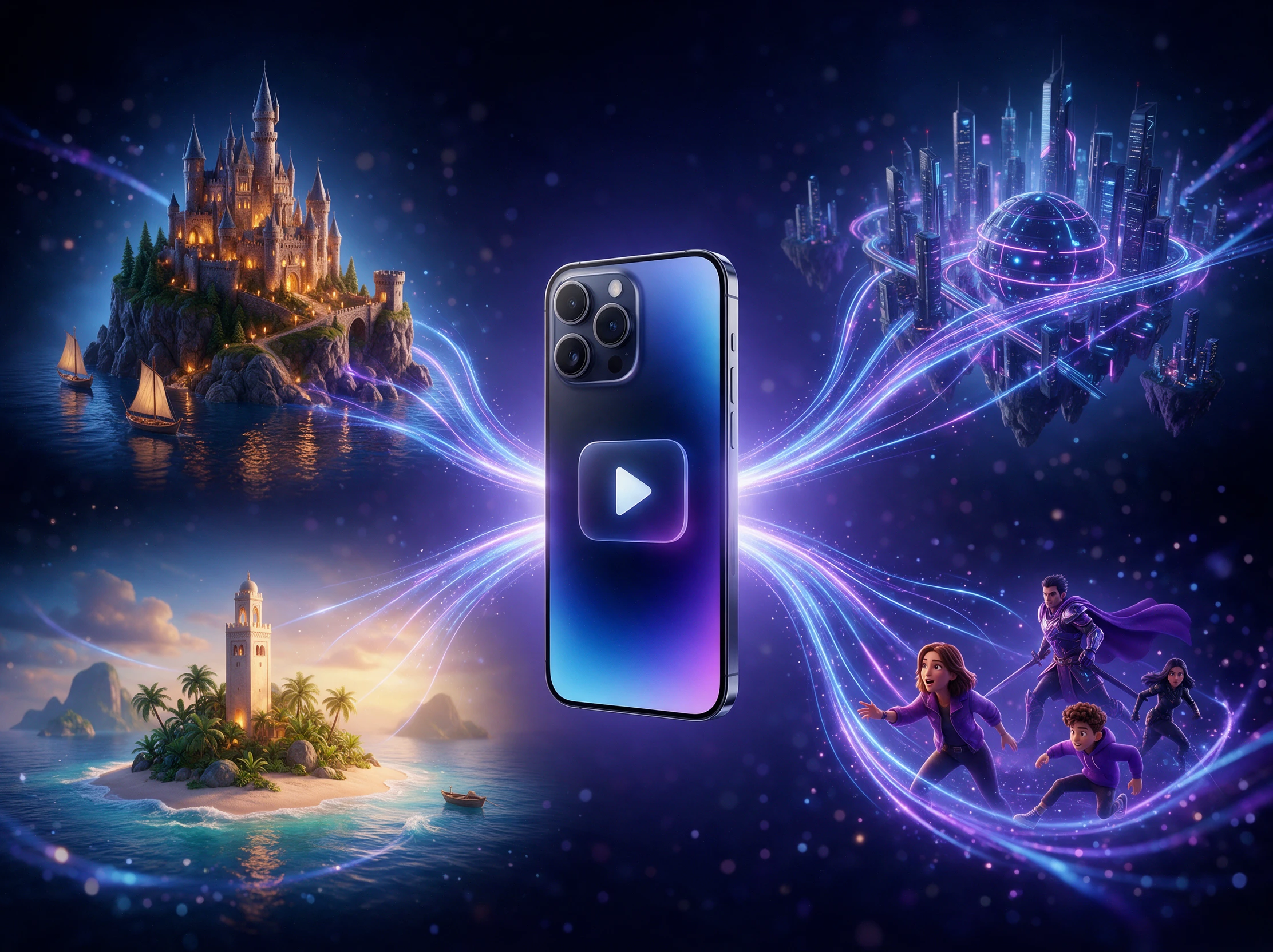
Sometimes generated footage needs a few changes before it looks right for posting. CapCut lets you trim unwanted sections directly inside its own built-in editor. Your video stays in one place until you're happy with the final result.
Start Creating Free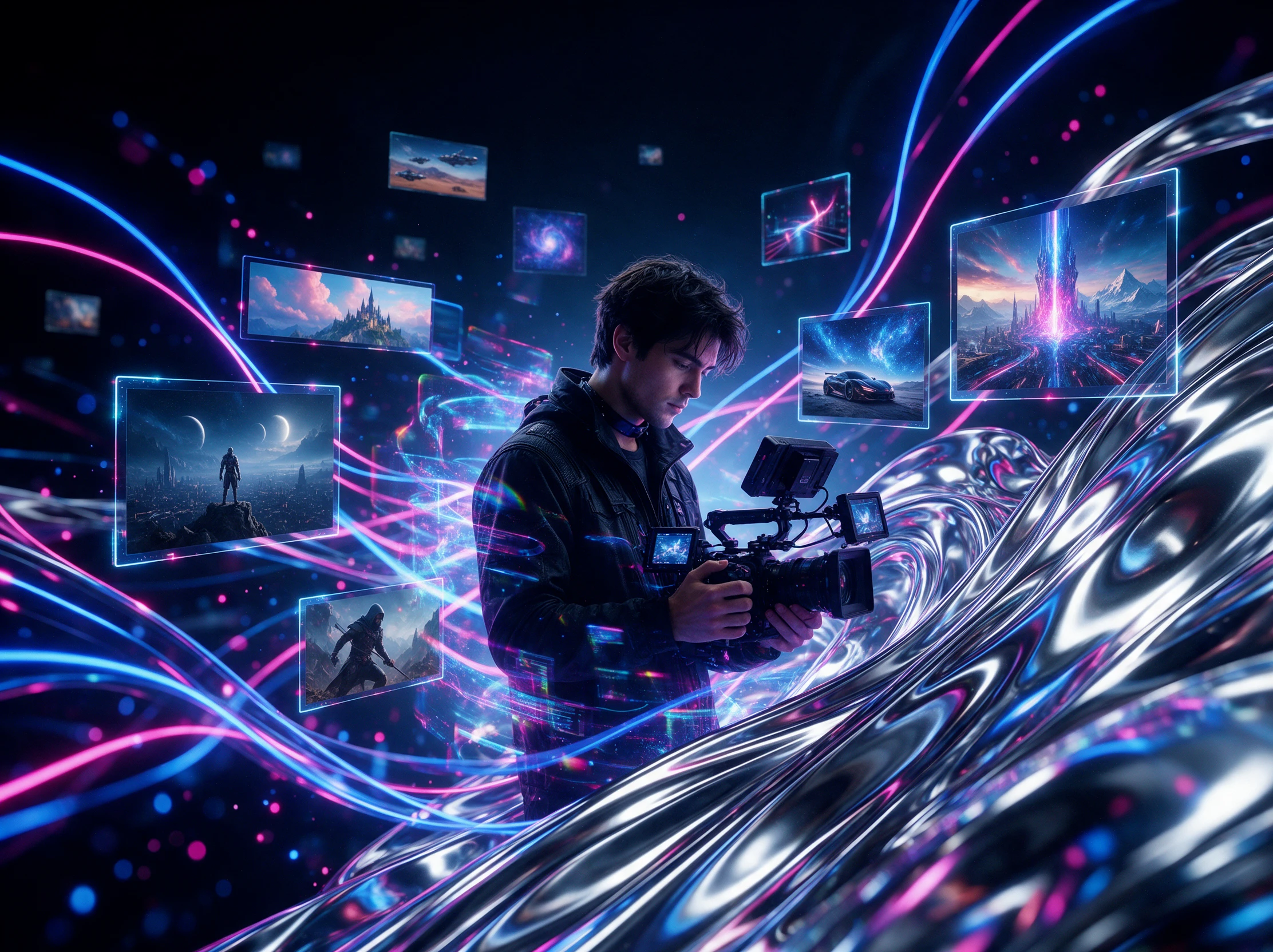
CapCut provides editing templates when you don't want to start from an empty timeline. Pick a template that suits the kind of video you have in mind. Replace its existing content with your footage and adjust the details as needed.
Explore Video Creation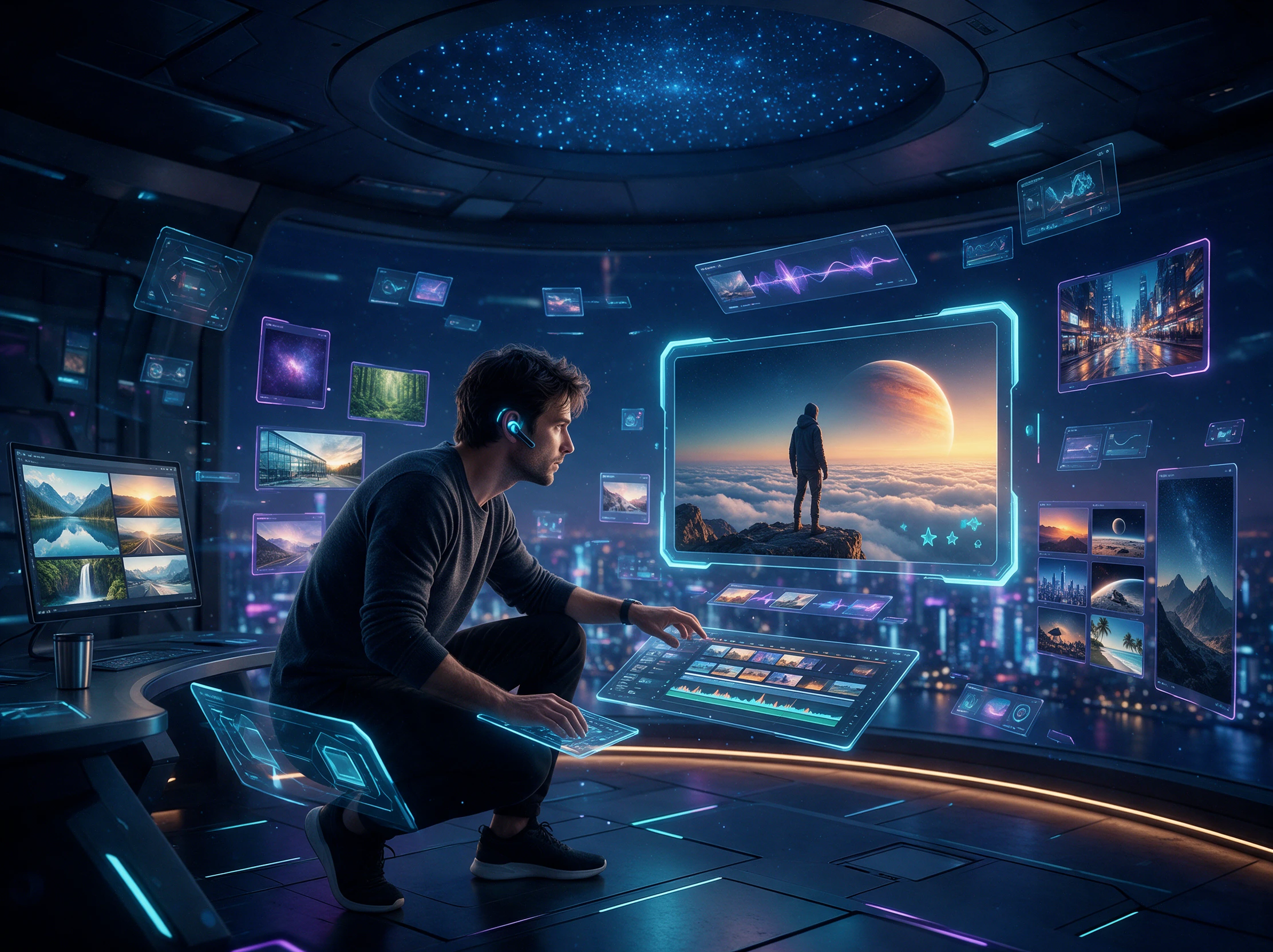
CapCut AI video generator is not your only option for turning ideas into videos. Here's how it compares with 4 other tools, so you can see which one suits your needs:
| Platform | Ways to Generate | Editing Afterward | Free Starting Point | Best For |
|---|---|---|---|---|
| CapCut | Text prompts, images, or scripts | Timeline editor with captions and effects | Free editor; AI trials or credits depend on access | Social media creators |
| MagicLight AI | Scripts into story videos; images into clips | Scene changes through Nano Storyboard | Free signup credits; paid plans for more generation | Long story videos |
| Kapwing | Text or images into AI clips | Browser editor with subtitles and timeline tools | Free plan; exports include a watermark | Browser-based editing teams |
| Canva | Text prompts into 8-second AI clips with sound | Canva Video Editor with text and trimming tools | Free design editor; AI video access depends on plan | Marketing videos and branded content |
| InVideo | AI video generation and script-based video creation | Timeline editing with AI assistance | Paid Starter plan listed at $10 per seat monthly, billed yearly | Video creators needing AI generation and editing |
The CapCut AI video generator works right inside the desktop editor. Just 4 steps stand between your first idea and a finished clip you can share on your social channels.
Open CapCut and start a new project. Find AI Media in the left panel, then select Text to video if you have a written idea or Image to video if you want to animate a photo.
Pick Seedance or Veo 3.1 from the available models and set your clip's length. Choose 9:16 for TikTok or Instagram Reels, while 16:9 works better for YouTube videos.
Enter a prompt or upload the photo you want to animate. Click Generate and wait for the result. Once it's ready, drag the clip onto your timeline and try again if the clip looks wrong.
Finish your video with background music. Before exporting, choose your preferred resolution, frame rate and bitrate. You can also use Share to post directly to platforms.
Small Business Owner
I had a product launch coming up and no time to film anything. CapCut helped me turn a simple product idea into a short teaser, and I posted it on TikTok that afternoon.
YouTube Creator
I already had my script written, so I tried CapCut's Instant AI Video. It turned my words into a narrated video, which saved me from recording everything myself.
Short Film Creator
My story was all over the place until I tried CapCut Video Studio. Working through the idea with the AI agent helped me figure out which scenes actually belonged in it.
Content Creator
I wanted to see how the same scene would turn out with different models. Testing my prompt with Seedance and Veo 3.1 in CapCut helped me decide which clip to keep.
The CapCut AI video generator offers a 7 day trial, but free access has limits. Once the trial ends, you'll need AI credits to keep generating videos in CapCut.
CapCut offers Seedance 2.0 and Seedance 2.0 Mini for generating video clips. Veo 3.1 is another option, while Seedance 2.5 is gradually reaching more eligible users.
Not yet. Seedance 2.5 is rolling out to subscribers over 16 in selected regions, including Asia and Europe. Availability depends on your account and where you live.
Clip length depends on your chosen model. Veo 3.1 supports up to 8 seconds, Seedance 2.0 reaches 15 seconds, and Seedance 2.5 can generate up to 30 seconds.
Yes. Upload a photo through Image to video and CapCut can turn it into a moving clip. Some models also let you set the first and last frames to guide the movement.
Yes. Once your AI clip is ready, you can move it into CapCut's timeline editor. Trim parts you don't need, add captions and export the finished video when you're happy.



Turn your idea into a video with CapCut. Edit the footage to your liking and share the finished clip straight from the app.