Explore the Features of Leonardo AI Video Generator
Find out how Leonardo AI video generator gives you more control over video generation through model selection, frame guidance, and motion settings for creative workflows.

Turn a written idea or still image into motion using Leonardo AI. Choose from the available models, guide the shot using references, and refine the result with no editing skills.
Try Leonardo AI For Free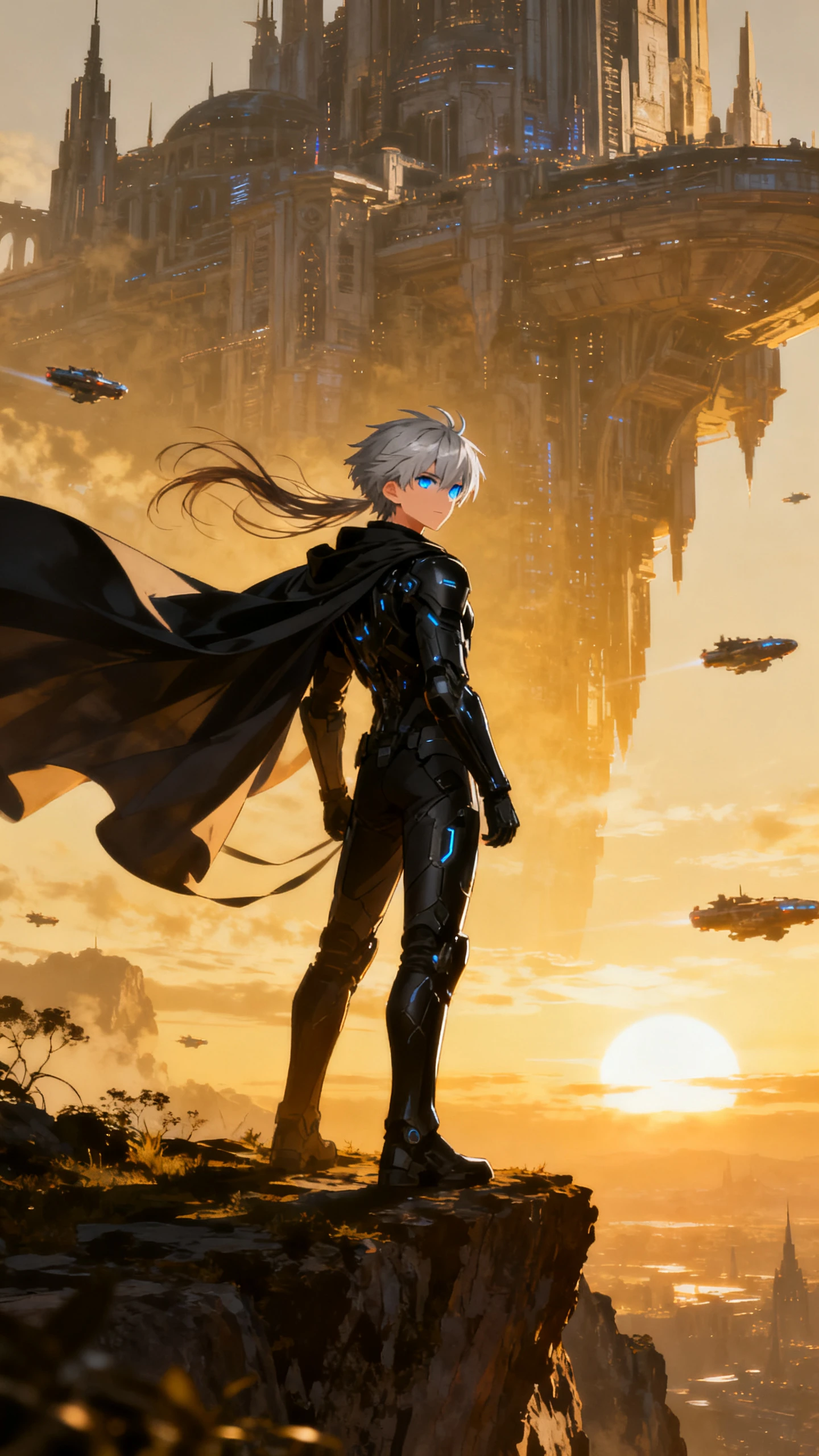
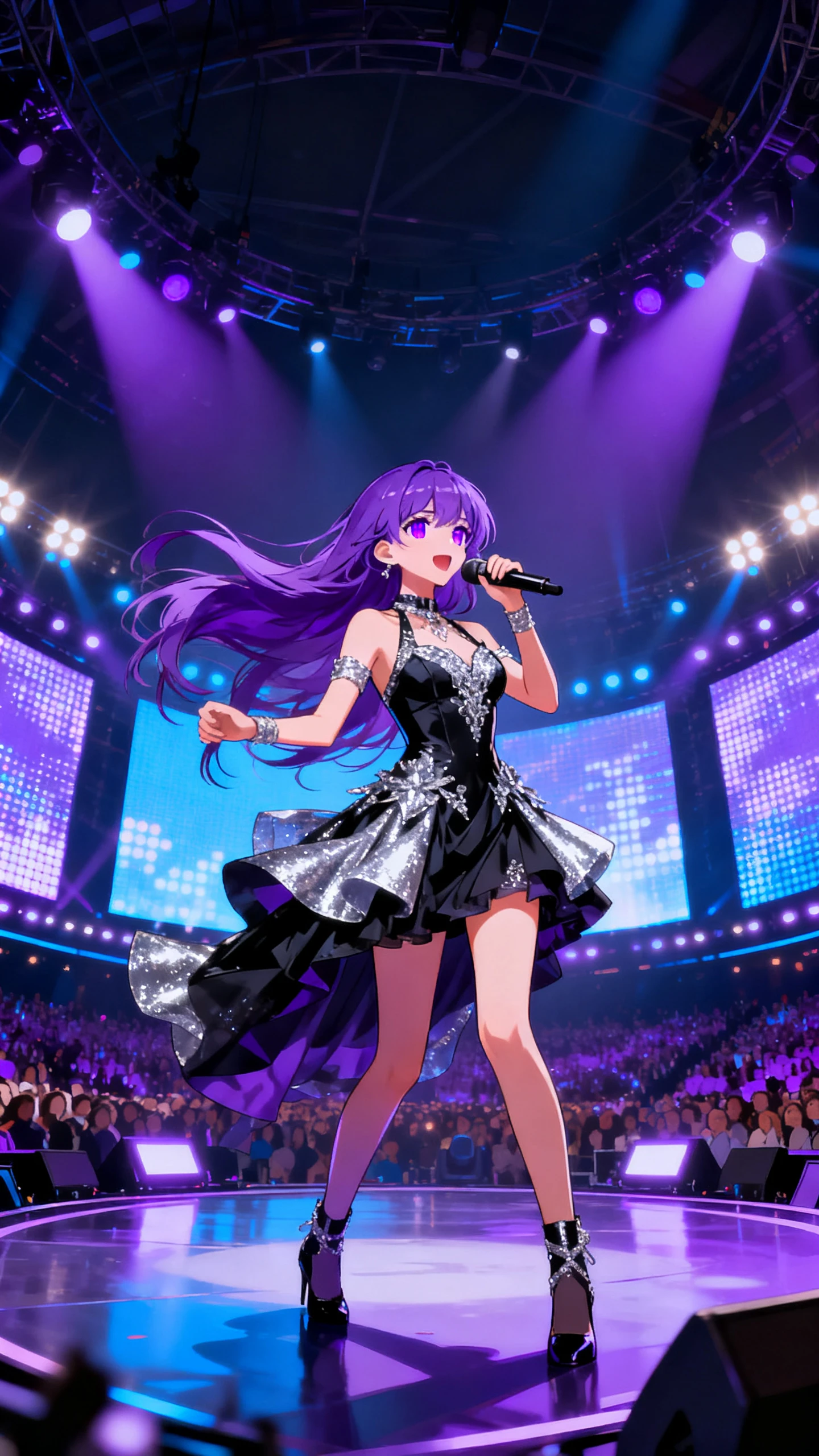
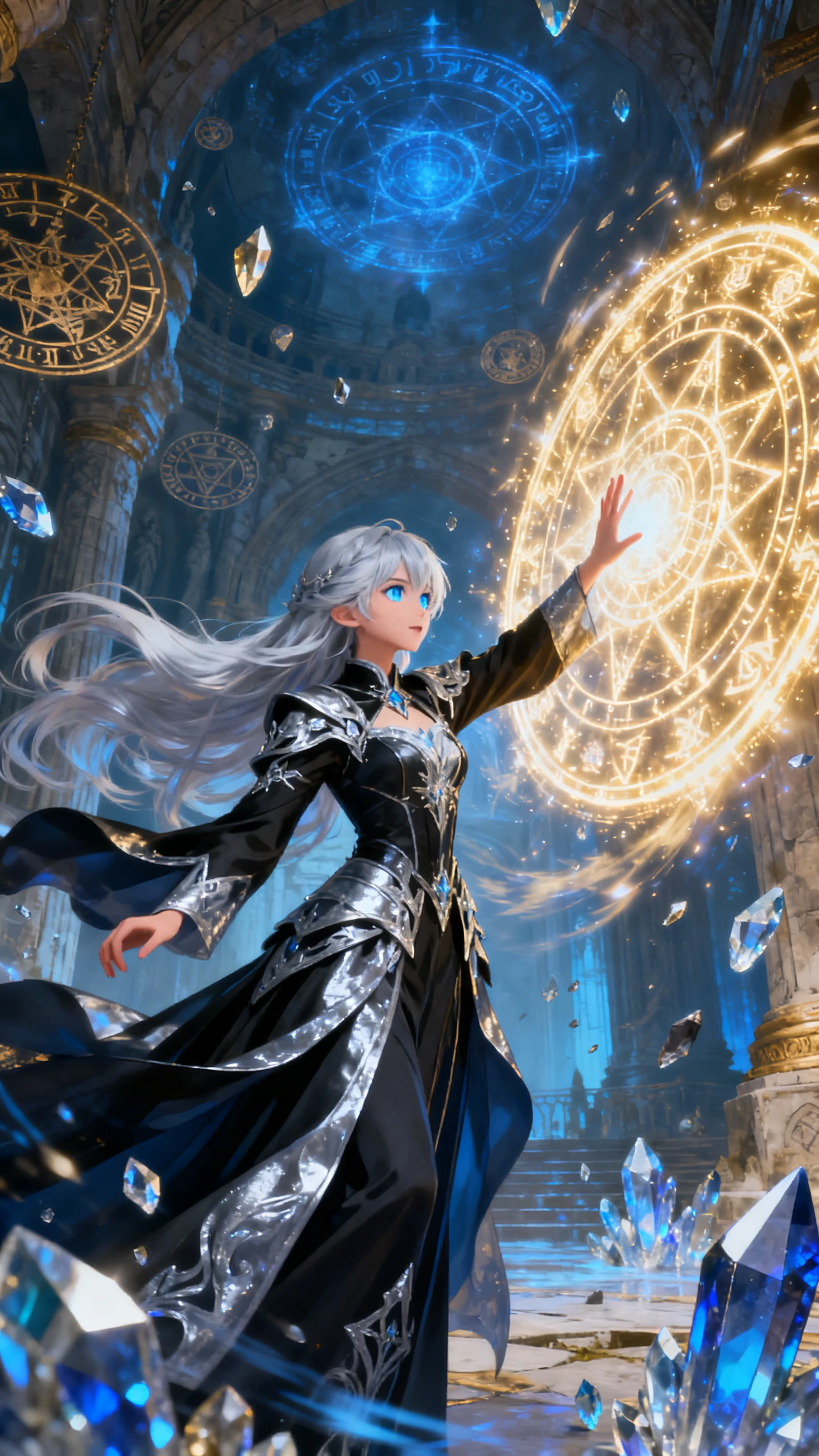
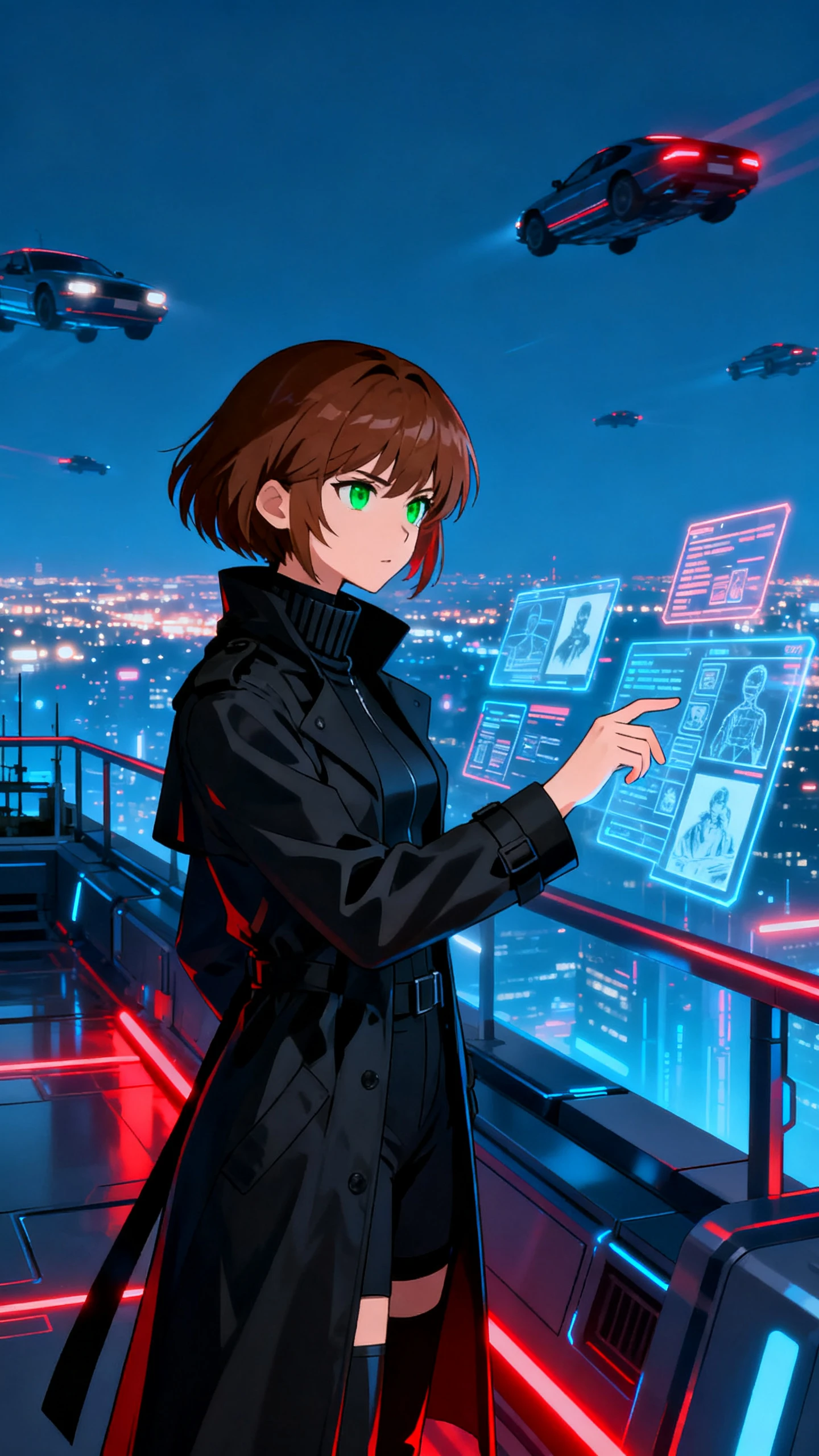
Find out how Leonardo AI video generator gives you more control over video generation through model selection, frame guidance, and motion settings for creative workflows.

Start with a written prompt or an existing image to build your video. Leonardo AI supports text-to-video and image-to-video workflows with available duration, dimensions, quality, and generation settings changing across supported models.
Choose from Veo 3.1, Kling 3.0 Turbo, Seedance 2.5, MiniMax H3, and other models based on the type of shot you want to create. It brings different model families into one workspace, with varying support for motion, audio, resolution, frame references, generation speed, and output style.
Set a starting image and, with supported models, an ending frame to guide how your video develops. These visual anchors will help define composition, continuity, transitions, and the intended direction between the opening and final state.
Guide movement through prompts or use supported Motion 2.0 controls to influence how a shot develops. Leonardo can help direct camera behavior, subject movement, and motion effects instead of simply applying automatic animation to a still image.
Set your visual direction first, then let the Leonardo AI video generator carry it through. Keep the workflow together with custom training, model choice, and clear token costs.
Create, refine, and reuse visual assets without moving between separate platforms. Leonardo connects image generation, editing, references, and video creation in one workspace, so approved visuals can move directly into motion workflows while keeping the creative process easier to manage across different stages.
Start Creating Free
Adjust supported generated videos directly through Leonardo’s Editor instead of rebuilding the idea from scratch. Describe the change you want, then regenerate the clip with those instructions. Editing support depends on the selected video model, making this especially useful for quick iterations and creative experimentation.
Start Creating Free
Look into the existing video workflows to handle common video tasks without rebuilding settings from the beginning each time. These pre-built workflows combine models, prompts, and generation settings for specific results. You can find still-image animation, product rotation, and controlled zoom-out effects across repeatable creative projects.
Start Creating Free
Test the same character across every suite. Compare the Leonardo AI video generator on consistency, model choice, workflow control, and upfront token costs before you commit.
| Platform | Video Input Options | Video Models | Maximum Script Length | Users |
|---|---|---|---|---|
| Leonardo | Text, images, frames, and supported references | Veo 3.1, Kling 3.0, Seedance, and more | Prompt-based | Designers and studios |
| Magiclight AI | Text, images, scripts, and reusable characters | 20+ video models & 14 story models | Up to 12,000 characters | Story creators |
| DaVinci | Text and images | 50+ across image and video | Prompt-based | Marketers |
| Google Flow | Text, frames, and visual ingredients | Veo only | Prompt-based | Filmmakers |
| Midjourney | Image with optional motion support | Midjourney Video Model | Prompt-based | Artists |
Finish the still before the motion, and 4 steps cover the rest. Approve the token cost the Leonardo AI video generator quotes before it runs.
After launching, select the Video section from the available sidebar. With the video workspace in the front, continue to define other supported generation options.
Enter a text prompt to create a video, or add an image as the starting image. Existing Leonardo images can also be used for video generation workflow.
Select a compatible video model, then adjust available options for that particular model. Define the duration, dimensions, quality, and other motion-controlling settings.
Review the token cost shown before you run the job. The amount can change with the video model, duration, resolution, audio options, and other selected settings.
Concept Art Creator
Turning approved concept frames into motion inside Leonardo makes early visualization faster. I can test movement without rebuilding the scene elsewhere.
Video Creator
Different shots need different strengths. Switching between video models inside Leonardo AI makes it easier to compare motion, references, and output.
Product Design Creator
Image-to-video in Leonardo AI lets me start from the exact product composition I want, then add movement without changing the whole visual direction.
Independent Filmmaker
Start and end frames in Leonardo AI gives me better control over short sequences. I can define key visual points before generating the movement between them.
Leonardo AI creates videos from text prompts or still images, with supported controls for motion, camera direction, frames, and audio. It also connects with Leonardo’s wider image generation, editing, upscaling, and creative workflow tools.
Leonardo AI offers its dedicated Motion models along with other video model families such as Google, Kling, and Seedance. Available models differ in motion quality, audio, references, duration, resolution, and support controls.
Yes, with 150 tokens refreshed daily. Not every video model is open to free accounts, since the third-party ones carry real running costs. Paid plans still have usage limits attached.
Yes, Leonardo AI supports image-to-video generation using an uploaded image or an existing creation as the starting frame. Supported models can then generate movement based on the provided controls.
Cost scales with clip duration and with whether audio is enabled, and the exact number appears in the generation panel before you commit. Video is considerably more token-hungry than image work.
Speed and teamwork. Generation runs slower than lighter tools, video drains tokens quickly, and real-time collaboration is limited even on team plans despite Canva owning the platform.



Start with a still you already like in Leonardo AI. Add motion while keeping the original visual direction intact.