Creating a talking or singing video from a simple photo requires proper editing skills. That’s where DreamFace AI comes in, enabling anyone to animate a face in minutes from their phone or browser. However, with all the differences in licensing, free trials, watermarks, and fees, it is easy to select an appropriate package.DreamFace AI comes in, enabling anyone to animate a face in minutes from their phone or browser. However, with all the differences in licensing, free trials, watermarks, and fees, it is easy to select an appropriate package.
This guide will address its standout features, the price, pros and cons, and provide a better alternative if you are looking for more than a short clip.
What Is DreamFace AI and How Does It Work?
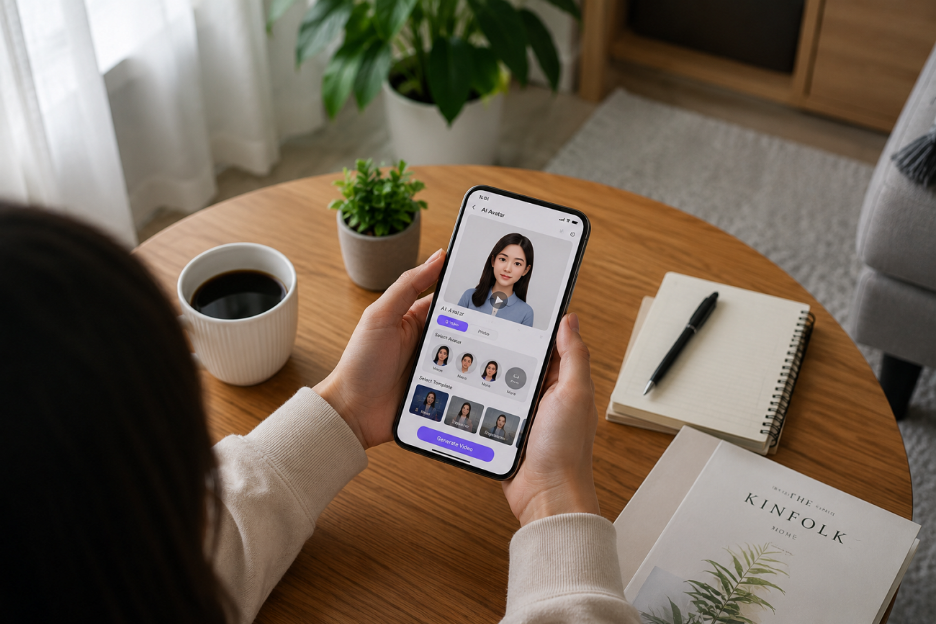
DreamFace AI is an AI animation software that takes either an image or text to make an animated talking video using facial mapping and lip-syncing technology. You can input an image, add voice along with the text, and AI will sync the mouth movements according to the voice. It also supports pet videos, AI photos, voice cloning, and video translation for web, iOS, and Android.
Top Features That Make DreamFace AI Stand OutTop Features That Make DreamFace AI Stand Out
- Switch Between AI Models: Switch among 5 AI models, such as Dream Video 1.5, Google VEO3, and more, to match your video concept and style.
- Prompt or Photo Input: Create avatars from 3 types of input: a text prompt of up to 1500 characters, an uploaded image, or a video clip.
- Face Swap Option: You can swap faces into the previously generated pictures or videos while preserving expressions and lighting.
- Multiple Aspect Ratios: DreamFace AI allows you to export files in 1:1, 3:4, 4:3, 16:9, or 9:16 aspect ratios to repurpose content across every platform.
How to Create AI Videos With DreamFace How to Create AI Videos With DreamFace
Once you understand the features, here is a simple and easy-to-follow walkthrough on how to create your first avatar video using DreamFace AI:
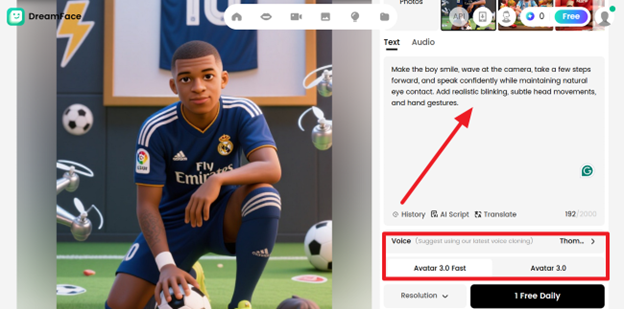
Step 1. Open the DreamFace AI’s avatar video tool, then upload an image from the option available at the top of the tab.
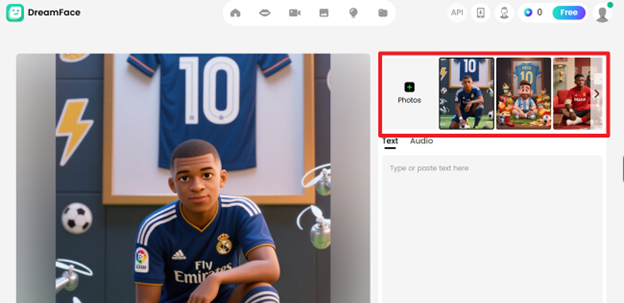
Step 2. Once you upload an image, type your text script. Moving forward, select a voice and AI model, and adjust other settings to create your desired video.
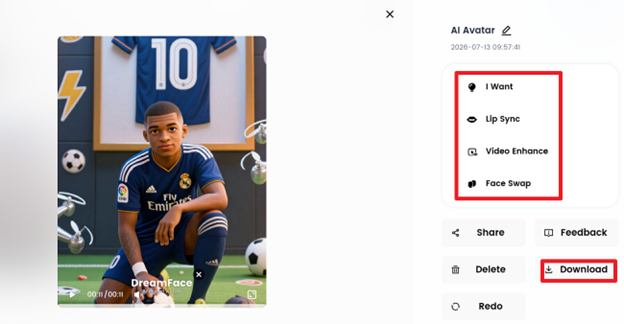
Step 3. When you get the generated video, check your lip-sync, swap the faces if you find anything missing, and download your video.
DreamFace AI Pricing Plans Explained DreamFace AI Pricing Plans Explained
Once your video looks right using DreamFace AI, the next obvious question is the production cost. Have a look at the following table to know the price plan:
| Plan | Price | What You Get |
| Free | $0 | 5 daily avatar creations, watermark, 30s videos, 10min translator |
| Pro | $29.99/year | Unlimited creations, HD, no watermark, 180s videos, 5 credits/week |
| Premium | $119.99/year | 1080p avatars, larger uploads, 600s videos, 30 credits/week |
| Team Plan | 89.99/seat/year | 50 credits/week, 10 concurrent generations, minimum 2 seats |
DreamFace AI Pros and Cons Before You SubscribePart
Since we know the software's price, it is time to consider DreamFace AI’s advantages and disadvantages to create your desired videos:
Pros
- Dream avatar 3.0 includes full-body motion, not just the head and face.
- Works for pets, anime characters, and customized avatars, not only human avatars.
- Full-body video avatar creation takes only one minute.
Cons
- The weekly paid plans may easily run out under intensive usage.
- Long-form storytelling is not supported.
- Avatar options feel limited to newer competitors.
Why MagicLight AI Is a Better Choice for Creative AI Videos
DreamFace AI works well for short talking photo clips, but it does not support full-story videos or long episodes. That’s where MagicLight AI comes in, as it concentrates on whole, scene-based videos rather than just animated sequences.
MagicLight AI transforms ideas, scripts, or stories into fully realized videos. It works with major AI models, including Kling 3.0, Seedance 2.0, and more. This provides optimal style and motion to each scene and maintains visual and audio consistency of the character from start to end.
Key Features
- Long-Form Video Generation: You can write a script, idea, or story and create a complete 50- minutes video for more compelling videos.
- Nano Storyboard Editor: MagicLight AI allows you to reorder shots, swap out pictures, and select one of 50 poses before downloading.
- Build Your Own Characters: It helps users select a name, style, and up to 1000 characters of appearance detail, and lets MagicLight AI create the character of their choice.
- Multi-Language Options: Supports narration in 11 languages to attract a worldwide audience who are not familiar with your video’s native language.
Step-by-Step Guide for Story to Video Generation
Follow the detailed guide given below to learn how you can create long videos from a story script using MagicLight AI:
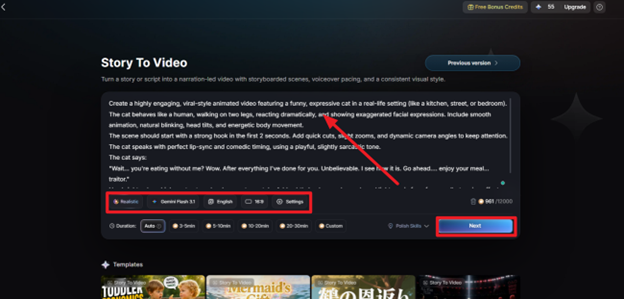
Step 1. Write Your Story and Adjust Settings
After you open the MagicLight AI website, go to the Story to Video tool and paste your story script up to 12,000 characters. Choose your desired AI model and aspect ratio, and adjust other settings before clicking Next.
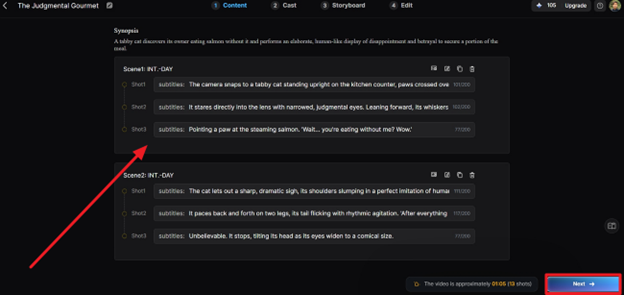
Step 2. Check the Story Scene Breakdown
Moving forward, let AI do its work and generate a complete scene breakdown of your video. Then, review each scene, make any necessary changes, and press the Next button.
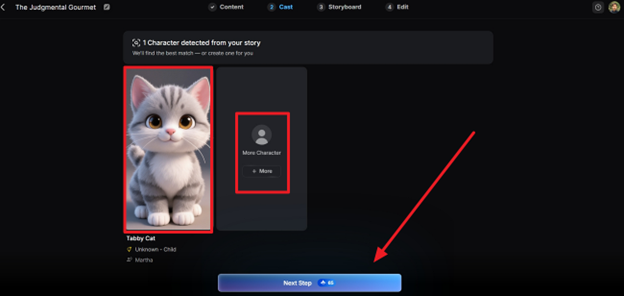
Step 3. Select Your Video Character
Choose the suggested characters from the Cast screen. You can customize the character of your choice by clicking the More option. To proceed, press the Next button to proceed further.
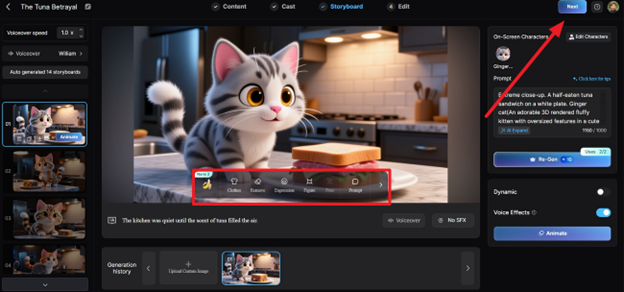
Step 4. Edit the Video from the Storyboard
After MagicLight AI generates separate videos for each scene, review them and use the toolbar to edit Poses, Expressions, Figure, and more. After you have made changes to each scene, click Next to proceed.
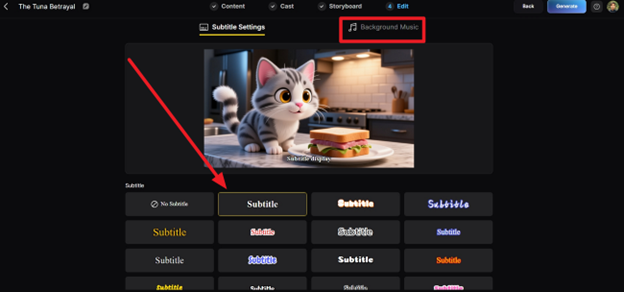
Step 5. Add Subtitles and Background Music
Upon getting the full video, choose your desired Subtitle style and Background Music. Then, press Generate to get your ready-to-publish video.
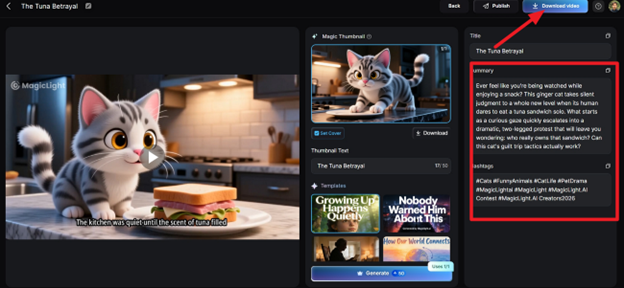
Step 6. Preview and Download Video
Finally, play the output video and see if it matches your added script. Once you are done generating the video, click Download Video to save the file.
Conclusion
If you are looking for quick talking photos or funny pet videos for social media, DreamFace AI is a suitable option. When you need a quick, one-shot piece of content, use DreamFace AI, and when you need a story, find another content tool. For longer story-like video sequences with well-defined characters and storyline, MagicLight AI is a better long-term option.
Frequently Asked Questions
Is DreamFace AI free to use?
Yes. DreamFace AI has a free plan, but it has watermarks and shorter clip limits. For unlimited story-based videos with no watermark hassle, MagicLight AI also offers a free trial with no credit card required.
Does DreamFace AI support custom voice uploads?
Yes, you can upload your own audio or use text-to-speech and several voice options. With full AI voice cloning integration, MagicLight AI goes the extra mile.
How accurate is DreamFace AI lip sync?
DreamFace AI lip syncs better for clear, front-on photos, but may not be as accurate for side shots or busy backgrounds. MagicLight AI’s lip sync feature is not limited to one face but works on full scenes.
How does DreamFace AI compare with MagicLight AI?
MagicLight AI has a focus on full stories up to 50 minutes with multiple scenes, whereas DreamFace specializes in shorter, single-shot clips. Longer videos require consistent characters, for which MagicLight AI is a more powerful solution for this.
What is the best alternative to DreamFace AI?
MagicLight AI is the best alternative to DreamFace for long-form, story-driven AI video generation.