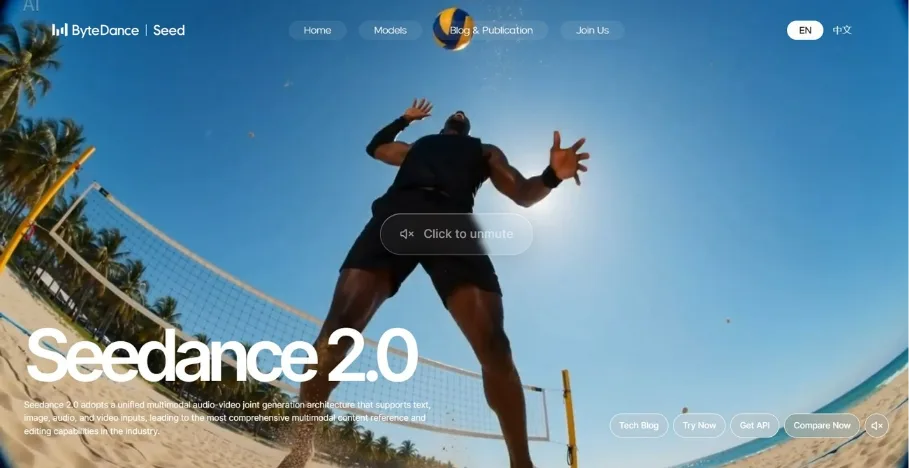
Seedance 2.0 is ByteDance's multimodal AI video model designed to create short cinematic videos from text, images, audio, and video references. It uses one audio-video generation system to create visuals and sound together in the same workflow. Instead of producing basic clips, it gives you control over camera movement, lighting, shadows, pacing, audio, and scene actions.
This extra control helps creators produce more polished and cinematic videos with less manual editing. The article below is for creators, marketers, designers, and social media users who seek a simpler workflow in video generation.
How to Use Seedance 2.0 Step-by-Step Guide
Seedance 2.0 creates short AI videos from text prompts and reference inputs. It helps users create visual content faster, without filming every scene or editing each clip by hand. With Seedance 2.0, they can set a 4 to 15-second length, choose 480p to 4K quality, and select a screen ratio for the final video.
Furthermore, Seedance 2.0 reads your prompt, reference files, and selected settings together. It interprets details like subject, motion, scene, and camera direction to generate a video. The system then builds a sequence with consistent visuals, smooth transitions, and timing. You can review the output and refine it using editing or extension features for better results.
Key Features of Seedance 2.0
Before using the tool, it helps to understand the main features below that make Seedance 2.0 useful for short, controlled, and creative video generation:
- AI Video Generation
For demos, stories, and social posts, clips usually run around 4 to 15 seconds. Platform settings may offer 480p through native 4K, so detail stays cleaner. For a longer idea, creators can use multi-shot output or join several clips.
- Prompt-Based Creation
Prompt-based creation connects your idea to the final scene through clear written direction. A strong prompt mentions subject, action, environment, camera movement, and mood in order. It also supports negative prompts, such as no watermark, for high quality results.
- Style Customization
Style options let the same idea fit different screens more naturally. A wide video can use 16:9, while Reels or Shorts usually work better in 9:16. For other layouts, 4:3, 21:9, and 1:1 are also useful. Image, video, and audio references help preserve character look and scene pacing.
- Scene Control and Editing Tools
Seedance 2.0 gives users more control over scene movement, lighting, shadows, pacing, and camera direction. Its Video Extend feature can continue an existing clip, while Video Edit helps adjust segments, replace characters, or add new scenes. These tools make it easier to fix small issues and improve continuity without regenerating the full video.
How to Use Seedance 2.0 Step by Step
After understanding the features, follow the steps mentioned below to create your first Seedance 2.0 video:
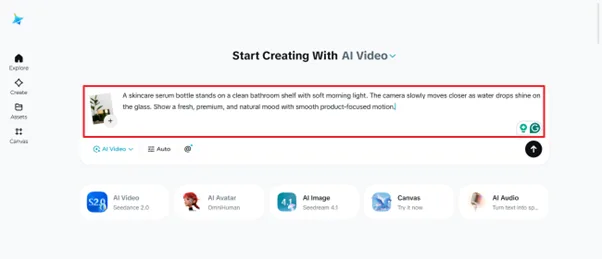
Step 1. Open the platform associated with ByteDance and choose AI Video with Seedance 2.0. Upload your product image, then write a clear prompt describing the product, setting, mood, camera movement, and style.
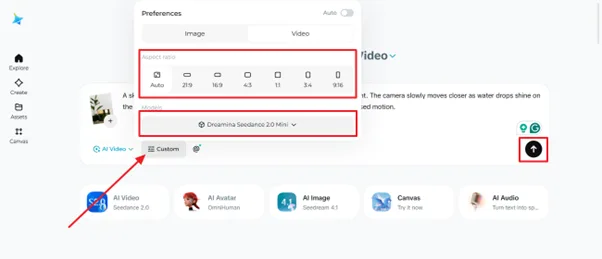
Step 2. Select the Custom option to adjust the settings before generation. Select the aspect ratio, choose the Seedance model, and then click the Generate icon to create the video.
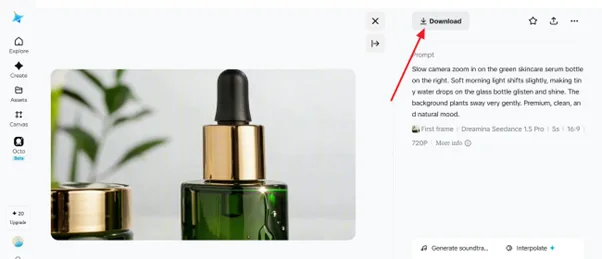
Step 3. Lastly, preview the generated product video on the result page. Check the prompt, duration, ratio, and quality, then press Download to save the final video.
Why Choose Magiclight AI for Seedance 2.0 AI Video Creation?
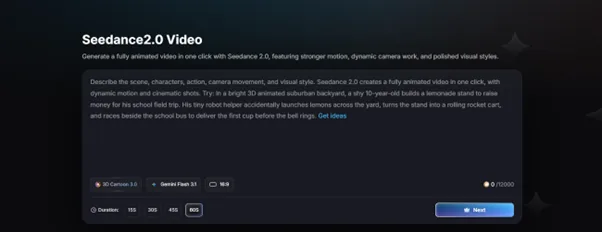
Magiclight AI makes Seedance 2.0 easier for creators who need more room than a short prompt allows. Instead of shortening an idea into about 200 characters, users can write detailed prompts up to 12,000 characters. That gap helps explain product angles, scene order, avatar actions, captions, voice direction, and brand style more clearly in one brief before generation starts properly.
Moreover, Seedance 2.0 works best for quick clips, often capped at around 15 seconds. That length can feel perfect for product demos, story scenes, or ad concepts. Magiclight AI gives creators more flexibility by supporting videos 60 seconds long. It also keeps voice, captions, sound design, and export inside one workflow.
Reasons to Choose Magiclight for Seedance 2.0 AI Video Creation
With the basics covered, review the reasons below to choose Magiclight for Seedance 2.0 AI Video Creation:
- Create Complete AI Videos with Seedance 2.0 Without Complex Workflows
Complete production usually depends on separate scripting, storyboarding, generation, editing, voice, and caption tools. In Magiclight AI, you can begin with a prompt, script, story premise, or reference image. Magiclight AI then structures narrative scenes, builds avatars, adds sound layers and captions, and prepares for export.
- Faster AI Video Generation for Efficient Creative Workflows
Speed matters when teams need daily posts, quick ad tests, or client concept drafts. Seedance 2.0 Mini supports faster lower-fidelity drafts before final polish begins properly. One brief can create several hooks, visual treatments, or regional versions across 11 languages.
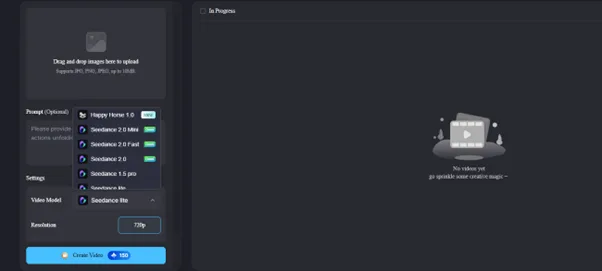
- Professional-Quality Visual Results Powered by Advanced AI Models
Model choice matters when one project needs realism and another needs stylized animation. Magiclight AI offers 19 different video models, including Seedance 2.0, Kling 3.0, and Veo 3.1. These models support camera tracks, soft lighting, fog, steam, texture clarity, and consistent characters.
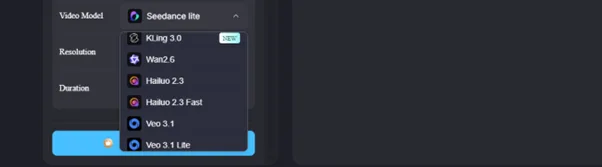
- An Easy-to-Use AI Video Creation Experience for Everyone
New users can start without learning editing tools. They can use free credits to try Magiclight AI, upload JPG, PNG, or JPEG images under 10MB, and build a first video. After that, they can reorder scenes, replace visuals, add voice, captions, or sound, and save the video.
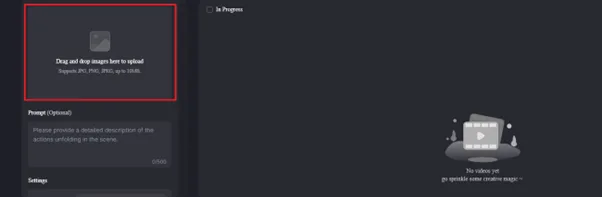
Conclusion
To conclude, creators can now make high-quality clips without planning a full production setup. The Seedance 2.0 AI video generator gives them clearer control over prompts, references, motion, style, and edits. For longer videos or detailed briefs, Magiclight AI gives creators more space to plan, edit, and export the final video.
Frequently Asked Questions on How to Use Seedance 2.0
How to use an AI video generator?
Add a prompt or image, then describe the scene, motion, and style. Magiclight AI also lets you build longer briefs before generating the video.
What can Seedance 2.0 AI video maker do?
Seedance 2.0 turns text, image, audio, and video references into clips with motion, lighting, camera control, and synced sound. For product, story, or campaign videos, Magiclight AI helps organize the output into a clear finished result.
How to get Seedance 2.0?
Seedance 2.0 is available through supported platforms, including CapCut’s Dreamina tool. You can also use Magiclight AI, choose Seedance 2.0, add prompts or references, and generate high-quality videos.
Is Seedance 2.0 free or paid?
Seedance 2.0 is not always free; it depends where you use it. On Magiclight AI, free trials or credits may cover testing, while larger videos may require paid credits.
What makes Seedance 2.0 different from other AI video tools?
Seedance 2.0 supports multimodal references, camera movement, lighting, shadows, and synchronized audio. Magiclight AI makes this even more easy through a more complete creation workspace.

![How to Make a Reaction Video with AI Tool [Guide 2026]](https://magiclight.ai/wp-2/wp-content/uploads/ai-faceless-reaction-video-guide-300x169.webp)