Part 1. How to Make Perfect Tutorials With MagicLight AI?
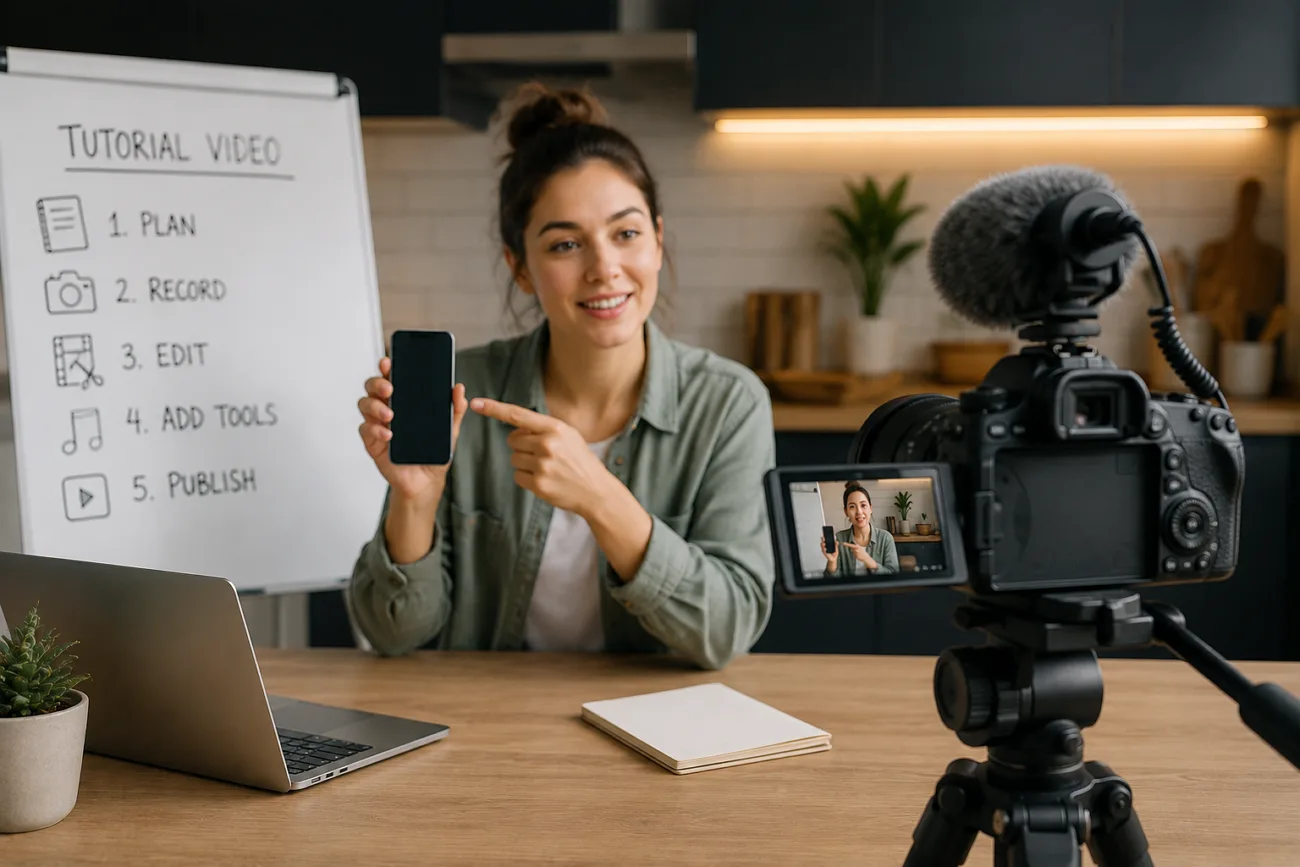
The urge to know how to make a tutorial video does not require expensive gear or editing experience. This guide walks through the entire process and explains how to plan content, record, and edit the final cut across MagicLight AI. You will find out how to publish a professional tutorial video across your YouTube channel using the finest AI generation tool.
Part 1. How to Make Perfect Tutorials With MagicLight AI?
MagicLight AI is an AI video creation platform that turns an idea directly into a finished video. It covers everything from story development to final export in one workflow. Instead of managing separate tools for scripting, recording, and editing, creators work through a single guided process that keeps every stage connected.
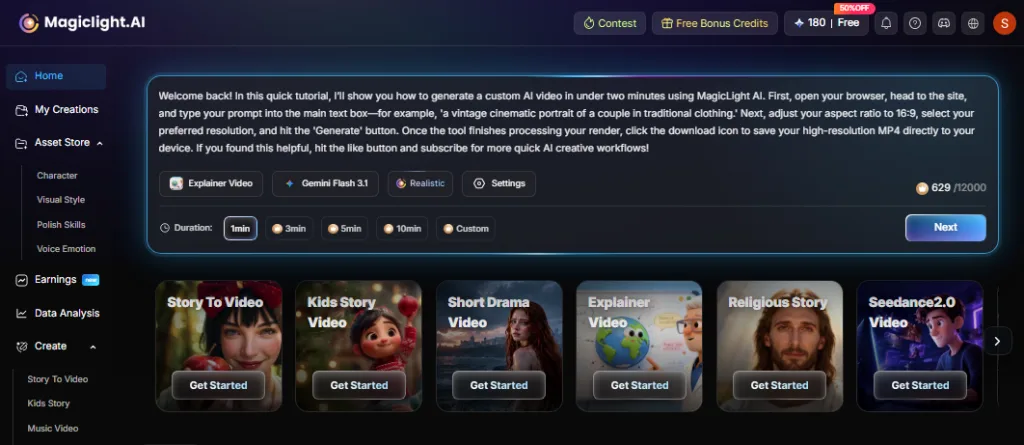
To know how to make video tutorials, the Explainer Video tool removes the need for filming or manual animation work. Creators start with a topic, and MagicLight auto-generates a storyboard alongside the visuals, then adds narration from a library of AI voiceovers. The result is a complete tutorial video built in far less time than a traditional production workflow requires.
How to Create a Tutorial Video with MagicLight AI?
Here is how the process works from start to finish after you access the MagicLight AI Explainer Video tool:
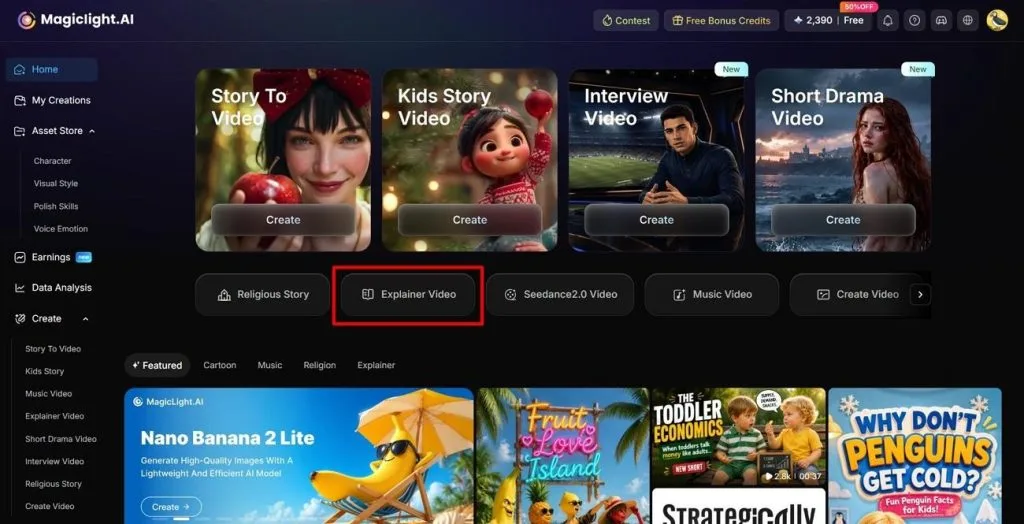
Step 1. Access the Explainer Video Function in MagicLight AI
Start by opening MagicLight AI on your browser and clicking the Explainer Video button on the homepage.
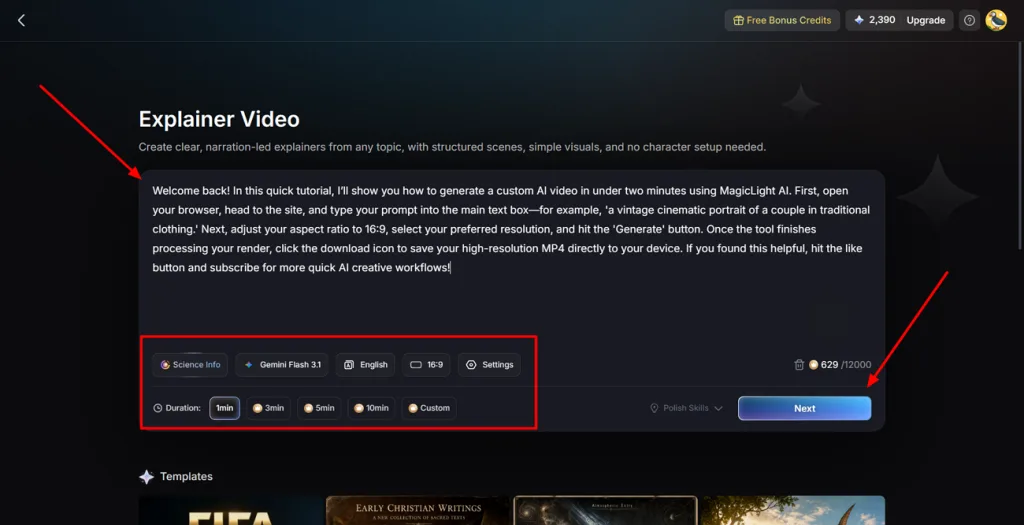
Step 2. Set the Duration for the Video Tutorial
With the script added, determine the AI Model of your choice, followed by other important settings. Consequently, select the Duration and press the Next button to continue.
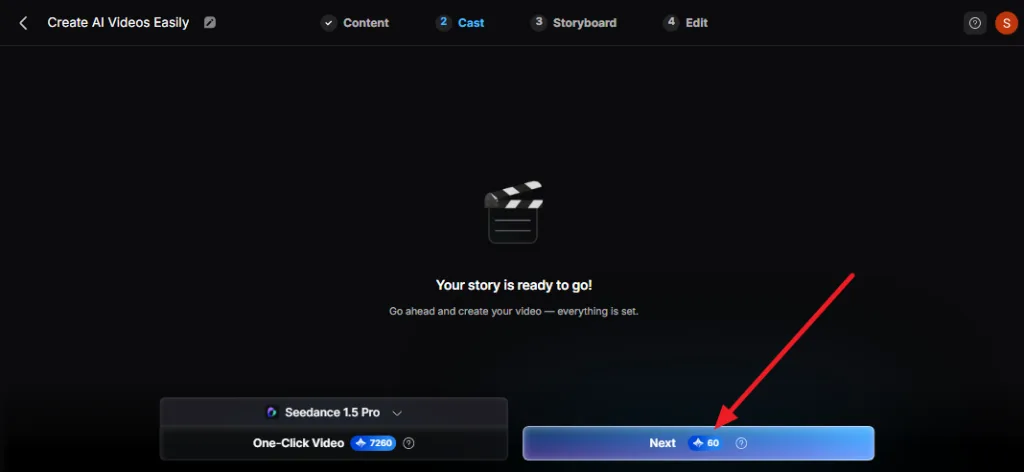
Step 3. Tap Next To Continue on MagicLight AI
When you get the Your Story Is Ready To Go! alert, choose the Next button to access the Nano Storyboard.
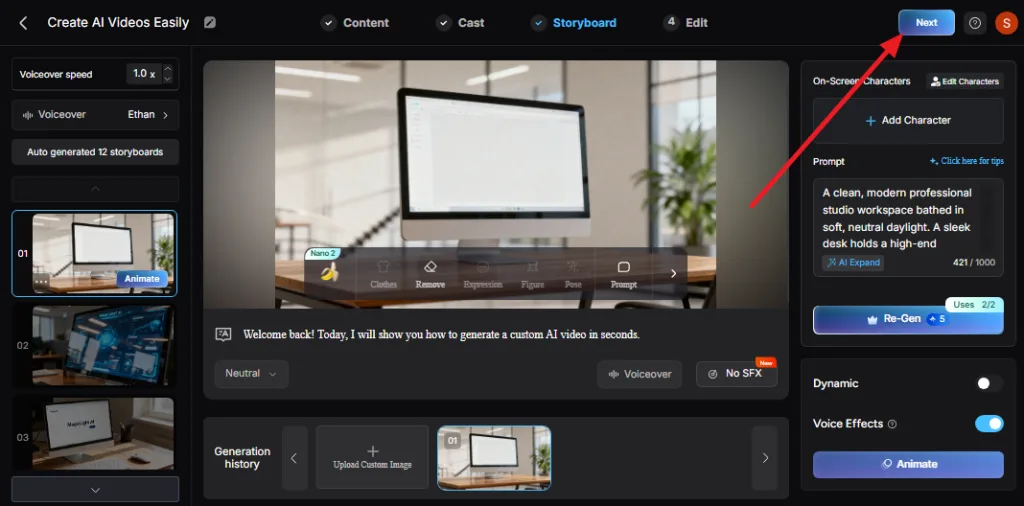
Step 4. Pick the Storyboard and Choose Next
Pick from 12 different Storyboard options and select the Next option. You can choose to animate or add voiceover if you want to make your video interactive.
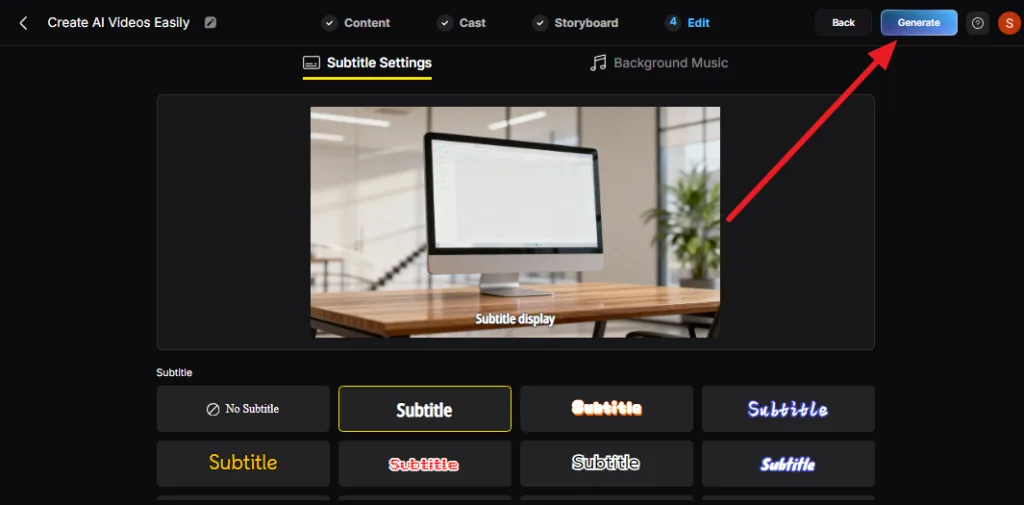
Step 5. Select Subtitles to Generate Video
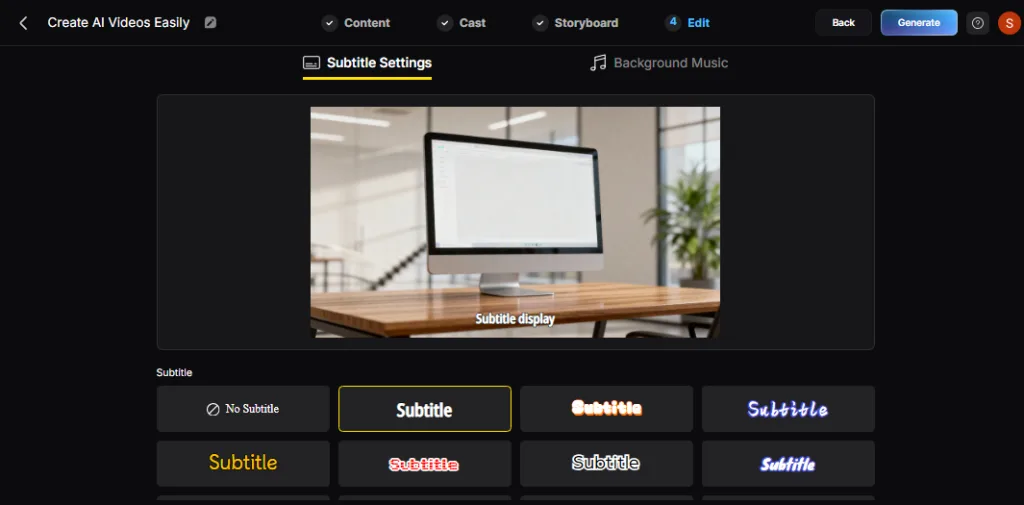
When directed to a new interface, select the subtitle style, choose an appropriate background music, and tap on Generate.
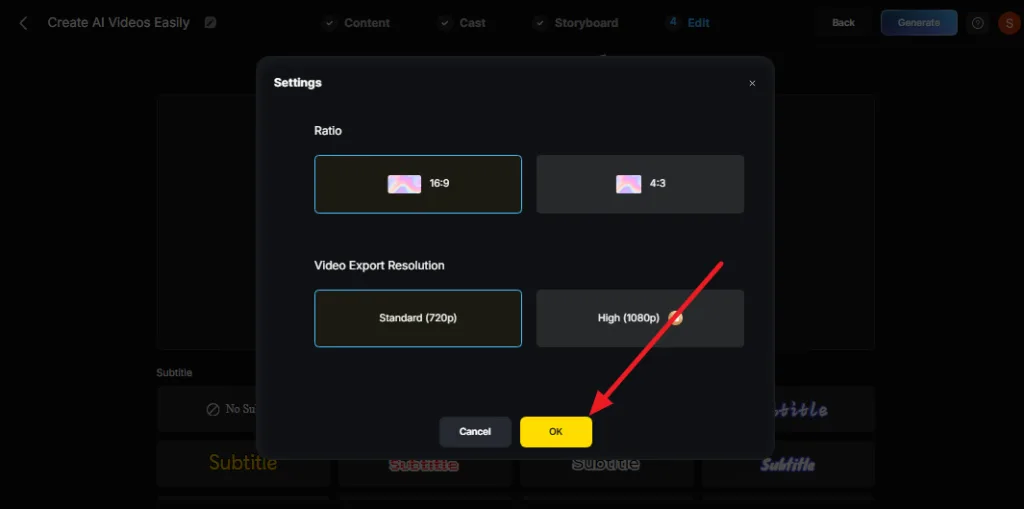
Step 6. Pick Video Export Resolution
In the pop-up menu, choose the Ratio and Video Export Resolution and press OK.
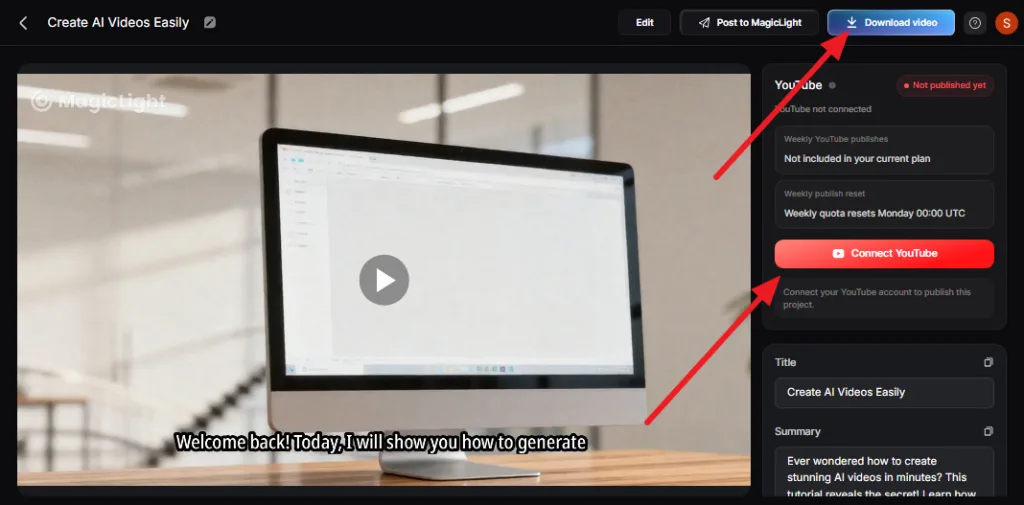
Step 7. Download or Connect YouTube With MagicLight AI
When you get the final tutorial video, click on the Download or Connect YouTube option. If you press the latter option, add the Google account details and continue to post the tutorial with MagicLight AI.
Part 2. Why Choose MagicLight AI To Make Tutorial Videos
Beyond the Explainer Video workflow, several MagicLight features make tutorial content easier to produce and watch. Go through the 5 points mentioned after you have learned how to make a tutorial video:
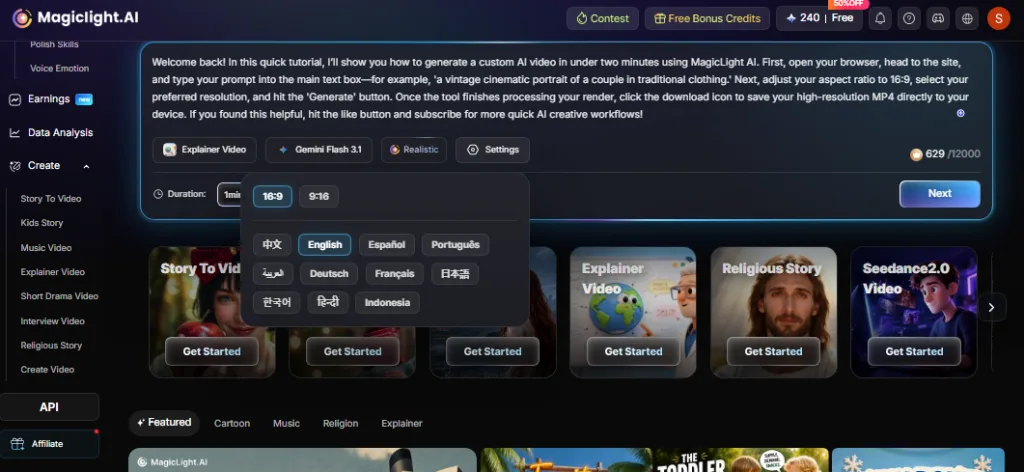
- Multilingual Support: MagicLight AI generates tutorials in 11 languages that you can choose from the settings. This way, tutorial ideas can reach international viewers without any translators or the need to re-record narration for each audience.
- Voiceover Library and Voice Cloning: With 37 filterable voiceovers and voice cloning, tutorials get consistent narration even without a microphone or on-camera presenter. Creators can keep the same host voice across an entire tutorial series.
- Editable Storyboard with Nano Adjustments: Since tutorials rely on accurately showing a process, MagicLight lets you edit or regenerate any storyboard prompt. Nano adjustments fine-tune a character's pose or expression so each step stays visually correct.
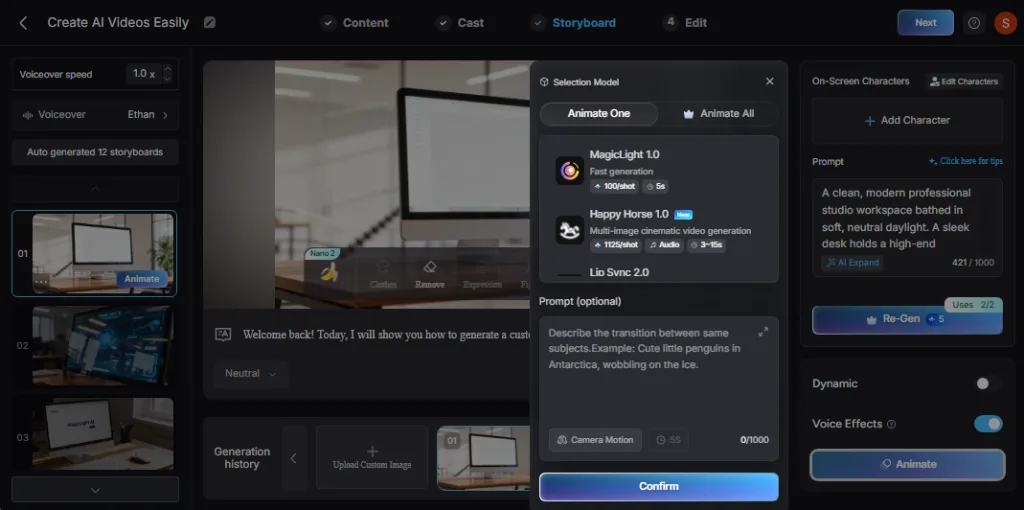
- Subtitle Settings: Choose from 16 style options; subtitles help viewers follow along even with the sound off. Many people rewatch a single step before moving on, and captions make that easier.
- Script To Complete Tutorial: All MagicLight AI needs is a script, and it creates a complete video tutorial in no time. Provide scripts up to 12,000 characters and generate the best versions of your tutorials with AI.
Conclusion
Many users wonder how to make a tutorial video and what stages are involved. This guide has explained what you need and how to make one yourself or with MagicLight AI. Nonetheless, MagicLight AI's Explainer Video feature handles the storyboard and narration way better.
FAQs on How to Make Tutorial Videos
1. How do beginners make tutorial videos?
Start with a clear topic and a simple outline before you record. A smartphone or a simple screen recorder is enough to get started.
2. Is there an easy way to make a tutorial video?
Yes, tools like MagicLight AI's Explainer Video feature automatically generate the storyboard and visuals. This removes most of the filming, editing, and voice recording a traditional tutorial usually requires.
3. What if I want to make a tutorial video in different languages?
MagicLight AI supports 11 languages, so the same tutorial topic can be generated again in a different language without re-filming or re-recording narration from scratch.


![How to Make a Reaction Video with AI Tool [Guide 2026]](https://magiclight.ai/wp-2/wp-content/uploads/ai-faceless-reaction-video-guide-300x169.webp)