


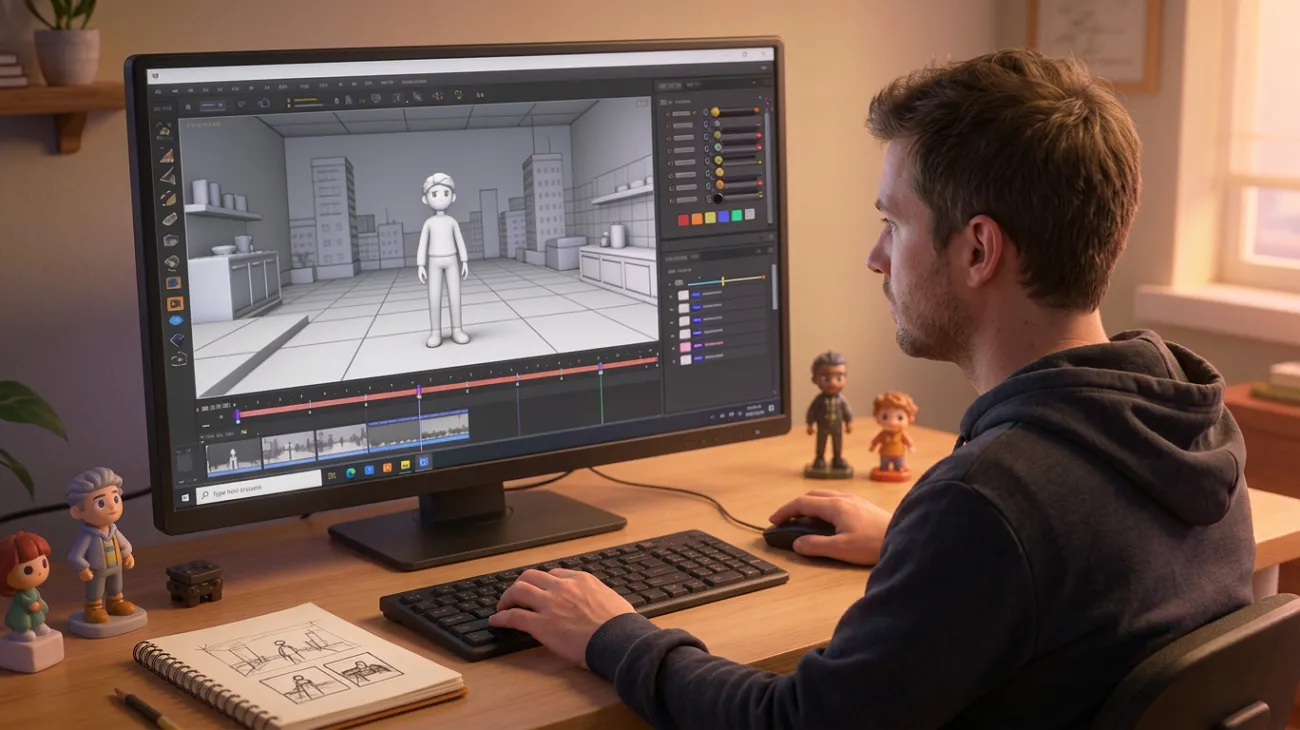
Creating professional visuals once required complex software, advanced skills, and expensive production workflows. Today, accessible platforms simplify how to create 3D animation video with faster results. Beginners can now transform ideas into motion without steep learning curves or delays.
This guide explains practical steps, tools, and workflows for building high-quality 3D animations. It also shows how creators can improve speed, consistency, and overall visual storytelling. With the right process, even simple ideas can become polished and engaging animated content.
Part 1. How to Create 3D Animation Video with AI Tools
A structured approach makes it easier to understand how to create 3D animation video with AI effectively. The right tools and workflow help turn simple ideas into polished animated visuals faster.
Step 1. The process starts with defining your concept, characters, and overall visual storytelling direction.
Step 2. Next, creators organize scenes, transitions, and pacing to maintain clarity and engagement.
Step 3. Then, animation tools generate motion, camera movement, and visual depth from structured prompts.
Step 4. Finally, creators refine outputs and export videos optimized for platforms and viewing formats.
Choose the Right Tool for Smarter 3D Animation Creation
Selecting the right platform determines how efficiently you plan scenes, structure narratives, and maintain visual consistency. For creators learning how to create 3D animation videos, a complete system removes technical friction. MagicLight AI supports full production, from script input and character creation to storyboard previews and one-click video generation within a unified workflow.
Its latest Nano storyboard feature breaks scenes into detailed micro-actions with precise timeline control. Alongside 11 languages, voice cloning, and reusable characters, it supports scalable production. The new Magic Claw adds chat-based creation, automatic publishing, scheduling, and built-in performance tracking. That helps creators review views, likes, and engagement without switching between separate tools.
Key Features
- Offers 37 voiceover options with cloning for personalized and dynamic character narration.
- Provides automatic cover generation with 21 templates for polished video presentation outputs.
- Includes one-click video creation using 14 models for faster and simplified production.
- Supports script input of up to 12,000 characters for detailed, long-form story-to-video workflows.
Guide To Create a 3D Animation Video with Magiclight AI
Adhere to the steps below to create a 3D animation Video with Magiclight AI. This guided workflow helps beginners build polished visuals with better structure and control.
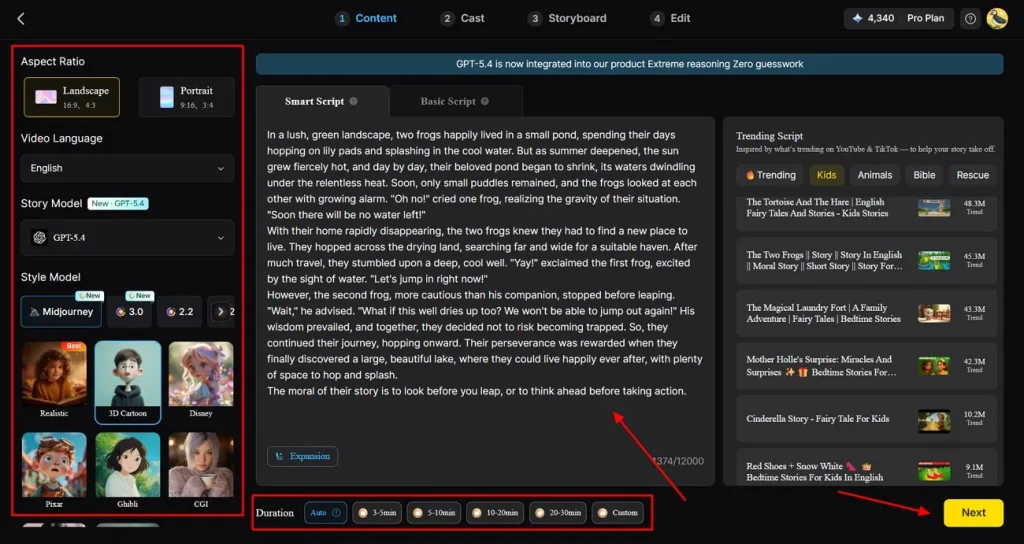
Step 1: Set Up Core Inputs to Proceed
Begin by choosing the Aspect Ratio, Video Language, Story Model, and Style Model from the left panel within Story to Video function. Then add or refine the story inside Smart Script, select the preferred Duration, and press Next to move ahead.
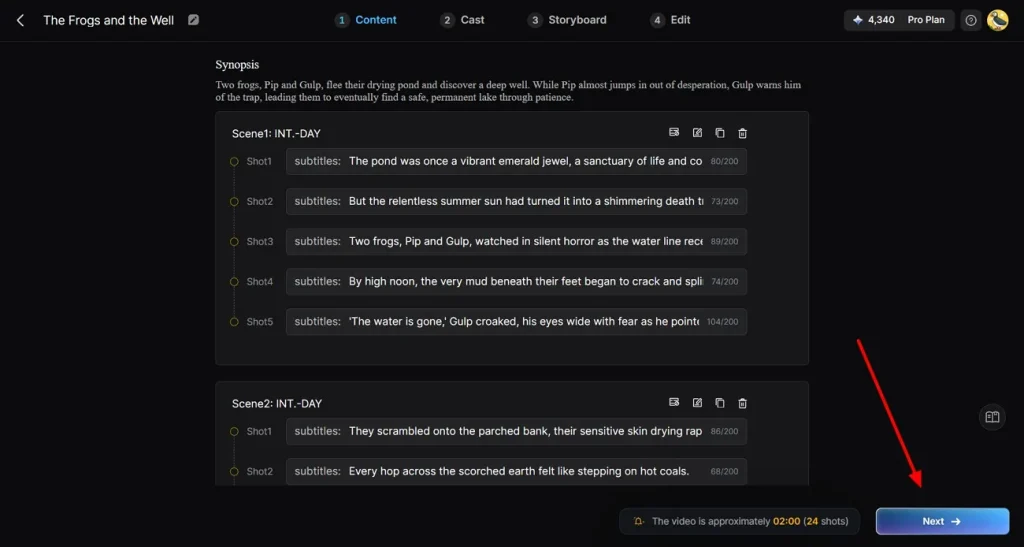
Step 2: Review Generated Scene Flow
Once the content is processed, review the generated Synopsis and the scene-by-scene structure shown below it. Check each shot carefully, confirm the pacing and story flow, then click Next to continue.
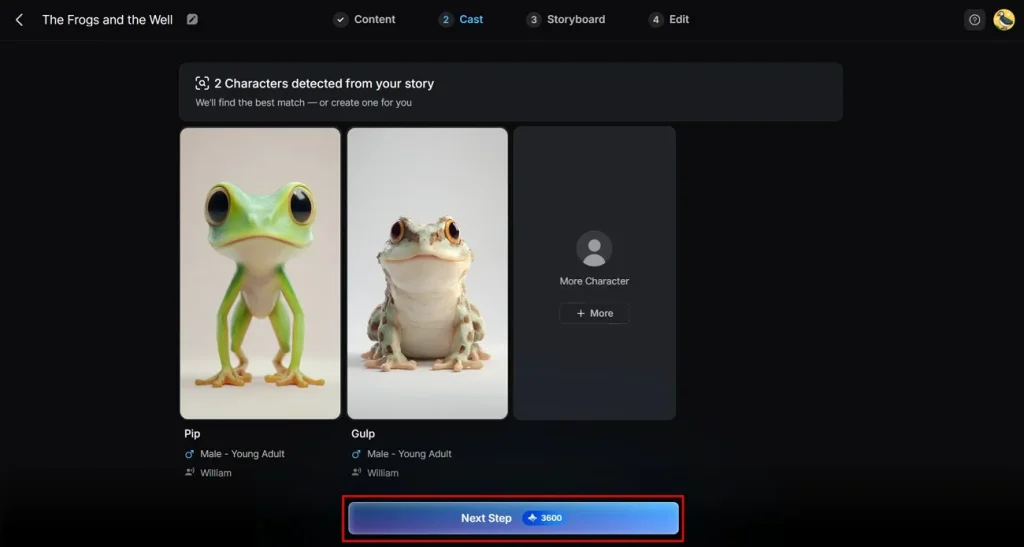
Step 3: Select Story Characters
In the Cast stage, review the characters automatically detected from your story and check whether they match the narrative. You can keep the suggested options, add another one through More, and then press Next Step.
Step 4: Refine Storyboard Frames
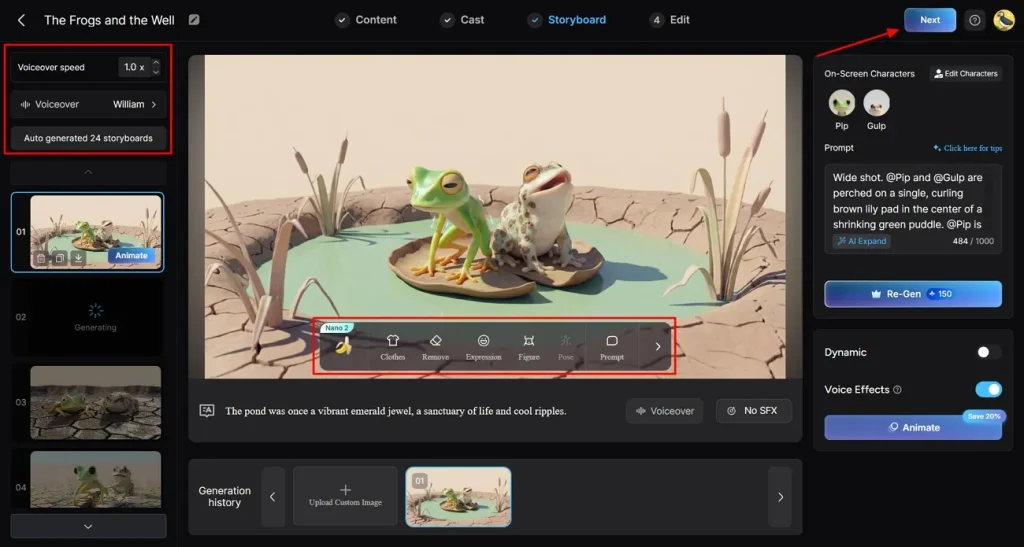
Inside the storyboard, review each generated frame and use the editing controls to adjust clothes, remove, expression, figure, pose, or prompt. You can also adjust Voiceover speed, select Voiceover, regenerate scenes, and then click Next.
Step 5: Finalize Subtitle Settings
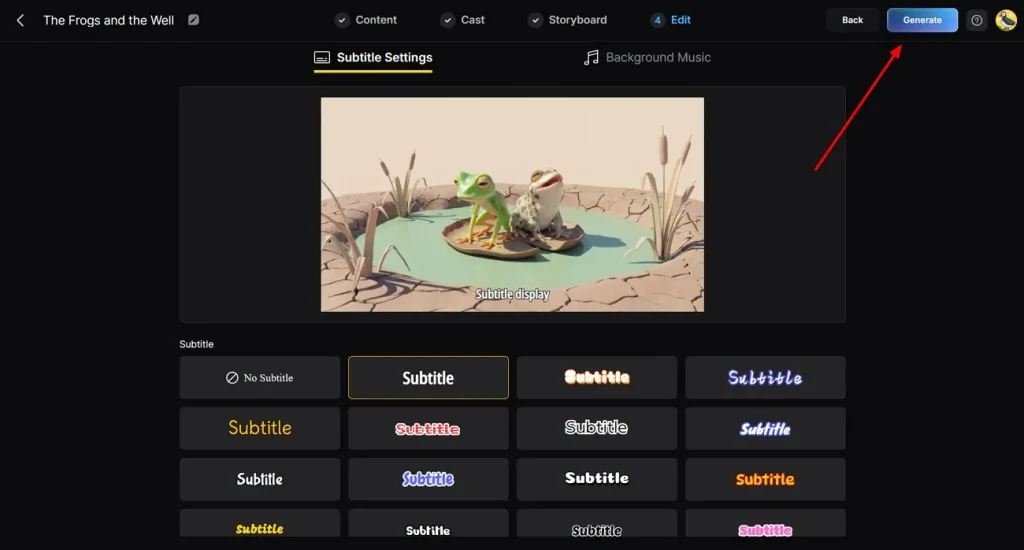
Next, in the edit window, open Subtitle Settings and review how the final text appears on screen. Choose the subtitle style that best fits the visual tone, switch to Background Music if needed, and then press Generate.
Step 6: Export the Final Video
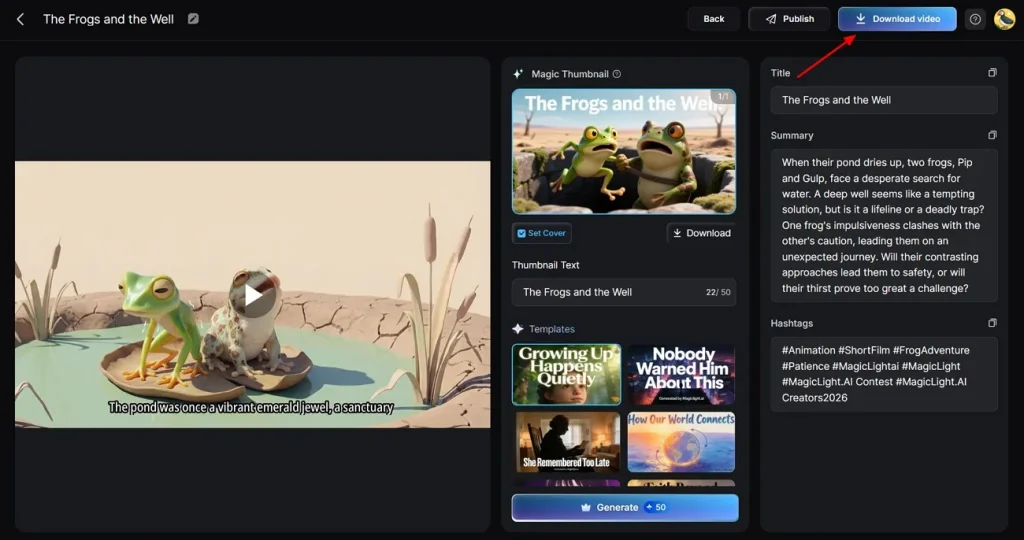
After rendering, review the final preview along with the Magic Thumbnail, Title, Summary, and Hashtags shown on the right side. When everything looks ready, click Download video to save the completed project.
Part 2. Best Tool to Create a 3D Animation Video
The best tool for “how to create 3D video animation” should make production clearer from the start. Magiclight AI shines as the best tool to create 3D animation videos due to the following reasons:
- More Flexible Starting Points: You can begin with a script or use image-to-video creation instead. That makes early ideas easier to develop without building every scene first.
- Wider Creative Variety: Different animation styles help creators match tone, genre, and audience expectations better. With this feature, the final video feels more tailored and visually distinct overall.
- Smarter Output Options: Access to different AI models gives creators more ways to shape generation results. That flexibility improves experimentation and supports a broader range of visual outcomes.
- Easier Scene Refinement: Built-in video editing options make it easier to improve weak moments before export. This helps pacing, transitions, and visual flow feel sharper across the full video.
- Stronger Production Flow: Everything works in a more connected and guided creation process from the start. That makes the workflow smoother and helps final videos feel more complete.
- Better for Longer Stories: This platform supports long video creation up to 50 minutes when needed. That gives creators more room for structure, pacing, and fuller narrative development.
Conclusion
To conclude, learning how to create 3D video animation becomes easier with the right tools and workflow. Modern platforms simplify planning, generation, and refinement, helping creators produce polished visuals faster. By combining structure, flexibility, and creative control, you can turn ideas into engaging videos more efficiently. For a complete and smoother experience, Magiclight AI is worth exploring.
Frequently Asked Questions
1. How to create 3D animated videos for free?
You can use platforms offering free plans, templates, and guided creation workflows. With Magiclight AI, beginners can generate videos quickly without upfront costs involved.
2. Is it hard to create 3D animation videos?
Creating 3D animation videos once required advanced skills and technical software knowledge. Now, modern platforms simplify the process, making animation easier for beginners everywhere.
3. What software is best to create 3D animation videos?
The best software depends on workflow, flexibility, and ease of use overall. Magiclight simplifies creation by combining scripting, editing, and generation into one platform.
4. How long does it take to create a 3D animation video?
The time required depends on the video length, detail, and complexity of scenes. Efficient tools now help creators produce videos faster than traditional animation methods.
5. Can beginners make 3D animation videos at home?
Yes, beginners can create animations using accessible tools without studio-level experience required. Tools like Magiclight AI make home-based animation workflows simpler and more manageable.





![How to Make a Marketing Video 2026 [Step-by-Step Guide]](https://magiclight.ai/wp-2/wp-content/uploads/marketing-goal-planning-guide-300x200.png)