Grok Imagine transformed xAI's chatbot into a capable AI video generation tool for creating short AI videos. Many creators still struggle to understand subscriptions, setup requirements, and generation limits before producing video results. Missing important settings or writing weak prompts often wastes credits and produces short clips that fail expectations.
This guide shows how to generate video with Grok xAI, covering setup and prompt writing. You'll also discover when a better alternative makes more sense for longer videos.
What Is Grok Imagine and How Does It Work?
Grok Imagine is xAI's built-in video generation feature, available inside the Grok app and X platform. It needs no separate download, creating short videos from text prompts or reference images with synchronized audio. Before learning how to generate video with Grok xAI, let's understand how Grok Imagine actually works first.
Aurora Engine — xAI's Autoregressive Video Model
Aurora powers Grok Imagine, using an autoregressive model instead of diffusion methods found in many AI video generators. It predicts text, images, video, and audio step by step, creating each part together instead of separately. This approach keeps dialogue, sound effects, music, and visuals naturally synchronized throughout every generated video clip automatically.
Text-to-Video vs. Image-to-Video Modes Explained
Grok Imagine offers text-to-video and image-to-video modes for creating videos from prompts or uploaded reference images easily. With text-to-video, a written description creates a complete clip, while image-to-video animates uploaded photos with realistic motion and audio. Each mode needs different prompts, because uploaded images already provide scene details while text prompts describe everything.
Access and Requirements To Learn Before You Start
Creating videos with Grok Imagine first requires understanding the available plans, access options, and current usage requirements. These details make learning how to generate videos with Grok xAI easier before moving to the generation process.
SuperGrok Subscription vs. Free Tier Limits
Free users no longer receive Grok Imagine after xAI removed image and video generation during 2026. Below, the table compares subscription plans, pricing, video limits, and included generation features:
| Feature | Free Tier | SuperGrok Lite | SuperGrok | SuperGrok Heavy |
| Monthly Price | Free | $10/month | $30/month | $300/month |
| Image & Video Generation | N/A | Included | Included | Included |
| Maximum Video Resolution | N/A | 480p | HD 720p | HD 720p |
| Maximum Video Length | N/A | Up to 6 seconds | Up to 30 seconds | Up to 30 seconds |
| Best For | AI text chat only | Short AI video clips | HD video shots | Professional video generation |
xAI API Access for Developers
Developers can access Grok Imagine through the xAI API instead of using the Grok consumer app directly. API usage is billed by consumption instead of a monthly subscription, following xAI's token-based pricing model for chat. Video API pricing is not always clearly published, so check the xAI developer console before estimating project costs.
[Step-by-Step] Generating Video with Grok Imagine
Once access requirements are clear, generating videos with Grok Imagine becomes a simple and straightforward process. Now, follow the simple steps below to see how to generate videos with Grok xAI:
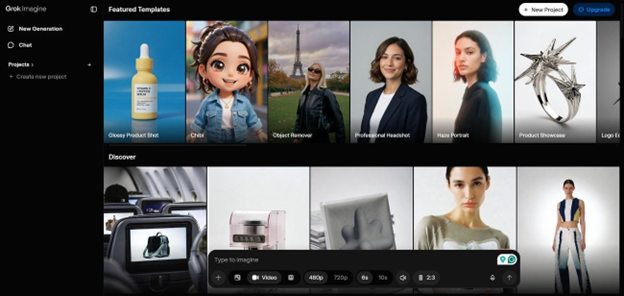
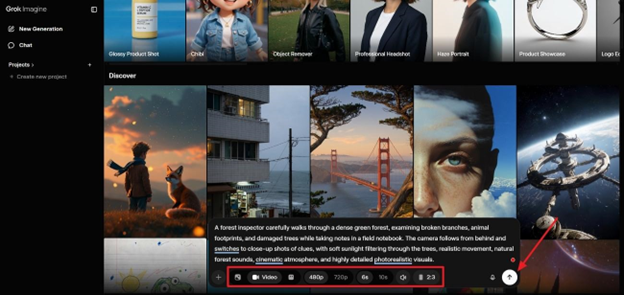
Step 1. Once you enter the Grok AI Imagine interface, choose Video mode and select the resolution. After that, pick a Duration and Aspect Ratio, and press the Send button.
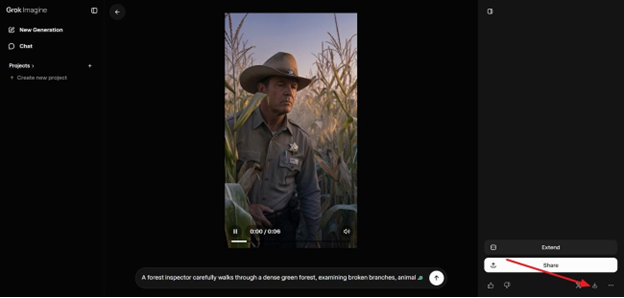
Step 2. After the video is generated, press the Download icon to directly save the video. If you want further editing, enter the prompt in the chat again for regeneration.
Grok Imagine creates better videos when prompts are clear, organized, and written with important details first.
Prompt Writing Tips for Better Grok Video Results
Why Prompt Order Changes the Output
Aurora reads each prompt as a single instruction and gives more attention to the words placed near the beginning. A clear structure helps Grok Imagine understand the main subject and produce more accurate video results.
- Start With the Main Subject: You need to add the person, object, or scene first to help Aurora understand the main focus of the video.
- Add Important Actions Early: Place the main movement, activity, or camera direction shortly after the subject instead of hiding it behind background details.
- Keep Extra Details Later: Add lighting, environment, mood, clothing, and visual style after the central subject and action have been clearly described.
- Avoid Long Introductions: Starting with unnecessary descriptions can reduce the importance of the main instruction and lead to confusing or inaccurate visuals.
- Use 30 to 80 Words: This length usually provides enough detail to guide the video without overwhelming Aurora with too many instructions.
Common Prompt Mistakes That Waste Credits
Some common prompt mistakes waste generation credits without improving your final video results at all. Negative prompts usually have little effect, so clearly describe the result you actually want instead. Look at the table below to compare weak prompts with stronger versions that produce better results:
| Weak Prompt | Strong Prompt | Why It Works Better |
| Cool video, cinematic, 4K, epic | A knight walks across a misty battlefield at dawn, slow camera push, golden light | Starts with the subject and action, avoiding vague descriptions. |
| A woman sits at a rainy café window, then walks away (Image-to-video) | She slowly stands, grabs her coat, and walks toward the door; camera follows | Describes only motion because the uploaded image already provides the scene. |
| No blur, not messy, no extra people | Sharp focus, clean composition, one subject | Uses positive instructions instead of negative wording. |
| Camera orbits, stays still, then zooms fast | Camera slowly orbits the subject continuously | Keeps one clear camera movement for smoother results. |
Where Grok Imagine Falls Short
Knowing how to generate video with Grok xAI also means understanding where Grok Imagine performs well and where it struggles.
| Limitation | What It Means in Practice |
| Clip Length Caps | Most output tops out around 15 seconds on paid tiers, and as little as 6 seconds on the entry plan |
| Character Consistency Across Scenes | The same face or character can drift or “dissolve” partway through a clip, a widely reported failure mode |
| No Long-Form or Story Mode | There is no built-in way to plan multiple connected scenes; each generation is one standalone clip |
| 720p Default Cap | Most tiers cap out around 720p, well below what dedicated production tools output by default |
MagicLight AI: The Best Option for Longer, Polished Videos
Many creators outgrow Grok Imagine when projects need more than one connected video scene together. Short clips work well, but larger creative ideas often require a more complete video creation workflow. This is where MagicLight AI comes in, helping creators make complete AI videos from simple ideas easily.
Additionally, it supports story-to-video and image-to-video creation within one complete platform for creators. Detailed prompts up to 12,000 characters give creators greater control over scenes, actions, and storytelling direction.
Key Features
- Long-Form AI Videos: A single project runs up to 50 minutes, supporting complete stories from start to finish. Create detailed narratives without breaking ideas into separate short clips.
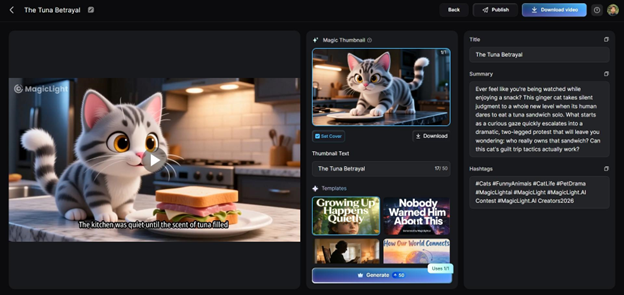
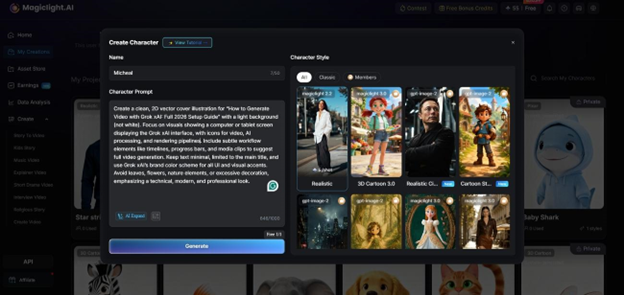
Built-In Character Creation: Creates original characters and keeps their appearance consistent across every scene throughout the entire video. Bring story ideas to life with characters tailored for different creative projects.
1080p Export, No Watermark: Outputs finished video above Grok Imagine's typical resolution ceiling, ready for publishing. Export professional-quality videos without distracting marks.
MagicLight AI vs. Grok Imagine — Quick Comparison
Now, look at the table below to compare MagicLight AI and Grok Imagine side by side.
| Aspect | Grok Imagine | MagicLight AI |
| Max Length | Up to roughly 30 seconds | Up to 50 minutes |
| Character Consistency | Drift mid-clip | Locked in across the full project |
| Multi-Scene Planning | N/A | Built-in Nano Storyboard |
| Resolution Ceiling | 720p (on max subscriptions) | 720p or 1080p |
| Free Access | Removed for video in March 2026 | Free tier still available |
Conclusion
To summarize, Grok Imagine creates short AI videos quickly using advanced technology with synchronized audio generation. Its speed comes with limitations, including short clips, character drift, and limited long-form storytelling support. Learning how to generate video with Grok xAI works best for creating quick, engaging video clips. However, MagicLight AI is the better choice when projects need longer videos with consistent characters and connected scenes.