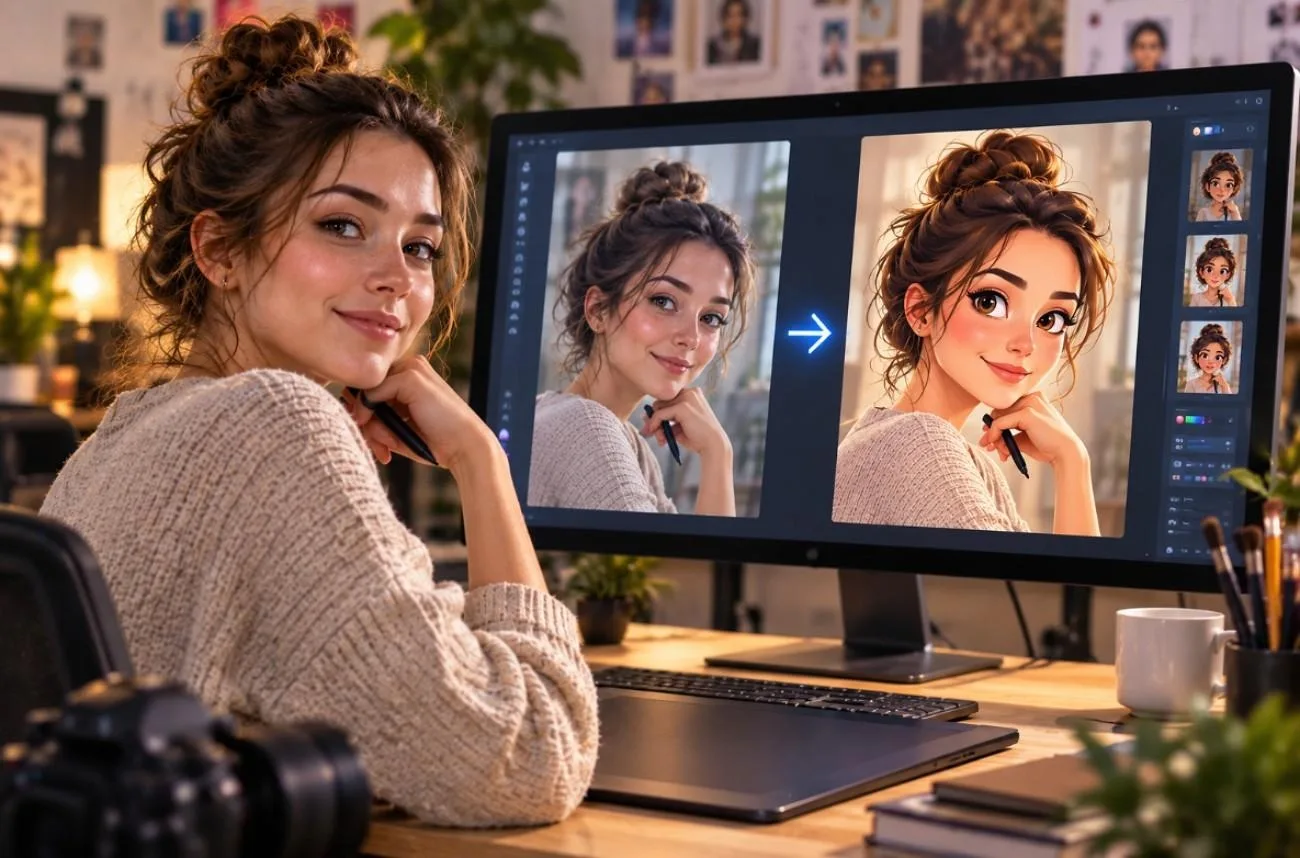
A cartoon character needs to do two things well. It should have a clear silhouette at thumbnail size while showing enough personality to be easily recognized on screen. Getting that balance right used to depend heavily on drawing skill. AI changes the process. Learning how to make a cartoon character now focuses on shapes, features, colors, and personality while AI handles the drawing process.
Part 1. How to Make a Cartoon Character with AI
Design comes before software in any workflow that produces something usable. Deciding how to create a cartoon character means settling shape, palette, and proportion first, since those early choices determine whether the figure survives repeated regeneration.
What to Consider When Designing a Cartoon Character
Once the basic concept is clear, understanding how do you make a cartoon character recognizable and repeatable comes down to a few visual choices. These details help define the design and keep it consistent across poses, expressions, and AI-generated scenes:
- Start With a Clear Silhouette: Reduce the character to a solid shape and see whether it still feels recognizable. Strong silhouettes help characters remain readable at smaller sizes and make their overall form easier to distinguish.
- Keep the Color Palette Focused: A small set of main colors usually creates a cleaner, more consistent design. Limiting the palette can also reduce unwanted color changes when the character is generated again in new scenes.
- Add a Memorable Visual Trait: Give the character one or two features that stand out, such as a distinctive hairstyle, accessory, facial mark, or unusual proportion. These details make the design easier for viewers to remember.
- Plan for Different Expressions: Think beyond a neutral face or a single smile. The character should be able to show the emotions the story requires, from excitement and surprise to anger, fear, or sadness.
- Define Consistent Proportions: Set clear relationships between the head, torso, limbs, and other major features. Stable proportions make it easier to keep the same character recognizable across poses, camera angles, and repeated AI generations.
The 2 problems are worth catching before generation begins. Designs packed with tiny accessories can lose important details when viewed at thumbnail size. Characters designed around one flattering angle may also become harder to keep recognizable when a scene switches to profile or three-quarter views.
Shape language supports those decisions by giving the character an immediate visual impression before smaller details come into focus. Anyone learning how to make cartoon characters can use basic forms as a starting point rather than treating them as fixed personality rules.
| Dominant Shape | How Audiences Read It | Commonly Suits |
| Round | Approachable, harmless, young | Comic leads and children's characters |
| Square | Solid, dependable, immovable | Mentors, soldiers and authority figures |
| Triangle | Sharp, unstable, quick to act | Antagonists, tricksters and rivals |
Overview of MagicLight AI
MagicLight AI connects character design with a broader workflow for creating structured, multi-scene animated videos. For anyone learning how to make a cartoon character, the Asset Store keeps reusable character designs organized. Saved characters can return across later scenes and projects, helping creators maintain stronger visual continuity throughout.
Longer productions begin with scripts of up to 12,000 characters, which can be refined before generation. Creators can also choose from 14 story models to shape pacing, structure, and overall narrative direction. Once the story is ready, MagicLight AI supports multi-scene videos that can run for up to 50 minutes.
Key Features for Character Creation
- Detailed Character Prompt: Use up to 1,000 characters to define appearance, clothing, hairstyle, accessories, and other recognizable character details clearly.
- Image Reference Support: Add a reference image when you want stronger visual guidance instead of relying only on a written description.
- Reusable Character Assets: Save characters under names of up to 50 characters and reuse them across later MagicLight AI projects and scenes.
- Multiple Visual Styles: Choose from different character styles and generation models, while MagicLight also supports 20+ visual styles across broader workflows.
- Pose and Voice Controls: Adapt saved characters using 50 pose options and assign from 37 AI voices in supported video workflows.
These features become more useful when combined, especially for characters that need to appear across multiple scenes. For anyone learning how to create cartoon characters for a series, consistency, styling, poses, references, and voice options all support a more repeatable workflow.
Step-by-Step Guide to Make a Cartoon Character with MagicLight.AI
MagicLight handles character creation as an asset workflow, then carries that asset into its video tools. The process below follows the platform’s current character and Story to Video workflow:
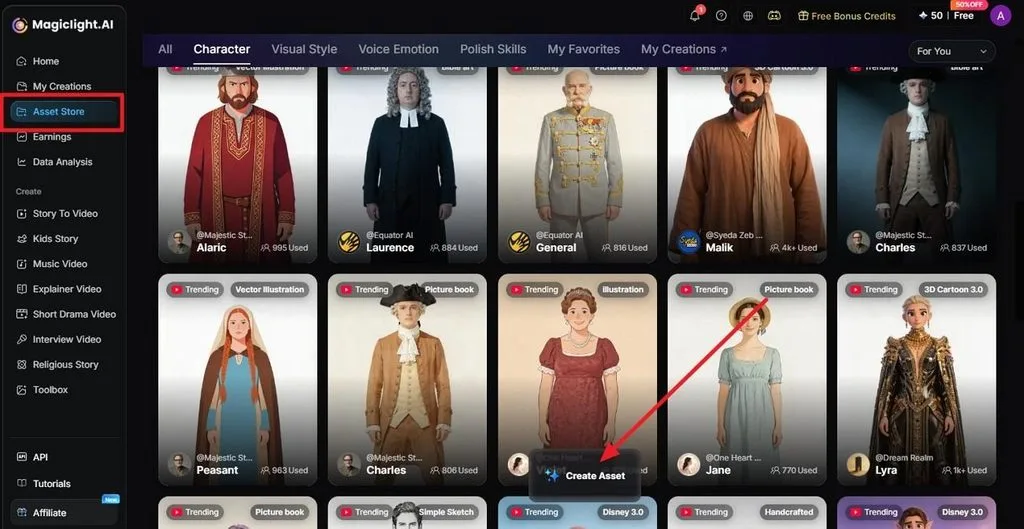
Step 1. Open the Character Asset Store
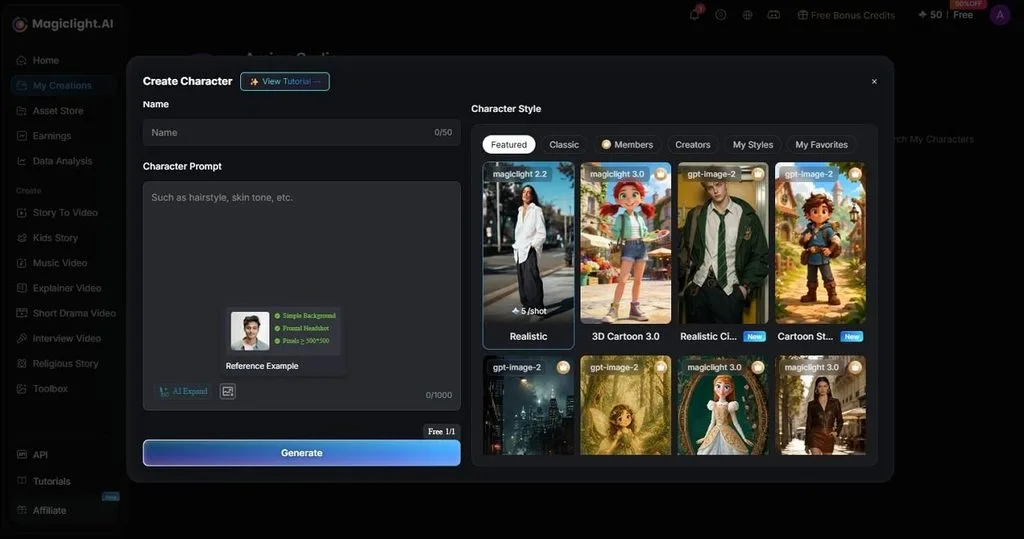
Select Asset Store from the left sidebar, open the Character tab, and click Create Asset to open the character creation panel.
Step 2. Enter the Character Details and Generate
Add a Name, then describe the character in the Character Prompt field. Use AI Expand or add an image reference if needed, select a Character Style, and click Generate.
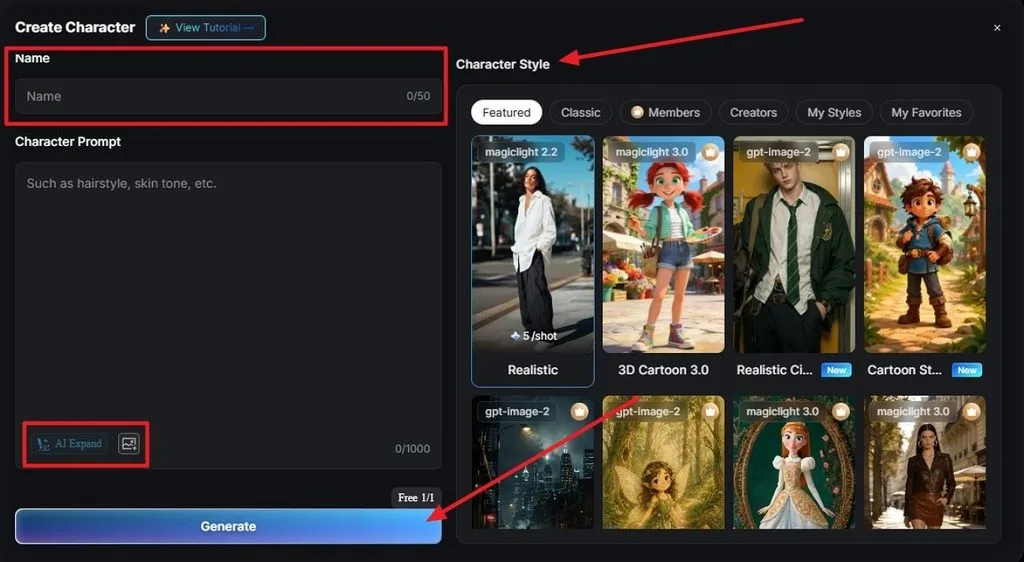
Step 3. Review the Characters in the Cast
After providing a script in Story to Video feature, move to the Cast stage, where MagicLight AI displays the characters detected from your story. Check each assigned character, select More to add another if needed, and click Next Step.
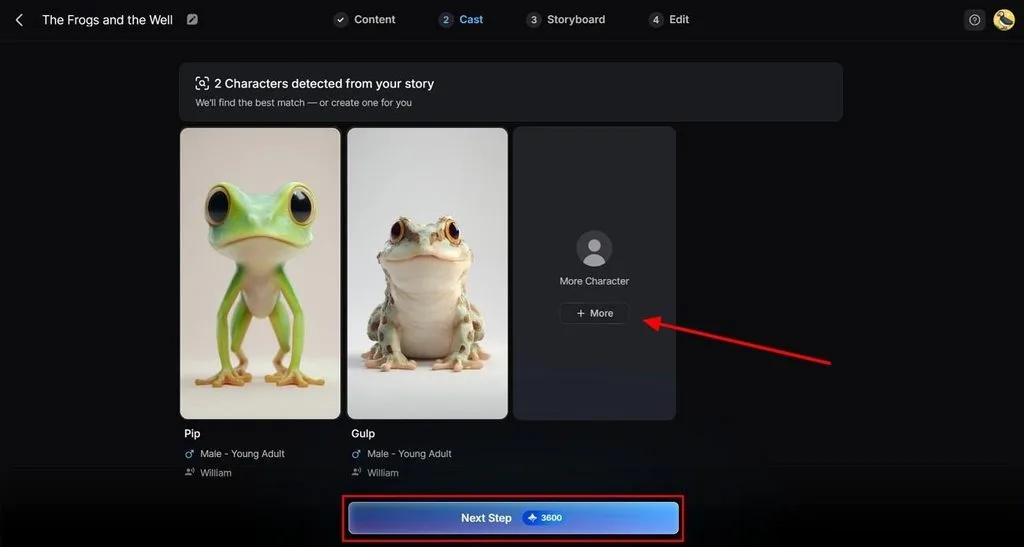
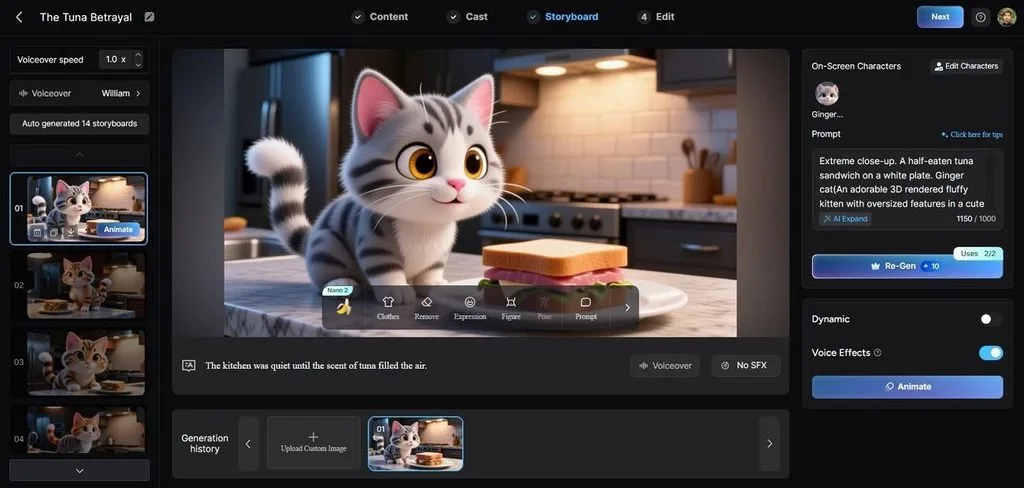
Step 4. Refine the Storyboard Scene
In Storyboard, review the auto-generated scenes, then adjust the selected shot using Clothes, Remove, Expression, Figure, Pose, or Prompt. You can also change Voiceover Speed, choose the Voiceover, regenerate the scene, enable Dynamic or Voice Effects, and click Animate when ready.
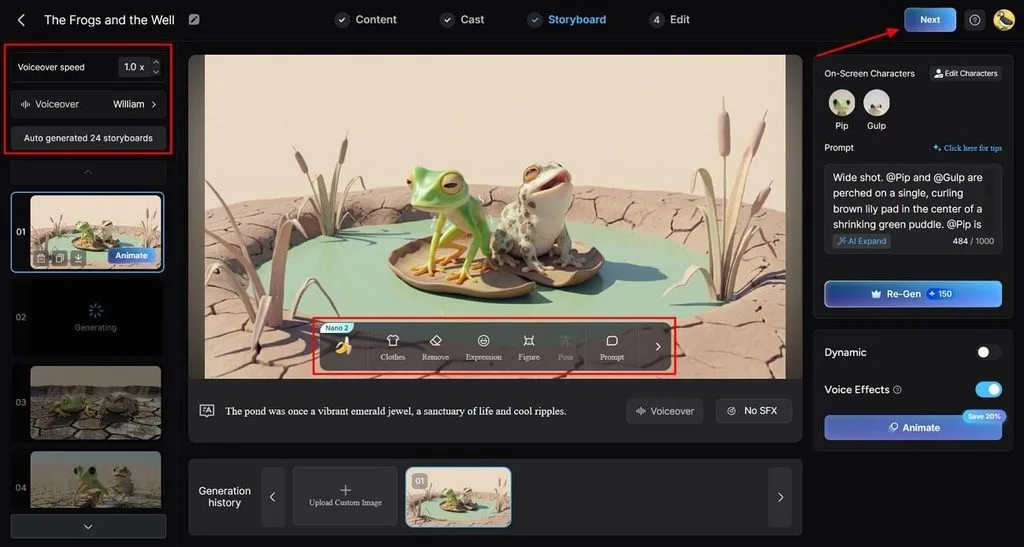
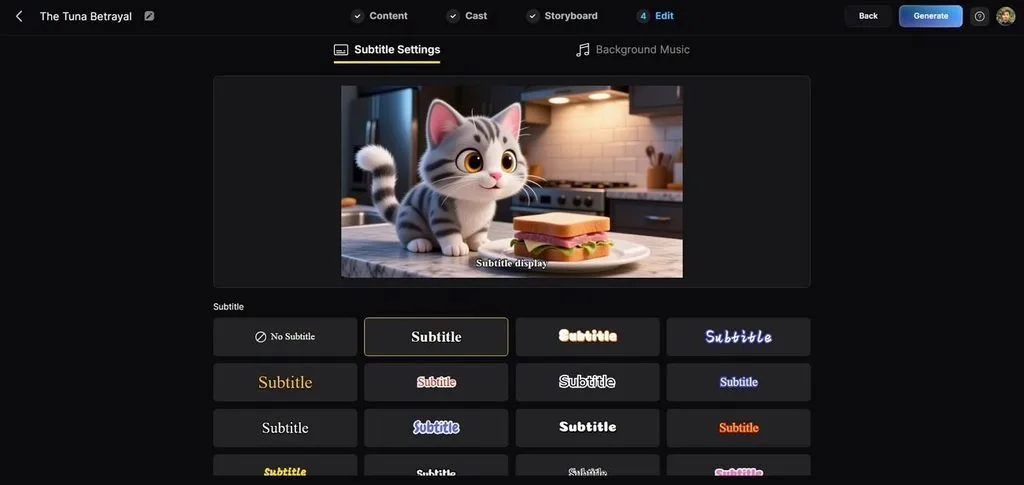
Step 5. Set Subtitles and Generate the Video
In the Edit stage, choose a subtitle style or select No Subtitle, then open Background Music if needed. Review the preview, adjust the final presentation settings, and click Generate in the upper-right corner to create the video.
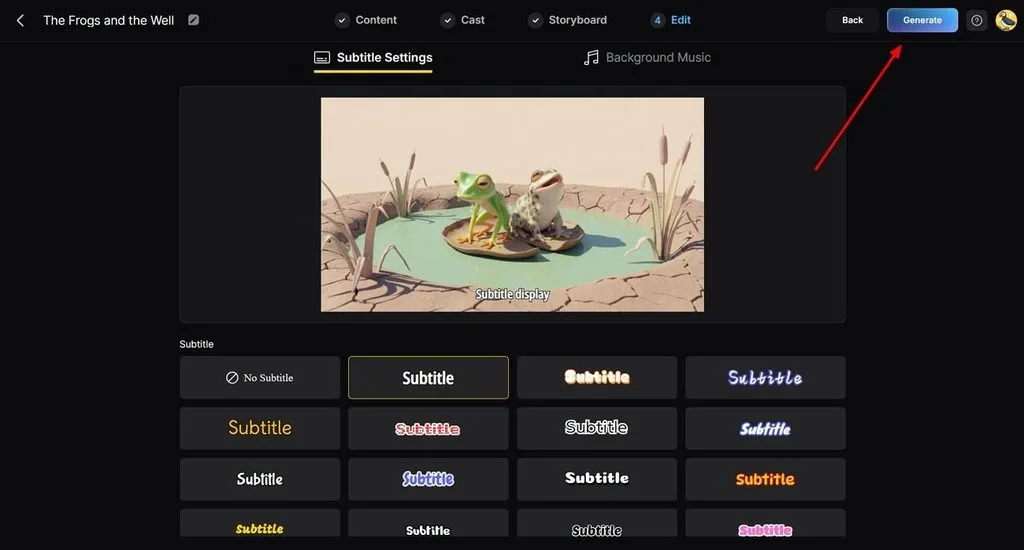
Step 6. Review and Download the Final Video
Once generation finishes, preview the completed video and review the title, summary, hashtags, and Magic Thumbnail options. When everything looks correct, click Download Video in the upper-right corner to save the finished video to your device.
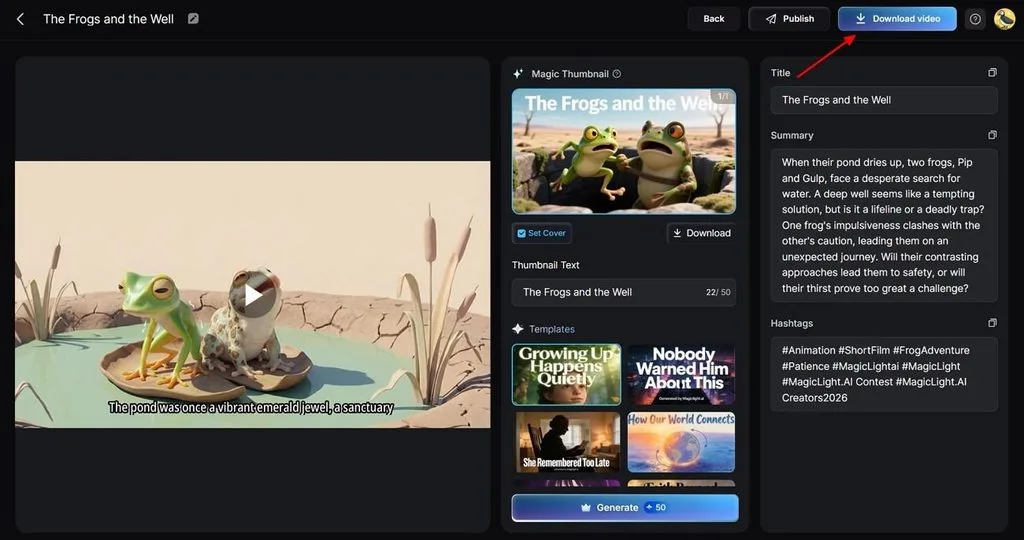
Once that reusable asset exists, how to make your own cartoon character becomes less about rebuilding the design and more about directing it. The same saved character can move into later scenes and projects while you adjust story, poses, shots, and other production settings.
Part 2. Why Use MagicLight.AI to Create a Cartoon Character
Learning how to make a cartoon character is only the start; MagicLight AI helps keep that design consistent across scenes and longer videos.
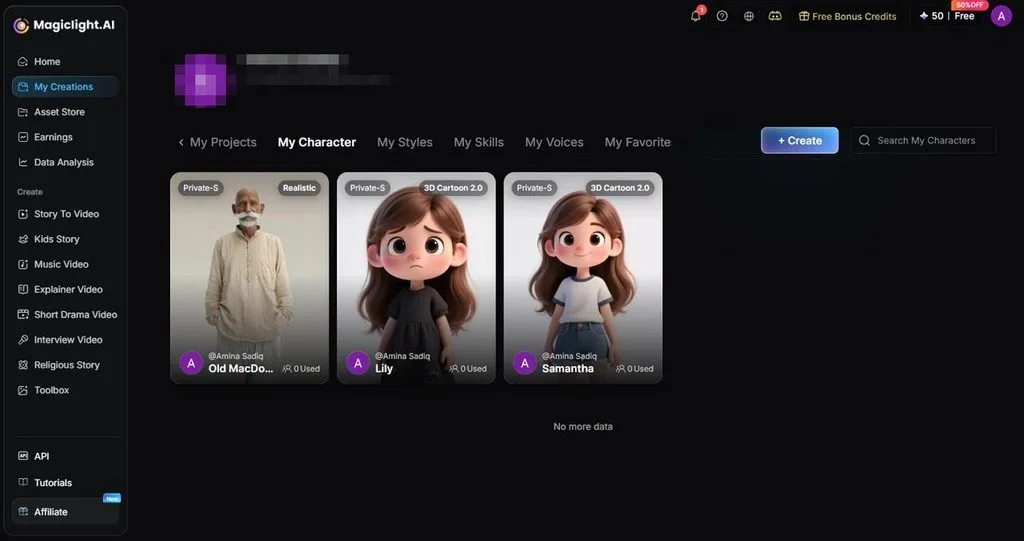
1. Reuse the Same Character Across Projects
Instead of recreating a character from the same prompt each time, MagicLight AI lets you save it as a reusable asset. That gives later scenes and projects a more consistent starting point and reduces repeated character setup.
2. Change the Scene Without Recreating the Character
A recurring character may need different poses, expressions, clothes, or shot directions as the story changes. Scene-level controls make those adjustments easier without treating every shot like a completely new character-design task.
3. Start From a Visual Reference
The benefit here is better control over appearance. A reference image gives the model a visual anchor when a specific face, outfit, or style matters. That can be more useful than relying on text alone for characters that need a particular look.
4. Move From Character Design to Full Video
MagicLight AI does not stop at generating a character image. The same character can move into Cast, Storyboard, voice, animation, editing, and final video generation, which makes the workflow more practical for complete stories rather than one-off portraits.
Conclusion
A strong cartoon character depends on recognizable shapes, controlled color choices, and features that remain clear across different scenes. Understanding how to create your own cartoon character becomes simpler when design decisions come first and animation follows. For that broader workflow, MagicLight AI offers a practical way to continue.
Frequently Asked Questions on How to Make a Cartoon Character
1. How can I make a cartoon character with AI?
Write out the figure, face, and clothing, or supply a photograph instead. Anyone asking how I can make myself a cartoon character should start from a clear, well-lit portrait for the closest likeness.
2. Can AI create a cartoon character from a description?
Yes, and a detailed description outperforms a vague one considerably. Naming the build, face, hair, and clothing beats adjectives every time. That approach also answers how to make a cartoon character of yourself when no photograph exists.
3. How do I create a consistent cartoon character?
Consistency comes from storage rather than from prompting the same description repeatedly. MagicLight AI saves an approved design to a library, giving later scenes the same character reference instead of relying on repeated prompts.
4. Can I make a cartoon character without drawing skills?
Yes, you can, though design judgment still counts for a great deal here. Silhouette, palette, and proportion remain your decisions, while the rendering itself falls entirely to the software.
5. What is the best AI tool for making a cartoon character?
MagicLight AI suits ongoing series best, since saved characters carry between projects and move into animated scenes directly. Its free plan needs no card, which helps anyone testing how do you make your own cartoon character first.

![How to Make a Reaction Video with AI Tool [Guide 2026]](https://magiclight.ai/wp-2/wp-content/uploads/ai-faceless-reaction-video-guide-300x169.webp)