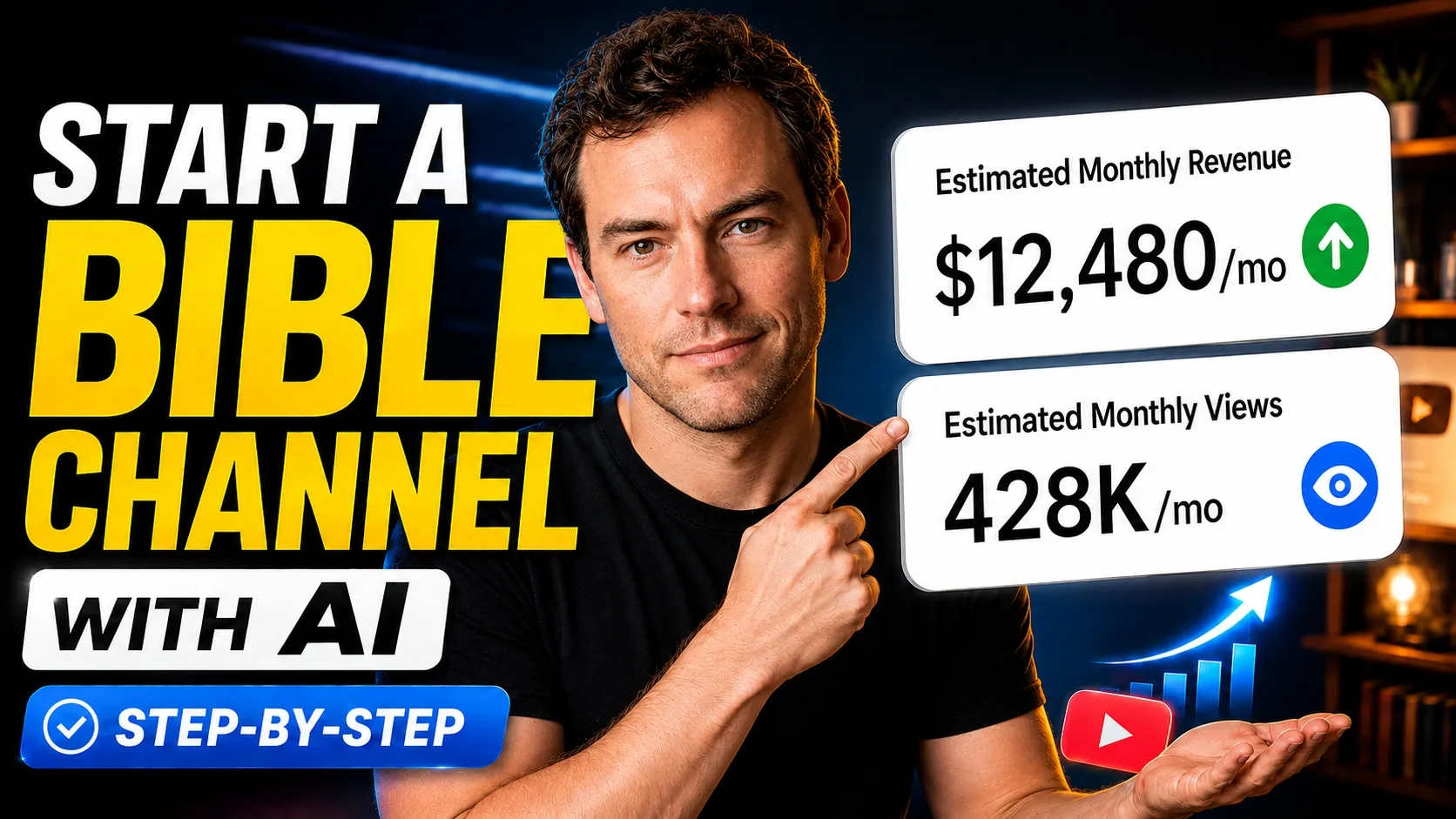
Want to start your own Bible YouTube channel? With the right AI workflow, you can turn a simple Bible story idea into a complete video with cinematic visuals, consistent characters, natural motion, narration, subtitles, and background music.
In this tutorial, we create a video about Noah’s Ark using Magiclight. The same process can be adapted for cinematic realistic videos, animated Bible stories, short videos, or long-form episodes.
The prompts used in the tutorial are included below so you can adapt the workflow for your own Bible channel.
1. Choose a Bible Story
Begin by choosing a story with strong characters, conflict, emotion, and visual potential. You can ask ChatGPT for ideas using this prompt:
Prompt
Give me the 5 most epic Bible stories.
For this tutorial, we selected the story of Noah’s Ark.
2. Generate the Initial Story Concept
Open Magiclight and describe the video you want to create:
Prompt
I want to create an amazing video about Noah’s Ark, with cinematic quality, powerful storytelling, and epic visuals.
Select Story to Video, then choose a story model. In this example, the selected model is GPT-5.6, although Gemini and Claude are also available options.
Choose a visual style. This project uses Sacred Realism. Under Settings, set the aspect ratio to 16:9, language to English, and video length to automatic or between 3 and 50 minutes.
Magiclight will analyze the idea and generate a complete script organized by scenes, narration, and visual content.
3. Review and Edit the Script
Read through the complete script before generating visuals. Review the narration, biblical details, pacing, and emotional direction. Edit any scene or narration until it reflects your channel’s style.
4. Create a Consistent Noah Character
Magiclight automatically identifies the characters in your story. You can select an existing character or create a custom version of Noah.
Prompt
Medium shot, eye-level. @Noah stands on the deck of the Ark, gripping a thick rough wooden railing with both hands. His knuckles are tense, his body leans slightly forward, and his head tilts upward as he stares into the stormy heavens with faith and determination. He has long silver-gray hair, a full white beard, and a deeply weathered face. He wears layered ancient robes in muted earth tones. The massive wooden deck around him is dark with pitch, with ropes, masts, and the towering Ark structure behind him. Above, an immense apocalyptic sky churns with bruised iron clouds, deep purple and leaden gray. Dim twilight and storm light create dramatic highlights, long shadows, and a sacred, foreboding atmosphere. Epic biblical cinematic realism, ultra-detailed, majestic, emotionally powerful.
Apply and confirm the result. The same custom Noah can be reused across future episodes and related Bible stories.
5. Generate the Scenes
Magiclight creates an image for every shot based on the script and visual style. Refine Noah’s pose, gaze, body shape, expression, clothing, scene composition, or image prompt. Previous versions remain available for comparison.
6. Animate the Images
Click Animate to turn scene images into video clips. Magiclight provides access to many popular AI video models. Seedance 2.5 can produce excellent results, while MiniMax H3 is selected here as a more economical option for long-form production. Generate clips for all scenes at once if desired.
7. Add Subtitles and Music
Choose a subtitle style and background music. In this tutorial, the music volume is set to approximately 40%. Keep the aspect ratio at 16:9 and resolution at 1080p, then click Generate.
8. Preview and Publish
Preview the complete result to check narration, transitions, character consistency, subtitles, music, and pacing. This workflow transforms a simple story idea into a complete Bible video suitable for YouTube.
Try It Yourself in Magiclight
Choose a Bible story, create a distinctive visual style, and let Magiclight help you develop the script, characters, scenes, animation, subtitles, and music in one workflow.
![How to Write a Script for a Short Film in 2026 [Beginner’s Guide]](https://magiclight.ai/wp-2/wp-content/uploads/short-film-screenplay-writing-guide-300x169.webp)