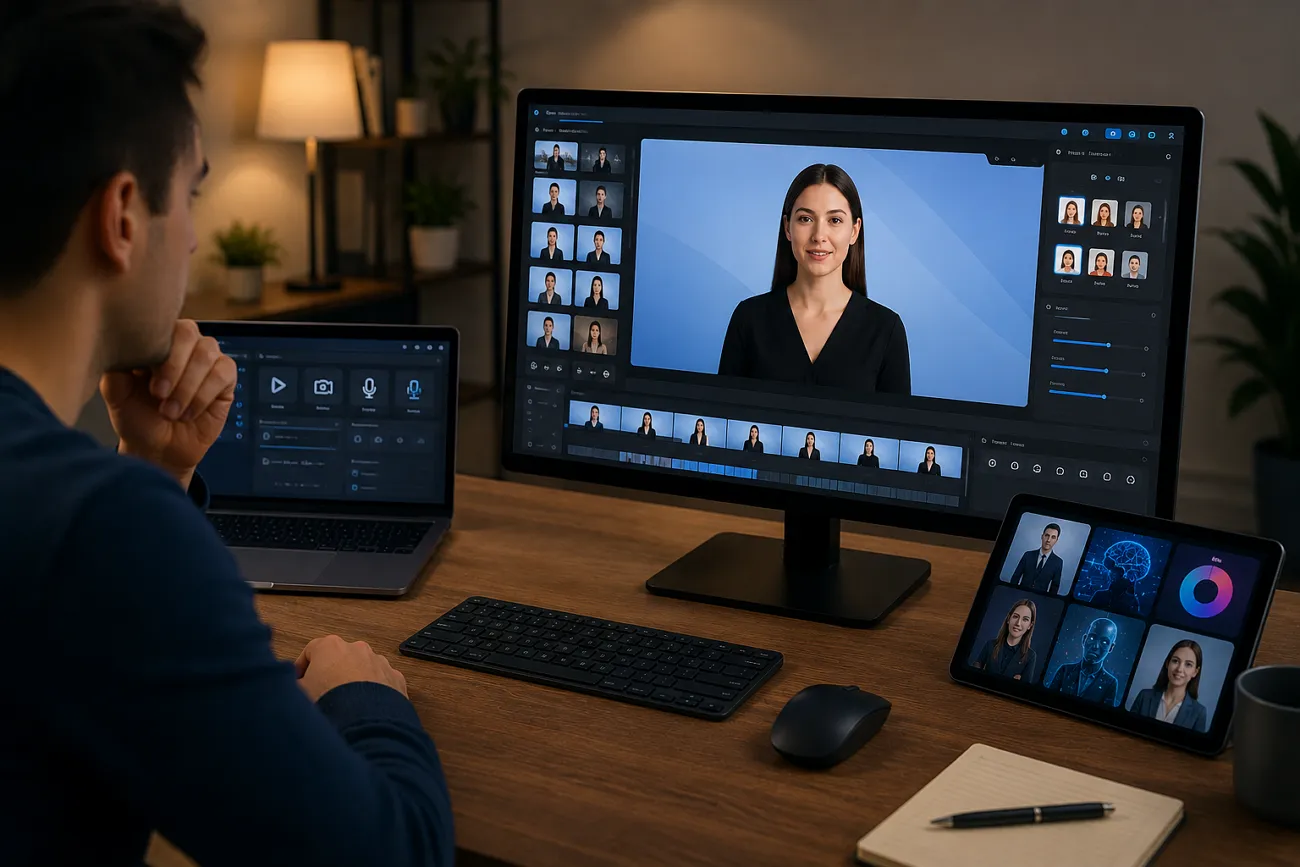
Video generation requires a full setup, camera equipment, presenters, editing software, and plenty of time. For many, the entire process can feel complicated and resource-heavy until they get to know Synthesia AI. Through voiceovers, AI avatars, and simple video production, you don’t need to step in front of a camera. A detailed review is provided that covers everything about Synthesia AI, including its workflow and alternatives if needed.
Part 1. What Is Synthesia AI?
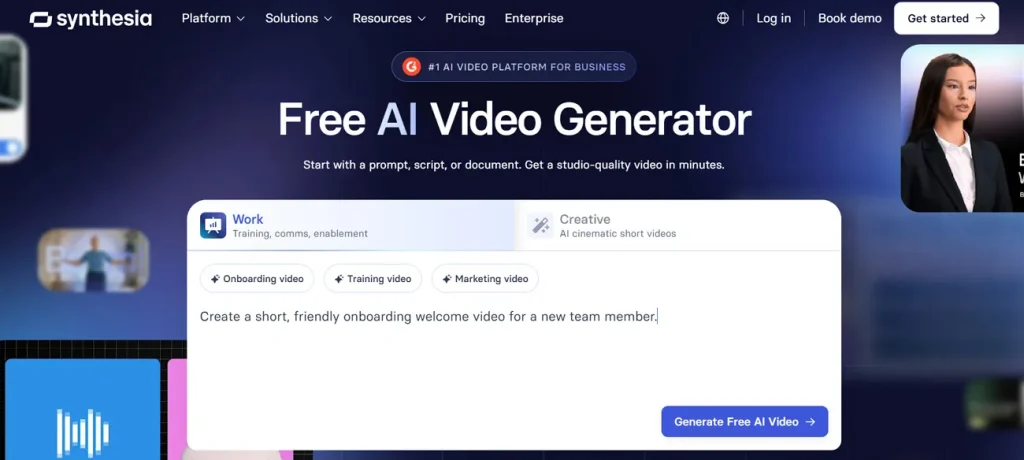
Synthesia AI is an AI video generator that turns text or scripts into videos with avatars and voiceovers. Its capabilities are widely used for training, marketing, and internal communication, with support for many languages.
Key Features of Synthesia AI
- Text-to-Video Creation: The Synthesia AI Video Generation can convert prompt, a file, or a URL into a complete video with scenes.
- AI Avatar Generation: The platform offers avatars, including personal and customizable ones that make videos appear branded.
- Voice and Narration Tools: Includes AI voices, voice cloning, and dubbing features to help create narration without manual recording.
- Screen Recording and Editing: Involves an AI screen recorder that transcribes speech, removes pauses, and helps with video edit.
- Multilingual Support: Along with video creation, it supports translation in 160+ languages, helping you reach global viewers.
Is Synthesia AI Free?
Absolutely, Synthesia AI video maker does offer a free plan. Its official site says the free plan lets you create AI videos with 10 minutes of clips per month. Not only this, but users are facilitated with 25 AI-generated video assets. The pricing page shows paid plans such as Basic, Starter, Creator, and Enterprise, with a free option that is more limited.
Pros of Synthesia AI
- Includes collaboration, analytics, and publishing options for teams.
- Saves production cost because there’s no need for cameras or microphones.
- Offers numerous templates and brand tools options for customization.
Cons of Synthesia AI
- The AI avatars can feel less expressive than actual presenters.
- Some users have reported pronunciation or lip-sync issues.
- Once you move beyond the free plan, pricing might be expensive.
Part 2. How Does Synthesia AI Work?
The understanding of Synthesia AI video creation becomes much easier when you practically follow its guided tutorial:
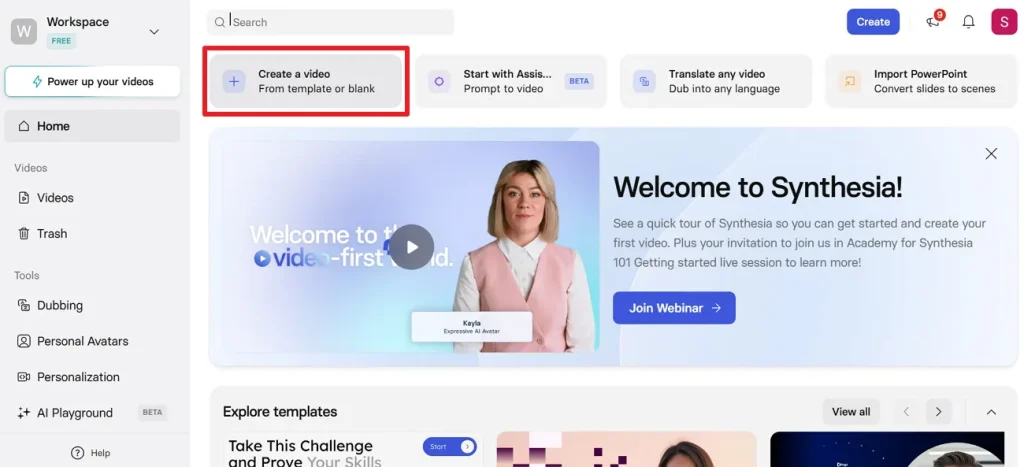
Step 1. To initiate, visit and sign in to Synthesia with your correct credentials. Once done, press the Create a Video option from the main interface, then choose the Start from Blank option. Doing so, you’ll be navigated to a new video creation page on Synthesia AI.
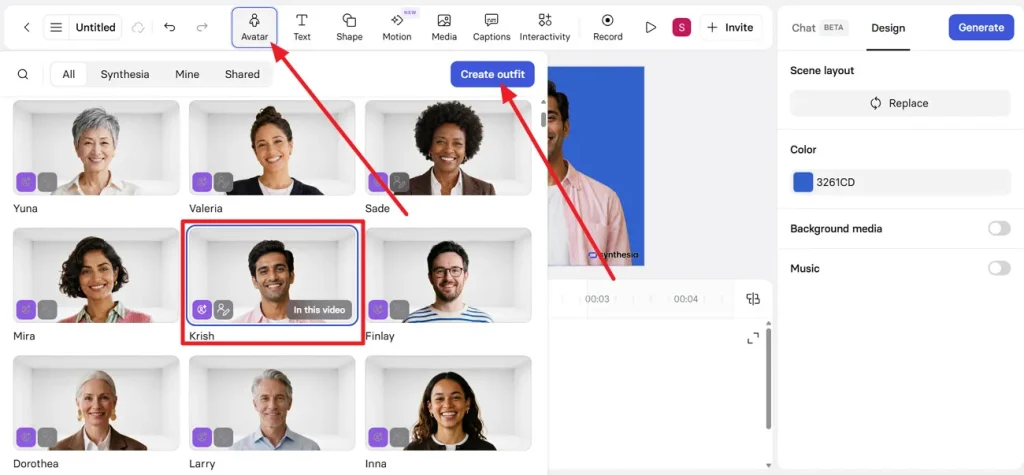
Step 2. Moving forward, access the Avatar option from the toolbar at the top, then select an avatar from the options. For more personalization, choose the Create Outfit option to modify your avatar’s outfit.
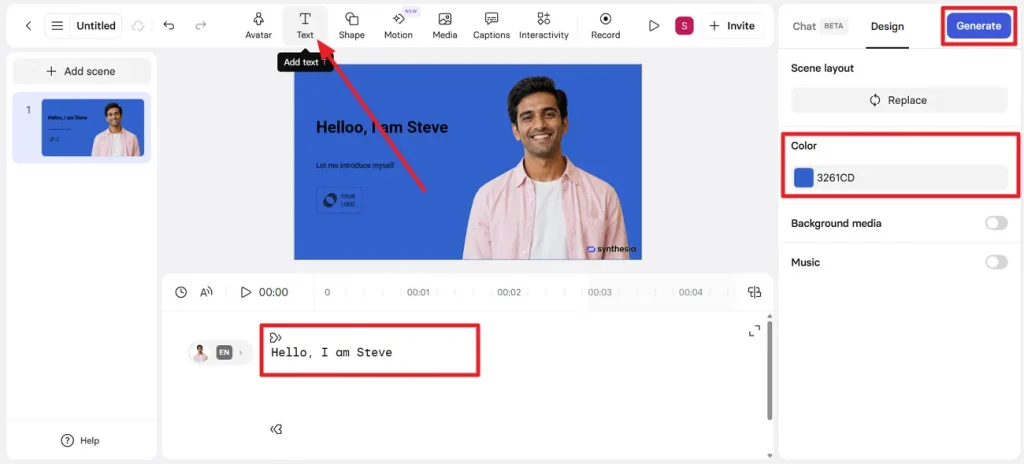
Step 3. Later, open the Text option, and then type appropriate text in the given space for the script. Proceed ahead, access the Color section to choose an engaging background color for the video. After all, click the Generate button to finally start the creation process once everything is finalized.
Part 3. Why MagicLight AI Is the Best Alternative to Synthesia AI?
Although Synthesia AI video creator has been a popular choice among many, it may not suit every creative workflow. MagicLight AI enters this space with over 7 ready-made templates, including rainbow, imagination, and destiny. This helps set the mood and direction of your story without starting from a blank screen. You can pick from many visual styles, including Disney, under the Seedance 2.0 and Kling 3.0 models.
This way, you can match the video look to your audience, like a cute cartoon for kids. With this particular facility, users can create short social clips or longer, in-depth story videos (up to 50 min). Notably, the platform supports 11 languages, including Spanish, English, and several others.
Key Features
- AI Story Models: Choose from 9 AI models, such as GPT‑4, GPT‑5.4, and Gemini 3.1 Pro to write and structure your story.
- Wide Choice for Voiceovers: There are 37 voiceovers, and you can filter them by accent, age, and use case (scenario).
- Background Music Library: Offers 40 built-in tracks that can be added to your background music according to your scene.
- Story to Video: All generated storyboard prompts can be edited or regenerated for a detailed video from a story.
- Automatic Storyboard Preview: The platform automatically creates a storyboard with prompts for each scene based on the story.
Guidelines to Create a Video Through MagicLight AI
Once you know what the platform is capable of, following its video creation process is the next step:
Step 1. Initiate a New Video Project
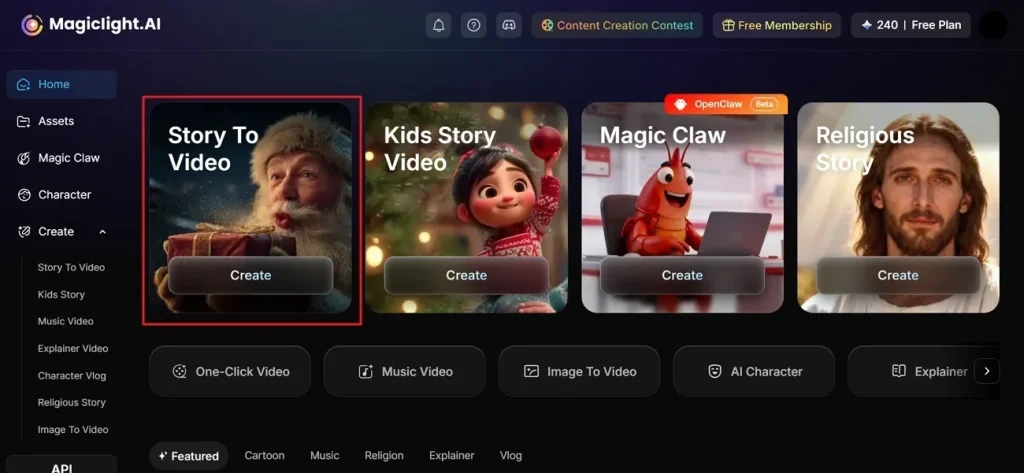
Enter the official website of MagicLight AI and press the Story to Video tool from the main interface.
Step 2. Modify the Core Story Settings
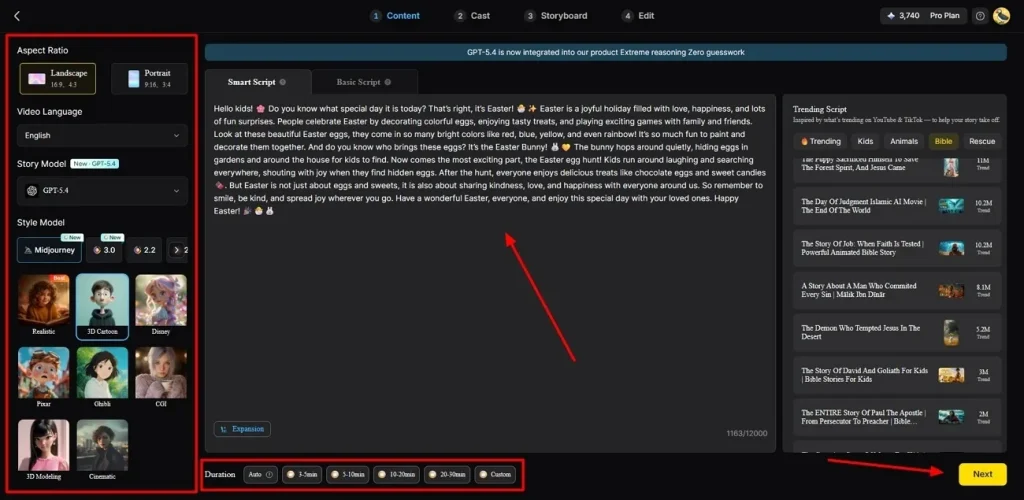
Write your story idea in the Text Box and select the Video Language option from the panel. With its pre-installed function, adjust the Aspect Ratio and choose a suitable AI Story Model from the options. Later, select an appropriate Story Model and adjust the Video Length, then press Next.
Step 3. Review the Generated Scene Flow
Following this, MagicLight AI creates a full scene structure and a video summary for users to review. Once you’re satisfied with the creation and if it aligns with the idea, click the Next button.
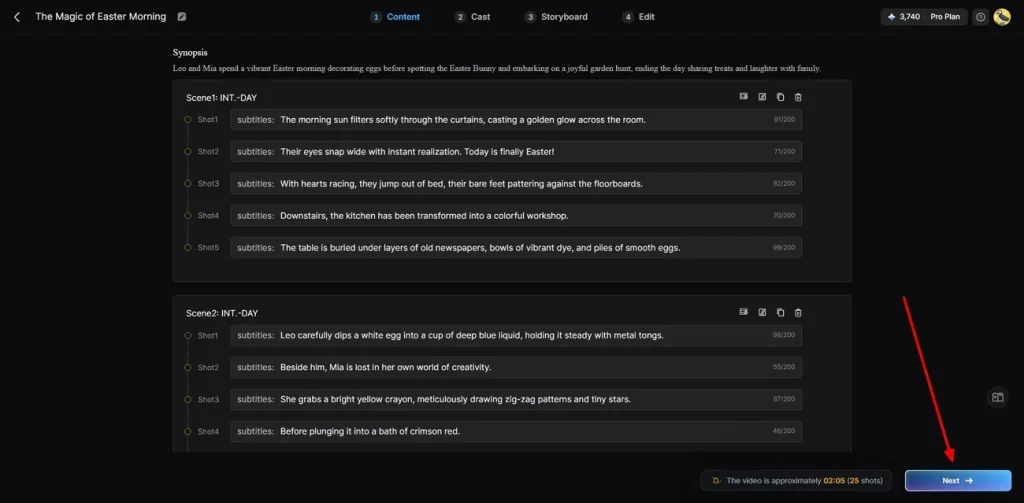
Step 4. Specify the AI Story Character
Now, the platform recommends characters and visual style preferences based on your story theme. Consider the one that best fits the narrative or insert another by pressing More Character. After selection, go to the Next Step button and continue the video creation workflow.
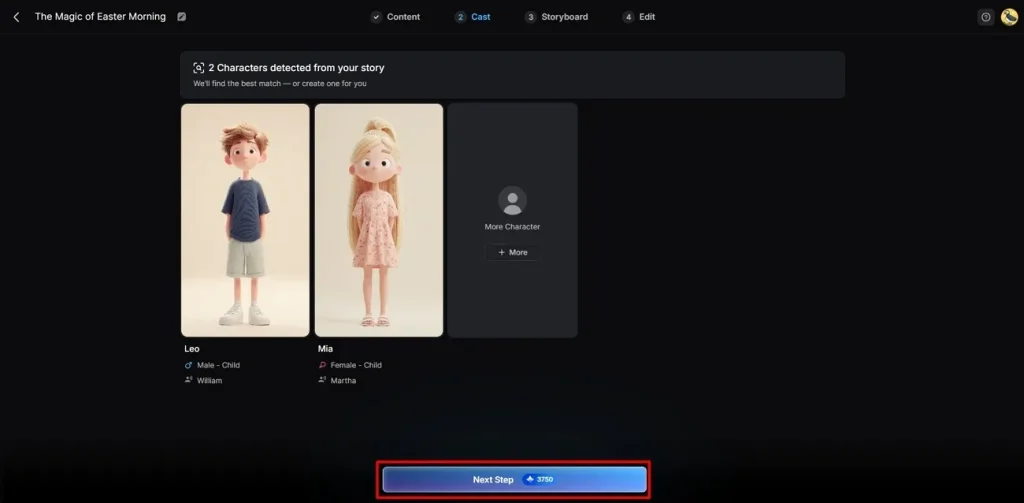
Step 5. Adjust the Character Appearance Settings
In the storyboard, customize the Voiceover Speed and the generated video frame one by one. Additionally, change the expression, poses, and the character's overall appearance without complex editing. Next, select your preferred Voiceover, then click the Next button to proceed.
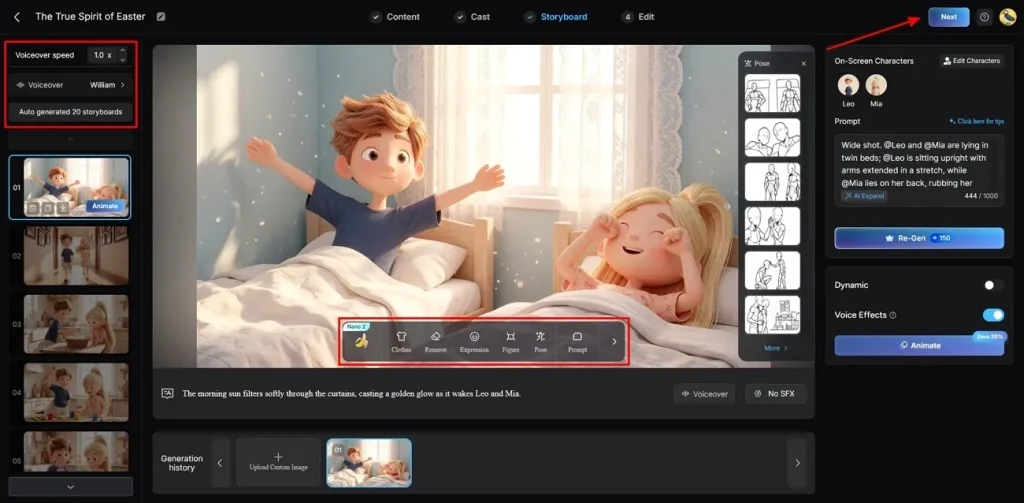
Step 6. Insert Subtitles and Audio Styles
At this point, proceed to the Subtitle Settings to add captions and generate an improved, more accessible AI video. Later, select the Background Music that aligns with the video's tone and emotional style. Once everything is finalized, simply navigate to the Generate button for the final step.
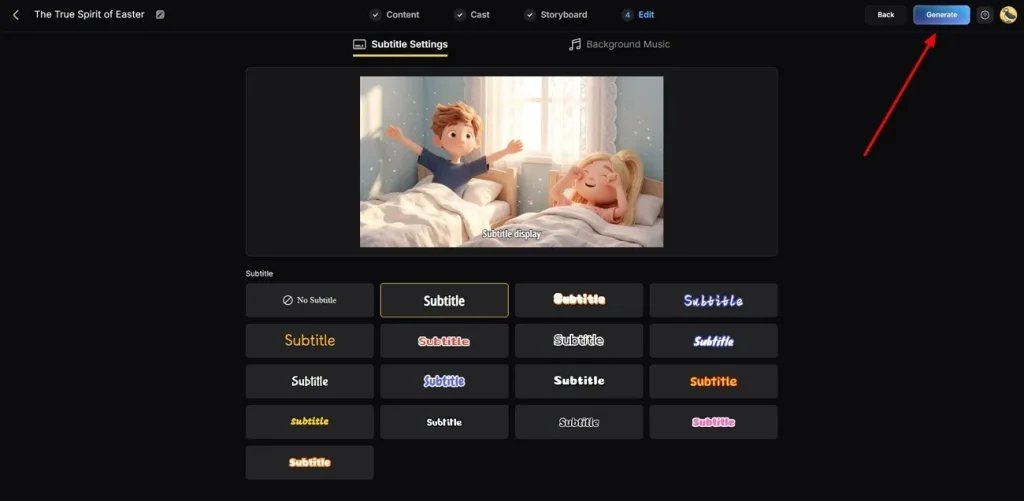
Step 7. Export the Generated AI Video
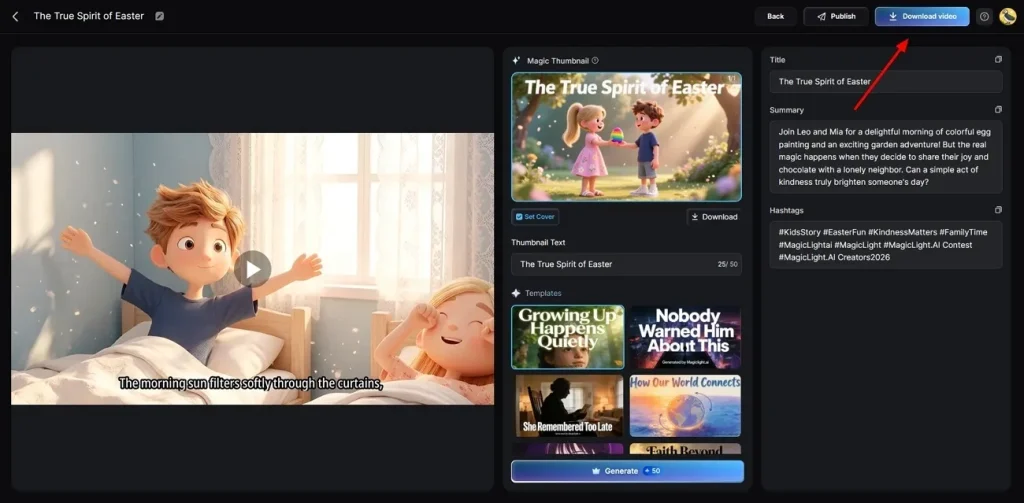
Finally, when the video generation ends, review it and add Thumbnail text or Hashtags. If everything appears to be fine, press the Download Video button and save it for later use.
Part 4. Is Magiclight AI Better Than Synthesia AI?
For story-to-video creation, MagicLight AI is stronger on long-form storytelling control, but Synthesia AI videos are nothing less:
| Aspects | Magiclight AI | Synthesia AI |
| Max Video Length (per project) | Around 50 mins for script-to-video | Video length is limited by plan minutes |
| Story Generation Models | 9 story models to write and 19 AI models to generate videos. | AI Video Assistant and script generator help with writing and structuring scripts |
| Language and Voices | 11 interface languages, 37 voiceovers with filters and voice cloning | 160+ languages and accents, up to 2,000+ AI voices |
| Character Handling | Built-in character generation, Nano controls for clothing, and poses | Large library of stock and personal avatars |
| Storyboard Control | Auto-generated storyboard plus Nano storyboard | Automate scene generation (AI Video Assistant) |
Conclusion
In summary, Synthesia AI has made a strong impact in the AI video creation space, simplifying how scripts are handled. For many, its format can feel somewhat limited, especially for those who desire a better, more in-depth story. At this point, MagicLight AI goes beyond standard presentations, delivering more expressive video creation results.
FAQs on Synthesia AI
1. Is Synthesia AI good for beginners?
Yes, Synthesia AI video generation is beginner-friendly because it offers a simple 3-step process with no additional editing required. For more descriptive, story-style animated videos, use MagicLight AI to help you pick a story theme.
2. What are the limitations of Synthesia AI?
In practice, Synthesia AI focuses on avatars in simple scenes, with limited control over camera movements. Although avatars look advanced, their expressions and body language can still look slightly stiff. The final video only appears good if the text you give is descriptive.
3. What are the best alternatives to Synthesia AI?
Among many, MagicLight AI is the strongest alternative to Synthesia AI, as it turns stories into animated videos. Plus, it helps you build and reuse characters across scenes, with detailed control over clothing and expressions.
4. Is Magiclight AI better than traditional video editing tools?
Every other personnow uses MagicLight AI because it's better than complex editors when the goal is simplicity. It's convenient when you want to go from idea to a finished animated story without drawing or timeline editing.

![How to Write a Script for a Short Film in 2026 [Beginner’s Guide]](https://magiclight.ai/wp-2/wp-content/uploads/short-film-screenplay-writing-guide-300x169.webp)