Running a business today is the equivalent of trying to stand out in a congested marketplace. Everyone is posting ideas and content, but only a few individuals are actually noticed. Producing high-quality videos regularly consumes time, money, and creative efforts that many teams don't have.
That’s where AI video tools like Magiclight.AI and Vyond come in, assisting business owners and marketing professionals. These AI platforms are efficient, affordable, and creative, revealing several features that users can avail of. In this article, we'll explore both in depth to help you decide which one is the better business partner.
Part 1. Vyond Animation: What Does it Offer?
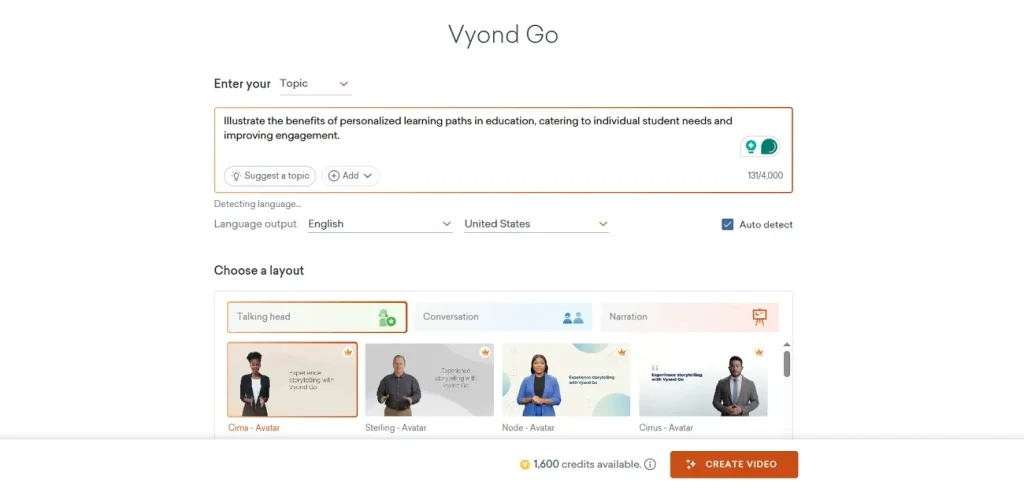
It is an AI video creation platform, recommended by 65% of the Fortune 500, that lets users quickly turn ideas, texts, or even a URL into flawless animated videos. Vyond offers 12+ drag-and-drop tools, 1000+templates, and customizable characters. General users can make explainer videos, presentations, or social content, all without prior animation skills.
Meanwhile, Vyond animation provides content creators with access to visually appealing scenes, assets, and lip-synced characters for storytelling. For businesses, it supports on-brand training, marketing, and internal communications, with enterprise-ready features and workflows designed to increase engagement.
Part 2. What is Magiclight.AI: Next-Gen AI Video Creator
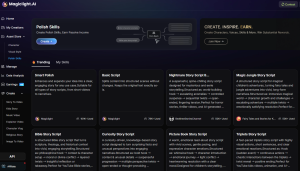
An alternative to Vyond video maker is Magiclight.AI, which is an all-inclusive AI video platform. This software supersedes basic tools by offering long-form, highly controlled video creation on a single platform. It supports script input up to 12,000 words, duration up to 50 minutes, and one-click video creation using 14 models with tutorials available during rendering.
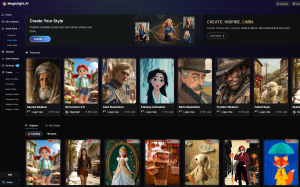
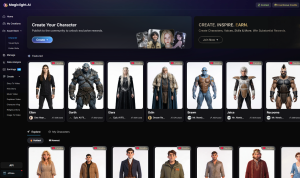
Users can build videos from automatically generated storyboards, refine scenes with Nano, and convert them to animation with 16 models. Its character creation comes with 37 voice options, 16 subtitles, background music, and flexible export settings (720/1080p), giving users precise production control.
Part 3. Vyond vs. MagicLight.AI: Feature Comparison
Earlier, we gave a general overview of both AI video creation software. In this section, let us delve into the specific features of Magiclight.AI and Vyond animation software by reviewing the table below:
| Feature | Vyond | Magiclight.AI |
| Creation Modes | Text-to-Video, Animated Video Maker, AI Avatars, Vyond Studio, AI Video Generator | Story to Video, Kids Story Video, Music Video, Vlog, Image to Video, One‑Click Video, AI Character Creation, etc. |
| Script Input and Video Duration | Text prompts and document/URL input | 12,000 words, duration up to 50 minutes |
| Control of Storyboard Settings | AI-generated drafts; scene timing with QuickEdit | Nano scene control with 50+ poses, clothing, and expressions |
| Creation of Characters | Approximately 99+ templates for AI Avatar, and 40+ avatar hosts | Dedicated AI Character Creation with long prompts; reusable character library |
| Languages and Voices | 600+ AI voices, automatic translation into 70+ languages | 11 languages, 37 voiceovers with voice cloning and filters (accent, gender, age, scenario) |
| Visual Styles | Multiple animated styles, including AnyStyle and mixed media | MagicLight 2.0/2.2/3.0, Nano Banana 2, Gemini 2, etc. |
| Templates | 1000+ templates, including storytelling and presentations | Themed templates (Millions+) according to creative mode |
Part 4. Creativity and Ease of Use: Vyond vs. Magiclight.AI
There is no doubt that creative control and ease of use are important deciding factors when considering which AI video tool to use for your brand. Therefore, take a look at the table below to see how Magiclight.AI differs from Vyond in both aspects:
| Aspect | Vyond | Magiclight.AI |
| Creative Control | Drag-and-drop editing, scene customization | Easy controls via Nano storyboard; editable prompts at every stage |
| Creative Styles | Business Friendly, Whiteboard, Contemporary, etc., plus Modern Office and AnyStyle | MagicLight 2.0/2.2/3.0, Midjourney V7, Sora, and more |
| Ease of Use | User-friendly interface and clear workflows | User-friendly interface; automatic storyboards, tutorials during rendering |
Part 5. Output Quality: Vyond vs. MagicLight.AI
An AI tool's output quality is an important factor that attracts views and revenue. Creators do not want videos that have low or medium quality, as viewers tend to ignore such content. Understanding this, let us check out the output quality for both Magiclight.AI and Vyond video maker:
| Aspect | Vyond | Magiclight.AI |
| Export Quality | High-quality MP4, GIFs; supports HD output | Standard 720p and High 1080p export options |
| Aspect Ratios | Widescreen, vertical, square options | Supports aspect ratios 16:9 and 9:16. |
| Subtitles & Captions | Auto captions and translations in 70+ languages. | Offers 16 subtitle style settings |
Part 6. Vyond vs. Magiclight.AI: Pricing for Business
Both Vyond and Magiclight.AI create visual content that is licensed for commercial purposes after you pay a subscription fee. Below, we have compared both Magiclight.AI and Vyond's pricing offers so readers have a clear idea:
| Plan/Pricing | Vyond | Magiclight.AI |
| Starting/Individual Plan | Starter plan: $58/month ($699 annually) | Free tier with limited credits; paid Standard plan: $7.50/month |
| Mid-Tier Plan (for small teams) | Professional plan: $100/month ($1199 annually) | Pro plan starts from $19/month |
| Business Use Plan (for businesses) | Enterprise Plan ($137/month, $1649/annually) or Agency ($167/month, $1999/annually) | Ultra plan: $45/month |
| Overall Pricing Outline | Higher cost; works for big businesses with huge investments | Low cost, best for budget-friendly brands |
Verdict: Which AI Video Creation Platform is Better For Business?
After carefully looking through the comparison tables on features, pricing, and other tools, Magiclight.AI is the top choice for businesses. This is because of its diverse animation features, including 20+ visual styles, stability of characters across scenes, and ease-of-use quality. It generates a full-length video from an idea, and its automated storytelling qualities create full narrative scenes, all on a single platform.
Step-By-Step Guide to Creating Animated Video Content with MagicLight.AI
To learn how to use this tool for creating animated content for your brand, follow the detailed guide below:
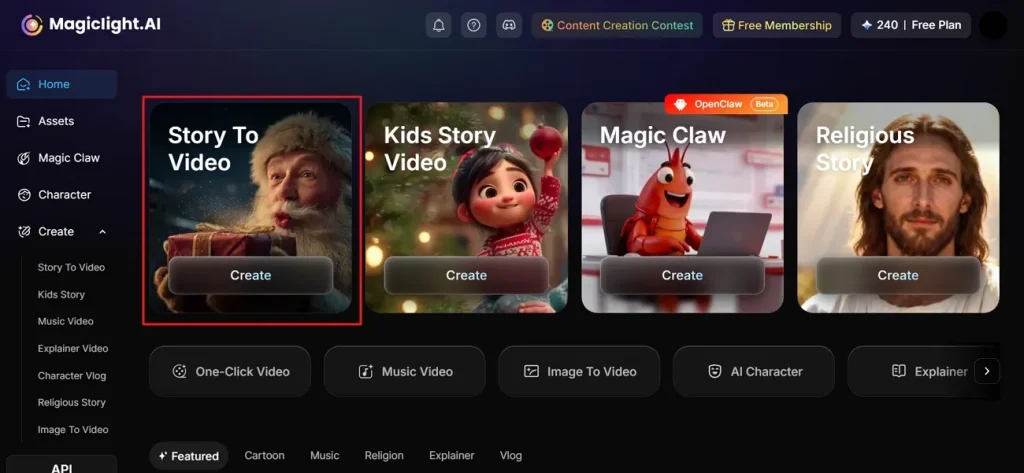
Step 1. Select Story to Video to Start New Project
First, sign in to the official website and click on the Story to Video feature located on the left panel under the Create tab. A new interface is opened where you can start working on your new project.
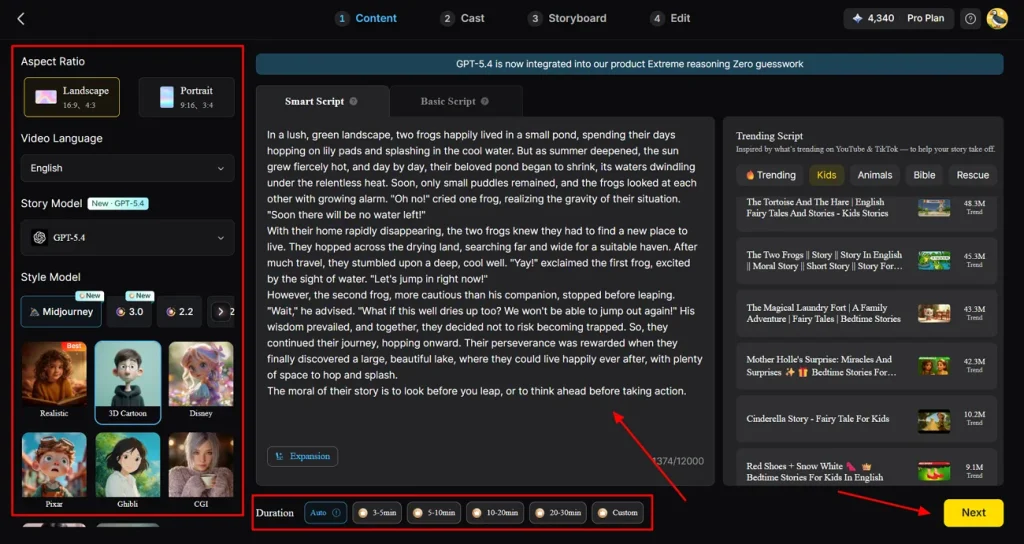
Step 2. Choose Language, Story Model, and Aspect Ratio for Your Script
Second, pick any script generated by AI, which is automatically copied and pasted into the Smart Script prompt box. Also, select the dimensions and language for your animated video by clicking on Aspect Ratio, Video Language, Story Model, Style Model, and then choose the Next option.
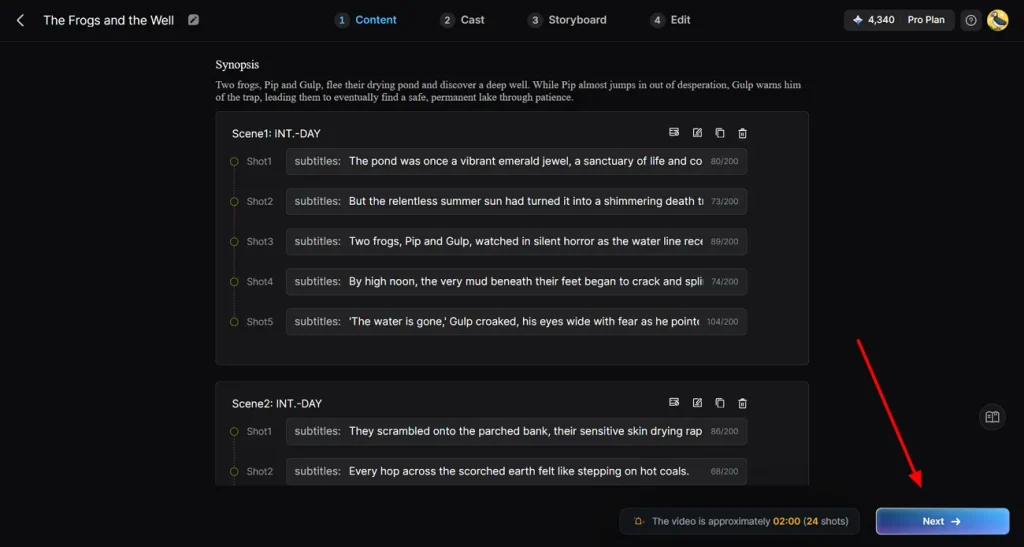
Step 3. Edit and Sequence the Scenes from the Script
Next, users can either edit or delete the scenes that the AI model has created from their chosen script. To delete, copy, or edit, simply click on the icons at the very top of every individual scene and then click on the Next option.
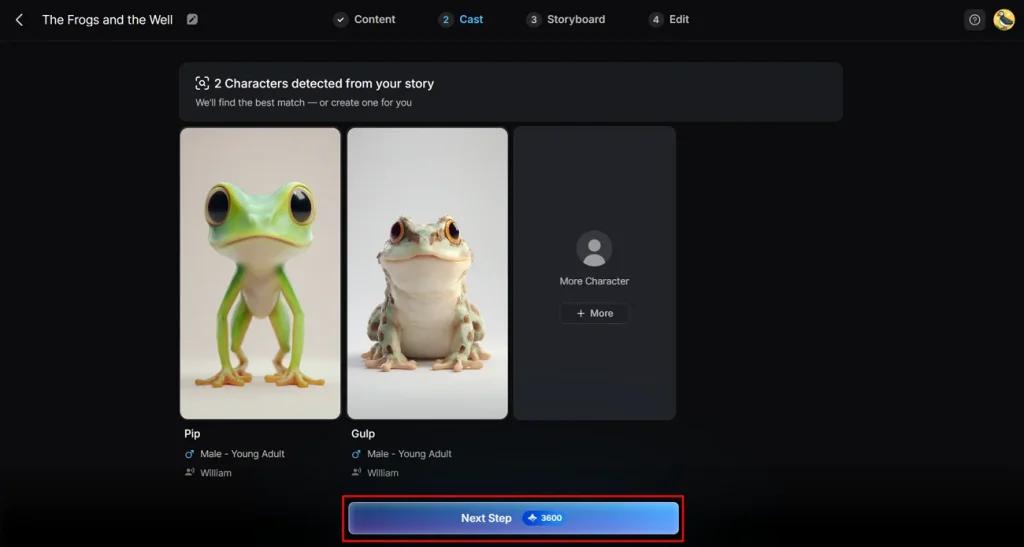
Step 4. Voice Selection and Character Adjustments
Here, it is time to adjust your cast by clicking on the character and changing their age, gender, and accent according to your preference. After completing the entire cast, simply select the Next Step button.
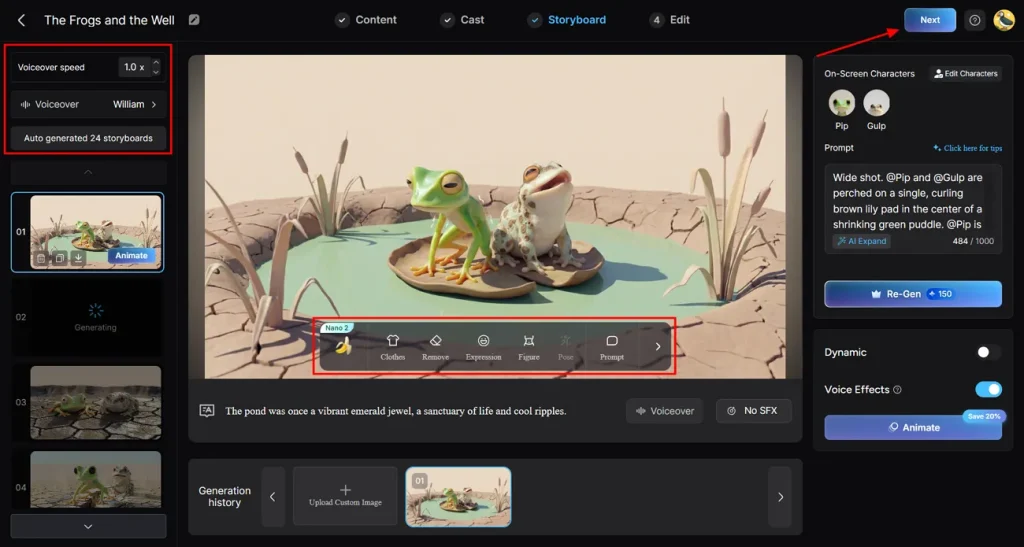
Step 5. Customize and Regenerate Storyboard Settings
Continuing, Magiclight.AI has auto-created the storyboards from the previous step. Here, if you are unsatisfied with the animated scenes, change them by clicking on the Re-Gen option. Furthermore, customize your characters’ Clothes, Expressions, Pose, etc. by selecting the options at the bottom of the video, then pressing the Next button.
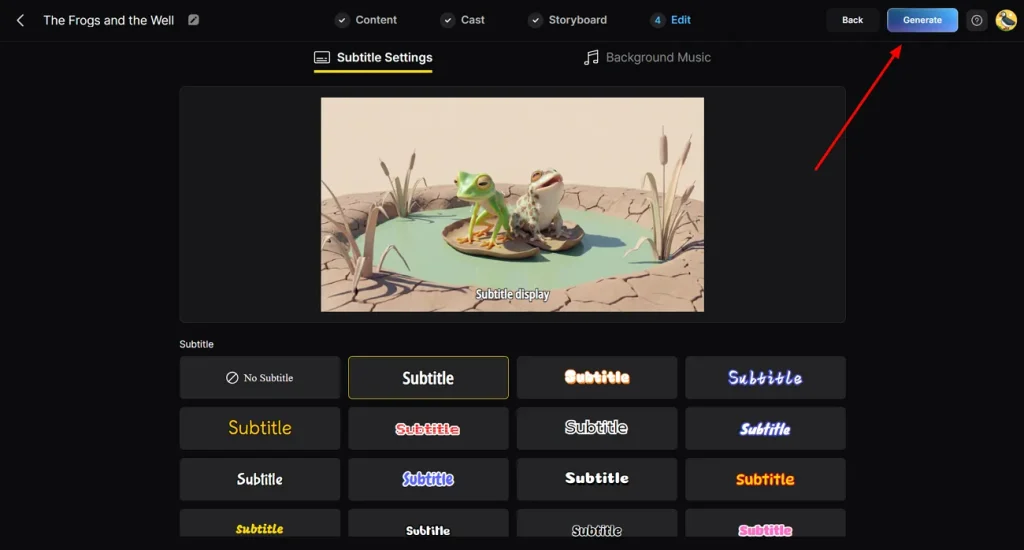
Step 6. Add Subtitles and Background Music
Now, you can customize your animated video even further by selecting a Subtitle style or Background Music. To do this, choose any template under the video, then click the Generate button.
Step 7. Preview and Download Final Product
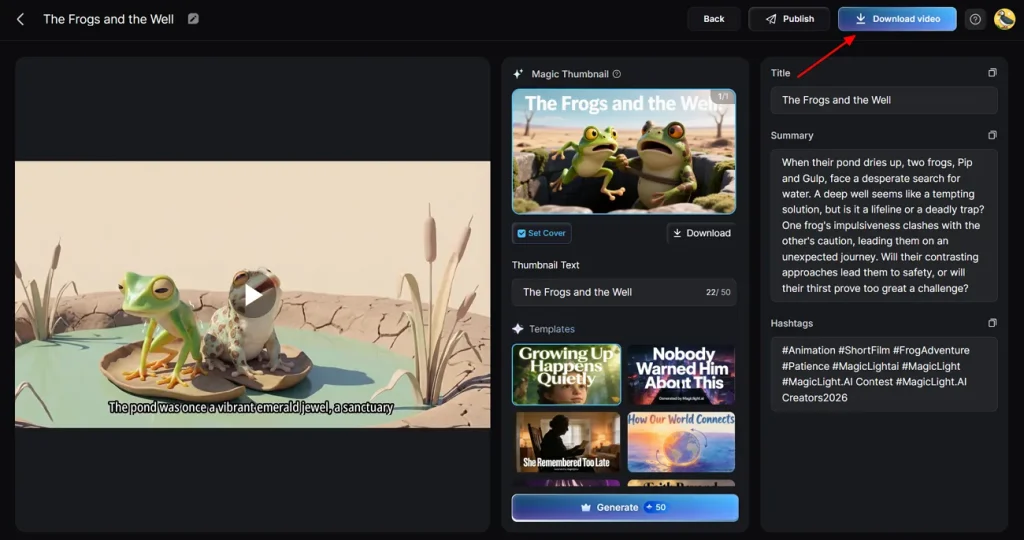
In the end, your video is fully created, and to preview it, tap the spacebar key. It automatically generates hashtags and a summary, along with a magic thumbnail, which can be downloaded separately by clicking the Download option. Choose the Download Video option to save to your device.
Conclusion
In conclusion, we’ve discussed two tools that businesses can use for their content needs. While Vyond offers a wide variety of templates and voiceovers, both platforms have their pros and cons. That said, Magiclight.AI stands out as the better choice, offering a more diverse set of features at a lower cost, making it a good option for budget-conscious businesses.
Frequently Asked Questions on Vyond vs. Magiclight.AI
Q1. Can I use Vyond for free?
Users can use Vyond without a credit card using the free trial, but this is limited to some regions. After the free trial period ends, you will need to subscribe to a paid plan.
Q2. Do Vyond and Magiclight.AI support team collaboration?
Yes, Vyond allows team collaboration on the paid plans. Teams can share projects, manage workflows, and collaborate efficiently on video creation.
Q3. Which platform offers more AI automation features?
Magiclight.AI provides more advanced AI automation features, especially for generating videos directly from text prompts. Meanwhile, Vyond animation software focuses more on customizable animation with some AI support rather than full automation.
Q4. Are there free trials for Vyond and Magiclight.AI?
Yes, both Magiclight.AI and Vyond offer free trials so users can explore the tools before buying a plan. However, it is important to keep in mind that the generated videos may include watermarks, and access to certain features is limited.
Q5. Which platform is easier for beginners with no video experience?
For beginners, Magiclight.AI is the best video platform because it is easy to use. Alternatively, Vyond is slightly more complex and may take longer to learn due to its detailed animation and editing tools.