


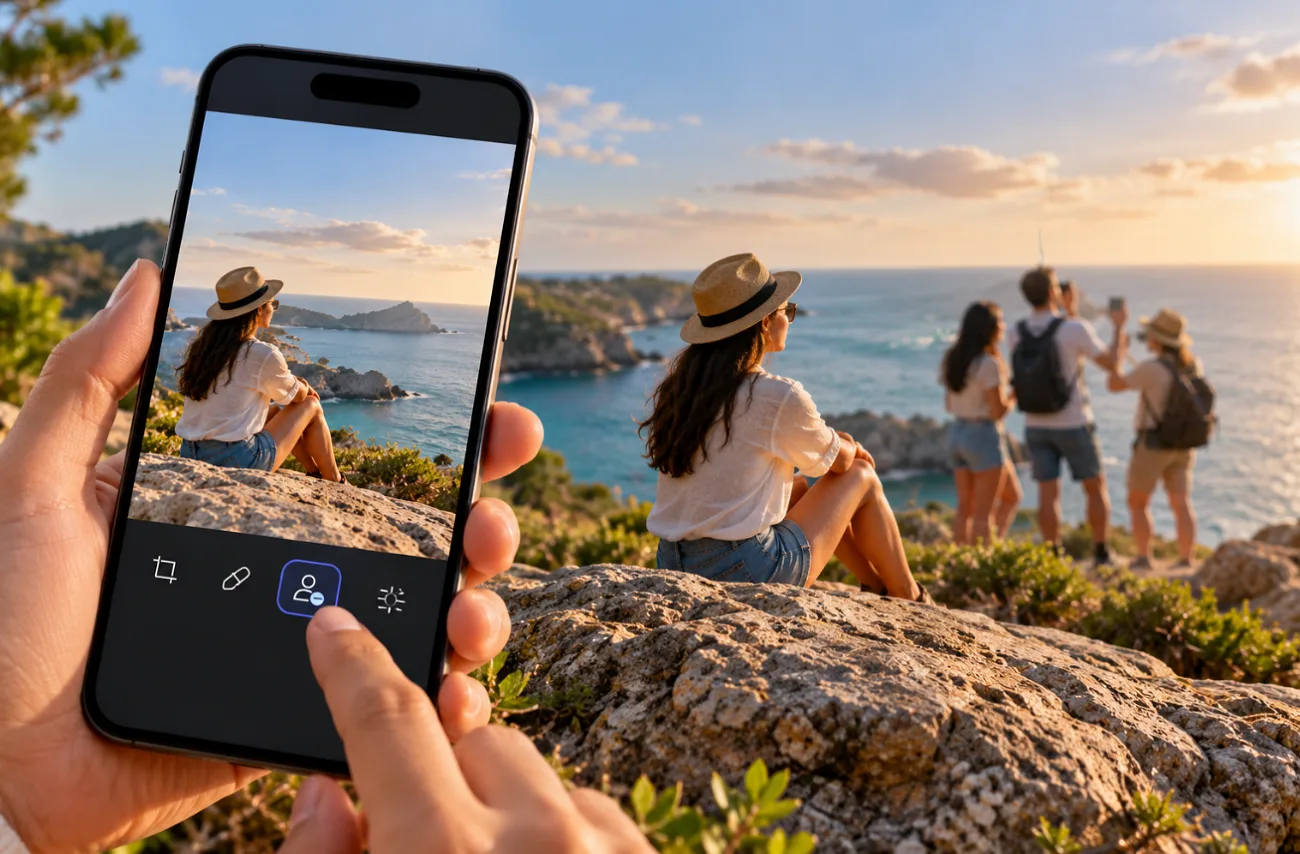
Two friends pose at sunset on a crowded pier, but a stranger in a yellow raincoat appears between them. Cropping the photo would also cut out one of the friends. Learning how to remove people from photos involves removing unwanted subjects and restoring the background naturally.
AI image tools simplify this process by generating missing scenery using surrounding details. While phones and desktop editors offer built-in removal tools, MagicLight AI provides a text-based approach through its Toolbox, allowing users to remove unwanted people with simple instructions.
Part 1. How to Remove People from Photos for Beginners
The 3 beginner methods cover how to remove a person from a photo, depending on where they stand and what's behind them. The pier shot calls for an eraser, but a figure at the frame edge often needs only a crop.
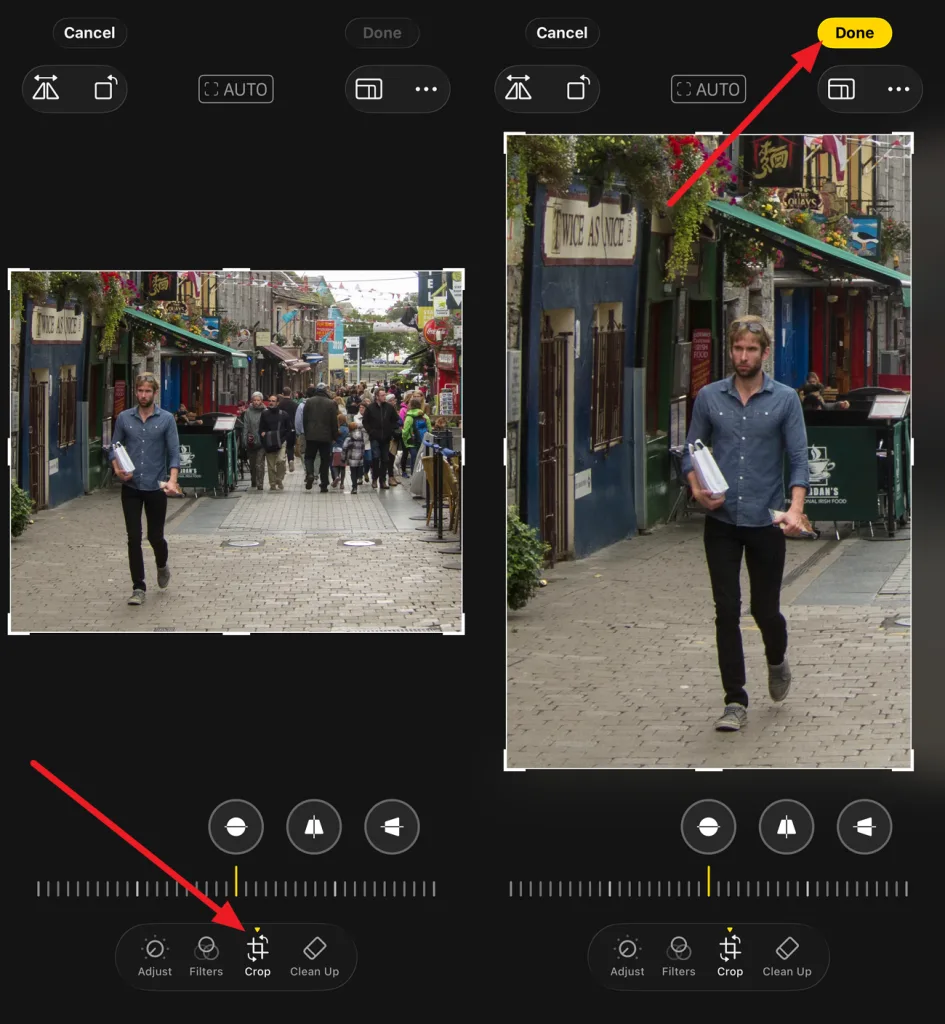
Method 1: Crop Out a Person Near the Edge
Cropping is the oldest fix for a stranger at the border, and every phone and computer gallery includes a crop tool. It invents no pixels, which keeps the remaining scene untouched. Each trim also discards resolution, and a tight crop on a group shot can leave a large print looking soft.
Method 2: Use a Built-In Phone Eraser
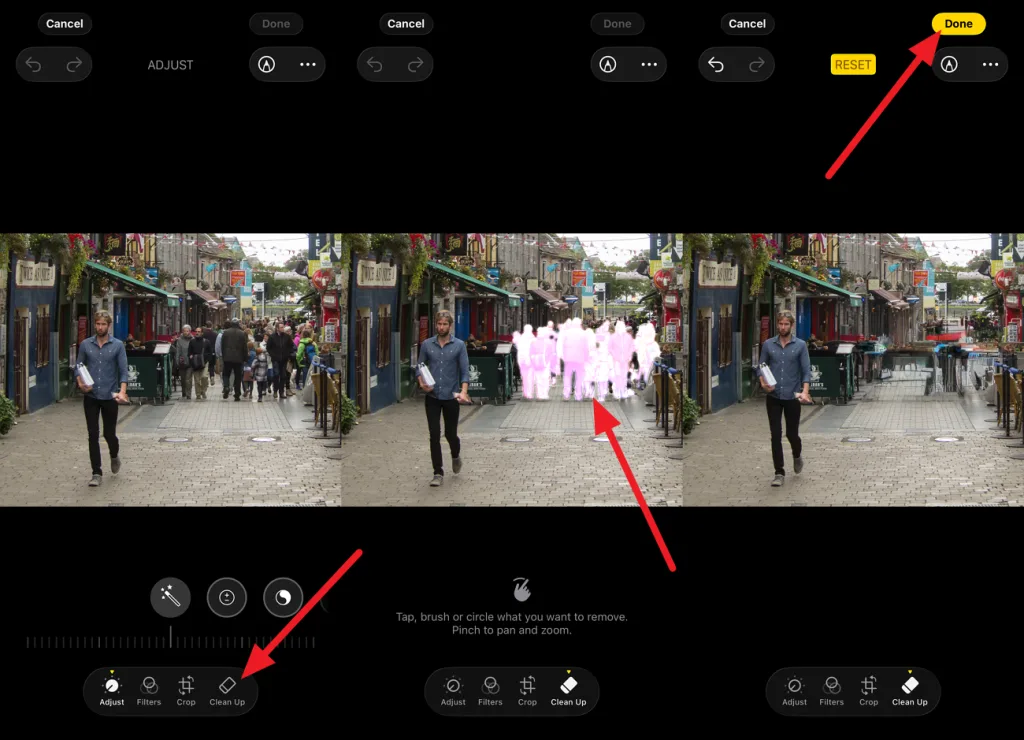
Phone galleries now ship with AI tools that erase people from photos after a tap or a brush stroke. Apple and Google each build one into their own photo apps, and both fill the gap with generated background.
- Clean Up on iPhone: Apple Intelligence adds Clean Up to the Photos app on iPhone 15 Pro, iPhone 15 Pro Max, and supported iPhone 16 or newer models. After choosing Clean Up in the photo editor, circle the whole figure, since Apple warns that a brushed face may turn pixelated.
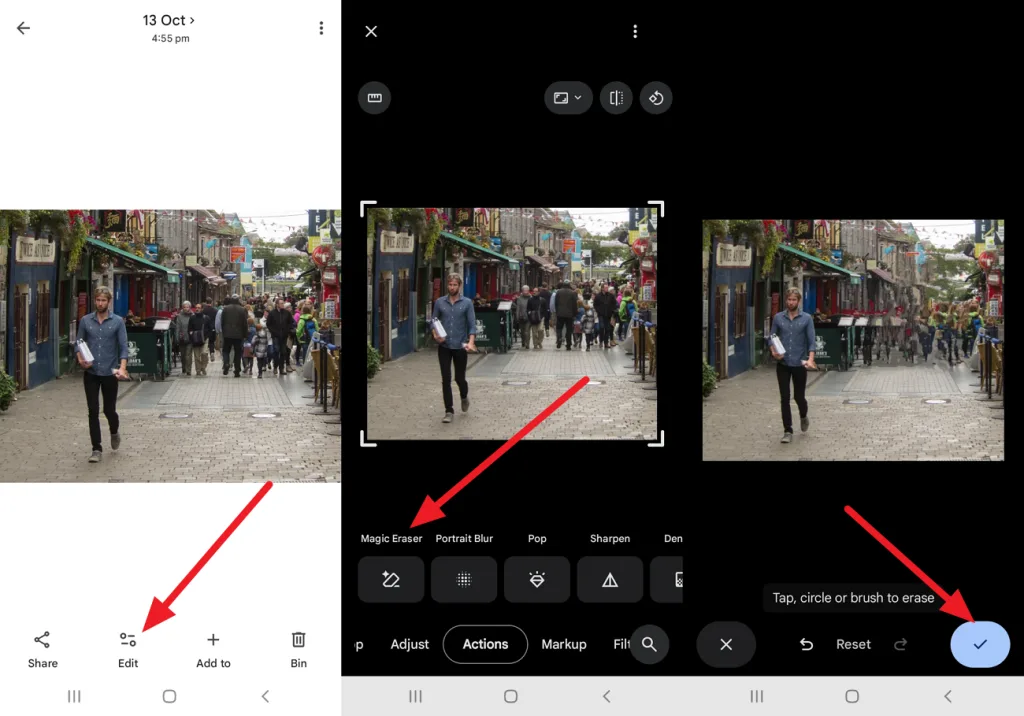
- Magic Eraser in Google Photos: Since 2024, Google Photos has offered Magic Eraser for free on supported devices with at least 3 GB of RAM, running Android 8.0 or iOS 18 or later. Under Edit, the tool sits in the Actions tab, and Save as copy leaves the original photo untouched.
Method 3: Remove People on a Computer
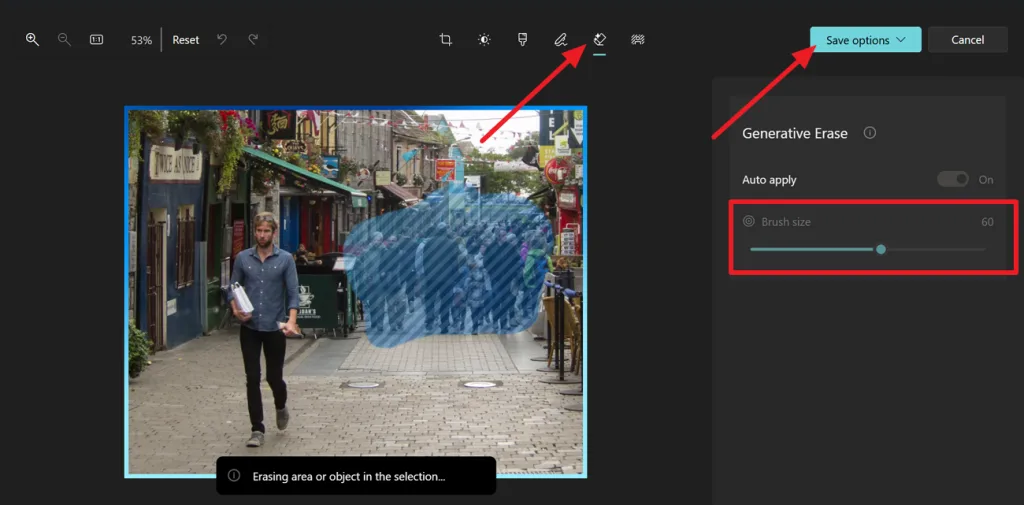
Desktop editors delete people from photos with more control over edges, which matters for prints and large screens. In Windows Photos, Generative Erase starts from Edit Image and the Erase option, with a brush painted over the person. Adobe Lightroom adds a People option under Distraction Removal, which marks each distracting person it finds.
Part 2. How to Remove People from Photos with Magiclight AI
Built for narrated story videos, MagicLight AI also uses its Toolbox Image tab to remove people from photos through written instructions. A typed line takes the place of the brush, and that matters on photos like the pier shot, where the stranger overlaps both friends.
Key Features of Magiclight AI for Removing People
Four parts of the Image tab carry most of a removal job. Each one answers a specific problem, such as a figure that overlaps other people or scenery the model cannot see.
- Written Selection: One sentence naming the clothing and position of the person targets the right figure, with no mask traced around arms or hair.
- A Second Photo for Context: Upload images takes more than one file, and a frame shot seconds later without the stranger shows what the railing looked like.
- A Model That Follows Constraints: MagicLight AI offers Nano Banana 2 and Nano Banana 2.1, Seedream 5.0 Pro, and GPT Image 2.0, GPT Image 2.5 flare and GPT Image 2.5 sunburst for instruction-based image editing. Prompts can request that everyone else remain unchanged, although generated results still need careful inspection.
- Several Fills per Run: Raising Outputs above one returns multiple versions of the same gap, side by side, from a single Create.
Guide: How to Remove a Person from a Photo with Magiclight AI
The pier photo provides a simple example of how to remove someone from a photo without working with layers or masks. Everything happens directly in MagicLight AI’s Image tool. Follow the steps below to remove the unwanted person and regenerate the background:
Step 1. Upload the Photo You Want to Edit
Open Toolbox in MagicLight AI and select the Image tab. Click Upload images and add the original photo so the model, like has enough detail to reconstruct the area behind the unwanted person.

Step 2. Describe the Person to Remove
Write a clear prompt identifying both the person and the background that should replace them. Select an Image Model, choose the Outputs and Aspect Ratio, then click Create.
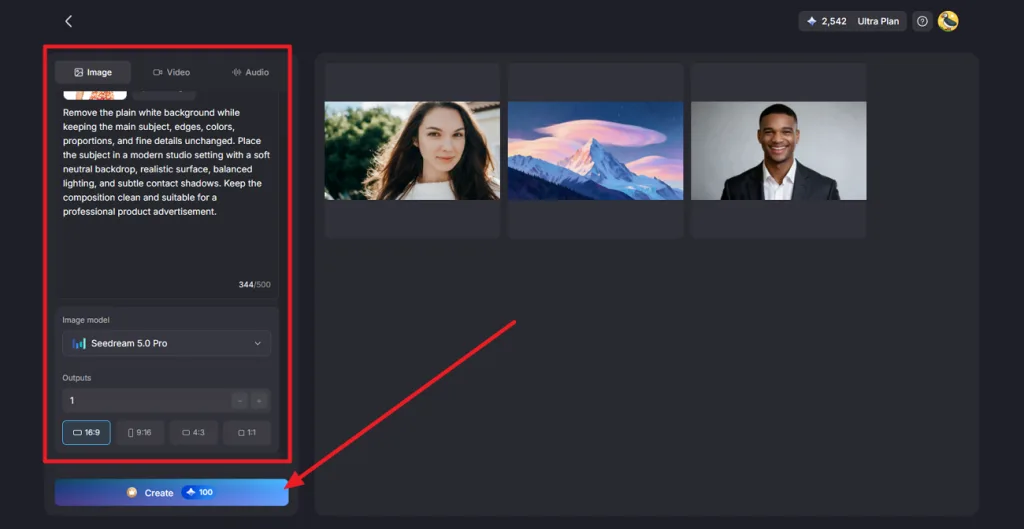
Step 3. Check the Edit and Download
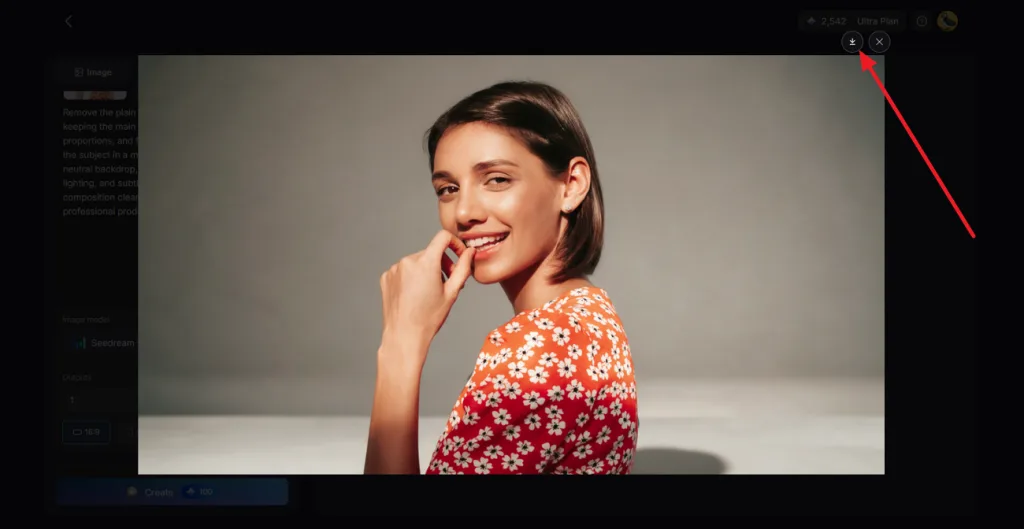
Inspect the generated versions closely, especially around the removed person, railing, shadows, and nearby faces. If anything looks unnatural, refine the prompt and generate again. Once the background looks clean, click Download to save the edited photo.
Part 3. Why Choose AI Tools to Remove People from Photos?
Manual cloning stamps copied pixels over the person, and the repeats show on water and brick. AI tools changed how to remove people from pictures by generating a new background that matches the light and texture around the gap.
- Generated Background: AI uses surrounding visual information to recreate missing scenery, helping maintain railing patterns and sunset gradients, although complicated areas can still contain visible distortions.
- Selection Without Precision Work: A rough circle or a typed sentence marks the person, and nobody traces an exact outline around hair or hands.
- Distractions Flagged in Advance: Apple’s Photos guide says Clean Up may highlight some items as soon as it opens, ready to remove with a click.
- Edits Kept Separate: Google Photos offers a Save as copy option, which preserves the original image while saving the edited version separately for further comparison.
A “remove person from photo” search often ends at a phone app built for particular models. MagicLight AI runs the same type of edit in a web browser, with no device list like the one Apple publishes for Clean Up. Once the stranger is gone, the pier photo can also serve as the opening frame of an Image to Video clip.
Conclusion
The pier photo needed the stranger gone without losing either friend, and no crop could manage that. Crops still handle figures at the frame edge, and phone erasers cover small passersby in the background. For overlapping figures like the stranger, MagicLight AI’s Image tab shows you how to remove people from photos with 1 line of text. No matter the tool, the filled area deserves a full-size check before sharing.
FAQs on How to Remove People from Photos
1. How do I remove someone from a photo?
Position decides the method for removing someone from a picture. A figure at the frame edge can be cropped away. Figures in the middle need an eraser that rebuilds the background, such as Clean Up on iPhone or Magic Eraser in Google Photos.
2. Is there a fast way to remove people from a picture?
Searches for “remove people from photo” shortcuts usually land on phone erasers, which take one tap or brush stroke per person. For figures overlapping other people, MagicLight AI’s Image tab works from one typed line and returns several versions per run.
3. Can AI remove people from photos without ruining the background?
Yes, when the background follows a pattern the model can extend, such as open sky or a plain wall. Fences and printed signs are harder, and fills there can repeat or bend. Checking the edit at 100% zoom catches those flaws before the photo is shared.
4. Can AI remove people from photos automatically?
AI tools can automatically detect unwanted people in photos, although users still need to review the results. Adobe Lightroom's People feature identifies distracting figures for removal, while MagicLight AI uses text prompts to edit uploaded photos and generate multiple versions.
5. Can MagicLight AI remove people from an existing photo for free?
MagicLight AI offers free starting credits for new users, allowing them to test photo removal without a credit card. Simply upload an existing photo using “Upload images,” enter a removal prompt, and check the credit cost before clicking “Create.”
6. Will removing someone from a photo affect image quality?
Quality can drop in 2 places, the crop and the filled area. Heavy cropping discards pixels, and generated fills can soften texture where the person stood. MagicLight AI also returns the edit in one of four aspect ratios, which can reframe a 3:2 camera photo slightly.

![6 Best Picture Modification Apps in 2026 to Try [New List]](https://magiclight.ai/wp-2/wp-content/uploads/best-picture-modification-apps-for-photos.jpg-300x200.webp)

![How to Turn Audio File Into Video in 2026 [Full Guide]](https://magiclight.ai/wp-2/wp-content/uploads/audio-to-video-conversion-guide.jpg-300x169.webp)
![How to Make an AI Movie in 2026 [Step-by-Step Guide]](https://magiclight.ai/wp-2/wp-content/uploads/ai-movie-creation-journey-posters.jpg-3-300x169.webp)