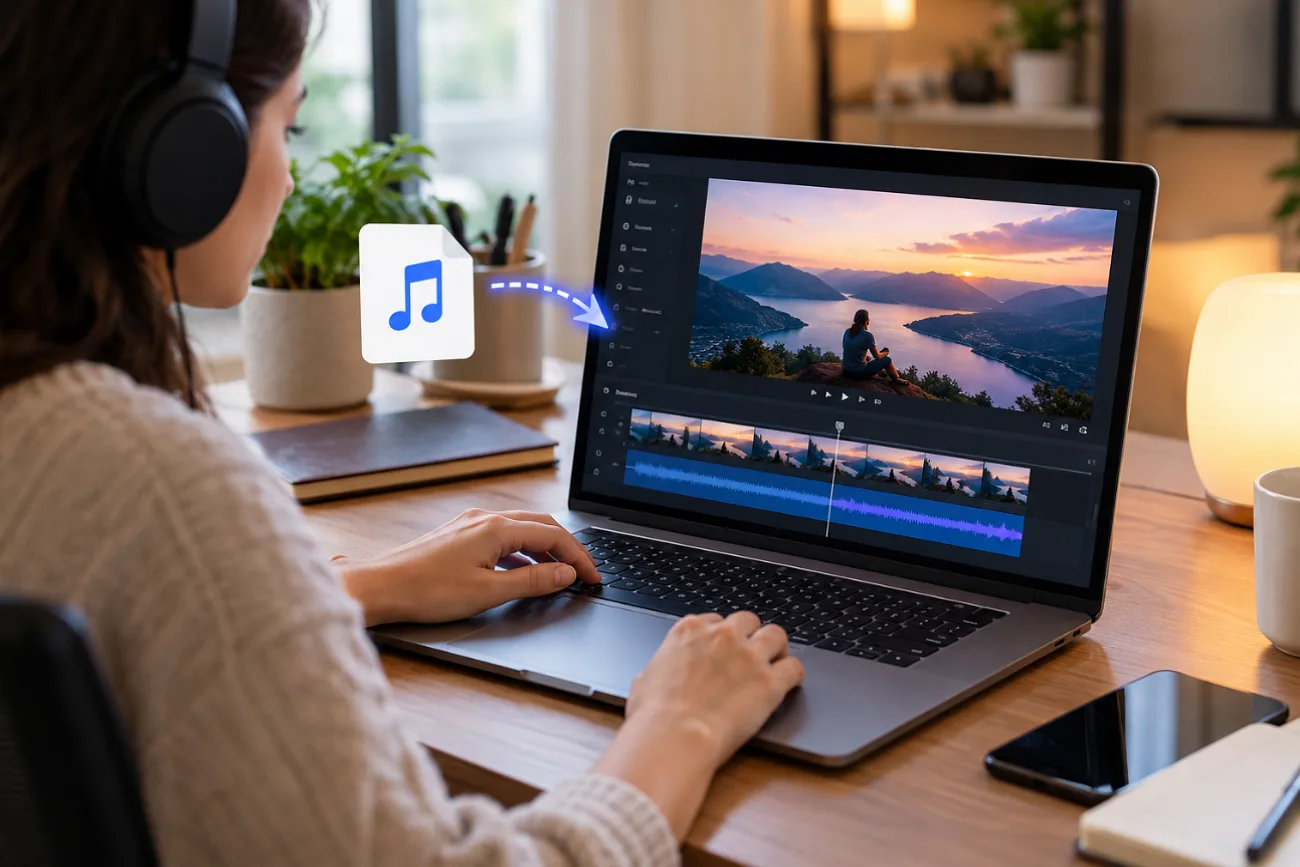
An MP3 alone won’t work everywhere. Learning how to turn MP3 into video pairs your audio with visuals for YouTube or Instagram. Podcasters face the same need when they post episode clips, and teachers meet it when recorded lessons go to a class channel. Audiobook samples and sermon recordings take the same path to YouTube. MagicLight AI handles the AI side of the job inside its Toolbox.
Part 1. How to Turn MP3 Into Video With AI
AI tools fill the missing picture with generated artwork and motion, which keeps a teaser from looking like a frozen slide. MagicLight AI splits that work across 2 Toolbox tabs, the Image tab for cover art and the Video tab for movement. Together they turn MP3 into video without a separate editing program.
The Video tab reads an MP3 once a Seedance engine is chosen, and Seedance 2.5 caps the audio at 30 seconds per run. That window holds the single’s chorus, a natural length for a Shorts teaser.
Guide to Turning an MP3 Into a Video With MagicLight AI
These steps show how to turn an MP3 into a video teaser, starting with a blank prompt and ending with a 30-second clip:
Step 1. Go to MagicLight AI Toolbox
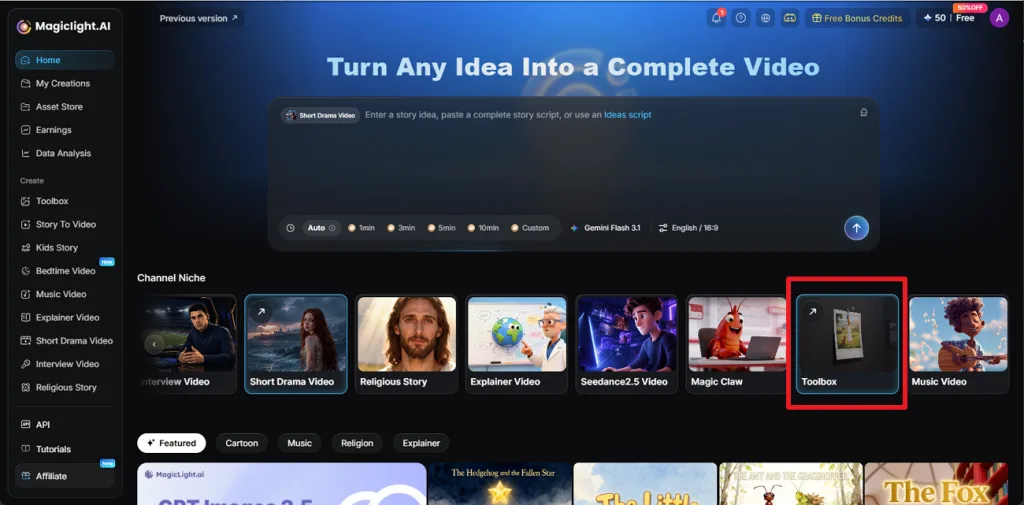
After signing in, choose Toolbox from the main interface. This opens the workspace where you can start turning your audio into a video.
Step 2. Set Up the MP3 Video
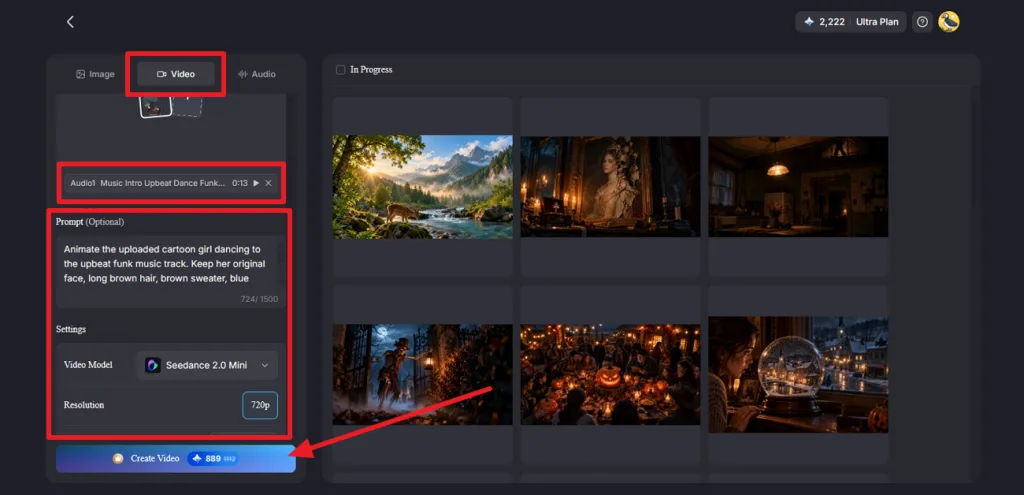
Move to the Video tab and select Seedance 2.5. Add your MP3 and an Image reference, then write a prompt for the visual movement and camera action. Adjust the Duration and Resolution before clicking Create Video.
Step 3. Check and Save the Result
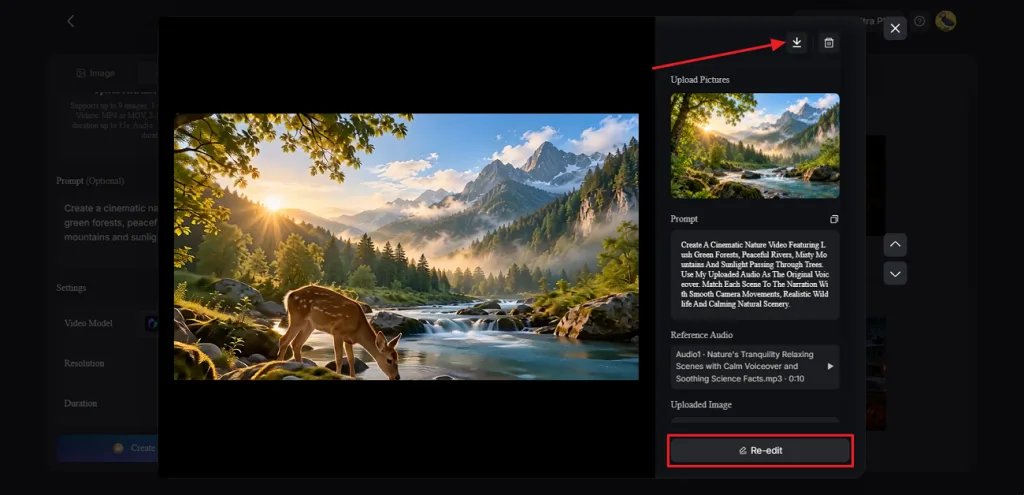
Play the generated clip in Preview with the sound on. If the visuals need adjustment, select Re-edit and refine them. When the video is ready, use Download to save it.
Part 2. How to Turn MP3 Into a Video with Image
Full songs usually go up on YouTube as a still image under the whole track, and Microsoft Clipchamp handles that format for free. Its free plan exports watermark-free video at up to 1080p, and it reads MP3, WAV, and M4A audio alongside JPG and PNG images. That route can turn MP3 to video at full length, past the 30-second ceiling of the Toolbox Video tab.
Guide to Turning an MP3 Into a Video With an Image in Clipchamp
Once the full song and cover art are ready, Clipchamp can combine them into a single MP4 for sharing or uploading. Follow the steps below to turn your MP3 and image into a finished video:
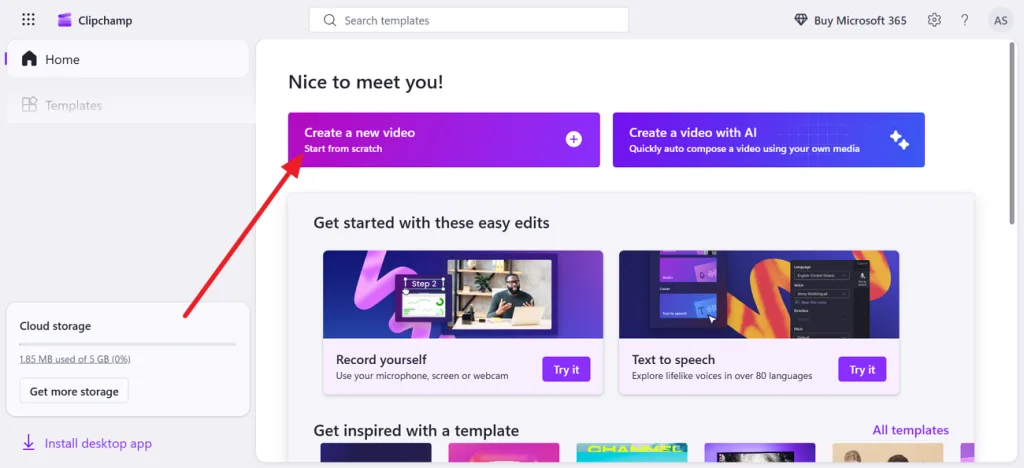
Step 1. Start a New Clipchamp Project
Open Clipchamp and select Create a New Video from the home screen. This opens a blank editing project where you can combine your MP3 with an image.
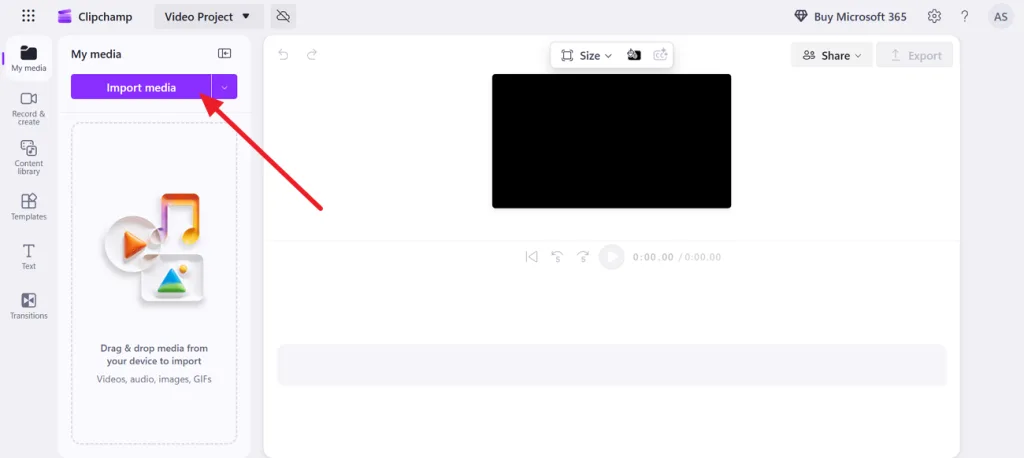
Step 2. Import the MP3 and Image
Click Import Media and add your MP3 file and cover image. Place both files on the timeline, with the image on the video track and the MP3 on the audio track. Extend the image so it remains visible for the full length of the song.
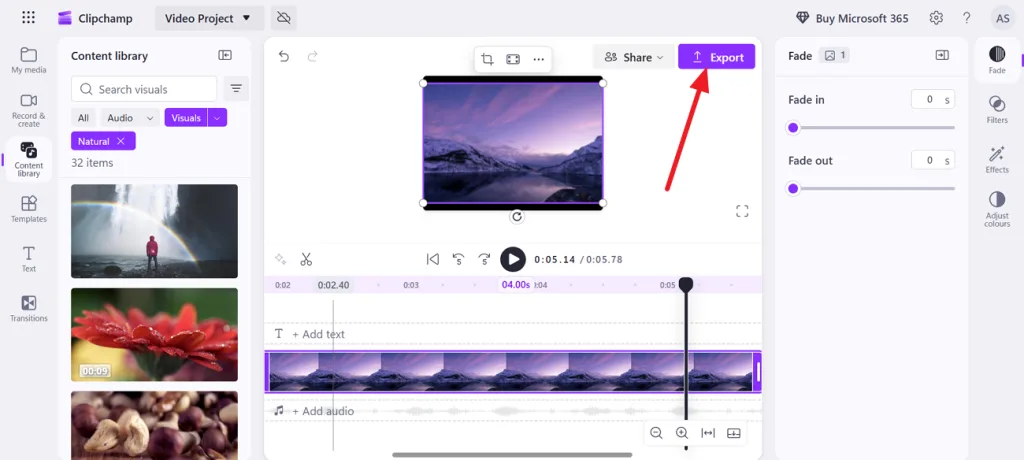
Step 3. Preview and Export the Video
Play the project to make sure the image stays on screen while the complete MP3 plays. Once everything lines up correctly, click Export in the upper-right corner and choose your preferred video quality to save the finished video as an MP4.
Conclusion
The musician now has a short teaser for social media and a full-length video for YouTube. When deciding how to turn an MP3 into a video, let the track length and platform guide the format. For generated visuals, MagicLight AI is a practical choice, with its Music Video tool designed to turn full songs into visual stories.
FAQs About Turning MP3 Into Video
- How can I turn an MP3 file into a YouTube video?
YouTube will not accept an MP3 alone, and pairing it with an image in Clipchamp produces an uploadable MP4. A 16:9 frame at 1080p matches YouTube’s standard player, and a vertical cut of up to 3 minutes can go to Shorts.
- Can I turn an MP3 file into a video with a picture?
One picture held for the full length of the track is a common YouTube format for songs and podcast episodes. With no cover art on hand, MagicLight AI’s Image tab can draw one from a short description, wide for YouTube or tall for Shorts.
- How can I convert an image and an MP3 to a video?
A timeline editor places the image over the MP3 and extends it to the track's full length. For motion, MagicLight AI supports audio and image references through compatible Seedance models.
- How do I convert an MP3 to a video file?
An MP4 export is the usual answer to “how to turn a MP3 into a video,” since it carries picture and sound together. Clipchamp saves its exports as MP4 files, and MagicLight AI’s Video tab saves a finished clip through its download icon.
![6 Best Picture Modification Apps in 2026 to Try [New List]](https://magiclight.ai/wp-2/wp-content/uploads/best-picture-modification-apps-for-photos.jpg-300x200.webp)
![How to Turn Audio File Into Video in 2026 [Full Guide]](https://magiclight.ai/wp-2/wp-content/uploads/audio-to-video-conversion-guide.jpg-300x169.webp)

![How to Make an AI Movie in 2026 [Step-by-Step Guide]](https://magiclight.ai/wp-2/wp-content/uploads/ai-movie-creation-journey-posters.jpg-3-300x169.webp)