500 Characters to Describe the Cartoon Look
Describe your preferred visual style instead of naming a specific studio. You can also include important character details to help Magiclight AI generate images that match your vision.
Create Now
Turn your photos into cartoons with MagicLight AI. Choose a style you like and transform everyday images into fun cartoon art. No drawing skills needed.
Try AI Cartoonizer For Free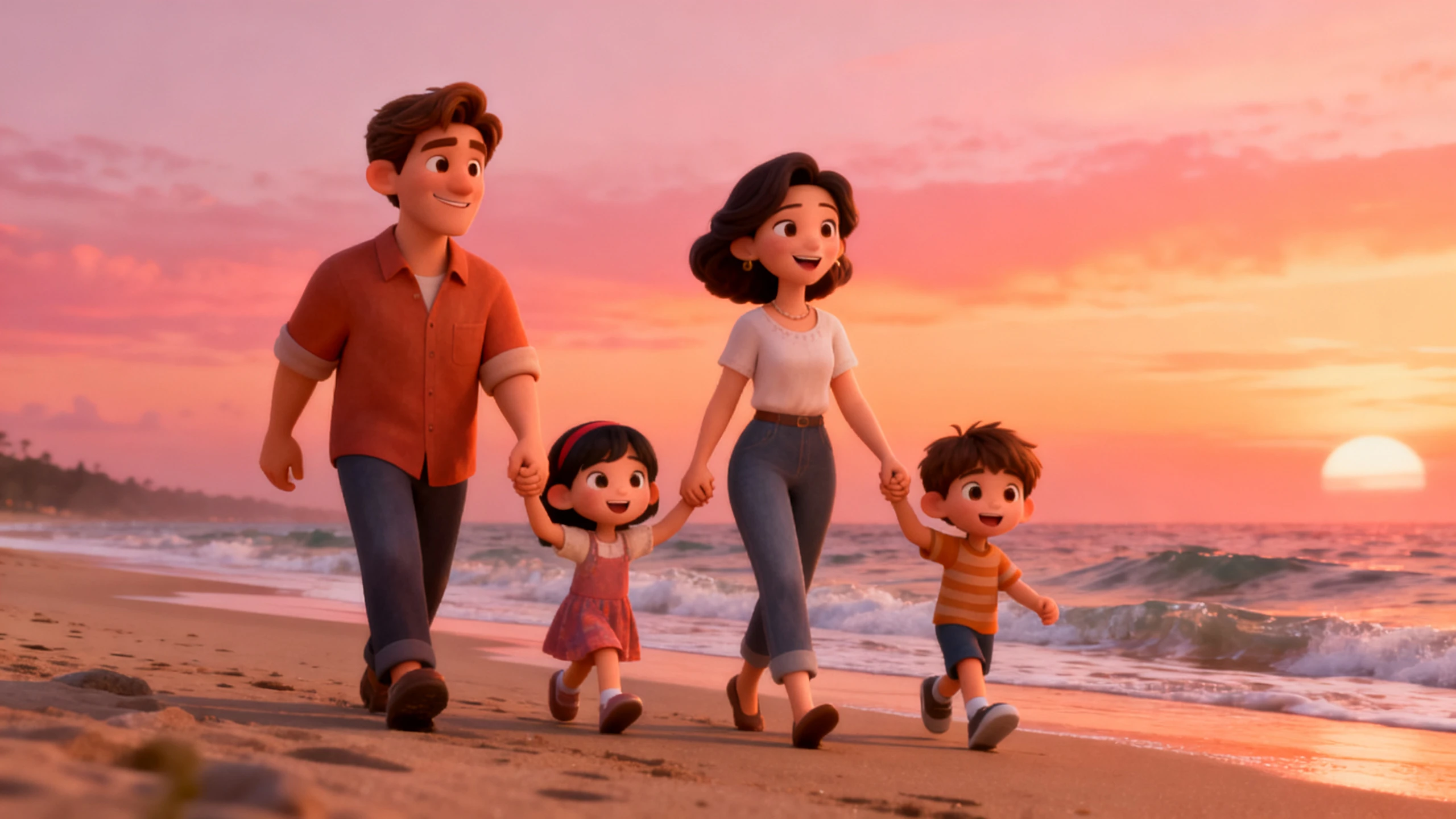









Name the look you want in plain words, like a Saturday morning cartoon or a comic strip. This AI cartoonizer draws your photo that way while keeping the original face underneath.
Describe your preferred visual style instead of naming a specific studio. You can also include important character details to help Magiclight AI generate images that match your vision.
Create NowGPT Image 2 and Seedream 5.0 Pro can create different results from the same photo. Try both models and choose the one that best matches your facial features and natural appearance.
Try Different Models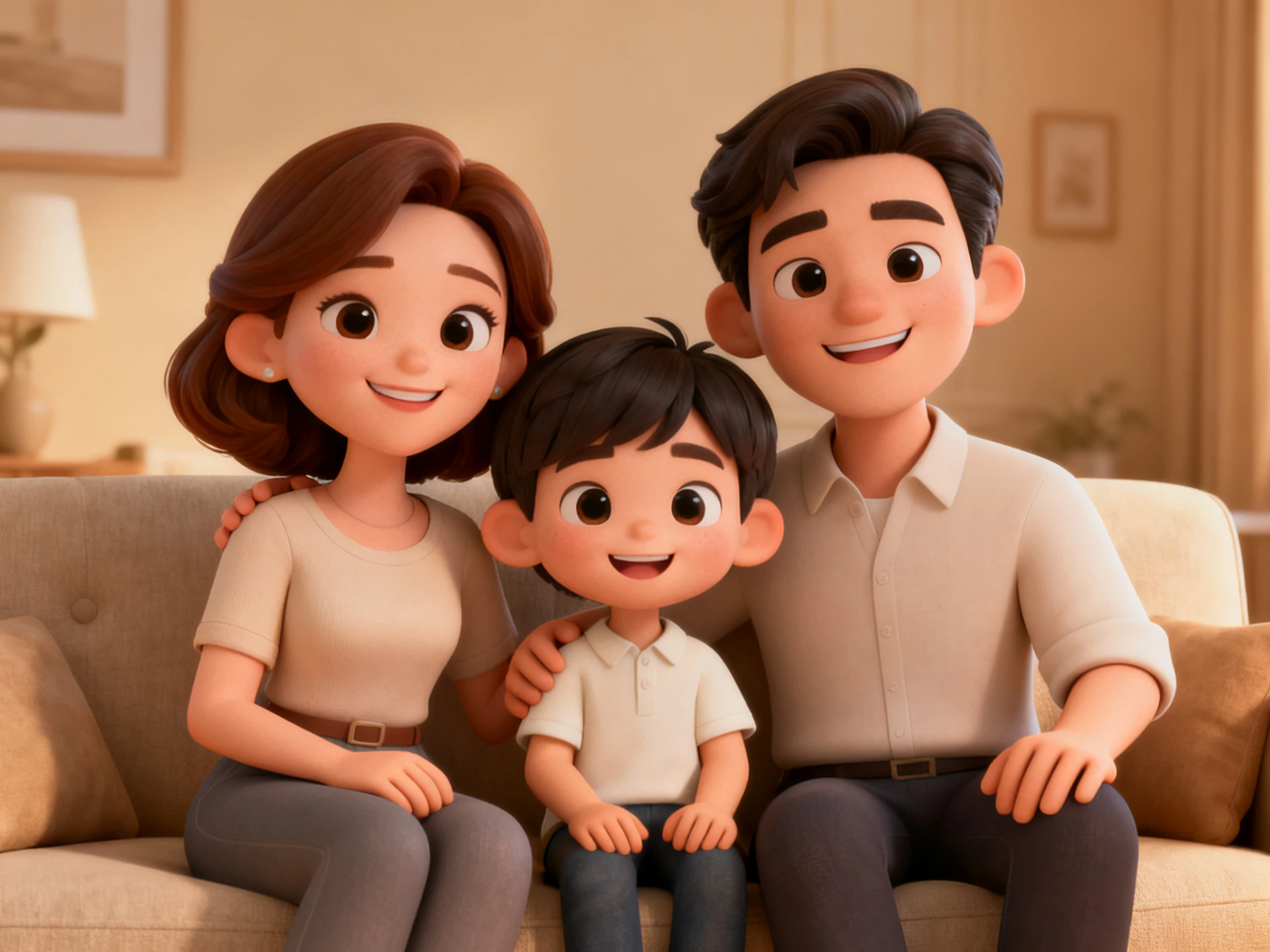
Use your first cartoon as a reference when creating more images. This helps maintain a consistent style across all your cartoon images and gives them a polished, professional look.
Create a Matching Set.webp)
Choose the right aspect ratio based on where you plan to use your image. Use 1:1 for profile pictures, 16:9 for YouTube banners, and 9:16 for vertical images such as phone wallpapers.
Create Your Cartoon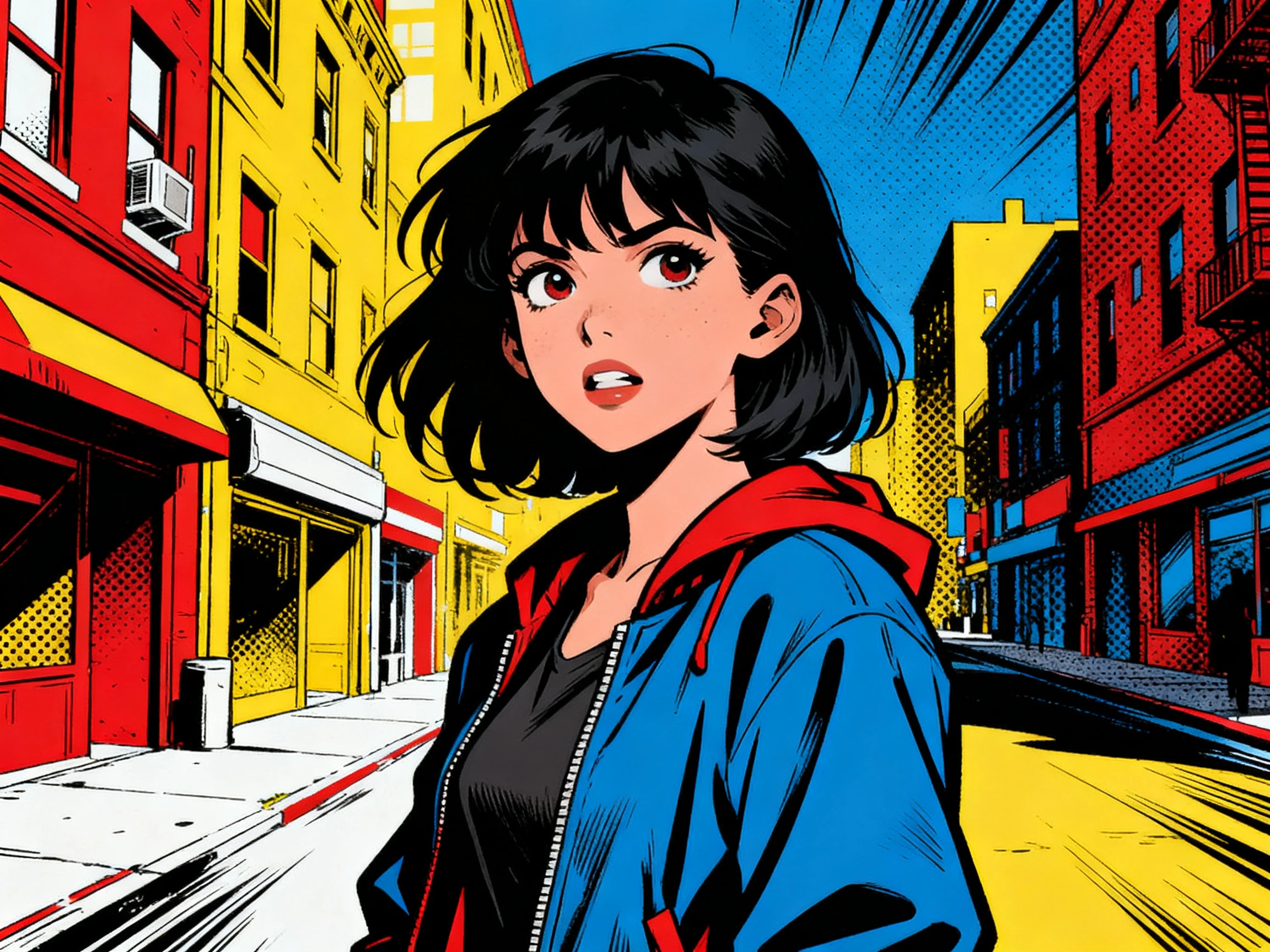


Give any photo a striking new identity in just 4 steps. Magiclight AI cartoonizer takes you from photo upload and style prompt to model selection and final cartoon.
Add the photo to the Image tab as your reference, with the face well lit and not covered by a hand or a hat. A close-up of a pet works the same way.
Describe the look, like “flat colors and thick outlines, Sunday comic style,” then list what has to stay, such as your curly bangs.
Choose Nano Banana 2 or any other image model, and set the shape to 1:1 for an avatar.
Click Create to generate your cartoon. Compare it with the original photo, then refine the prompt if details need a closer match.
Office Manager
Magiclight AI made it easy to give our staff photos the same cartoon feel. The finished portraits made our team page look more friendly and consistent.
Dog Owner
I used Magiclight AI on my dog’s favorite photo and loved how his markings still looked familiar. The cartoon ended up being perfect for a birthday card.
Anniversary Gift Maker
Our old wedding photo became a fun anniversary surprise with Magiclight AI. I could describe the cartoon look I wanted while keeping the details that mattered.
YouTuber
I tested my photo with Magiclight AI, picked the cartoon version I liked most, and used it for my channel graphics. It gave my profile a more recognizable look.
A clear, front-facing photo gets you most of the way, and naming details like a beard or glasses does the rest. When one Magiclight AI model misses your face, a second model often lands it.
Yes. Crop the photo so every face is easy to see, then describe each person by position. Magiclight AI cartoonizer can use those details to keep people easier to distinguish in the finished image.
Describe the look, like “glossy 3D with soft light and big eyes,” instead of naming a studio. Studios own their characters, and a style you describe keeps the Magiclight AI cartoon yours.
Nothing at first. Magiclight AI starts every account with free credits for your first tries, and one run in the Image tab costs 100 of them. Paid plans add more credits for a whole team's cartoons.
Yes, on a paid Magiclight AI plan, which covers commercial use. Check who owns the original photo first, since a professional photographer often keeps the copyright to wedding and studio shots.
Yes. After creating your cartoon, open the Video tab in Magiclight AI and use the image as your starting frame. Add a motion prompt and generate an animated version for social or creator content.
Find the photo where you look most like yourself, not the most perfect one. Upload it to the AI cartoonizer in Magiclight AI and see what it creates.