
5 Leading Image Models in One Place
Choose from Seedream 5.0 Pro, GPT Image 2, GPT Image 2.5 Flare, GPT Image 2.5 Sunburst, or Nano Banana 2. Run the same prompt on another model when you want a different look.
Create an AI Image for Free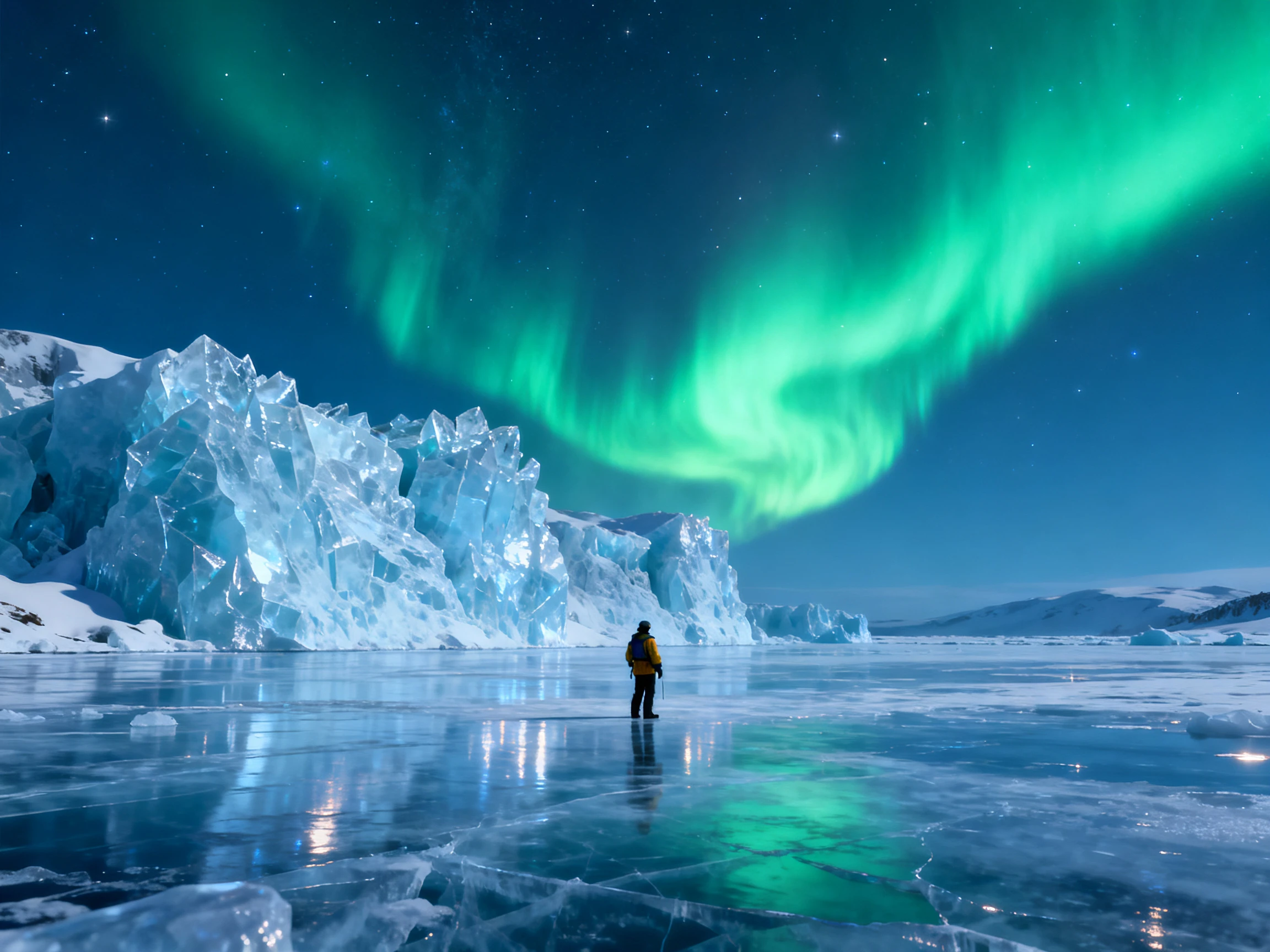
Create AI images with MagicLight using text prompts and reference images. Generate several versions at once with the AI model you choose. No design skills needed.
Create an AI Image for Free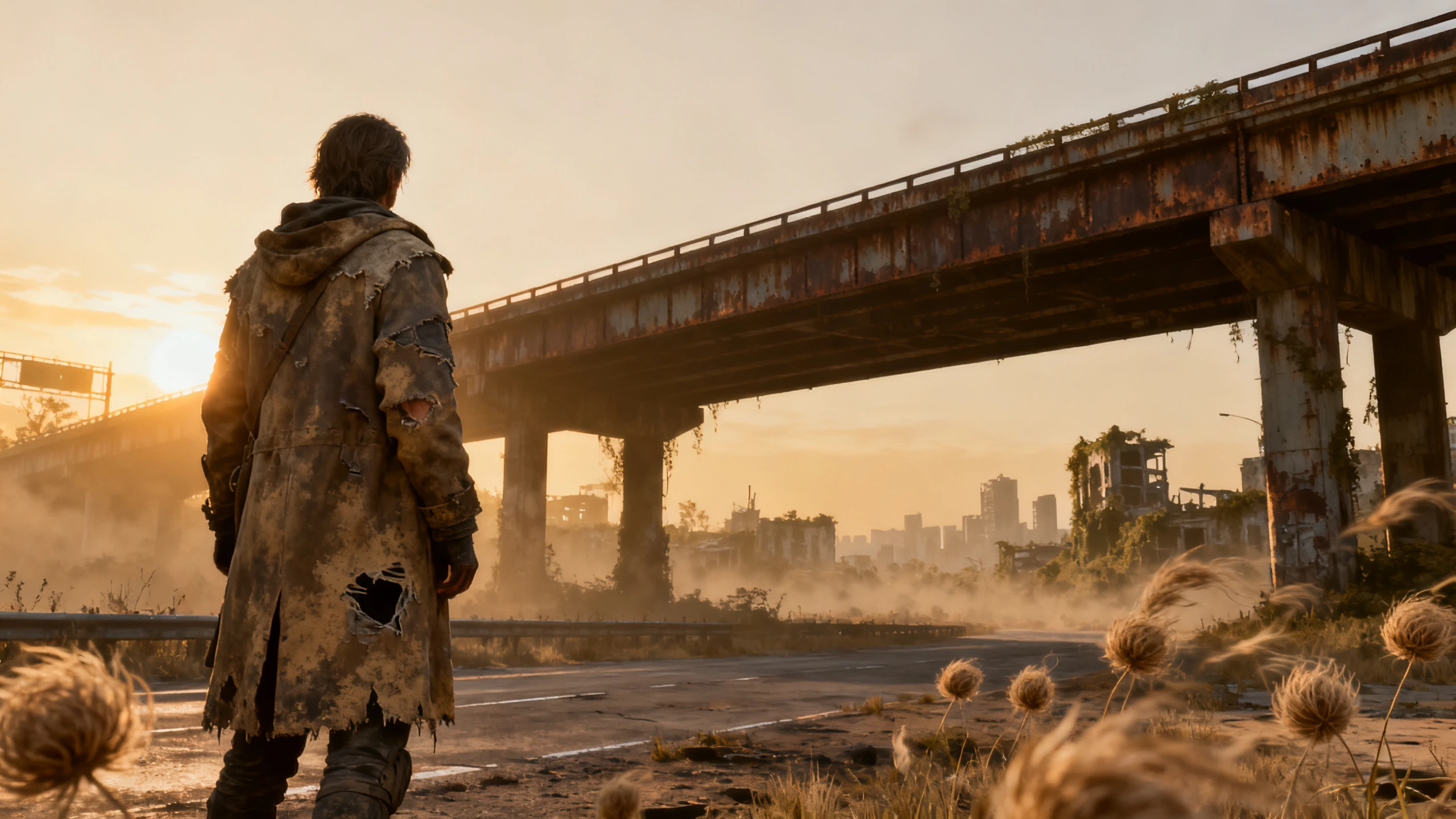


Bring your idea into the Magiclight AI image generator and shape it with a prompt and reference photo. Select the model, set the image size, and use references to guide the look.
Choose from Seedream 5.0 Pro, GPT Image 2, GPT Image 2.5 Flare, GPT Image 2.5 Sunburst, or Nano Banana 2. Run the same prompt on another model when you want a different look.
Create an AI Image for FreeWrite up to 500 characters about the subject, setting, light, and mood. Plain, specific details work best, and Magiclight AI uses each one to shape the generated image.
Create an AI Image for Free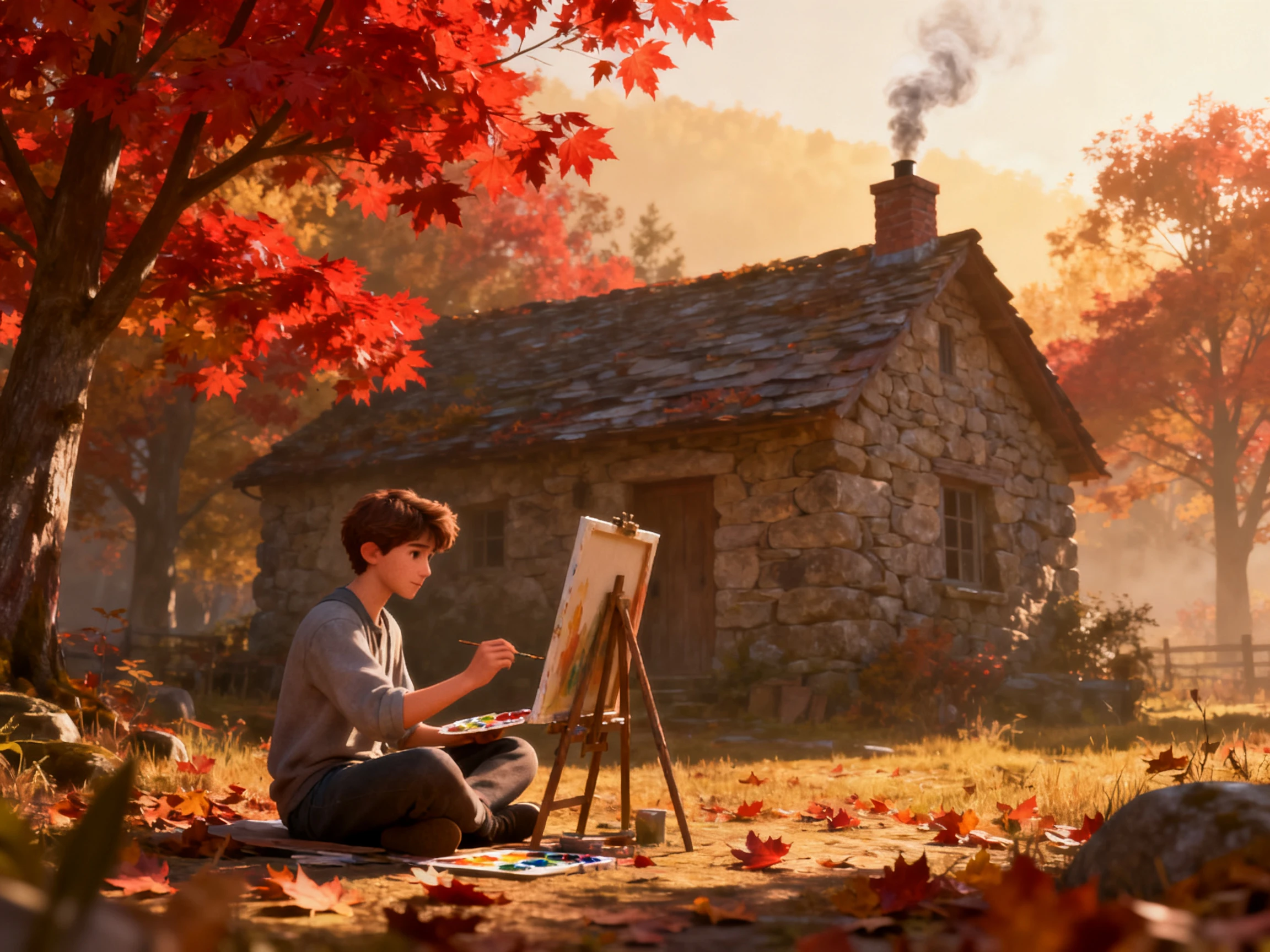
Upload reference images in JPEG, JPG, PNG, or WEBP format, up to 20MB each. Add more than one, such as a product shot and a color sample, so the result matches your idea.
Create an AI Image for Free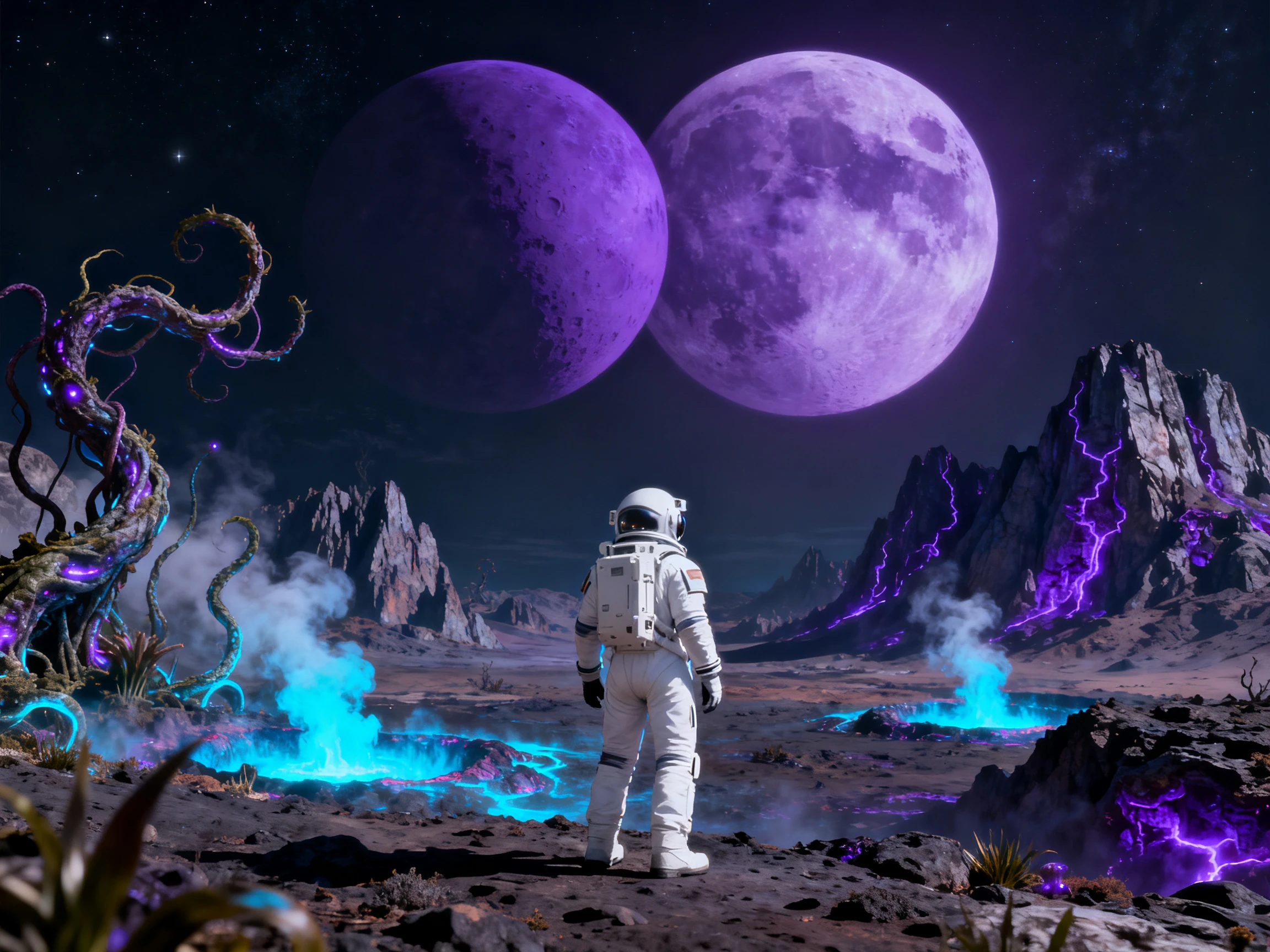
Pick 1:1 for posts, 9:16 for stories and phone screens, 16:9 for banners and thumbnails, or 4:3 for slides. Then set how many images to make and compare several versions.
Create an AI Image for Free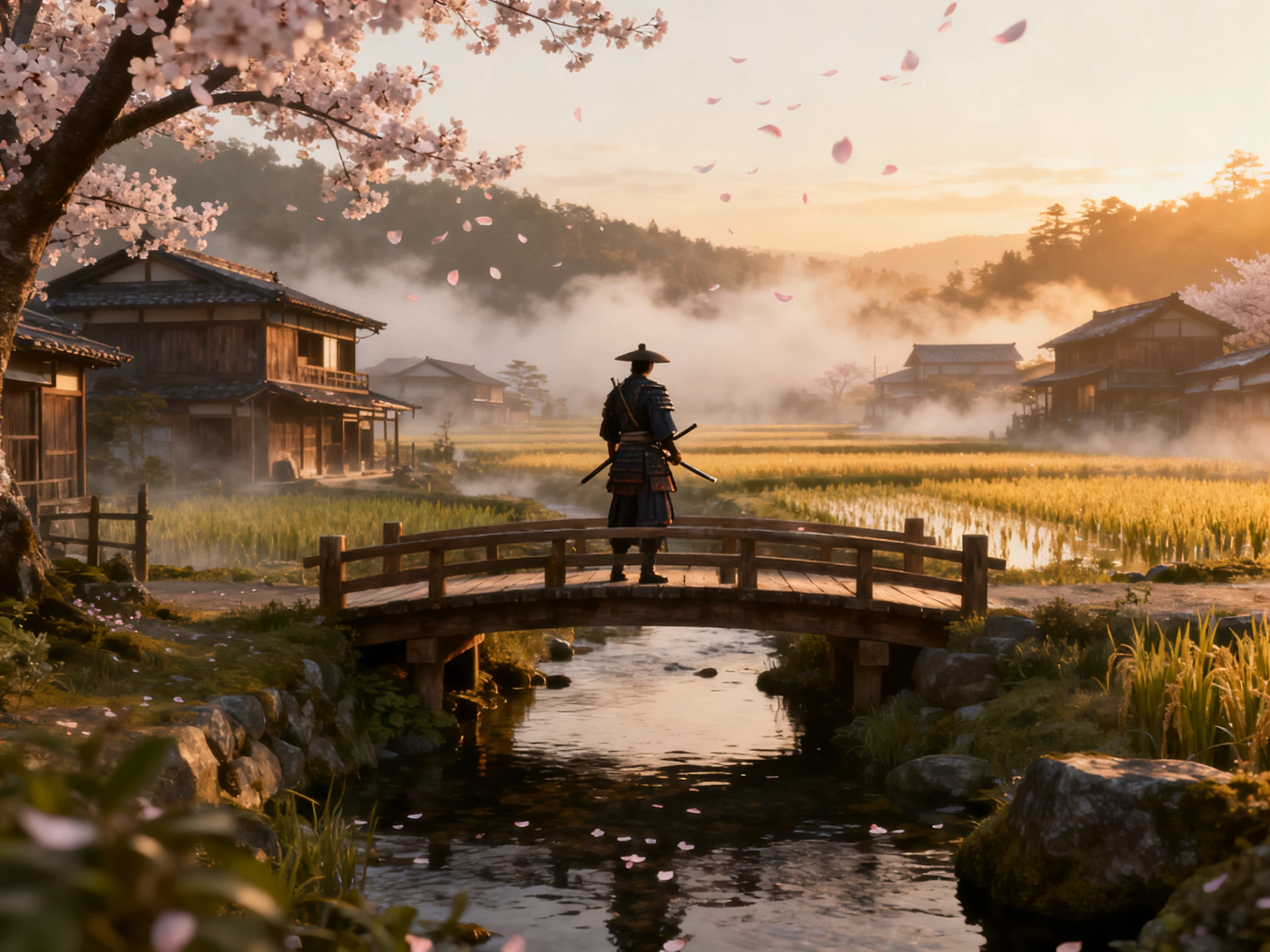


With the Magiclight image generator AI, one idea moves through 4 steps before it's ready. Choose the model, enter the prompt, add references, and set the output size.
Open the Image tab in Magiclight AI and choose one of the 5 models available. Each model handles light, detail, and text a little differently.
Describe the image in up to 500 characters. Then upload one or more reference photos to guide the final look, in any of the 4 supported file types.
Pick an aspect ratio, like 1:1, and choose how many images you want, so you have several versions to compare.
Press Create to generate the images, which uses 100 credits per run. Download the images you want to keep, and use them in a post, a listing, or your next video.
Store Owner
I uploaded two photos of our new candle and got it on a beach table, a desk, and a bookshelf. Magiclight image AI generator kept the jar and label close to the real thing each time.
Digital Marketer
Our feed needs square posts and tall story images every day. Magiclight AI gives me several versions in both sizes, so I can pick the best one instead of settling.
Video Editor
Thumbnails with words used to come out misspelled every time. With GPT Image 2 in Magiclight AI, the title text on my 16:9 thumbnails finally reads the way I typed it.
Graphic Designer
I test a concept on two or three models before I show it to a client. Magiclight AI keeps them in one place, so comparing Seedream and Nano Banana takes minutes.
It works well for product shots, thumbnails, characters, posters, and concept art. Magiclight AI also reads your reference images, so results stay close to your product or style.
On a paid plan, yes. Magiclight AI photo generator includes commercial rights with its paid plans, so you can use the images in ads, product listings, and client projects.
Look for a model known for clean lettering. Magiclight AI includes GPT Image 2 and GPT Image 2.5, which many creators choose for posters and thumbnails with words.
Only upload your own photos or photos of people who said yes. Magiclight AI can follow an uploaded portrait, but images of real people should never mislead or embarrass them.
Every new Magiclight AI account includes free credits, and each image generator run uses 100. A paid plan adds more credits and commercial rights.
Magiclight AI can. Create the image in the Image tab, then open the Video tab to animate it and the Audio tab to add sound, without switching to another app.

Start with one clear sentence and a reference photo or two. This image AI generator gives you several versions to choose from, in the size your project needs.