MagicLight AI Agent Drafts the Lines
Type the topic when you have no script yet. The MagicLight AI Agent writes each scene’s lines for you with 16 story models. Every line stays editable so you can rewrite it before you generate.
Create Now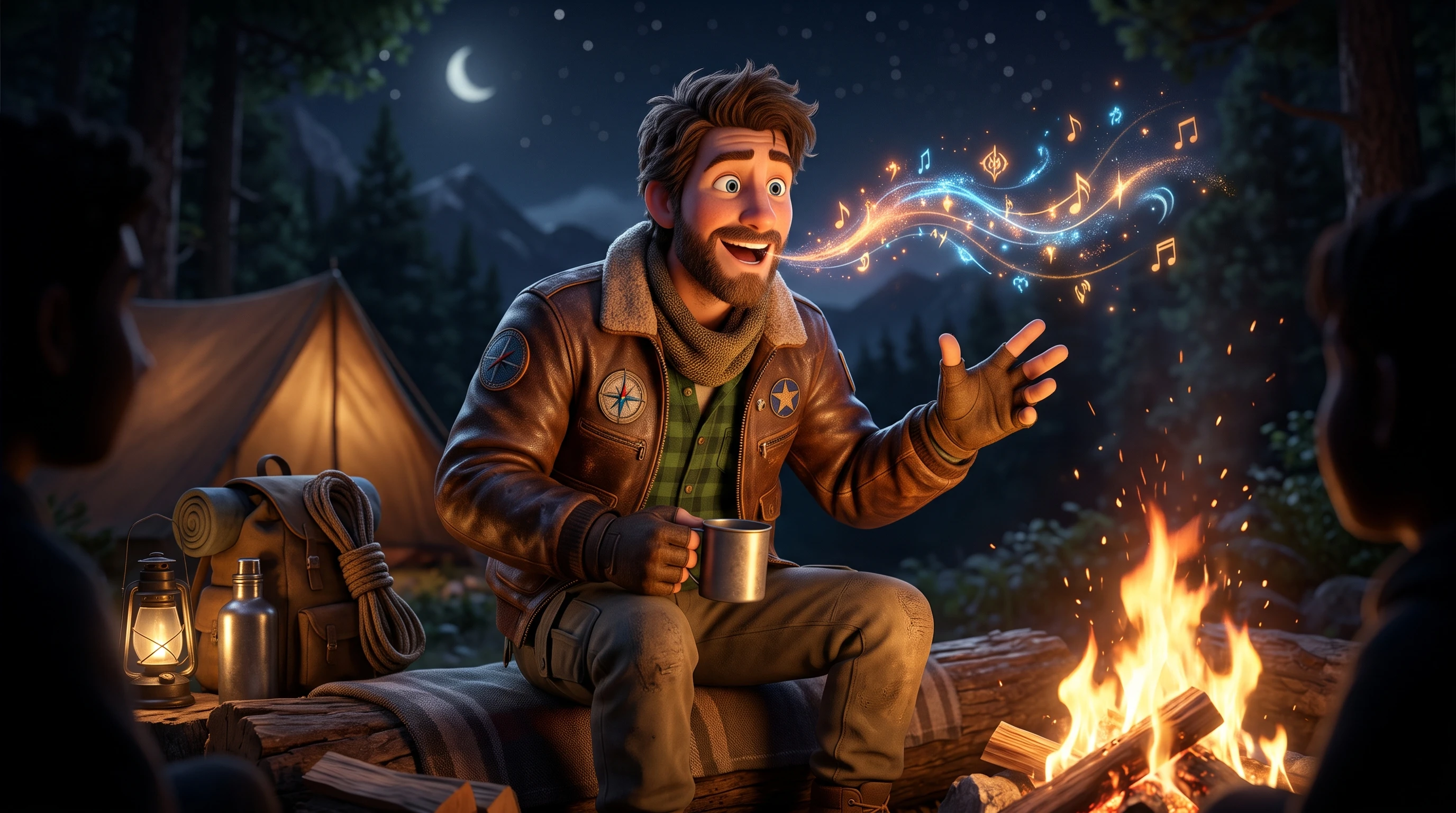
Create a talking avatar with MagicLight AI. Upload a character image, add your script, and generate a video with synchronized speech. No camera or editing skills needed.
Create an AI Talking Avatar for Free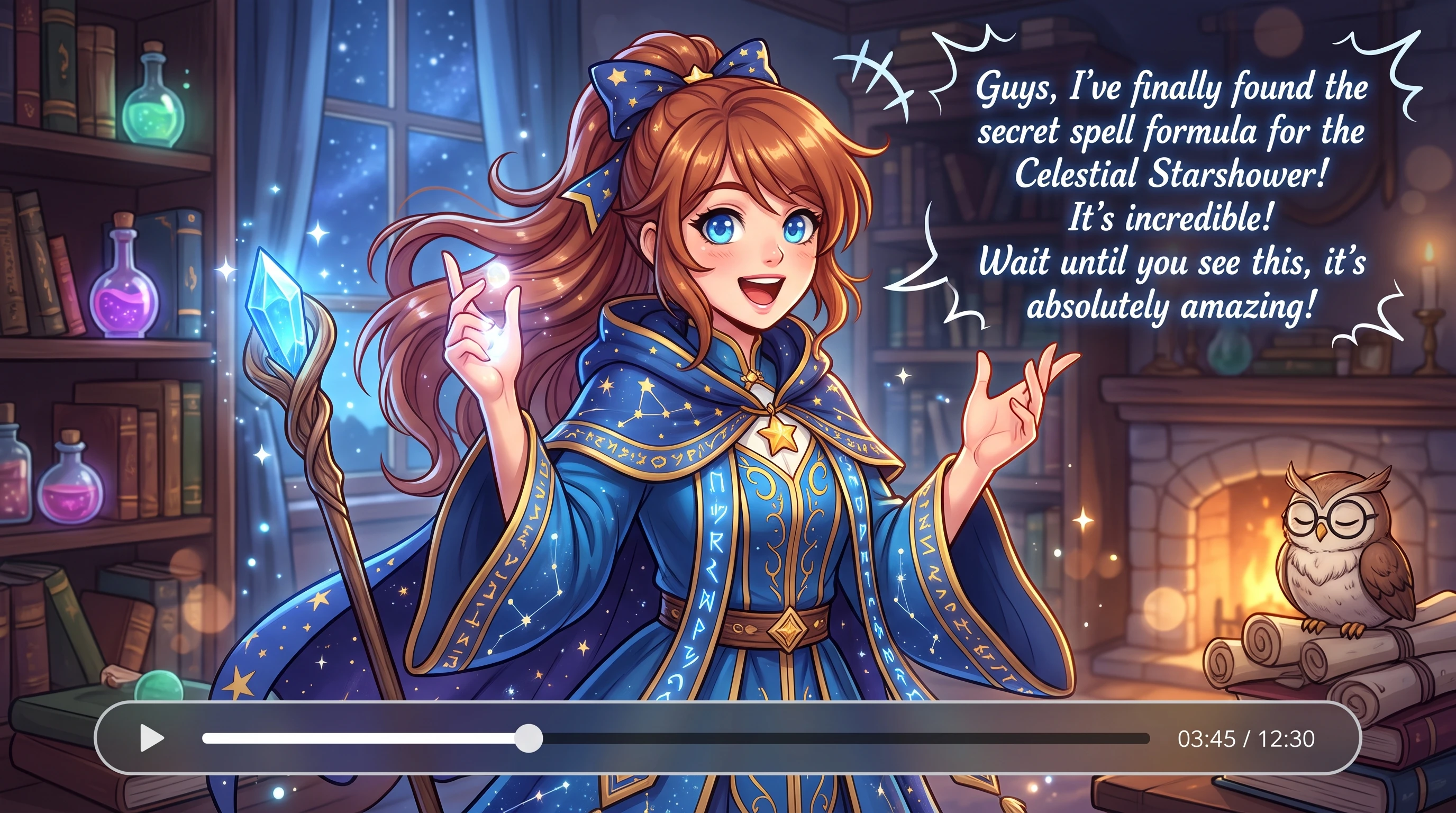










The voice and the look make an avatar memorable. The AI talking avatar in Magiclight AI adds language and character options on top of the lines.
Type the topic when you have no script yet. The MagicLight AI Agent writes each scene’s lines for you with 16 story models. Every line stays editable so you can rewrite it before you generate.
Create NowDesign a complete character before leading it into the AI talking avatar phase with 1000-character prompt. Add a reference image as well and select any of the 52 visual models available.
Create Characters
Record one voice with little background noise. Read the sample in the tone the avatar should keep. The clone then reads lines whenever selected across the voiceover option.
Generate a Video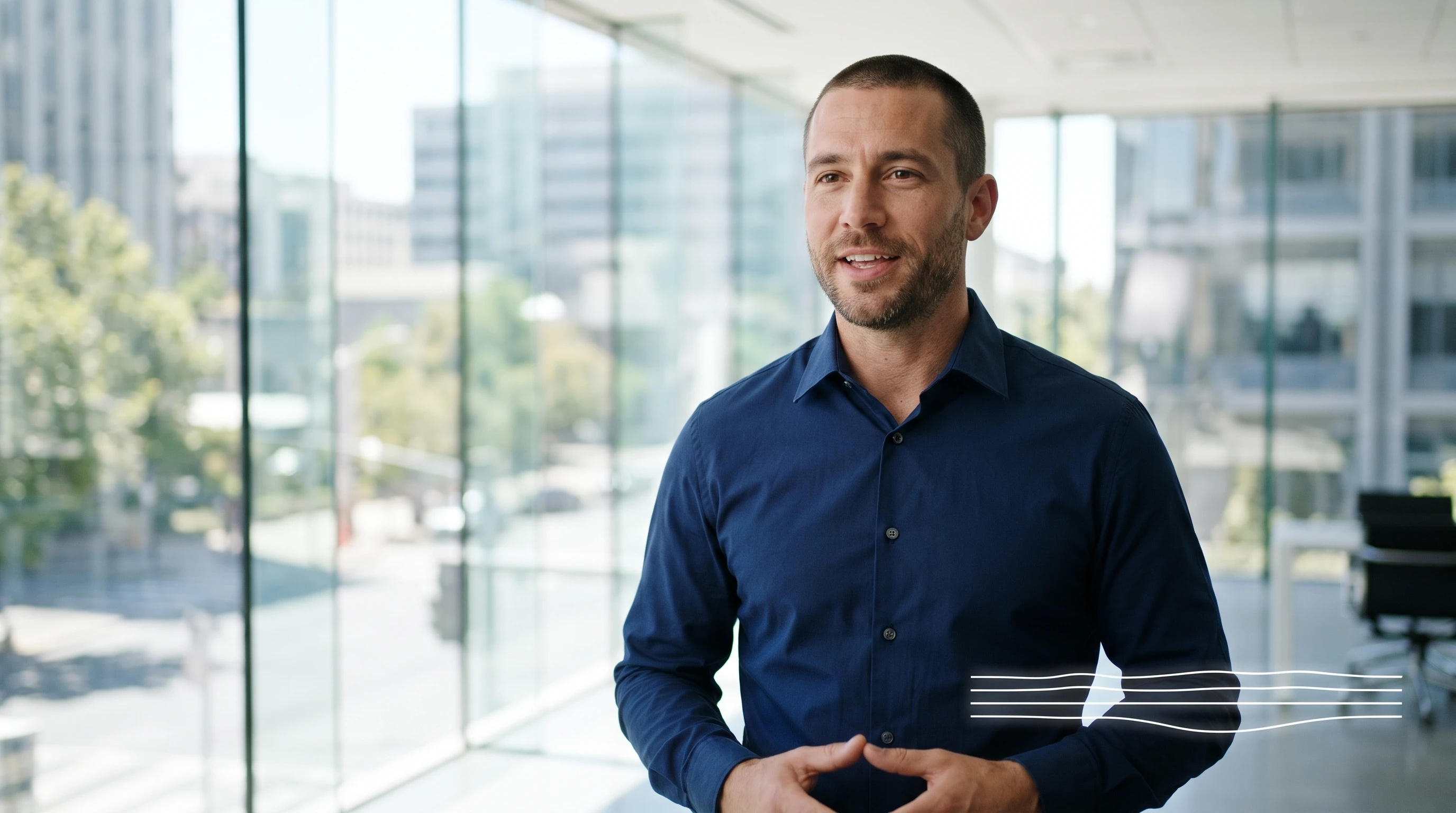
Pick the narration language out of the 11 options before you generate with Magiclight AI. The same avatar can speak a lesson in a second language. A bilingual class gets the story in both.
Start Creating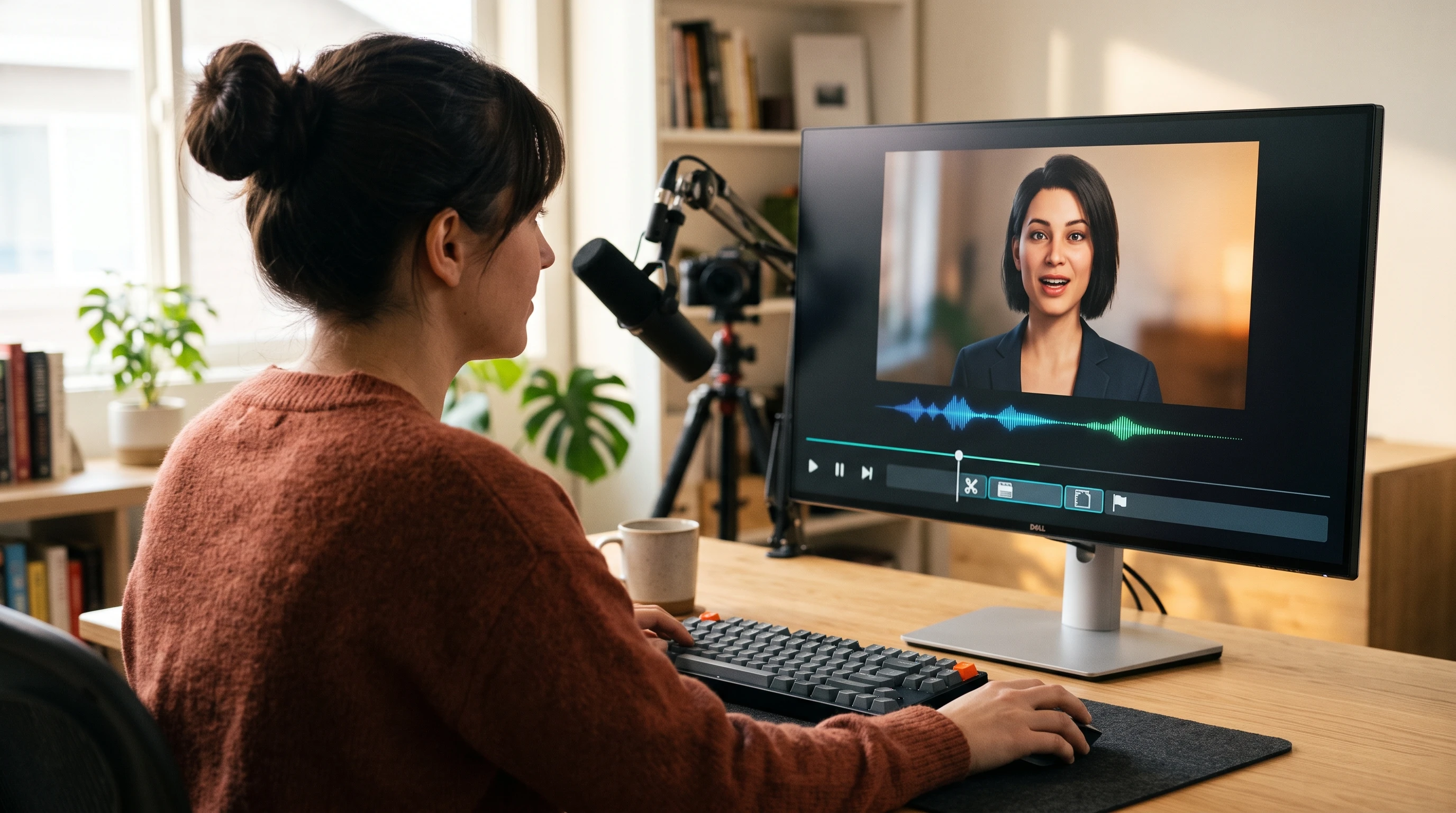


Say the script out loud once because spoken lines run longer than they look. A short rehearsal first helps the Magiclight AI talking avatar match each line.
Read the script aloud once to check the timing. Then paste it on the dashboard or type the topic. MagicLight AI Agent lays out the scenes, and you pick the frame and the narration language.
Base the avatar on a photo or a written description. Use the 1,000-character field for hair and clothes. Pick a style newer than 2.0 and save it to Characters.
Assign a stock voice or your clone. Switch the talking shots to Lip Sync; each one needs a single image and a subtitle of 5 characters or more. Use Preview Voice and watch each talking shot.
Add subtitles and a music track from the available options, then generate and download in 1080p.
Online Tutor
I cloned my voice from one clean sample and kept Lip Sync on for every module. The lessons sound like me, and I never re-recorded a line after editing a subtitle.
Ecommerce Manager
I write one question and one answer per scene for our product pages. A friendly stock voice and a quick Preview Voice check keep each FAQ video short and clear.
Podcast Host
I use the Interview Video format with two different voices so listeners can tell host from guest. A With Audio model handles the quick back-and-forth lines.
Children’s Book Author
I read my picture book in 2 languages with the same character. I chose a newer style, so Lip Sync worked and left silent beats between the pages.
3 things block it in the AI talking avatar: a shot animated between two images, a style from 2.0 or earlier, or a very short line. If the editor says the image cannot sync, then regenerate it. Keep each talking shot to one image.
Record one voice only with as little background noise as you can manage. The tool carries the sample’s emotion into the clone. Read it in the tone the avatar should keep.
When in the initial phase, select the best possible AI story model out of the 16 options to reshape the entire input script into a proper professional story.
Yes, if they agree first. A photo can become an avatar, so get a clear yes before you upload anyone else’s face. Leave public figures out.
No, avatars are characters you create in cartoon or lifelike styles. They are not stock actors filmed in a studio. Each one belongs to your channel.
Yes, you can start without paying and try the tool first. A few animation models carry a VIP tag. Commercial use needs a paid plan.



Tune the voice until it matches the look. Then give the Magiclight AI talking avatar its first line and watch the mouth follow every word.