1500 Characters to Describe the Motion
Explain what should happen between one frame and the next in as much detail as needed. Magiclight gives you up to 1500 characters for movement, timing, camera direction, and smaller actions.
Create Now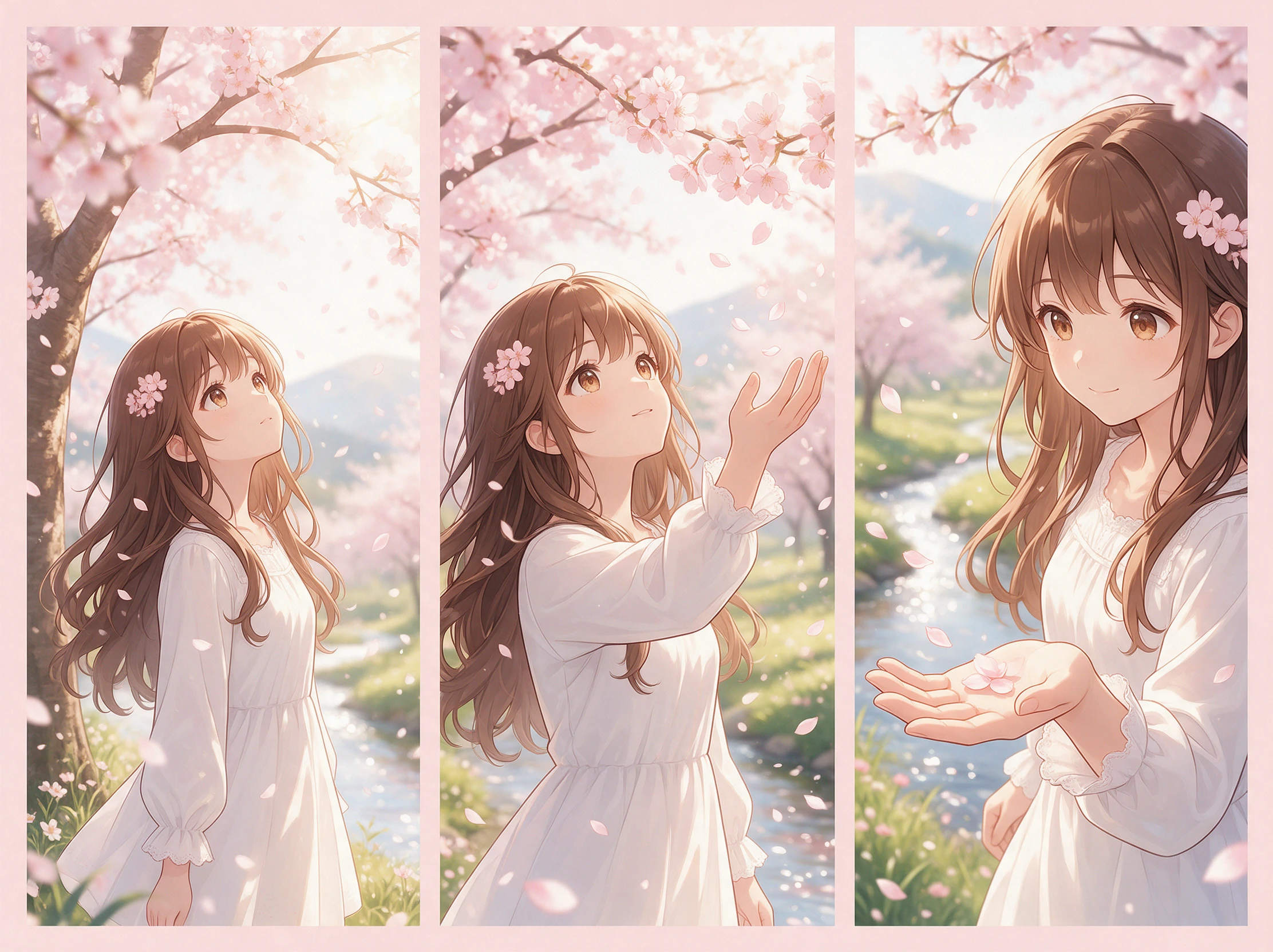
Turn a sequence of images into a smooth video with Magiclight AI. Upload your key frames and let AI create the motion between them. No animation or video editing skills required.
Convert Image Sequence to Video for Free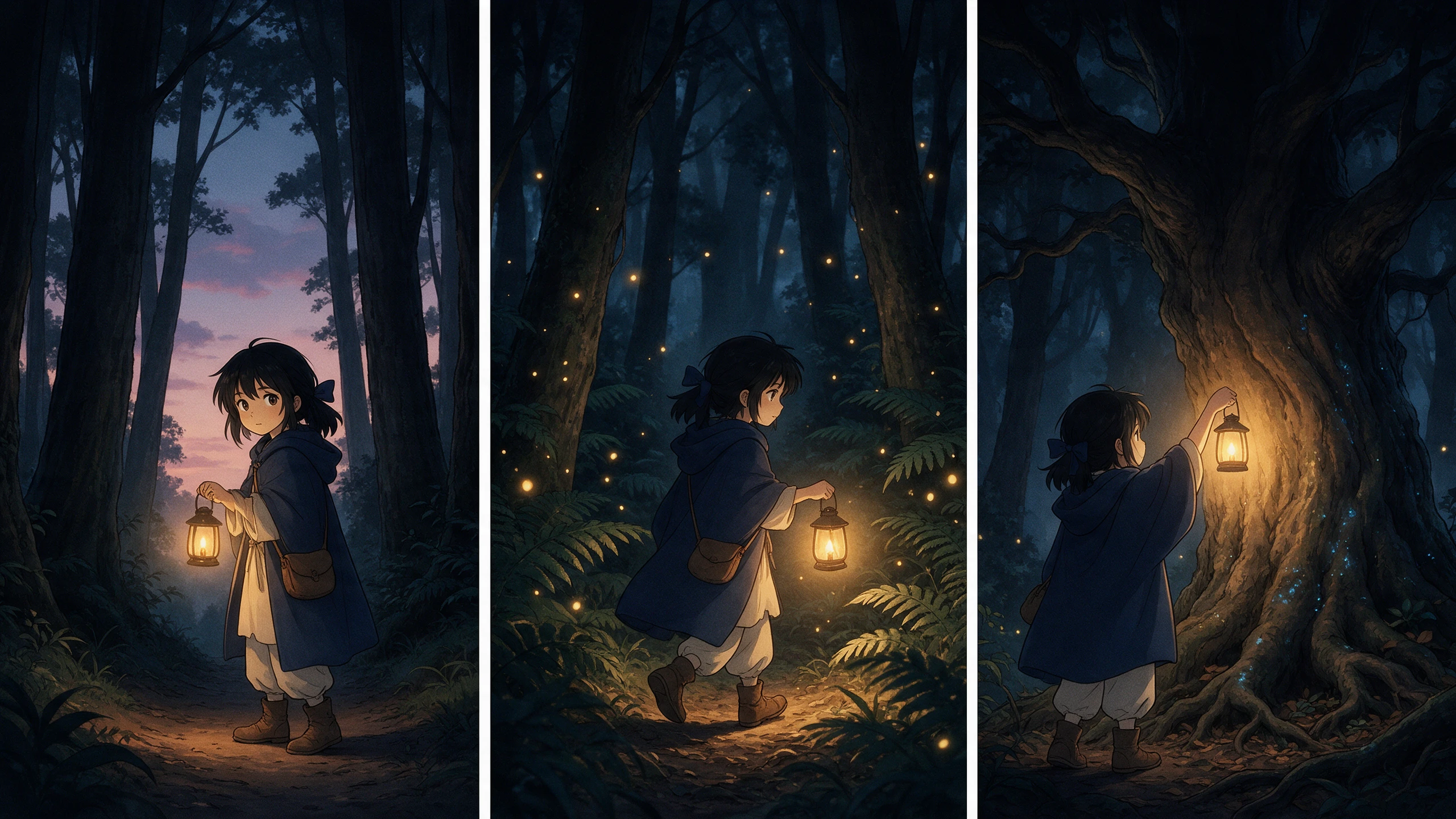










A few still frames can already tell the story. With image sequence to video, Magiclight AI reads their order and adds the movement needed to carry one moment into the next scene
Explain what should happen between one frame and the next in as much detail as needed. Magiclight gives you up to 1500 characters for movement, timing, camera direction, and smaller actions.
Create NowKeep each JPG, PNG, or JPEG under 10MB and use similar framing across the sequence. This gives Magiclight a clearer path between your key moments without sudden shifts in the scene.
Create Frames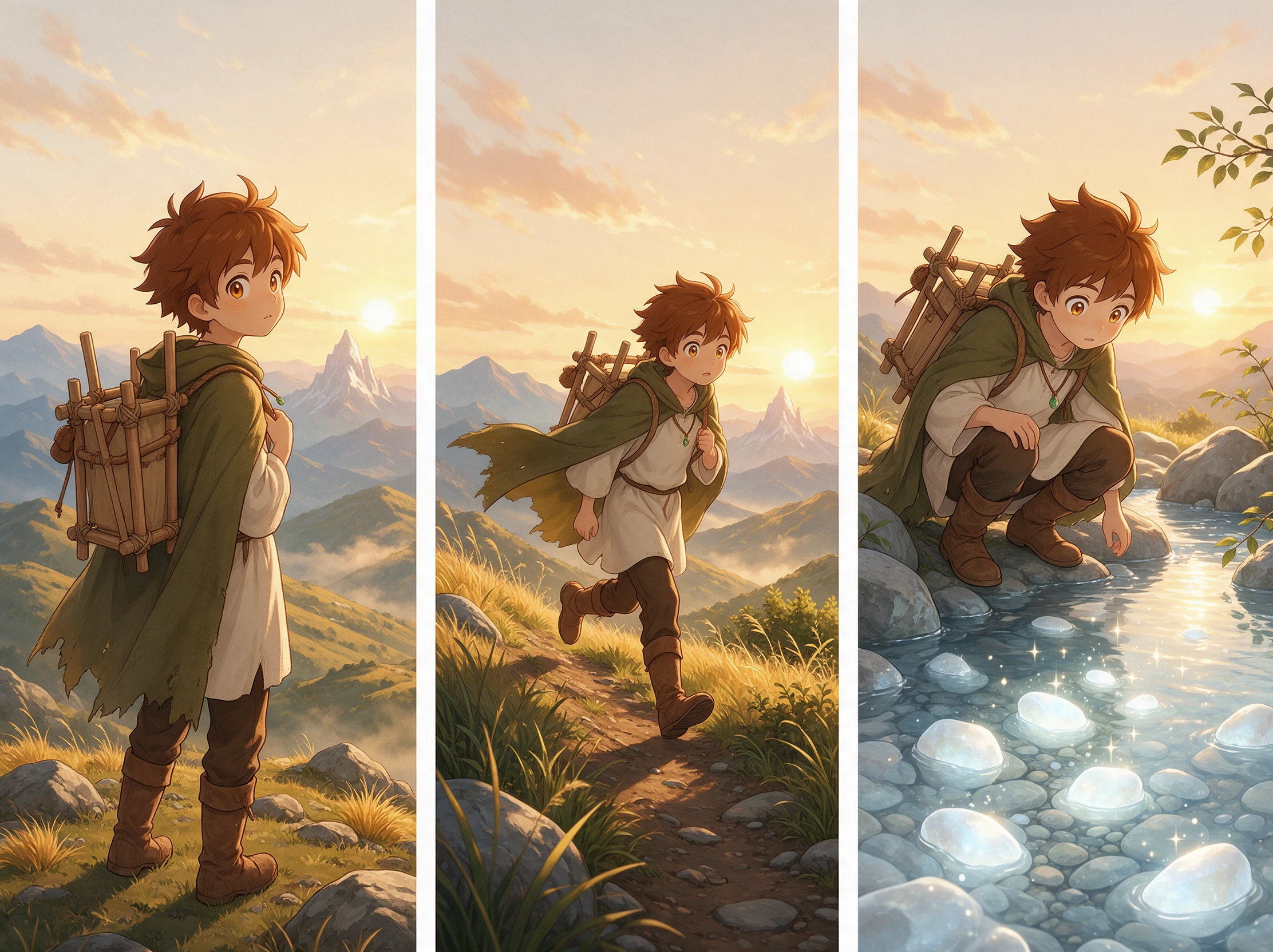
The same set of frames can play out differently depending on the model. Some move quickly between key moments, while others take a slower route, so test a short clip to see which pace suits the scene.
Generate a Video
Start with 16:9 when your artwork is wide and 9:16 when it is vertical. Keeping the video shape close to the original frames helps preserve the composition once those still images begin to move.
Start Creating


Your key frames already show where the scene needs to go. With image sequence to video, Magiclight reads their order and works out the movement between them in 4 simple steps.
Add your key frames in Magiclight in the order they should play. Keep each reference image under 10 MB so the tool can use your main scene points to guide the video motion.
Describe what should happen from one frame to the next. Magiclight gives you up to 10,000 characters to cover the action, timing, camera moves, and small changes in the scene.
Pick a Magiclight video model, then choose the resolution, clip length, and frame shape it supports. Depending on the model, your finished sequence can run for up to 30 seconds.
Check the motion against your key frames and fix any part that feels off. Once it looks right, choose an available output from 720p to 1080p and save the finished video.
3D Artist
I used three key renders for a camera test and let Magiclight AI handle the motion between them. It gave me a quick read on the shot before I committed to the full 3D render job.
Filmmaker
For one early scene test, I only had the main frames ready. Magiclight AI connected them into a clip, which made it much easier to judge the pacing before the actual shoot began.
Animator
Magiclight AI helped me turn a handful of key drawings into a moving sequence without filling every gap by hand. I could test the motion first and spend my time on the key poses.
Photographer
I had the same scene photographed at different times of day. Seeing Magiclight AI move between those frames gave me a useful preview of how the light change could play on screen.
Not at a fixed frame rate. Magiclight AI generates motion from a few key frames, so for a finished 3D shot or a time-lapse with hundreds of files, use a video editor's image sequence import.
Close, but not pixel for pixel. Magiclight AI treats your frames as guides and redraws the motion around them, so pause on each pose and compare before you share it.
Big jumps, like a character crossing the whole room, can blur in the middle. Add a frame that shows the halfway point, and Magiclight AI has an easier path to follow.
Yes, as far as you can. Mix a pencil sketch with a finished color frame, and Magiclight AI blends two looks, which shows up as a flicker partway through the clip.
Yes. Put the frames in the sequence you want before you generate. The image sequence-to-video tool in Magiclight AI follows that order when it determines how one key moment should move into the next.
On some models, yes. Where a model has a sound switch, Magiclight AI adds effects like footsteps or wind, and models without one return a silent clip.



Bring your key frames into Magiclight and place them in order. The image sequence to video tool adds the motion between each frame and turns them into one smooth clip.