Final Frame for Your Original Logo
Frame to Video lets you place your finished logo in the ending image slot. Magiclight AI creates movement toward that frame, helping your brand artwork appear at the end.
Create Now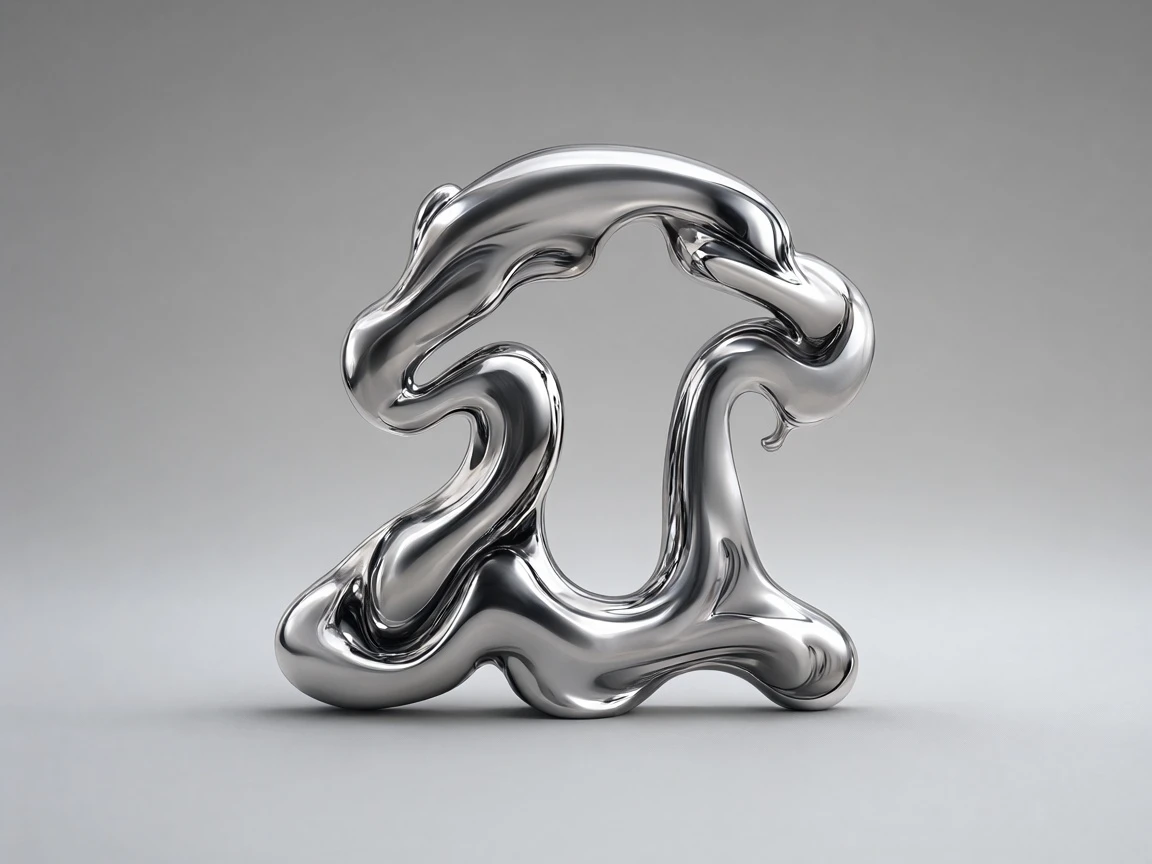
Make your brand stand out with an animated logo. Create eye-catching logo animations with MagicLight AI, no motion design experience needed.
Create a Logo Animation for Free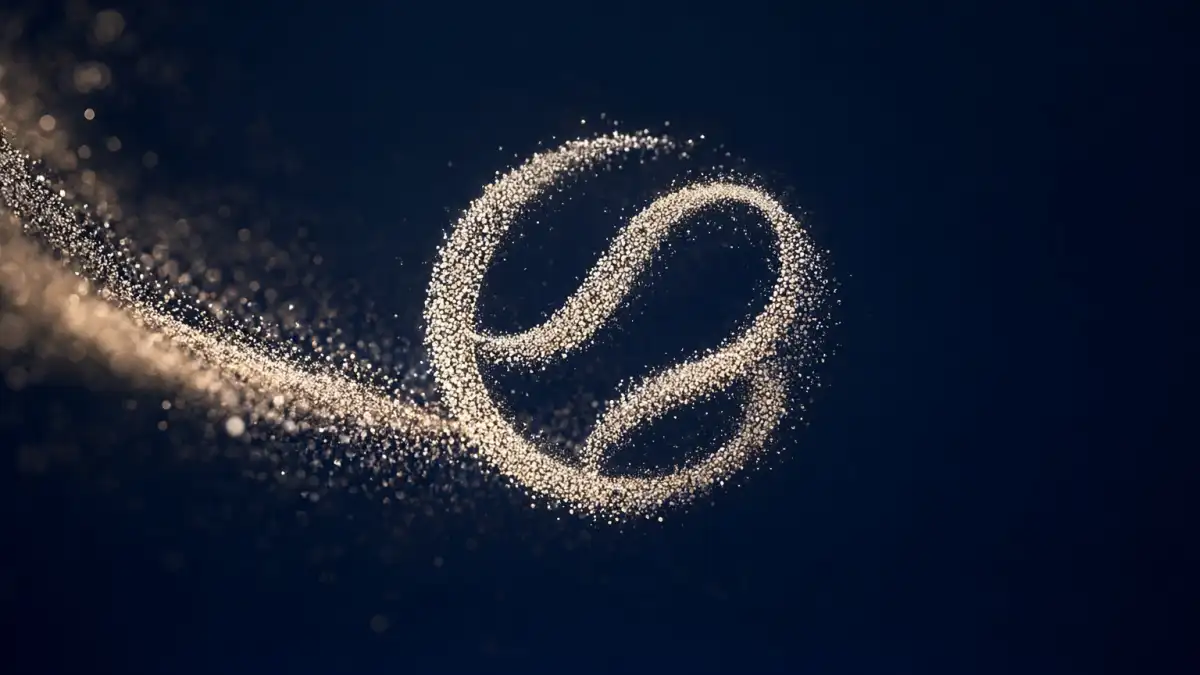









Your logo can appear from a flash of light instead of sitting still on screen. Magiclight AI logo animation maker gives you control over how that first impression unfolds.
Frame to Video lets you place your finished logo in the ending image slot. Magiclight AI creates movement toward that frame, helping your brand artwork appear at the end.
Create NowDescribe your logo reveal using the 1500-character video description field. Explain how the artwork should appear and what kind of movement suits your brand’s logo.
Create Characters
Magiclight AI offers 20 AI video models for your logo animation. Try Seedance or Kling video models to explore different motion styles and find one that suits your design.
Generate a Video
Give your logo reveal a short sound effect to match the movement. Some AI video models support audio generation, and Veo 3.1 lets you turn sound off when needed.
Start Creating


Your logo can come out of a flash of light or appear from a dark screen. Use the Magiclight AI logo animation maker in 4 steps to turn that idea into a short video.
From the Toolbox, enter Video and select Frame to Video. You'll see two image slots for your animation. One controls the beginning, and the other controls how the video ends.
Start with a background image that suits your brand. Your actual logo belongs in the ending slot. Keep both pictures clear and use JPG or PNG files for the best results.
A flash of light could reveal your logo against a dark background. Explain your idea in the 1500-character field, select a video model and duration, then start the generation.
Take a look at how the animation finishes. Your logo should have the same shape and lettering as the image you supplied. If something has changed, revise the prompt and try again.
Graphic Designer
I had a client who wanted their logo to appear through smoke. I used their original design as the last frame in Magiclight AI, and the result gave me a great starting point.
Brand Manager
We needed a short logo intro for our company videos. I tried a few different movements in Magiclight AI before finding one that felt right for our brand.
YouTuber
My old intro was just a still logo with music. Now it has a little movement due to Magiclight AI before each upload. It makes the channel feel more like my own.
Video Editor
I usually spend too much time on simple logo reveals. Here in Magiclight AI, I could describe the movement I wanted and test a few versions before choosing one for the final edit.
Magiclight AI exports MP4 videos with a background. Choose a plain color if you want to remove it later in an editor. You can also keep the background as part of your logo reveal.
Your logo may look slightly different as it moves. Use the original artwork as the final frame and keep the movement around the letters to help the finished design look right.
A good logo animation feels natural for your brand. Keep the movement simple and give viewers enough time to recognize the logo before the clip ends. Avoid effects that hide the name.
Magiclight AI logo animation maker may offer free credits for trying video generation. Check your available credits and plan limits before starting a new logo animation.
Most logo intros work well at around 3 to 5 seconds. Longer reveals may suit event screens. Give the finished logo a moment on screen before the next scene begins.
An animated logo can appear at the beginning of YouTube videos or at the end of a company presentation. You can also use it on event screens and social media posts.


Your logo deserves more than a still image. Use the Magiclight AI logo animation maker to give it a short reveal that fits your brand.