Image to Video for Animated Pixel Sprites
Bring a still image of your pixel character into Magiclight AI through Image to Video. Describe a warrior swinging a sword or a character collecting coins to create clips lasting up to 30 seconds.
Create Now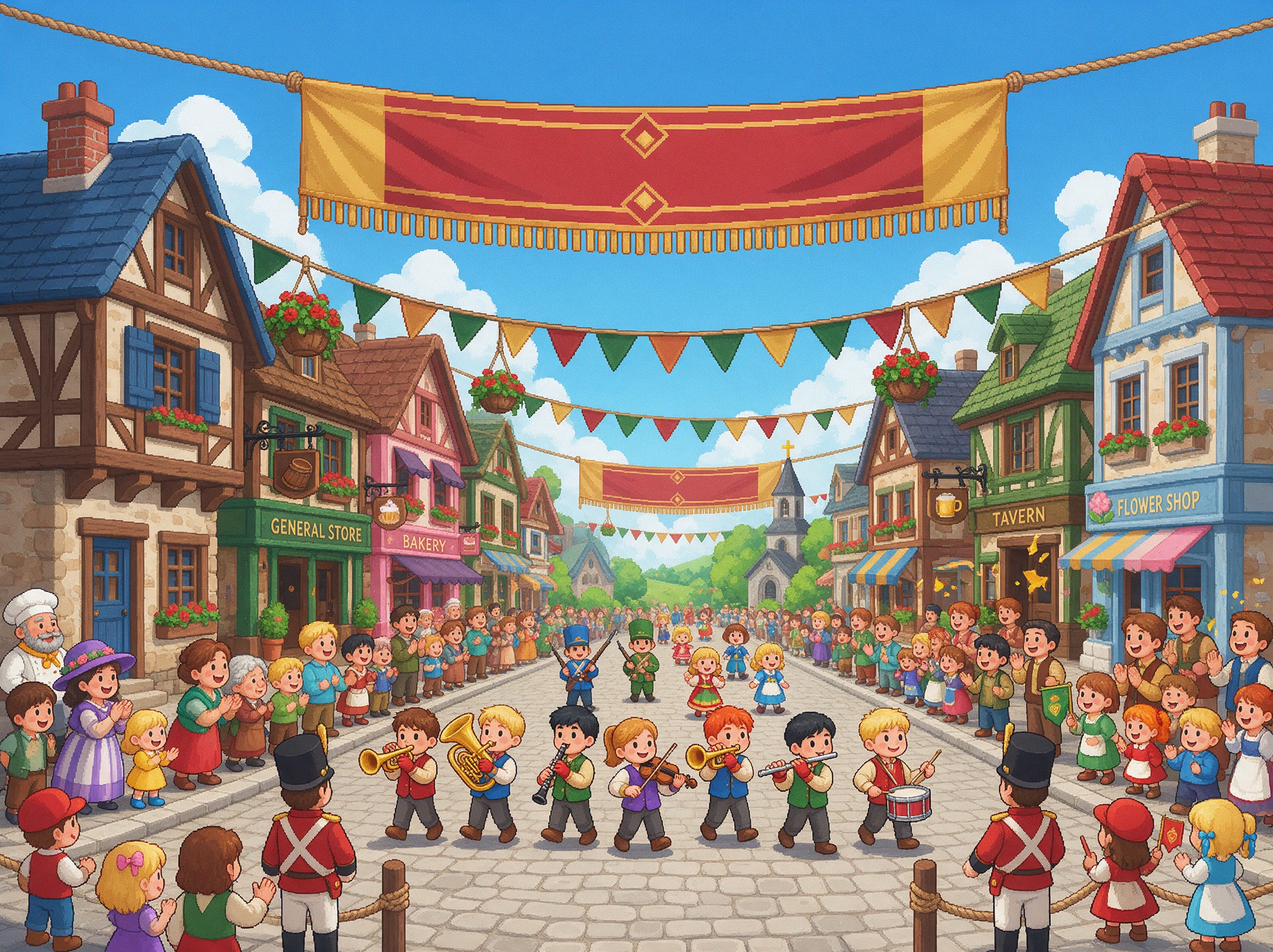
Turn your pixel art into animated videos with MagicLight AI. Describe the movements you want and create retro-style animations. No frame-by-frame work needed.
Create Pixel Art Animations for Free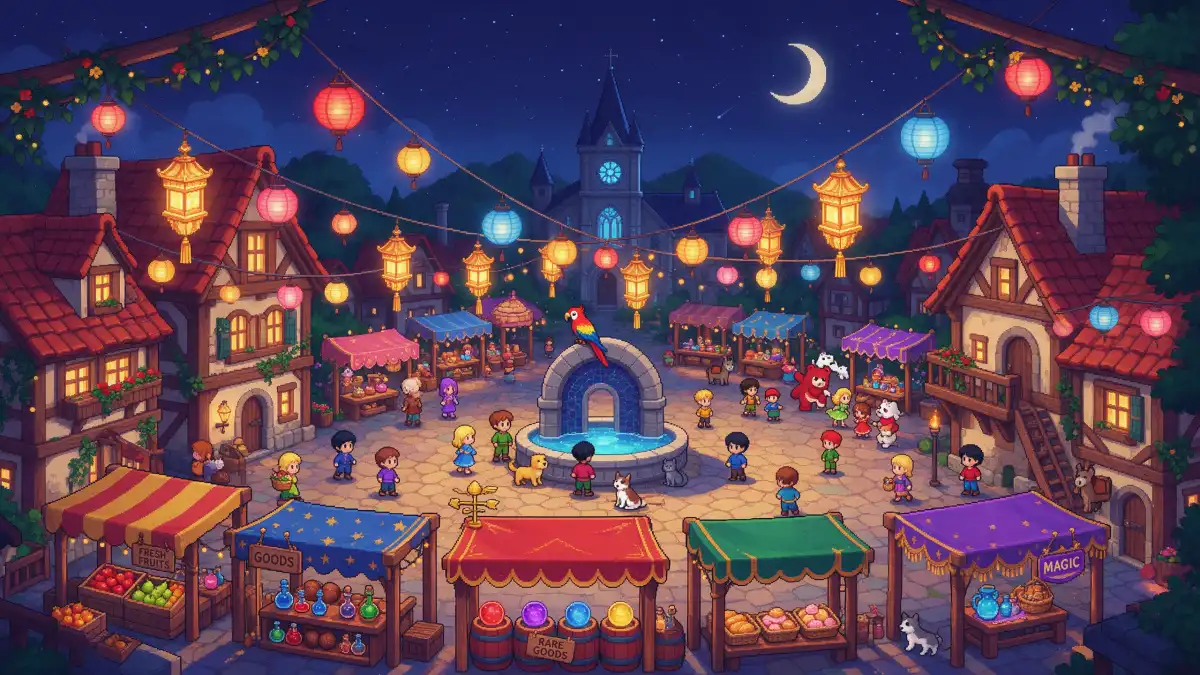










A retro game character might need a simple jump or an elaborate battle sequence. Pixel art animation in Magiclight AI lets you describe how these scenes unfold.
Bring a still image of your pixel character into Magiclight AI through Image to Video. Describe a warrior swinging a sword or a character collecting coins to create clips lasting up to 30 seconds.
Create NowExplore 20 AI video models in Magiclight AI to find a suitable animation style. A quiet village scene needs different movement than a fast-paced arcade battle. Compare results to find your preferred look.
Generate Story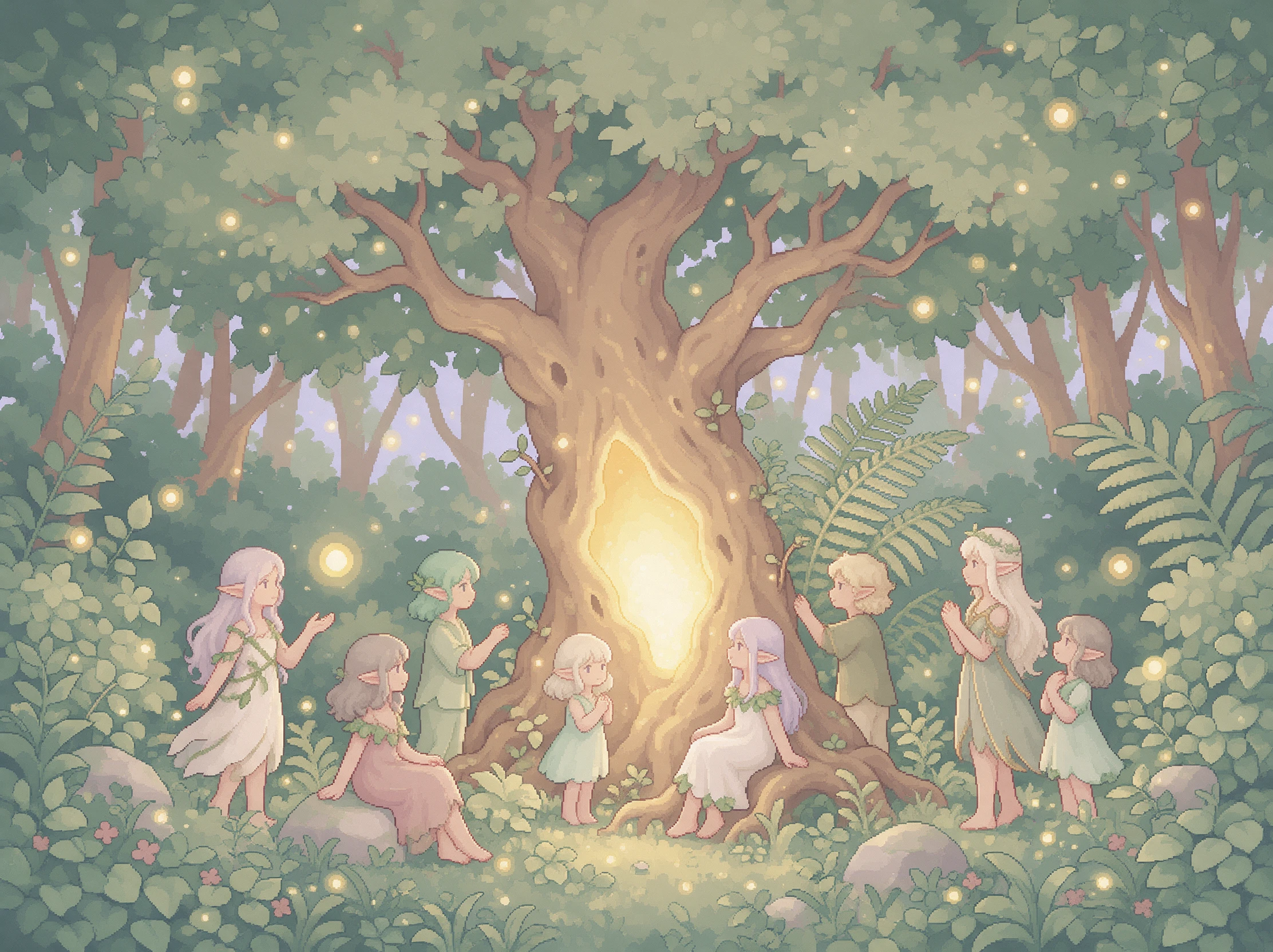
Place your pixel character in two different positions using Frame to Video. Magiclight AI generates movement between the opening and closing images. Try it for jumping characters or transitions between different game environments.
Generate a Story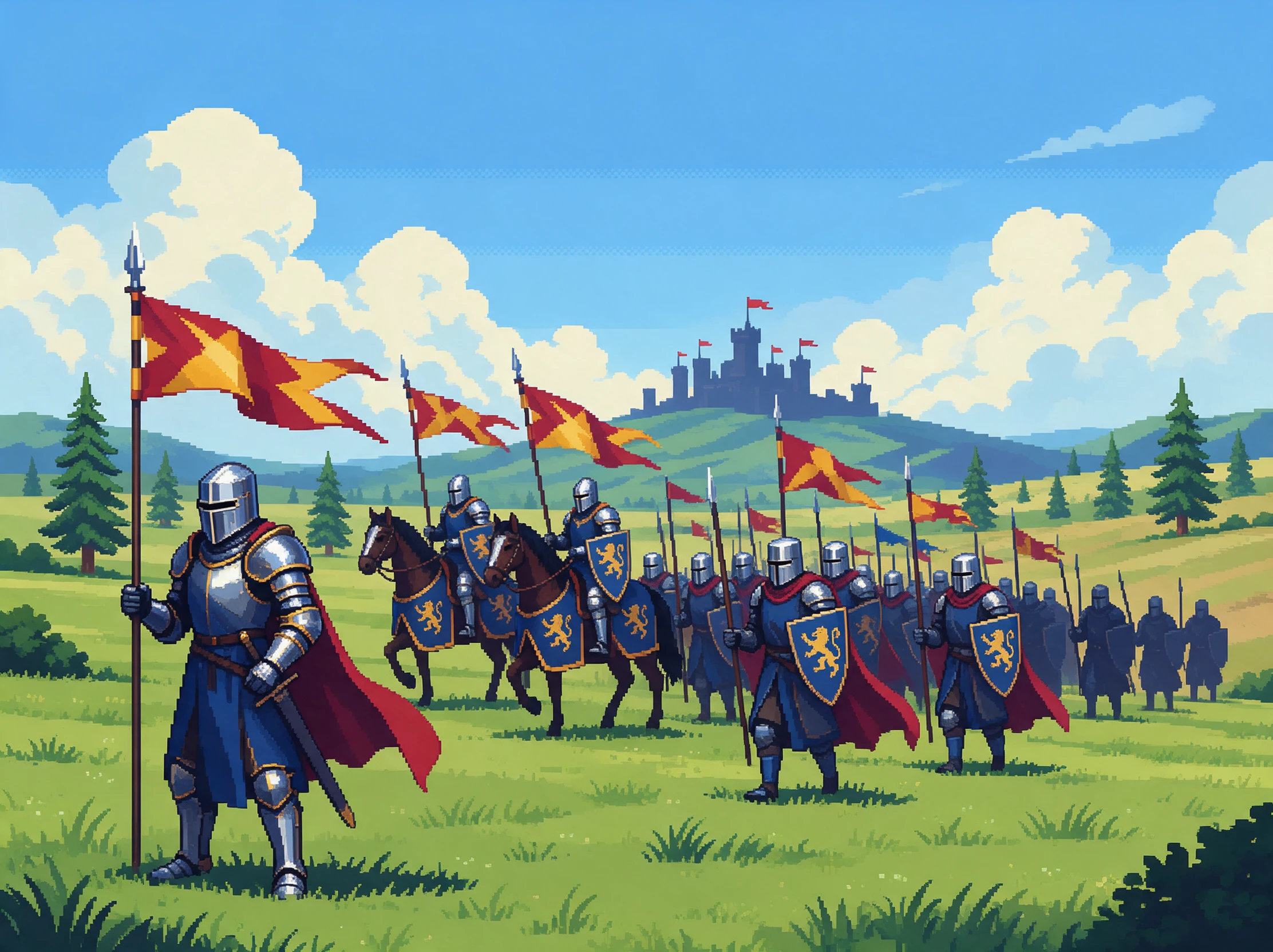
Describe your pixel character's actions within a 10,000-character video prompt using supported models. Include moving platforms, enemy encounters, or environmental details to give Magiclight AI a clearer direction for the animation.
Start Creating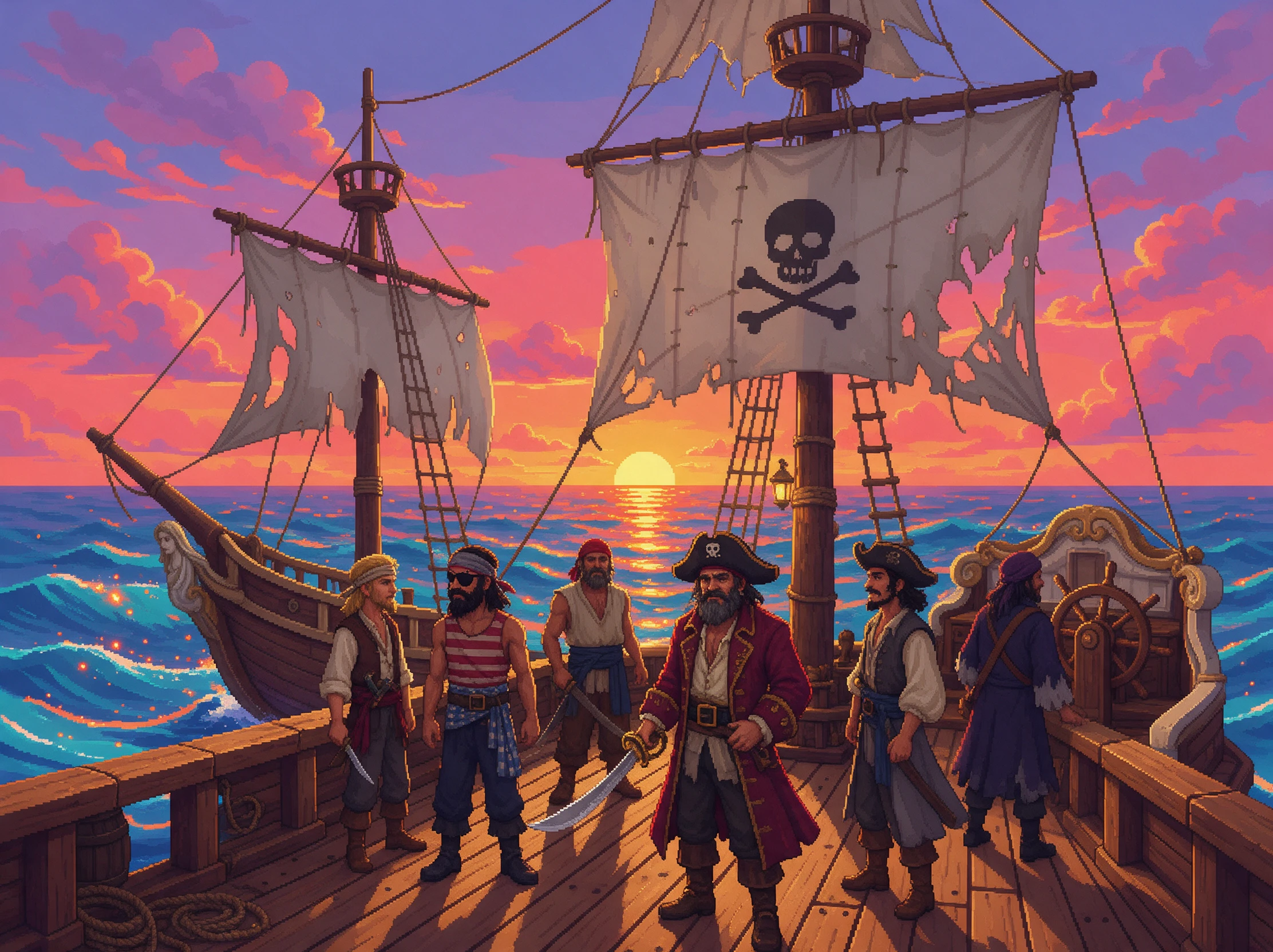


Give your pixel character a world to explore and an action to perform. Create pixel art animation in Magiclight AI by following these 3 simple steps.
Open Toolbox in Magiclight AI and head to the Video tab. Choose Reference to Video to combine your pixel characters, game backgrounds, and other visual references.
Add your character sprite, game level, and any other objects needed for the scene. Describe how your character should move within the environment.
Choose from 20 video models and set a suitable aspect ratio and clip duration. Click Create Video and review the character's movement and pixel details.
Game Developer
I scaled my knight up 8 times and saved it as a PNG. Naming Image 1 and Image 2 in the prompt kept the level layout intact across Magiclight AI.
Pixel Artist
I added a palette swatch as a third image and asked for only those colors. A few stray pixels needed a quick hand fix afterward within Magiclight AI.
Musician
I loaded a 10-second chiptune loop as Audio 1, and the hero moved on the beat. The clip from Magiclight AI became the moving cover for my release.
YouTuber
I post a short enemy clip in my devlog every week. Keeping each one under 15 seconds using Magiclight AI helps it play through in the feed.
Not as game-ready frames. Pixel art animation in Magiclight AI downloads as an MP4 video, so use it as a motion guide and draw the final frames in your pixel editor at real size.
Small uploads and JPG files are the usual cause. Enlarge the art with nearest-neighbor and export a PNG. Then ask Magiclight AI for hard edges and flat colors at 1080p.
Not perfectly, since AI can add new shades. Upload a palette swatch as an extra image and write “use only the colors in Image 3.” Fix stray pixels after Magiclight AI finishes.
Yes. Magiclight AI uses Image to Video to animate an existing pixel art character. Describe the movement you want, such as jumping or running, without drawing each animation frame manually.
Yes. Use Reference to Video in Magiclight AI to upload different character sprites and background images. Describe how each character should move or interact within the same game environment.
Magiclight AI supports pixel art animation clips lasting up to 30 seconds, depending on the selected model. Shorter clips work well for testing character movements, while longer clips suit game trailers.

Swap this week’s still screenshot for a hero that runs across your level. Start pixel art animation with the sprite and the tiles you already drew in Magiclight AI.