Explore the Features of OpenArt AI Video Generator
Skip repetitive prompting. Shoot one scene from 3 angles, then see what the OpenArt AI video generator gives a director for motion, framing, camera direction, and consistency.
Show one scene from multiple angles, guide the camera by prompt, and add movement from real footage. Create it all without editing skills, with rights checked before publishing.
Try OpenArt AI For Free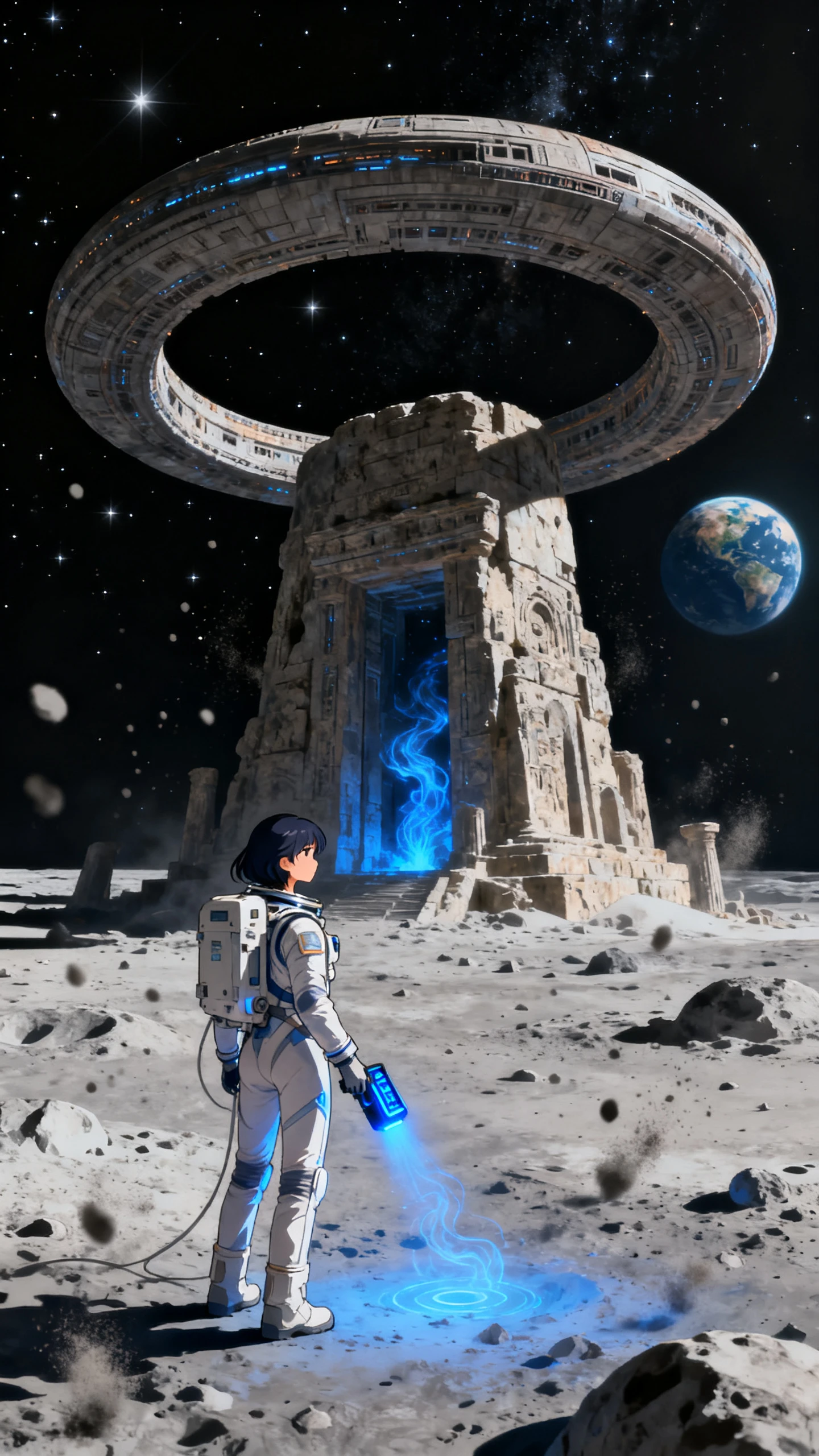
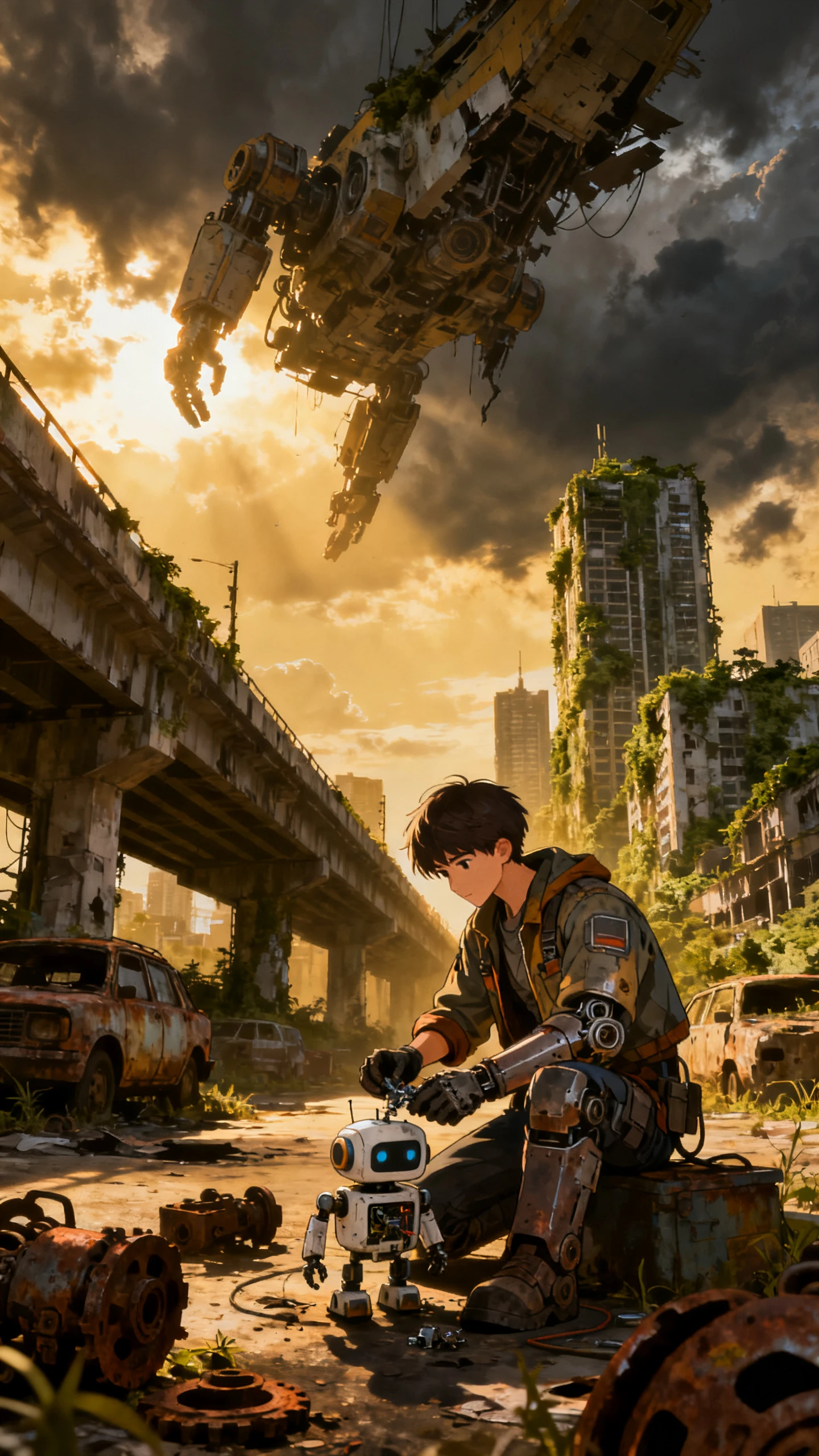
Skip repetitive prompting. Shoot one scene from 3 angles, then see what the OpenArt AI video generator gives a director for motion, framing, camera direction, and consistency.

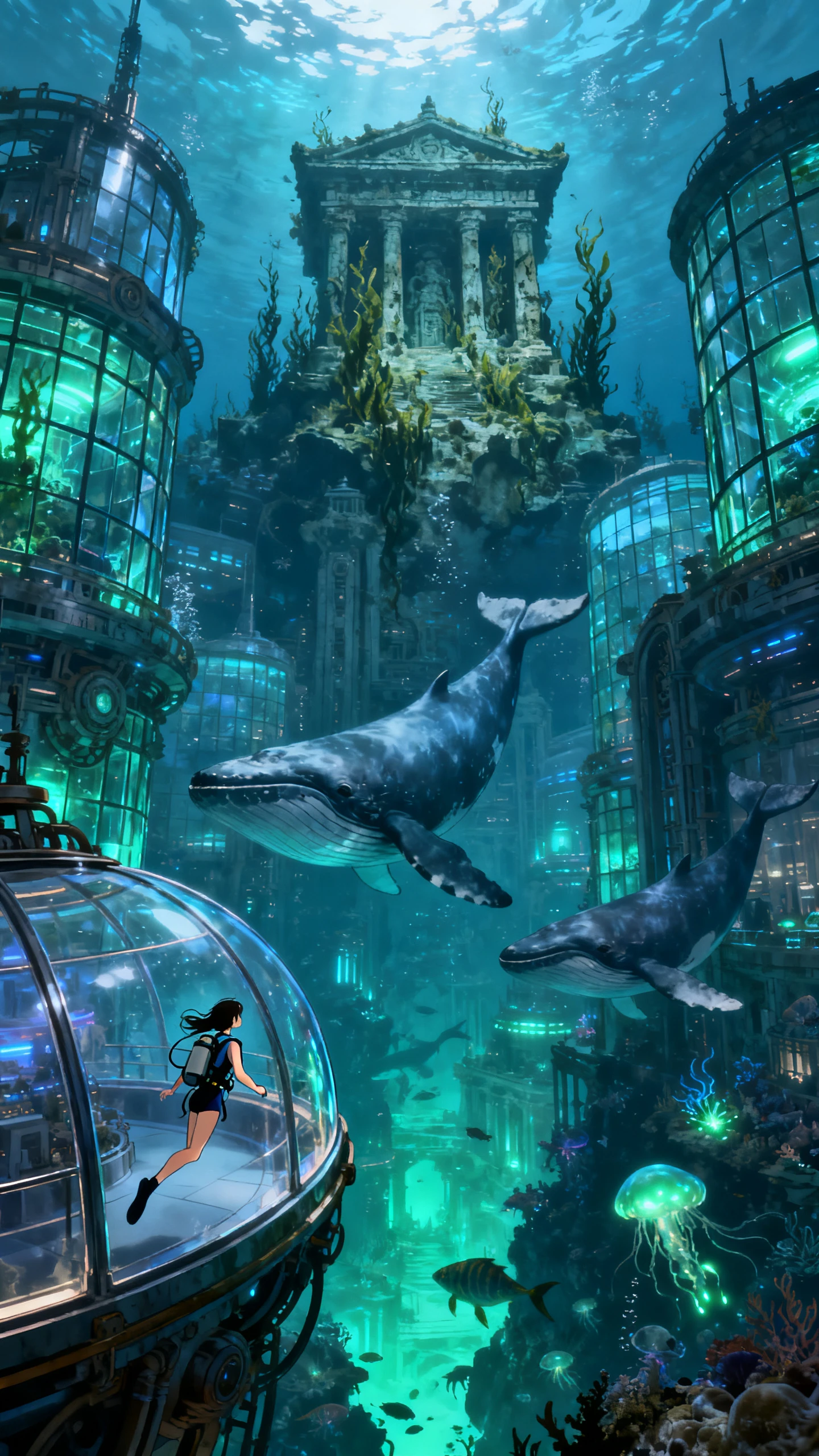
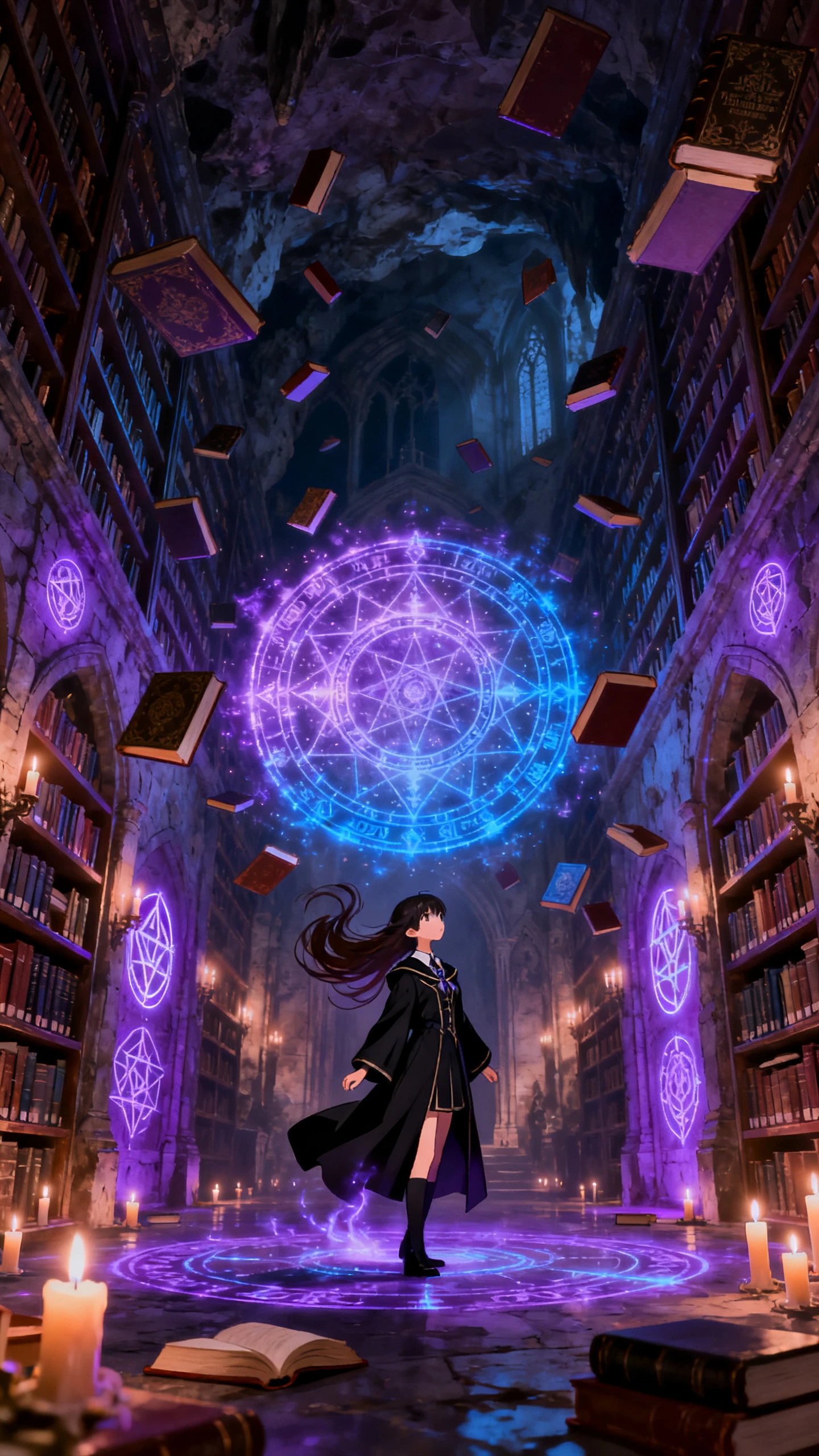
Start with one scene and let OpenArt AI turn it into a 3–5 shot sequence with wide views, close-ups, transitions, and planned camera movement. Smart Shot also helps preserve character and environment consistency from one cut to the next.
OpenArt’s Motion Sync uses uploaded reference footage to drive your character’s movement, including gestures, posture, timing, and pacing. Instead of describing every action in text, you can guide the performance through real recorded motion.
Direct the shot in plain text with pans, push-ins, orbits, zooms, and tracking shots. OpenArt VFX can then handle background changes, relighting, and selected visual effects while preserving the original performance.
Create and save a character, then reuse that identity across images and videos to reduce visual drift. Character Builder maintains recognizable faces and styling, while Lip Sync matches the character’s mouth to added audio.
Direct the full workflow with the OpenArt AI video generator. Use one login and credit pool, then check the 3 essentials that matter before your project gets underway.
Run OpenArt’s IP Safety Check before publishing to identify potential conflicts involving protected artwork, recognizable characters, logos, or likenesses. It adds a useful review step between generation and release, helping creators spot elements that may require closer inspection. The results provide guidance rather than formal legal clearance.
Start Creating Free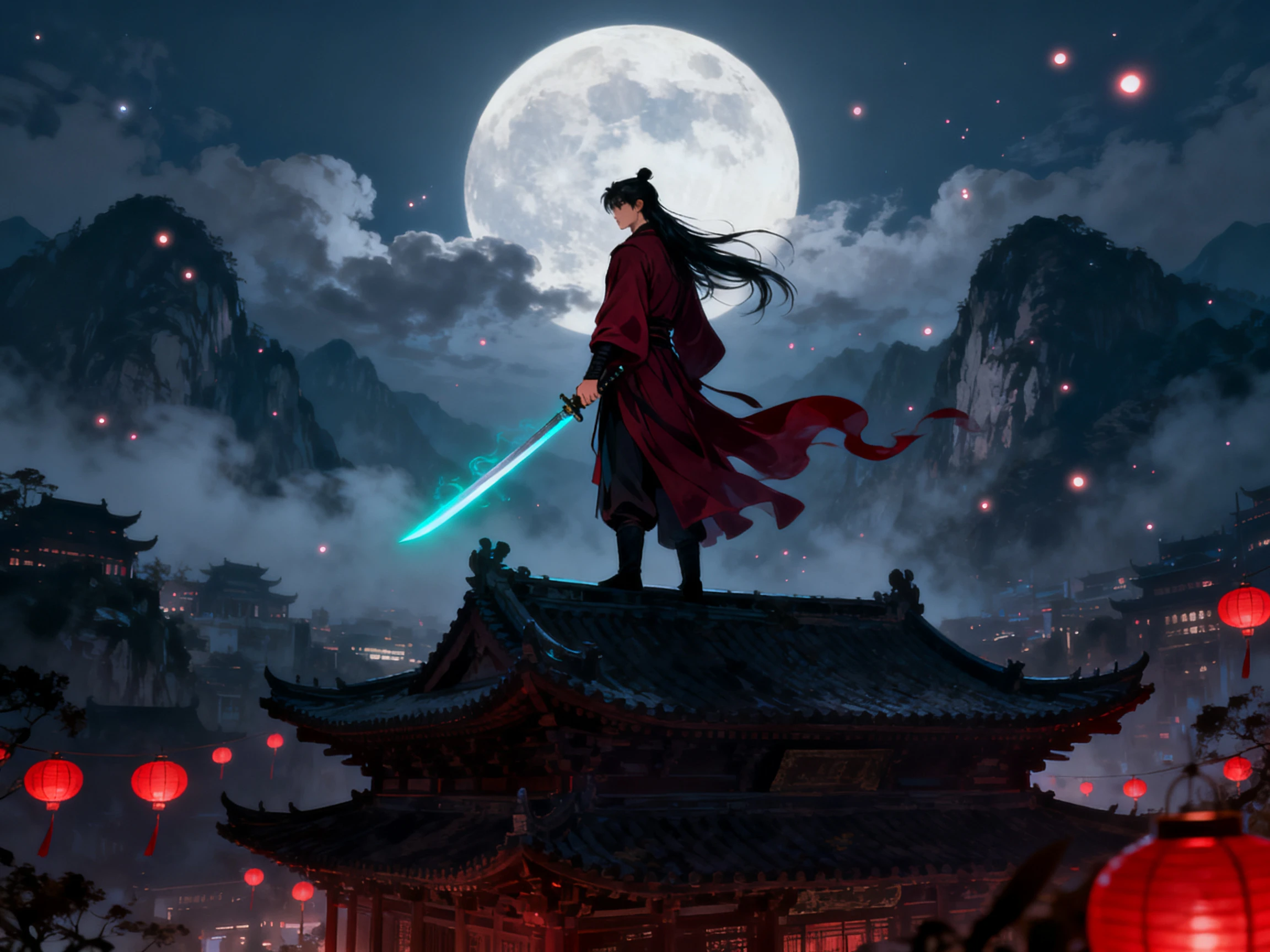
Access more than 100 image, video, audio, and creative AI models through the same OpenArt account. Generate a keyframe with one supported model, animate it using another, and continue experimenting without maintaining separate subscriptions. Credits remain within one system, making multi-model production easier to manage from concept through video.
Start Creating Free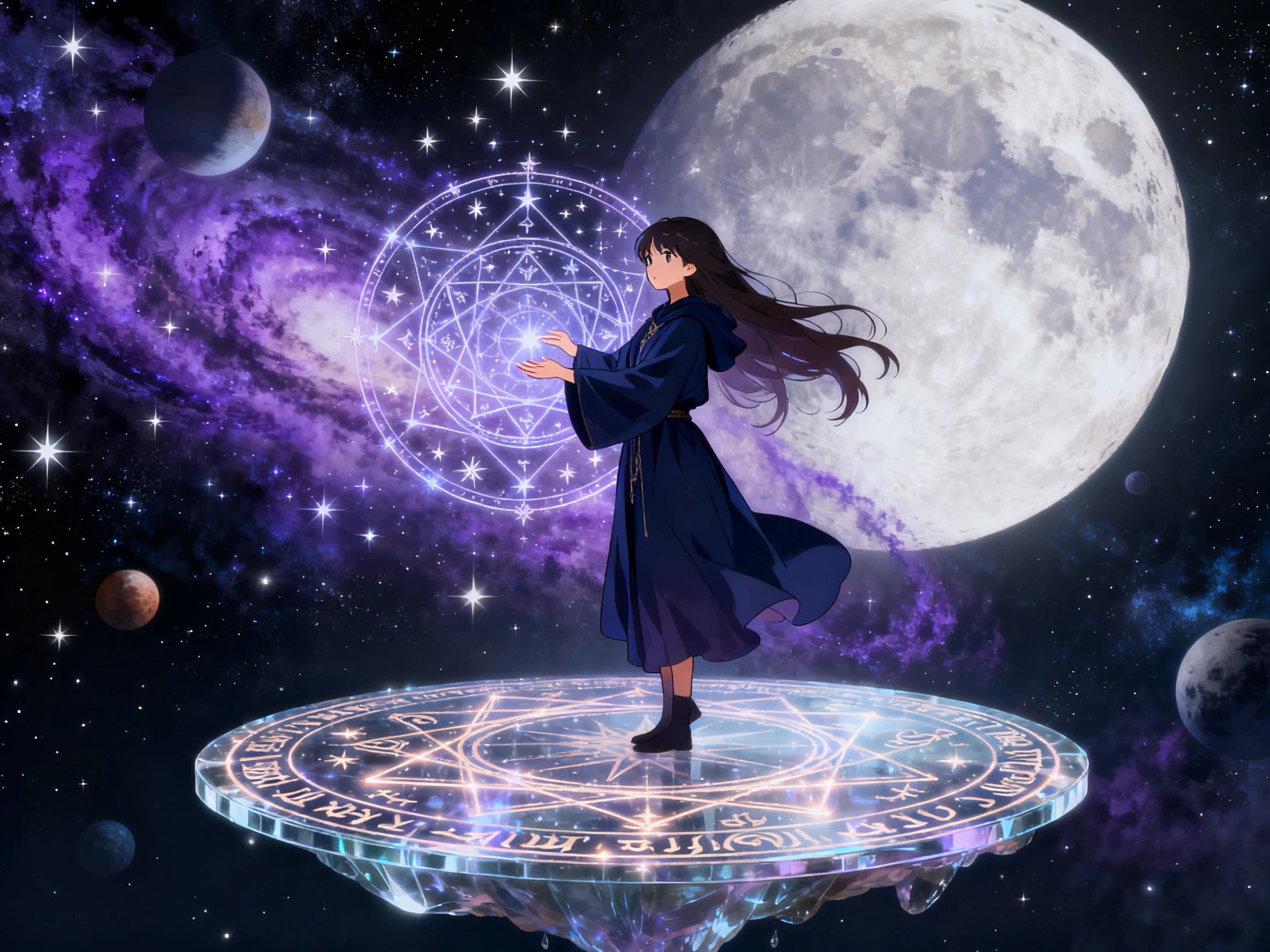
Keep common post-generation adjustments inside OpenArt instead of rebuilding a promising result. Use inpainting to correct specific areas, relighting to reshape illumination, background replacement to change the setting, and upscaling to prepare higher-resolution assets. This makes it easier to refine individual frames before moving them into video generation.
Start Creating Free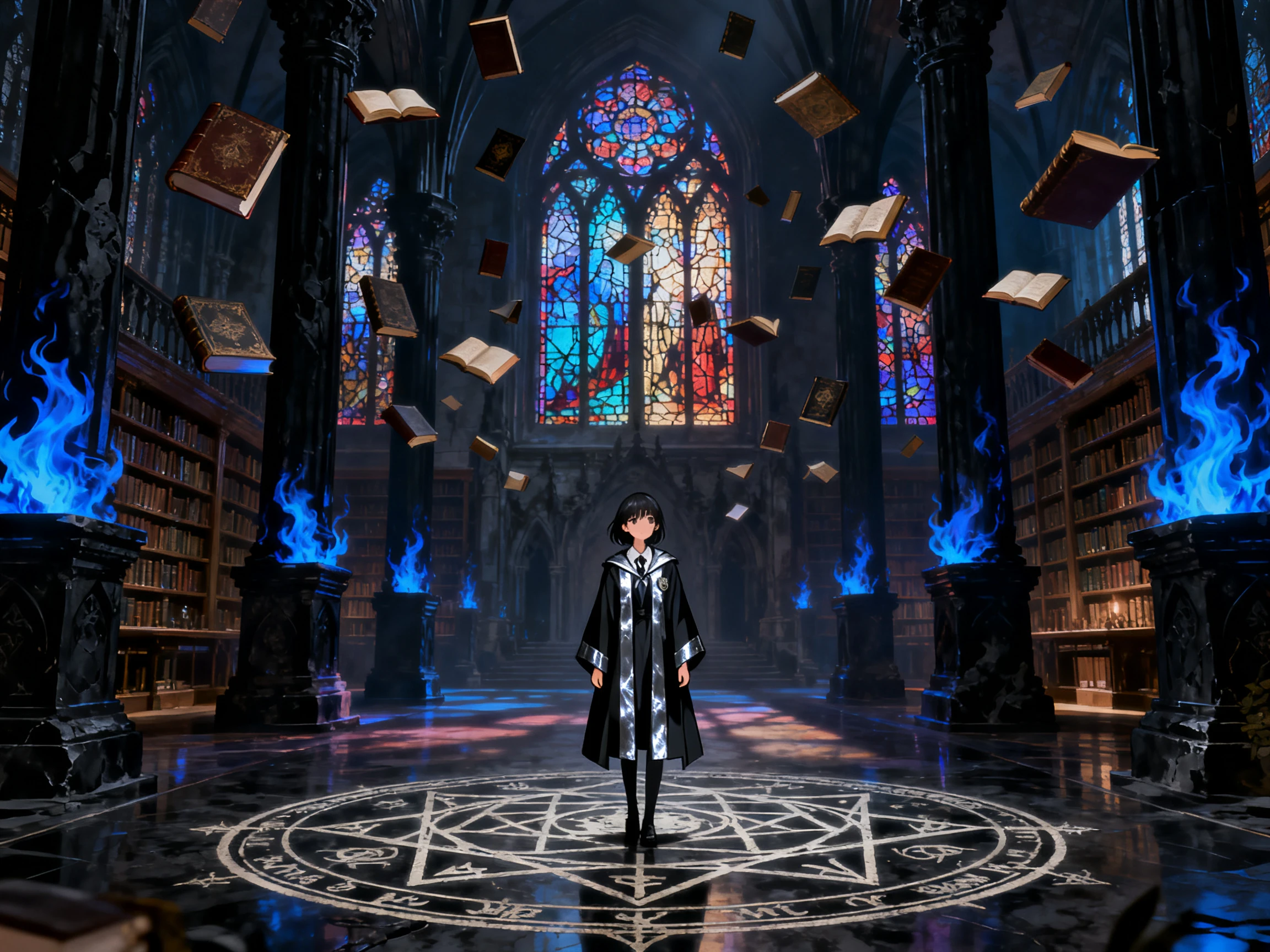
Put the OpenArt AI video generator beside its closest rivals and see how each handles camera direction, motion, consistency, and editing.
| Platform | Camera Direction | Motion Source | Rights Check | Model Library |
|---|---|---|---|---|
| OpenArt | Prompt-driven, multi-angle | Reference video or prompt | IP Safety Check built in | 100+ models |
| Magiclight AI | Storyboard scene editing | Script to animated scenes | Paid-plan commercial rights | 14 story models, 37 voices |
| Google Flow | Named shot types | Prompt only | Not stated | Veo family only |
| Leonardo | Motion presets and prompts | Prompt only | Not stated | Veo, Kling, Seedance |
| Runway | Prompt and model tools | Prompt only | Not stated | Its own Gen models |
Set your character first, then follow 4 clear steps to direct the rest. Treat the OpenArt AI video generator like a working set, not just another prompt box.
Create or save your character from a prompt, reference image, or preset. Reuse that saved identity in later scenes so the face, look, and key details stay more consistent.
Enter the scene in Smart Shot and review the Shot Plan it creates. Check the 3–5 cuts, framing, camera positions, and sequence before generating the final video.
Describe camera moves such as pans, zooms, or tracking shots in the prompt. For character movement, add reference footage through Motion Sync to carry over gestures and pacing.
Check the Shot Plan, adjust any shot or camera movement that needs changing, then generate the video. Review the finished result and export it once the sequence looks right.
Comic Series Creator
My lead character used to drift between panels until I gave up on continuity. OpenArt holds her face across a whole issue and now into the animated shorts.
Music Video Creator
Describing a dance move never worked no matter how I phrased it. Filming myself doing it and letting OpenArt transfer the motion got there on the first attempt.
Brand Content Creator
Legal reviews used to hold campaigns up for days at a time. The IP check in OpenArt catches the obvious risks before anything reaches our compliance team.
Animation Creator
Getting three angles of one scene meant three separate prompts and three mismatched results. Smart Shot in OpenArt lays the coverage out together instead.
Video from text, images, or existing media, plus the stills and characters feeding into it. One-Click Story turns an idea or a script into a complete story video, while Director mode handles structured multi-scene projects.
It lays out several angles of the same scene as a storyboard, the way coverage works on a real multi-cam shoot. Instead of prompting a moment repeatedly and hoping the takes match, you plan the angles together.
Upload a reference video of somebody performing the movement, and the gestures, posture and pacing map onto your character frame by frame. Use it whenever a description of the motion keeps missing what you pictured.
Only briefly. New accounts get 40 one-time trial credits rather than a recurring monthly allowance, with 50 more available for joining the Discord. Free creations are also public, so treat the tier as a demo.
A pass that flags copyright, brand, and likeness risks before you publish a generation. It is a useful first filter rather than legal clearance, so commercial work still needs the usual checks on top of it.
Cost and precision. Credit pricing makes heavy video work expensive quickly, One-Click Story caps around a minute, and a dedicated editor still beats it on frame-accurate control.
Capture a 30-second performance and bring your character to life with it. Check for potential IP conflicts before publishing.