
Explore the Features of VivaGo AI Video Generator
Go beyond simple image animation with VivaGo AI Video Generator. Explore the features that help you turn still images into engaging videos for creative, marketing, and social projects.
Bring a photo or text prompt to the VivaGo AI video generator and create a video. Select the part that should move, then upscale the result to 4K. No editing experience required.
Try Vivago AI for Free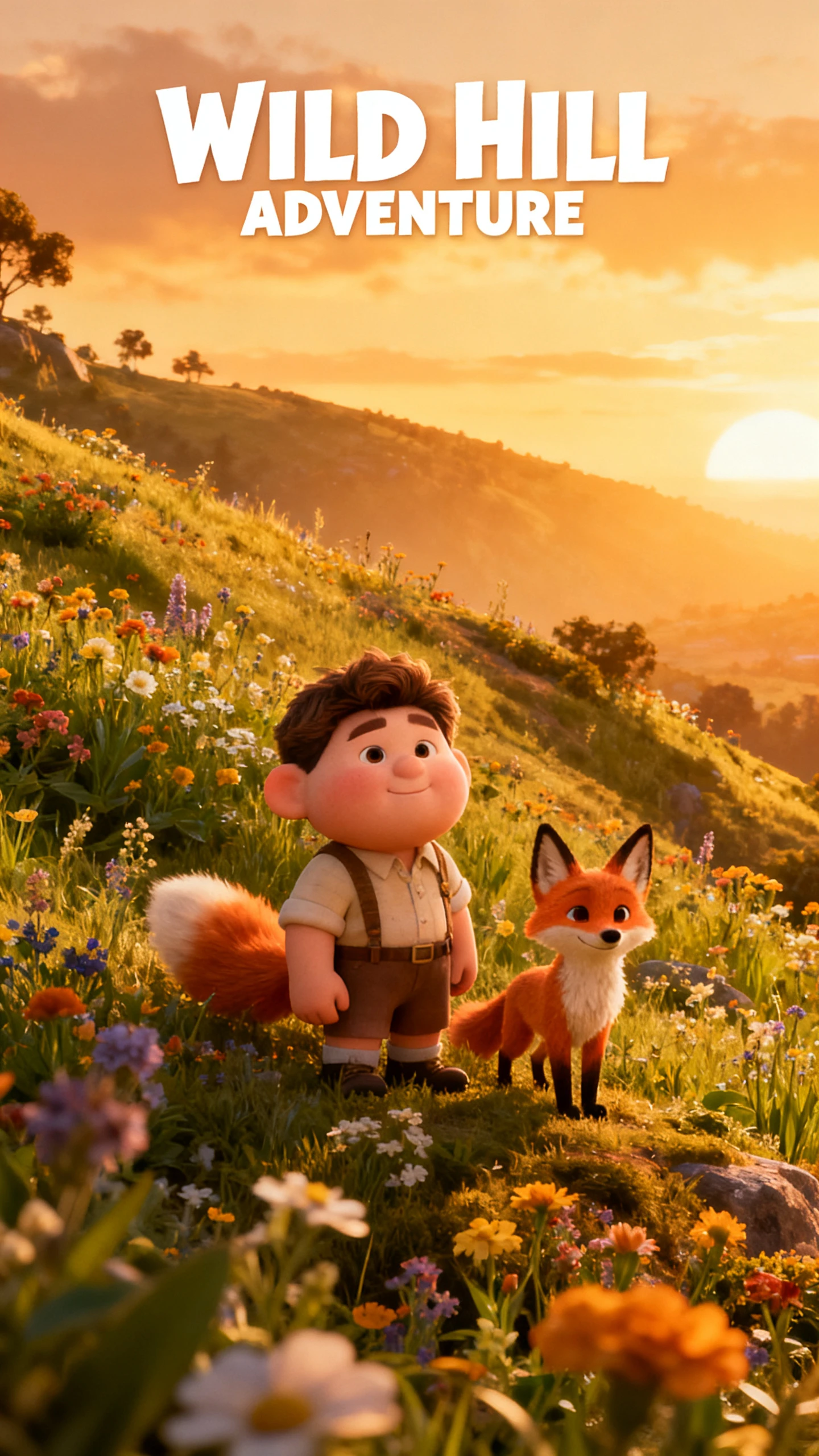
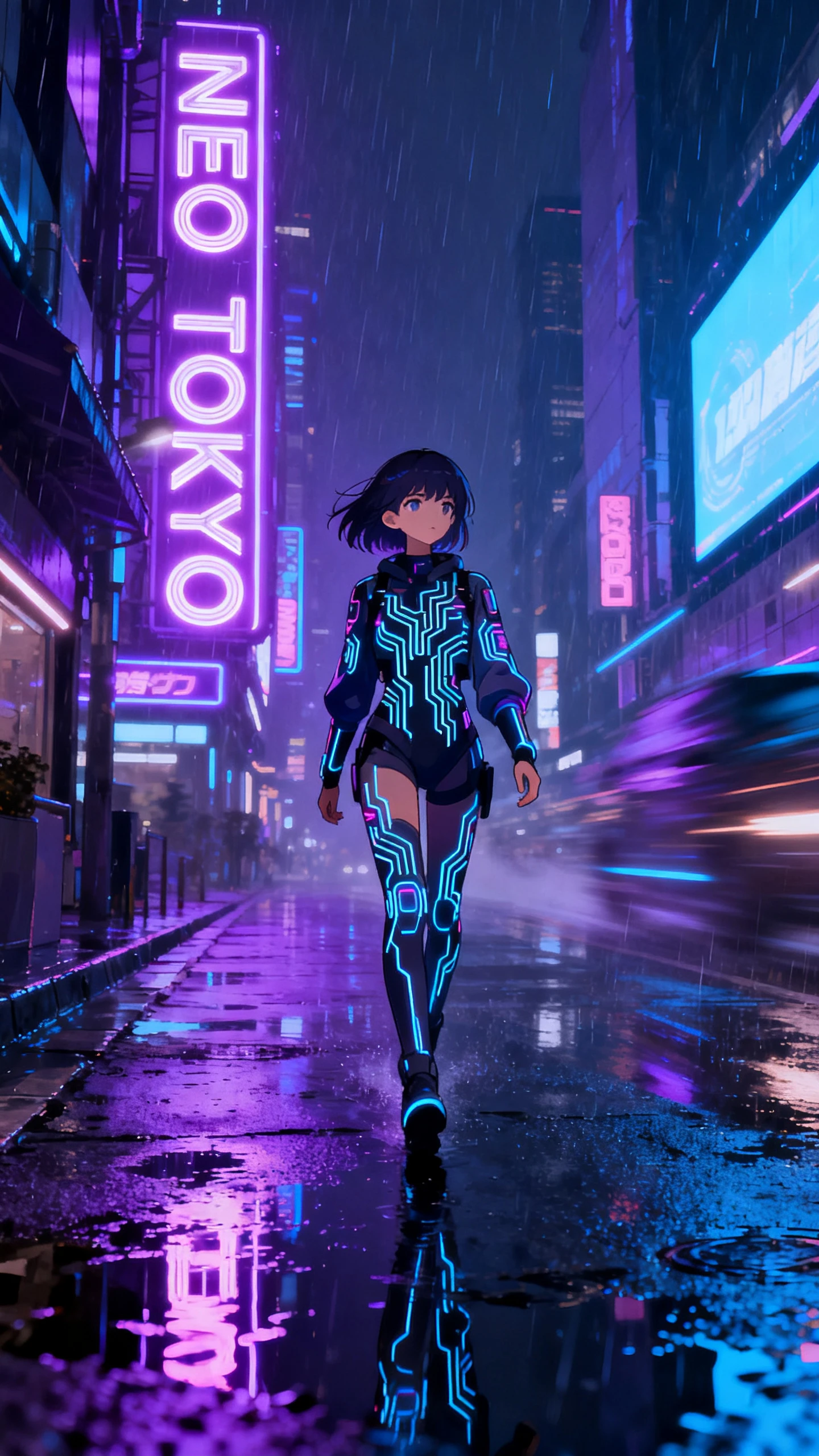
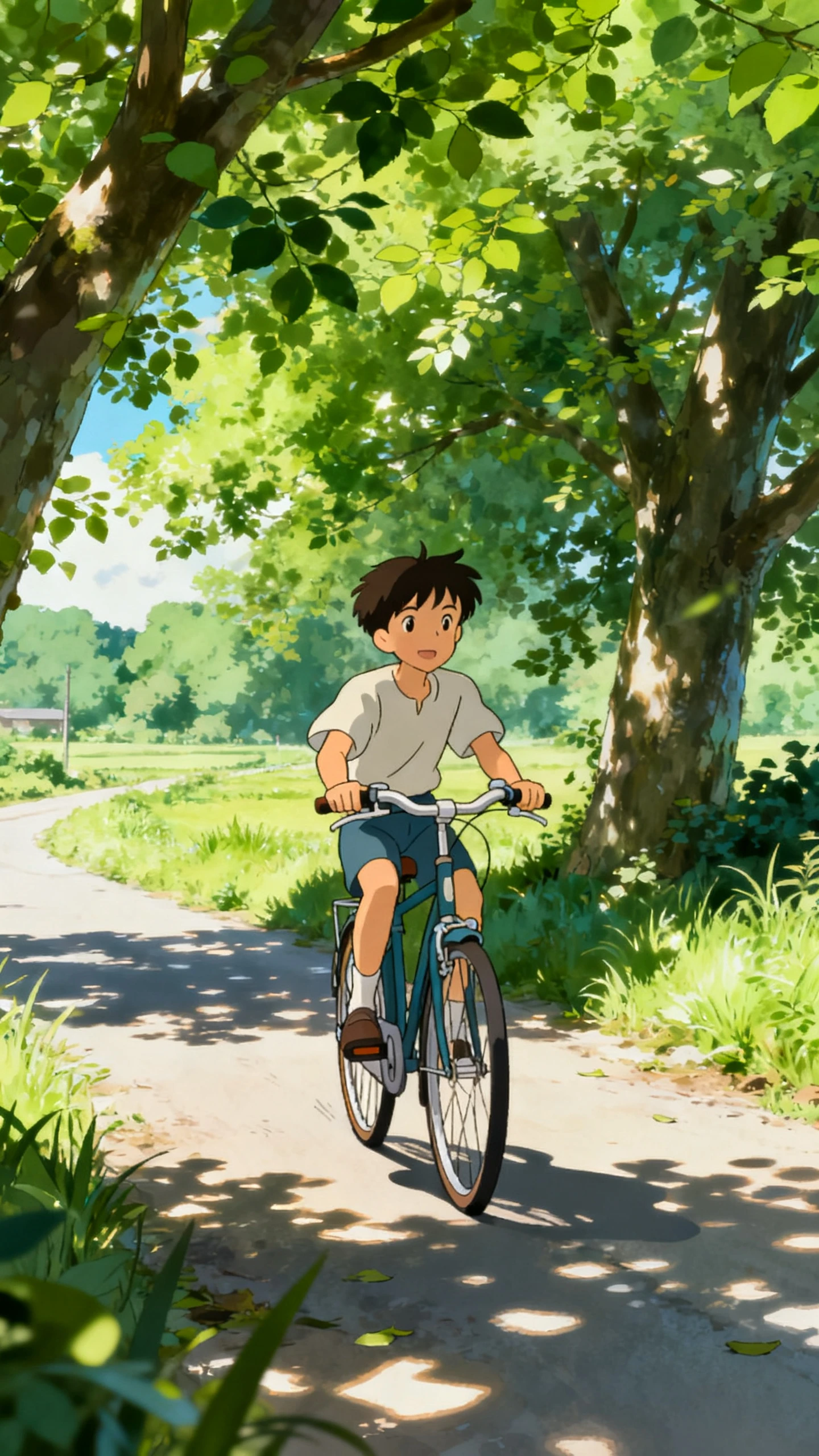
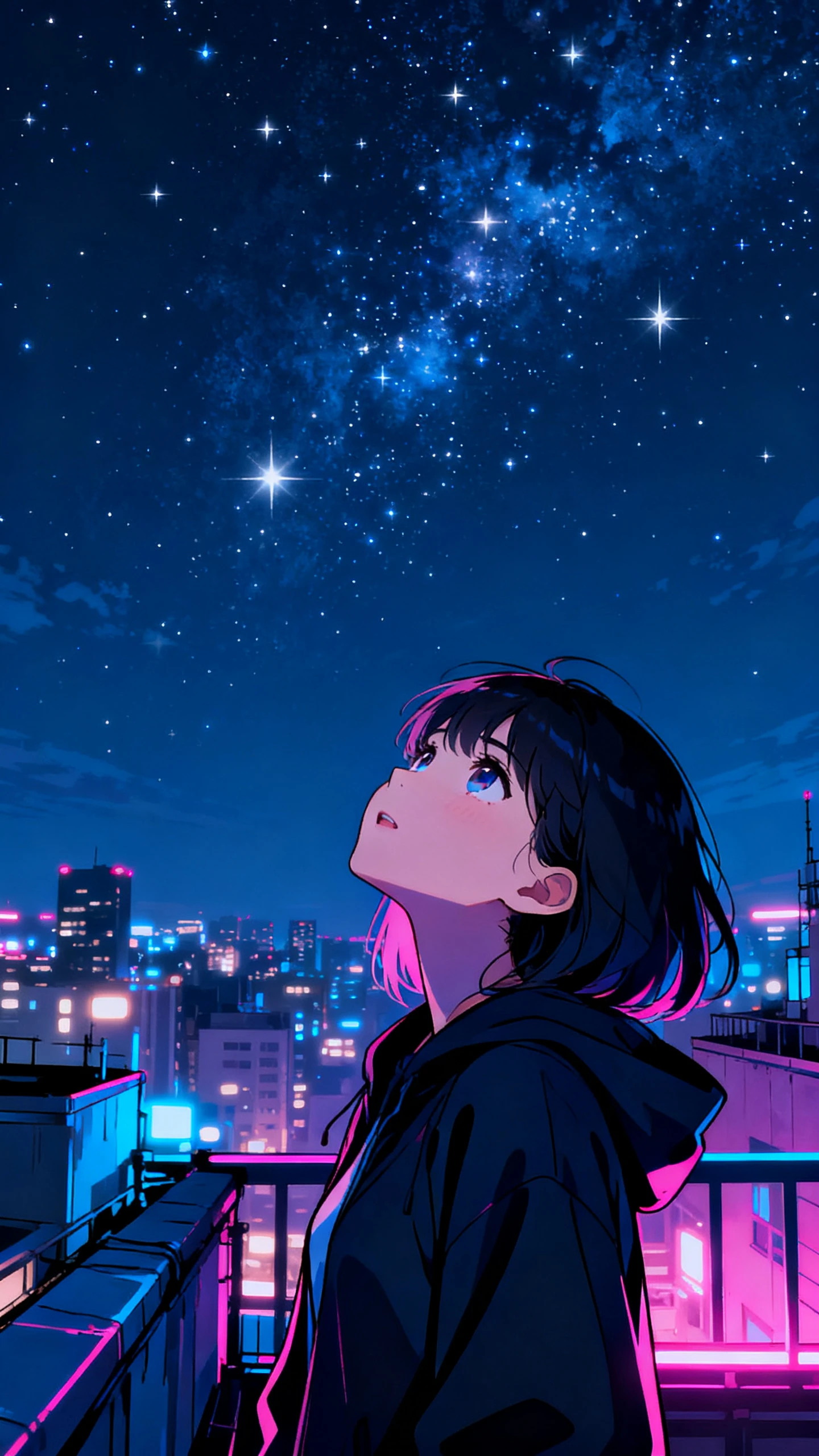
Go beyond simple image animation with VivaGo AI Video Generator. Explore the features that help you turn still images into engaging videos for creative, marketing, and social projects.

Magic Brush animates only the area you paint, while everything else stays still. Steam can rise from a coffee cup, or hair can move around a steady face without regenerating untouched parts.
Magic Prompt improves vague wording by rewriting your description into a clearer prompt. Beginners can get better results without learning complex prompt writing or figuring out which words models understand best.
Create clips sized for Instagram and TikTok instead of cropping widescreen footage later. Adjust motion strength and dimensions to make slow product pans or faster action shots from the same tool with greater control.
Upload a still image and turn it into a realistic video with smooth, natural movement. Image to Video handles the animation, so you can create moving content without complex editing skills or advanced video experience.
Creators want tools that make video creation easier from the start. See the reasons why VivaGo AI video generator stays useful for regular projects.
The effects library gives you ready‑made formats based on trends people already watch. Poke It, Squish It, Curl Pop, and Wink come ready to use, so the movement is already planned, and you can create without working out the format yourself.
Try Vivago AI for Free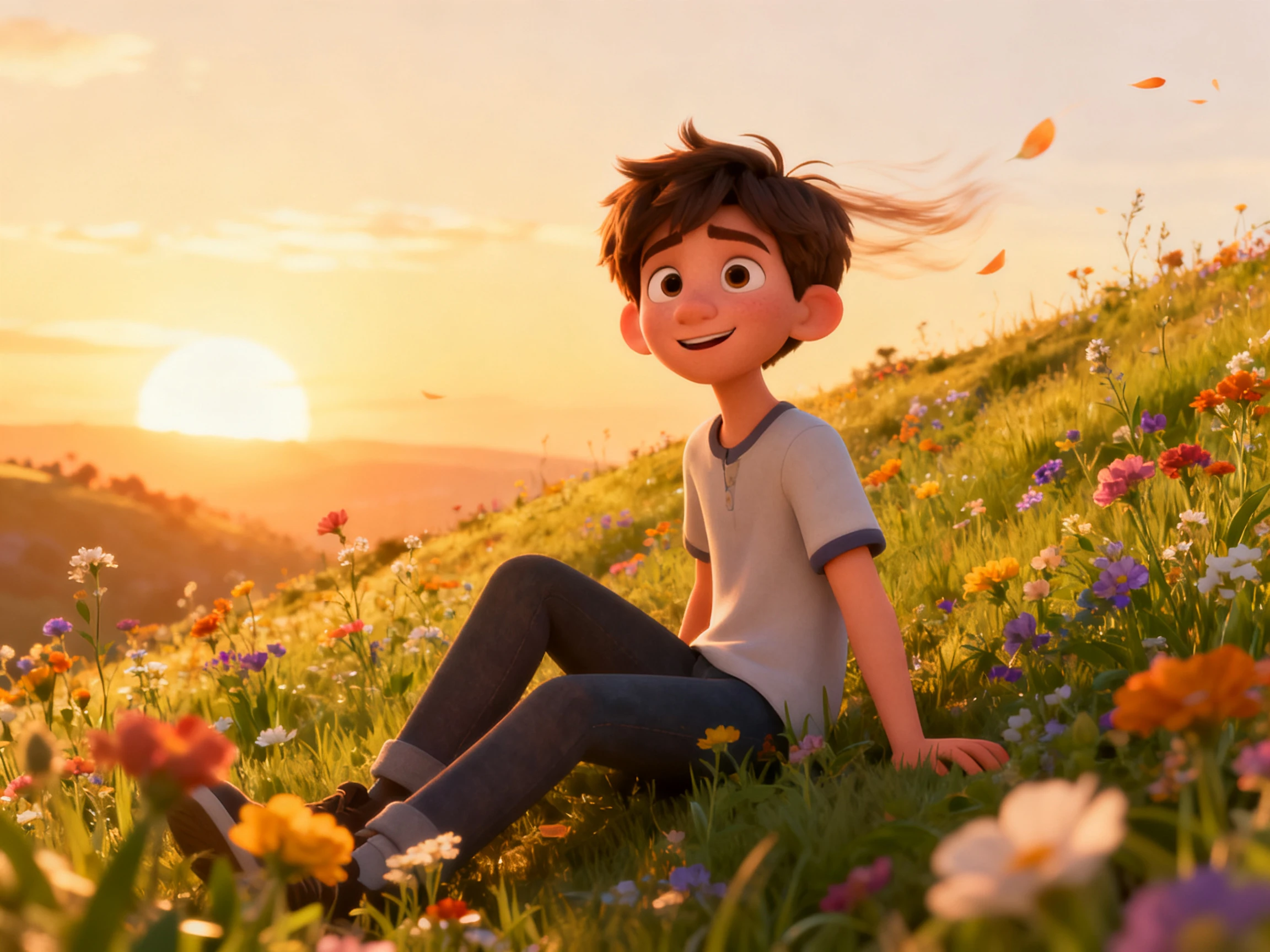
Generate an image, animate it, remove something, expand the frame, and export a 3D model from the same account. Vivago keeps the whole process in one browser tab, so you can handle several creative tasks without switching between separate tools, accounts, or installations.
Try Vivago AI for Free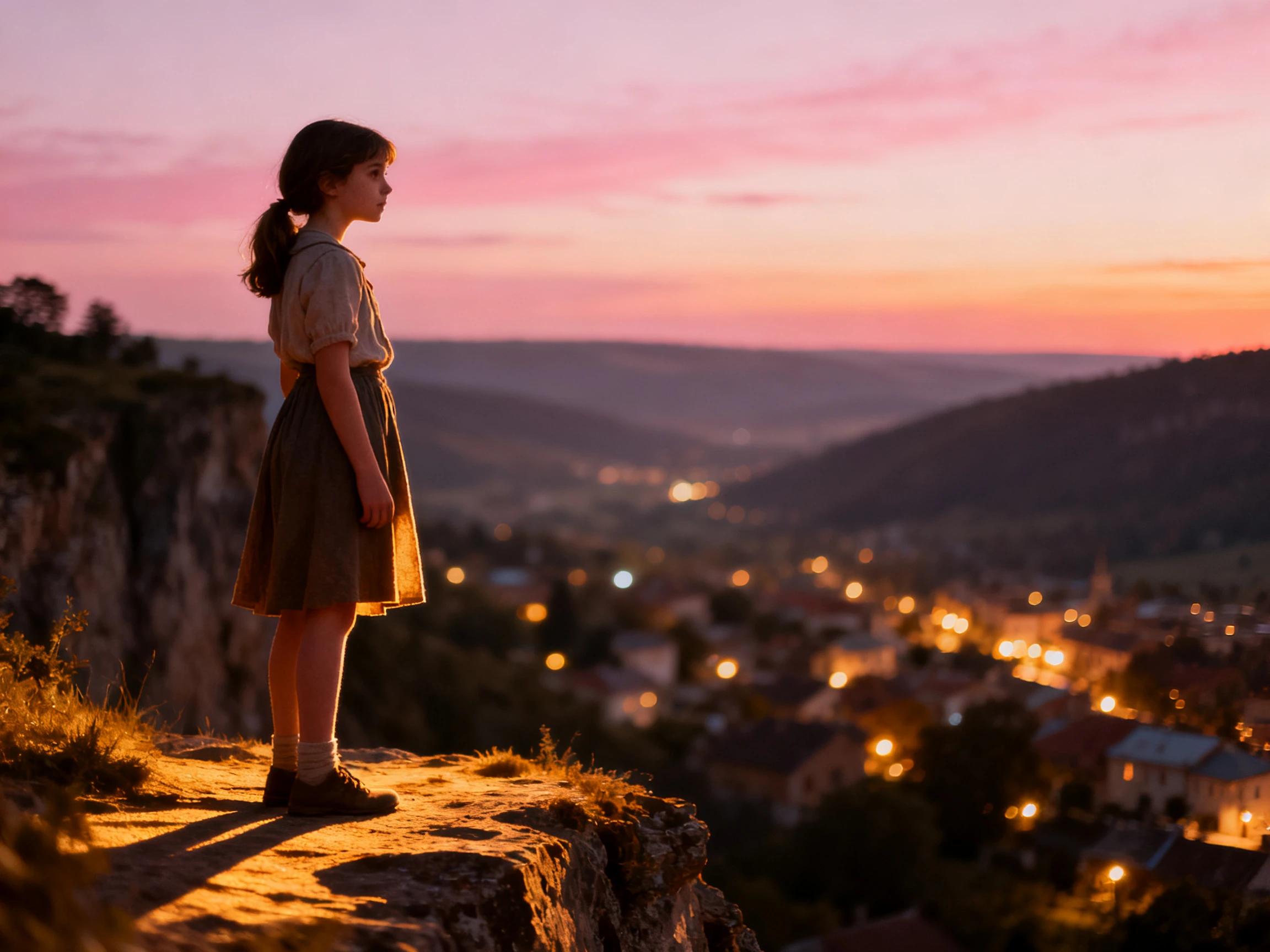
Vivago puts Sora 2, Kling, Google Veo, Nano Banana, Seedream, and Wan in the same place. You can switch between these models without separate subscriptions, giving you different generation options when the first result is not what you wanted.
Try Vivago AI for Free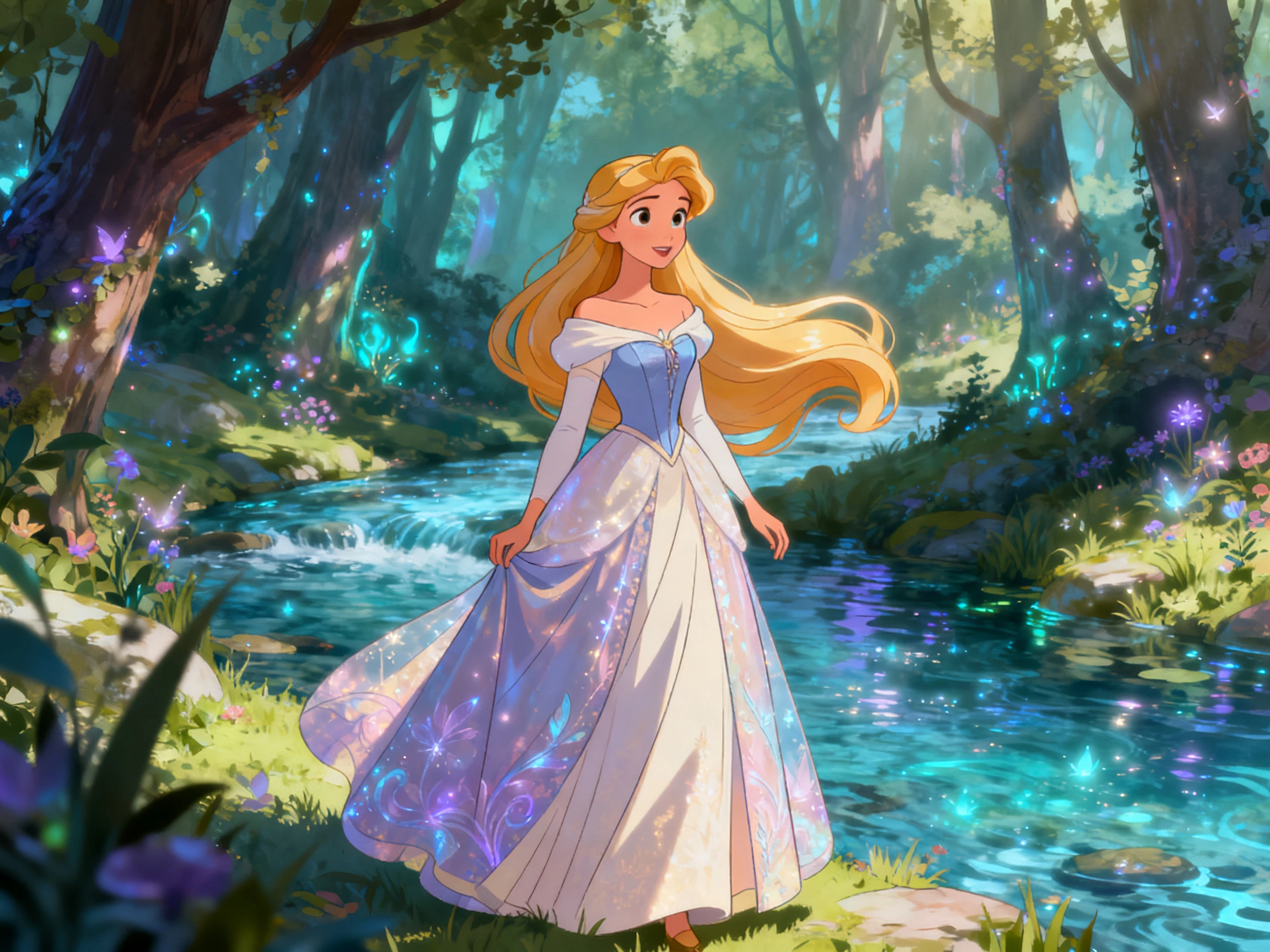
Compare the VivaGo AI video generator with leading AI tools before choosing. See what each free tier offers and find your best available option.
| Platform | Free Tier | Covers | Highlighted Tools | Users |
|---|---|---|---|---|
| VivaGo | Daily credits, no card | Image, video, and 3D | Brush‑level control | Hobbyists and creators |
| Magiclight AI | Free option, paid plans as well | Image, video, and animated story creation | Storyboard editing | Story creators |
| Pika | Monthly credits | Video generation and effects | Preset effects only | Social creators |
| DaVinci | Free version | Video editing, color, VFX, motion graphics, and audio | Full editing controls | Marketers and designers |
| Krea | Daily credits, no card | Image, video, and 3D | Real‑time canvas | Artists |
Take your prompt or photo into the VivaGo AI video generator and create a finished clip. A simple 4‑step process takes you from your starting idea to the completed video.
Upload a photo or enter a text prompt describing the video you want to create. Vivago uses your image or written idea as the starting point for video generation.
Choose the video model that suits the movement you want to create. Vivago provides options such as Sora, Kling, Veo, and its own AI model for different motion needs.
Adjust the movement and camera settings to shape how the image comes alive. You can control motion intensity and other settings before generating the final video.
Create the video and download the finished result in high resolution. Vivago supports 4K output along with formats such as 16:9, 9:16, and 1:1.
Social Video Creator
I only wanted the candle flame to move while everything else stayed still. With VivaGo, I could brush over the flame and leave the rest of the shot alone.
Small Business Owner
Most AI tools ask for payment details before you can properly test them. VivaGo gives daily credits, which let me try it first without spending anything.
Digital Artist
My prompts were holding back the results more than the model itself. Magic Prompt inside VivaGo helped rewrite them, and I started getting better results almost immediately.
Product Photographer
Clients started asking me to add movement to photos I had already delivered. VivaGo brought those stills to life and upscaled them to 4K, giving my old work another use.
The VivaGo AI video generator creates videos from text prompts and uploaded images. It also offers still‑image tools, 3D models, editing features, and enhancement options together.
Yes, Vivago supports 16:9, 9:16, and 1:1 output for different platforms and placements. Its aspect ratio options make the same content easier to prepare for different destinations.
VivaGo includes Sora 2, Kling, Google Veo, Nano Banana, Seedream, Wan, and HiDream. Choosing the model carefully can matter more than perfecting your prompt wording alone.
Magic Brush moves only the area you paint while keeping other areas still. Use it when one part needs motion, and the rest already looks right.
Yes. Video Enhance can upscale existing footage to 4K for sharper results. Image Enhance can also improve still images before you use them elsewhere later.
VivaGo focuses on creating and editing individual clips instead of longer video timelines. Daily credits also limit how much video you can generate in one sitting.



Upload a still, brush the motion area, or choose an effect template. VivaGo animates your image and lets you try different effects while your credits refresh.