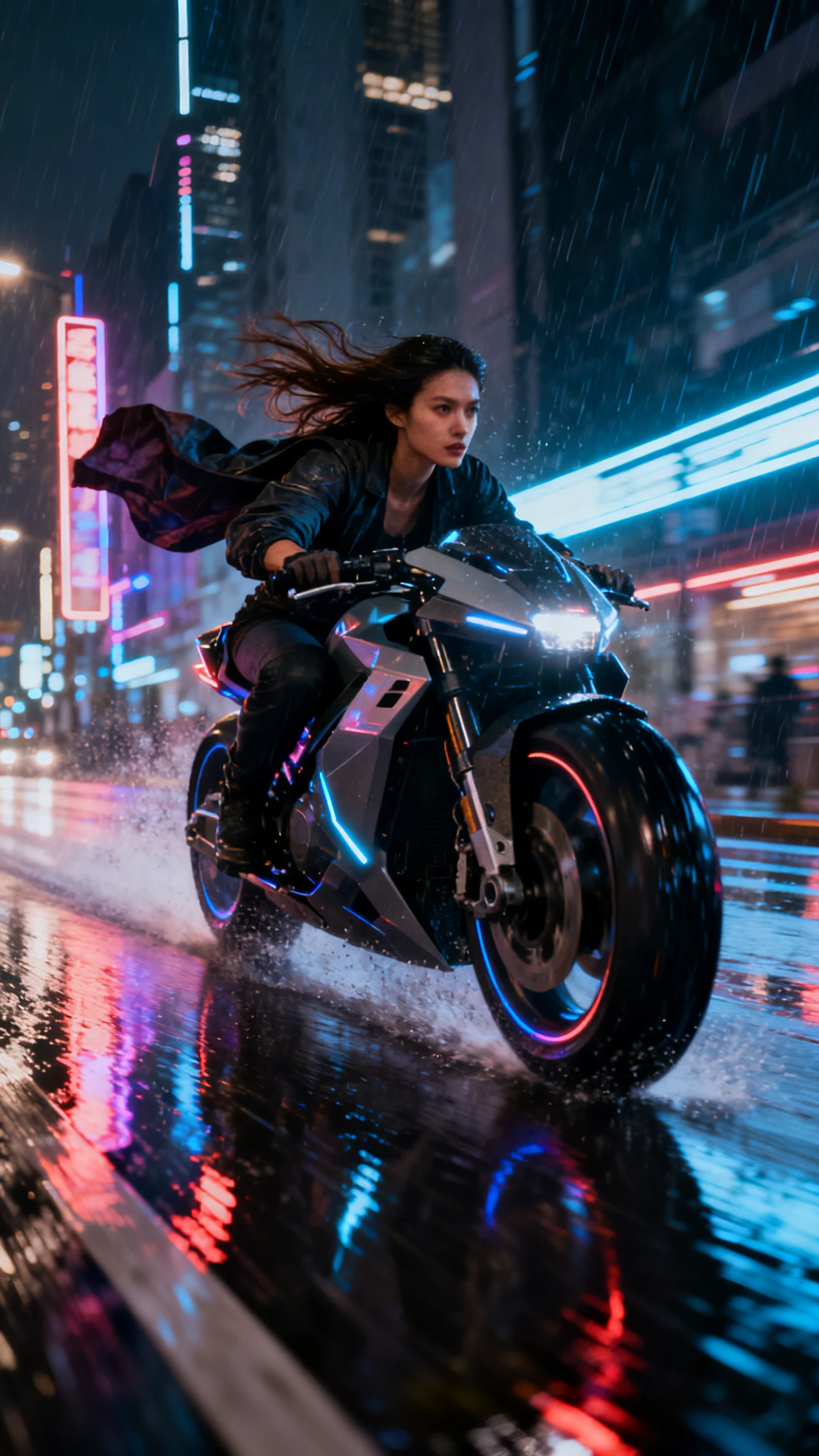
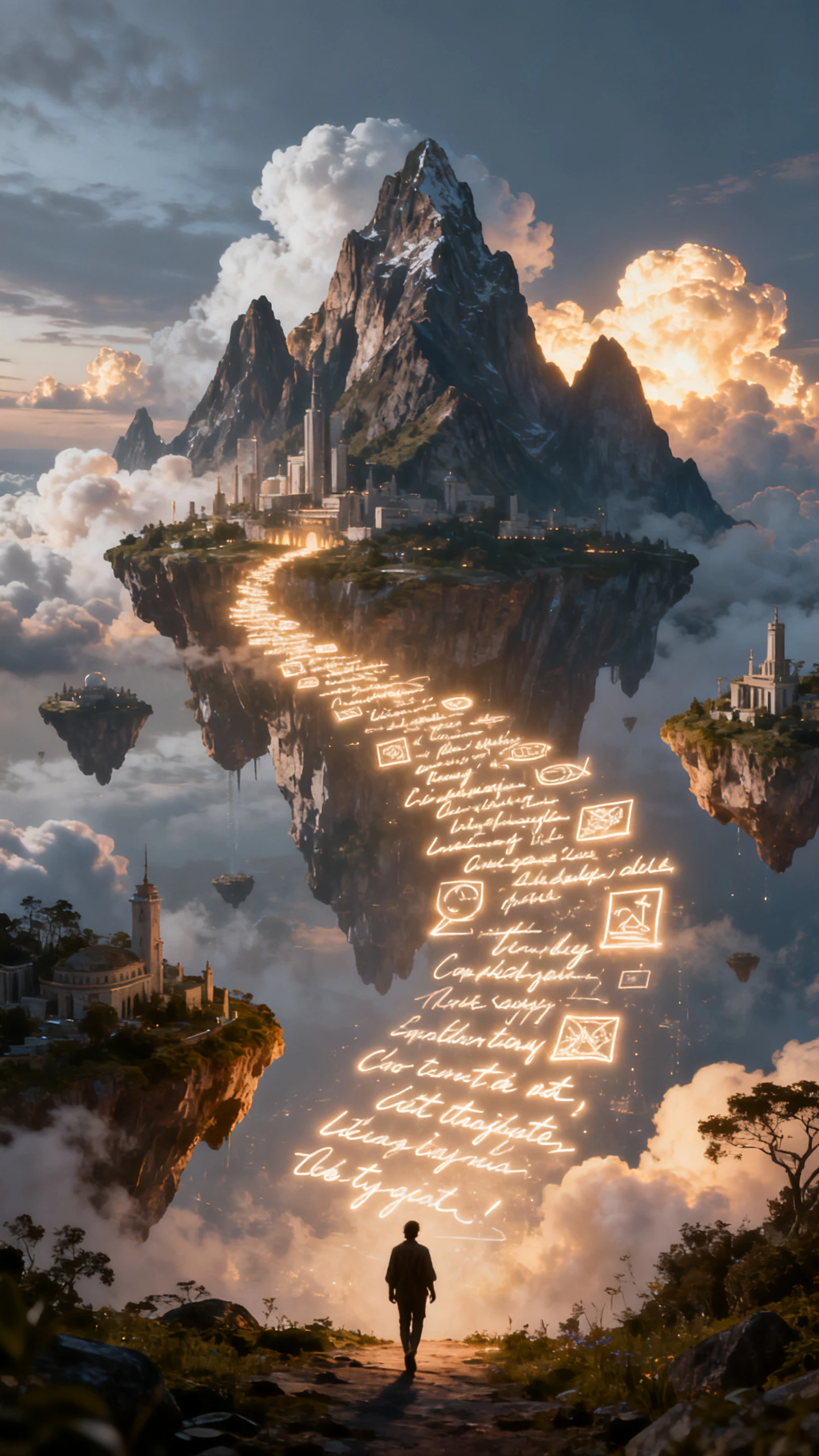
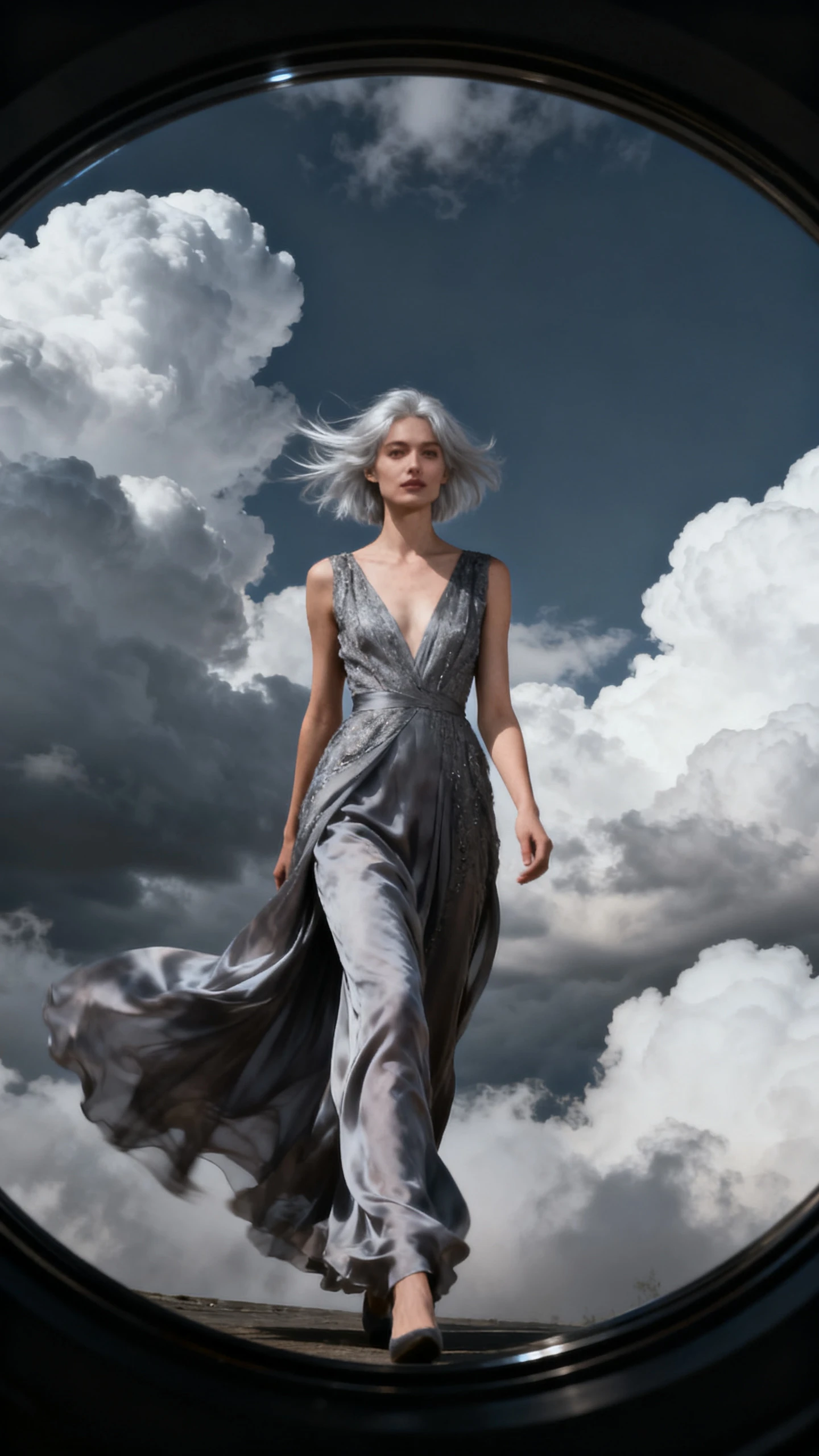
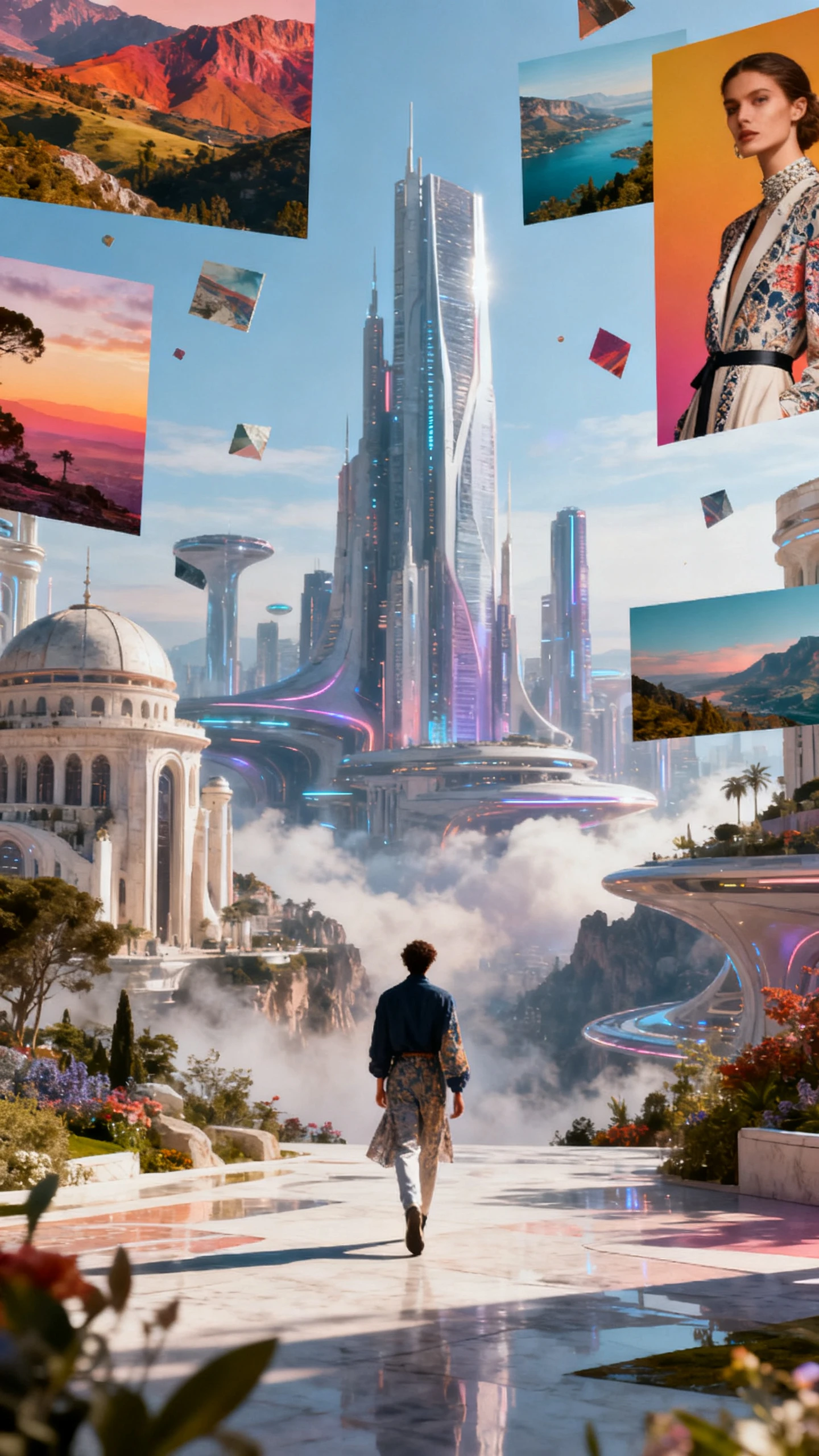
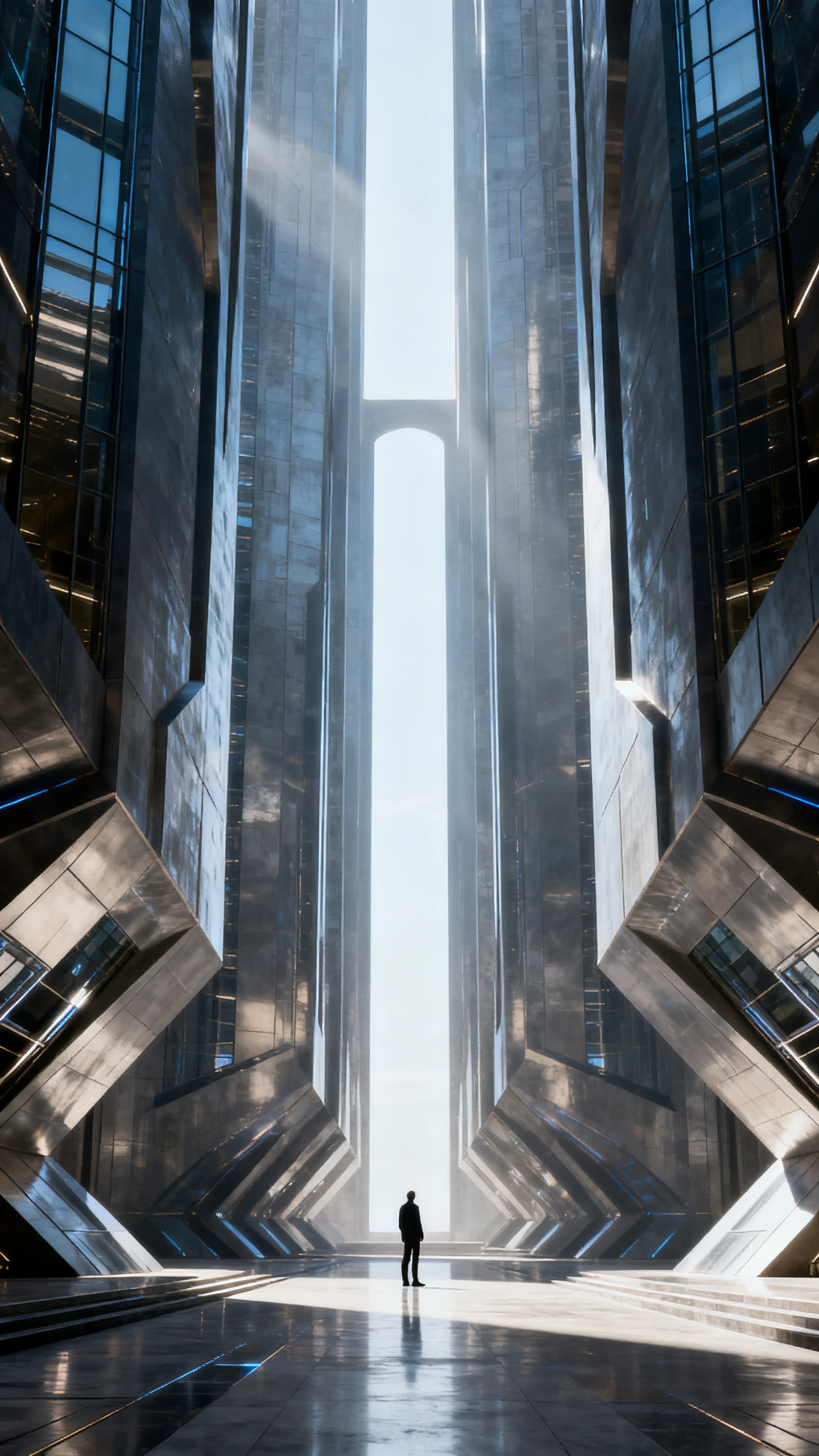
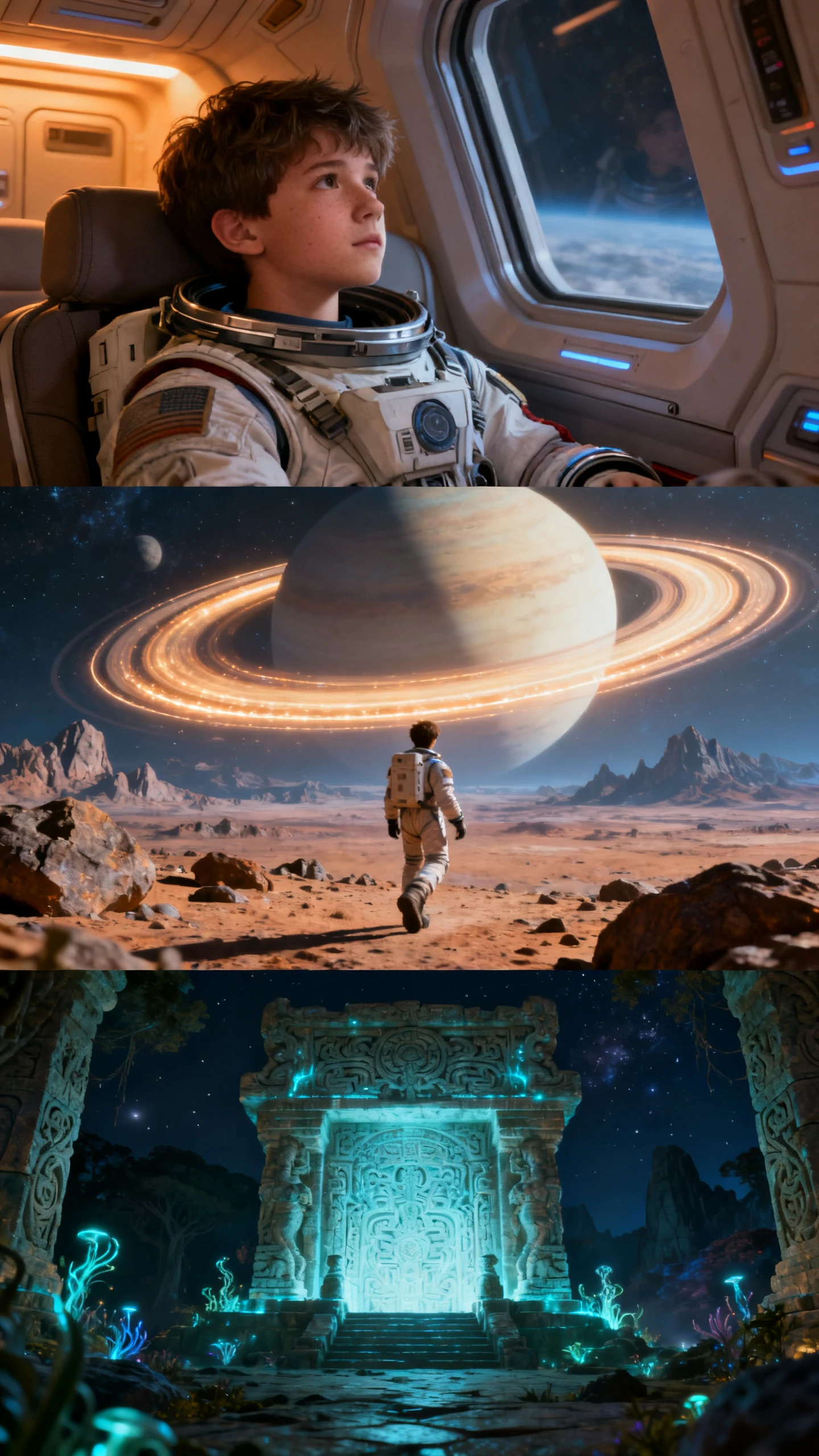
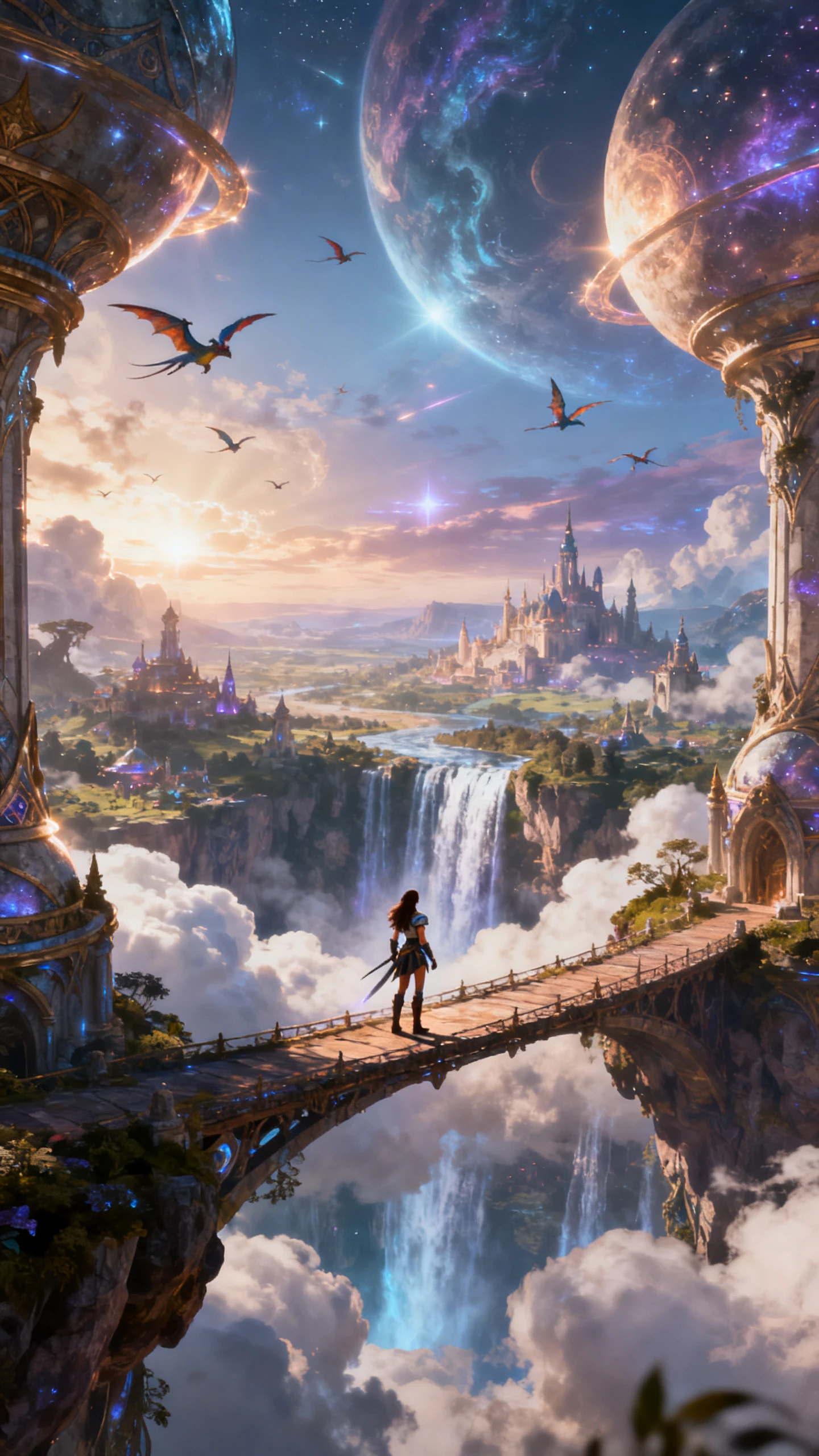
Hero background

Wan 3.0 AI Video Generator

Wan 3.0 turns prompts, images, and visual references into longer, more coherent video scenes. Create smoother motion, clearer shots, and finished videos in Magiclight AI.

Try Wan 3.0 for Free
Wan 3.0 AI video example 1
Wan 3.0 AI video example 2
Wan 3.0 AI video example 3
Wan 3.0 AI video example 4
Wan 3.0 AI video example 5
Wan 3.0 AI video example 6
Wan 3.0 AI video example 7
Wan 3.0 AI video example 8
Wan 3.0 AI video example 1
Wan 3.0 AI video example 2
Wan 3.0 AI video example 3
Wan 3.0 AI video example 4
Wan 3.0 AI video example 5
Wan 3.0 AI video example 6
Wan 3.0 AI video example 7
Wan 3.0 AI video example 8
Wan 3.0 AI video example 1
Wan 3.0 AI video example 2
Wan 3.0 AI video example 3
Wan 3.0 AI video example 4
Wan 3.0 AI video example 5
Wan 3.0 AI video example 6
Wan 3.0 AI video example 7
Wan 3.0 AI video example 8

Build Longer AI Video Scenes With Wan 3.0

Wan 3.0 gives Magiclight AI creators a strong model choice for prompt-led video, image-to-video animation, reference-guided scenes, and multi-shot story production. Use it when a single scene needs more time to breathe, move, and stay visually coherent.

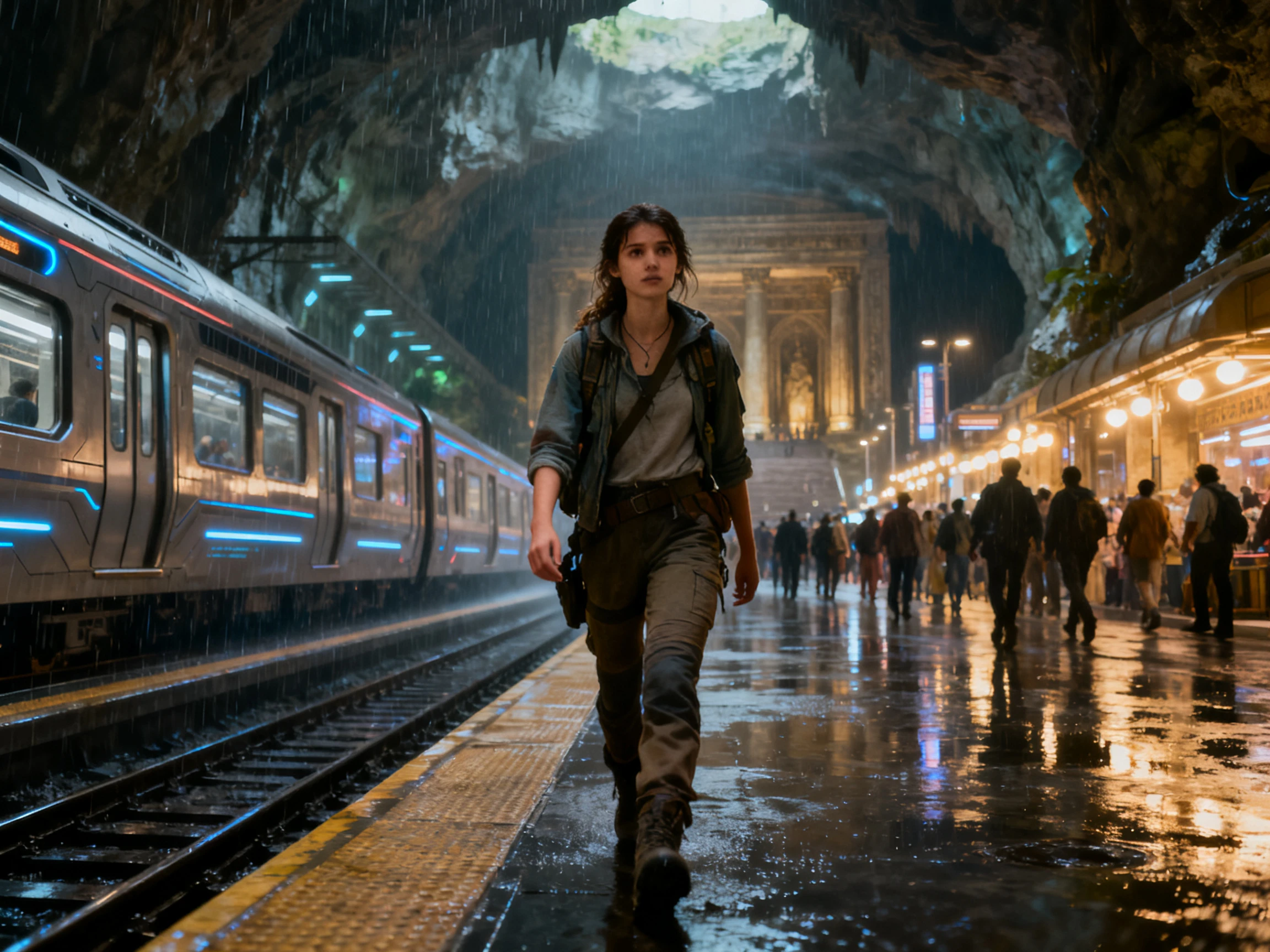
Explore the video generator
Wan 3.0 cinematic motion and reference-guided generation

Longer Scene Generation

Wan 3.0 is designed for longer video generation than many short-clip models, making it useful when a scene needs setup, action, camera movement, and a clearer ending in one take.

Text and Image to Video

Start from a written shot description or a still image inside Magiclight AI. Wan 3.0 can help turn that direction into a moving scene for stories, ads, explainers, and social clips.

Reference-Guided Creation

Use visual references to guide characters, objects, setting, style, and motion. This helps the generated scene stay closer to the creative brief instead of drifting from the project direction.

Full HD Workflow in Magiclight

Create polished AI video scenes and continue through Magiclight's video workflow with storyboards, narration, music, subtitles, covers, editing, and export options supported by Magiclight AI.

Why UseWan 3.0 on Magiclight AI?

Wan 3.0 creates strong scene-level video clips. Magiclight AI helps turn those clips into complete videos with story planning, character workflows, voiceover, music, subtitles, and final publishing tools.

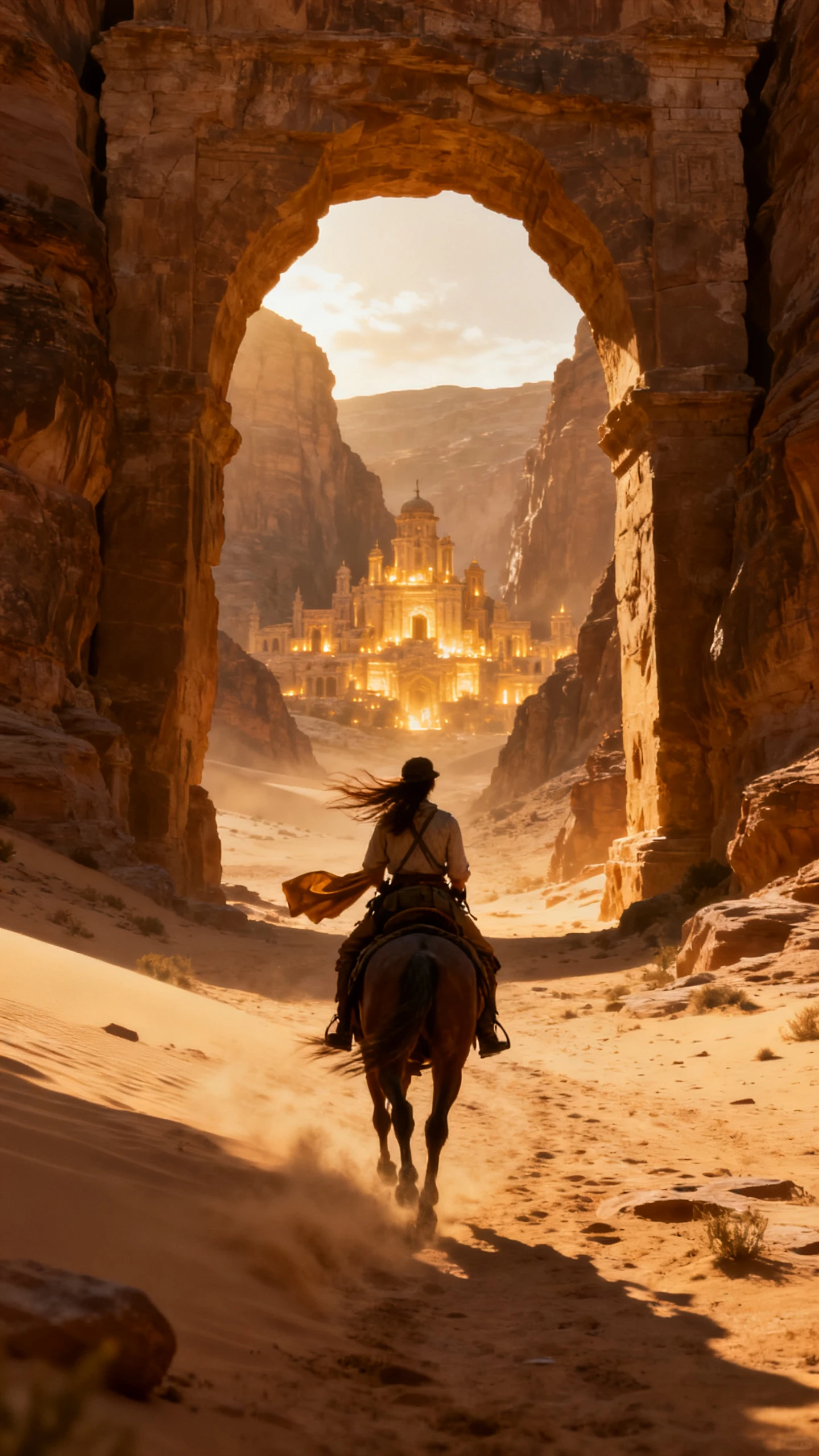
Longer Shots for Better Story Flow

Use Wan 3.0 when a scene needs more than a quick visual moment. Magiclight AI helps place those longer generated shots into a full storyboard for story videos, dramas, explainers, and campaign content.

Start Creating Free
Wan 3.0 longer AI video scene in Magiclight AI

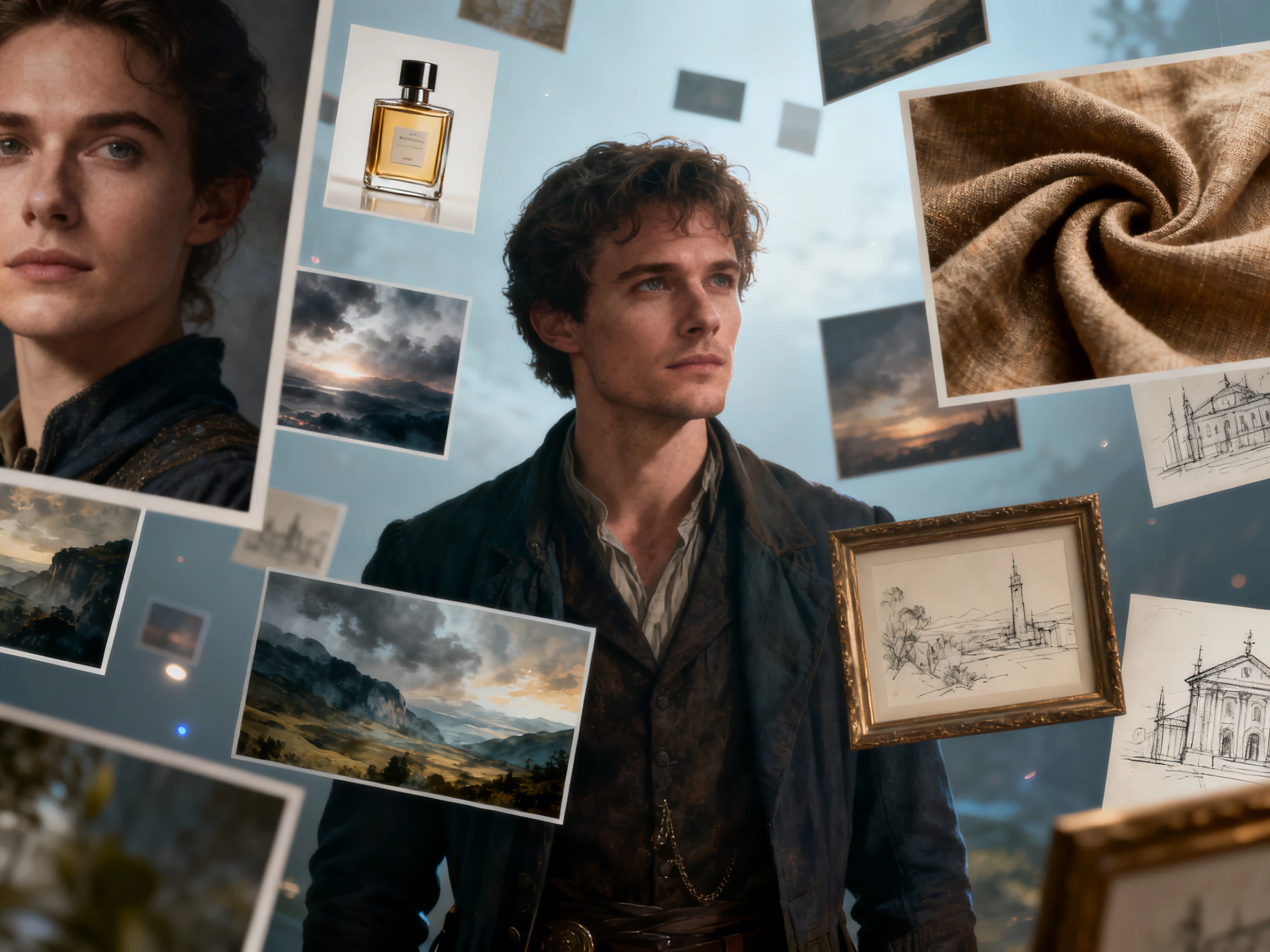
Reference Assets Stay in the Workflow

Bring character images, product shots, mood frames, or storyboard visuals into Magiclight, then use Wan 3.0 to generate scenes that follow those references more closely.

Start Creating Free
Reference-guided Wan 3.0 video generation workflow

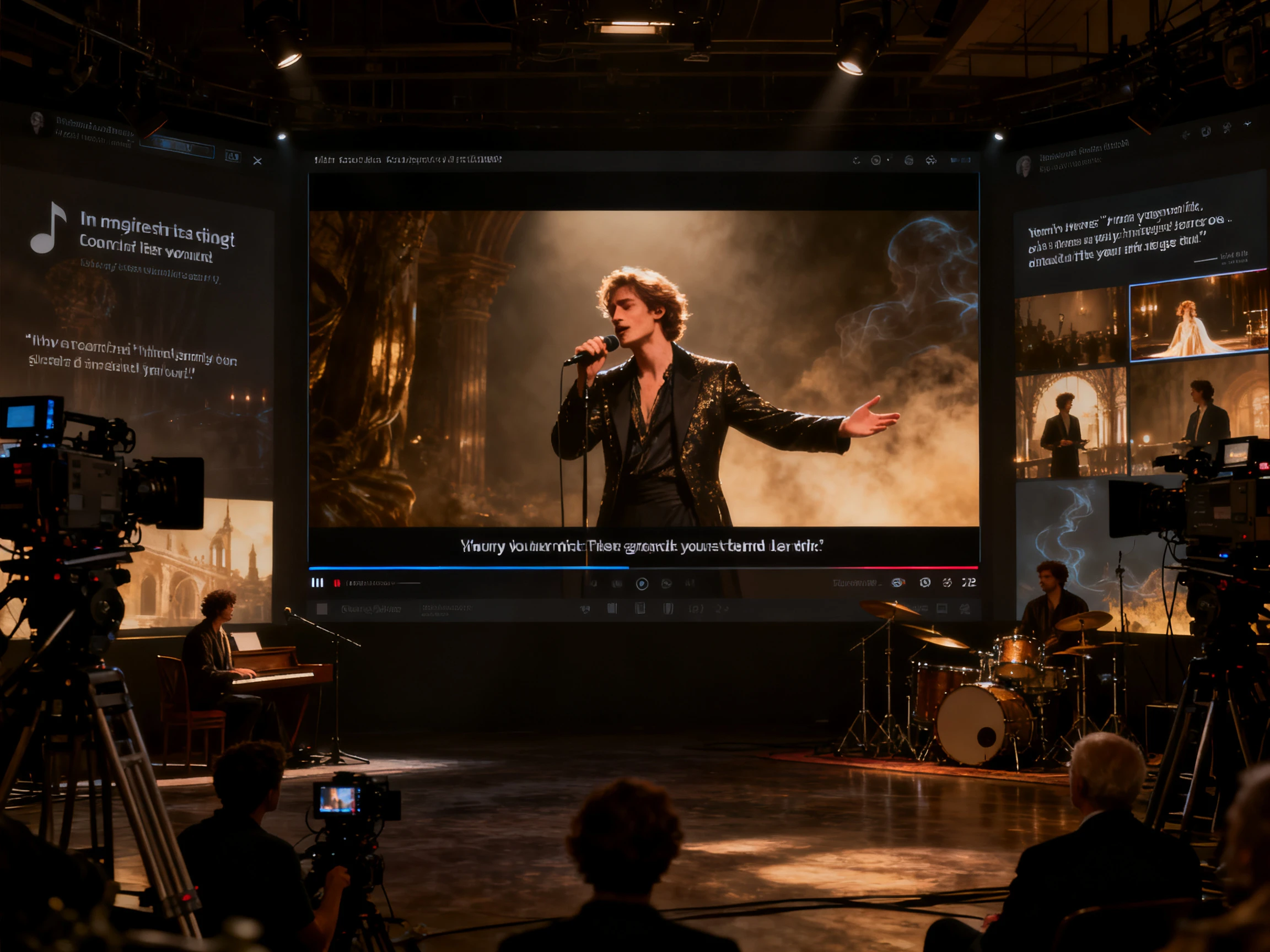
From Generated Clip to Finished Video

Wan 3.0 handles the video generation step, while Magiclight AI supports the rest of production: scene ordering, AI voice, background music, subtitles, covers, editing, export, and publishing.

Start Creating Free
Magiclight complete video workflow with Wan 3.0

Compare Wan 3.0 with Other Popular AI Video Models

Compare Wan 3.0 on Magiclight AI with other video models to choose the best model for each scene, visual style, and production goal.

ModelStrengthVisual StyleBest ForCreators
Wan 3.0Longer takes and reference-guided videoCinematic scenes with coherent motionLonger guided scenesStory creators and video teams
Seedance 2.5 ProScene control and reference alignmentDeliberate motion with planned directionControlled planned scenesStoryboard-heavy creators
Seedance 2.5Smooth motion and strong prompt followingPolished, cinematic short scenesFast cinematic generationSocial and campaign creators
MiniMax H3Mixed references and native audioCinematic clips with synchronized soundReference-driven clipsDirectors and ad teams
Kling 3.0Character consistency and film-style motionRealistic cinematic visualsCharacter scenesFilmmakers and drama teams
Google VeoPhotorealism and natural motionClean, realistic, production-friendlyCommercial and product videosMarketers and creative teams

How to Use Wan 3.0 on Magiclight AI

Use Wan 3.0 inside Magiclight AI as part of a complete video creation workflow. Start with a project, prepare the scene, generate the clip, then continue into editing and publishing.

1.

Choose a Magiclight Workflow

Start with Story to Video, Image to Video, Short Drama, Explainer Video, Music Video, Interview Video, or another Magiclight creation workflow.

2.

Prepare the Scene Direction

Write the prompt, add a source image, choose characters, or prepare visual references so Wan 3.0 has a clearer creative direction before generation.

3.

Select Wan 3.0 as the Video Model

Choose Wan 3.0 at the video generation step when the scene needs stronger continuity, longer motion, reference guidance, and cinematic pacing.

4.

Arrange and Finish the Video

Place generated clips into the storyboard, refine scenes, add AI voiceover, music, subtitles, covers, and export the finished video from Magiclight AI.

What Users SayAbout Wan 3.0

Rafael Ibarra

Ad Creative Director

Wan 3.0 gives us more room inside a single generated scene. We can build the shot in Magiclight, guide it with references, then turn the result into a full campaign video without jumping between tools.

Hannah Osei

Animation Studio Lead

For story scenes, Wan 3.0 feels useful because it can hold a visual idea for longer. Magiclight helps us organize those clips into a complete storyboard with voice, subtitles, and music.

Devin Locke

YouTube Channel Owner

I use Wan 3.0 when a scene needs more motion than a quick clip. Magiclight keeps the script, images, generated clips, and export process in one workspace.

Sofia Marchetti

Freelance Video Editor

The best part is not just the model. It is being able to compare scenes, arrange clips, add narration, and finish the video in Magiclight after Wan 3.0 generates the footage.

FAQs on Wan 3.0

What is Wan 3.0 in Magiclight AI?

Wan 3.0 is an AI video model option inside Magiclight AI. Creators can select it when a workflow needs video generation from prompts, images, characters, references, or storyboard directions.

When should I choose Wan 3.0 for a scene?

Choose Wan 3.0 when the scene needs longer motion, stronger visual continuity, or clearer reference guidance. It is a strong fit for story scenes, image-to-video clips, product videos, and social content.

Can Wan 3.0 turn images into videos?

Yes. Inside Magiclight AI, Wan 3.0 can be used in image-to-video workflows where a character image, product shot, storyboard frame, or scene image becomes a moving video clip.

Does Magiclight AI support 4K export with Wan 3.0?

No. This page does not claim 4K export. Wan 3.0 is presented here as a video generation model inside Magiclight AI, while final export follows the output options currently supported by Magiclight.

Can I use references with Wan 3.0 in Magiclight?

Wan 3.0 is known for reference-guided video generation. In Magiclight AI, supported reference options depend on the available workflow, model access, and project settings shown in the product.

How is Wan 3.0 different from a short-clip model?

Wan 3.0 is useful when a scene needs more time, clearer motion, and stronger continuity. Instead of only producing a quick visual beat, it can support more complete scene moments that Magiclight can arrange into a finished video.

What can I make with Wan 3.0 on Magiclight AI?

You can create story scenes, image-to-video clips, short dramas, product videos, explainers, music visuals, social posts, ads, and reference-guided video segments.

Start Creating With Wan 3.0

Start with a prompt or image, generate cinematic scenes with Wan 3.0, then finish with storyboards, voiceover, music, subtitles, and export.