Creators today are searching for one simple place to turn fast ideas into strong, scroll‑stopping video content. Many tools promise to handle scripts, characters, and short clips, but limits, credits, and complex dashboards are still slow beginners. This article compares Gemini Omni vs Seedance 2.0 and shows which AI video model serves different creators best.
You will see where each model feels powerful, where it blocks your flow, and why that matters. Along the way, an easier story‑to‑video workflow appears, using helper platforms that hide production complexity.
Part 1. Gemini Omni vs. Seedance 2.0: Which One Should You Choose?
Most creators now test both models with the same prompts, then judge motion, sharpness, and clip length directly. Reviewers note that Seedance 2.0 wins on resolution and duration, while Gemini Omni favors conversational edits. First, we will break down Gemini Omni vs Seedance 2.0 across concrete aspects that matter.
1. Video Generation Quality
Seedance 2.0 currently outputs up to 2K resolution and 15‑second clips with synchronized stereo audio. Omni Flash usually caps around 720p and 10‑second shots, prioritizing editability over maximum cinematic fidelity. In side‑by‑side tests, creators report stronger motion, water, and fabric realism from Seedance for image-to-video runs at longer lengths.
2. Text Rendering on Screen
Gemini Omni is tuned to keep captions, labels, and basic formulas readable inside the frame. Reviewers still catch letter wobbles and layout issues, but it handles UI‑style overlays better than many models. Seedance 2.0 focuses more on motion and texture, so on‑screen text stays usable but can struggle with dense information.
3. Input Types and Flexibility
Gemini Omni accepts images and short videos as a single multimodal prompt in Google Flow. Seedance 2.0 supports up to 12 reference assets in one shot, allowing up to 9 images, 3 videos, or 3 audio tracks. For heavy multi‑reference scenes, Seedance provides more raw slots, while Omni relies on mixed inputs and conversational refinement.
4. Editing Workflow and Control
Omni treats editing like a chat: you request new camera moves, objects, or styles, and it regenerates within a single flow. Many creators use it more as an interactive editor than a one‑shot generator, iterating five to ten times per clip. Seedance 2.0 instead revolves around carefully prepared prompts and references, then fewer but heavier generations per shot.
5. Character Consistency and Motion
Seedance 2.0 is widely rated near the top for consistent face detection across 4 to 15‑second shots, even with complex motion. It's 12‑asset window lets you lock character sheets, costume refs, and motion plates together in one pass. Omni keeps identity reasonably stable but sometimes softens anatomy during fast action at its 10‑second ceiling.
6. Ecosystem, Integrations, and Access
Gemini Omni sits inside Google’s stack: Gemini apps, Google Flow, and YouTube tools backed by AI Pro credits. That means easier access if you already pay for Google AI plans or use Workspace extensively. Seedance 2.0 plugs into ByteDance’s creator platforms and third‑party frontends like Higgsfield and ShortsFast dashboards.
Quick Comparison Overview
This overview highlights how these models behave in real production workflows. Look at the table below to scan Gemini Omni vs Seedance 2.0 in one place:
| Aspect | Gemini Omni | Seedance 2.0 |
| Typical Generation Time | 25–40 s for 10 s, 720p clip in Flow tests | 35–60 s for 10–15 s, 1080p–2K clip |
| Practical Daily Clip Count | 8–12 full 10 s tests per day on AI Pro before soft limits | 4–8 high‑res clips per session before the cost feels heavy |
| Motion Stress Performance | Limb softness, micro‑stutter on fast 4K‑upscaled action | Clean car drift, cloth, hair motion in complex scenes |
| Camera Control Options | Text‑only chat edits for pan, zoom, and angle tweaks | Video‑reference control for tracking, orbit, and crash‑test cameras |
| Multi‑shot Readiness | Strong for separate short shots; weaker for long continuous sequences | Built for stitching multiple 4–15s shots into full storyboards |
| Text‑heavy Scene Stability | Math boards, UI mostly legible; occasional frame‑to‑frame wobble | Title cards stable; tiny interface text blurs under heavy motion |
| Launch Timing (Model) | Omni Flash public demos and access in May 2026 | Seedance 2.0 rollout and docs around February 2026 |
Part 2. Why Magiclight.AI Is the Best Solution for Easy Gemini Omni and Seedance Videos
After comparing Gemini Omni vs Seedance 2.0, many creators jump between separate dashboards and realize they need one place that unifies these video models. This is where Magiclight.AI comes in, giving a single workspace that can route work across advanced engines. The platform is built around text-to-video, reading full prompts, and generating scenes that actually match.
Story to Video mode stretches one script into structured scenes, transitions, and long videos. Under the hood, Magiclight.AI also taps other models like Veo 4 and Gemini 3.5 Flash. Creators gain a single timeline where scripts, storyboards, characters, and renders from different engines stay organized rather than scattered across tools.
Key Features
- Consistent Characters: Keeps character faces, outfits, and body shape stable so every shot matches across the whole video.
- Long AI Videos: Supports extended projects, letting one story render as a continuous video of up to 50 minutes.
- Image to Video Clips: Turns single images into animated scenes, usually generating smooth 10 to 15-second motion segments.
- Story Models for Scripts: Offers 9 structured story models that help break raw scripts into clear, ready‑to‑animate video scenes.
Ultimate Guide: How to Use Magiclight.AI to Create Videos
Having introduced the video generator with the best AI video generation models integrated, many users still wonder how everything fits together in one simple workflow. Follow the steps below to see how Magiclight.AI turns a plain script into a finished video:
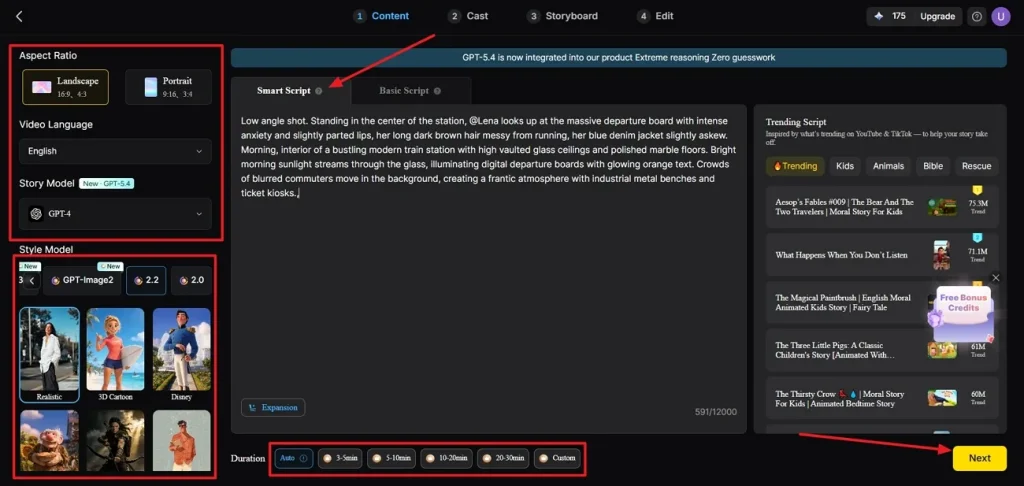
Step 1. Start a New Story to Video Project
Once you enter the Story to Video tool, click the Smart Script tab and type a simple script. Magiclight.AI will optimize your script. Next, select an appropriate Aspect Ratio and Duration for your video. Afterward, pick a Video Language, select a Story Model, and choose a Style Model. Once done, press the Next button.
Step 2. Review the Scene Breakdown
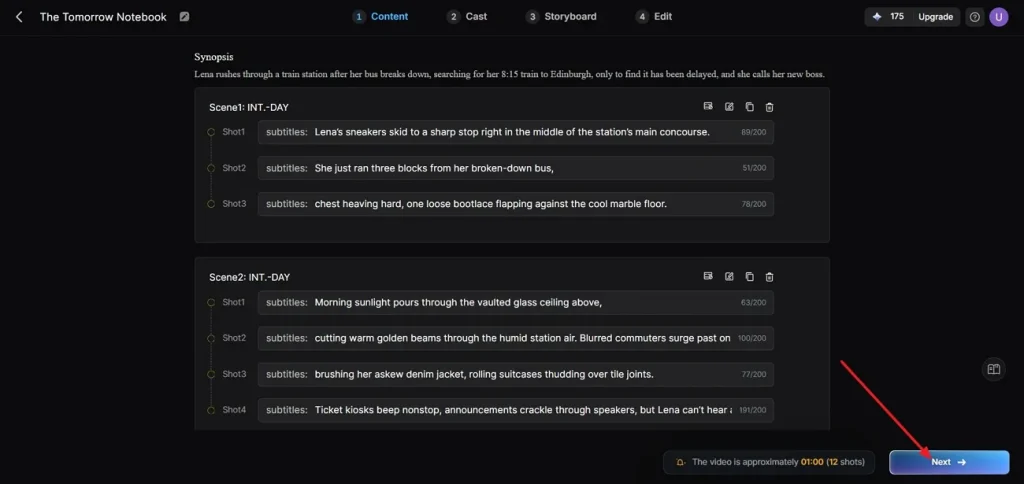
In the following interface, check all the scenes and the Synopsis breakdown. Use the controls for adjustments across the scenes if required. After the scene layout is finalized, press the Next button to proceed further.
Step 3. Pick a Character for Your Video
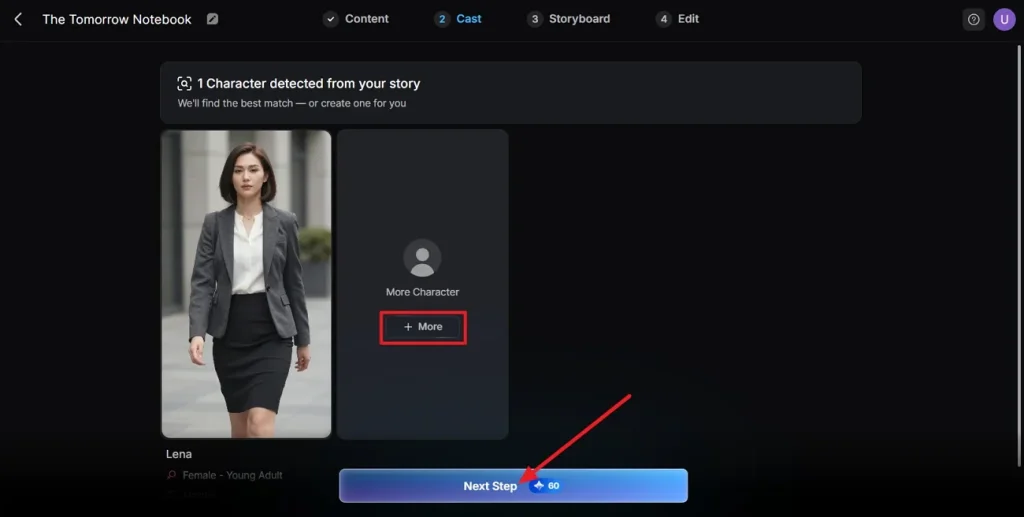
Now, the tool will analyze your script and suggest characters accordingly. Choose the More option to explore more characters. If the character that the tool suggested is finalized, press the Next Step button.
Step 4. Check The Storyboard
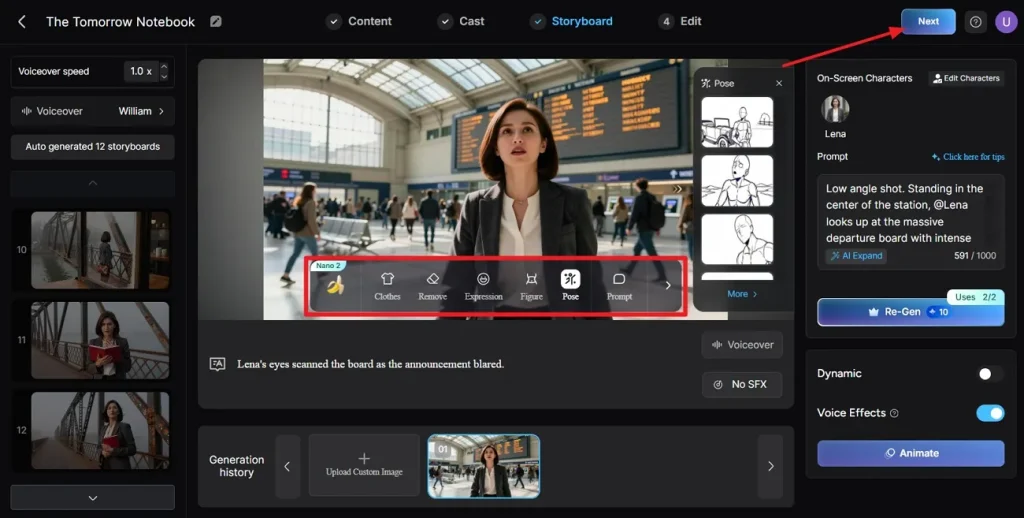
Afterward, review all the scenes in the generated Storyboard. If any adjustments are required to the Clothes, Poses, or Expressions, use the Controls below. Once the entire Storyboard is finalized, press the Next button.
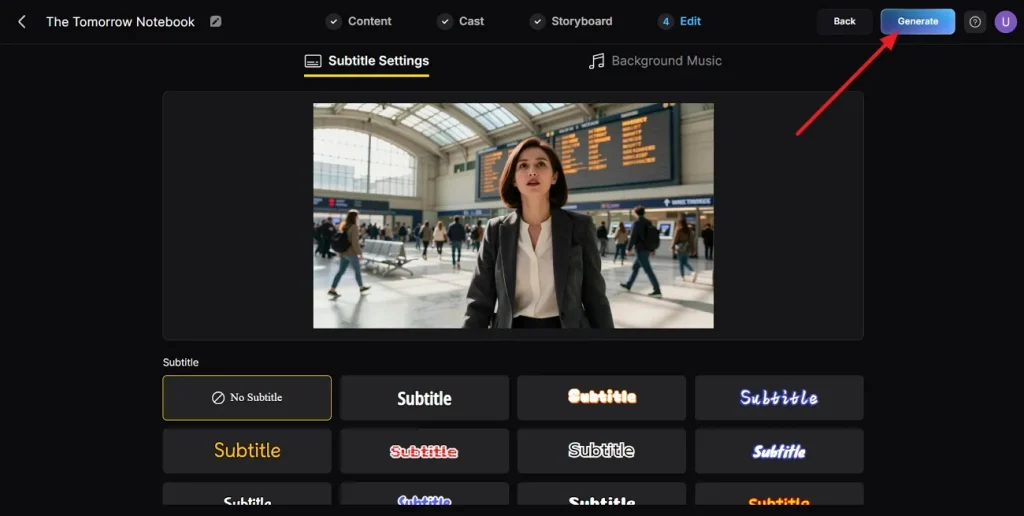
Step 5. Choose Subtitles Style
Now, choose a Subtitle style from the given options and press the Generate button in the top right corner.
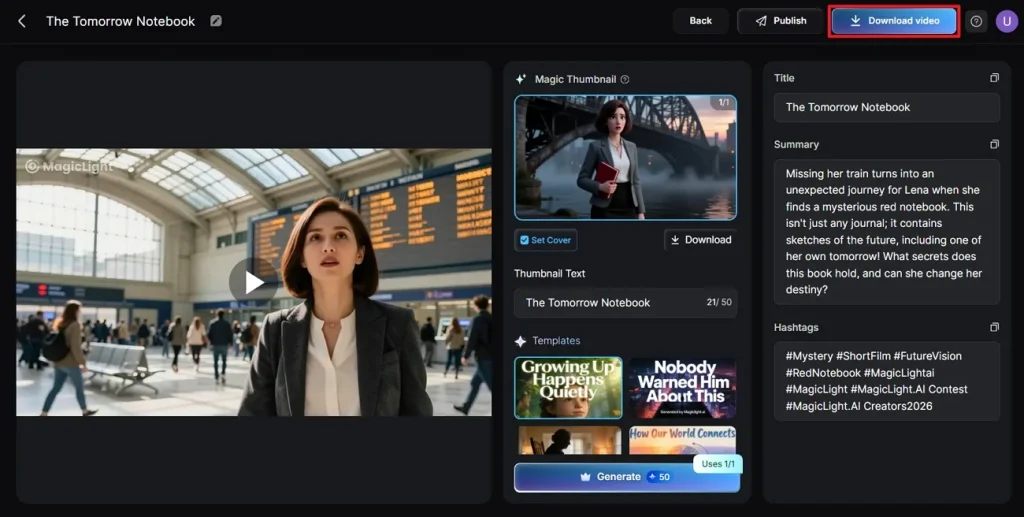
Step 6. Download Final Generated Video
Once the tool generates the video, play the video. Review the Cover, Thumbnail, and Hashtags. After the video is finalized, click the Download Video button to save the video.
Conclusion
In the end, the Gemini Omni vs Seedance 2.0 debate comes down to project style and goals. Many creators now blend both models into a single workflow, using cinematic strengths separately from conversational editing power. For hiding setup pain and running these engines together on a single timeline, Magiclight.AI is the most practical hub.
FAQs on Gemini Omni vs. Seedance 2.0
1. Is Gemini Omni better than Seedance 2.0?
Gemini Omni is stronger for conversational editing and quick iterations, but Seedance 2.0 often wins on raw cinematic quality. Many creators combine both through platforms like Magiclight.AI rather than picking a single permanent winner.
2. Can Gemini Omni edit existing videos?
Yes, Gemini Omni lets users upload clips and change scenes, characters, or camera angles using simple prompts. It supports multi‑turn editing, so the same video can be refined step by step in one conversation.
3. What is the best free video generator in 2026?
There is no single best option, because free plans and limits vary a lot between platforms. Many reviewers suggest testing several free‑tier tools plus an all‑in‑one workflow like Magiclight.AI before committing.