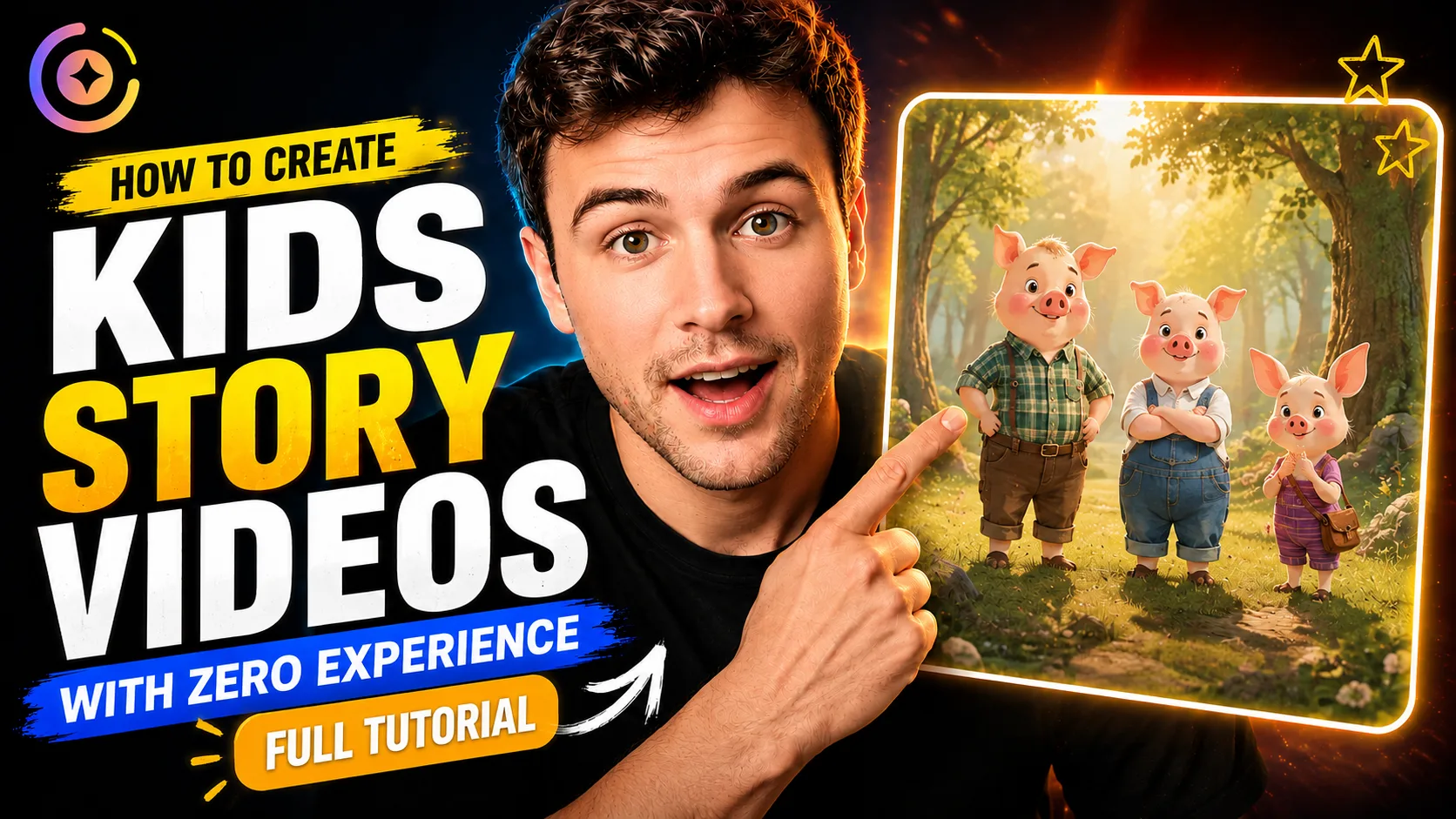
Want to create your own animated kids’ story without writing a full script, designing characters, recording voiceovers, or editing every scene yourself?
In this tutorial, we show you how to use Magiclight’s Kids Story feature to turn a short Aesop’s fable into a complete three-minute animated video—all within one workflow.
Watch the full video for the step-by-step process, then copy the story prompt below and try it yourself in Magiclight.
What You’ll Create
The tutorial follows the story of an honest woodcutter who refuses to claim a gold or silver axe that does not belong to him. His honesty is rewarded, while a greedy neighbor loses even more after trying to deceive the River God.
It is a simple story with a clear lesson: honesty is rewarded, while greed and deception can cause you to lose even more.
By the end of the workflow, Magiclight has created the script, characters, scene images, animated clips, voiceover, subtitles, background music, and final edited video.
1. Start with a Short Story Prompt
Go to Magiclight.ai, choose Kids Story, and enter your story idea.
You do not need to prepare a complete screenplay. A concise summary that establishes the characters, events, and ending is enough for Magiclight to develop into a full script.
Prompt
A woodcutter accidentally dropped his axe into a river. Having lost the tool he depended on to make a living, he burst into tears. The River God took pity on him and brought out a golden axe.
“Is this the axe you dropped?” the River God asked.
“No,” the woodcutter replied.
The River God then brought out a silver axe and asked the same question. Again, the woodcutter honestly answered, “No.”
Finally, the River God brought out the woodcutter’s own axe. The woodcutter immediately said that it was his. Impressed by his honesty, the River God rewarded him by giving him all three axes.
When the woodcutter’s neighbor heard what had happened, he became jealous. He deliberately threw his own axe into the river and pretended to cry. When the River God appeared and showed him a golden axe, asking whether it was the one he had lost, the neighbor quickly answered, “Yes.”
The River God returned to the river and never appeared again. In the end, the greedy neighbor did not even get his own axe back.
2. Choose the Story Settings
For the version shown in the tutorial, use these settings:
- Visual Style: 3D Cartoon 3.0
- Aspect Ratio: 16:9
- Video Length: 3 minutes
- Story Model: A Gemini Flash model
- Voiceover: Choose a voice that fits the tone of the story
The tutorial recommends 3D Cartoon 3.0 for a colorful animated style suited to kids’ content. It also uses a Gemini Flash model for story development based on the creator’s own testing.
Once the settings are ready, click Next.
3. Review the Script and Characters
Magiclight expands the short prompt into a complete script, identifies the characters, and generates a design for each one.
Review the cast before moving forward. If a character does not fit the story, you can select a different design from Magiclight’s character library or regenerate the character until the appearance feels right.
4. Generate and Correct the Scene Images
In the next step, Magiclight creates an image for every shot in the script.
Review each scene carefully before animation. If an object, character, or action is incorrect, adjust that individual image and regenerate it. In the tutorial, for example, one scene showed the woodcutter holding only a wooden handle when he should have been holding an axe. The scene could be corrected directly without rebuilding the whole project.
When all the images look right, click Next.
5. Animate Every Scene
Magiclight then turns the approved images into animated video clips.
The platform includes video models such as Seedance 2.5, but the tutorial recommends trying MiniMax H3 for this Kids Story project because it offers a practical balance of quality and cost for a multi-minute video.
After generation, preview every clip. You can regenerate an individual result or adjust its video content without changing the scenes that already work.
Once all the clips are ready, click Next again.
6. Add Subtitles, Music, and Final Editing
Choose a subtitle style and background music for the story. Magiclight then edits the generated clips into one complete video with the voiceover, visuals, subtitles, and music in place.
Preview the final result and make sure the narration, animation, and soundtrack work together before publishing.
Magiclight can also generate a YouTube title, description, and hashtags for the finished video. If you connect your YouTube account, you can publish the video from Magiclight after reviewing the generated details.
Try It Yourself in Magiclight
That is the complete workflow used in the tutorial.
Start with the woodcutter prompt above, or replace it with your own short story idea. Magiclight can help you develop the script, design the characters, build the scenes, animate the video, and assemble the final story in one place.
Go to Magiclight.ai, open Kids Story, and create your own animated story.

![How to Remove People from Photos in 2026 [Full Guide]](https://magiclight.ai/wp-2/wp-content/uploads/remove-people-from-photos-guide.jpg-300x197.webp)
![6 Best Picture Modification Apps in 2026 to Try [New List]](https://magiclight.ai/wp-2/wp-content/uploads/best-picture-modification-apps-for-photos.jpg-300x200.webp)

![How to Turn Audio File Into Video in 2026 [Full Guide]](https://magiclight.ai/wp-2/wp-content/uploads/audio-to-video-conversion-guide.jpg-300x169.webp)