You may have a podcast recording ready but need visuals before sharing it on YouTube. The platform won't let you upload MP3 and WAV recordings directly as regular videos. To learn how to turn an audio file into a video, first choose visuals that fit your recording. MagicLight AI offers a Toolbox where audio files can serve as references for video generation. This guide walks through the process and explains how to prepare videos for YouTube.
Part 1. How to Turn Audio File Into Video: Step-by-Step Guide
There are 2 ways to approach how to make an audio file into a video. You can place a still picture behind the recording and save everything as an MP4. For more interesting visuals, MagicLight AI offers an AI video generator through its Toolbox. The available upload options depend on which video engine you select inside the tool.
Veo 3.1 Lite accepts images, while Seedance 2.5 supports WAV and MP3 audio uploads. Seedance 2.0 Fast also supports audio references alongside the image-to-video generation feature. Seedance 2.5 allows up to 30 seconds of audio during each video generation request. Follow the steps below to turn your podcast highlight into video using MagicLight AI:
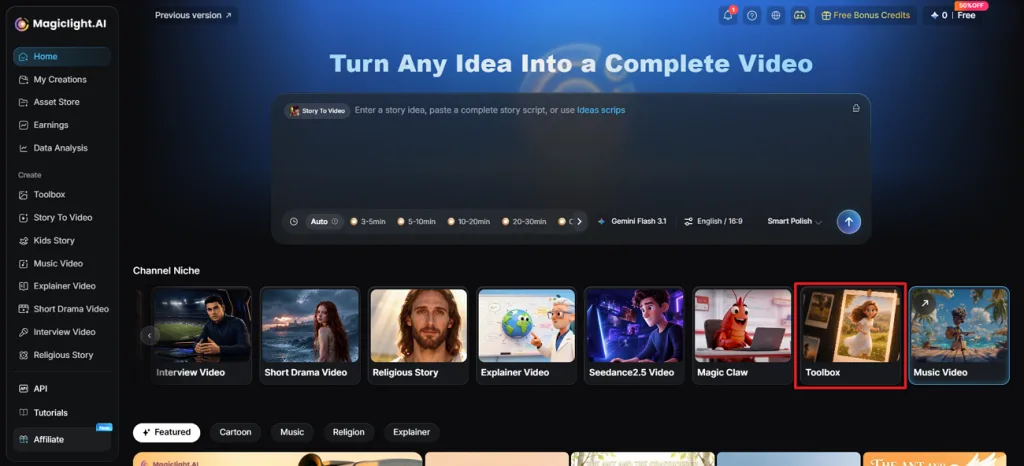
Step 1. Access the Toolbox Feature in MagicLight AI
Once you enter the main interface, press the Toolbox tab to access the video creation workspace.
Step 2. Enter the Video Creation Panel
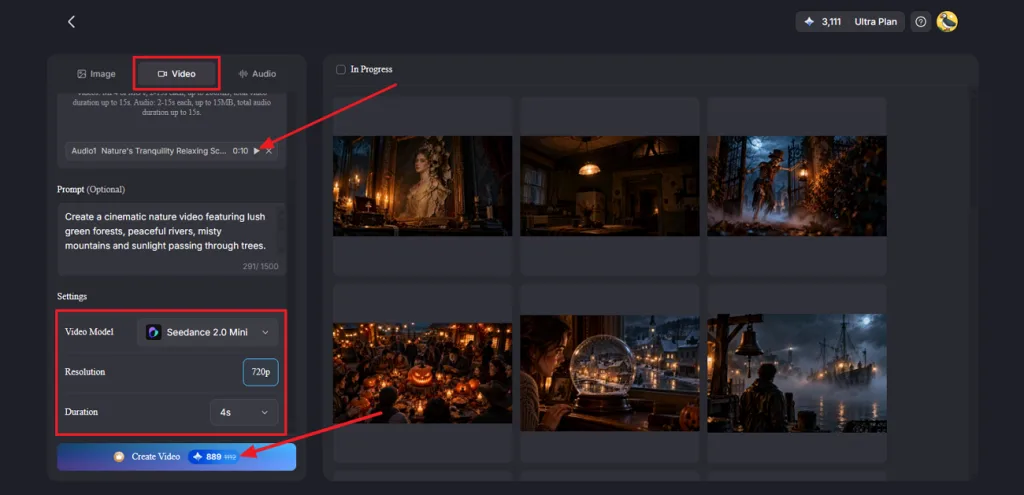
Next, open the Video tab and select Seedance 2.5. Check the available audio and image reference fields before uploading your files for video generation. Use up to 1500 characters of description to describe the video motion and camera movements. Choose a suitable Duration and Resolution. Lastly, press the Create Video button to start the video creation process.
Step 3. Preview the Final Video
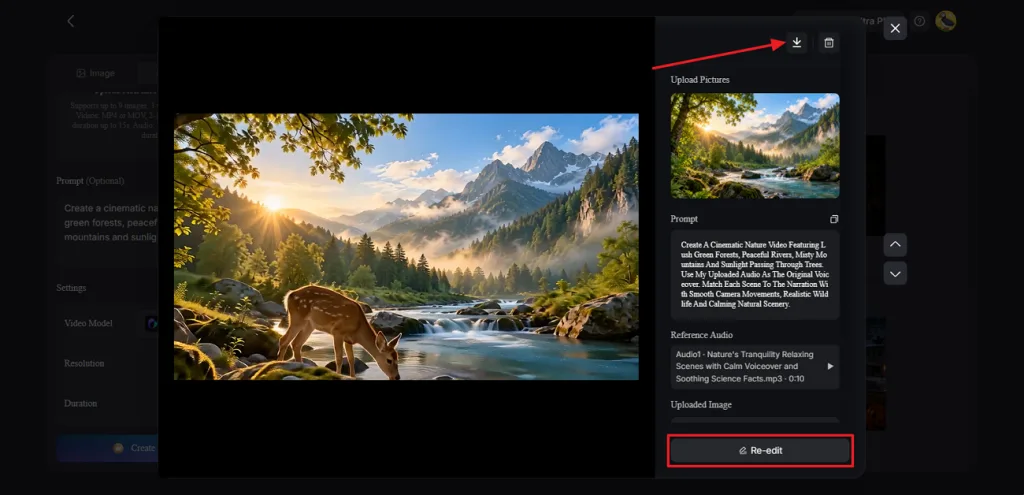
After the video is generated, watch the video in the Preview panel and use the Re-edit button to make any amendments. Once the video is finalized, click Download to save the final video.
Part 2. Tips for Turning Audio Files Into Videos
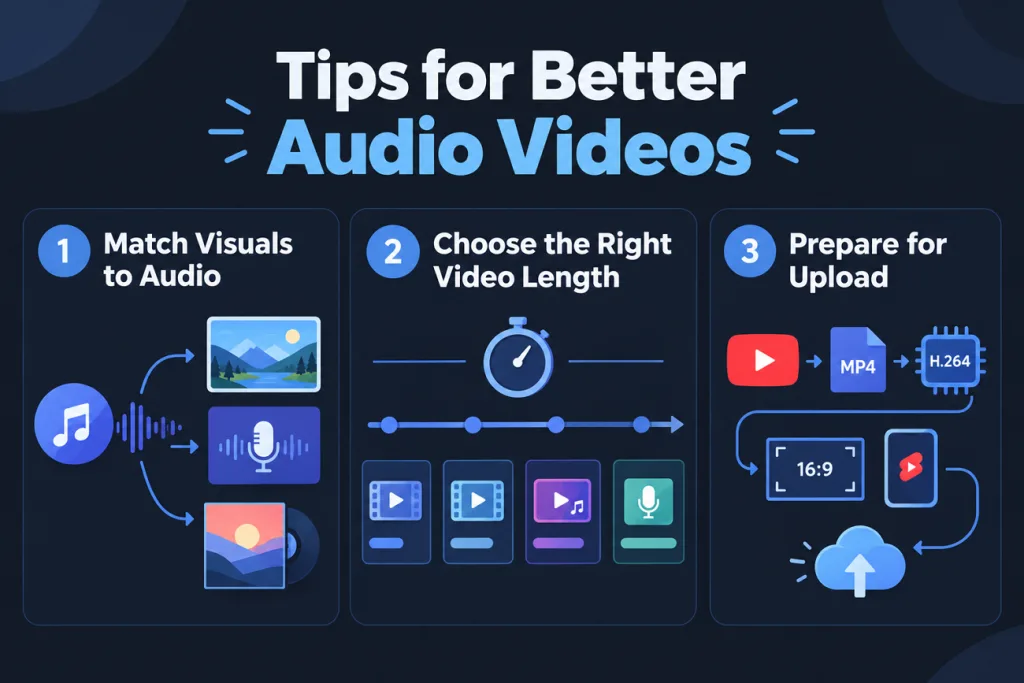
Converting audio into video is fairly simple, yet getting the result you want takes some thought. The picture needs to suit what people are listening to. You will also want to check the video settings before uploading it to your chosen platform. Here are three tips worth knowing before you share your video.
Choose Visuals That Match the Audio
Think about what someone would expect to see when listening to your recording. A podcast clip might work better with the speaker on screen when the camera moves slightly during the conversation. For a music track, you could change the scenes as the beat picks up. If you're learning how to make an audio file into a video, the original cover artwork is another option worth trying.
Match the Video Length to the Audio
A podcast clip can feel awkward when the picture stops moving before the speaker finishes talking. Check the recording's length before choosing how long the video should run. MagicLight AI offers different options depending on how long your recording runs. Here's what works for each audio length:
- Clips Under 15 Seconds: Seedance 2.0 Fast accepts up to three audio files with a combined length of 15 seconds. This works well for short quotes and jingles.
- Clips of 15 to 30 Seconds: Seedance 2.5 supports up to 30 seconds of audio per generation. It can handle a short podcast highlight within that limit.
- Full Songs: Longer tracks exceed these short-clip limits. Check MagicLight AI's Music Video tool for supported audio lengths and music-based video generation options.
- Full Episodes: For an hour-long podcast, you can use a regular video editor to pair the entire recording with its cover image. The picture stays on screen while listeners enjoy the full episode.
Prepare the Video for YouTube and Other Platforms
YouTube provides recommended upload settings that help videos play properly after they are uploaded. Knowing how to convert an audio file to video format also means choosing settings that suit the platform. For the podcast highlight, these are the settings YouTube recommends before uploading the video:
| Setting | YouTube Recommendation |
| Container | MP4 |
| Video Codec | H.264 |
| Audio | AAC-LC or Opus at a 48 kHz sample rate |
| Aspect Ratio | 16:9 for standard videos, vertical for Shorts up to 3 minutes |
| 1080p Bitrate | 8 Mbps at 24–30 fps, 12 Mbps at 48–60 fps |
Conclusion
In conclusion, adding visuals to your recording lets people enjoy the audio through video. Understanding how to turn an audio file into a video helps you prepare recordings for YouTube. The length of your audio determines which video option will work for your recording. You can try MagicLight AI to create videos from audio with suitable visual scenes.
FAQs About How to Turn Audio File Into Video
- How do I convert audio to video for YouTube for free?
Start by adding your recording to Clipchamp and placing a picture over the audio. Once everything looks right, export the video as an MP4 file for uploading to YouTube.
- Can I convert audio to video online without installing software?
Yes, several browser-based editors let you work with audio files without downloading additional software. MagicLight AI also accepts WAV and MP3 references through its online video generation Toolbox.
- Can I turn an audio file into a video with pictures?
Learning how to turn audio into video with pictures is easy using online editors. MagicLight AI's Seedance 2.5 accepts image references to guide the scenes in your video.
- Which online tools can convert audio to video for free?
Free options include Clipchamp for basic editing and Canva for videos with uploaded audio recordings. MagicLight AI offers free starter credits if you want to explore AI-generated video scenes.
![6 Best Picture Modification Apps in 2026 to Try [New List]](https://magiclight.ai/wp-2/wp-content/uploads/best-picture-modification-apps-for-photos.jpg-300x200.webp)
![How to Make an AI Movie in 2026 [Step-by-Step Guide]](https://magiclight.ai/wp-2/wp-content/uploads/ai-movie-creation-journey-posters.jpg-3-300x169.webp)