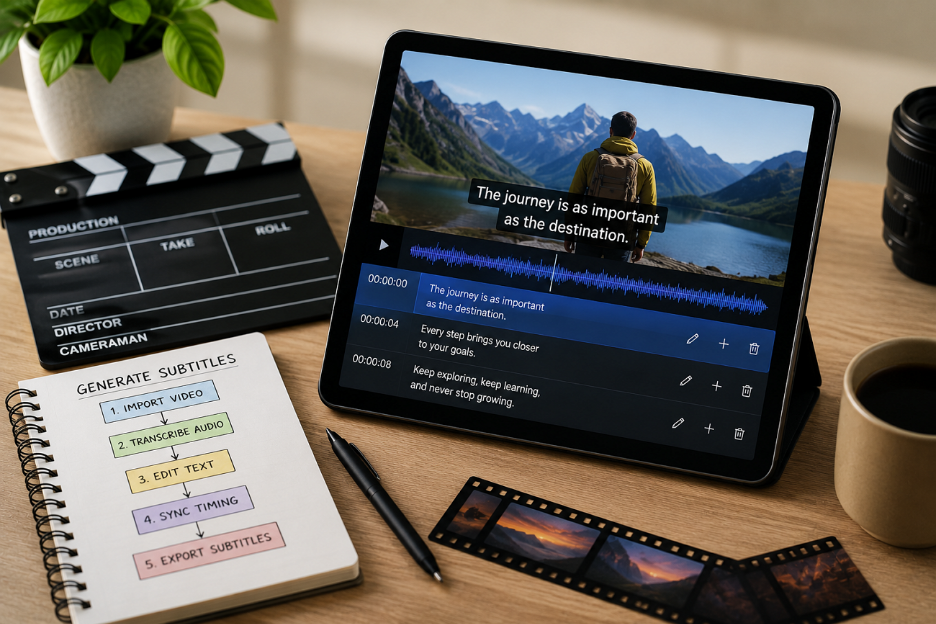
Creating subtitles manually takes time and often leads to small mistakes. Many people watch videos without sound during work or daily travel. Clear subtitles help them understand every scene without missing important spoken information. Yet, learning how to generate subtitles for video closes that gap before it costs you the view. This guide explains simple methods with useful tips for creating clear and accurate subtitles.
Part 1. 3 Ways to Generate Subtitles for Video
Every creator should understand how to generate subtitles for video before getting started successfully. Below are three practical methods suitable for different needs and experience levels:
Method 1. Generate Subtitles with AI Video Tools Like MagicLight AI
Many tools exist to generate subtitles, but MagicLight AI is the best one for generating them. This dedicated tool has 16 built-in subtitle styles to match different video themes and audience preferences. You can refine subtitle timing using detailed Nano Storyboard scene adjustments before final video creation begins. It adjusts subtitle timing scene by scene for smoother reading during fast conversations and action sequences.
Moreover, the tool creates subtitles matching character conversations for clearer storytelling across every video scene naturally. It maintains consistent characters across scenes while subtitles stay matched with ongoing conversations naturally throughout. MagicLight AI’s text-to-video pipeline automatically preserves subtitle styles and language choices during video creation.
Complete Guide to Generating Subtitles for Videos with Minimal Effort
The following guide helps you find out how to generate subtitles for video via MagicLight AI:
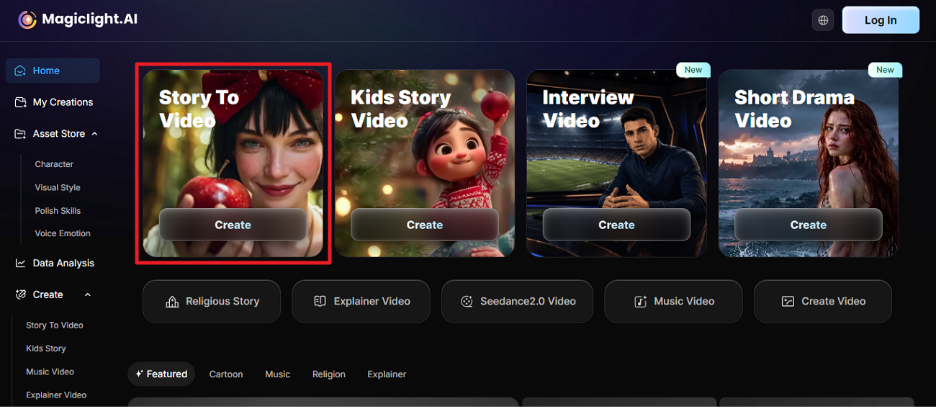
Step 1. Open Story to Video in MagicLight AI
As you open MagicLight AI in your preferred web browser, click the Story to Video feature to start a new project.
Step 2. Enter Your Video Script and Choose Settings
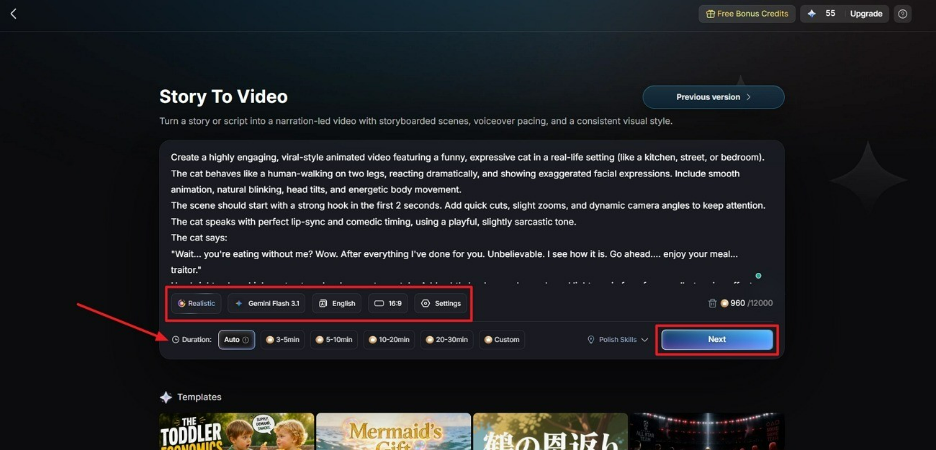
Now, enter your prompt in the provided Text Box and select the preferred Video Language. Next, adjust the Aspect Ratio and choose a preferred Story Model such as GPT-4. Afterward, set the Video Duration and then opt for the Next button to proceed.
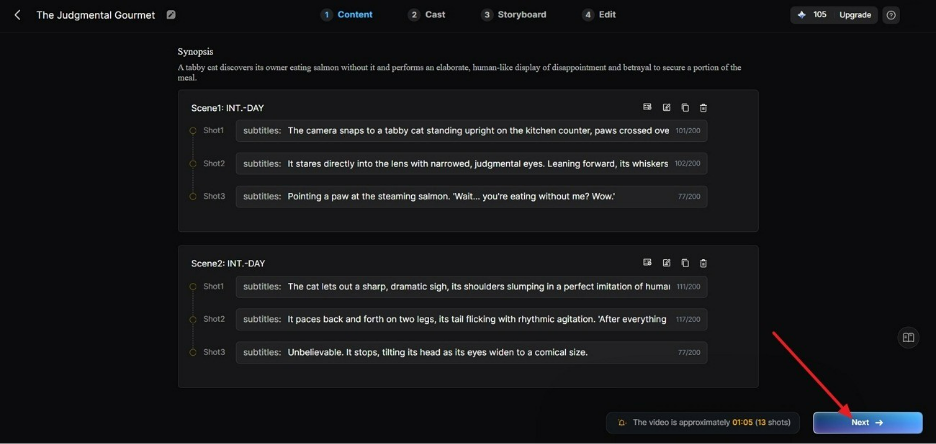
Step 3. Review the Generated Storyboard
MagicLight AI automatically creates a storyboard from your script. Check each scene carefully and make any needed changes before clicking Next.
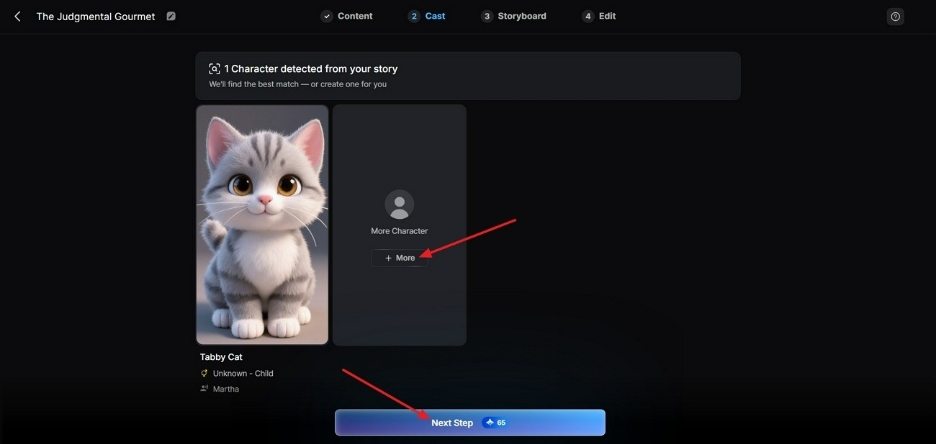
Step 4. Select AI Characters for Your Video
Choose the suggested AI characters or create a new one through the More Character option. After confirming your selection, click Next Step to continue.
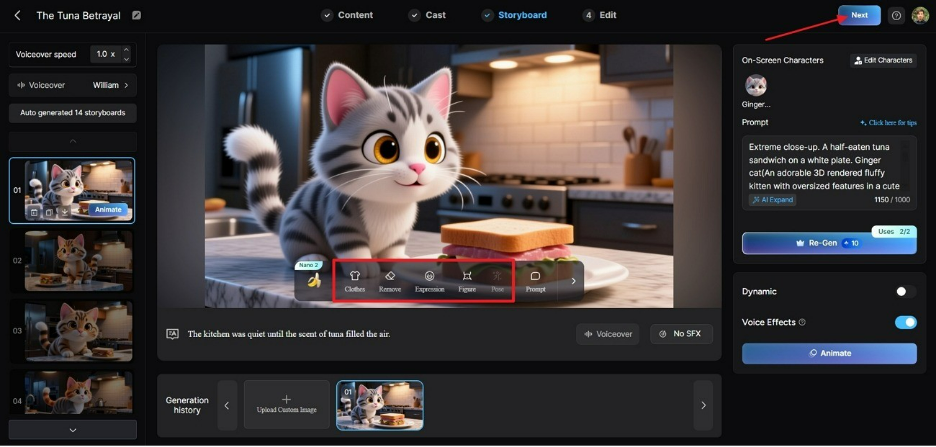
Step 5. Change Selected Character Appearance
In the Storyboard screen, the tool allows you to change the Voiceover Speed of a character. Not only this, but you can also even modify its Clothes, Expression, and Body Figure from the provided buttons. After verifying all settings are correct, click the Next button to continue.
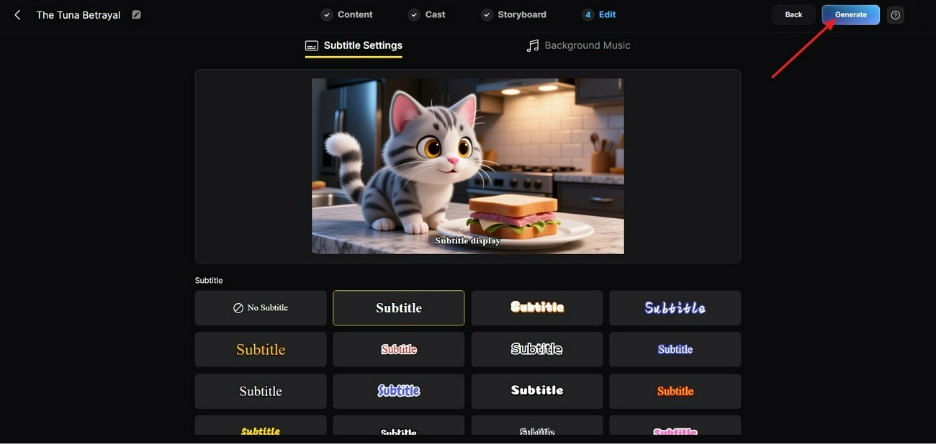
Step 6. Generate and Customize Video Subtitles
Open Subtitle Settings and enable automatic subtitle generation for your video. Choose your preferred subtitle style, add background music if needed, then click Generate.
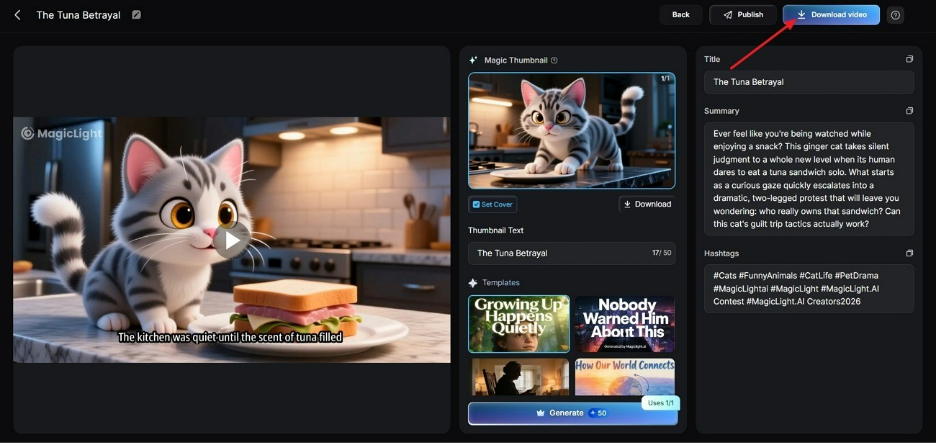
Step 7. Watch and Download the Subtitled Video
After the video finishes processing, preview it to check subtitle timing and accuracy. If everything looks correct, opt for Download to save the final subtitled video.
Method 2. Add Subtitles Using Video Editing Software
Adobe Premiere Pro is the natural choice for users to create subtitles after carefully analyzing your finished video audio. Its Text Panel converts speech into editable captions with accurate timing for every scene. You can export an SRT file or burn subtitles directly into your finished video. Follow the steps below to learn how to generate subtitles for video:
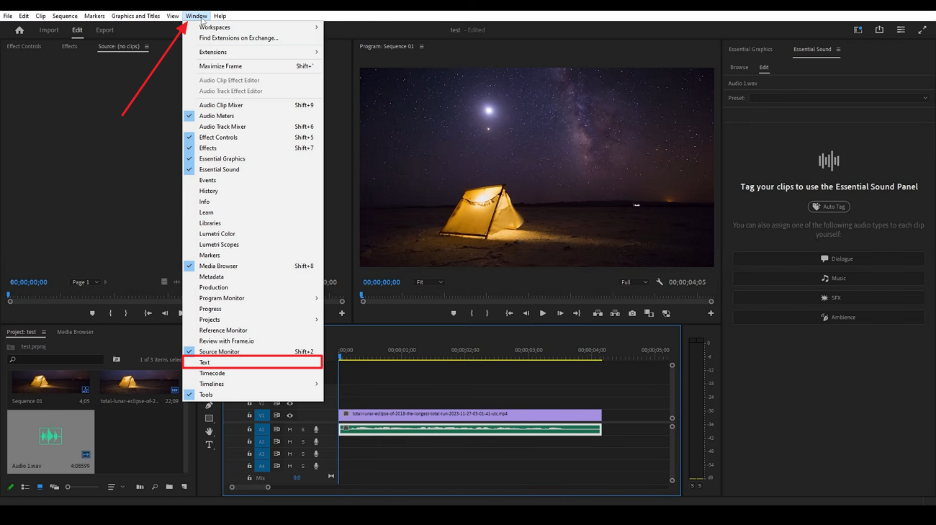
Step 1. After adding a video to Adobe Premiere Pro, click on Windows and select Text.
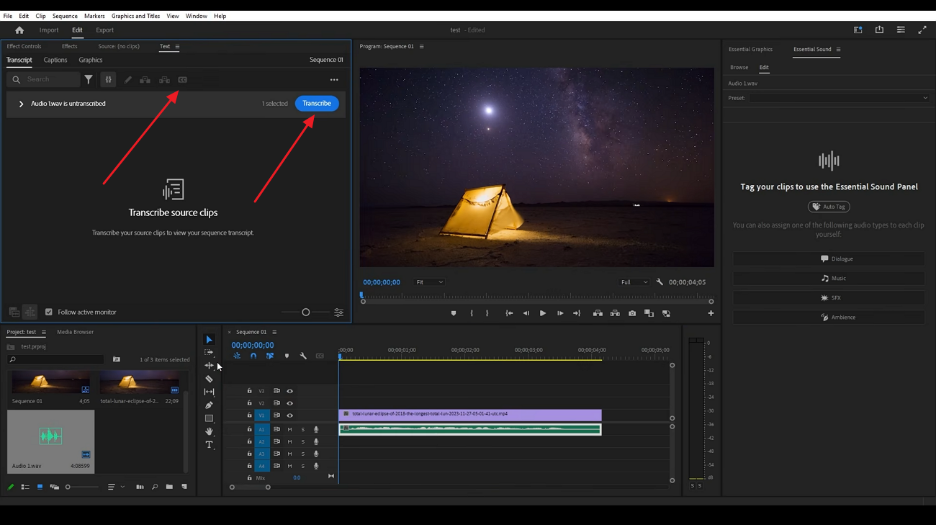
Step 2. Next, press the Transcribe button and choose the Caption icon.
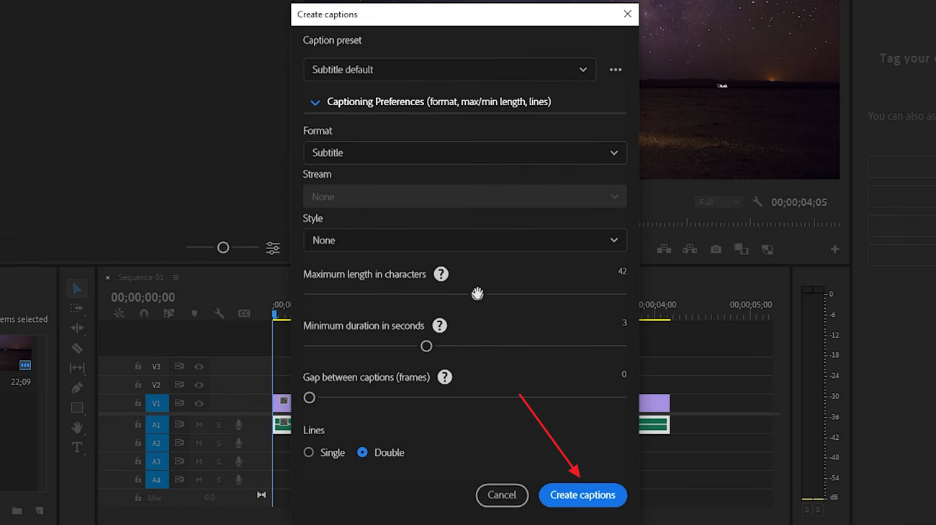
Step 3. Finally, adjust the settings and opt for Create Caption to generate subtitles.
Method 3. Generate Subtitle Files with Free Open-Source Tools
There are many free open-source tools like Aegisub to generate subtitles. Its waveform display helps match subtitle timing with spoken words more accurately every time. The variable frame rate feature keeps subtitles aligned across different video formats. Its post-processing tools refine lyric timing to deliver reliable, professional karaoke video results. Adhere to the steps to generate subtitle files with Aegisub:
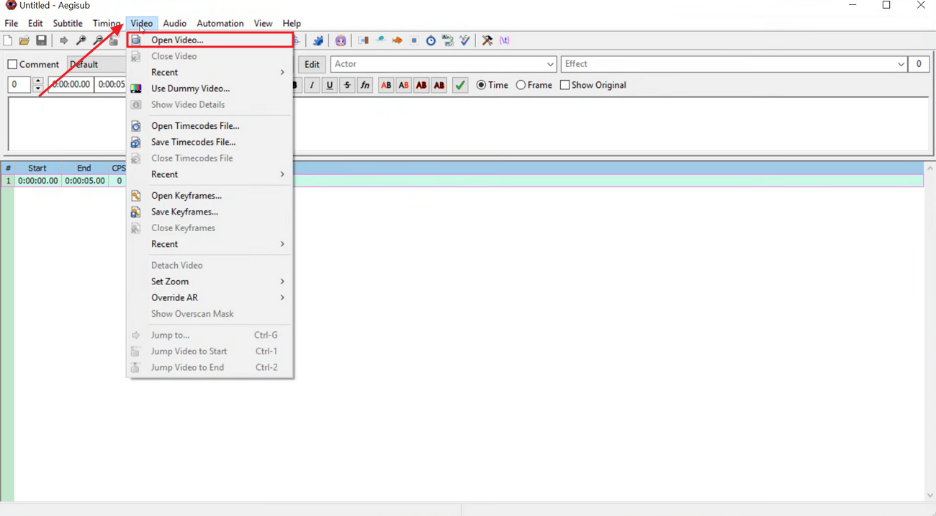
Step 1. Inside Aegisub, click Video and select Open Video to add a video to the tool for subtitles.
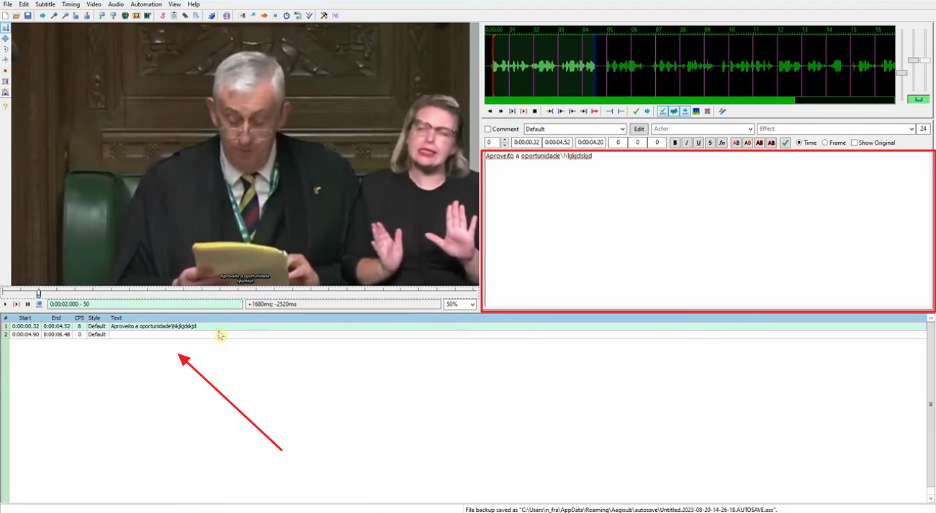
Step 2. After adding the video, type captions manually in the provided Text Box and adjust the timeline to set when they should appear.
Part 2. How to Choose the Right Subtitle Generation Method?
Every option suits different videos depending on your editing skills and project needs. Still, deciding how to generate subtitles for video comes down to this comprehensive table:
| Features | MagicLight AI | Adobe Premiere Pro | Aegisub |
| Video Creation | Complete video workflow | Edit existing footage | Subtitle editing tool |
| AI Generation | AI video creation | Manual editing process | No AI generation |
| Subtitle Styles | 16 subtitle styles | Custom text controls | Basic subtitle formatting |
| Scene Planning | Nano storyboard adjustments | Timeline-based editing | Timecode subtitle control |
| Subtitle Timing | Scene-by-scene timing | Sequence caption timing | Precise lyric timing |
| Content Types | Stories dramas explainers | Professional video projects | Karaoke subtitle projects |
| Export Options | 720p and 1080p video | Caption export options | Subtitle file export |
| Background Music | 40 music options | Audio editing tools | No music tools |
Part 3. Tips for Creating High-Quality Video Subtitles
Creating clear subtitles requires knowing how to generate subtitles for video with better quality. Review the following tips for creating subtitles that improve every viewer experience.
Make Subtitles Easy to Read
Readability comes down to a handful of numbers that professional captioners treat as effectively fixed. Walk through these 5 points before worrying about anything cosmetic:
- Line Limit: Keep subtitles within two lines to avoid blocking important video content.
- Character Count: Limit subtitle lines to around 40 characters for easier reading during videos.
- Display Time: Show each subtitle for one second so viewers can read comfortably.
- Natural Breaks: Split subtitle lines at pauses to keep sentences clear and easy.
- Text Contrast: Use clear text contrast with backgrounds to keep subtitles visible always.
Improve Subtitle Accuracy and Natural Flow
Subtitle accuracy improves when you check names, brands, and unusual words carefully. Some terms may confuse automatic tools and create incorrect subtitle results quickly. Natural subtitles should avoid repeated words, false starts, and unnecessary speech pauses. Editing these parts creates smoother text that viewers can understand while watching videos.
Match Subtitles with Your Video Content
Different videos need different subtitle styles to improve viewer understanding and comfort. Tutorials should keep important terms clear so users can follow each step easily. Short videos need brief captions with strong on-screen visibility at all times. Children's videos need simple words and slower timing for young viewers too. Interviews and stories need accurate text with clear speaker changes during conversations.
Part 4. Common Subtitle Generation Challenges and Solutions
Even after learning how to generate subtitles for a video, common problems can still arise. Each fix below costs far less time than rebuilding the file from start:
| Challenge | Solution |
| Subtitle Timing Breaks After Video Edits. | Keep subtitles separate from the video file. Update subtitles as the revised script changes occur. |
| Auto Captions Create Large Text Blocks. | Set character limits and caption timing before generating subtitles for better readability. |
| Translated Subtitles Become Too Long on Screen. | Shorten original lines before translation and review line breaks in the new language. |
| Captions Overlap with Video Graphics. | Adjust subtitle position or move graphics to keep both elements clearly visible. |
Conclusion
To conclude, creating subtitles becomes easier when you choose the right process before making videos. Knowing how to generate subtitles for video helps avoid these issues from the beginning. Nonetheless, selecting a suitable workflow saves effort and improves final results. For script-based videos, MagicLight AI provides a complete creation process with built-in subtitle support. It helps generate videos and subtitles together without extra editing steps.
FAQs on How to Generate Subtitles for Video
1. Can I generate subtitles for free?
Yes, free tools like Aegisub can easily create subtitle files from videos. These tools help generate SRT files without paying any extra charges or fees. Paid tools mainly offer additional styles, faster speeds, and easier subtitle creation features.
2. Do auto-generated subtitles need manual editing?
Yes, auto-generated subtitles often need some checking after they are created. Speech tools may sometimes miss names, special words, or different speaking styles. MagicLight AI helps reduce edits because subtitles follow your written script directly.
3. What's the difference between subtitles and closed captions?
Subtitles show spoken words while assuming viewers can hear other sounds clearly. Closed captions also include sounds, music details, and speaker names for viewers. They make videos easier to access because viewers can enable or disable them at any time.
4. Can subtitles be translated into other languages automatically?
Yes, subtitles can be translated into different languages using modern video tools. However, the translated text should be checked because sentence lengths often change. MagicLight AI supports 11 languages, making it easy to create videos with matching subtitles.