Choosing between AI image and video tools can get confusing once you compare their features. The Stable Diffusion vs Runway comparison shows how differently these tools handle creative projects. Stable Diffusion gives users more control over images through settings they can adjust themselves.
Runway focuses more on video creation with tools that help bring scenes to life. Their differences become clearer when you look at pricing and the quality of results. This guide compares their main features to help you decide which suits your projects.
Part 1. Stable Diffusion vs. Runway: Which One Should You Choose?
Both tools can produce impressive results but their features suit different types of creative projects. Look at the table below to see how their main features compare in 2026:
| Feature | Stable Diffusion | Runway |
| Main Focus | AI image generation | AI video creation and editing |
| Access | Downloadable models and paid API | Online creative platform and API |
| Core Models | Stable Diffusion 3.5 Medium, Large, Large Turbo | Gen-4.5, Gen-4 Image, Aleph 2.0 |
| Video | Requires separate video models or tools | Gen-4.5 creates clips up to 10 seconds |
| Editing | Image editing with inpainting and ControlNet | Video editing through Aleph and Edit Studio |
| Setup | Local setup needs suitable hardware; hosted options available | Account sign-up with no local GPU required |
| Customization | Model training, LoRA support and ControlNet | References, custom workflows and creative controls |
| Cost | Free self-hosted model use under license terms; paid API | 125 free credits; paid plans use monthly credits |
| Commercial Use | Free commercial use below $1M annual revenue | Commercial use allowed under platform terms |
Image Generation and Quality
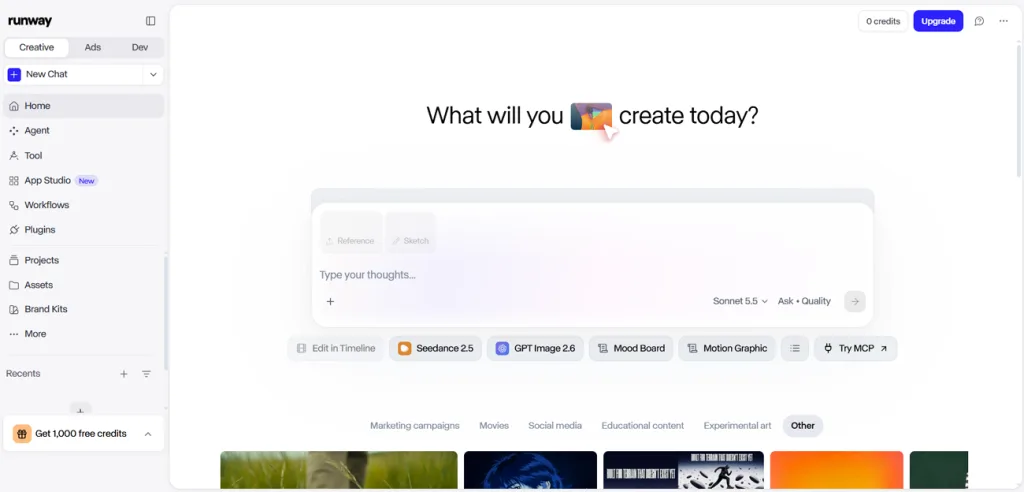
Stable Diffusion gives users more control over image details through its different models and settings. Runway focuses on creating consistent images that creators can later use for video projects. Below are the main image features that show how these tools handle image quality:
- Official Models: Stable Diffusion 3.5 Large uses 8.1 billion parameters to create detailed images with strong prompt understanding.
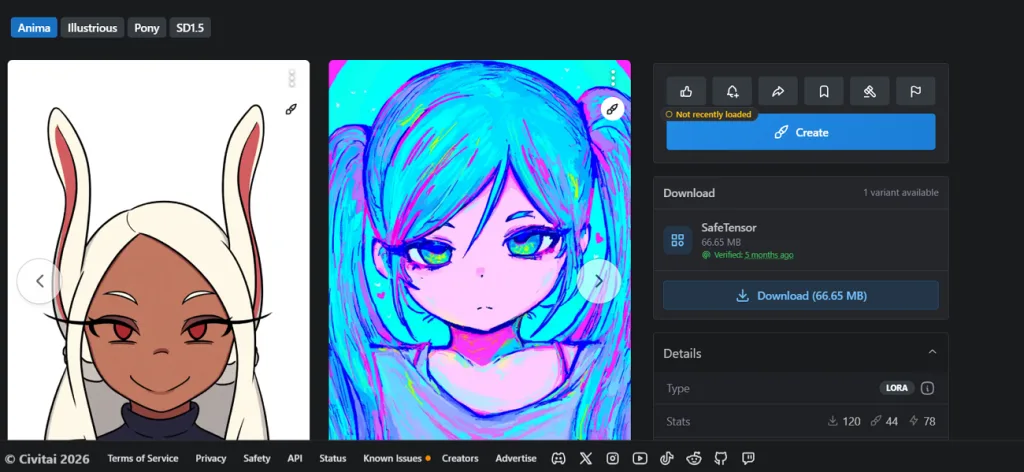
- Community Models: Creators can download trained models from Civitai to produce images with different artistic styles.
- Runway Images: Gen-4 Image uses reference pictures to keep characters looking consistent across different scenes.
- Image Editing: Runway lets creators change generated images through prompts and supported image editing tools.
AI Video Generation
Runway has a clear advantage in video creation because its main models focus on moving scenes. Stable Diffusion needs separate video models that provide fewer controls for creating longer clips. Runway also gives creators more ways to change footage after the first video is generated. The table below shows how both tools compare when creating videos from images and prompts:
| Video Need | Stable Diffusion | Runway |
| Text to Video | Not supported by Stable Video Diffusion | Gen-4.5 creates videos from text prompts |
| Image to Video | Turns still images into short clips | Gen-4.5 animates uploaded images |
| Video Length | Around 4 seconds with SVD 1.1 | Gen-4.5 supports 2–10 seconds |
| Resolution | 1024 × 576 with Stable Video Diffusion | Gen-4.5 generates at 720p |
| Camera Control | Limited control through standard SVD models | Camera movements can be described in prompts |
| Sound | Stable Video Diffusion produces silent clips | Selected Runway models support generated audio |
Editing Images and Footage
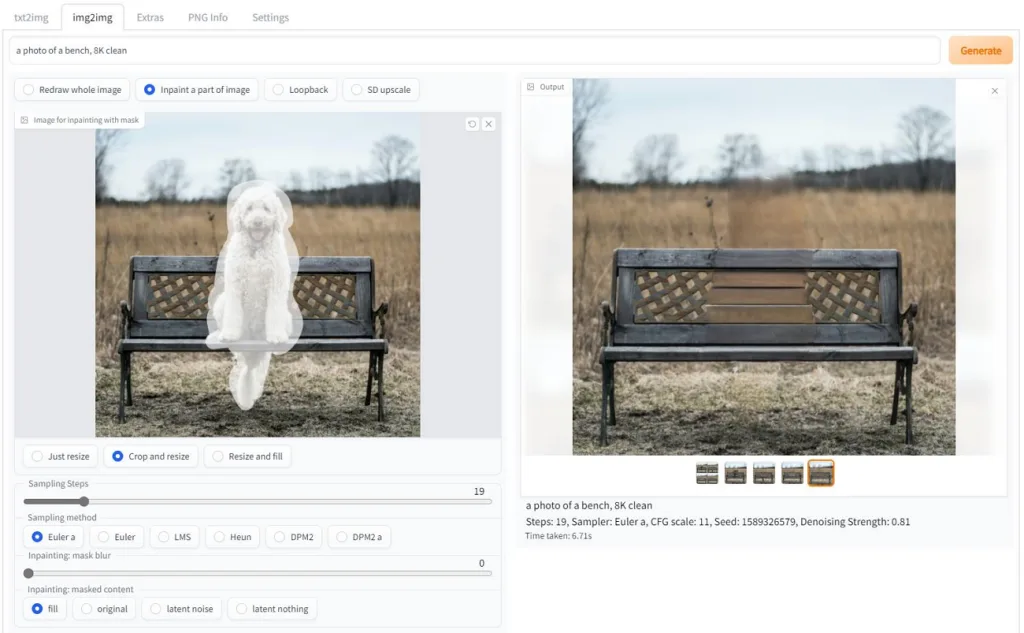
The Stable Diffusion vs Runway comparison also shows important differences in how creators edit their work. Stable Diffusion helps users change specific image details without creating an entirely new picture. Runway goes further with video editing tools that can change existing footage through prompts. Here are the main editing features that make each tool useful for different projects:
- Inpainting and Outpainting: Stable Diffusion can replace selected image areas and extend backgrounds beyond their original edges.
- ControlNet Guidance: Compatible Stable Diffusion workflows use reference poses and outlines to guide image changes.
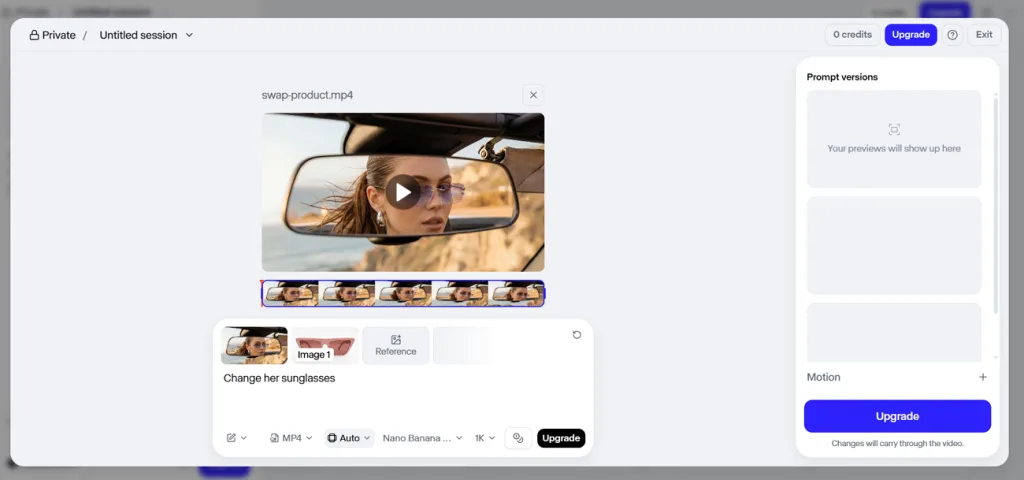
- Runway Video Editing: Runway Aleph can remove unwanted objects and change lighting within existing video clips.
- Scene Changes: Runway Aleph uses reference images to guide visual changes across a video clip.
Setup, Hardware, and Ease of Use
Getting started with Stable Diffusion takes more setup than using Runway. Stable Diffusion gives users more control but needs suitable hardware for local generation. Runway keeps the process simpler with its ready-to-use creative tools. Let's look at how both platforms handle setup and hardware requirements:
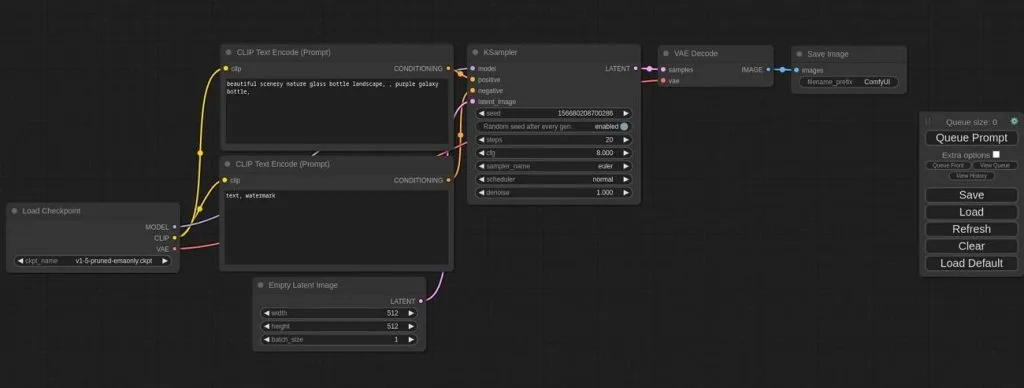
- Local Front Ends: ComfyUI uses a node-based layout, while Forge and InvokeAI provide simpler interfaces for image generation.
- GPU Memory: Stable Diffusion 3.5 Medium needs around 9.9GB of VRAM, excluding text encoders, for full performance. Large needs more memory and may require a stronger graphics card.
- Hosted Stable Diffusion: Stability AI offers cloud-based image generation through its API, with costs based on model usage.
- Runway Setup: Runway works through its online platform, so users need no local GPU or model installation.
Customization and Creative Control
Stable Diffusion gives creators more freedom to adjust how their images look before generating them. Runway makes creative work easier to repeat through saved settings and connected production tools. Here are the main customization features that help creators manage their projects more easily:
- Stable Diffusion: LoRA models help creators maintain a similar character appearance across different generated images. ComfyUI also lets users connect different tools through nodes for greater control over image generation.
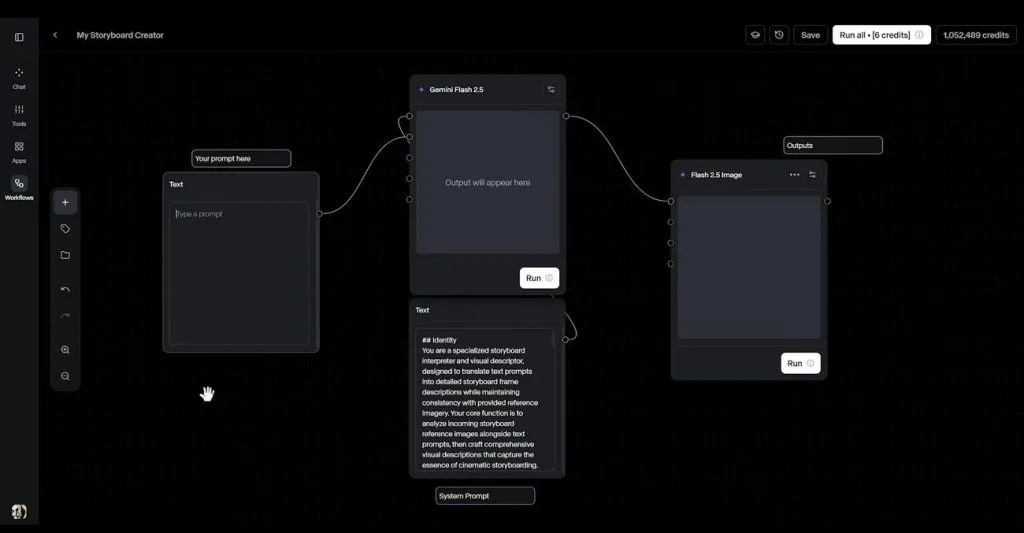
- Runway: Workflows let creators connect AI models and reuse the same steps across projects. App Studio also helps users build creative apps by describing what they want to create.
Pricing and Licensing
Stable Diffusion can cost less for creators who already have suitable hardware for local generation. Runway uses paid plans with monthly credits that decrease as users generate videos and images. Stable Diffusion also has separate commercial licensing rules based on a company's yearly revenue. The table below compares the pricing options and what each plan offers creators:
| Option | Price | What It Includes |
| Stable Diffusion Self-Hosted | Free under license terms | Local image generation and model customization |
| Stability AI API | $0.01 per credit | 25 free credits; SD 3.5 Large costs 6.5 credits per image |
| Runway Free | $0 | 125 one-time credits and limited model access |
| Runway Standard | $15/month or $12/month billed yearly | 625 monthly credits; watermark-free exports and 4K upscaling |
| Runway Pro | $35/month or $28/month billed yearly | 2,250 monthly credits; 1 Brand Kit and 1 custom voice clone |
| Runway Max | $95/month or $76/month billed yearly | 9,500 monthly credits; HDR and ProRes support with 1-month credit rollover |
Final Verdict
Stable Diffusion works better for detailed image projects that need more control over every result. Runway is the stronger choice for creators who mainly want to generate and edit videos.
- Choose Stable Diffusion: Its local image generation and custom models suit artists who want detailed creative control.
- Choose Runway: Its video models and editing features help creators produce short clips with less setup.
- For Long Story Videos: Both tools need extra work to turn separate scenes into complete narrated stories.
Part 2. Why Choose MagicLight AI Over Stable Diffusion & Runway
The Stable Diffusion vs Runway comparison shows that both platforms focus on different creative needs. However, producing longer stories with consistent characters often requires additional tools and editing work. MagicLight AI simplifies this process by bringing complete story video creation into one platform. Its Story to Video feature turns written ideas and scripts into animated videos with narration.
MagicLight AI also helps maintain consistent character appearances across different scenes throughout the entire story. Its separate Toolbox offers image generation and shorter video creation for different creative projects.
Key Features of MagicLight AI
- MagicLight Agent: MagicLight Agent helps creators build complete videos through simple chat instructions. Users can adjust stories and scenes without managing every production step manually.
- Character Library: Upload a reference image to create characters with consistent appearances across scenes. Describe character appearance using up to 1,000 characters for more detailed results.
- Video Modes: Different modes support text prompts, reference images, frames, and video transformations. Moreover, choose from 20 video models, including Seedance 2.5, Kling, and Hailuo.
- Image Engines: Google, OpenAI, and ByteDance models offer 6 different image generation styles and results. Users can enter 500-character prompts and upload up to 10 reference images.
- Voices and Music: ElevenLabs and MiniMax voices help bring characters and narration to life naturally. Suno provides background music, with 16 subtitle styles available for video captions.
How to Create a Story Video with MagicLight AI
MagicLight Agent helps turn your video ideas into complete stories with characters and narration. Follow the steps below to create your video using MagicLight AI:
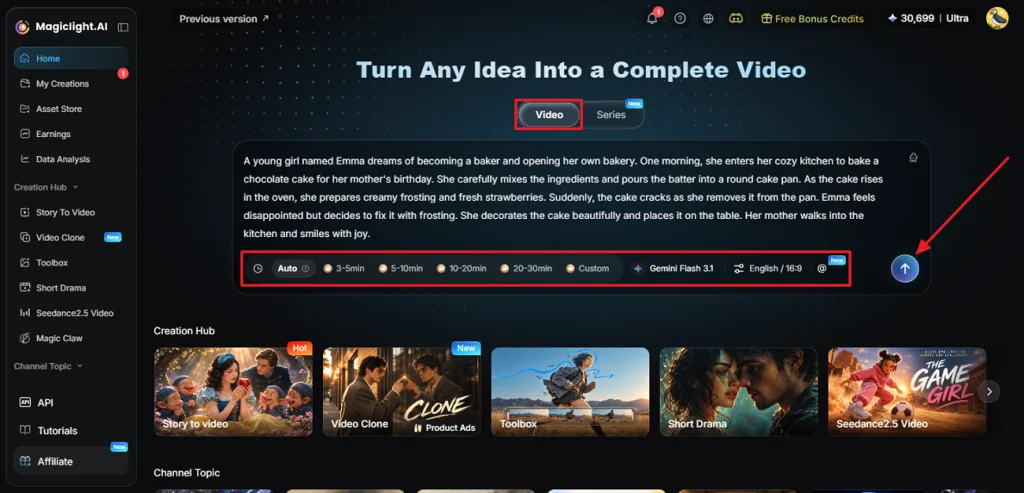
Step 1. Enter Your Video Idea
First, select the Video tab to start describing your story idea. Choose your Story Model, Aspect Ratio, and Language, then click Send to proceed.
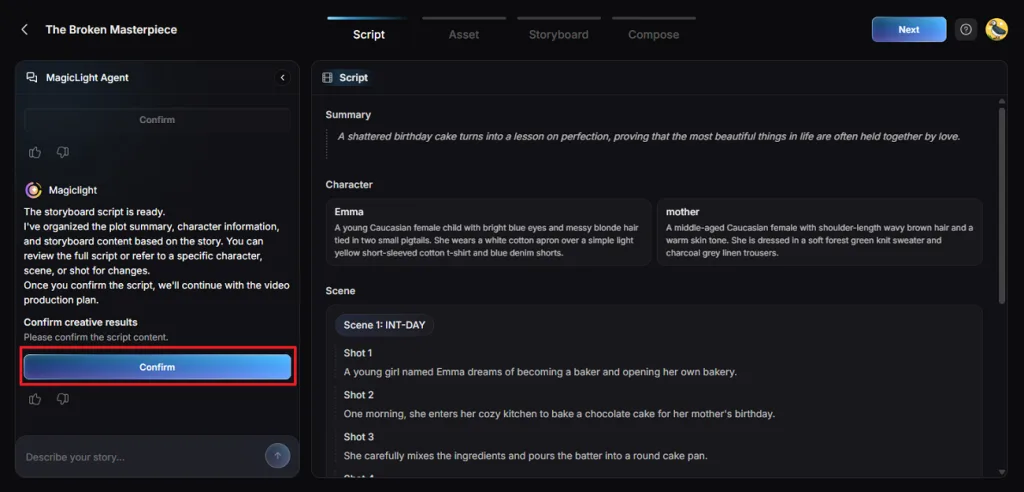
Step 2. Select the Channel Niche
MagicLight Agent analyzes your prompt and recommends a Channel Niche that matches your content. Review the suggestion, adjust the script if necessary, and click Confirm to continue.
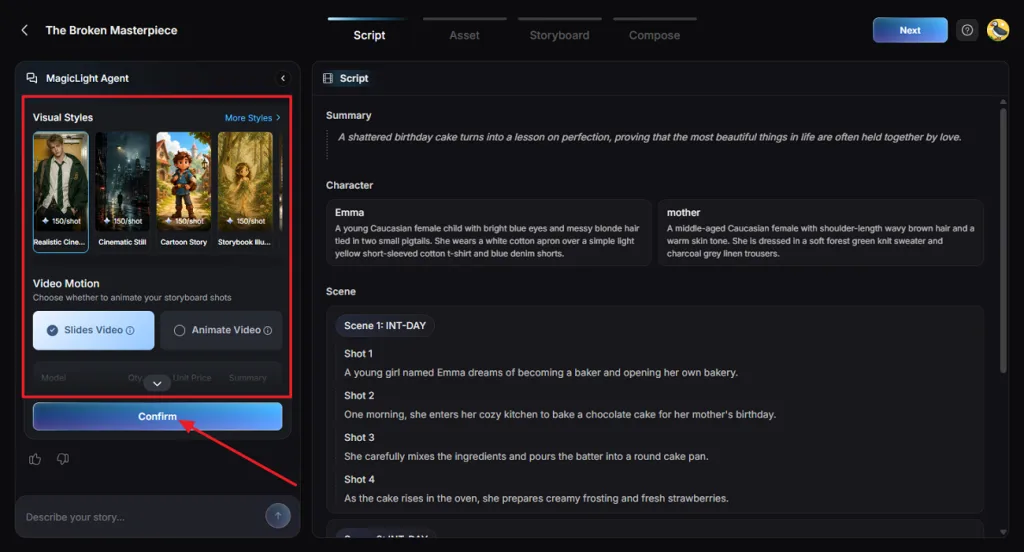
Step 3. Adjust the Video Settings
Choose a Visual Style that suits the appearance you want for your video. Select Slides Video or Animate Video, customize the available settings, and confirm your selections.
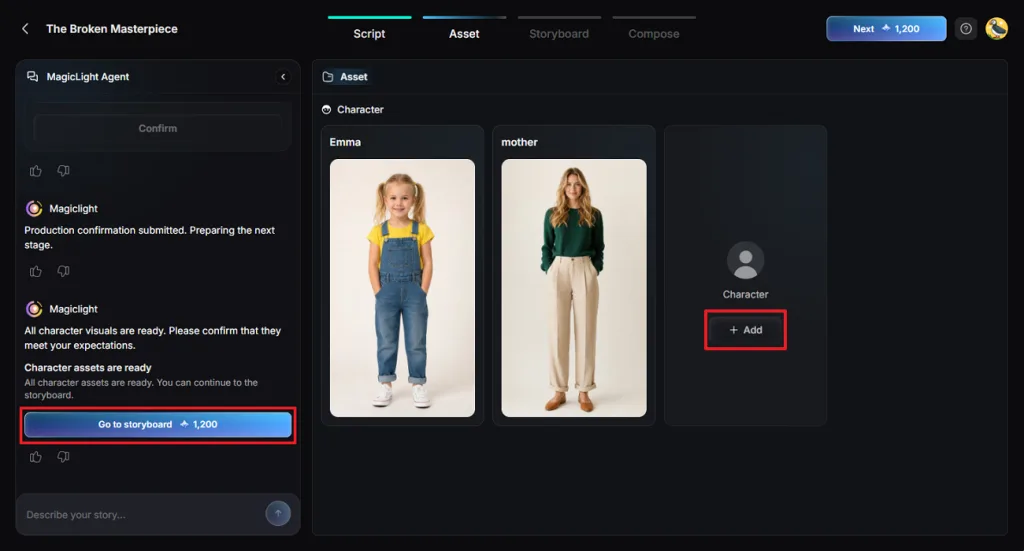
Step 4. Review Your Characters
Check the generated character images and make changes if their appearances need improvement. Use +Add to create characters through the Character Library, then select Go to Storyboard.
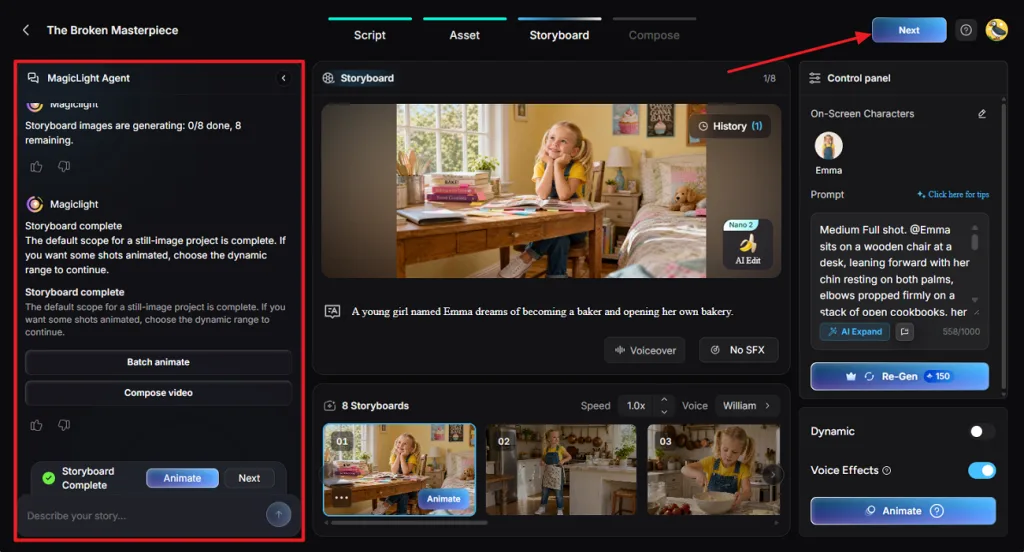
Step 5. Customize the Storyboard
Review the storyboard shots and use the MagicLight Agent panel to adjust individual scenes. Change character poses or animations as needed, then click Next when everything looks correct.
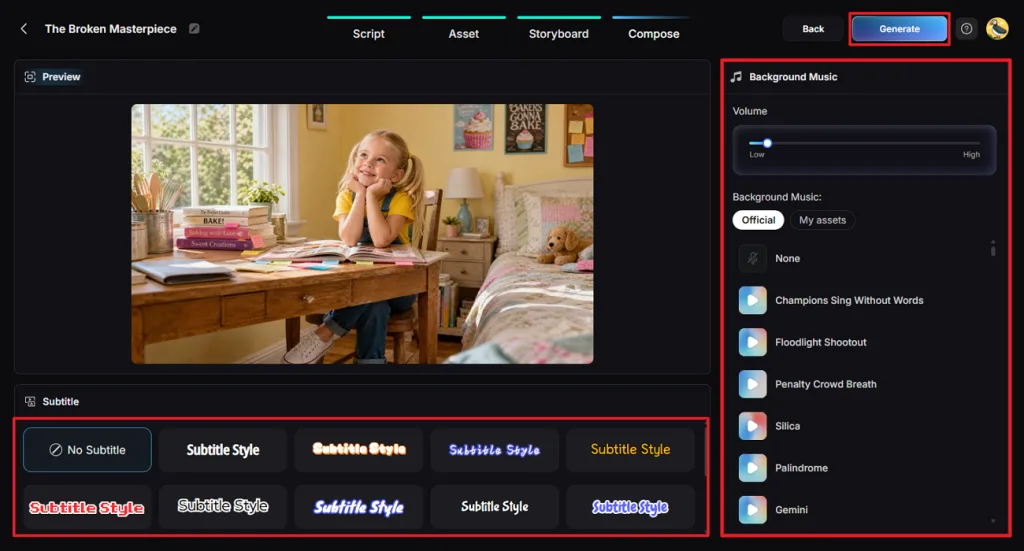
Step 6. Generate Your Video
Preview your scenes and select a Subtitle Style that matches your video presentation. Adjust the Background Music and volume, then click Generate to produce the video.
Step 7. Download the Final Video
Watch the completed video carefully to check the visuals, character movements, and narration quality. Once you are satisfied with the result, click Download video to save it.

Conclusion
To summarize, the Stable Diffusion vs Runway comparison shows different strengths for creative projects. Stable Diffusion offers greater image control, making it useful for detailed artwork and illustrations. Runway handles video generation and editing better, especially when creating short cinematic clips. However, choose MagicLight AI to make storytelling videos with consistent characters, narration, and subtitles.
FAQs on Stable Diffusion vs. Runway
- Is Runway better than Stable Diffusion?
Runway works better for video creation, offering powerful editing tools and cinematic results. Stable Diffusion gives artists more freedom to customize images without paying per generation. Your choice depends on whether you mainly want to create images or videos.
- Which tool is easier for beginners, Stable Diffusion or Runway?
Runway feels easier for beginners since everything works directly through a web browser. Stable Diffusion requires additional setup when running models locally on your own computer. However, hosted Stable Diffusion services make image generation easier without installing anything yourself.
- Which offers better AI video quality, Stable Diffusion or Runway?
The Stable Diffusion vs Runway comparison favors Runway for creating detailed video clips. Its video models produce smoother movements and more realistic scenes from written prompts. Stable Video Diffusion handles shorter animations, making Runway more suitable for cinematic projects.