
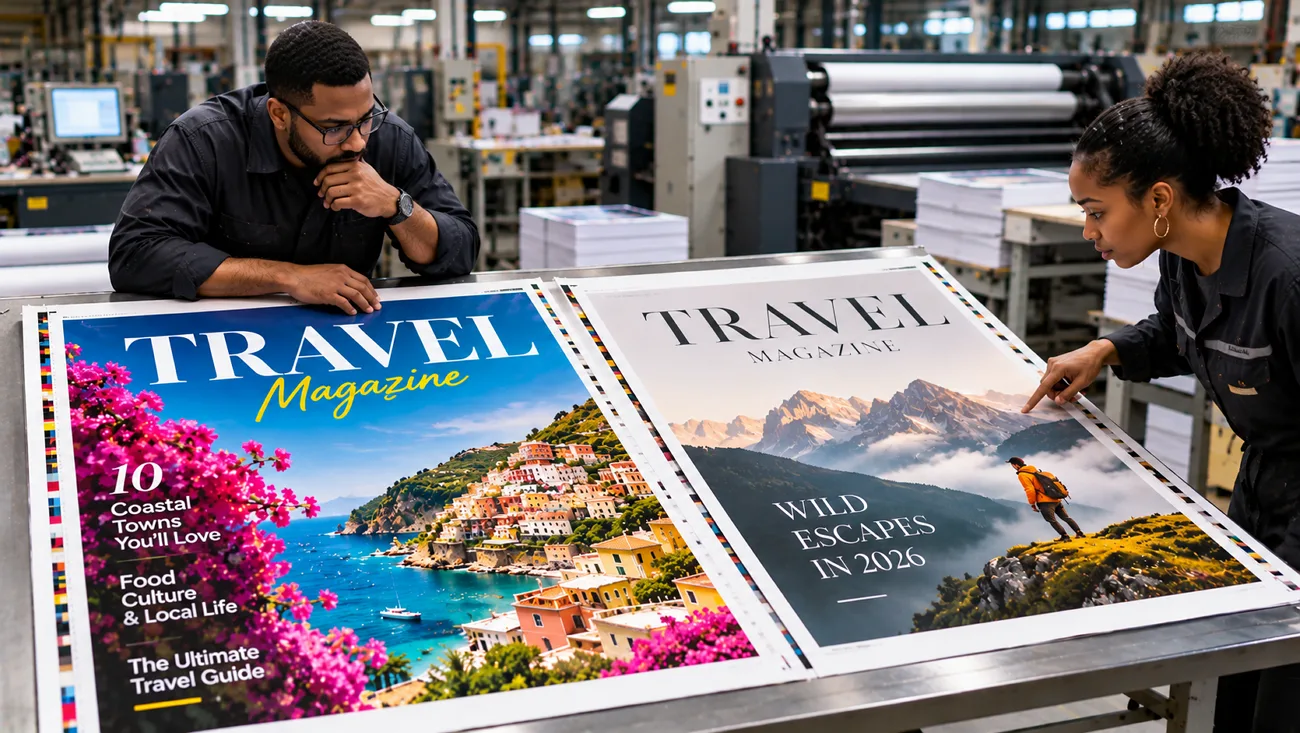
Canva and Microsoft Designer make it easy to create attractive designs from simple text prompts. However, the Canva vs Microsoft Designer comparison reveals important differences in their features and uses. Canva offers more design options for businesses and creators working on different types of projects.
Microsoft Designer focuses on making everyday graphics with AI tools that simplify the creative process. Their differences become clearer when comparing editing features, video creation, pricing, and commercial use. This guide explores both tools to help you choose the right one for your needs.
Part 1. Canva vs. Microsoft Designer: Which One Should You Choose?
The Microsoft Designer vs Canva comparison starts with how each platform handles everyday design projects. Microsoft Designer focuses on personal graphics such as invitations and social posts created using AI. Canva offers a wider workspace for creating presentations and videos alongside regular graphic design projects. Look at the table below to compare their main features and differences in 2026:
| Feature | Canva | Microsoft Designer |
| Main Focus | Complete design platform for personal and business projects | AI-powered graphics for personal projects |
| AI Design | Creates editable designs from text prompts | Generates cards, invitations, social posts and graphics |
| Image Generation | Canva AI and Dream Lab create images from prompts | AI Image Creator generates pictures, stickers and artwork |
| Photo Editing | Magic Edit, Magic Eraser, Magic Expand and Background Remover | Object erasing, background removal, framing and upscaling |
| Video Creation | Video editor with AI clips up to 8 seconds with sound | No dedicated video generation editor |
| Brand Tools | Limited Brand Kit on Free; more kits on paid plans | Personal Brand Kit with 1 saved brand |
| Collaboration | Shared projects, comments and team editing | Mainly personal design with sharing options |
| Starting Price | Free; Pro at $18/month or $12/month billed yearly | Free; paid Microsoft 365 plans provide higher AI usage |
| Commercial Use | Allowed under Canva's content license terms | Personal, non-commercial use only |
Templates and Design Range
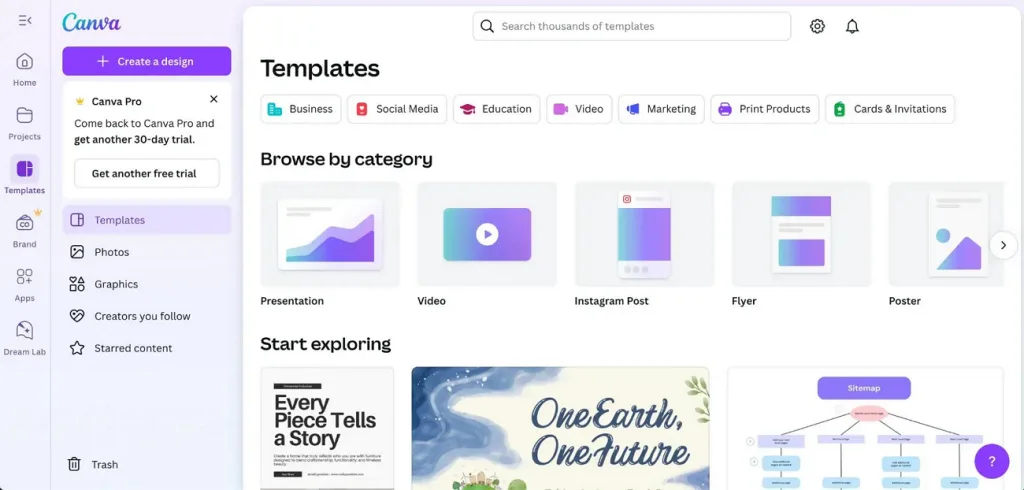
Canva offers a wider selection of templates for people working on different design projects. Microsoft Designer focuses more on personal graphics that users can create with simple prompts. Below are the main differences in their templates and supported design formats:
- Canva Templates: Canva provides a large template library covering presentations, social posts, resumes, flyers, and videos.
- Beyond Graphics: Canva also supports documents, whiteboards, websites, and interactive projects created using Canva Code.
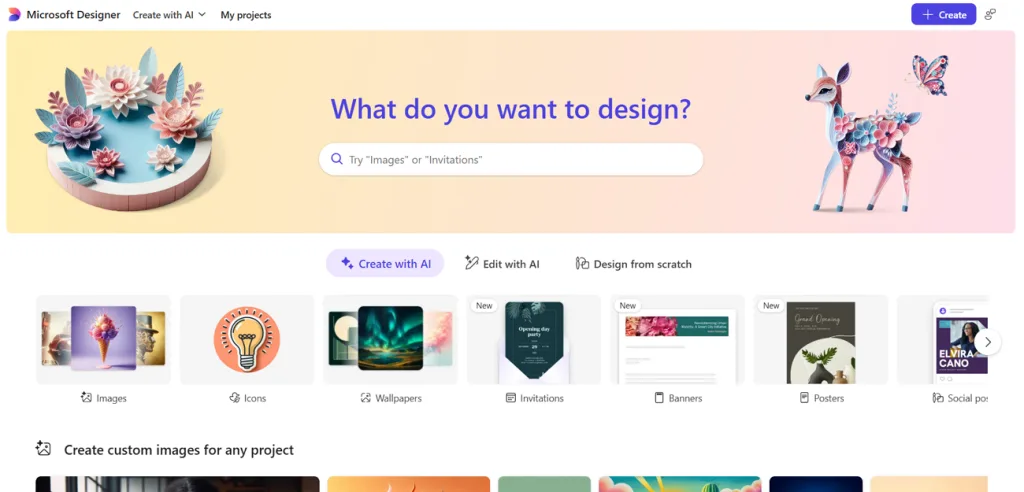
- Microsoft Designer Formats: Microsoft Designer helps users create greeting cards and invitations alongside social graphics using AI prompts.
- Print Options: Canva Print handles physical orders, whereas Microsoft Designer lets users download designs for separate printing.
AI Design and Image Generation
Canva gives users more control over generated designs with tools for making further changes. Microsoft Designer focuses on creating personal graphics quickly from simple descriptions of what users need. Here are the main AI features that show how each platform handles image creation:
- Canva AI: Users can describe their design ideas in chat and receive editable layouts for different projects.
- Craft Image Model: Canva Craft creates detailed images at 2K resolution with text support across 55 languages.
- Magic Layers: Canva separates uploaded flat images into editable elements so users can change individual details.
- Designer Image Creator: Microsoft Designer generates custom images and stickers from text prompts for personal creative projects.
- Prompt-Based Designs: Microsoft Designer turns simple descriptions into personalized greeting cards and social posts within minutes.
Photo Editing and Cleanup
Microsoft Designer vs Canva 2026 comparison also shows differences in how users edit existing photos. Both offer AI tools for removing unwanted objects, changing backgrounds, and improving ordinary pictures. Below we have the main photo editing features available in each design platform:
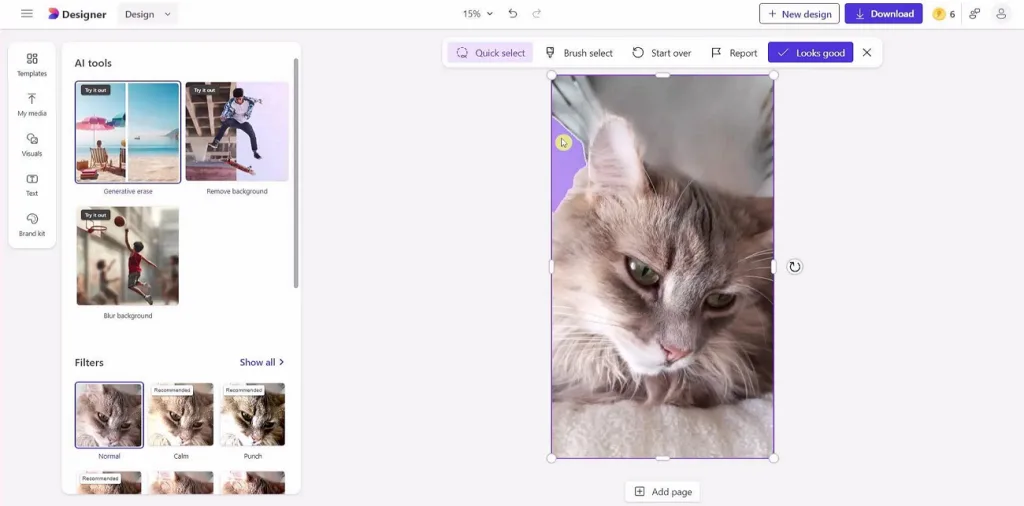
- Microsoft Designer: Frame adds decorative borders, and generative erase removes unwanted objects from photos. Users can also remove backgrounds, apply blur effects, and upscale images for better quality.
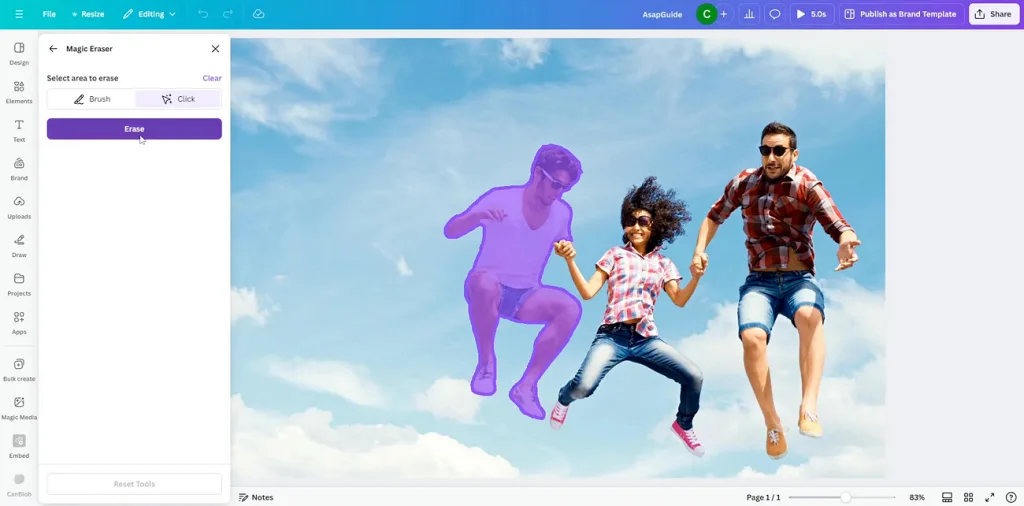
- Canva: Magic Edit replaces objects, Magic Expand extends photos, and Magic Grab separates image subjects. Background Remover removes photo backgrounds, and Magic Eraser clears unwanted objects for cleaner images.
Video and Animation
Canva supports video editing and AI video creation, whereas Microsoft Designer mainly handles still graphics. Canva AI video generator creates short clips, with editing tools available in the same workspace. Microsoft offers Clipchamp separately for users who need to edit videos beyond basic graphic design. The table below shows how both platforms compare across different video creation and editing needs:
| Video Need | Canva | Microsoft Designer |
| AI Video Generation | Creates 8-second Veo clips with sound using text prompts | No native AI video generation |
| Footage Editing | Timeline editor with trimming, transitions, audio, and captions | No dedicated video editor |
| Prompt-Based Editing | Magic Video helps turn uploaded clips into edited videos | No comparable feature |
| Animated Exports | Exports animated designs as MP4 videos or GIF files | Mainly exports still images |
Brand Tools, Collaboration, and Platforms
Canva vs Microsoft Designer also comes down to managing brand designs and working with others. Canva provides more tools for shared projects, whereas Designer connects with familiar Microsoft 365 applications. Let's explore how their brand features and collaboration options differ across everyday design tasks.
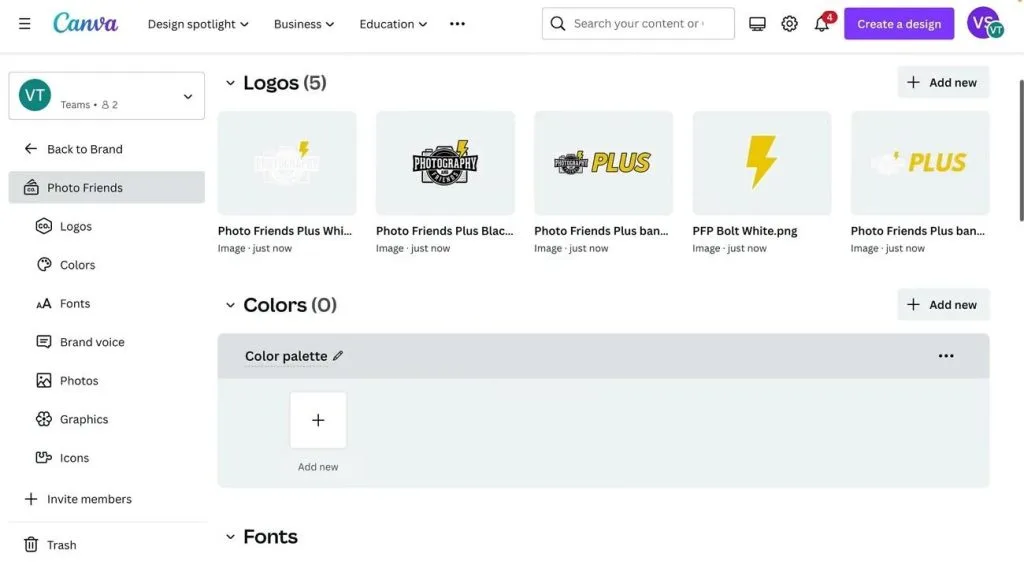
- Canva Brand Kits: Canva stores logos, brand colors, and fonts together, with additional brand management features on paid plans.
- Real-Time Collaboration: Canva lets teammates edit shared designs, leave comments, and review changes within projects.
- Device Coverage: Canva supports desktop and mobile apps, and Microsoft Designer offers browser and mobile access.
- Microsoft 365 Integration: Designer image generation works through Copilot in Word and PowerPoint, alongside other Microsoft services.
- Brand Kit Changes: Microsoft Designer removed its Brand Kit feature in October 2025 following an editor update.
Pricing and Commercial Licensing
Pricing matters, but commercial licensing can make a bigger difference when choosing between these tools. Canva supports commercial design projects under its licensing terms, including work created using free features. Microsoft Designer is intended for personal, non-commercial use, making it less suitable for business projects. Review the pricing table below to see what each plan offers for different budgets:
| Plan | Price (USD) | What It Adds |
| Canva Free | $0 | 1.6M+ templates, 5GB storage, limited AI access |
| Canva Pro | $18/month or $144/year | 3.6M+ templates, 5 Brand Kits, premium editing tools, increased AI access |
| Canva Business | $25/month per person or $250/year per person | 100 Brand Kits, team controls, approvals, higher AI limits |
| Microsoft Designer Free | $0 with Microsoft account | AI image generation, photo editing, limited free AI usage |
| Microsoft 365 Personal | $9.99/month or $99.99/year | Additional AI usage, Microsoft 365 apps, Copilot features |
| Microsoft 365 Family | $12.99/month or $129.99/year | Family subscription benefits, AI features primarily for subscription owner |
| Microsoft 365 Premium | $19.99/month or $199.99/year | Advanced Copilot features and higher AI usage limits |
Final Verdict
Canva is better suited for business projects, whereas Microsoft Designer works well for personal designs. Your choice depends on the type of content you want to create and share:
- Choose Canva: Canva suits business graphics, client projects, printed materials, team collaboration, and video editing needs.
- Choose Microsoft Designer: Microsoft Designer helps create birthday cards, invitations, stickers, and personal social posts for free.
- For Motion and Video: Neither tool specializes in creating long narrated stories with consistent characters across multiple scenes.
Part 2. Why Choose MagicLight AI Over Canva & Microsoft Designer
Canva and Microsoft Designer help create graphics, but MagicLight AI takes creativity beyond static designs. Its AI image generator offers 6 models, including Nano Banana 2.1, for different visual styles. Users can generate detailed images from text prompts and customize them with reference images.
MagicLight AI also supports video creation, helping users bring their visual ideas into motion. This makes it useful for creators who need both AI images and engaging videos.
Key Features of MagicLight AI
- Frame to Video: Turn exported Canva designs into animated clips lasting up to 30 seconds. Add another image as the final frame to guide the animation's ending.
- Reference to Video: Upload product images, logos, videos, and audio to guide new video creation. These references help generated clips match the original brand's look and feel.
- Video Clone: Upload a reference advertisement alongside product images, names, and key selling points. MagicLight AI recreates the advertisement's structure using your own product details instead.
- AI Video Models: MagicLight AI offers 20 video models, including Seedance 2.5, for video generation. Choose different models to match your preferred animation style and creative needs.
- Voices, Music, and Subtitles: Choose ElevenLabs or MiniMax voices to give your generated videos natural narration. Add Suno background music and select from 16 subtitle styles for videos.
How to Turn a Static Design into a Video with MagicLight AI
After comparing Microsoft Designer vs Canva, you can bring your static designs to life using MagicLight AI. Now, follow the steps below to turn your finished graphics into animated videos:
Step 1. Access the Video Toolbox
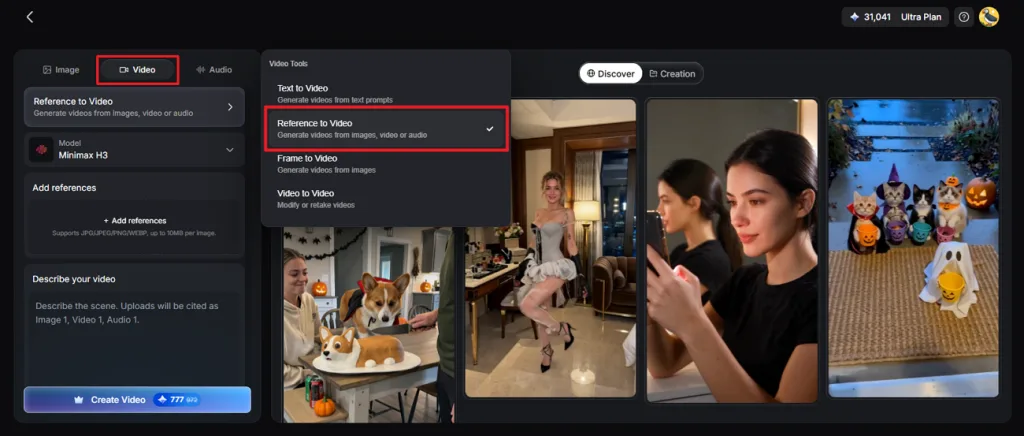
Export your finished Canva or Microsoft Designer graphic as an image and save it locally. Open MagicLight AI and choose Toolbox from the main navigation menu. Find the Video section and select Reference to Video to begin.
Step 2. Set Up Your Video
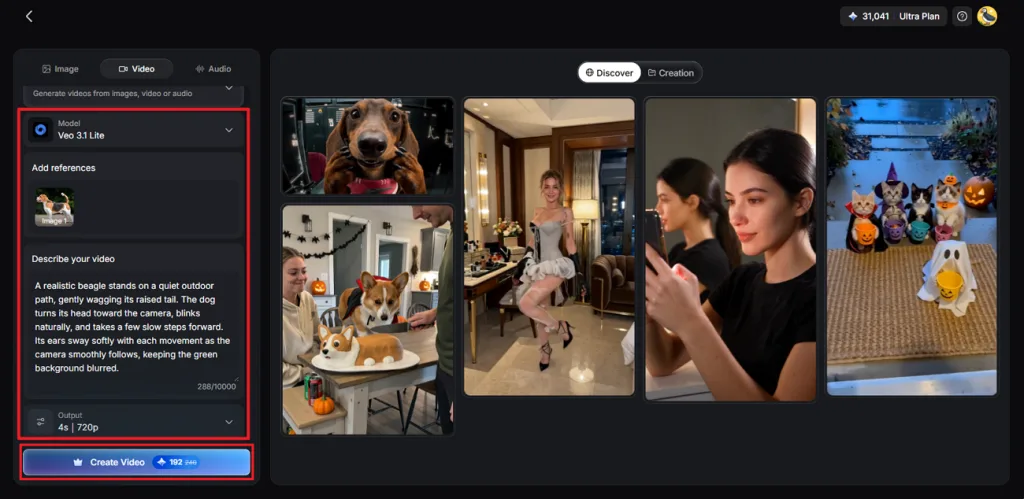
Add your exported image as a reference and explain the movement you want. Pick an AI Video Model and set the Resolution and Duration for your clip. Press Create Video to generate an animated version of your original design.
Step 3. Review and Download
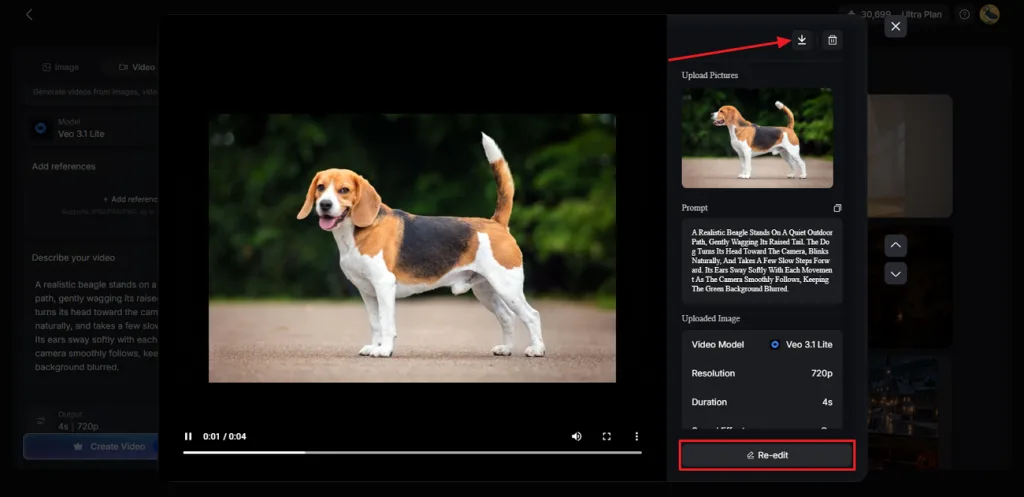
Watch the generated clip and check whether its animation looks natural and smooth. Use Re-edit to adjust anything that needs improvement before creating another version. Click the Download icon, then drag the saved clip into Canva or Clipchamp for final editing.
Conclusion
To summarize, Canva vs Microsoft Designer highlights how differently these tools support creative projects. Canva offers stronger business features, including video editing, professional templates, and team collaboration. Microsoft Designer makes personal graphics easier with AI-generated invitations, cards, and social posts. For creators wanting to animate their designs, MagicLight AI offers powerful image-to-video tools.
FAQs on Canva vs. Microsoft Designer
- What is the main difference between Canva and Microsoft Designer?
Canva provides more design tools for business projects, presentations, videos, and team collaboration. Microsoft Designer focuses on personal graphics such as invitations, greeting cards, and stickers. Canva also permits commercial projects under its license, unlike Microsoft Designer's personal-use restrictions.
- Can Microsoft Designer replace Canva for professional design work?
Microsoft Designer works for simple graphics but cannot fully replace Canva's professional design features. Its personal-use license also makes it unsuitable for creating commercial designs for clients. Canva offers better collaboration, print services, and video editing for regular business projects.
- Which tool is better for social media graphics?
Canva gives creators more templates, resizing options, and editing tools for social posts. Microsoft Designer makes personal graphics quickly using prompts without requiring much design experience. For business accounts and animated social content, Canva offers more useful creative tools.
- What is the best AI tool to turn static designs into dynamic videos?
MagicLight AI helps turn existing graphics into moving videos using AI generation tools. Users can upload reference images and describe how their finished videos should look. Its video models support different animation styles, giving creators more control over results.