


A teacher preparing online lessons wants to make YouTube videos more engaging for students. Instead of long lectures, animated visuals can simplify explanations and keep viewers interested. Learning how to make a YouTube animation video enables you to turn simple ideas into visually appealing stories and tutorials.
Today’s AI-driven animation tools allow users to create characters, scenes, and voiceovers without advanced technical knowledge. With the right workflow, animation can be produced quickly and efficiently. This guide explains the essential steps, tools, and practical tips to help you create effective YouTube animation videos in 2026.
Part 1. Types of YouTube Animation Videos
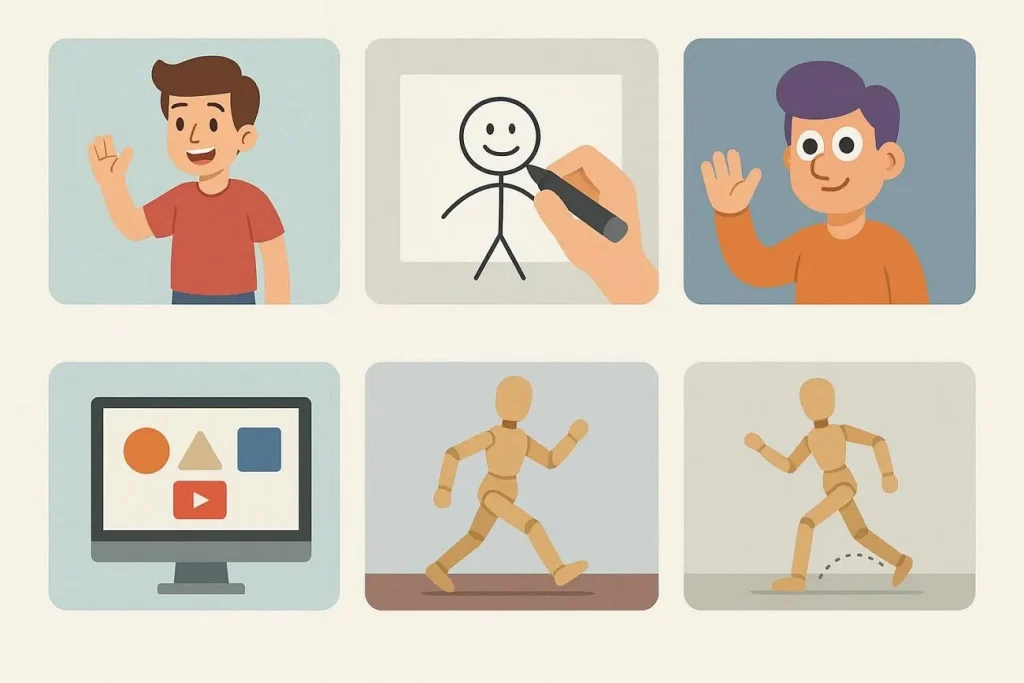
Before exploring how to make an animated YouTube video, it helps to understand the different animation styles commonly used on the platform. Provided below is a table that shows the top types of YouTube animation videos that people watch:
| Animation Type | Description |
| 2D Animation | Uses flat characters, backgrounds, and movements created frame-by-frame or with animation software. |
| Whiteboard Animation | Shows drawings appearing on a white background as if they are being sketched in real time. |
| 3D Animation | Creates lifelike characters and environments with depth and realistic movement. |
| Motion Graphics | Animates text, icons, and shapes to visually present information. |
| Stop Motion Animation | Uses real objects or models, photographed frame by frame, to create movement. |
Part 2. Complete Guide to Make a YouTube Animation Video Like a Pro
Creating a professional animation for YouTube is no longer limited to experienced animators or large production teams. Provided below is a detailed guide on how to make a YouTube video with animation:
Planning Stage to Make a YouTube Animation Video Right
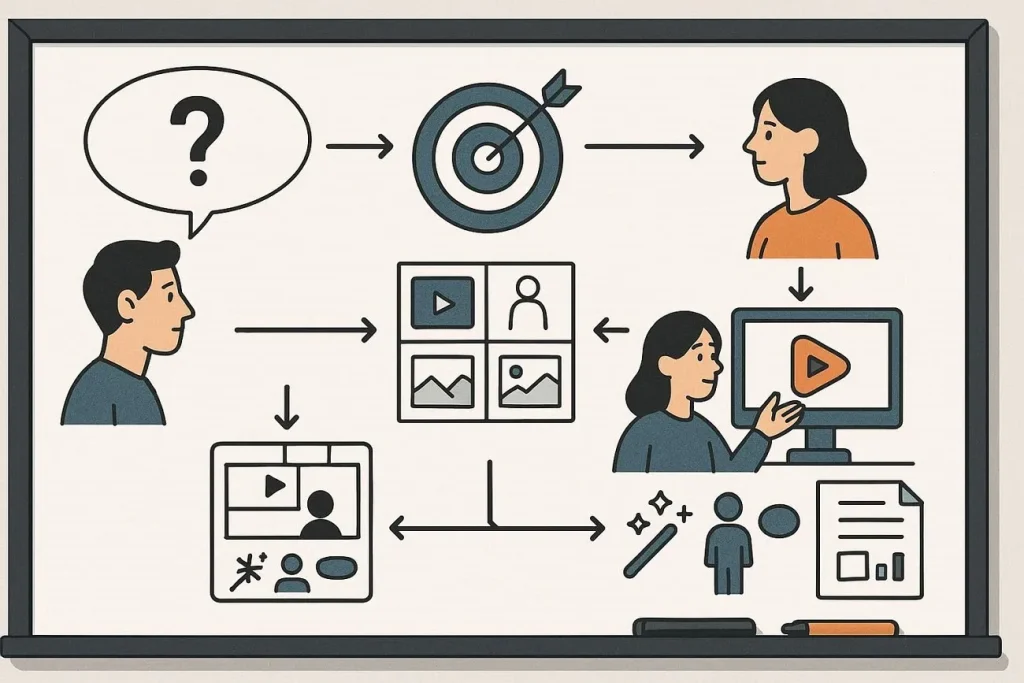
A well-structured plan helps ensure your animation video looks professional and delivers a clear message. Following a few simple planning steps can make the production process much smoother.
Step 1. Define the Goal of Your Video
Start by identifying the animation's main purpose. Decide whether the video is meant to educate, entertain, promote a product, or tell a story.
Step 2. Identify Your Target Audience
Understanding who will watch your video helps you choose the right storytelling style and visual approach. For example, educational animations for students may use simple visuals, while marketing videos might focus on clear product demonstrations.
Step 3. Create a Storyboard
A storyboard is a visual plan showing how each scene will appear in the video. It helps you map out character actions, background elements, and transitions between scenes before starting the animation.
Step 4. Decide the Animation Style
Choose the animation type that best suits your content, such as 2D animation, motion graphics, or whiteboard animation. The style should match your channel theme and help deliver the message effectively.
Step 5. Plan Video Length and Visual Elements
When learning how to make an anime video on YouTube, determine how long the animation will be and what visual elements will appear. This includes characters, icons, or text overlays. Shorter videos with clear visuals often perform better on YouTube and keep viewers engaged until the end.
Tools & Setup to Make a YouTube Animation Video Easily
Choosing the right animation tool can significantly reduce the time and effort required to produce high-quality content. Today, AI-powered platforms allow users to convert scripts or prompts directly into animated scenes. One such tool that simplifies this process is MagicLight AI. It is an AI-driven video creation platform designed to transform stories or text prompts into animated videos. It helps creators generate characters and scenes automatically, making it suitable for beginners.
The platform focuses on story-to-video generation, allowing users to quickly visualize ideas without manually designing every animation frame. With its automation features, creators can produce YouTube-ready animated videos in a much shorter time compared to traditional animation workflows. Using its Magic Claw feature, you can create, publish, and track your YouTube video in a single interface.
Key Features Offered by MagicLight AI
- AI Character Creation: The platform generates customizable characters based on your story’s style and tone. You can modify appearances, outfits, and expressions to suit your content.
- Automatic Lip Sync: MagicLight AI synchronizes character mouth movements with recorded or generated voiceovers. This ensures realistic dialogue delivery without manual adjustments.
- Voice Cloning: You can replicate your own voice or other voices for narration. It enables consistent, personalized audio across multiple videos.
- AI Narration: The tool can generate natural-sounding voiceovers from your script. This feature removes the need for professional recording equipment or voice actors.
How to Make a YouTube Animation Video With MagicLight AI?
Once you have your script and concept ready, AI-powered platforms can streamline the production process. Instead of manually animating each frame, MagicLight AI allows you to generate scenes, characters, and narration automatically. The process below explains how to make a YouTube animation video using MagicLight AI from start to finish:
Step 1. Start Your Animation Project
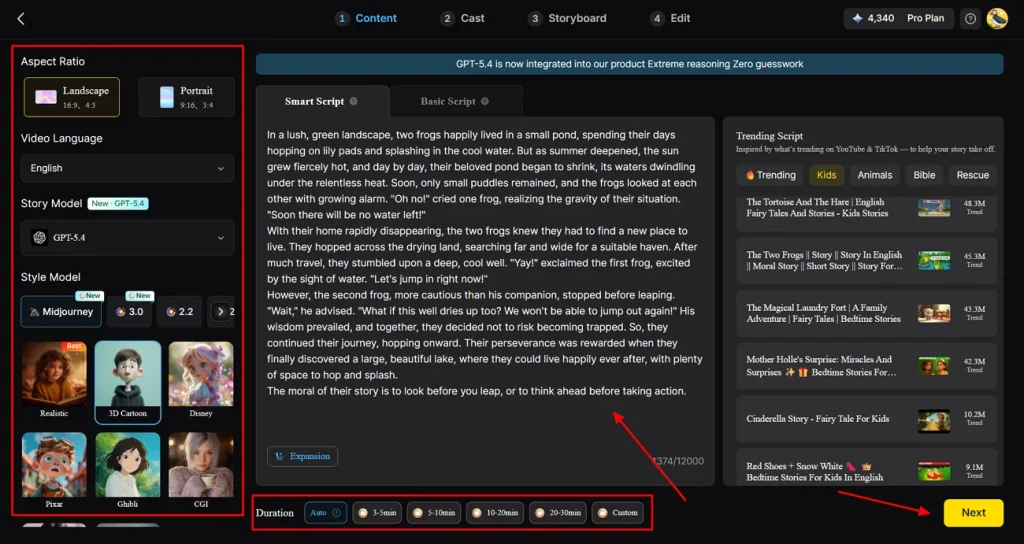
Open MagicLight AI’s Story to Video tool and select the aspect ratio and duration for your YouTube animation. Choose the video language, story model, and style model, then input your script into the Smart Script tab for AI optimization. Click Next to begin creating your animated video.
Step 2. Review AI Scene Plan
Check the AI-generated scene-by-scene summary to ensure it fits your animation concept. Adjust scenes, transitions, or timings using the scene controls, then click Next to continue shaping your YouTube video.
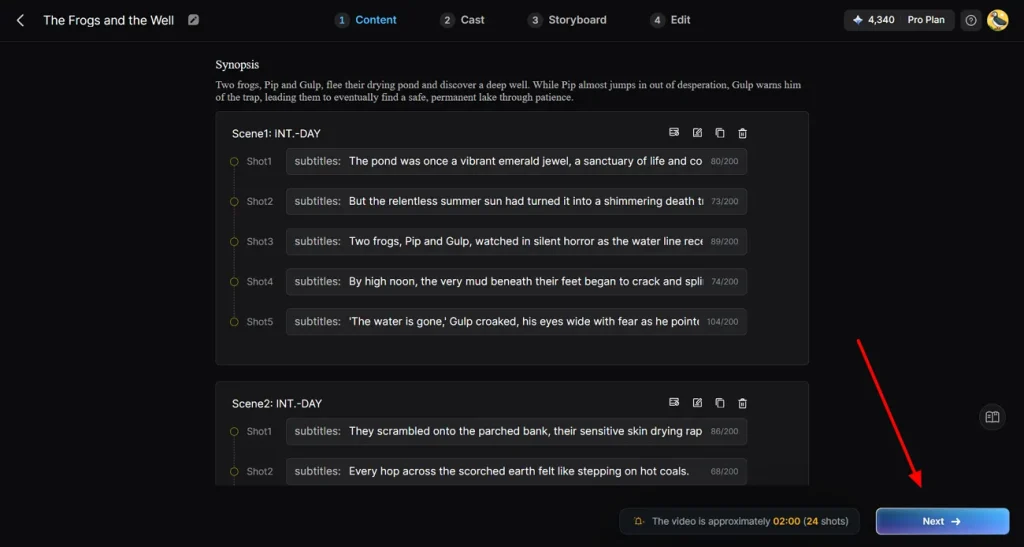
Step 3. Pick Video Characters Carefully
MagicLight AI detects characters in your script and recommends options. Browse extra characters if needed, confirm your selections, and click Next Step to bring your animation to life.
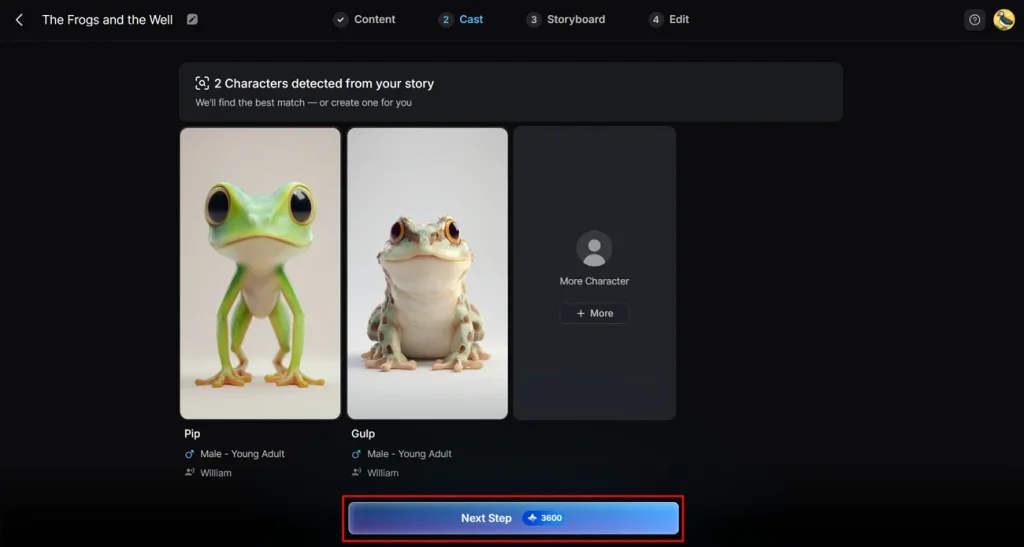
Step 4. Refine Storyboard Animations
Look through each storyboard scene to ensure smooth visual storytelling. Modify character poses, expressions, and attire to match your video’s style before proceeding and press Next.
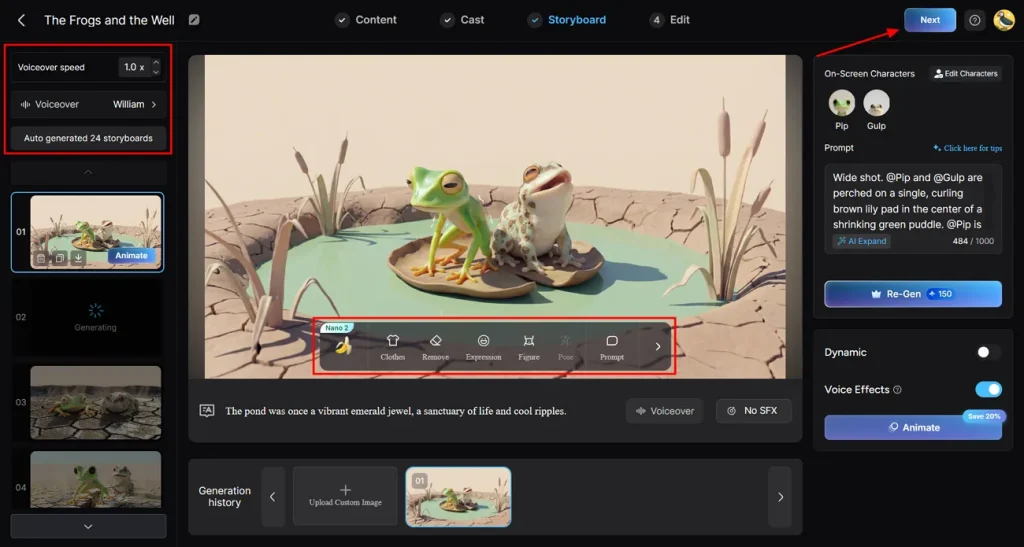
Step 5. Customize Subtitle Appearance
For dialogue or narration, select a subtitle style that complements your YouTube animation design. Once configured, click Generate to produce the AI-animated video.
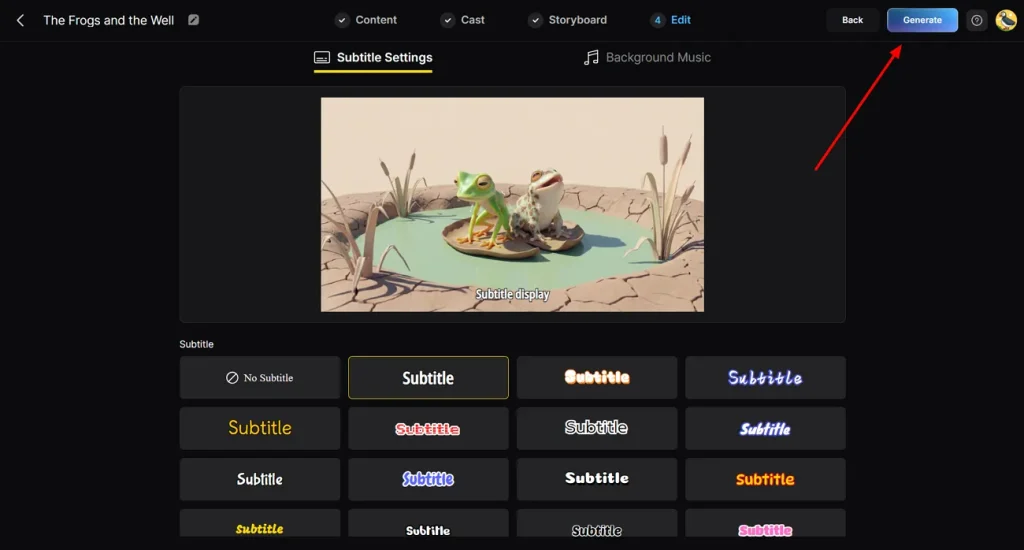
Step 6. Final Review and Export
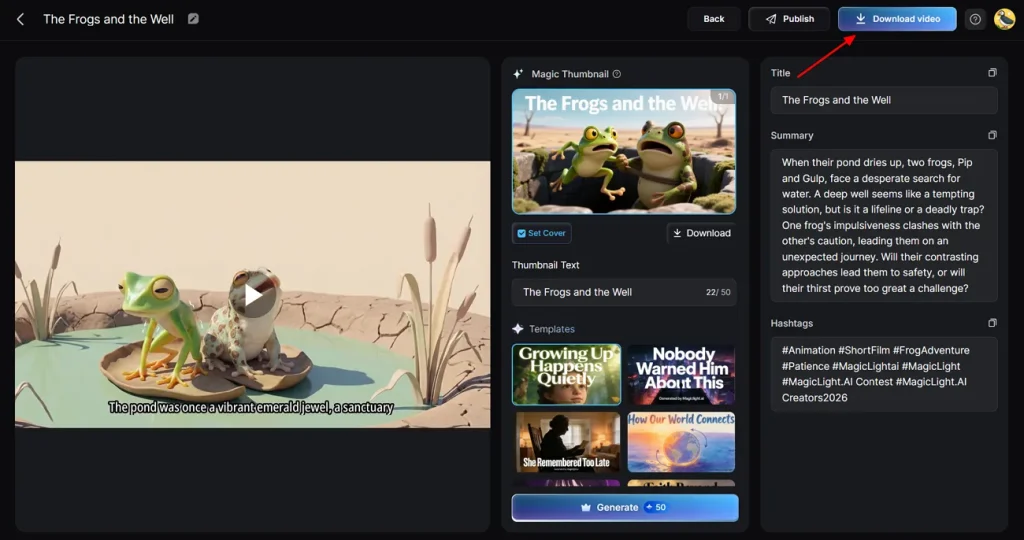
Watch the generated animation to check the visuals, cover image, and thumbnail suitability for YouTube. When everything looks polished, click Download Video to save your completed YouTube animation.
Conclusion
To wrap it up, this article provided a detailed guide on how to make a YouTube animation video, covering planning, tools, and step-by-step production. By following these stages, creators can produce engaging, professional-looking animated content even without prior experience. Among the available tools, MagicLight AI stands out for its AI-powered story-to-video generation, automatic character creation, and easy scene editing.
FAQs on How to Make a YouTube Animation Video
1. What tools help make a YouTube animation video easily?
MagicLight AI is one of the top tools for creating animated YouTube videos quickly. The tool character creation, scene generation, and voiceovers, reducing the technical effort for creators.
2. How long does it take to make a YouTube animation video?
The time depends on the video length and complexity, but modern AI tools can produce short animated videos in under an hour. Longer or highly detailed animations may take several hours, especially if you refine characters, scenes, or voiceovers manually.
3. Can beginners make a YouTube animation video for free?
Yes, beginners can start creating animated videos using free AI tools like MagicLight AI with basic features. Free versions allow script-to-video generation and character selection, making it accessible without prior animation experience.
4. How to make an animated YouTube video without experience?
AI-powered platforms like MagicLight AI simplify the process by automating scene creation, lip-sync, and narration. By following a guided workflow, anyone can produce polished animated videos without prior technical skills.
5. How to make a YouTube video with animation on mobile?
You can create animated YouTube videos directly on your smartphone using the MagicLight AI mobile app. It lets you input scripts, choose characters, and generate fully animated scenes, making professional animation possible on the go.



![How to Make a Marketing Video 2026 [Step-by-Step Guide]](https://magiclight.ai/wp-2/wp-content/uploads/marketing-goal-planning-guide-300x200.png)