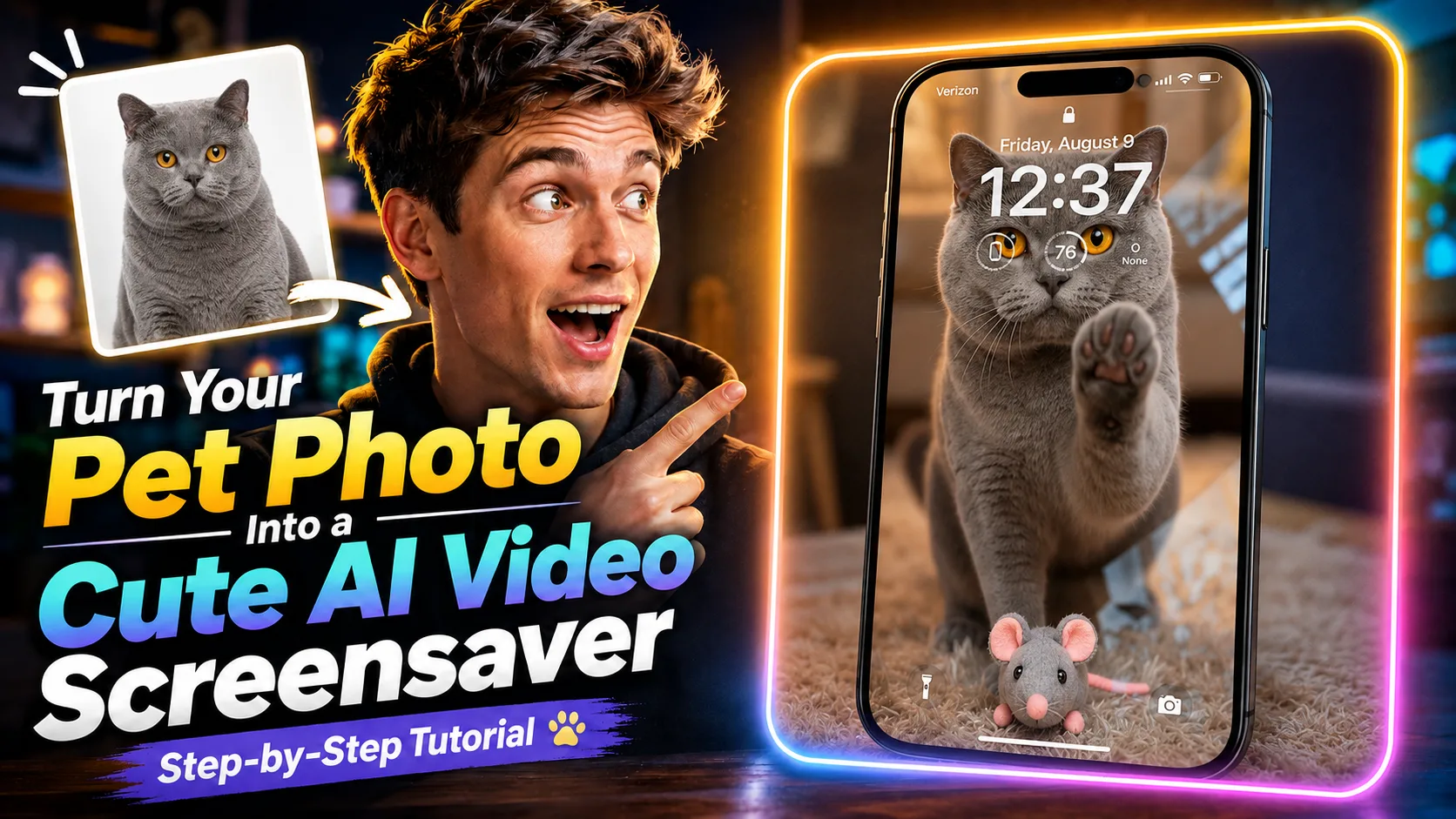
Want to turn your favorite pet photo into an adorable moving screensaver? With Magiclight, you can animate a single image and create a charming little video in just a few steps.
This quick tutorial shows you how to upload your pet’s photo, select Seedance 2.5, and generate a screensaver-style video with no complicated editing.
Watch the full video for the complete walkthrough, then copy the prompt below and try it with your own pet photo.
What You’ll Create
You’ll create a short animated video that brings your pet photo to life. The finished result is ideal for a cute screensaver-style visual or simply a fun clip to keep and share.
All you need to begin is one clear photo of your pet.
1. Open Generate Video in Magiclight
Go to Magiclight.ai and click Toolbox.
From the available tools, choose Generate Video to open the video creation workflow.
2. Upload a Photo of Your Pet
Upload the pet photo you want to animate. Choose an image that clearly shows your pet so it can serve as the visual starting point for the generated video.
3. Select Seedance 2.5
In the model options, select Seedance 2.5.
This is the model used in the tutorial to turn the uploaded pet photo into the screensaver-style video.
4. Add the Prompt
Use the following prompt to guide the cat’s actions, expression, setting, and final composition.
Prompt
Fixed camera, single continuous take. A cat is in a warm, cozy real home living room with a softly blurred background. A perfectly transparent glass sheet sits flush with the lens, so the cat feels like it is right on the other side of the screen. The glass starts clear.
The cat looks directly into the camera as if noticing someone outside the screen. After a brief pause, it turns, walks a short distance, picks up a small cute toy in its mouth, and carries it back. The toy can be a plush mouse, tiny plush heart, or yarn ball.
The cat comes close to the glass and gently places the toy down in front of it, like offering a gift to the viewer. Then it lifts one front paw and lightly touches the glass once, with soft realistic paw-pad contact. After that, it lowers the paw, stays close behind the toy, and looks at the camera with a sweet, expectant expression. Finally, it leans a little closer and gives one soft blink, holding the gaze for a moment.
Realistic, warm, healing, intimate. No phone frame, no UI, no text, no subtitles, no camera movement, no cuts, no cartoon style, no 3D animation feel, no human hands, no automatic effects.
Strict order: look at camera → turn away → pick up toy → carry it back → place toy down → touch glass once → look at camera → lean closer → blink.
5. Generate Your Video
Click Generate and wait for Magiclight to finish creating the video.
Once generation is complete, your cute pet screensaver video is ready to preview.
Try It Yourself in Magiclight
That’s the entire workflow: open Generate Video, upload a pet photo, choose Seedance 2.5, add the prompt, and click Generate.
Try it with a favorite photo and see how your pet looks in motion.
![6 Best Picture Modification Apps in 2026 to Try [New List]](https://magiclight.ai/wp-2/wp-content/uploads/best-picture-modification-apps-for-photos.jpg-300x200.webp)
![How to Turn Audio File Into Video in 2026 [Full Guide]](https://magiclight.ai/wp-2/wp-content/uploads/audio-to-video-conversion-guide.jpg-300x169.webp)

![How to Make an AI Movie in 2026 [Step-by-Step Guide]](https://magiclight.ai/wp-2/wp-content/uploads/ai-movie-creation-journey-posters.jpg-3-300x169.webp)