Today, Google’s Veo video models already let creators turn short text prompts into smooth, detailed clips in minutes. With Veo 3.1, people generate vertical videos, sharper motion, and more consistent characters directly from simple ideas. Many creators now look ahead to the latest Veo, expecting longer clips, smarter controls, and higher visual quality.
They want to know how this next update could change daily content workflows across YouTube, marketing, and education. This article explains today’s Veo models, what Veo 4 might offer, and why it matters for creators.
Part 1. Google Veo 4: Google's Next AI Video Innovation
Google Veo 4 is commonly used as the name for Google’s next major AI video model. It refers to the upcoming generation of Google’s video technology that turns text prompts and images into clips. Veo 3.1 already introduced more realistic results, so Veo 4 is seen as the natural follow‑up in that line. Google has not confirmed the official release date of Veo 4 to the public yet.
However, many expect a reveal or launch around major Google events, based on past yearly update patterns. People expect Veo 4 to focus on stronger real‑world use, from content creation to marketing and education. Many creators now treat “Google Veo 4” as the label for Google’s next big jump in AI video.
Expected Upgrades of Google Veo 4
- Longer clips expected, possibly 30 seconds or more instead of today’s short 8‑second shots.
- Stronger scene consistency rumored, with objects, frames, and characters staying stable across whole sequences.
- Multi‑angle scenes may generate several camera views at once, like front, side, above, and behind.
- Advanced prompt control could accept detailed camera instructions, like lens choice, movement direction, and slow‑motion timing.
- Interactive editing might let users adjust scenes during generation, avoiding full reruns and saving cost.

Part 2. How is Google Veo 4 Better Than Before
Many creators now compare Google Veo 4 with other strong AI video models to see practical differences. They look at video realism, scene length, motion quality, and how reliably each tool fits real production work. Some models specialize in short, very realistic clips, while others focus on longer videos made from one prompt.
When readers search “When is Veo 4 coming out,” they also want to know if waiting is truly worth it. Now, look at the table below to quickly compare Veo 4 with these other leading AI video models.
| Model | Main Use/Type | Generation Style | Typical Video Length | Standout feature |
| Google Veo 4 | Next Google Veo model | Makes videos from text and images | Aimed to go beyond 30 to 60-second clips | Built on Veo 3.1, meant for more serious production projects |
| Veo 3.1 | Google model in Gemini and Google Vids | Text‑to‑video and image‑to‑video | 8 seconds base, up to 30 to 60 seconds extended | Supports vertical 9:16, reference images, 1080p, and 4K output |
| Kling 2.6 | Kling AI cinematic short‑video model | Text‑to‑video with strong motion control | 10 seconds, sometimes 15 seconds | Realistic motion and camera moves with audio‑visual sync |
| Seedance 2.0 | ByteDance Seedance short‑form model | Text‑to‑video for social clips | Around 12 to 15 seconds per video | Made for social videos with template‑style tools |
| Seedance Pro (InVideo) | Seedance is used inside InVideo for long videos | Multi‑segment video from one prompt | Up to 30 minutes per video | Full-length videos from a single prompt |
Part 3. Magiclight.AI: A Perfect Video Generation Platform With Veo 4
Many creators struggle with AI tools that limit video length, break character consistency, and feel confusing to control. This is where Magiclight.AI comes in, combining Google Veo 4 for text and image‑to‑video with more than 18 models. Inside one platform, you can switch between Veo 4, Seedance 2.0 Fast, Kling 3.0, Gemini 3.5 Flash, and more as needed.
Unlike many AI video generators, Magiclight.AI focuses on creative freedom instead of strict caps and confusing limits on usage. Magiclight.AI helps creators quickly turn ideas into polished vertical or horizontal videos that feel cinematic, emotional, and platform‑ready. All of this runs in a simple guided workflow, so beginners and pros can publish faster with confidence.
Key Features
- Long-Form Videos: Make videos up to 50 minutes long for complete stories and detailed ideas.
- Story to Video: It allows you to turn a written story of 12,000 characters into a full video.
- Character Consistency: Keep characters looking the same in every shot, with stable faces and style.
- Different Visual Styles: It offers many styles, so videos match different themes, moods, and creative directions.
How to Turn Stories Into Videos Using Magiclight.AI
Having introduced the key features, follow these steps to understand how Magiclight.AI fits real projects. These simple steps show how MagicLight.AI can turn your ideas into complete, ready‑to‑share videos:
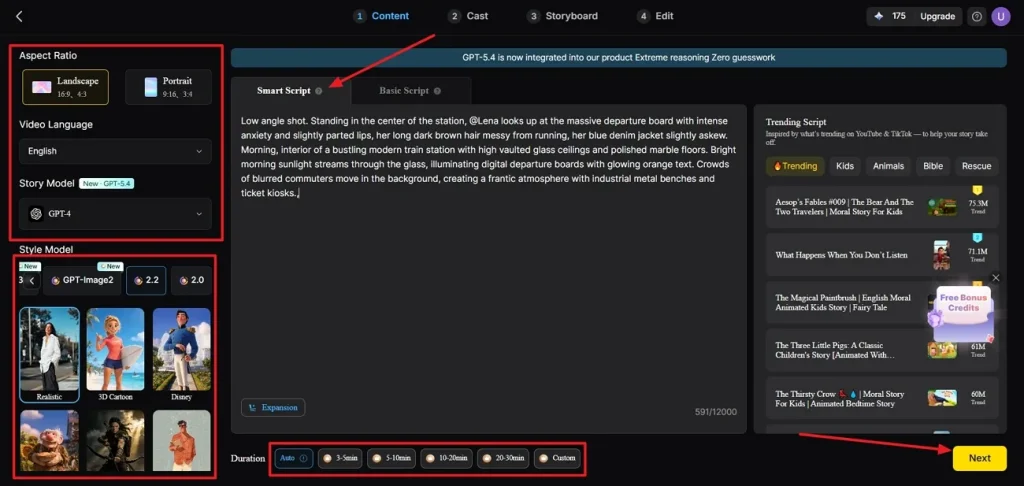
Step 1. Set up a New Story to Video Project
After you enter the Story to Video tool, press the Smart Script tab and write a script for your video. It will optimize your script. Afterward, select an appropriate Aspect Ratio and Duration for your video. Next, pick a Video Language, choose a Story Model, and select a Style Model. Now, click the Next button to proceed further.
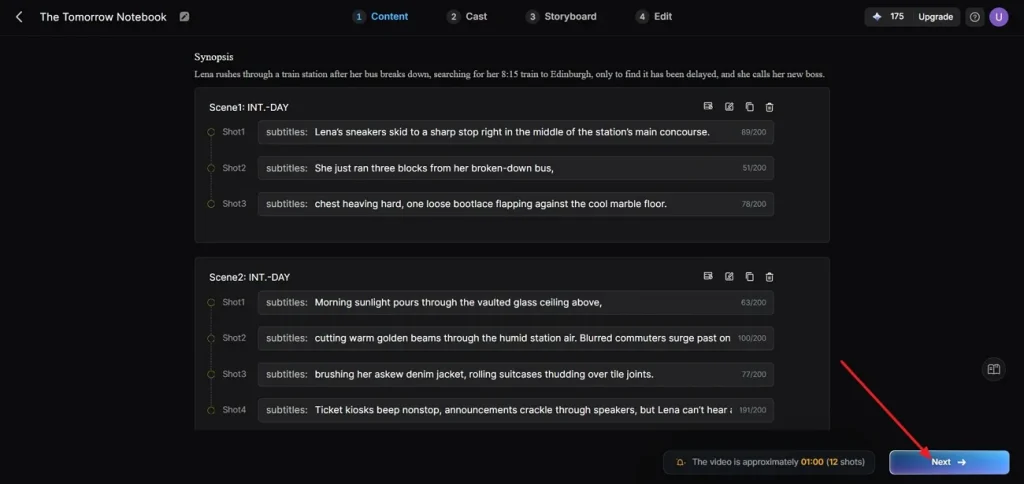
Step 2. Review the Scene Breakdown
In the next interface, review all the scenes and the Synopsis breakdown. If any adjustment is required, use the Controls. Once the scene layout is finalized, click the Next button to proceed further.
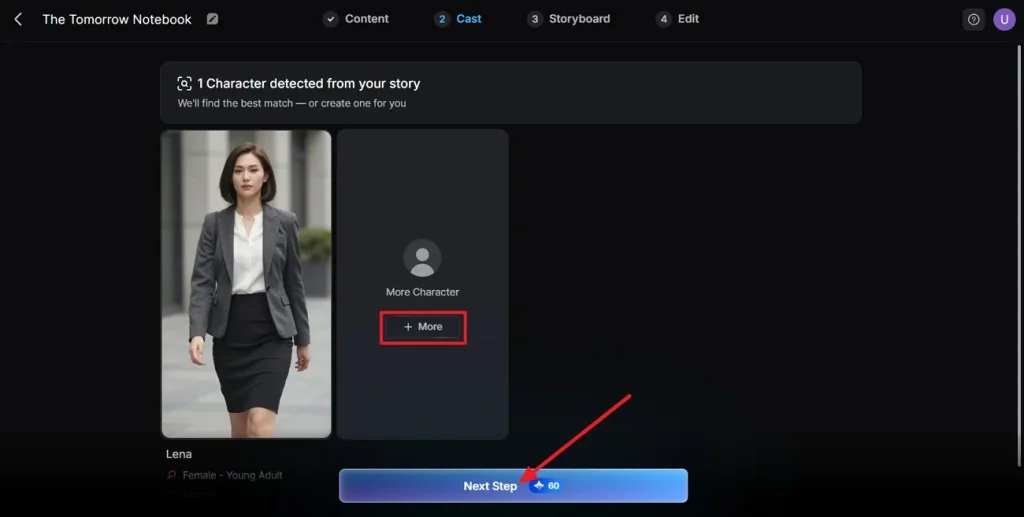
Step 3. Select a Character for Your Video
After that, the tool will analyze your script and suggest characters based on it. Click the More button to explore more character options. If the character that the tool suggested is finalized, click the Next Step button.
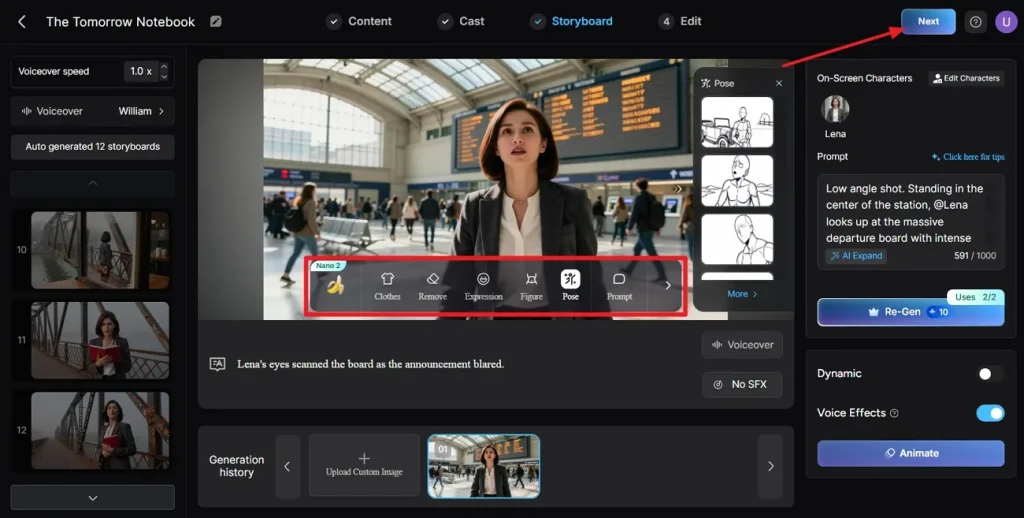
Step 4. Review The Storyboard
Next, in the generated Storyboard, review all the boards. If any adjustments are required in the Clothes, Poses, and Expressions, use the Controls below to amend. After the storyboard is finalized, click the Next button at the top.
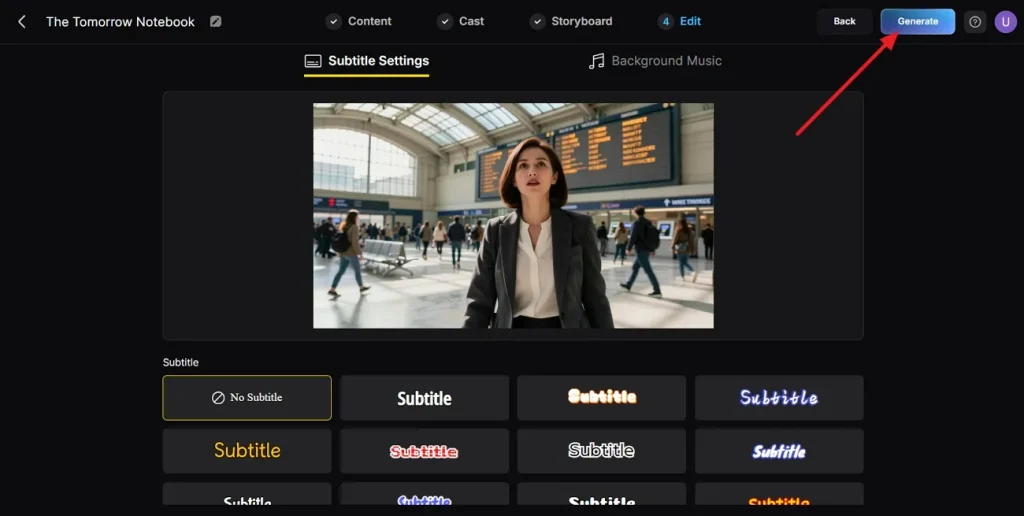
Step 5. Choose Subtitles Style
If the AI video includes some dialogues, choose a subtitle style from multiple options and click the Generate button in the top right corner.
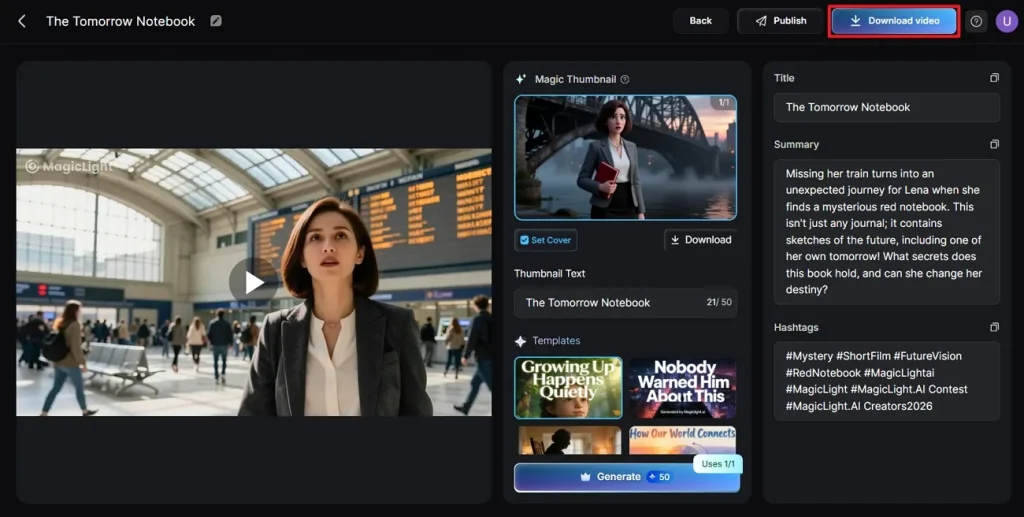
Step 6. Download Final Generated Video
After the tool generates the video, play the video. Review the cover, thumbnail, and hashtags. Once the video is finalized, press the Download Video button to download the video.
Conclusion
To conclude, creators now compare the best AI video generation models for real, daily workflows. Veo 4 points toward longer, more controllable clips that feel closer to traditional production footage and planning. If you want a flexible way to test different ideas, we recommend Magiclight.AI for story‑driven projects.
FAQs on Veo 4
1. Is Google Veo free?
Google now offers some Veo access for free, usually with limited monthly generations for testing. For heavier or commercial use, you normally need paid plans or third‑party platforms that integrate Veo.
2. What does Veo 4 offer to its users now?
Veo 4 can create short, high‑quality videos with realistic motion, details, and smooth camera movement. Users get advanced controls like prompts, upscaling, and audio options for professional results.
3. Is there something better than Veo 4?
Some users want long stories, character consistency, and simple workflows, not just short Veo 4 clips. Magiclight.AI combines multiple engines, including Gemini Veo 4 style models, to build story‑driven videos.
4. How to use the Veo 4 model for free?
Direct Veo access is limited, but some sites offer free trials or low‑limit generations for testing. Magiclight.AI lets you try Veo‑style models inside its editor, then expand into longer projects later.